
01Who this is for
- Customer support teams can address multiple clients in one thread, reducing repeat messages.
- Real estate agents can coordinate with buyers, sellers, and co agents together, keeping everyone informed.
- Healthcare practices can communicate with a patient’s family members in one conversation, ensuring consistent updates.
02Group chat for SMS, explained
Group Chat for SMS lets you combine several contacts into a single SMS conversation. Users choose a LeadConnector number, add between two and nine participants, and exchange texts, images, and files in that shared thread.
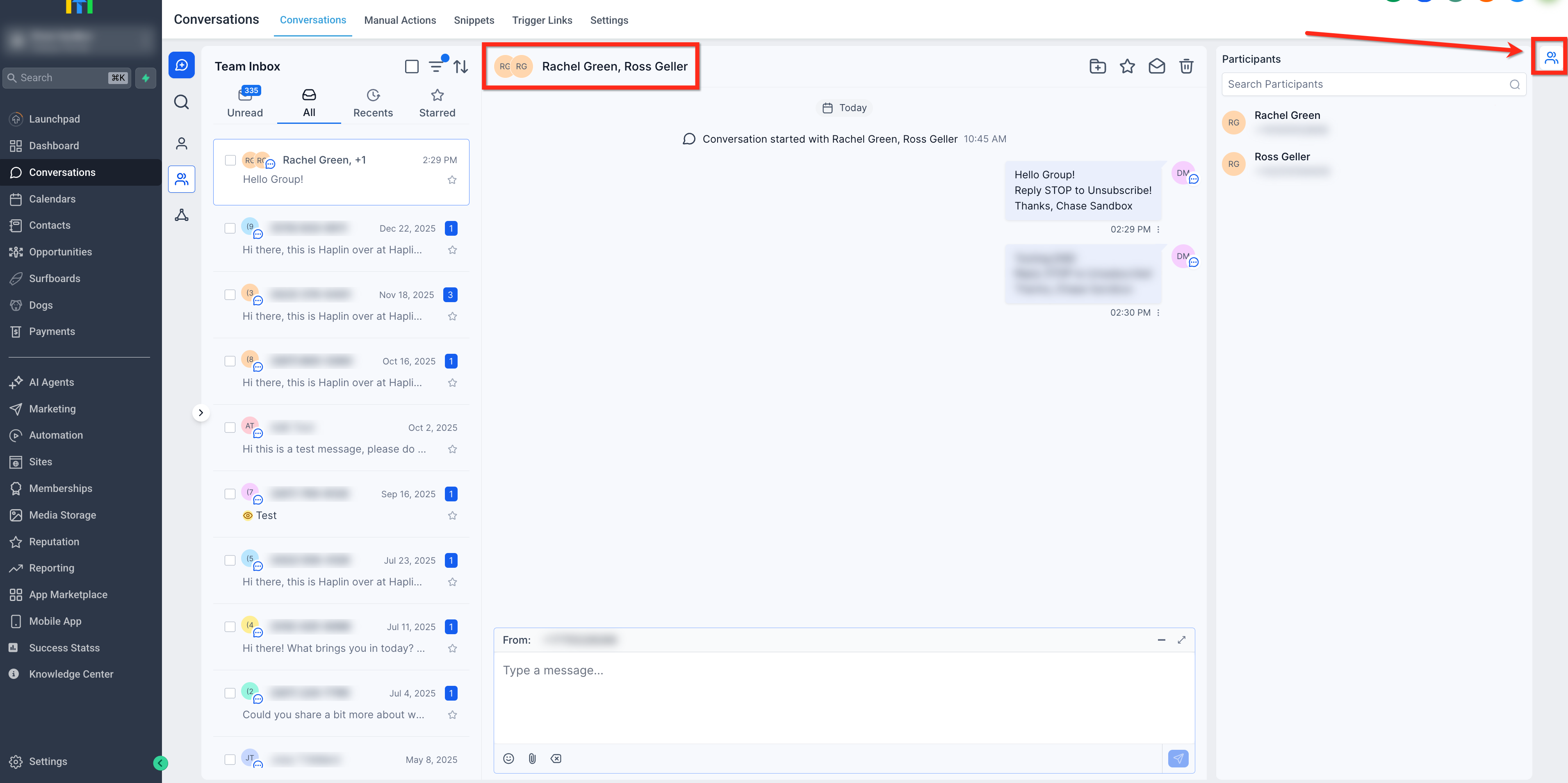
The feature lives inside the Conversations section of the platform. From the desktop sidebar or the mobile app’s Conversations tab, you can start a new group, name it, and send messages just like in a one on one chat. Participants see the full history and receive push notifications for new messages.
03How businesses use group chat for SMS
- Dental practice. A dental office creates a group chat with a patient, parent, and the office manager to coordinate appointments and share X ray images. The team uses the group thread to keep all parties updated in real time.
- Event planning agency. The agency launches a group SMS with a client, venue staff, and vendors, naming the chat for the event. They exchange contracts and photos directly within the thread.
- Small retail store. The store groups its sales team and a supplier in an SMS chat to confirm inventory deliveries. They send product photos and delivery notes without opening separate conversations.
04The numbers and rules that matter
- Maximum group size: 2 to 9 participants.
- Supported only on +1 (US+Canada) long code numbers.
05Before you start
- A LeadConnector phone number that is enabled for SMS/MMS is required.
- All participants must have US or Canada phone numbers.
- Users need access to the chosen number and must be assigned to the contacts they add.
06How to set up and use group chat for SMS in HighLevel
Create group chat on desktop
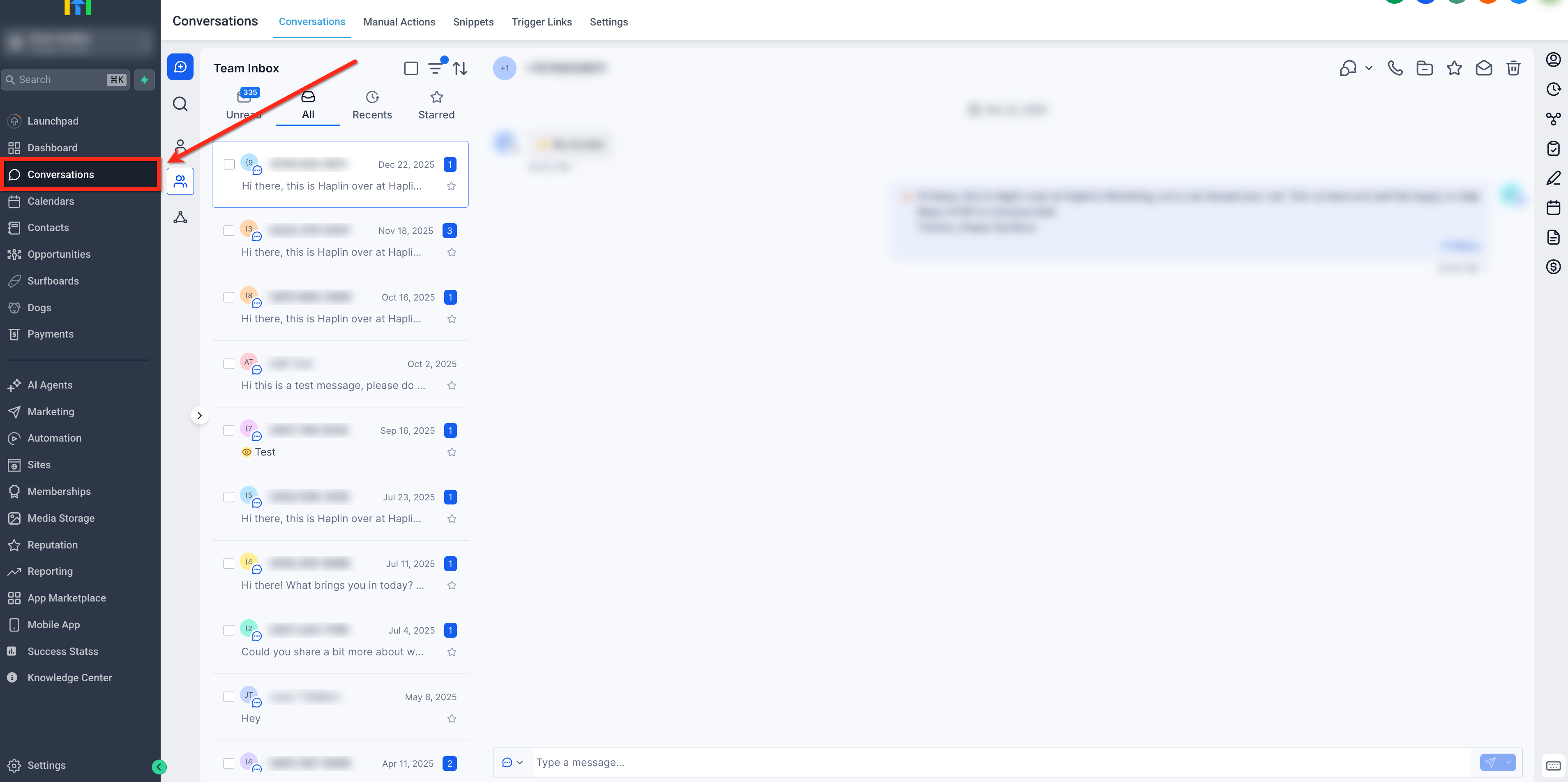
- Open Conversations from the left sidebar.
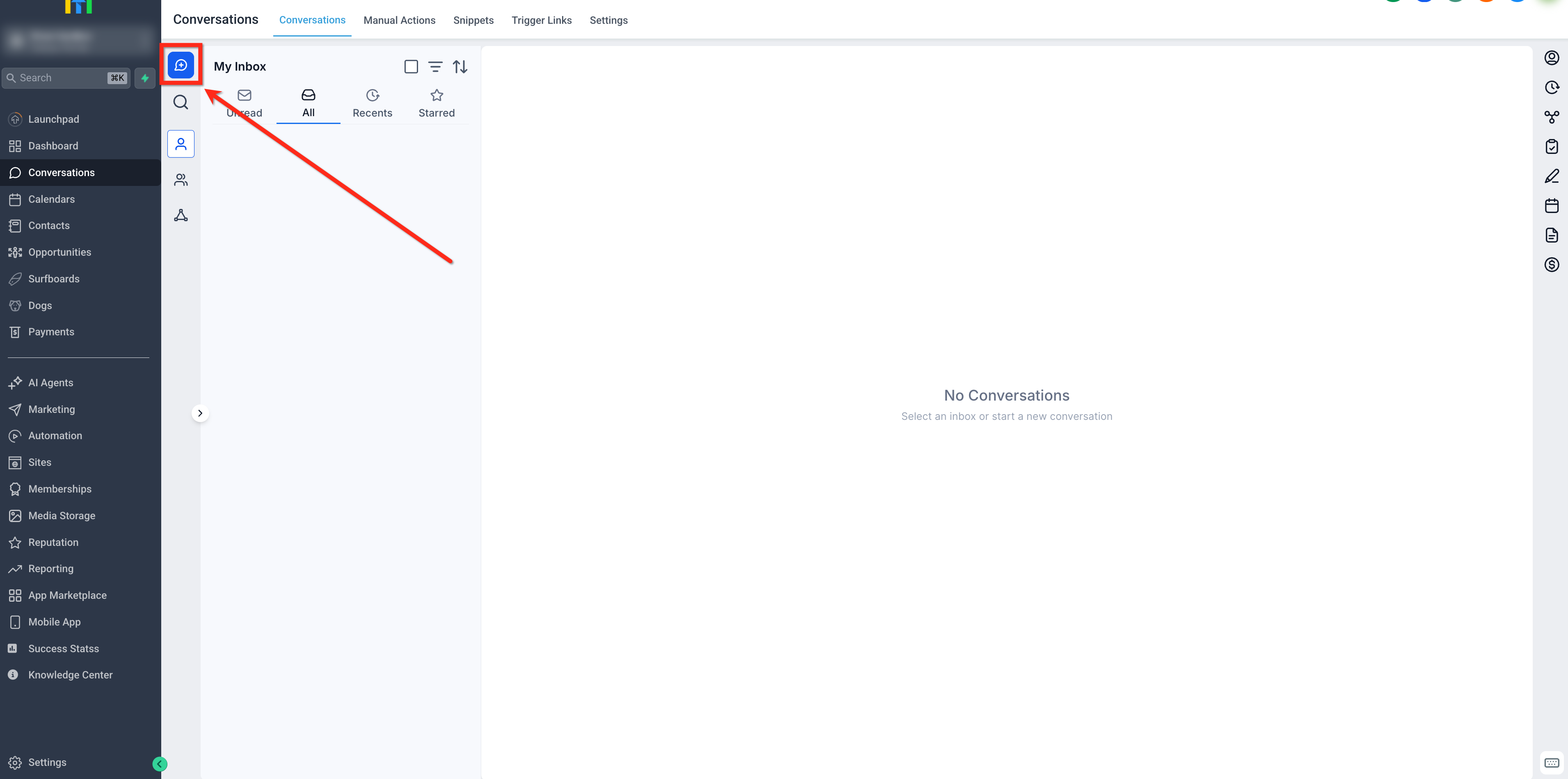
- Click the blue Create New Message button.
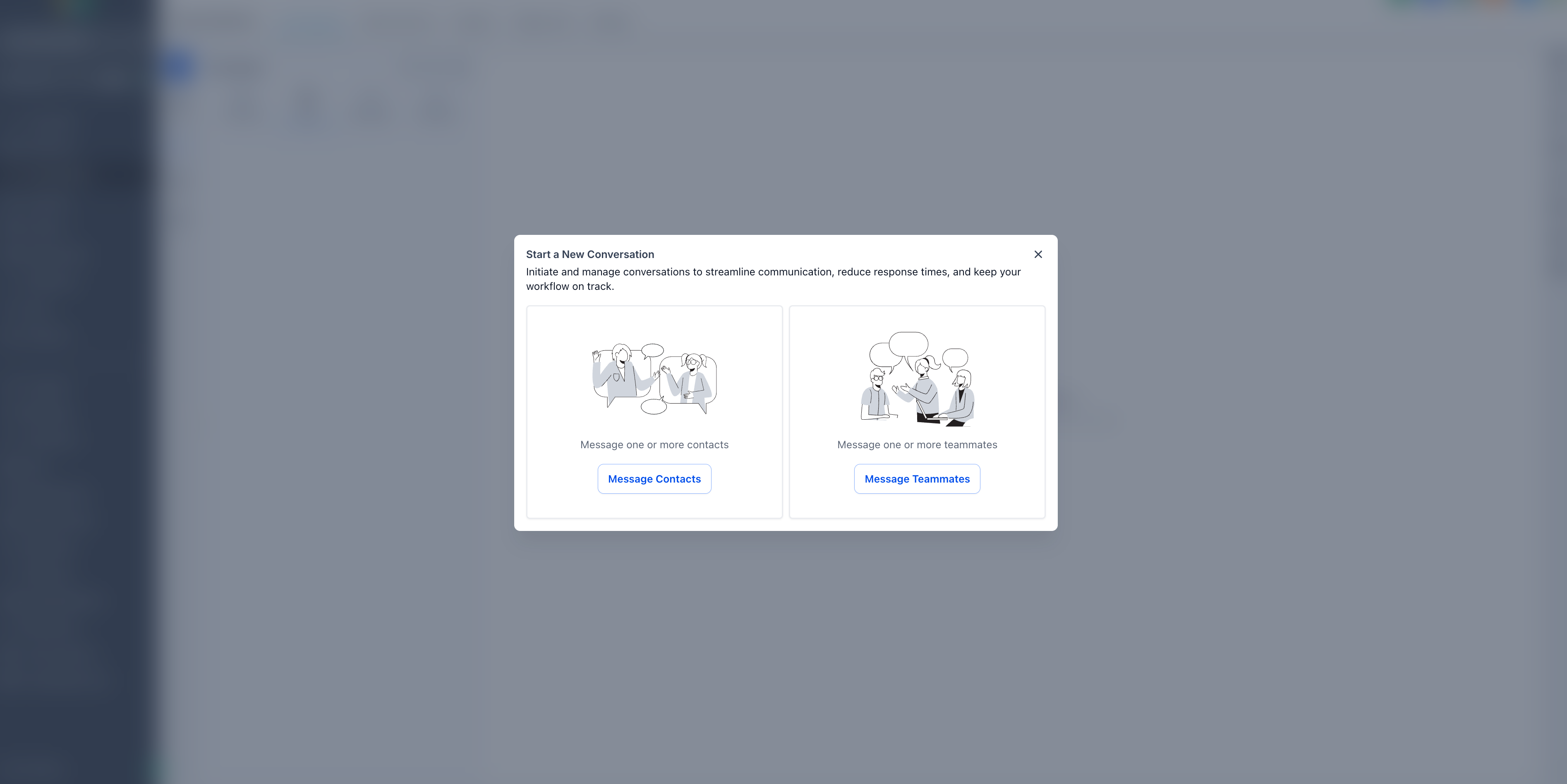
- Choose Message Contacts or Message Teammates for an internal group.
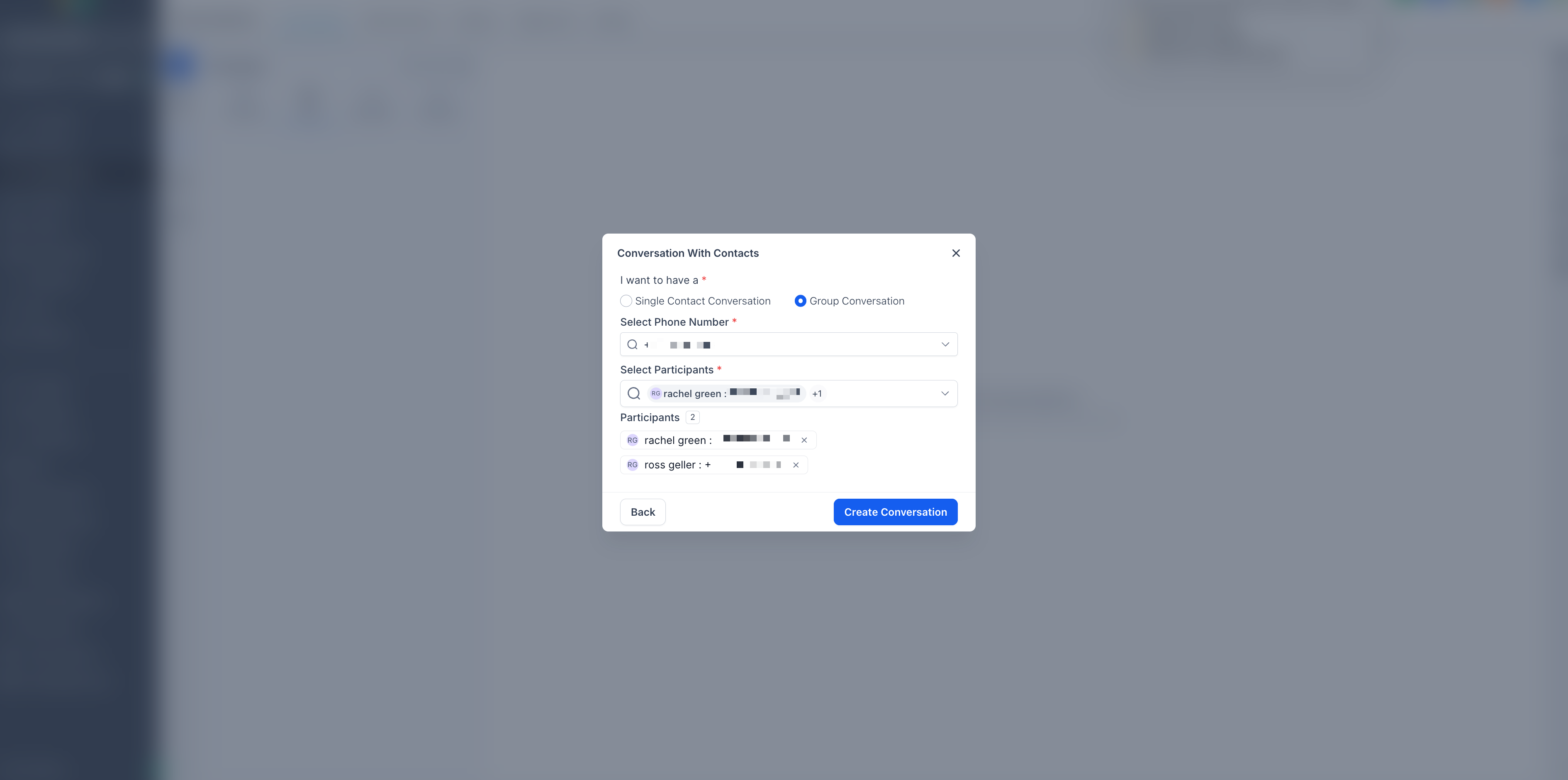
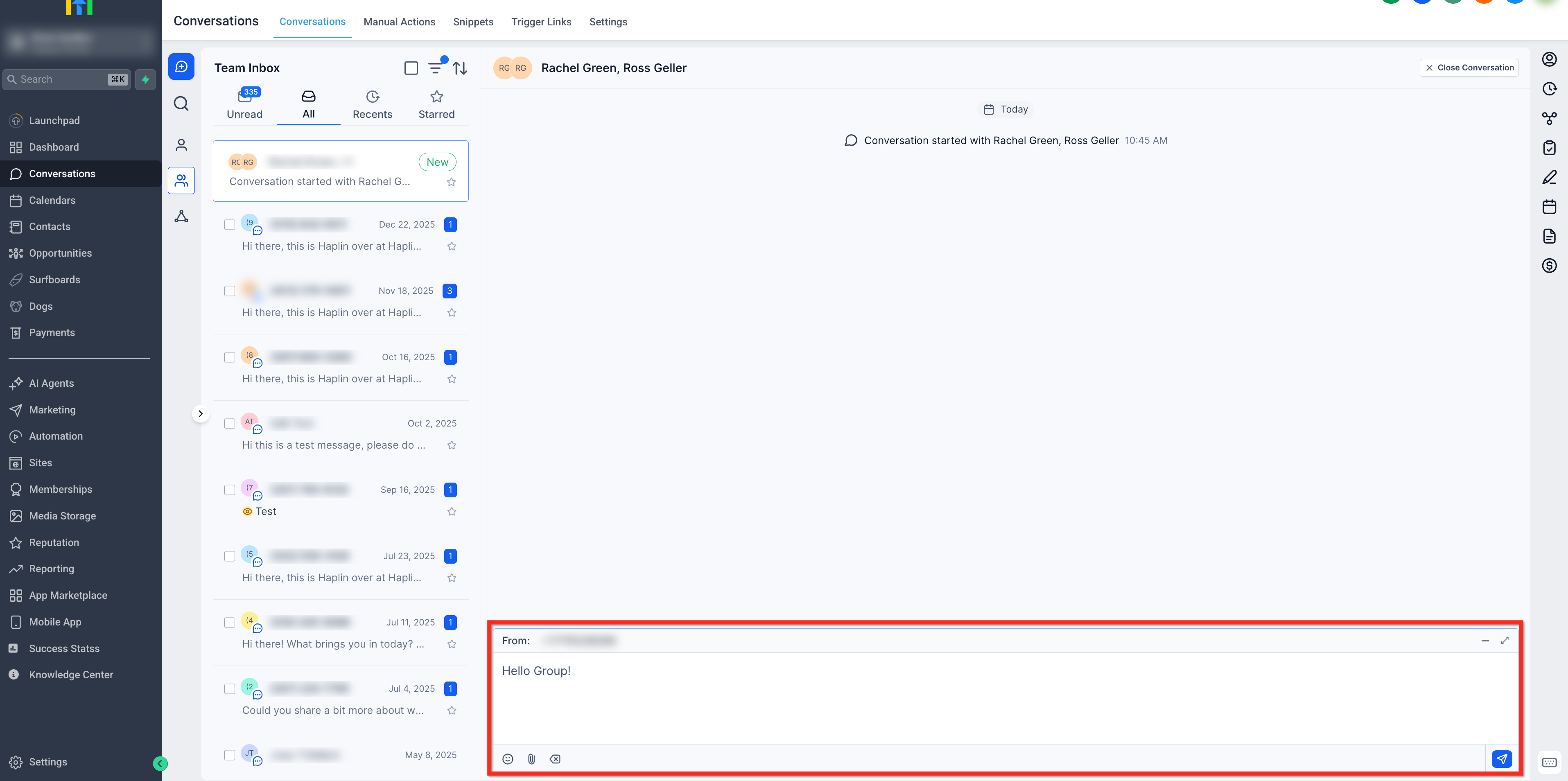
- Select Group Conversation, choose your number, add 2 to 9 participants, then click Create Conversation.
- Type a message and click Send.
Create group chat on mobile
- Open the HighLevel or LeadConnector mobile app and tap the Conversations tab at the bottom of the screen.
- Select Group Chat as the conversation type.
- Choose your phone number and add between two and nine contacts to the group.
- Optionally give the group a name for easier identification.
- Tap Start Chat to launch the conversation right away.
07What it looks like in HighLevel
08Settings that matter
- Group Conversation. Controls whether a new SMS thread is created as a group containing multiple participants.
09Things to know before you rely on it
- Each group can contain only 2 to 9 participants.
- Group texting works only with US/Canada (+1) long code numbers; toll free and short codes are not supported.
- Contacts who have Do Not Disturb enabled cannot be added, and if they enable DND later the group stops working.
- After creation you cannot add or remove participants or change the sending number.
- Messages continue to route to the original numbers even if a contact’s number is edited or the contact is deleted.
- Attachments are allowed but must follow carrier file size limits.
10If something goes wrong
- Attachment delivery fails. Compress the file to meet carrier size limits.
- Group stops responding after a participant enables Do Not Disturb. Create a new group that excludes the DND contact.
11How it connects to the rest of HighLevel
- Learn how to install and automate a live chat widget. Live chat widget
- Explore conversation filters to organize your messages. Conversation filters
- Find details on attaching files and using the clipboard in chats. Attachments in conversations
Michael's take

Many people try to treat a group chat like an email list, assuming they can keep adding or removing people on the fly. In reality the group is locked once you launch it, and you can’t change the From number either.
If I were setting this up, I would map out the exact participants I need before I hit Create, then treat the chat as a temporary project space. When the roster changes, I simply start a fresh group so the thread stays clean and compliant.