
01Who this is for
- Sales representatives: need recent call and form history before outreach.
- Support agents: require a quick view of past tickets, calls, and surveys.
- Service schedulers: review appointment and calendar activity while on the go.
02Contact activity tabs on mobile, explained
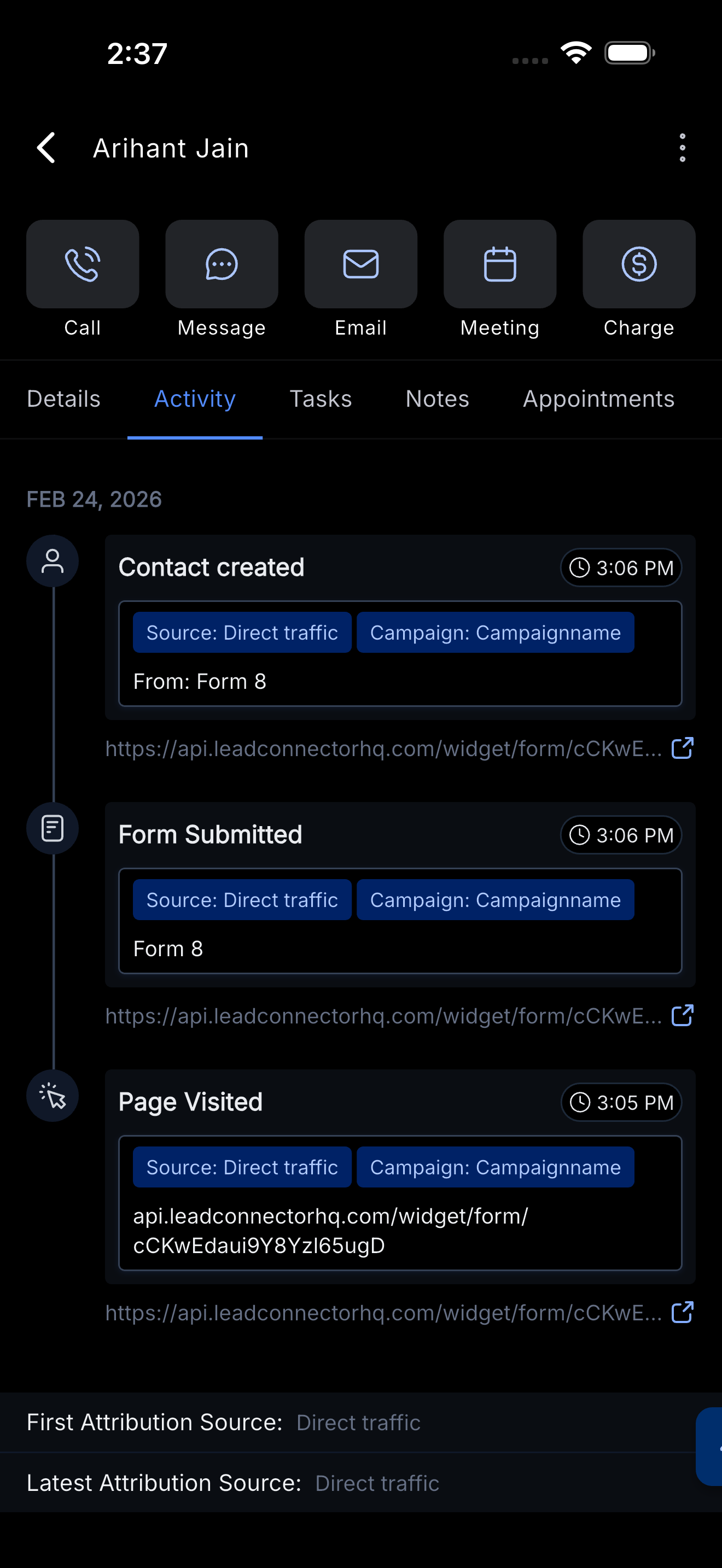
The Contact Activity tab displays a timeline of all recorded events linked to a specific contact. The feed includes form submissions, calls, appointments, page visits, link clicks, surveys, payments, and other stored activity. Users can scroll vertically to see older events and tap supported items for more information.
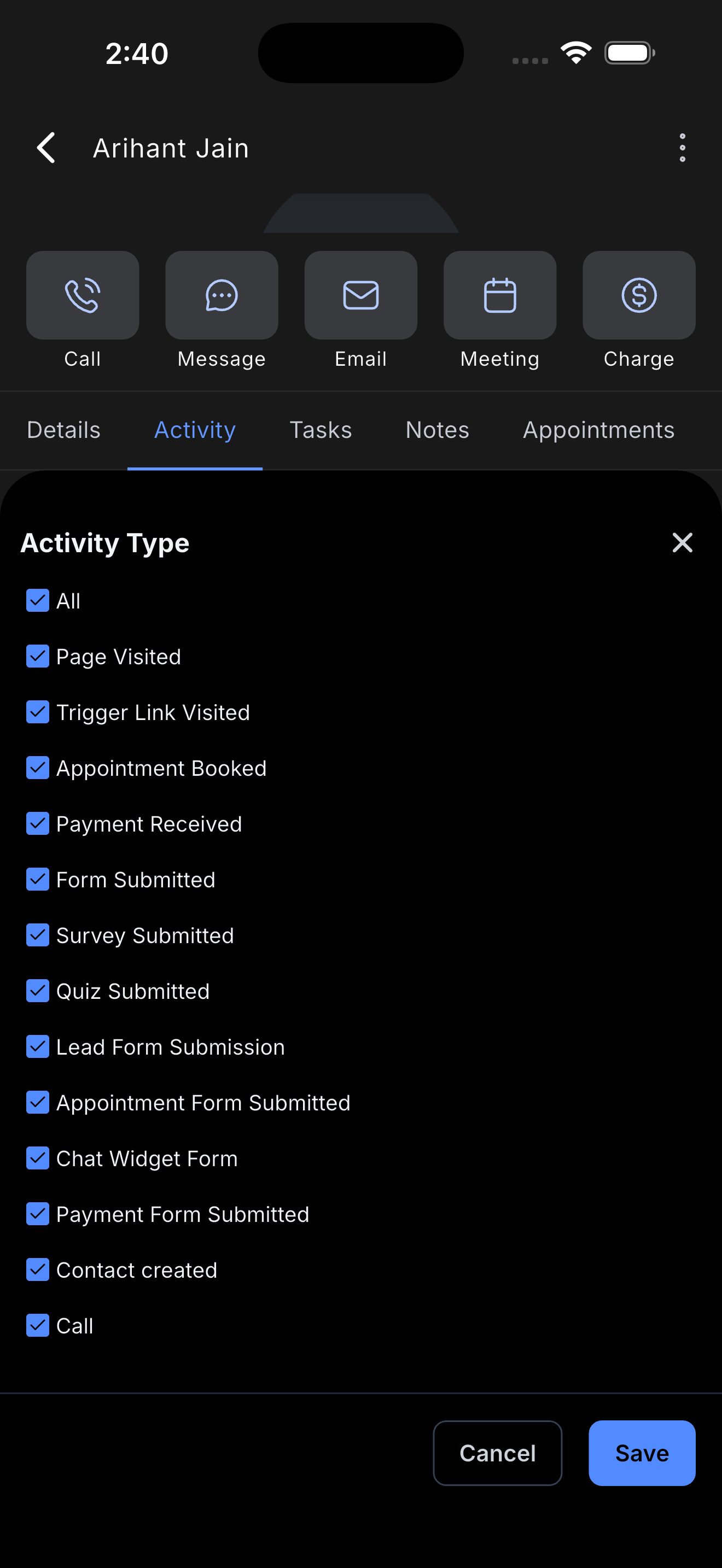
Filters let users limit the view to selected activity types when a contact has a long history. The exact filter options depend on the mobile app version and which activity types the platform currently supports. Tapping an activity that offers richer mobile details opens a secondary view with additional context.
The feature lives inside the contact profile of the HighLevel mobile application for iOS and Android. It provides a fast, on the go alternative to the desktop activity view, though some details available on the web may not yet appear on mobile.
03How businesses use contact activity tabs on mobile
- Sales outreach. Agents open a lead’s profile, review recent calls and form submissions, and plan the next contact.
- Customer support. Support staff view past tickets, calls, and surveys to provide informed assistance.
- Service scheduling. Schedulers examine appointment activity and confirm upcoming bookings while away from a desktop.
04The numbers and rules that matter
- Activities may include forms, calls, appointments, page visits, trigger link clicks, surveys or quizzes, payment related activity and other contact events stored in HighLevel.
05Before you start
- Access to the HighLevel mobile app on an iOS or Android device.
- Permissions that allow viewing of the contact and its activity records.
06How to set up and use contact activity tabs on mobile in HighLevel
View a contact’s activity on mobile
- Open the HighLevel mobile app on iOS or Android.
- Navigate to the Contacts section.
- Select the contact you want to review.
- Tap the Activity tab in the contact’s profile.
- Scroll the timeline to see recent events.
- Use the filters to narrow the list when needed.
- Tap a supported activity item to open additional details.
07What it looks like in HighLevel
08Settings that matter
- Activity Filters. Controls which types of contact events are shown in the mobile timeline, helping narrow long activity lists.
- Activity Details. Determines whether extra information for a tapped event is displayed, depending on the activity type and mobile support.
09Things to know before you rely on it
- The tab is available on both iOS and Android mobile apps.
- Not all activity types are currently supported for detailed view on mobile.
- Filter options may vary based on the app version and supported activity types.
- Mobile activity details may differ from the web view; parity is still being improved.
- Visibility of activities depends on user permissions and the data stored for the contact.
10How it connects to the rest of HighLevel
- Managing duplicate contacts helps keep the Activity feed accurate. Manage duplicate contacts
- Adding multiple phone numbers ensures all call activity appears in the mobile feed. Multiple phone numbers
- Do Not Disturb settings can hide notifications while reviewing activity on mobile. Do Not Disturb
Michael's take

Relying only on memory when you’re out of the office can lead to costly mistakes. The mobile Activity tab keeps the facts. Forms, calls, appointments. Right in your pocket, so you always have the context you need before the next interaction.
If I were using it, I’d start each call by opening the contact’s Activity tab to confirm the latest touch points. That quick glance can shape the conversation and cut down on unnecessary back and forth.