
01Who this is for
- Coaches who need to collect strategy call applications and store them in HighLevel for follow up.
- Property managers who want tenants to submit service requests that appear as records in their account.
- Businesses that require paid registrations, using Pay or Buy buttons to collect invoices alongside the submitted data.
02Custom Objects, explained
Custom objects are a type of contact records that stores information not covered by standard contacts, companies or opportunities. In Client Portal AI you describe the data you want members to submit and the AI suggests the objects, fields, dropdown options and relationships needed.
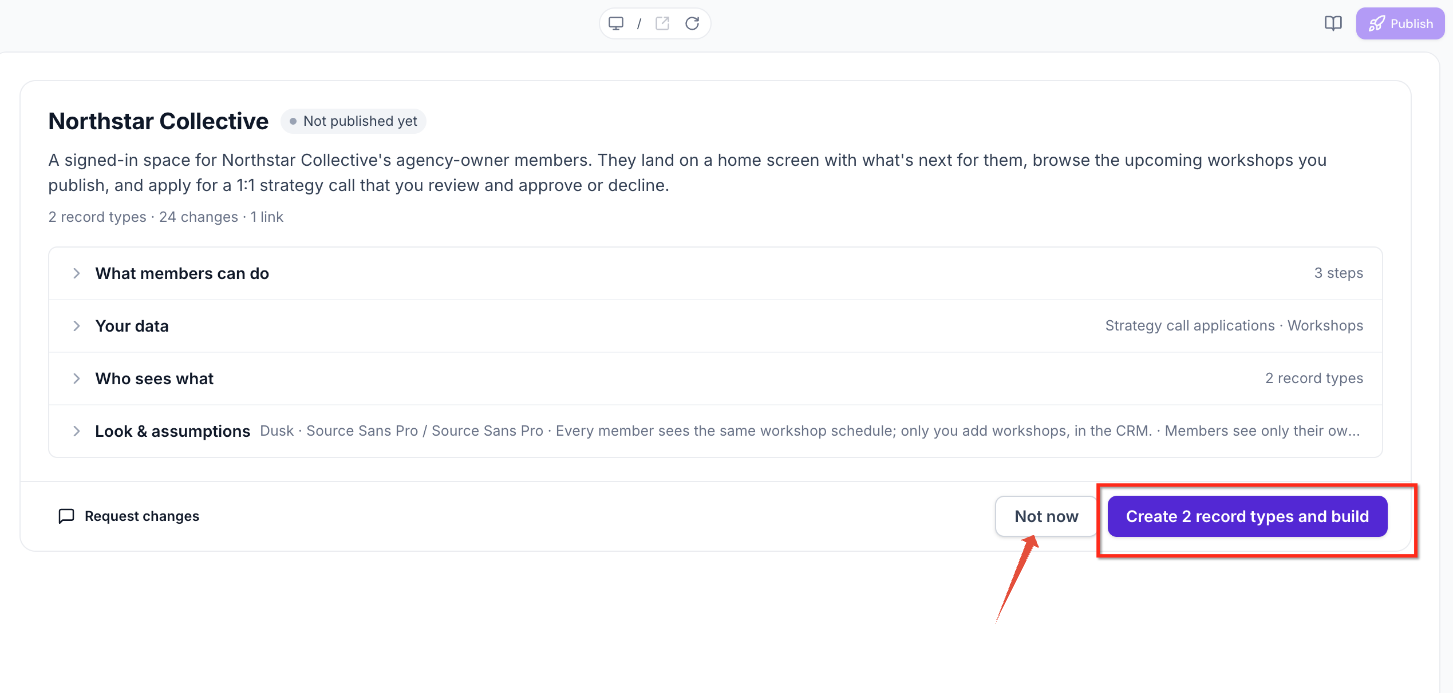
The AI generated plan is shown for review. You can request changes, approve the design, or postpone creation. Once approved, the objects appear in the subaccount’s CRM and the portal pages let members create and view those records. Payments can be added through Pay or Buy buttons when a supported invoice provider is connected.
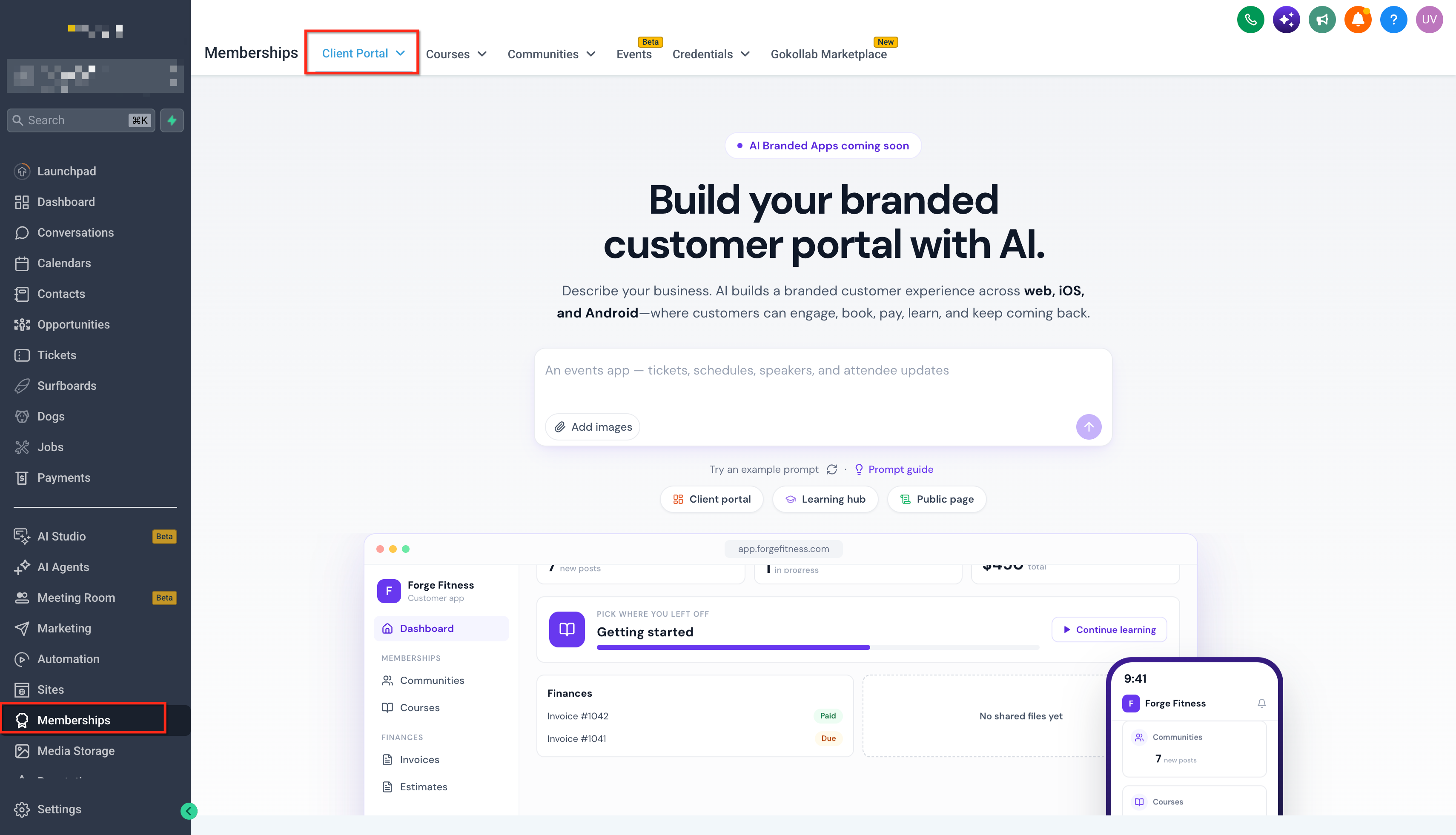
The feature lives inside the Client Portal AI builder, which you access from the HighLevel subaccount where the objects should be created.
03How businesses use Custom Objects
- Coaching business. The coach writes a prompt asking for a strategy call application that includes business name, revenue range and challenge. After approval, the portal presents a form that saves each application as a custom object record, and members can view their own submissions.
- Property management company. The manager describes a tenant service request portal that captures unit number, issue type and description. The AI creates a custom object for requests, builds portal pages for entry and the manager can see each request in HighLevel.
- Online training provider. The provider adds a paid workshop registration to the portal, including a Pay button linked to a HighLevel invoice. Members submit the registration, the payment is processed, and the registration details are stored in a custom object.
04The numbers and rules that matter
- Maximum of 10 Custom Objects per subaccount.
- Client Portal AI can propose up to three objects within a single plan.
- Vibe, Describe it workflow, Supported.
05Before you start
- You must be working in the subaccount where the custom objects will be created.
- If you plan to use Pay or Buy buttons, a supported payment provider must be connected to HighLevel.
- Ensure the subaccount has available custom object capacity under the 10 object limit.
06How to set up and use Custom Objects in HighLevel
Create and enable custom objects for a client portal built with AI
- Open Client Portal AI in the desired subaccount and start a new portal build.
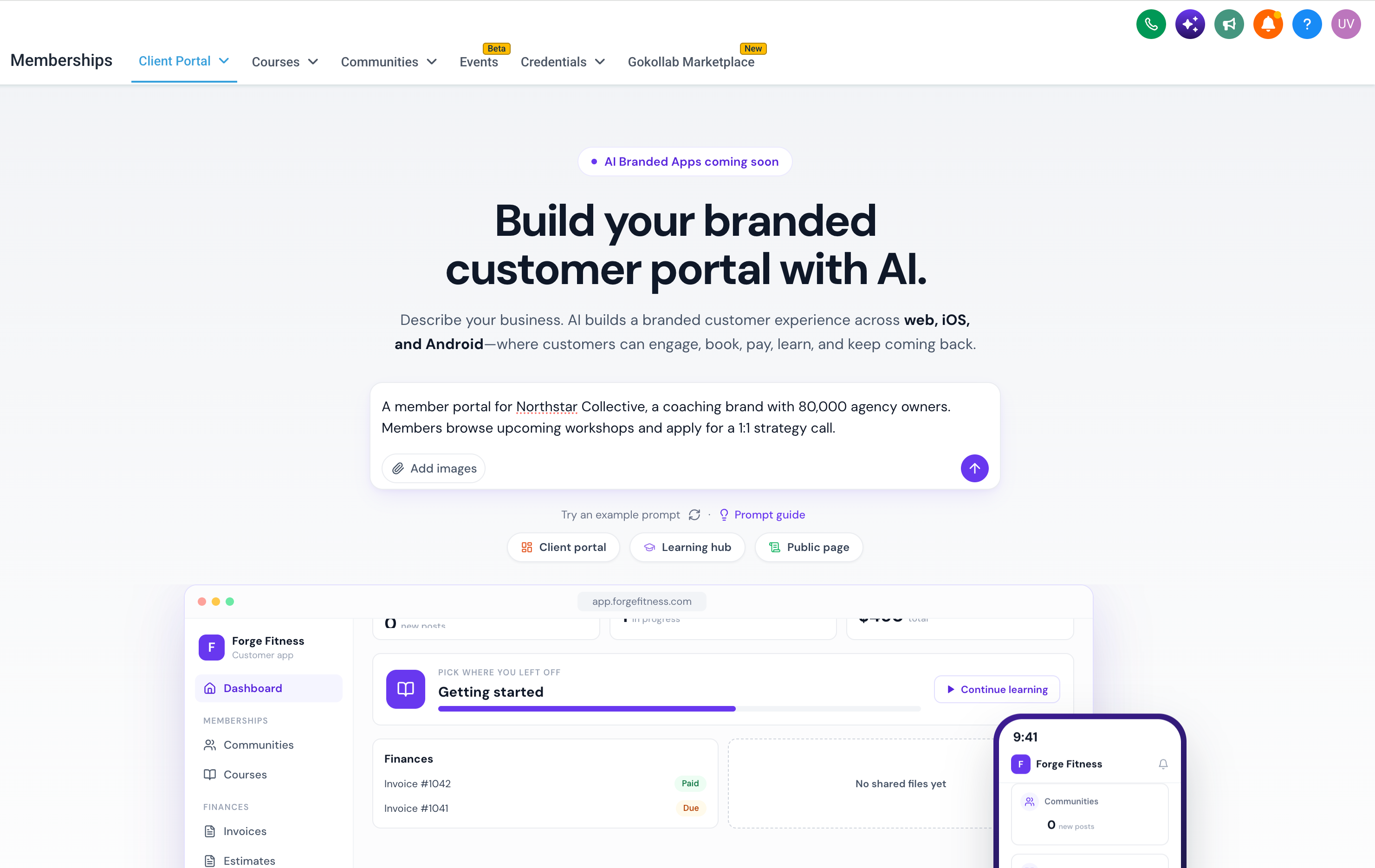
- Enter a natural language description of the portal’s purpose and required fields.
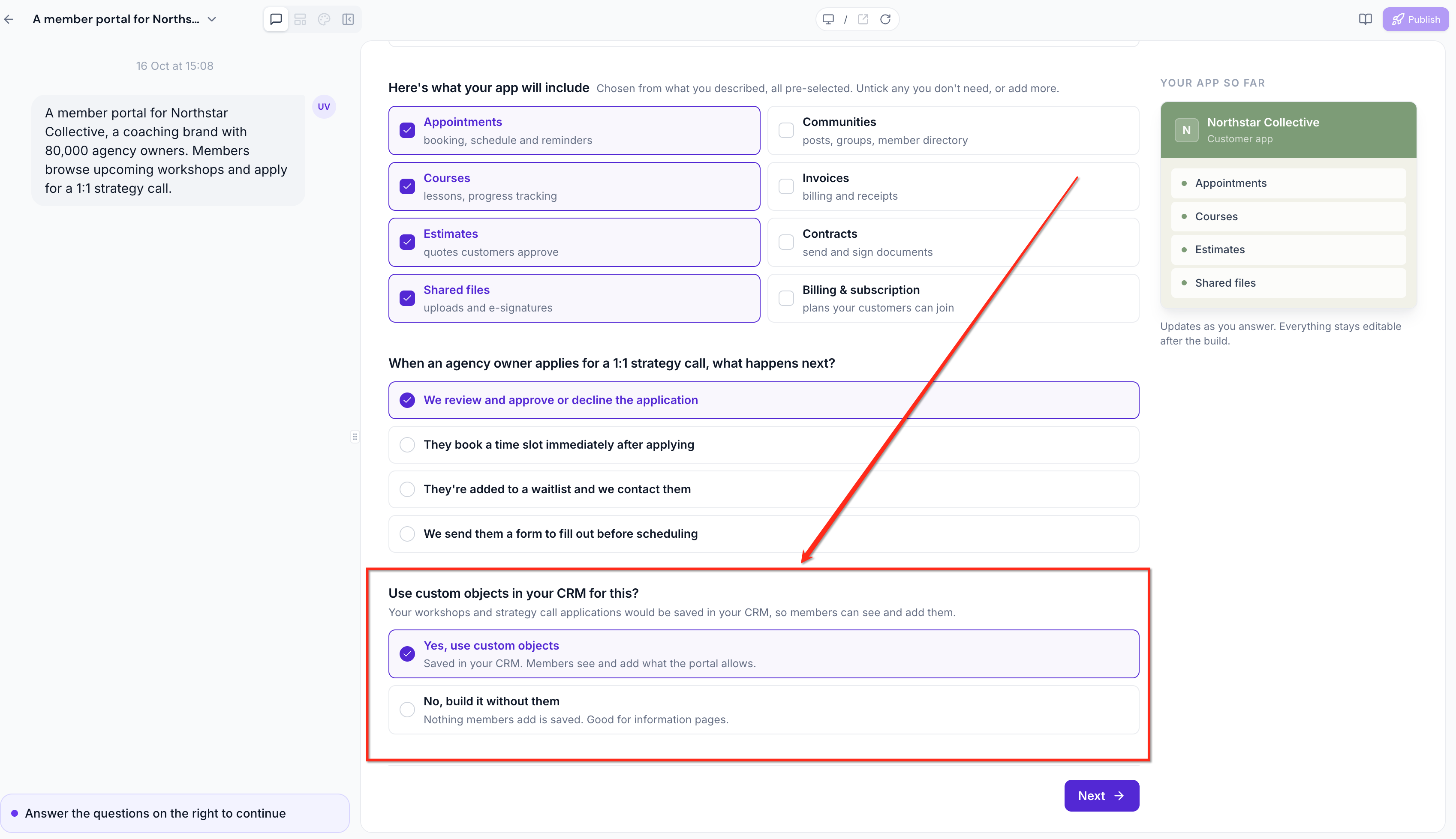
- When prompted “Use custom objects in your HighLevel account for this?” select Yes.
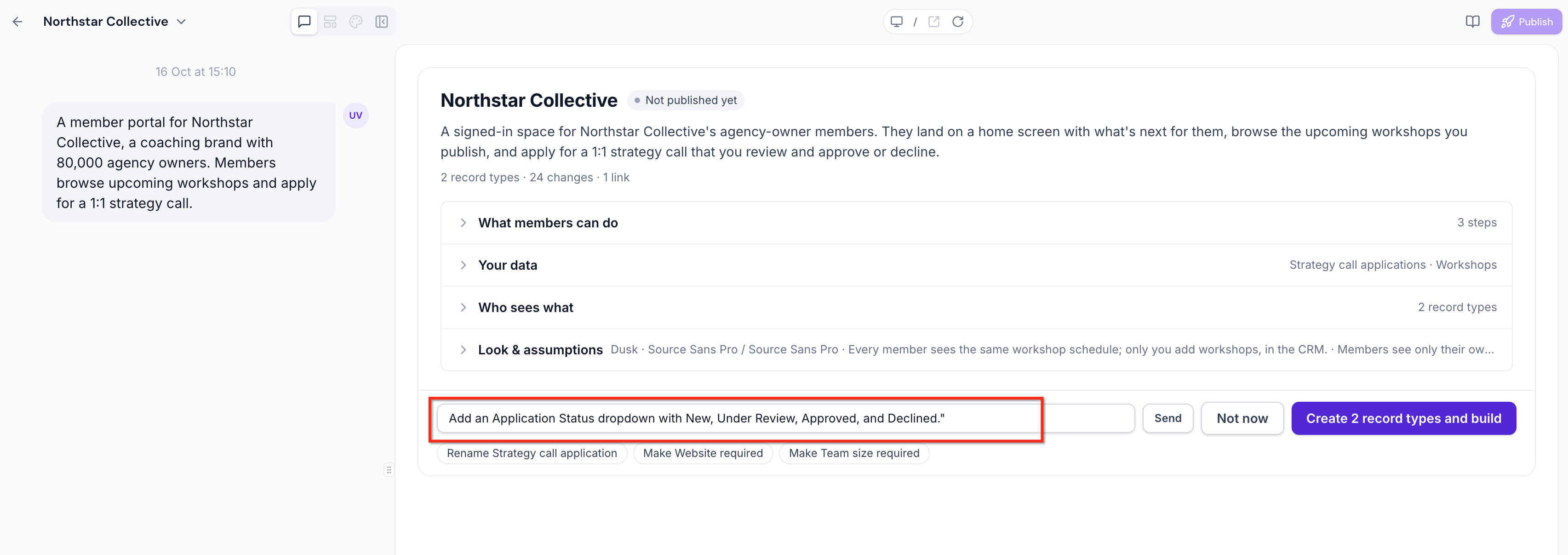
- Examine the AI generated custom object plan, checking names, fields, relationships and visibility.
- If needed, describe the desired modifications and request an updated plan.
- Approve the finalized plan so Client Portal AI creates the objects in HighLevel.
- Open the provided links to view the newly created custom objects in HighLevel.
- Open the generated portal pages and verify that each form and visibility setting matches the plan.
- Submit a test entry using a test member account and confirm the record appears correctly in HighLevel.
- Publish the portal to real members using the client portal access and invitation options.
07What it looks like in HighLevel
08Things to know before you rely on it
- A subaccount can have a maximum of 10 custom objects.
- Client Portal AI can propose up to three new objects in a single plan.
- The Branded Mobile App experience does not yet support custom objects.
- Internal names and primary display fields of a custom object cannot be changed after creation.
- Deleting a custom object permanently removes it, its records, fields and related configurations.
09If something goes wrong
- Selecting “Not now” during approval. The proposal is postponed and the custom objects are not created until you approve a later version.
10How it connects to the rest of HighLevel
- Step by step client portal setup guide Client portal setup
- HighLevel pricing and plan information Pricing
- Start a 30 day HighLevel trial Free trial
Michael's take

Most people assume that simply mentioning a request or application in their prompt will automatically create the needed data structures. In reality the AI asks you to confirm that Custom Objects should be used before any plan is generated.
If I were building a portal, I would begin with crafting a clear, detailed prompt that spells out each field I need, then I would review the AI generated plan line by line, adjusting any dropdowns or relationships before approving. That way the portal does exactly what my business requires and I keep full control over my CRM layout.