
01Who this is for
- Founders of service based businesses benefit because they can automatically inform clients when contracts or invoices are uploaded.
- Account managers gain a reliable way to confirm that shared files are seen, reducing the need for follow up messages.
02File share notifications, explained
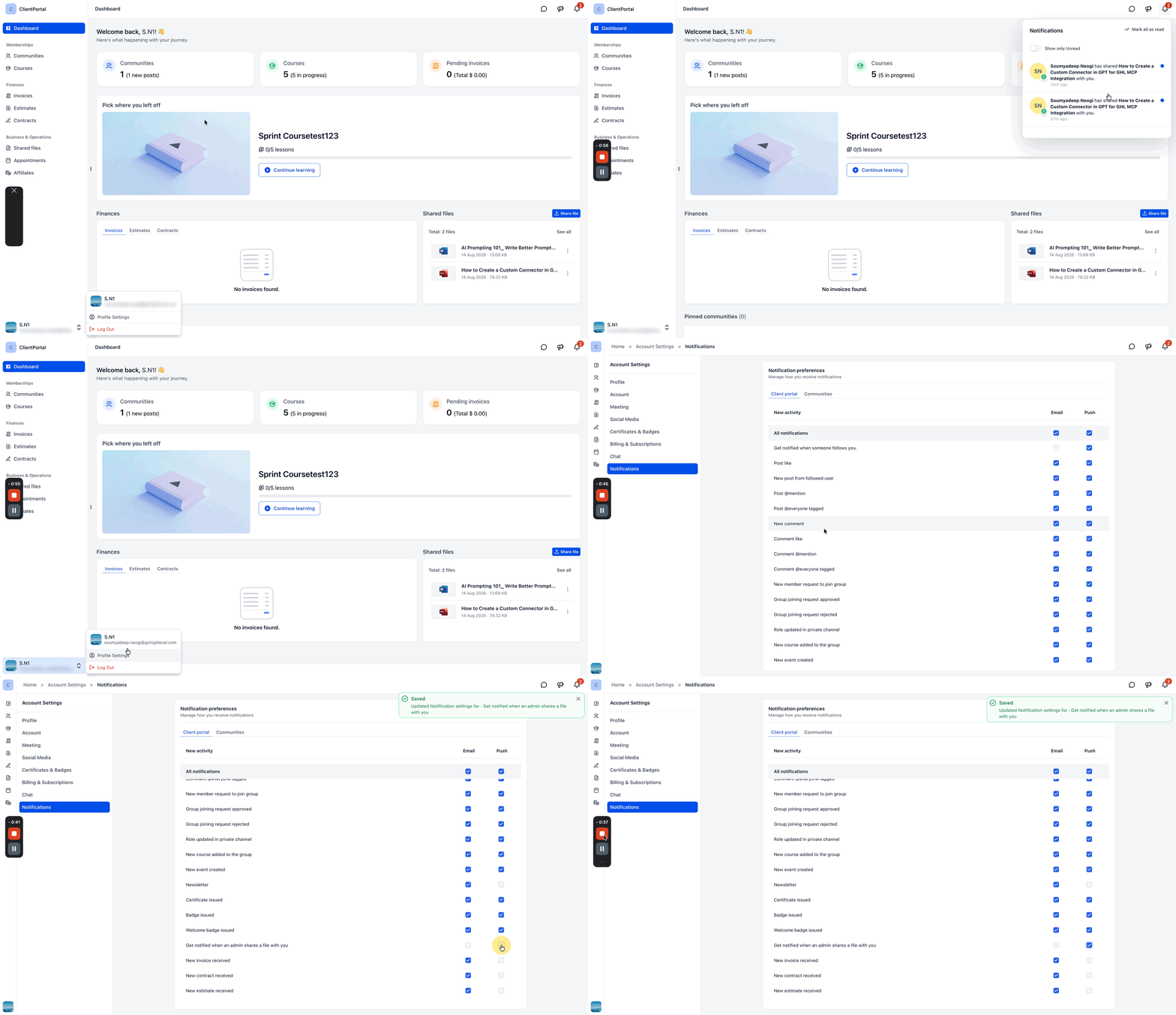
The feature creates a notification each time a file is shared from a contact record with the Upload to Client Portal option enabled. Notifications appear inside the client portal and can also be sent as push alerts through the White Label Mobile App, provided the contact has granted device permissions. The notification system operates automatically; no workflow or additional automation is required. Settings for these alerts reside in the contact’s personal notification preferences within the client portal.
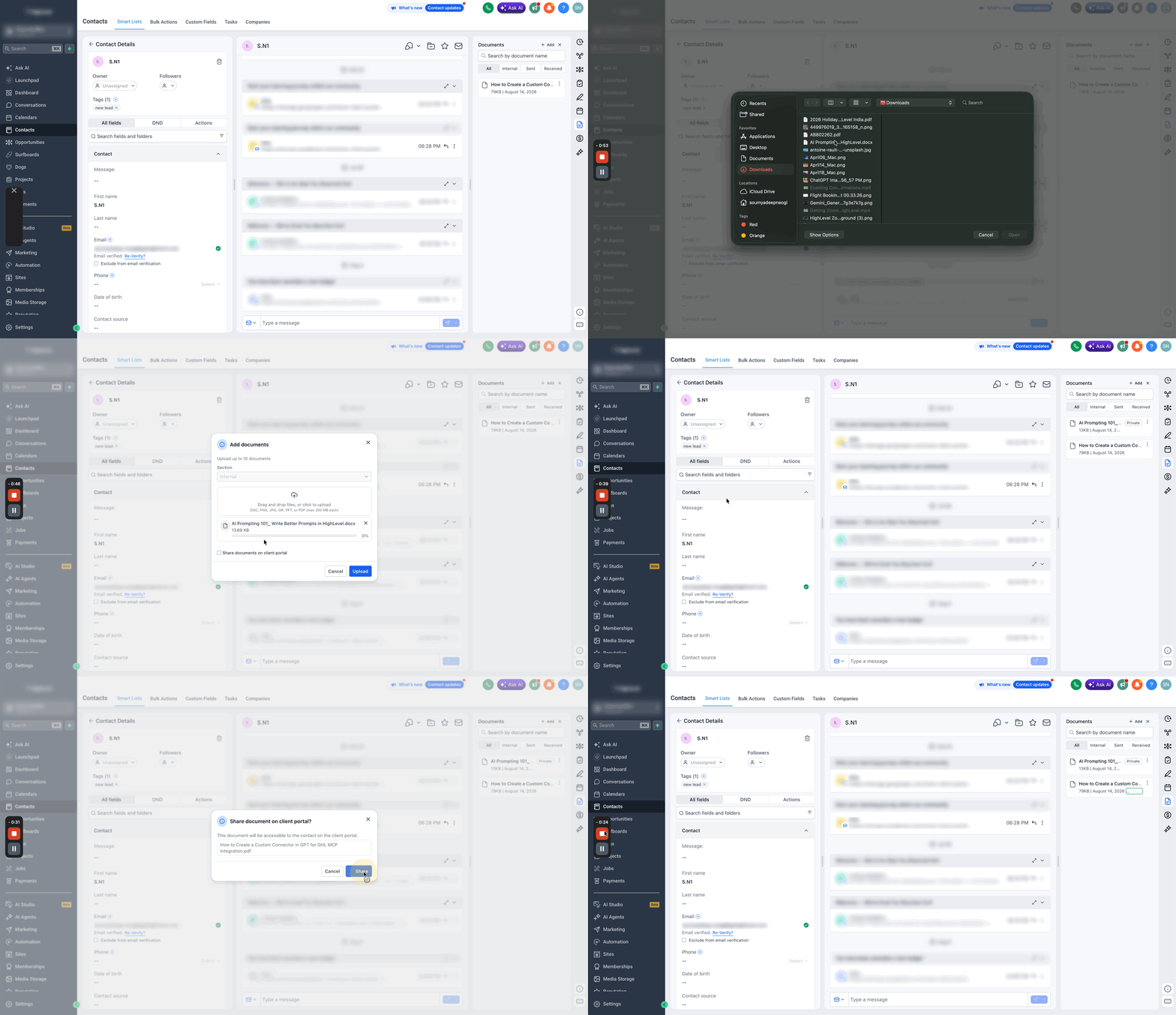
The file sharing flow lives in the contact record under the Files/Documents pane. After uploading or selecting a file, the user checks the Upload to Client Portal toggle and saves. HighLevel then generates the appropriate alerts based on each contact’s chosen preferences.
03How businesses use file share notifications
- Digital marketing agency. The agency uploads campaign assets to a client’s contact record, enables Upload to Client Portal, and the client receives an in app notification. The client can also turn on push alerts to be notified on mobile.
- Legal practice. When a lawyer adds a new contract to a client’s file, they enable the upload to the client portal. The client sees the notification inside the portal and can choose to receive a push notification for immediate awareness.
- Fitness studio. The studio shares a membership agreement via the contact’s file area, activates the client portal upload, and the member receives the notification in the studio’s branded mobile app, if they have push notifications enabled.
04How to set up and use file share notifications in HighLevel
Share a file with a contact
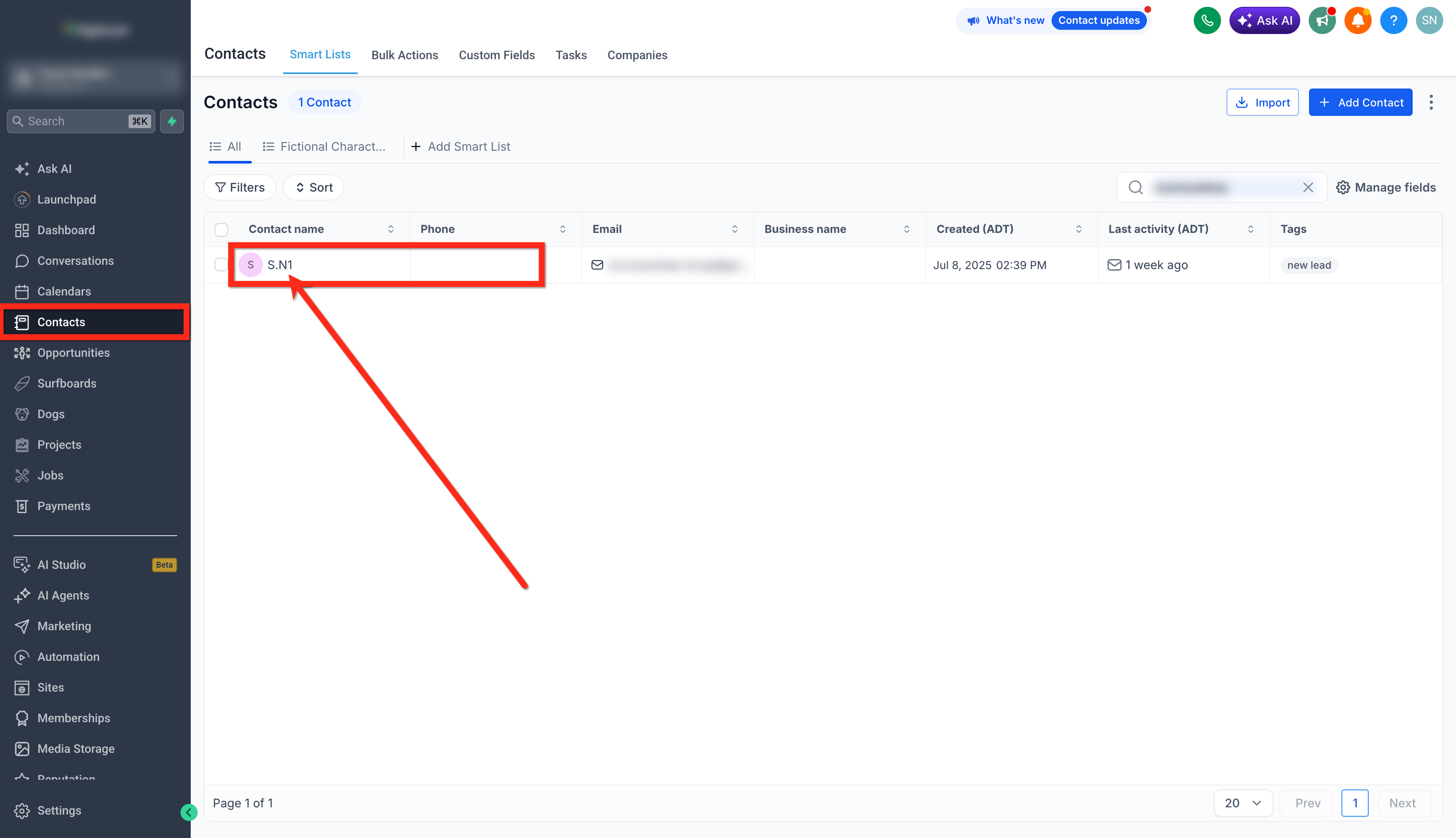
- Navigate to Contacts.
- Open the contact who should receive the file.
- Select the Files/Documents section from the right side navigation panel.
- Upload a new file or pick an existing one.
- Enable the Upload to Client Portal option.
- Save the file, which triggers an in app and optional push notification.
Manage notification preferences
- Log in to the Client Portal.
- Open Settings.
- Select Notification Preferences.
- Toggle In app Notifications and Push Notifications on or off as desired.
05What it looks like in HighLevel
06Settings that matter
- Upload to Client Portal. Controls whether a file shared from a contact record is sent to the client portal and triggers a notification.
- In app Notifications. Determines if the contact receives alerts inside the client portal when a file is shared.
- Push Notifications. Enables or disables mobile push alerts for file share events, depending on device permissions.
07Things to know before you rely on it
- Push notifications only appear if the contact’s device permits them; otherwise, only the in app alert is shown.
- Disabling notifications does not remove access to files that have already been shared.
08If something goes wrong
- Contact receives an in app notification but not a push notification.. Verify that push notifications are enabled in the contact’s Notification Preferences, in the mobile app settings, and on the device itself.
09How it connects to the rest of HighLevel
- Learn how to manage all client portal notifications. Managing notifications
- Set up the client portal and invite contacts. Client portal setup guide
- View and edit client portal settings such as magic links. Client portal dashboard
Michael's take

Most people assume they have to build a workflow to tell a client a document was uploaded. The platform already handles that the moment you tick the Upload to Client Portal box. Skip the extra step and let HighLevel fire the alert for you.
If I were setting this up, I’d share the file, watch the in app notification appear, then confirm the push option works on a test device. Making sure the contact’s preferences line up with your expectations helps verify that notifications work as intended.