
01Who this is for
- Founders who run membership sites, because they can alert members to new content.
- Marketing managers at service businesses, because they can prompt clients to book or view offers.
- Support teams for SaaS platforms, because they can remind users about updates within the portal.
02Smart push notifications, explained
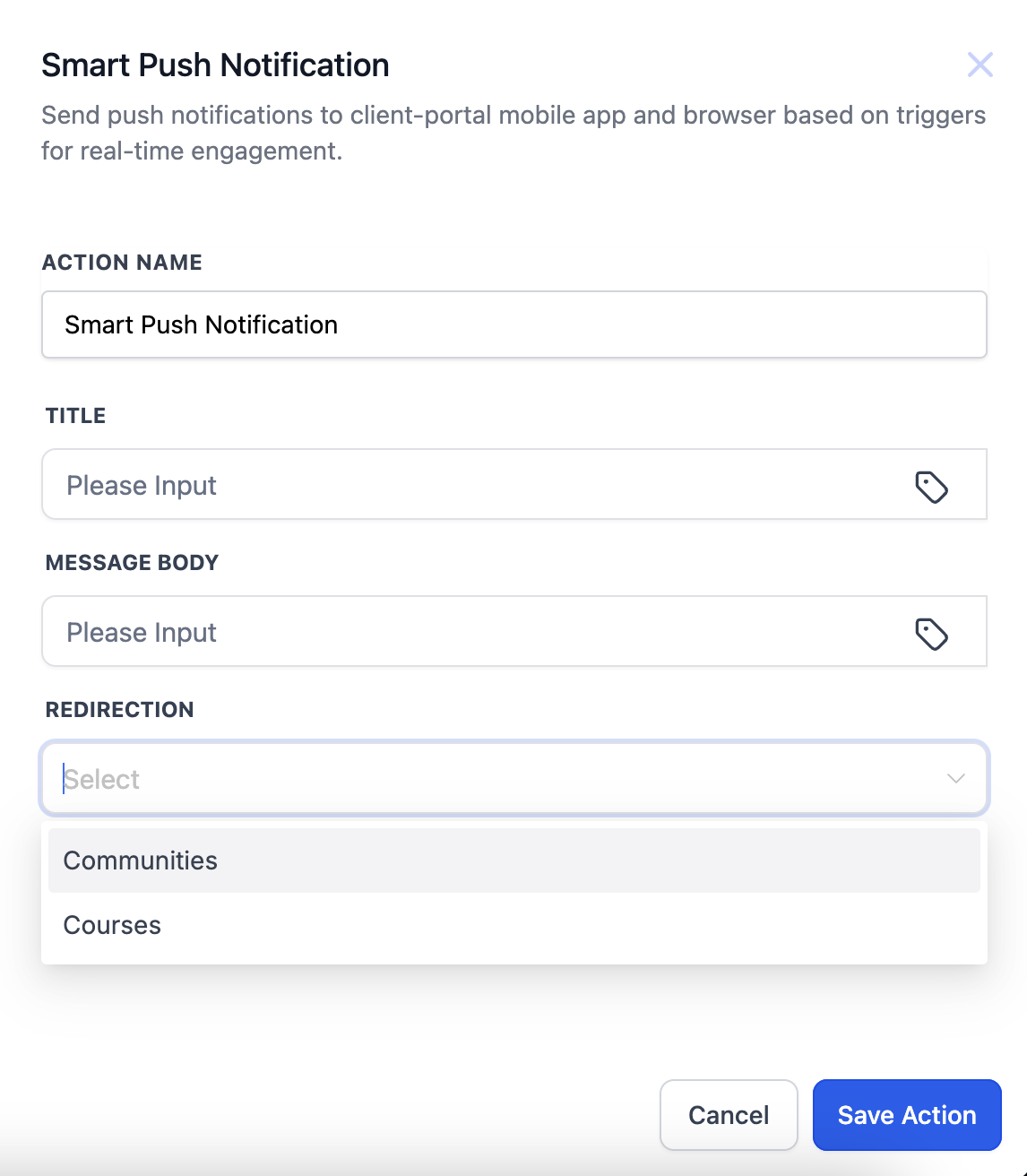
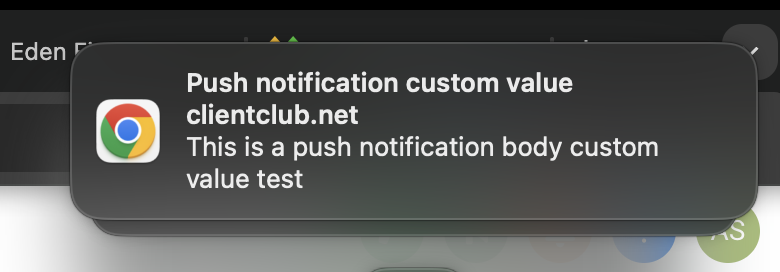
Smart Push Notification is an automation action in HighLevel. It creates a push alert that appears in the Client Portal mobile app. The alert includes a title, a message and a clickable area that sends the user to a Community or a Course page.
The action lives inside the Automation > Workflows builder. After adding it, you fill in the mandatory fields, title, message body and redirection, then save and activate the workflow. The platform only delivers the alert to contacts who are already registered as Client Portal users.
Placeholders such as {{contact.first_name}} can be used in the title or message to personalize each notification. The redirection options are limited to the two portal sections: Communities and Courses.
03How businesses use smart push notifications
- Fitness coaching business. The coach adds the action to a workflow that runs after a new client signs up. The title greets the client by name, the message shares a welcome tip, and the redirection points to the Courses page where the training program lives.
- Online education platform. When a new lesson is published, the platform triggers a workflow that sends a push notification. The title announces the lesson, the message includes the instructor’s name, and the redirection directs learners to the Community forum for discussion.
- Home services company. After a service appointment is confirmed, a workflow sends a reminder push. The title mentions the service type, the message reminds the client of the date, and the redirection leads to the Communities page for FAQs.
04The numbers and rules that matter
- Title max: 100 characters.
- Message Body max: 300 characters.
05Before you start
- The Client Portal must be set up and contacts must be registered as portal users.
06How to set up and use smart push notifications in HighLevel
Add a Smart Push Notification to a workflow
- Navigate to Automation > Workflows.
- Open an existing workflow or create a new one.
- Click + Add Action, type "Smart" in the search bar, and select Smart Push Notification.
- Enter a personalized title for the notification, using placeholders if desired.
- Enter the message body, also supporting placeholders.
- Choose the redirection destination: Communities or Courses.
- Click Save Action to store the configuration.
- Test the workflow with a sample contact to verify the push appears.
- Activate the workflow once the test is successful.
07What it looks like in HighLevel
08Settings that matter
- Title. Defines the headline of the push alert; up to 100 characters and can include placeholder tags.
- Message Body. Sets the main text of the alert; up to 300 characters and supports placeholders.
- Redirection. Determines which portal page the user is taken to after clicking the notification, limited to Communities or Courses.
09Things to know before you rely on it
- Title field accepts a maximum of 100 characters.
- Message Body field accepts a maximum of 300 characters.
- Redirection options are limited to Communities or Courses.
- Only contacts who are registered Client Portal users will receive the push notification.
10How it connects to the rest of HighLevel
- Set up the Client Portal first Client portal setup guide
- Manage in app notifications settings Notification management
- Explore pricing and plans for portal features HighLevel pricing
Michael's take

Smart push notifications let you send personalized alerts directly to members, which can help drive engagement.
Don’t forget to confirm the contact is actually registered in the portal before expecting a push to arrive.