
01Who this is for
- Founders of membership platforms, to shape how members navigate dashboards and course pages.
- Digital marketers managing client portals, to place custom pages and external tools where users expect them.
- Service firms using the app for client invoicing, to group finance sections and prioritize entry points.
02Layout and navigation editor, explained
The layout and navigation editor controls which pages clients see first, how the side menu is organised, and which extra pages appear in it. You can set a landing page, choose a default page after sign in, group modules, add custom pages or external modules, and tweak the order and visibility of screen blocks.
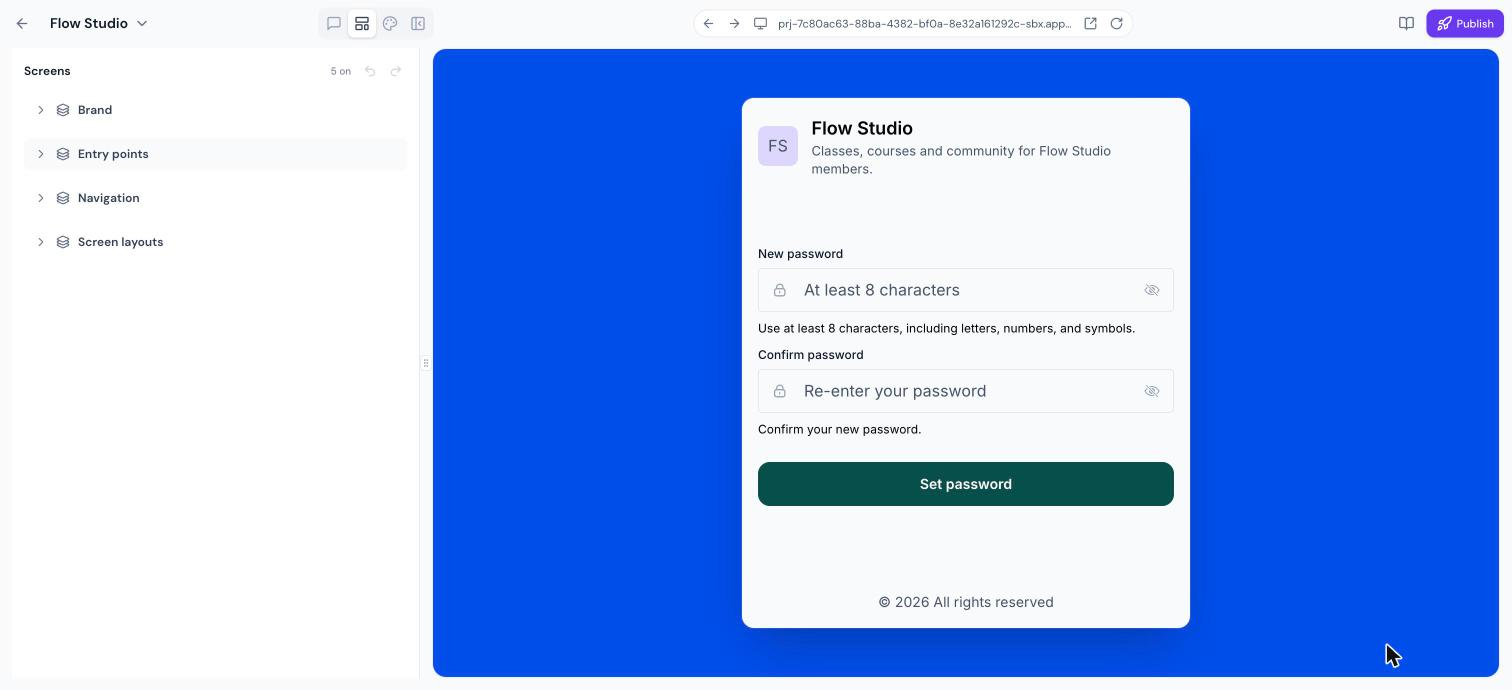
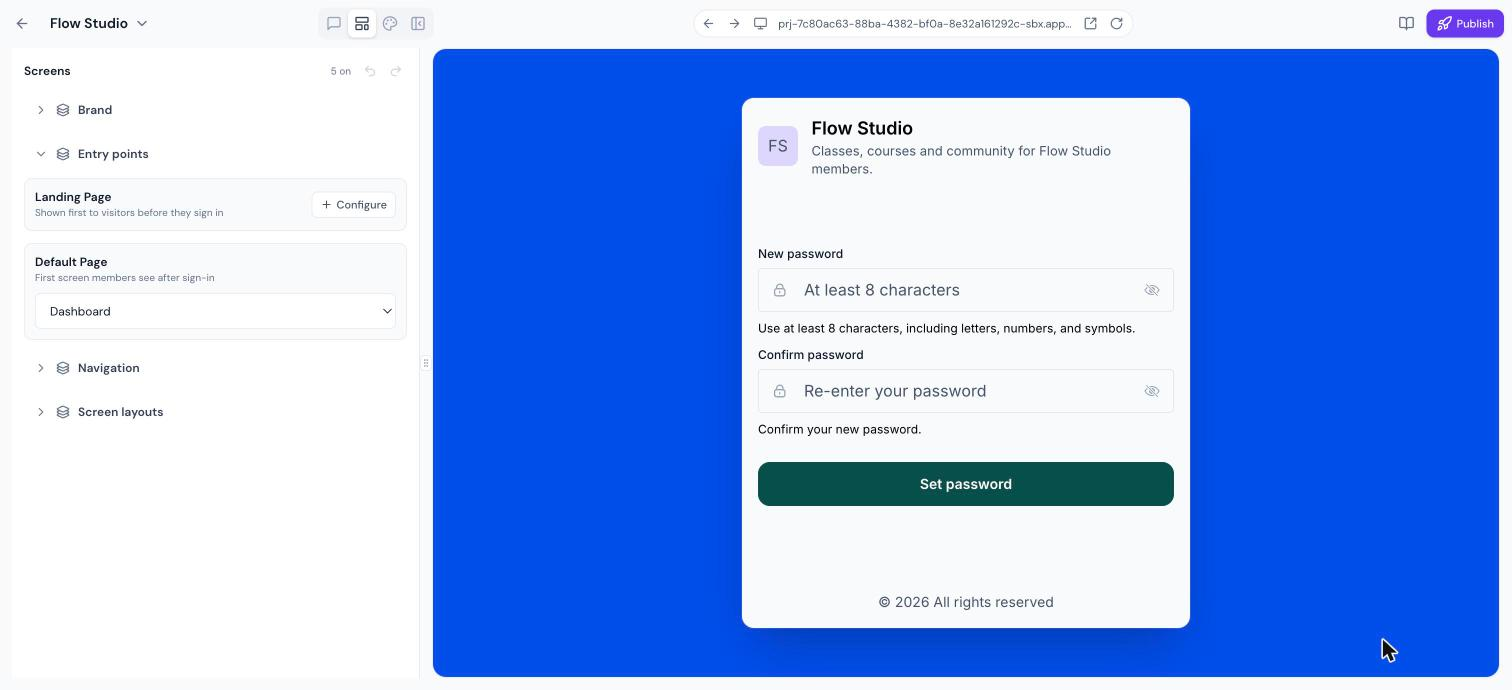
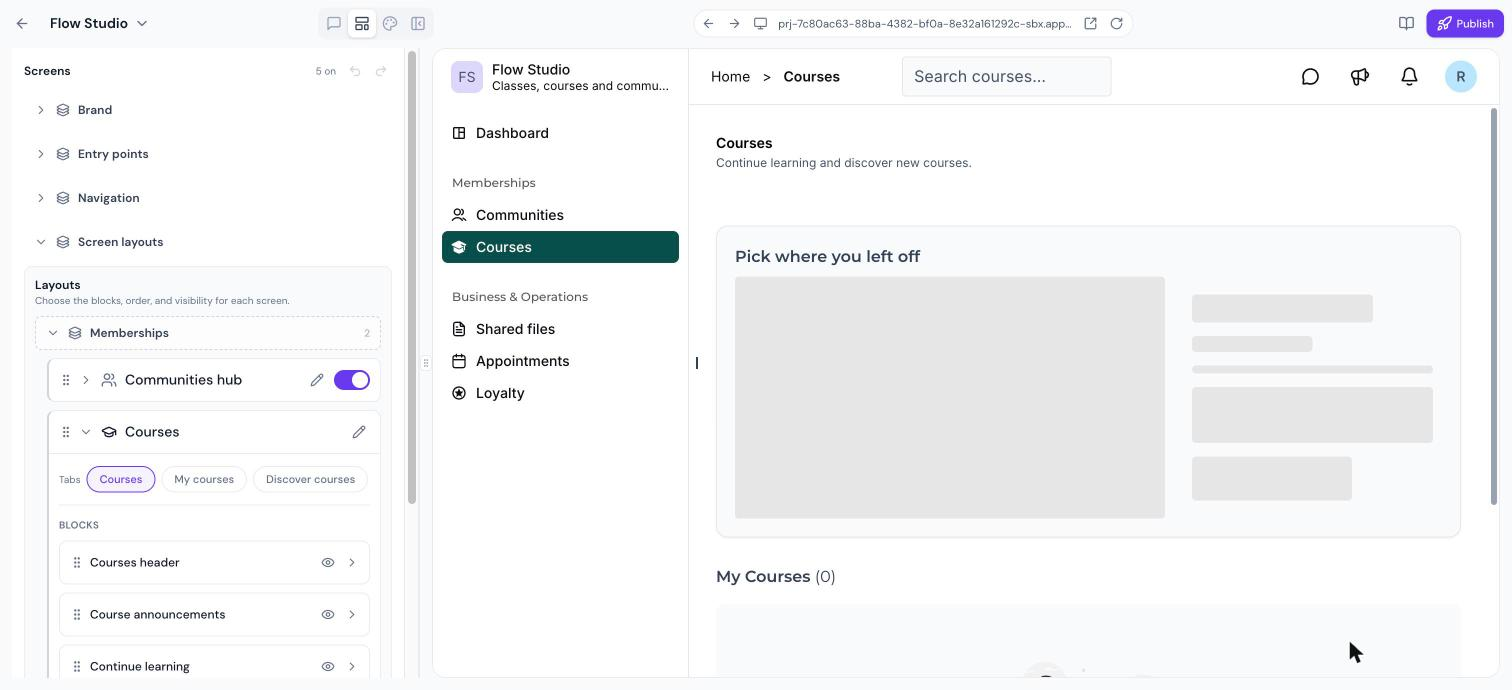
The editor is opened from within any app by clicking the Layout icon at the top left. The Screens panel then appears with four sections: Brand, Entry points, Navigation, and Screen layouts. All changes are made by dragging items, clicking icons, or filling simple fields, no coding required.
Undo and redo arrows at the top of the panel let you step backward or forward through recent edits. For apps built with Describe it, navigation must be changed via chat commands, and mobile only apps use the Mobile Customizer instead of this editor.
03How businesses use layout and navigation editor
- Online coaching business. The coach opens the Layout editor, drags the “Memberships” group to the top, renames it to “Coach Access”, and adds a custom module linking to a scheduling page. They also hide the “Finances” screen for members who do not need it.
- Real estate agency. An agent adds a custom page that points to a property search site, chooses to show it in the sidebar, and reorders the “Business & Operations” group so that listings appear before client contacts.
- Fitness studio. The studio configures the Landing Page to showcase a class schedule, sets the Default Page to the member dashboard, and expands the Screen layouts to move the “Classes” block above the “Progress” block.
04How to set up and use layout and navigation editor in HighLevel
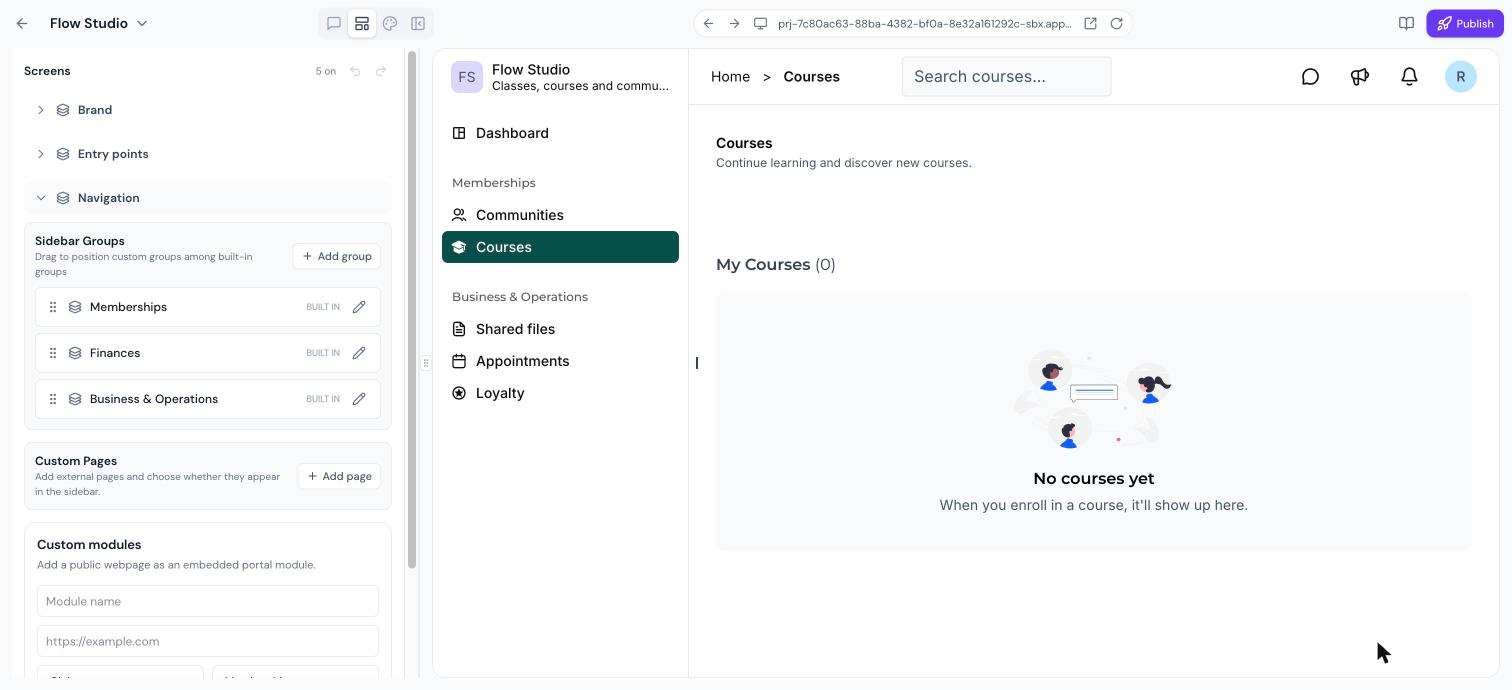
Manage navigation groups
- Open the Layout editor by clicking the Layout icon at the top left of the app.
- Locate the Navigation section in the Screens panel.
- Drag an existing sidebar group to a new position to change its order.
- Click the pencil icon next to a group to rename it.
- Click the Add group button to create a new navigation group.
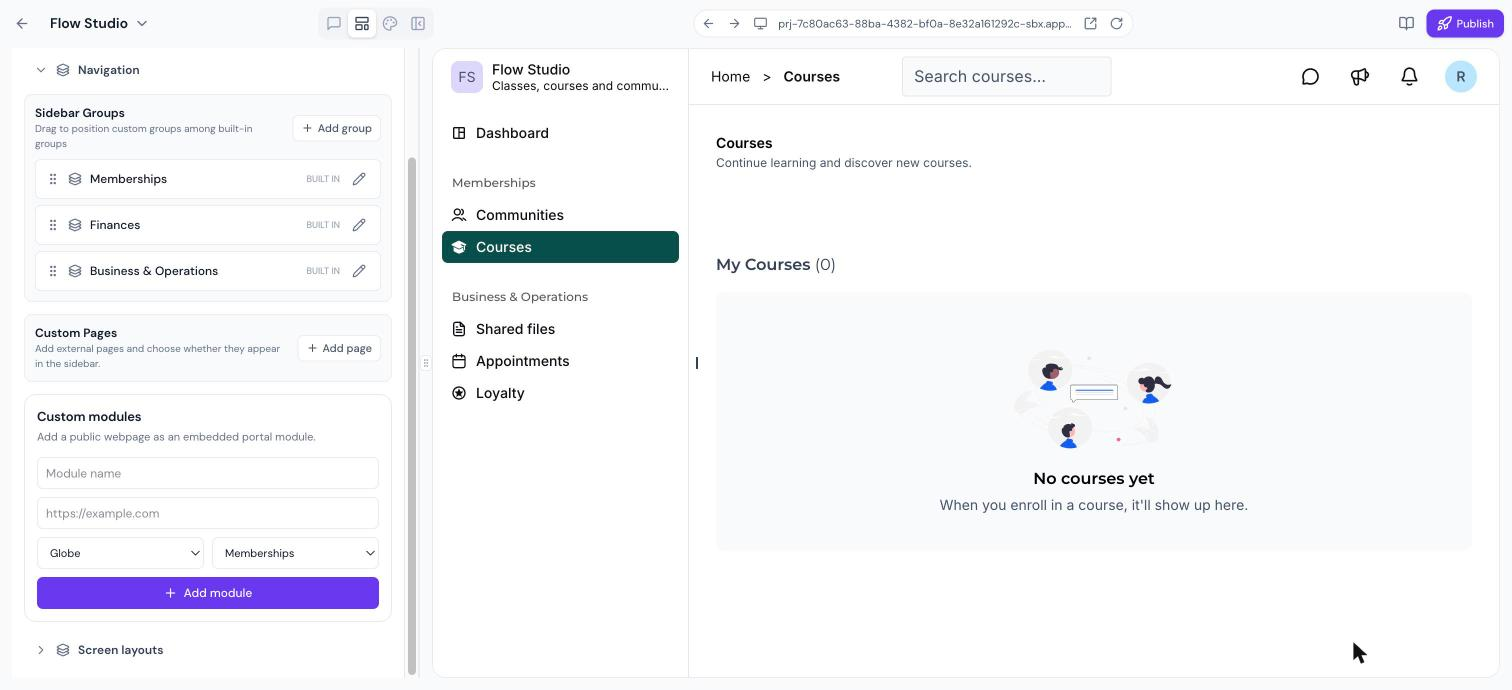
Add a custom module
- In the Layout editor, click Add module.
- Enter the Module name, paste the external URL, choose an icon, and pick the sidebar group where it will appear.
- Click the Add module button to embed the external page as a module.
Adjust screen layouts
- Expand the Screen layouts section in the Screens panel.
- Use the toggle next to a screen to show or hide it.
- Drag a screen within its sidebar group to reorder its position.
- Expand a screen and drag its individual blocks to change their order or hide them.
05What it looks like in HighLevel
06Settings that matter
- Module name. Defines the label shown in the sidebar for the custom module.
- URL. Specifies the public web address that the module will display inside the app.
- icon. Selects the visual icon that appears beside the module name in the sidebar.
- sidebar group. Determines which navigation group the custom module belongs to.
- Screen visibility toggle. Turns a screen on or off so it appears or is hidden from app users.
07Things to know before you rely on it
- Web apps built with the Describe it option generate their own navigation; the layout editor cannot modify tabs, the header, or sign in for those apps.
- Mobile only apps must use the Mobile Customizer to change navigation, not this editor.
08How it connects to the rest of HighLevel
- Get started with Client App Builder to create custom apps. Client App Builder overview
- Apply branding and themes to your app for a consistent look. Theme and branding
- Use the Mobile Customizer for navigation changes on mobile apps. Mobile Customizer
Michael's take

I find the visual editor helpful for seeing exactly what clients will experience, and the undo button lets me revert any change with a single click.
When I’m building a client app, the first thing I adjust is the entry point flow; getting the landing page and default dashboard right sets the tone for the whole experience.