
01Who this is for
- Coaches who need to capture client applications for sessions and control who can view each submission.
- Agencies that gather project requests and want to limit visibility to the requesting company only.
- Boutique retailers that sell services via Pay or Buy buttons attached to custom records.
02Custom records, explained
Custom records turn client submitted data into CRM objects. When an app request requires stored data, the AI prompts you to use custom objects. You can design up to three objects at once, adding fields, dropdown options, and links to contacts, companies, or other objects. The system will reuse an existing object instead of duplicating it.
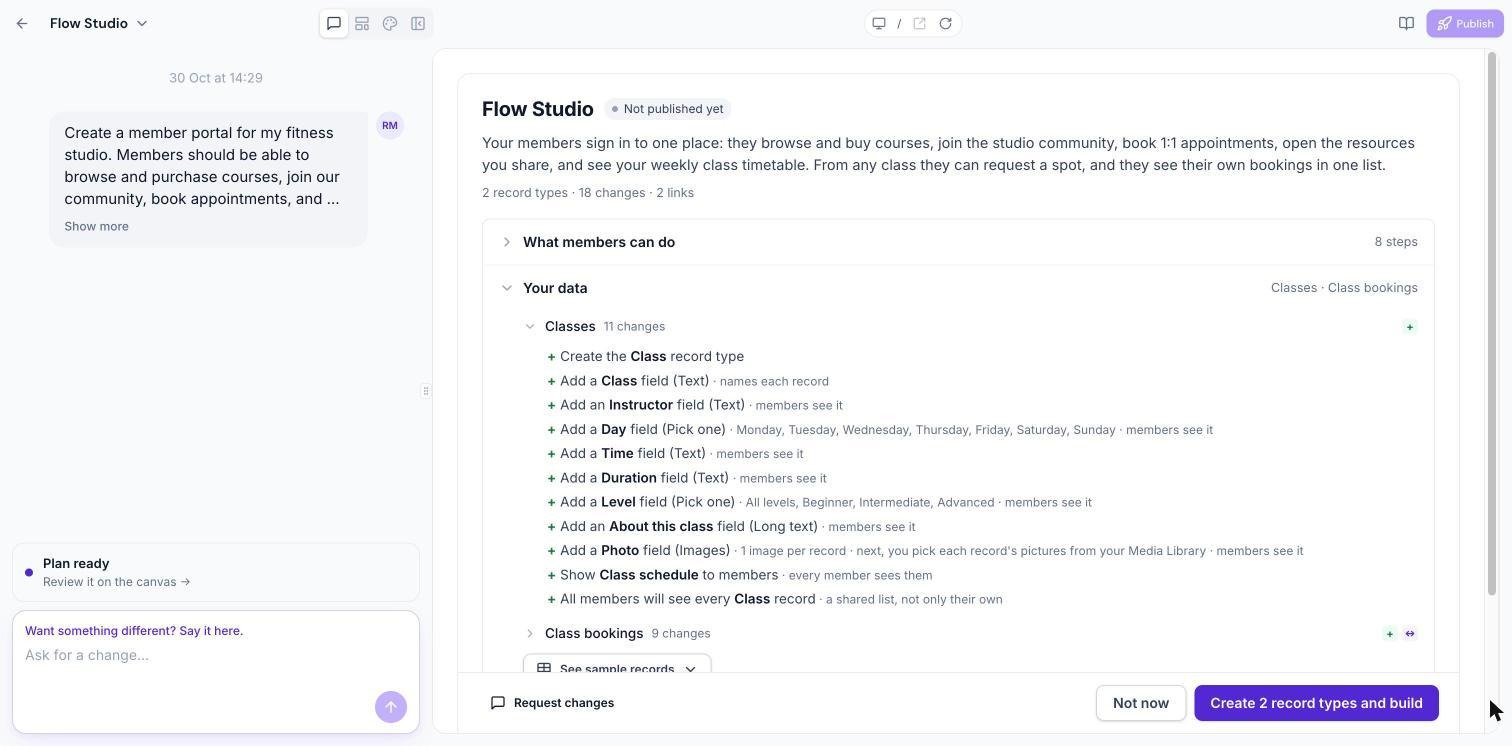
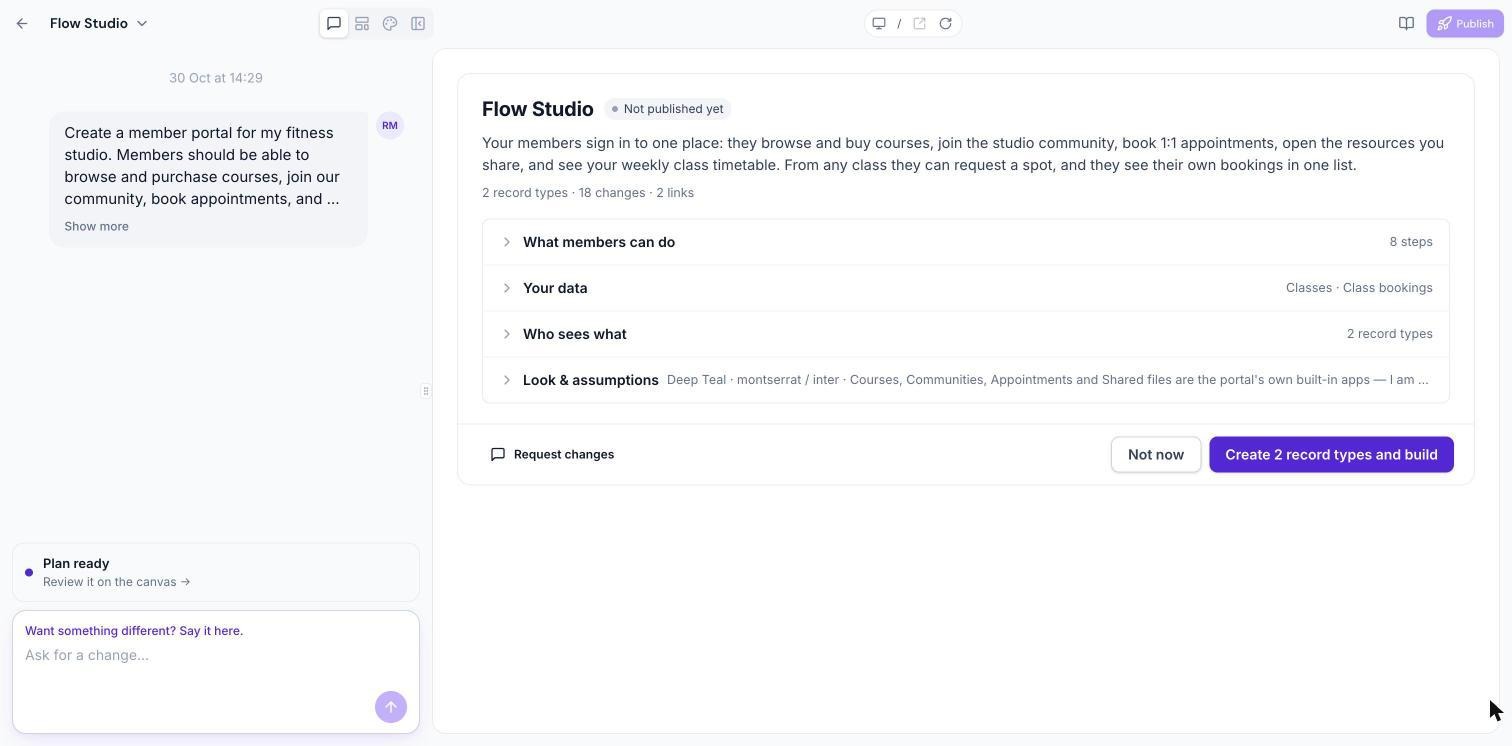
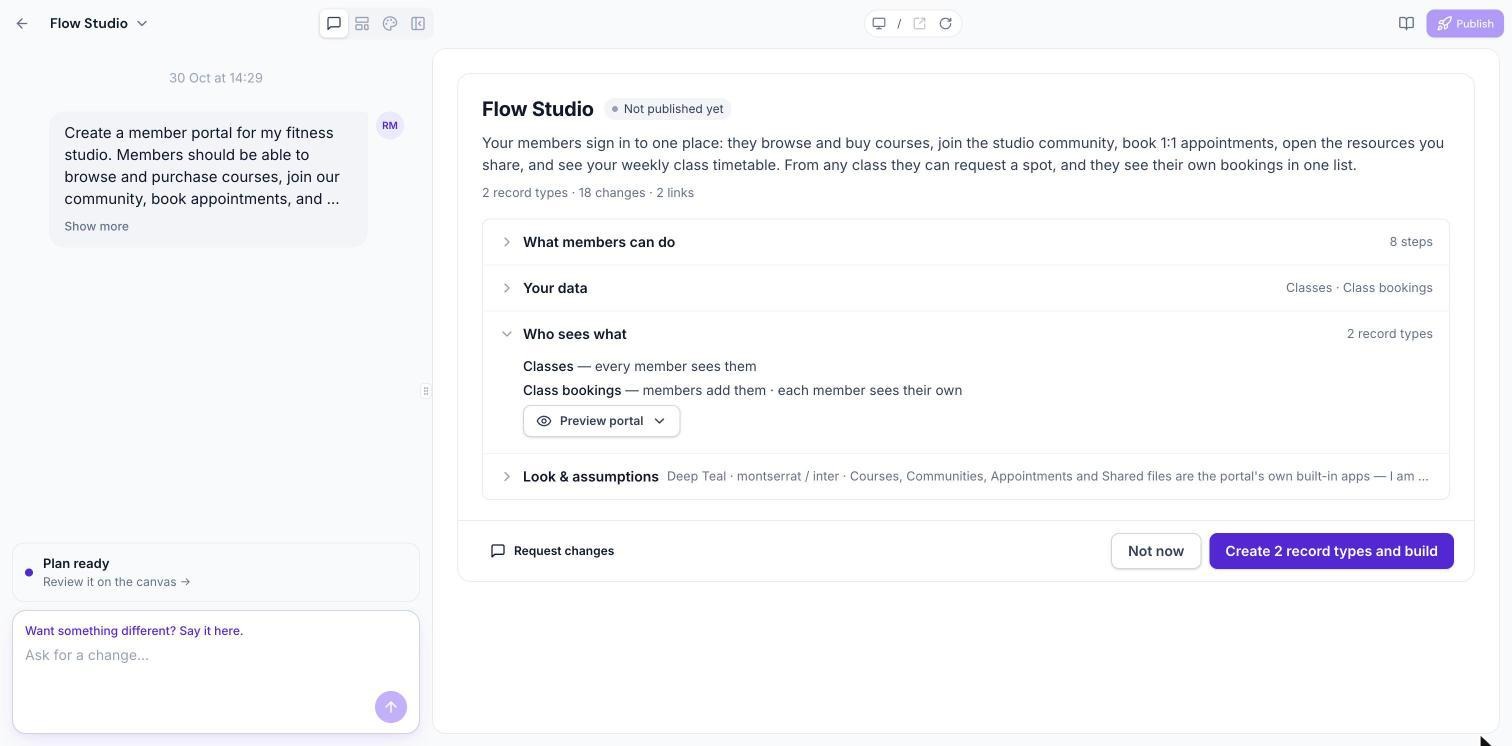
After you describe what clients add, you answer the AI’s custom objects question, review a plan that lists each record type, its fields, dropdown values, and visibility settings, and then approve, modify, or skip the creation. Once approved, each object receives its own page in the app where members can view or add records according to the visibility you set.
The feature lives inside the Client App Builder area of HighLevel. After approval, links to the new custom objects appear in the chat, and the objects are stored as custom objects in the subaccount’s CRM.
03How businesses use custom records
- Workshop organizer. The organizer describes a form where attendees can apply for a workshop. After approving the plan, a custom object is created so applicants can submit their details and see only their own applications.
- Marketing consultancy. The consultancy sets up a request form for new projects. They choose company level visibility so each client can see only the projects linked to their own company record.
- Service seller. A service provider adds Pay or Buy buttons to a custom record, allowing clients to purchase a consulting package directly from the record page after a payment provider is connected.
04The numbers and rules that matter
- Up to 3 objects can be designed at a time.
- A subaccount holds up to 10 Custom Objects.
- Mobile apps support up to 3 objects with fields, dropdowns and links.
05Before you start
- An app must be started or an existing app opened in Client App Builder.
- A payment provider must be connected if you plan to use Pay or Buy buttons on records.
06How to set up and use custom records in HighLevel
Create custom records in the app
- Describe the data clients will add, either in a new app or via the chat of an existing app.
- Answer Yes when the AI asks to use custom objects in your HighLevel account for the request.
- Review the generated plan that lists each record type, its fields, dropdown values, and visibility options.
- Approve the plan to build the objects, request changes by describing them in plain words, or choose Not now to skip creation. The Not now option appears only when the review offers a way to decline.
- After approval, links to the new custom objects appear in the chat.
07What it looks like in HighLevel
08Settings that matter
- Public. Controls whether a record is readable by any visitor, including those not signed in to the app.
09Things to know before you rely on it
- You can design up to three custom objects at a time.
- Each subaccount can hold a maximum of ten custom objects; if full, you must reuse or free a slot.
- Mobile apps support up to three objects with fields, dropdowns, and links, displayed from a screen in the bottom bar.
- Public visibility should only be used for records that are safe to show to anyone.
10How it connects to the rest of HighLevel
- Explore the full range of Client App Builder capabilities. Client App Builder overview
- Learn how to add portal modules that can display custom records. Client portal modules
- Publish your branded Android app that includes the custom record pages. Publish Android app
Michael's take

Custom records are a clean way to capture client data directly into your HighLevel account.
If you never need to store client submissions or payments inside the app, you can skip this feature.