
01Who this is for
- Founders of SaaS platforms, need a branded mobile experience that reflects their product identity.
- Coaches and consultants, want a simple way to onboard clients with a welcome carousel before sign in.
- Service agencies, require quick control over tabs, header actions, and custom pages without coding.
02Mobile customizer, explained
The feature lives inside Client App Builder. After selecting Mobile as the platform, you open a visual customizer that offers Brand, Entry points, Navigation, and Screen layouts sections. Adjust colors, fonts, onboarding slides, header style, bottom navigation and more while a phone frame preview updates in real time.
All changes you make are written into the app’s source files. When you publish, the signed Android APK contains exactly the design you approved. The customizer also supports AI chat requests that modify the design without losing prior edits.
The tool supports native phone capabilities such as camera and photo access, and it generates the permission text automatically. Publishing produces a signed APK ready for distribution.
03How businesses use mobile customizer
- SaaS Founder. Open Client App Builder, describe the app, pick Mobile, and follow the setup prompts while watching the preview. Choose a palette and fonts, then build the app so the final product carries the company’s branding.
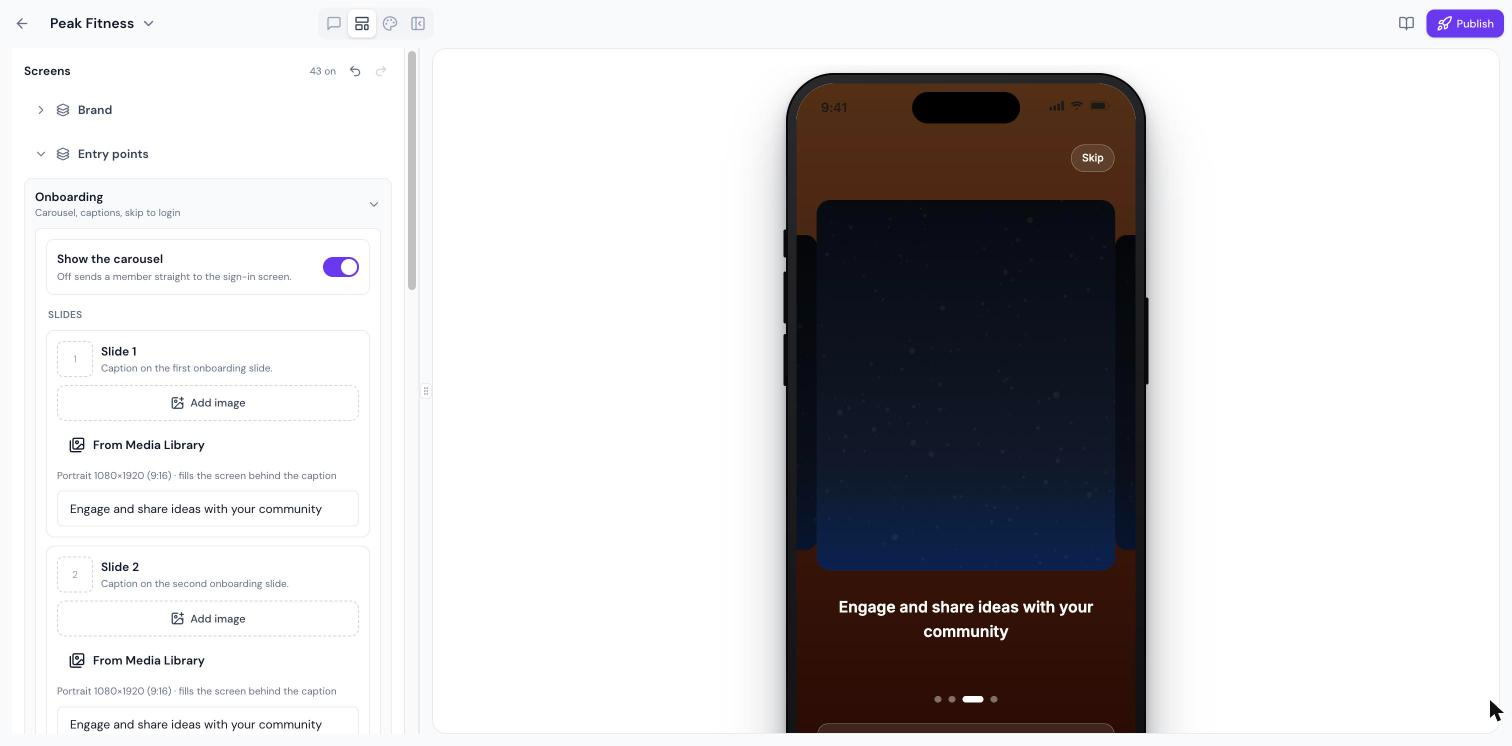
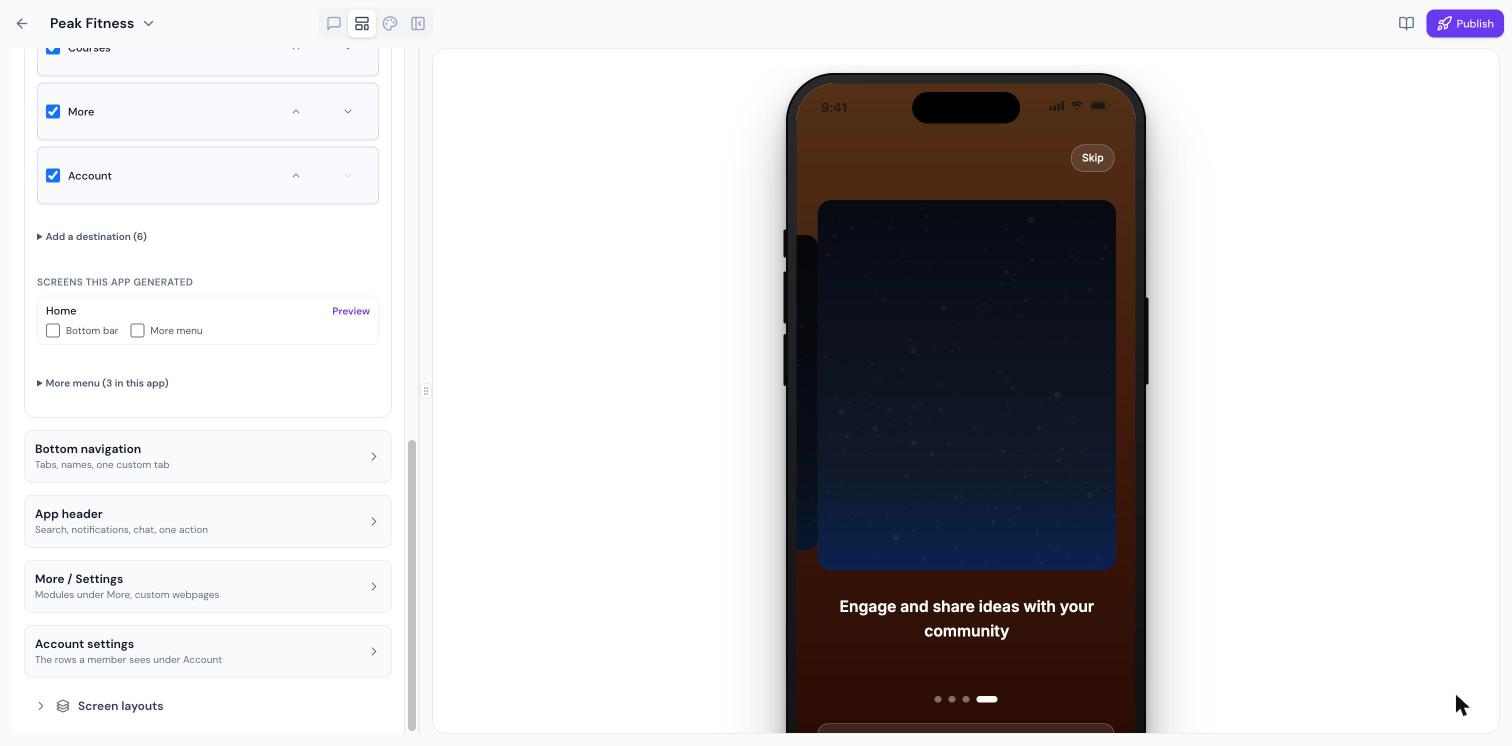
- Coaching business. Within the customizer, expand the Onboarding section, enable the carousel, upload portrait images and captions for up to four slides, or turn the carousel off to send members straight to sign in.
- Service agency. Use the Navigation settings to rename bottom tabs, add a custom tab, toggle header elements like logo or chat, and place external web pages under More or as header actions, then publish the signed APK.
04The numbers and rules that matter
- Carousel takes up to 4 slides.
- Bottom bar holds up to five primary destinations.
05How to set up and use mobile customizer in HighLevel
Create a Mobile App
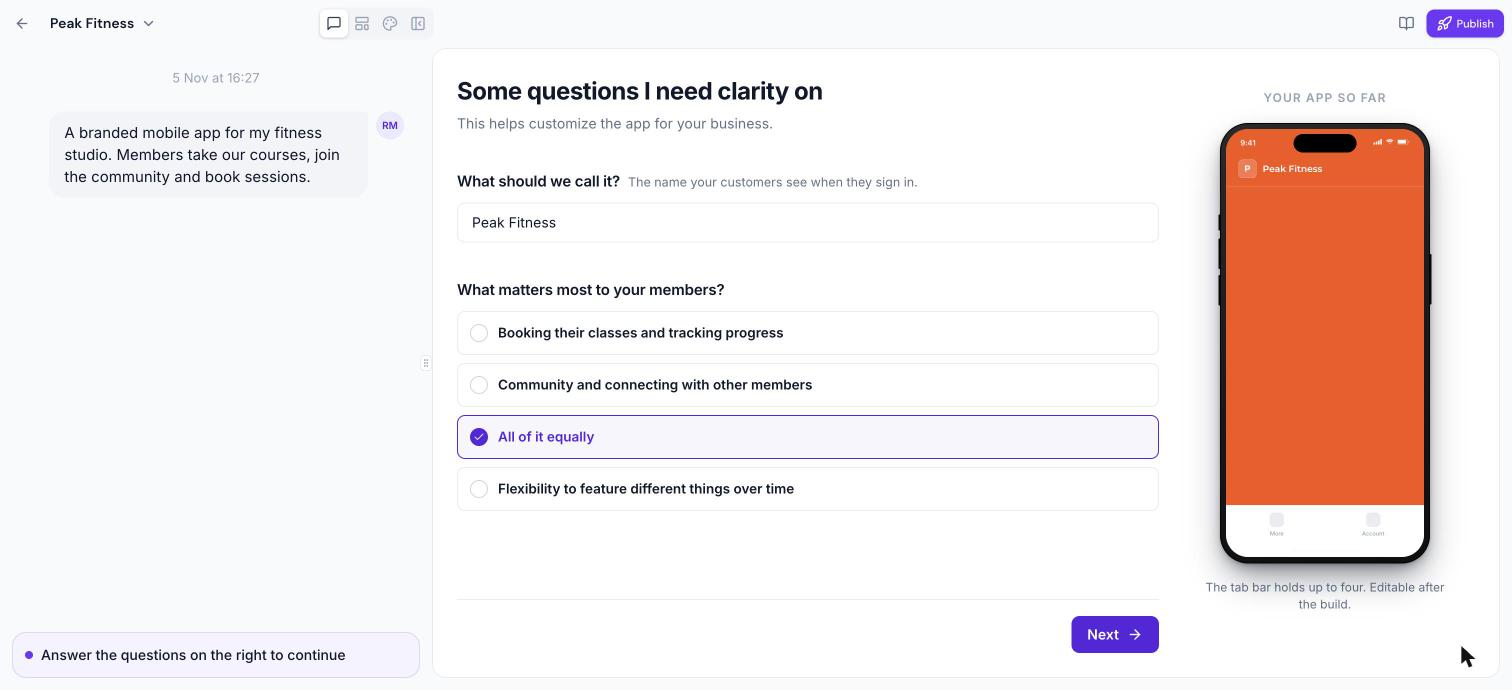
- Open Client App Builder and describe your app.
- Select Mobile as the platform, choose a starting template, and click Continue.
- Answer the setup questions while observing the phone preview adjust.
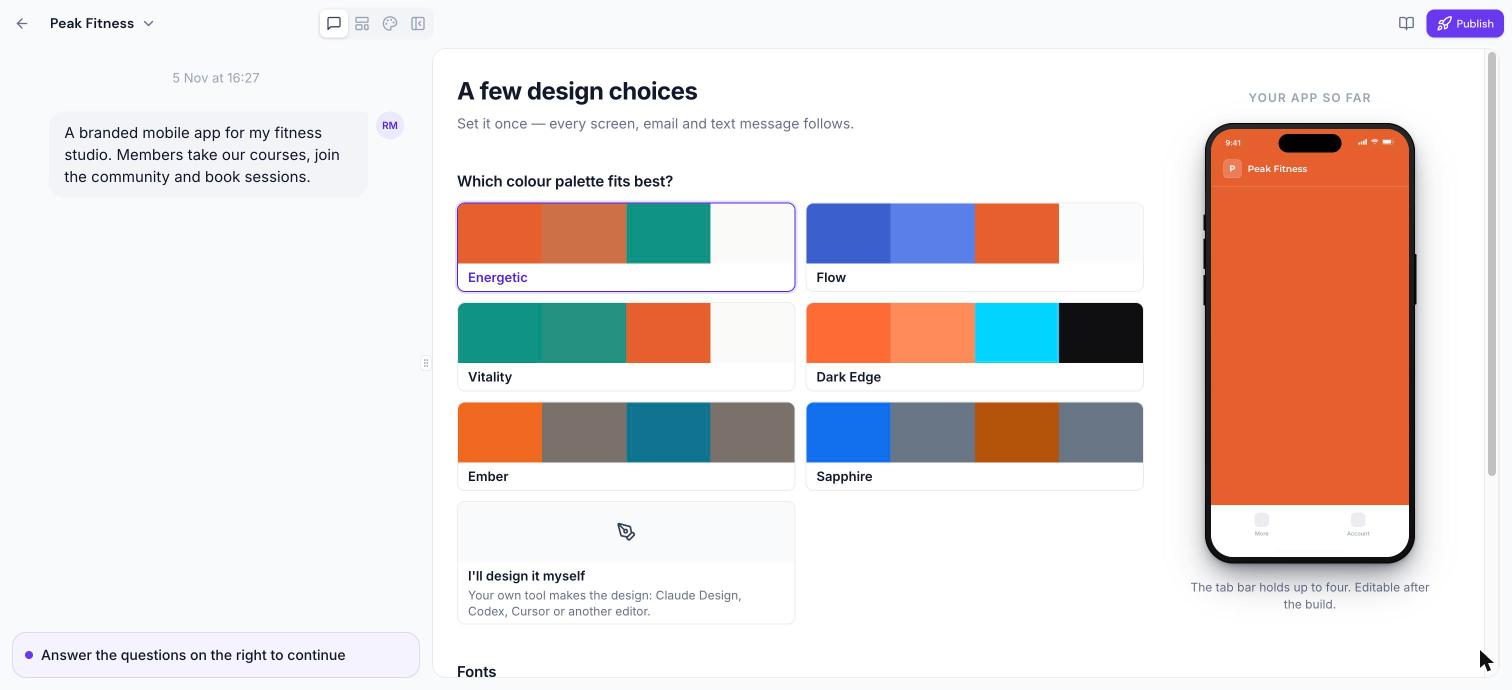
- Pick a colour palette and font set, then press Build my app.
- If you have a pre made design, select “I’ll design it myself” so that design is used.
Customize Your Mobile App
- Click the Layout icon at the top left to launch the customizer.
- Switch among the Brand, Entry points, Navigation, and Screen layouts sections.
- Modify the options inside each section as needed.
Set up onboarding
- Open the Onboarding area under Entry points.
- Toggle Show the carousel on or off according to your flow.
- For each slide (up to four), upload a portrait image and add a caption; members may tap Skip to go to sign in.
Configure app shell and navigation
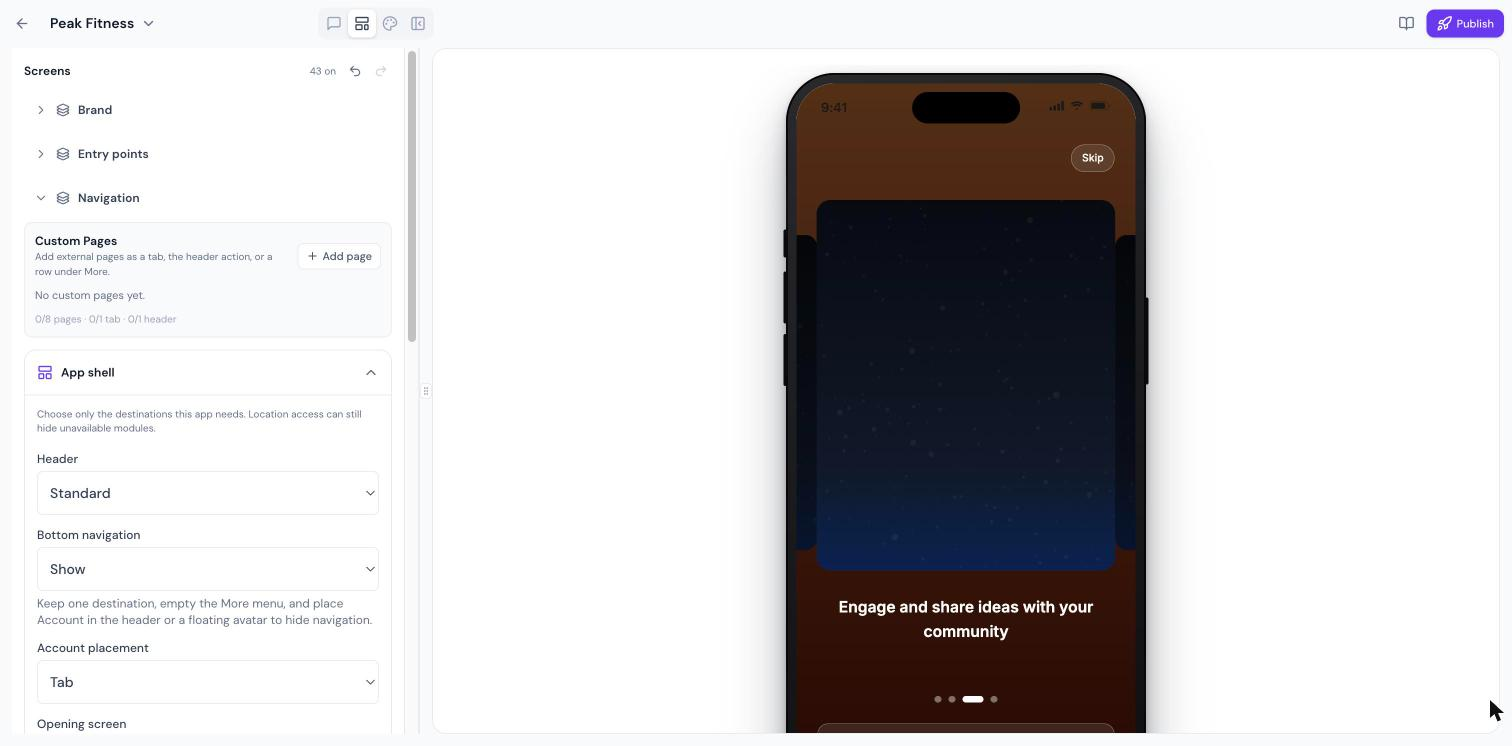
- Choose a header style, Standard, Minimal, or Hidden, under Navigation.
- Show or hide the bottom tab bar.
- Select where the Account option appears, as a tab, under More, in the header, or as a floating avatar.
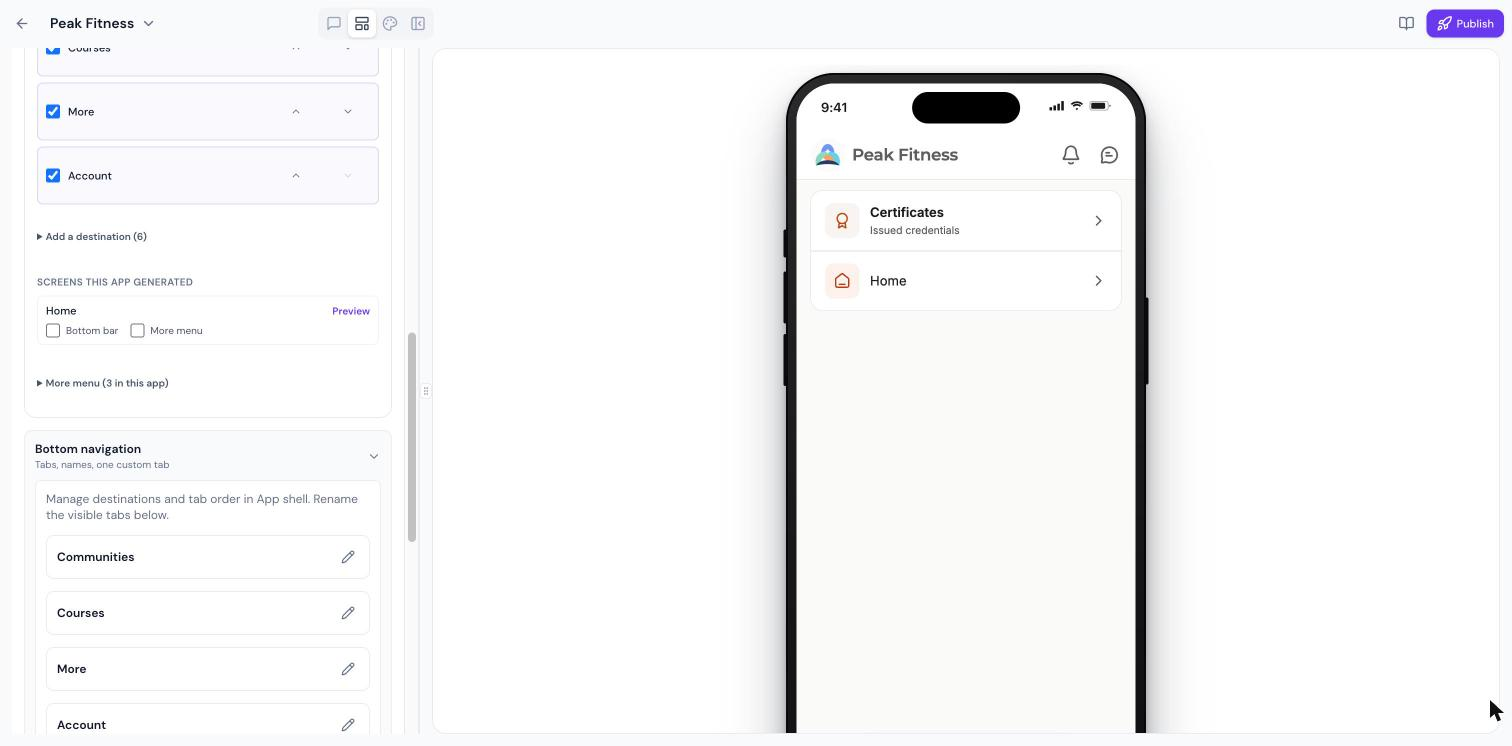
- Set the opening screen and tick the primary destination tabs you want, reordering them with the arrows or adding more via Add a destination.
Customize tabs, header and menus
- Rename the visible bottom navigation tabs and add one custom tab.
- Turn the logo, search, notifications and chat on or off in the app header, and add a single header action.
- Choose which modules appear under More / Settings and add custom web pages.
- Select the rows that display under Account settings.
- Add external pages as a tab, header action, or as a row under More using Custom Pages.
06What it looks like in HighLevel
07Settings that matter
- Header style. Controls whether the app header appears as Standard, Minimal, or Hidden.
- Bottom navigation. Determines if the bottom tab bar is shown or hidden.
- Account placement. Specifies where the Account option is displayed: as its own tab, inside More, in the header, or as a floating avatar.
- Opening screen. Sets the first screen a member sees after signing in.
- Primary destinations. Defines which tabs appear in the bottom navigation and their order.
- Show the carousel. Enables or disables the onboarding carousel that appears before sign in.
- App header. Allows turning the logo, search, notifications and chat on or off and adding one header action.
- More / Settings. Controls which modules are listed under the More menu and lets you add custom web pages.
- Custom Pages. Lets you add external web pages as a bottom tab, a header action, or a row under More.
- Account settings. Determines which rows are visible inside the Account section.
08Things to know before you rely on it
- The onboarding carousel can contain up to four slides.
- The bottom navigation bar supports a maximum of five primary destination tabs; additional items must be placed under More.
09How it connects to the rest of HighLevel
- Overview of Client App Builder and how to start building custom web and mobile apps Client App Builder guide
- Step by step instructions for publishing a signed Android APK from the builder Publish Android app
- How to apply colour palettes, fonts and brand assets in the builder Theme and branding
Michael's take

Wondering if the mobile customizer is worth the time? It’s a straightforward way to make your app look exactly like you imagined, from colors to navigation, without needing a developer to rewrite code. The live phone preview lets you see changes fast, so you know what users will get before you publish.
If I were building a new app, I’d start by setting the brand palette and header style, then use the chat to fine tune the onboarding carousel.