
01Who this is for
- Operations managers can see exact labor time per job, helping them plan resources.
- Field technicians benefit by easily logging hours directly on each visit without extra paperwork.
02Timesheets, explained
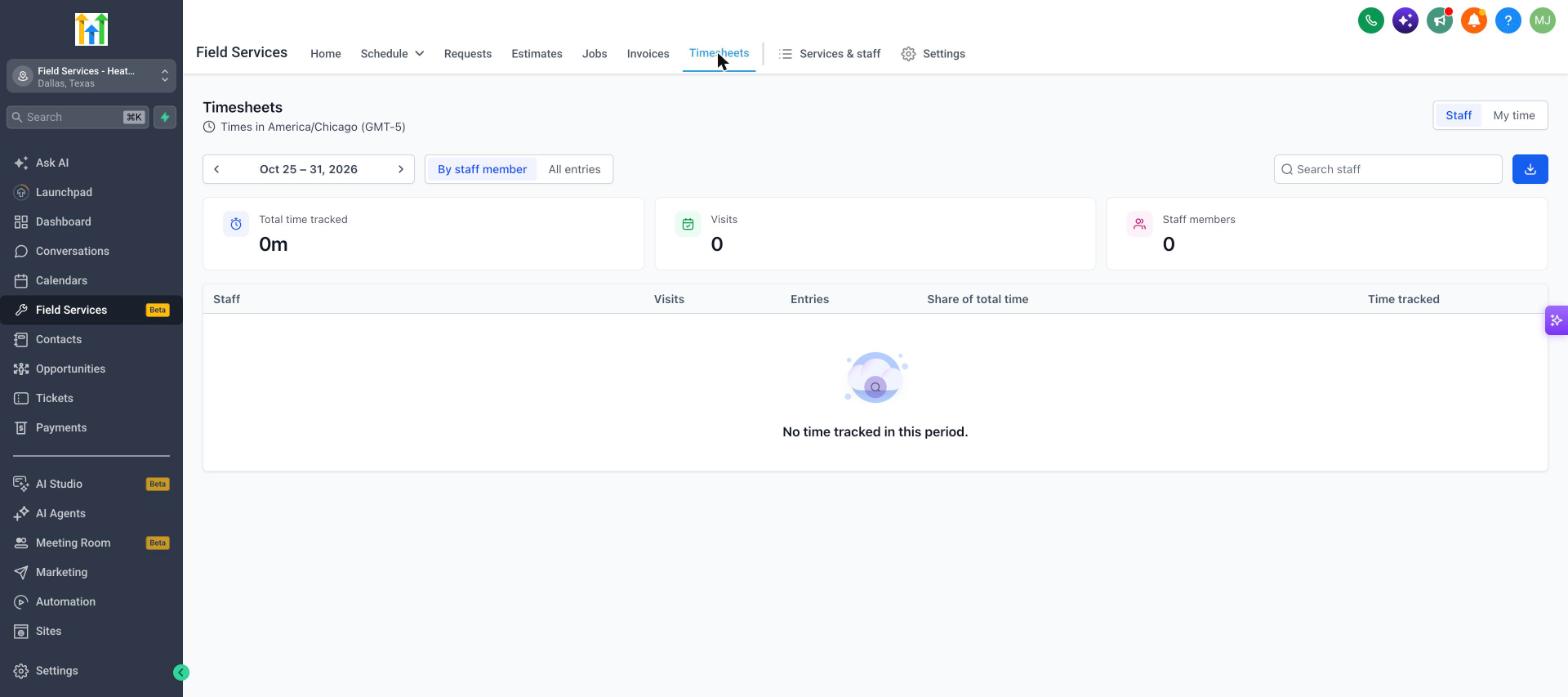
Timesheets are a feature inside the Field Services module that captures staff work hours per visit. When a staff member starts a timer, the system records a time entry each time the timer is stopped. Multiple entries can exist for a single visit, and each staff member has an independent timer.
The feature lives under Field Services Settings > Global settings. Turning it on allows staff to log hours against jobs and visits, and all changes are recorded in an audit history showing who made each edit. Time entries can be added manually, edited, or deleted, and the totals for visits adjust automatically.
03How businesses use timesheets
- Cleaning service company. A cleaner starts a timer when arriving at a client location and stops it after finishing. If they need to pause, they stop the timer and start again later, creating separate entries that sum to the total labor time for that visit.
- HVAC repair business. A technician manually adds a time entry for a job that occurred yesterday because the visit was already completed. The start and end times are entered, and the system calculates the duration, preserving the audit record.
- Landscaping firm. An admin edits an entry made by a crew member when the recorded end time was entered incorrectly. The change updates the visit’s total labor time right away and records the edit in the audit log.
04The numbers and rules that matter
- Overnight entries (e.g., 11:30 PM to 12:30 AM) count as one hour.
05Before you start
- Field Services must be enabled for the account as it is currently in a private beta and only available to selected accounts.
06How to set up and use timesheets in HighLevel
Enable timesheets in Field Services
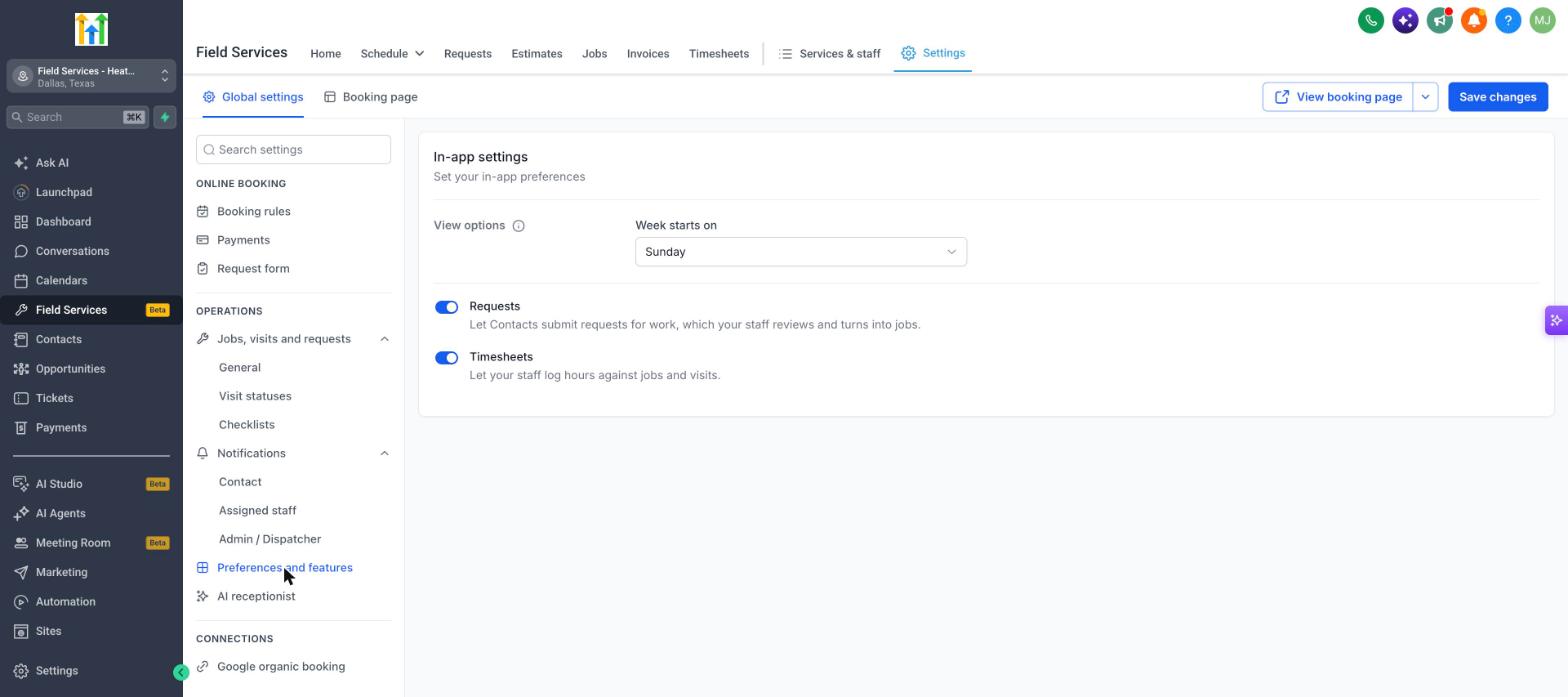
- Open Field Services > Field Services Settings > Global settings.
- In the Operations section, select Preferences and features.
- Toggle on Timesheets (Let your staff log hours against jobs and visits).
- Click Save changes.
07What it looks like in HighLevel
08Settings that matter
- Timesheets. Controls whether staff can log hours against jobs and visits, creating time entries that are summed per visit and per employee.
09Things to know before you rely on it
- Feature is in a private beta and only accessible to accounts that have been selected for the program.
- Timers cannot be started for visits that already occurred in the past; manual entries must be used instead.
- If a timer is running when a visit is marked Completed, Cancelled, or No show, a warning appears to prevent loss of the timer.
- An entry that spans midnight counts as the total hours between start and end (e.g., 11:30 PM to 12:30 AM counts as one hour).
- Staff members may have more than one timer running simultaneously on different visits.
10How it connects to the rest of HighLevel
- Start using the Field Services private beta Private beta guide
- Explore the Field Services home page overview Home page overview
- Set up staff, assign services, and define hours Staff setup
Michael's take

Timesheets can feel like a double edge sword if you let anyone change hours without clear rules. Without proper permissions, you could end up with conflicting entries or an audit trail that’s hard to trust.
When you need to know exactly how long a job took and who did the work, timesheets give you that clarity. The built in audit log means you always have a record of what changed and who made the change, which is priceless for billing and accountability.