
01Who this is for
- Service technicians who need to see their daily jobs on a calendar and avoid double bookings.
- Home repair businesses that must match workers to geographic zones and service skills.
- Field consulting firms that schedule visits with multiple staff members and need travel time buffers.
02Visits and find availability, explained
Scheduling a visit turns a job into a calendar entry with a date, time, assigned staff, status and listed services or products. The visit can be set to a fixed slot or marked as Anytime, where it appears in a separate row.
The Find availability feature examines staff service area coverage, qualifications, working hours, existing appointments, travel time and daily limits, then proposes the best or earliest times. It does not enforce customer facing rules such as minimum notice, allowing the team to book further ahead.
All scheduling actions live inside the Field Services module of HighLevel. They are accessible from a job record or the Jobs to schedule panel on the calendar, and changes sync between the web portal and the mobile app.
03How businesses use visits and find availability
- HVAC repair company. A dispatcher opens a job, clicks Schedule visit, selects the date and time, assigns certified technicians, and saves. The system then records the appointment on the calendar and updates the mobile app.
- Mobile plumbing service. The team uses Find availability to let the platform suggest a slot that fits a plumber’s route, respects travel buffers and avoids overlapping jobs, then confirms the suggestion with Use this time.
- On site IT support firm. When an urgent request arrives, the manager manually enters a past date to document work already performed, picks any staff member, and schedules the visit despite normal availability rules.
04The numbers and rules that matter
- Find availability checks staff who serve the customer's service area, staff assigned to the selected services, working hours, time off and blocked time, visits already booked, visit duration and slot interval, drive time and extra time before visits set on the service area, daily visit limits for a staff member, and that all selected staff are free at the same time.
05Before you start
- Field Services must be enabled in the private beta for the account.
- Staff members, service areas and services need to be set up before scheduling.
06How to set up and use visits and find availability in HighLevel
Schedule a visit
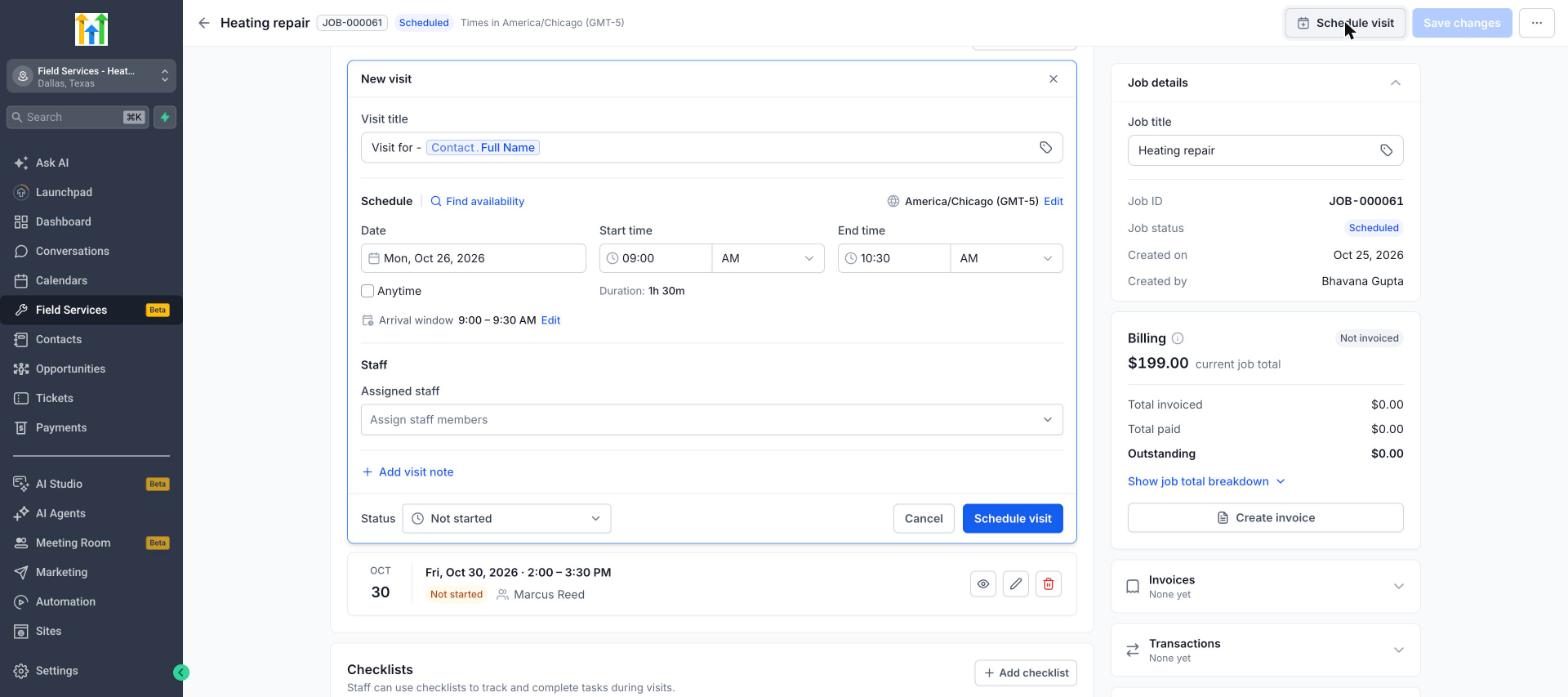
- Open the job and click the Schedule visit button.
- Review the Visit title that appears by default.
- In the Schedule section, pick the Date, Start time and End time.
- Check the Anytime box if the appointment does not have a fixed time.
- Click Edit next to Arrival window to choose how the time is shown to the customer.
- Under Staff, select one or more staff members to assign.
- Click Add visit note to add an internal comment if needed.
- Choose the visit Status; new visits start as Not started.
- Click the Schedule visit button to save the appointment.
Use Find availability
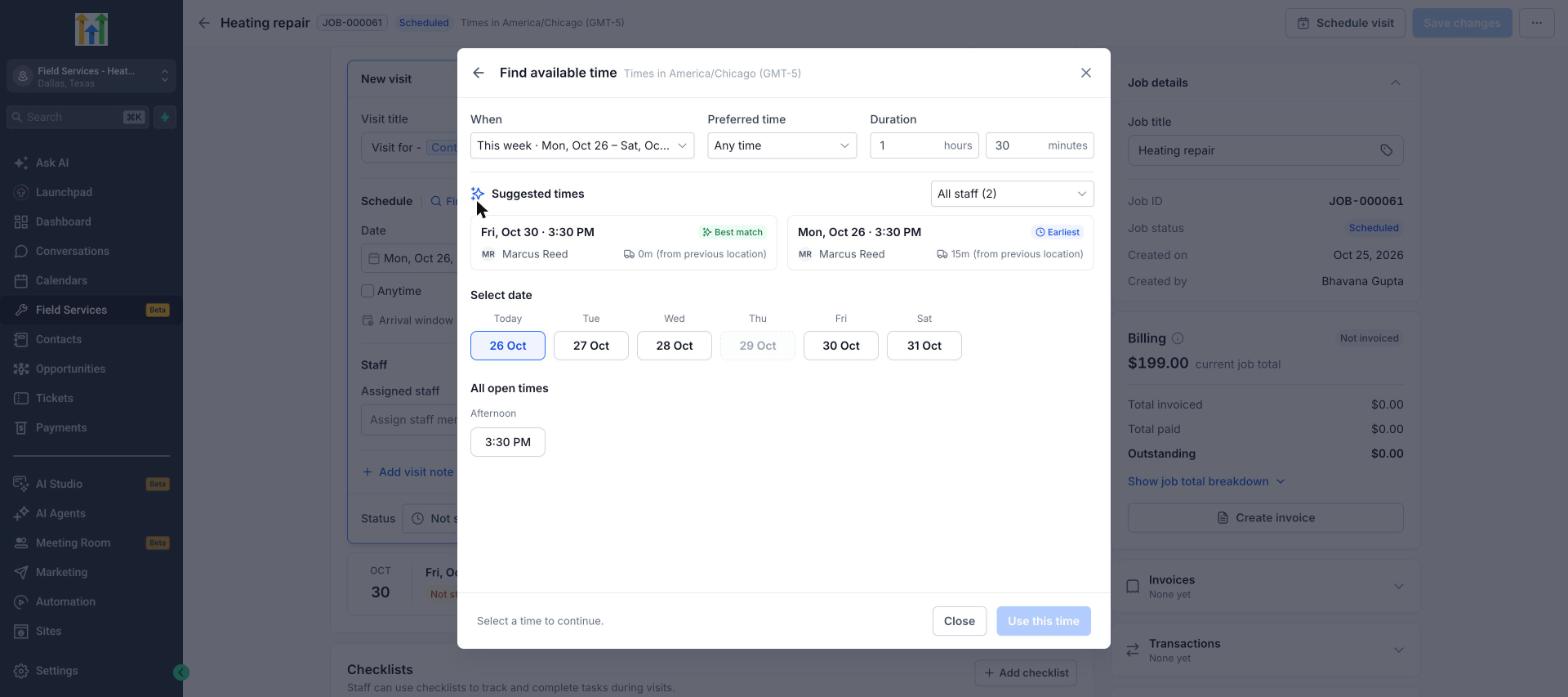
- Click Find availability next to Schedule to open the suggestion window.
- Select the week to search in the When field.
- Choose a Preferred time segment or Any time.
- Check the Duration and adjust hours or minutes if required.
- Use the staff filter to include all staff or a specific person.
- Review the Suggested times list for Best match or Earliest options.
- Or pick a date under Select date and choose a time from All open times.
- Click Use this time to fill the visit with the chosen slot.
Schedule manually
- Enter any Date and Start time you prefer, even if staff are unavailable.
- Select any staff member, regardless of service area or qualification.
- Click Schedule visit to create the appointment.
07What it looks like in HighLevel
08Settings that matter
- Visit title. The label shown for the visit; it defaults to the contact’s full name.
- Date. The calendar day on which the visit is planned.
- Start time. The beginning hour of the scheduled visit.
- End time. The finishing hour of the scheduled visit.
- Anytime. A flag that places the visit in the Anytime row when the time is not fixed.
- Arrival window. Controls whether the customer sees an exact time or a time range.
- Assigned staff. The list of staff members allocated to the visit.
- Visit note. An internal comment that can be added to the visit record.
- Visit Status. The current state of the visit; new visits start as Not started.
- When. The week range that Find availability searches for open slots.
- Preferred time. Specifies a part of the day or any time for the suggested slots.
- Duration. The length of the visit, derived from job services but editable.
09Things to know before you rely on it
- Field Services is in a private beta and only selected accounts have access; features and screens may change.
- Find availability does not enforce customer facing rules such as minimum notice or booking windows.
- Manual scheduling can override normal service area and qualification checks.
10If something goes wrong
- No suggested times appear in Find availability. Verify that at least one staff member is assigned to the services on the visit, that the staff serves the customer’s service area, and that the staff has working hours defined for the chosen week.
11How it connects to the rest of HighLevel
- Enable the Field Services beta and configure mobile access Field Services beta setup
- Add staff members, assign services and set working hours Field Services staff
- Define service areas and travel policies for accurate scheduling Service areas
Michael's take

I find the Visits and Find availability feature handy because it suggests slots based on staff availability, service zones and travel time.
If I were setting this up, I’d first run a few test visits using Find availability to see how the drive time estimates line up with real routes. That quick check helps me feel confident about the suggestions before relying on them for daily scheduling.