
01Who this is for
- Coaches who need the same office hours for multiple booking pages, so they can update availability once and have it reflected everywhere.
- Medical clinics with several practitioners, allowing each doctor to share a common schedule while still supporting individual exceptions.
- Real estate agencies that want a default schedule for new agents and the ability to fine tune availability for each property’s calendar.
02Schedules, explained
Schedules act as shared availability templates. They bundle weekly working hours, specific date overrides, and a staff level time zone into one object that can be linked to any calendar. When a schedule is attached, the calendar displays the defined slots, and any future changes to the schedule automatically appear on all linked calendars.
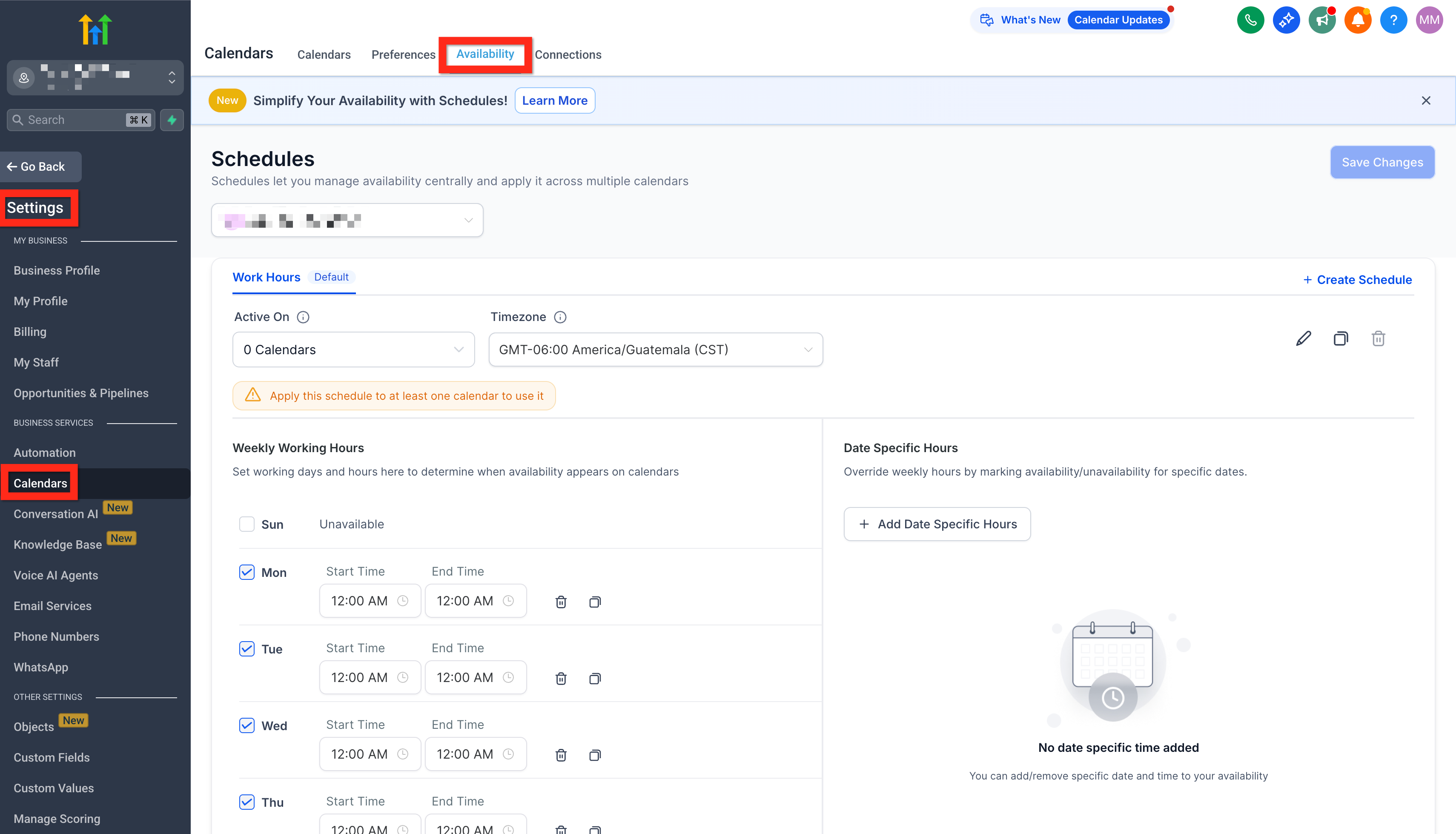
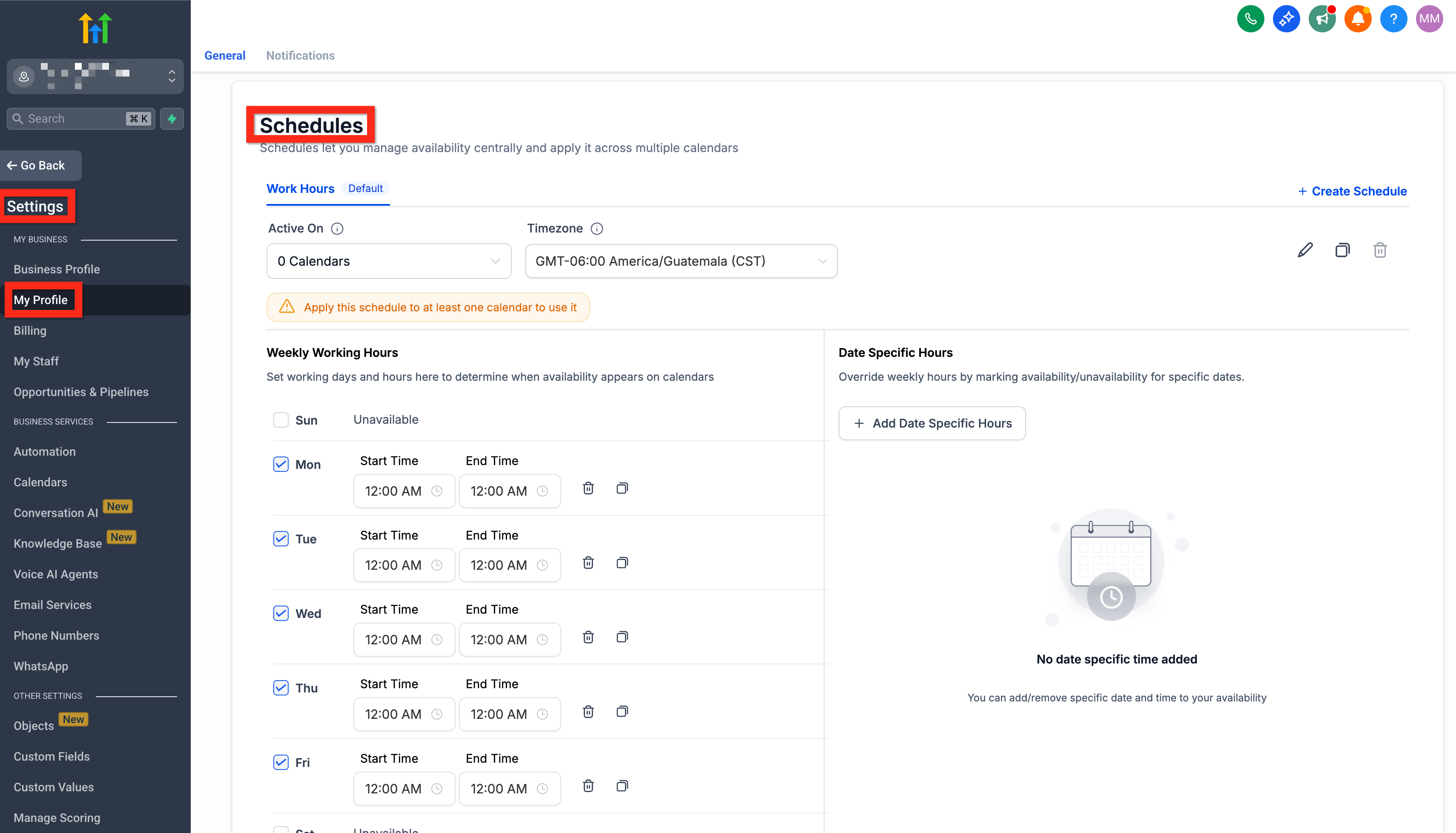
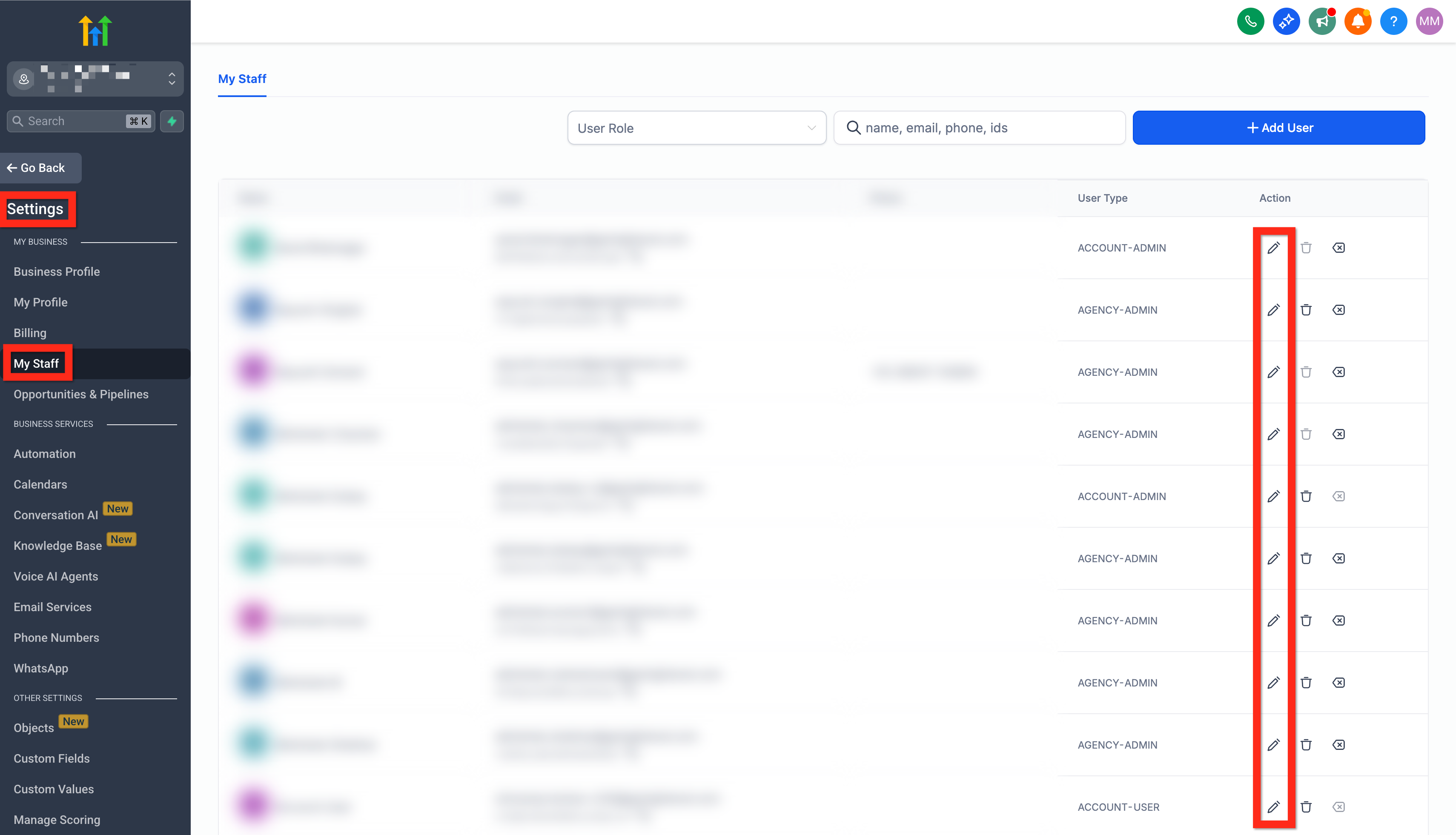
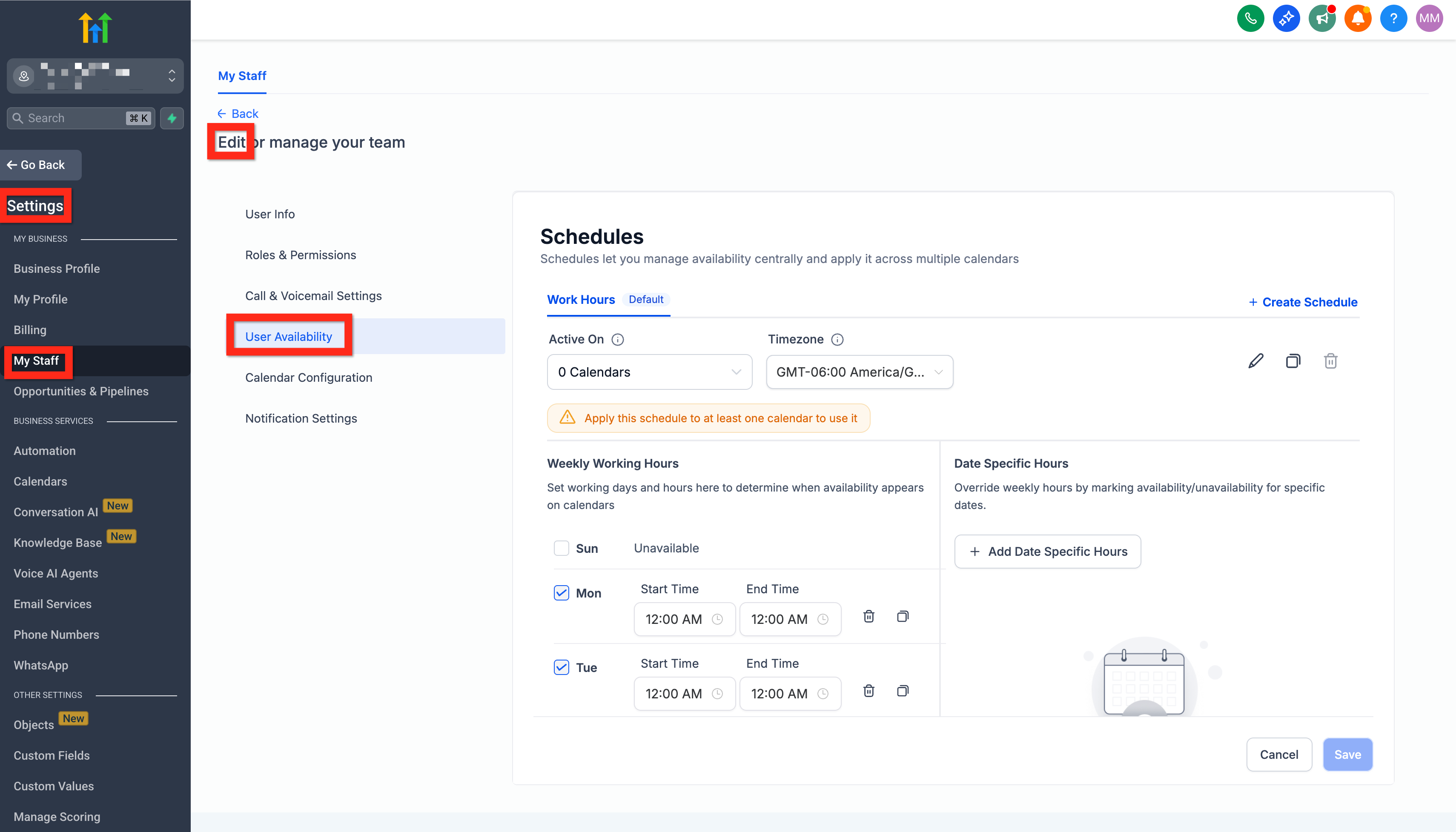
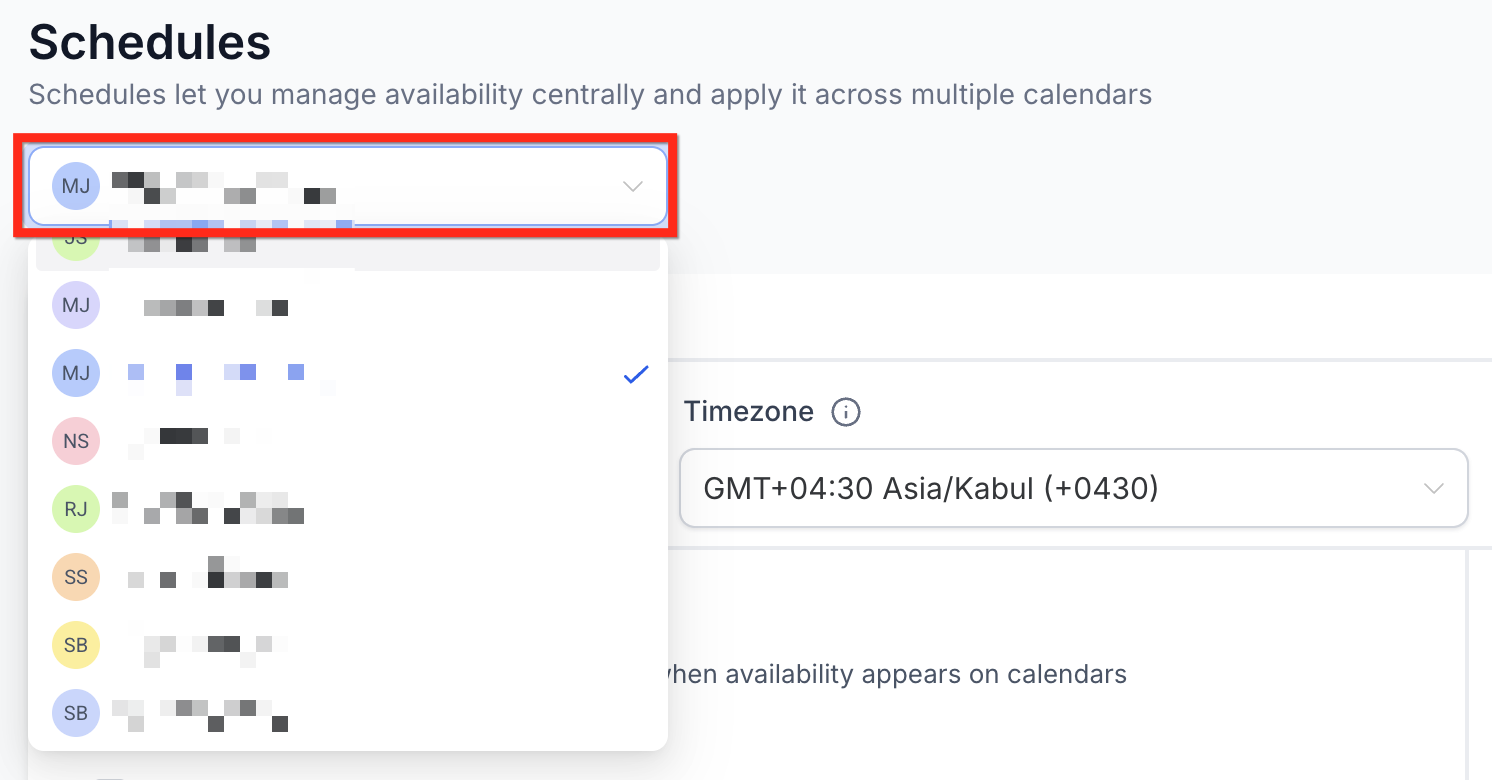
The feature lives under Labs. After enabling Calendars, Schedules at Agency Settings > Labs > Subaccount, you reach the schedule manager via Calendars > Calendar Settings > Availability (or Settings > Calendars > Availability). Individual users can also edit their own schedule from Settings > My Profile. Administrators manage any user’s schedule from Settings > My Staff and the edit icon.
Custom schedules are separate from the central list. They exist only inside a specific calendar’s Availability tab and let a single calendar deviate from the shared schedule without affecting others.
03How businesses use schedules
- Coaching firm. The firm creates a Schedule named "Group Coaching" with weekly hours, sets the time zone, and selects all coaching calendars in the Active On dropdown. When a new coach joins, the default schedule automatically provides booking slots.
- Medical clinic. The clinic defines a Schedule for "Primary Care" covering standard office hours, adds date specific overrides for holidays, and assigns it to each physician’s calendar. If a doctor needs a one off change, they create a Custom Schedule inside that calendar.
- Real estate agency. Agents share a "Showing Hours" Schedule across property calendars. When a property has a special open house, the agent opens that calendar’s Availability tab and creates a Custom Schedule to reflect the unique timing.
04The numbers and rules that matter
- No hard limit on number of schedules.
05Before you start
- Enable Calendars, Schedules in Labs via Agency Settings > Labs > Subaccount.
06How to set up and use schedules in HighLevel
Create a new schedule
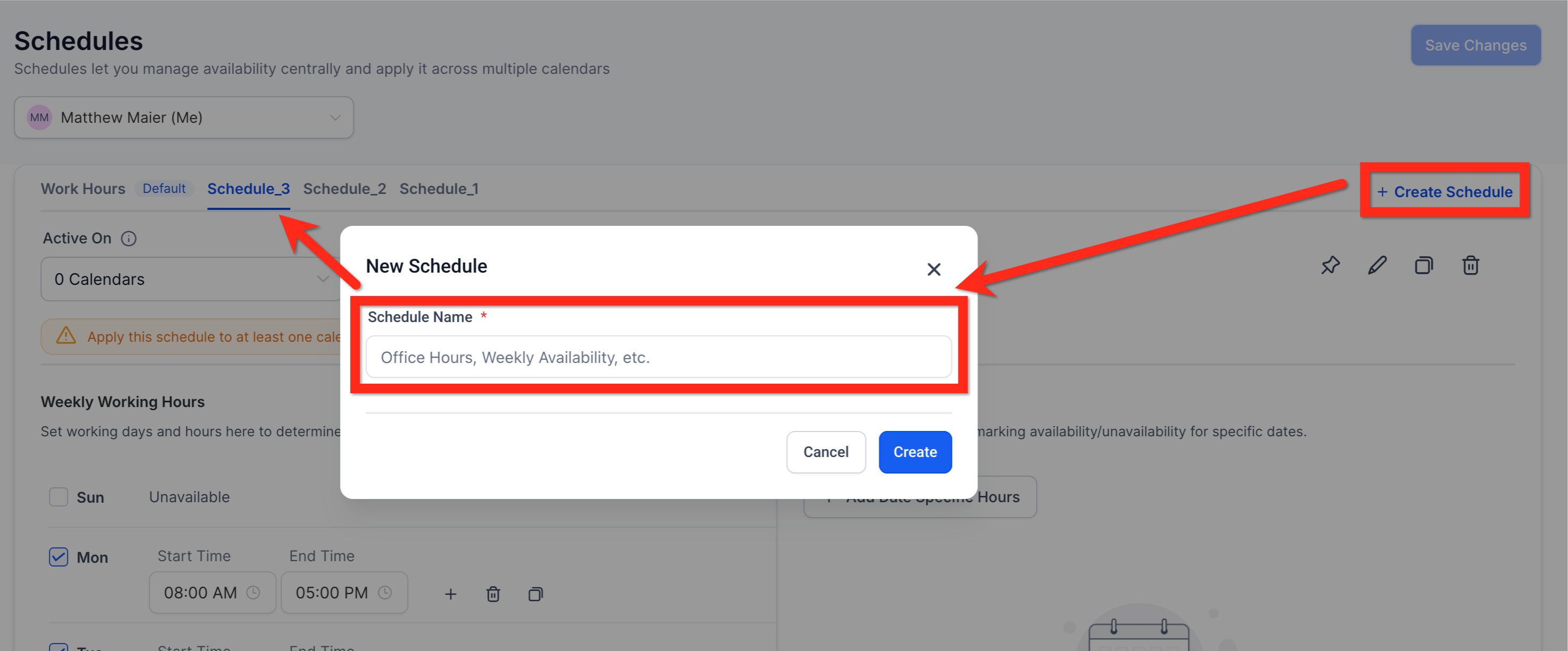
- Click Create Schedule, type a name, and press Create.
- Open the configuration area for the new schedule.
- Define the weekly working hours for the schedule.
- Select the time zone used to evaluate availability.
- Add any date specific overrides for particular days.
- Choose which calendars the schedule applies to using the Active On dropdown.
- Save the schedule.
Assign a schedule to a calendar
- Navigate to Calendars > Calendar Settings > Edit Calendar.
- Open the Availability tab for that calendar.
- Select the staff member whose schedule you are assigning.
- Select the desired schedule from the list to replace the current one.
Create a custom schedule for a calendar
- Open the calendar’s settings via Calendars > Calendar Settings > Edit Calendar.
- Go to the Availability tab of that calendar.
- Select the staff member whose hours you need to modify.
- Click Edit for that staff member.
- Choose “Customize schedule for this calendar only” to create a custom schedule.
07What it looks like in HighLevel
08Settings that matter
- Weekly working hours. Determines the days and time ranges that appear as available slots on any calendar using the schedule.
- Time Zone. Specifies the zone in which the schedule’s hours are stored and calculated.
- Date, Specific Overrides. Allows marking individual dates as available or unavailable, overriding the regular weekly pattern.
- Active On dropdown. Lists calendars that will use this schedule for the selected staff member.
- Set as Default. Marks a schedule to be automatically applied when a staff member is added to a new calendar.
- Rename. Changes the display name of an existing schedule for clarity.
- Duplicate. Creates a copy of an existing schedule to serve as a starting point for a new one.
- Delete. Removes a schedule, but only if it is not currently linked to any calendar.
09Things to know before you rely on it
- There is no hard limit on the number of schedules you can create.
- A schedule can be deleted only when it is not active on any calendar.
- Each user can have multiple schedules, but each calendar can have only one schedule per user at a time.
- The Schedules feature is currently gated behind Labs and must be turned on before use.
10How it connects to the rest of HighLevel
- Explore all calendar and appointment features All Calendars & Appointments features
- Review HighLevel pricing and plan options HighLevel pricing and plans
- Start a free 30 day trial of HighLevel Start a 30 day HighLevel trial
Michael's take

When you have dozens of staff members and multiple service calendars, schedules can streamline the admin work and help avoid double booked slots that irritate clients.
If you run a solo practice or only a couple of calendars, editing each calendar directly can be just as fast and avoids the learning curve.