
01Who this is for
- Operations managers who need to align regular work hours across a whole support team.
- Service based business owners who must apply the same holiday or event schedule to several staff members simultaneously.
- Scheduling coordinators who handle temporary one day changes for multiple technicians and want to avoid editing each calendar individually.
02Bulk edit availability, explained
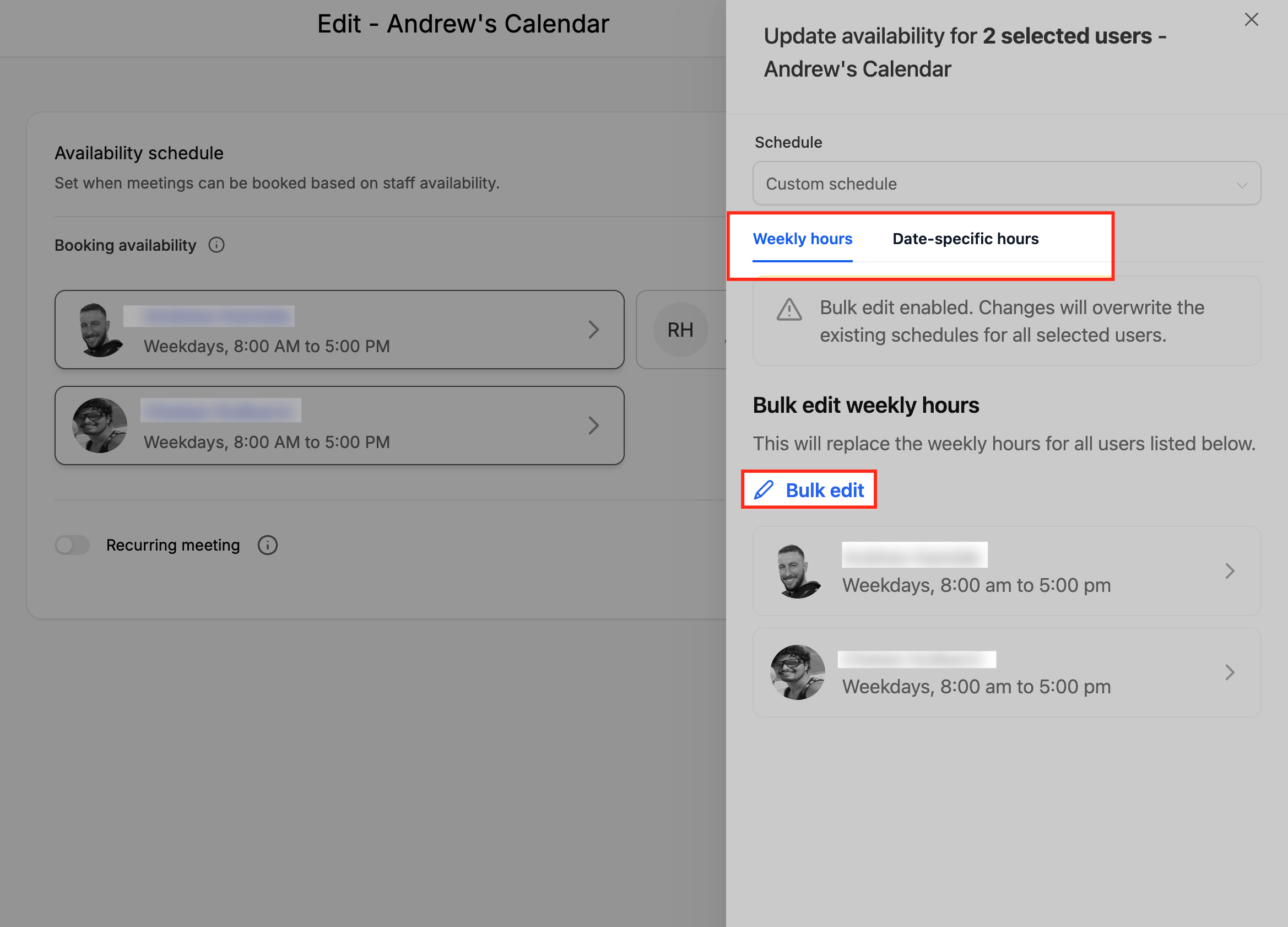
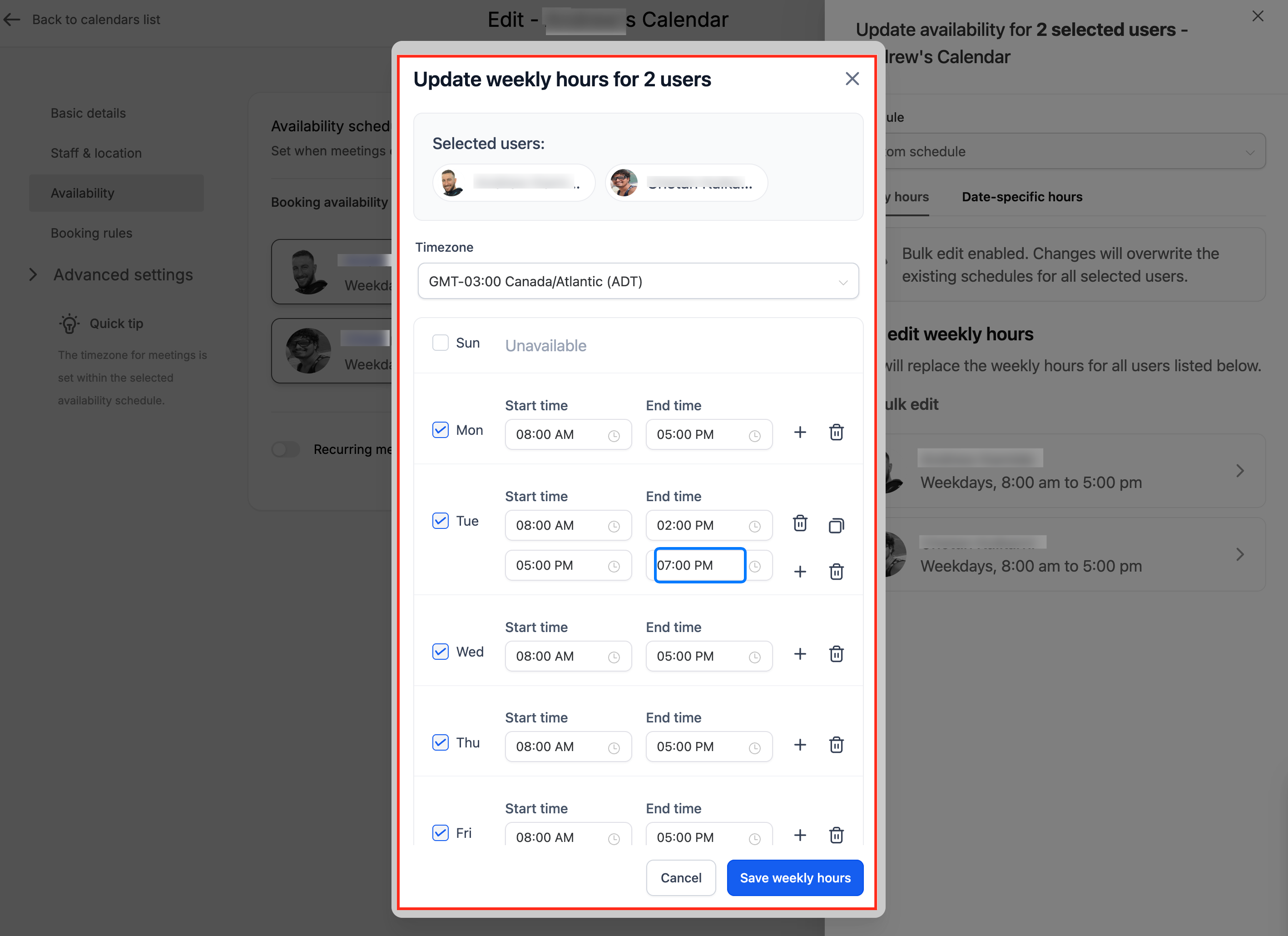
Bulk Edit Availability lives inside a calendar’s Availability tab. From there you can select several team members, edit either their Weekly Working Hours or their Date Specific Hours, and save the changes in one action. Weekly Working Hours are the recurring schedule applied every week, while Date Specific Hours handle exceptions for particular dates such as holidays or special events.
When you modify Weekly Working Hours, an informational banner reminds you that the change will affect every selected user. Updating Date Specific Hours shows a grouped view by date, so you can see how many users have blocks on each day and adjust or delete them individually. The feature protects unedited sections by only saving the part you edited.
03How businesses use bulk edit availability
- Digital marketing agency. The agency selects all account managers in a shared calendar, opens Bulk edit, and updates Weekly Working Hours to reflect a new 9 am to 5 pm shift. After saving, every manager’s recurring availability reflects the new hours without touching any date specific exceptions.
- Dental practice. When the clinic schedules a holiday closure, the staff adds a Date Specific Hours block for the holiday date in Bulk edit. The same closed time block is applied to every dentist, and later the office edits the block for one dentist who needs to be available for emergency appointments.
- Fitness studio. For a special workshop, the studio adds a Date Specific Hours entry on the event day for all instructors using Bulk edit. After the workshop, the studio removes or adjusts the entry for any instructor who has a different schedule on that day.
04How to set up and use bulk edit availability in HighLevel
Set up bulk edit availability for multiple team members
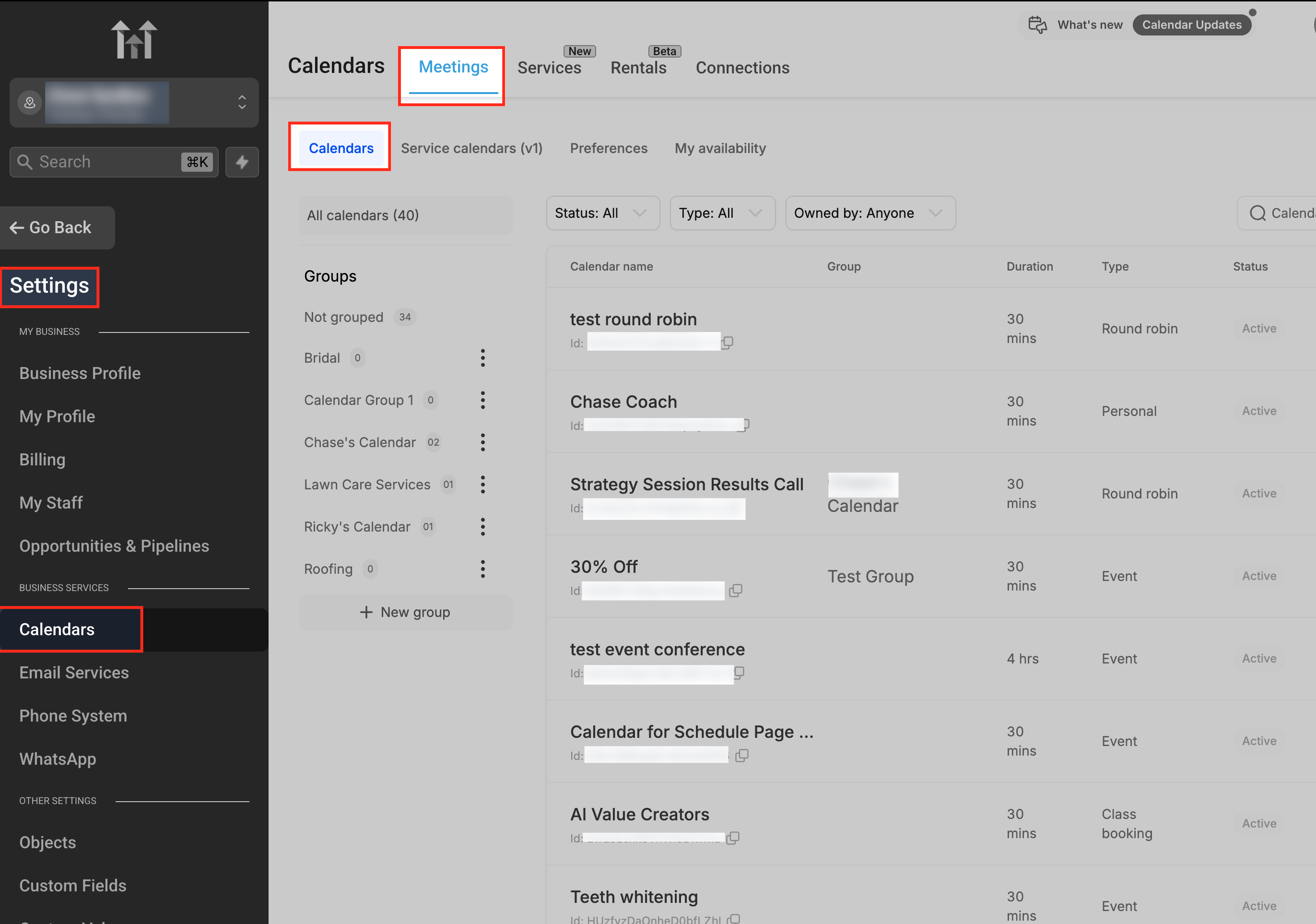
- Navigate to Calendars in HighLevel.
- Open the Calendar Settings page.
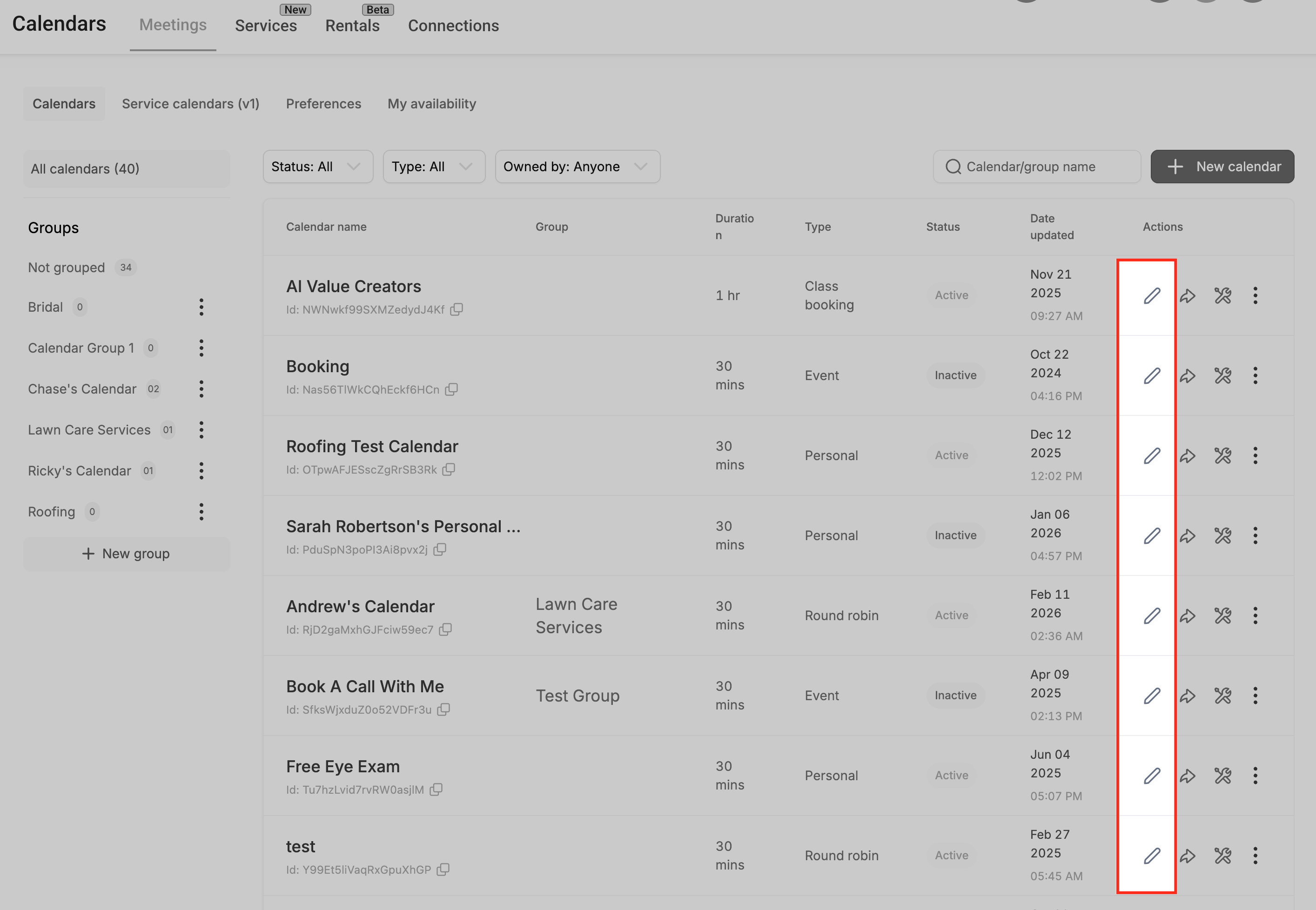
- Choose the calendar you want to modify.
- Click the pencil icon to edit that calendar.
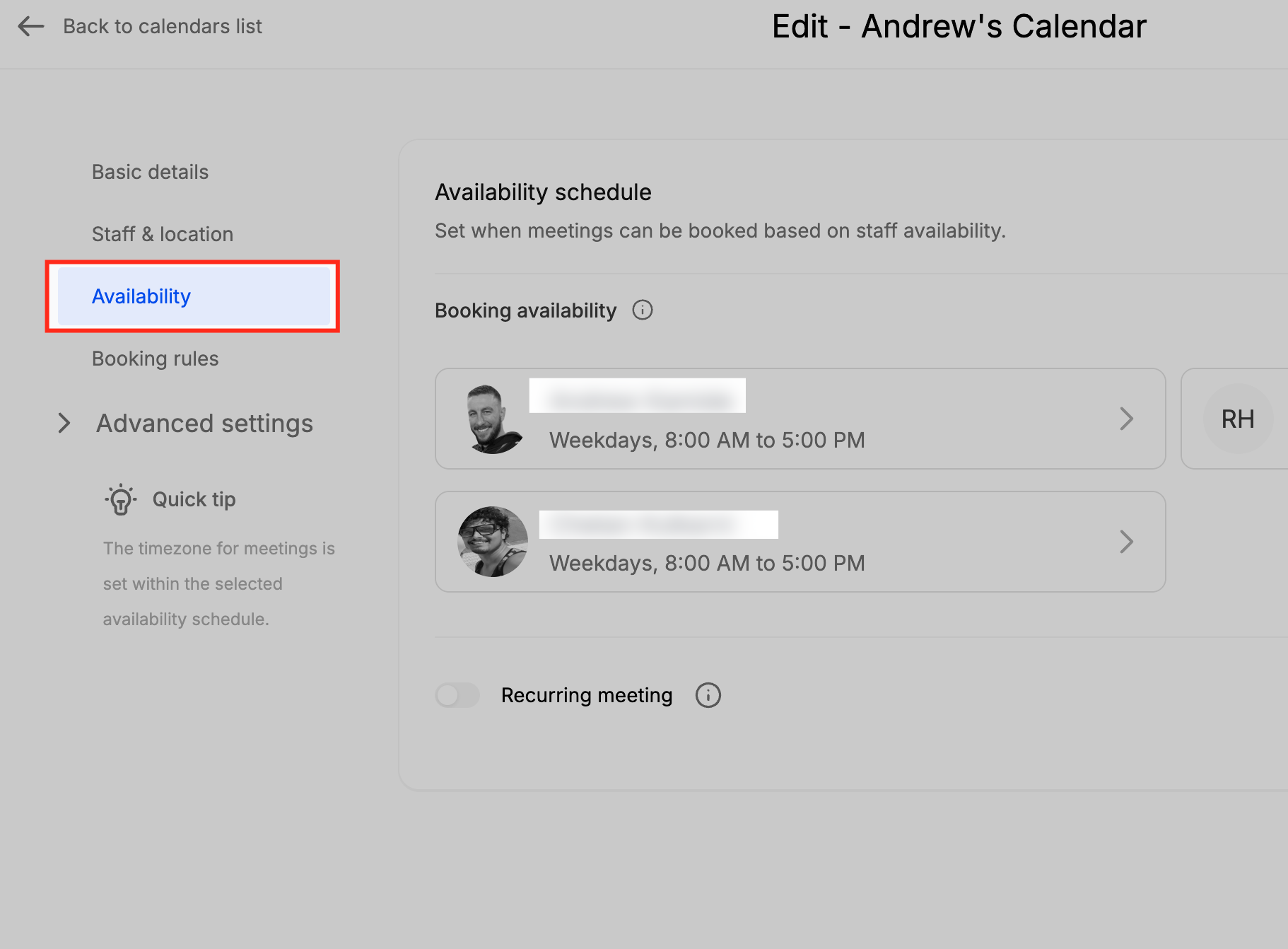
- Select the Availability tab.
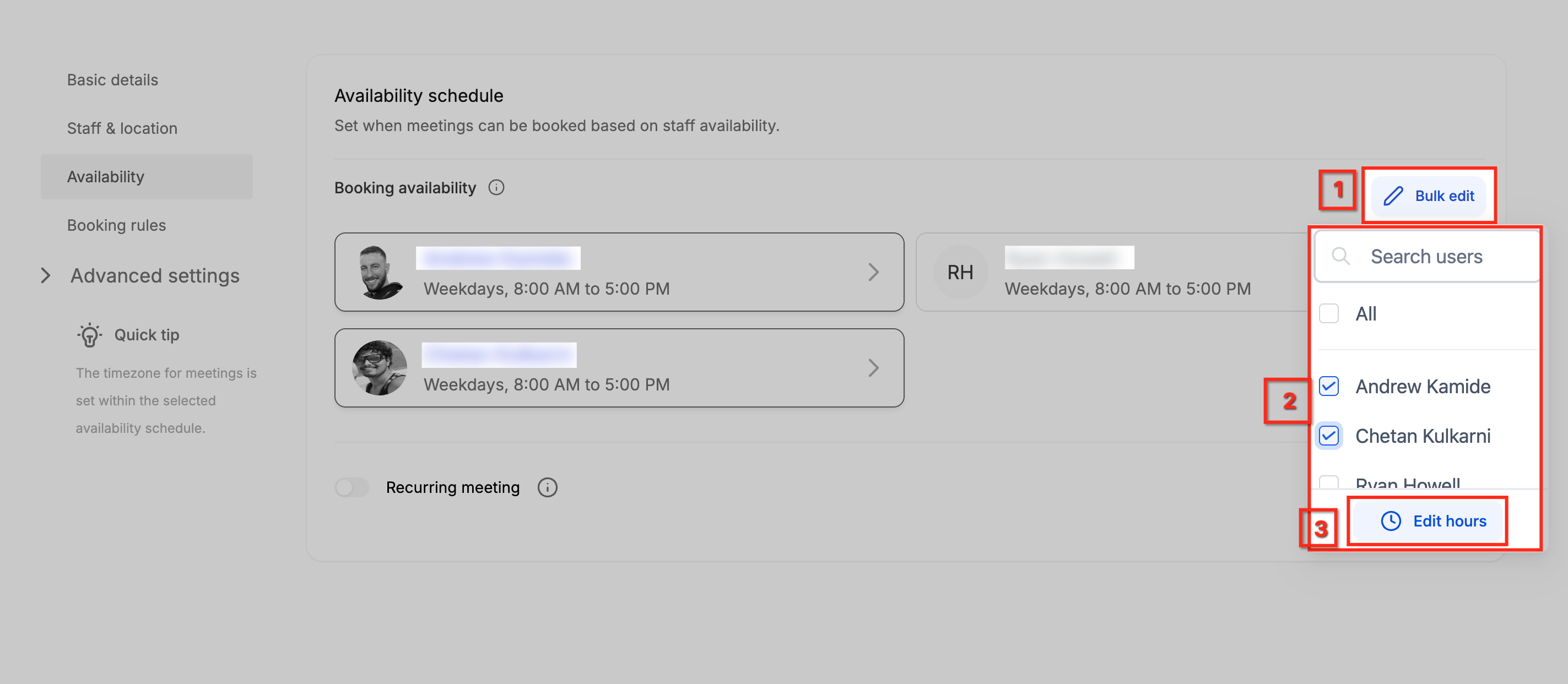
- Click the Bulk edit button.
- Mark the team members whose availability you wish to change.
- Press Edit hours.
- Adjust either Weekly Working Hours or Date Specific Hours as needed.
- Review the selected users and the changes you made.
- Click Save Changes to apply the updates.
05What it looks like in HighLevel
06Settings that matter
- Weekly Working Hours. Controls the regular, recurring schedule for selected users, such as standard business days and daily start end times.
- Date Specific Hours. Defines one time availability exceptions for chosen dates, useful for holidays, events, or temporary schedule changes.
07Things to know before you rely on it
- Saving Weekly Working Hours only updates the recurring schedule; it does not affect any Date Specific Hours.
- Saving Date Specific Hours only updates date based exceptions; it does not change Weekly Working Hours.
- An informational banner appears when editing Weekly Working Hours to clarify that the change applies to all selected users.
08How it connects to the rest of HighLevel
- Learn how centralized availability management works in HighLevel Centralized availability
- Set up a group calendar to share schedules across a team Group calendar guide
- View HighLevel pricing and plan options Pricing
Michael's take

Bulk edit availability lets you make that change for the whole team in a single screen.
The separate save logic helps protect regular weekly hours from being accidentally overwritten.