
01Who this is for
- Property managers, can list units, set seasonal rates, and accept security deposits.
- Car rental agencies, track fleet inventory, define vehicle variants, and apply long term discounts.
- Equipment lease firms, manage quantities of tools, schedule multi day rentals, and sync availability with external calendars.
02Rentals, explained
Rentals adds a dedicated module to the Calendars section of HighLevel. It supports multi day bookings, inventory tracking, variant management, and complex pricing rules such as seasonal rates or bulk discounts. A public booking page shows listings, categories, real time availability and allows customers to pay deposits or full fees during the checkout flow.
All rental related configuration lives under the Rentals tab. Listings and categories are created in the Rentals interface, while business wide options like operating hours, payment methods and communication templates are adjusted in Rentals > Global Settings. Bookings appear in both the Calendar view and the Appointments List view for quick management.
03How businesses use rentals
- Property management company. Create a listing for each rental unit, set season based pricing and required security deposits, then publish the public booking page. Use the Calendar view to monitor reservations and avoid double booking.
- Car rental service. Add vehicle models as listings, define inventory counts for each model, configure pricing rules for weekday versus weekend rentals, and enable built in payment collection for deposits and balances.
- Equipment leasing business. Enter tools and machinery as listings, track quantity with variants, set discounts for rentals longer than a week, and sync bookings with external calendars to keep availability consistent.
04Before you start
- Enable the Rentals feature for the required location using the Enable/Disable Rentals guide.
05How to set up and use rentals in HighLevel
Set up rentals in HighLevel
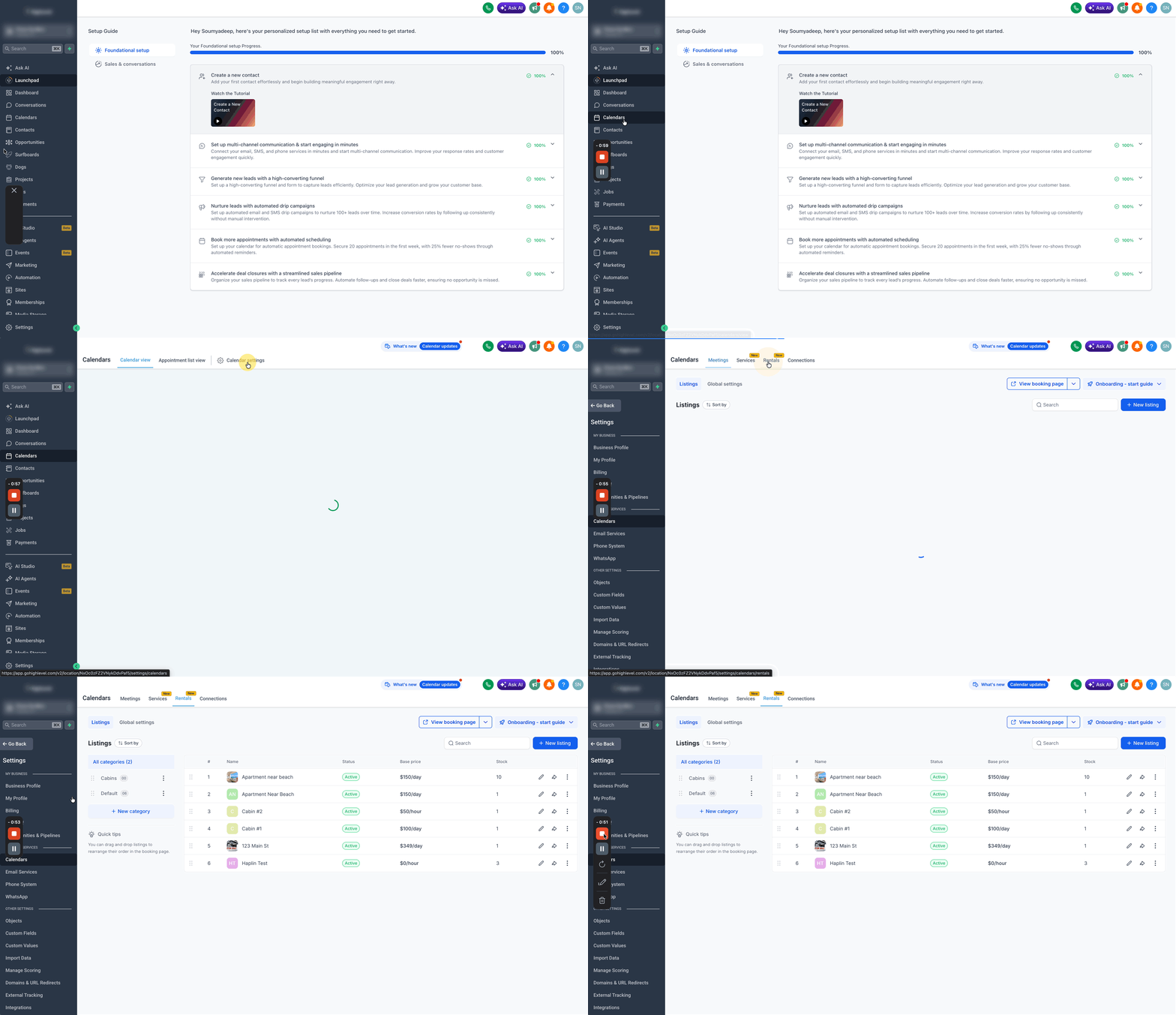
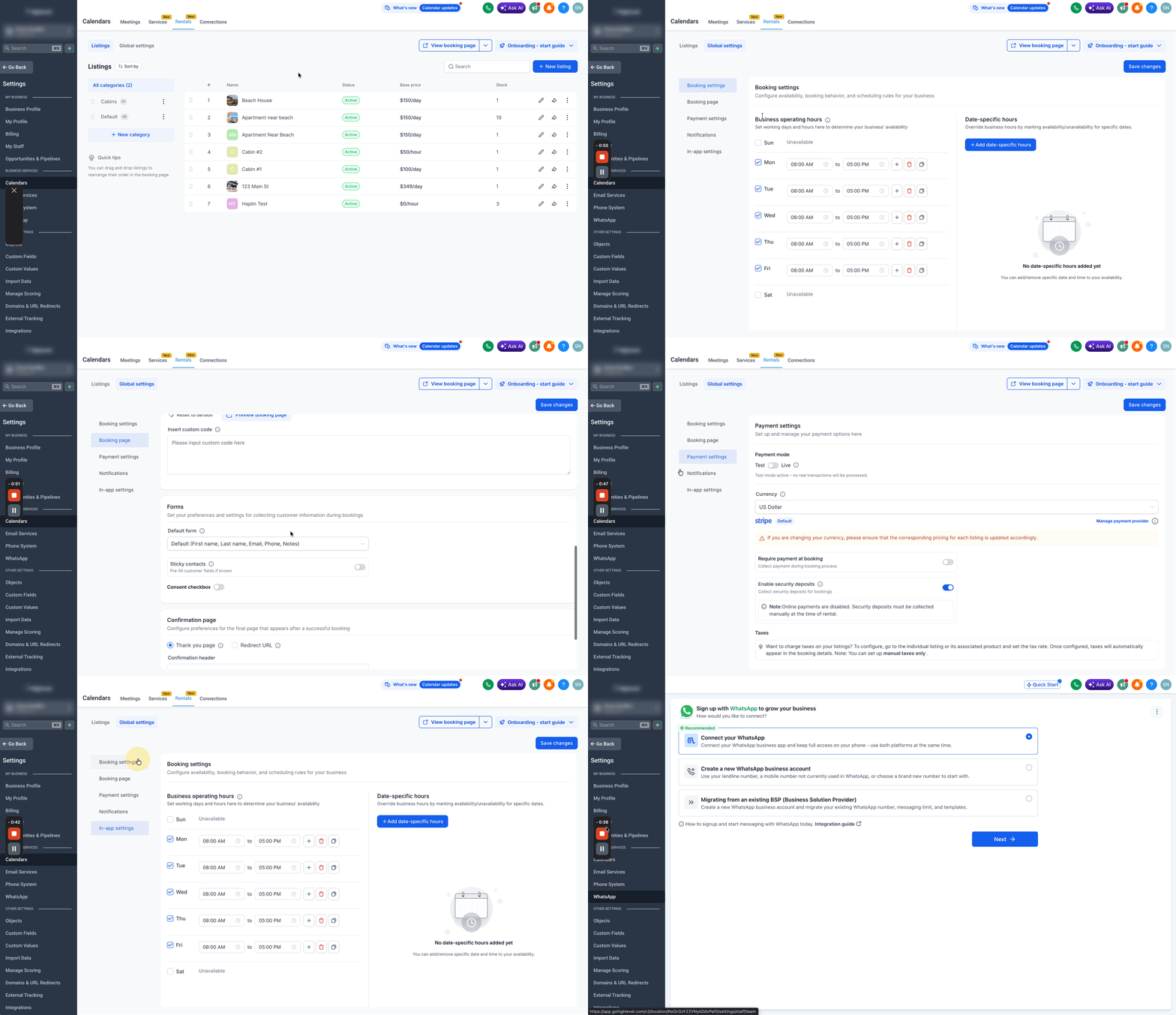
- Open Calendars > Calendar Settings > Rentals to access the Rentals module.
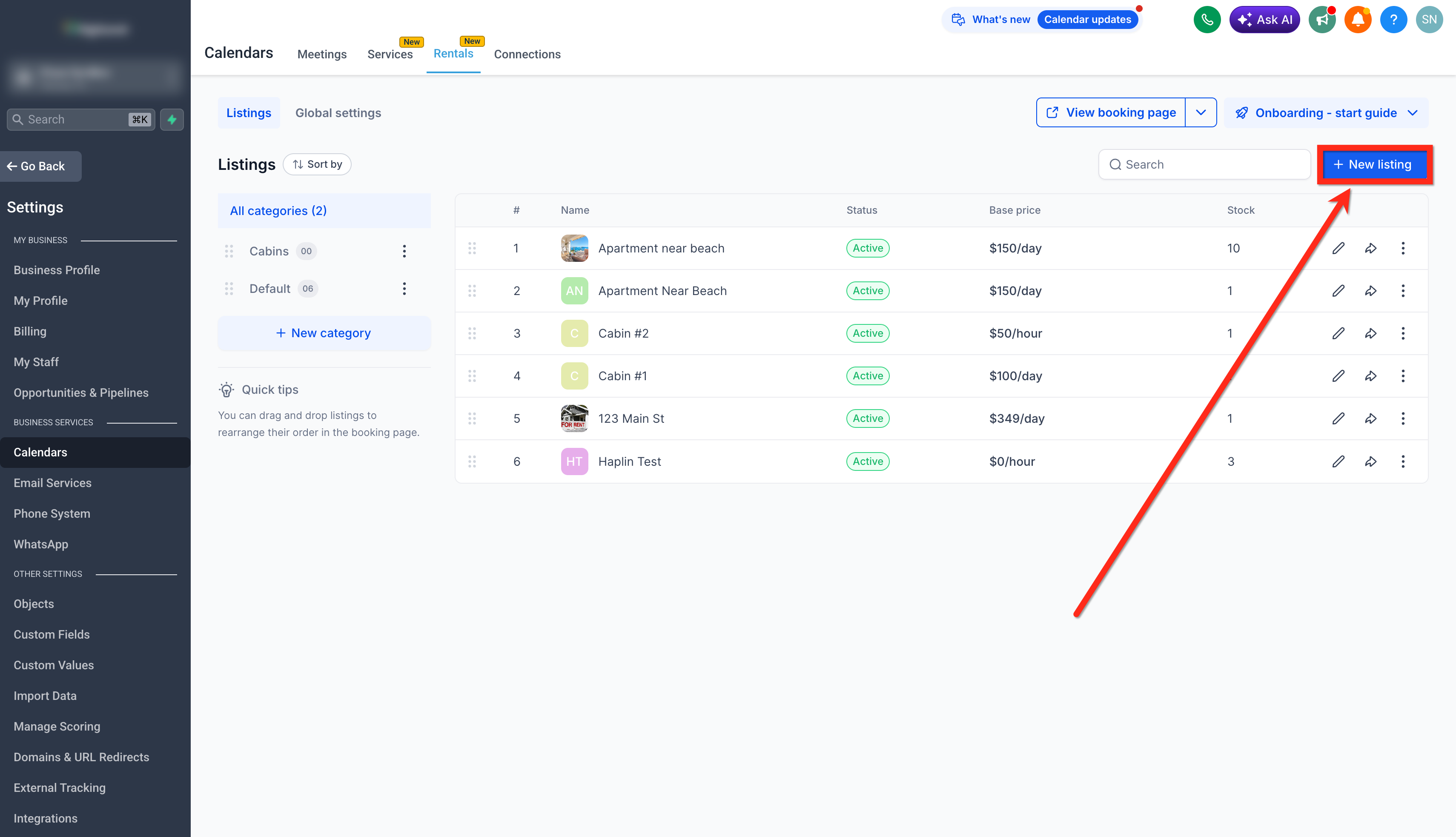
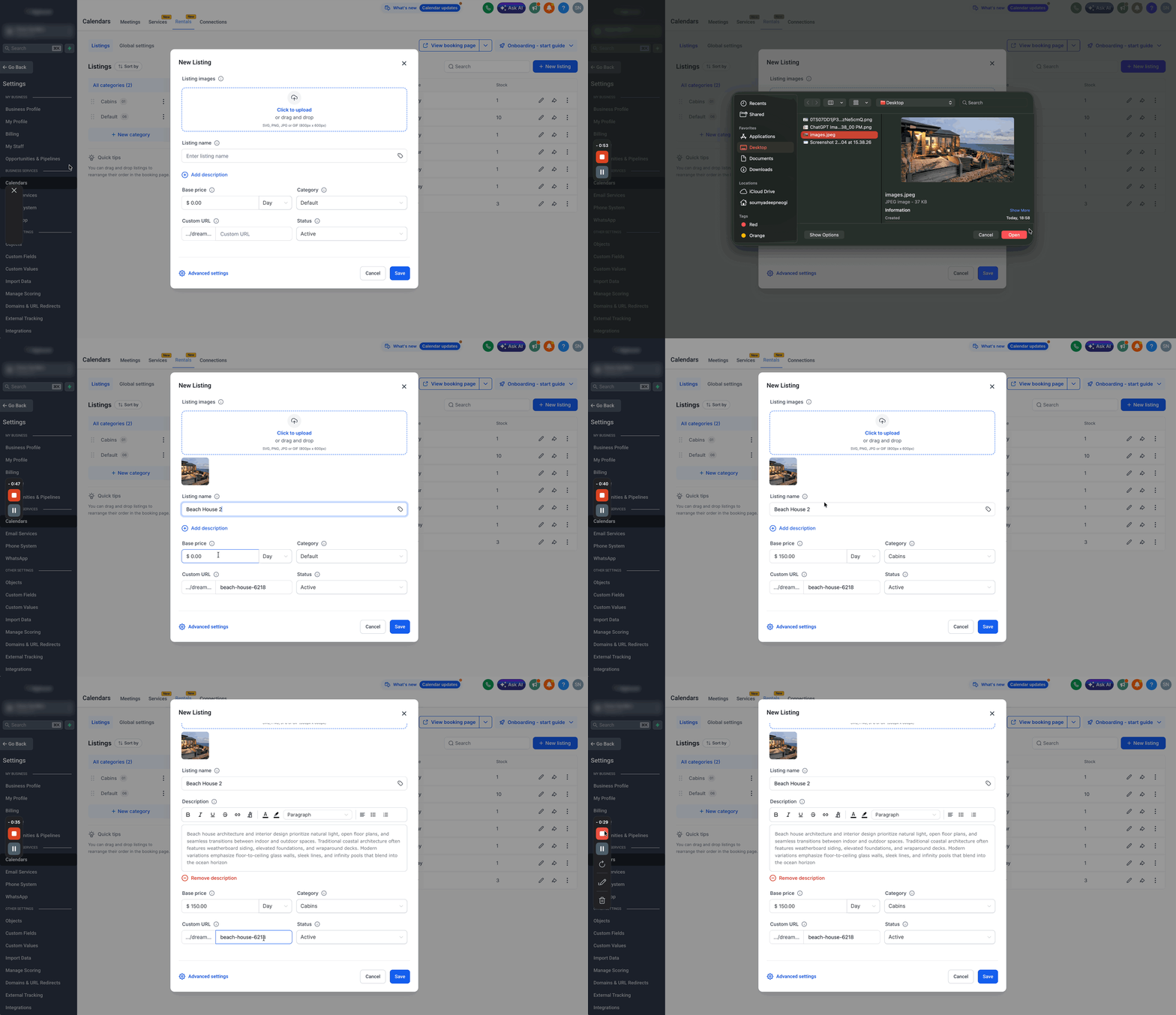
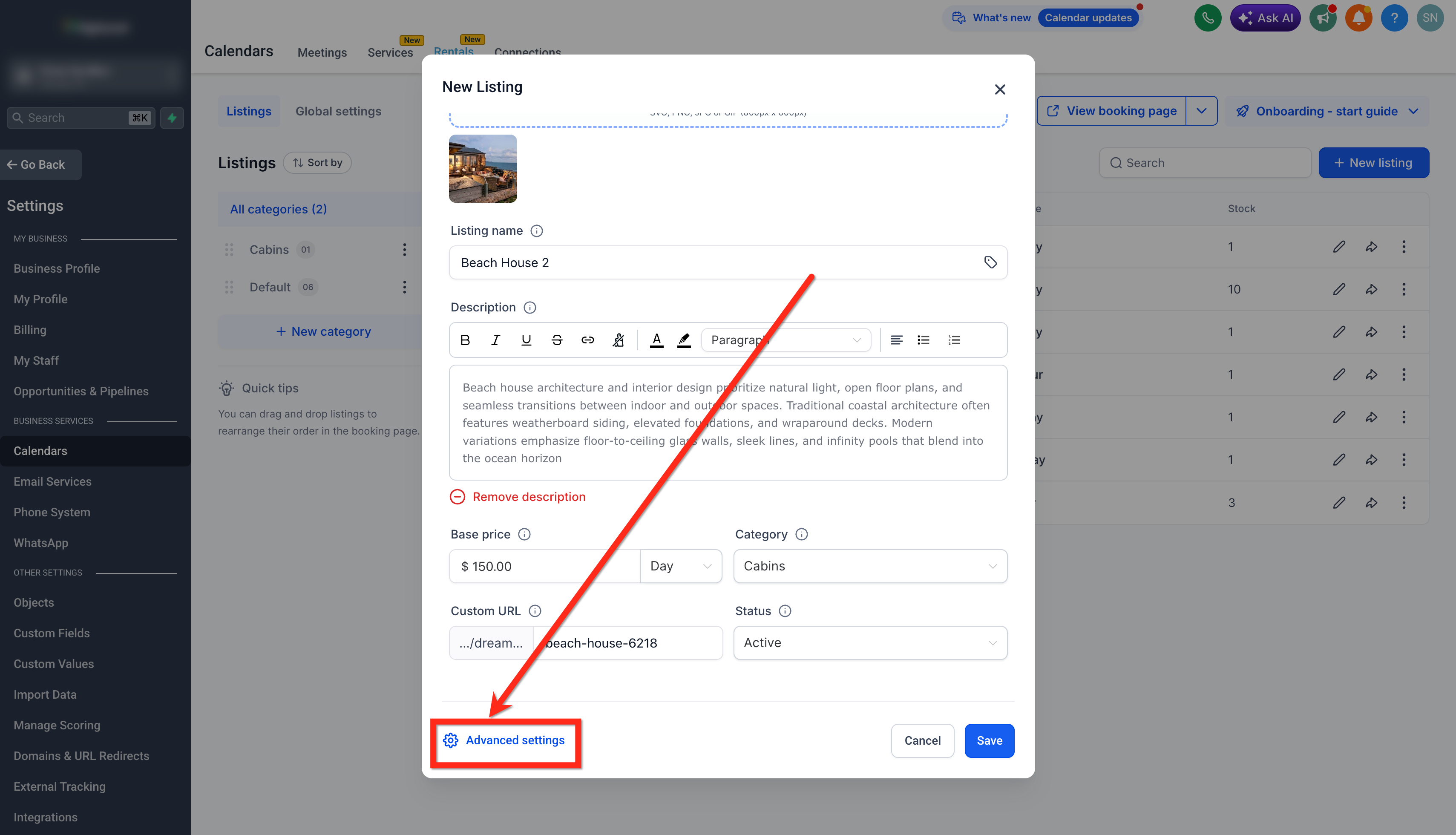
- Click + New Listing, then fill in image, name, description, price and availability; use Advanced Settings for inventory, variants, pricing and booking rules.
- Navigate to Rentals > Global Settings to adjust business hours, communication templates and payment methods.
- Create a test booking from the Calendar View or Appointments List View to verify pricing, notifications and payment setup.
- Note that rental invoices are not automatically sent when a booking is created.
06What it looks like in HighLevel
07Settings that matter
- Global Settings. Controls overall business hours, default communication templates and payment preferences for all rentals.
- Advanced Settings. Allows definition of inventory counts, variants, custom pricing rules and booking constraints for an individual listing.
08Things to know before you rely on it
- Rental invoices are not sent automatically when a booking is created; this behavior is being corrected.
- Most global setting changes affect only new bookings; existing bookings and already issued invoices remain unchanged.
09How it connects to the rest of HighLevel
- Learn how to create and edit rental listings. Create & Edit Listings
- Configure pricing rules and discounts for your rentals. Pricing & Discounts
- View and manage bookings in the calendar layout. Calendar View
- Set up global rental settings such as business hours and payment methods. Global Settings
- Start a 30 day trial to explore Rentals and other HighLevel features. 30 day trial
Michael's take

People often assume that once a rental booking is made, the invoice will fly out without any extra work. The platform actually leaves invoices sitting there, so you have to trigger the send yourself or build an automation.
If I were setting up Rentals, I’d first double check the invoice workflow and add a simple follow up step right after the test booking. That way you know the payment process works before you open the booking page to real customers.