
01Who this is for
- Property owners who need to track apartment bookings and avoid double bookings.
- Equipment rental firms that must manage multiple items and see daily availability at a glance.
- Vehicle fleet managers who want to block maintenance periods while still viewing active rentals.
02Calendar view, explained
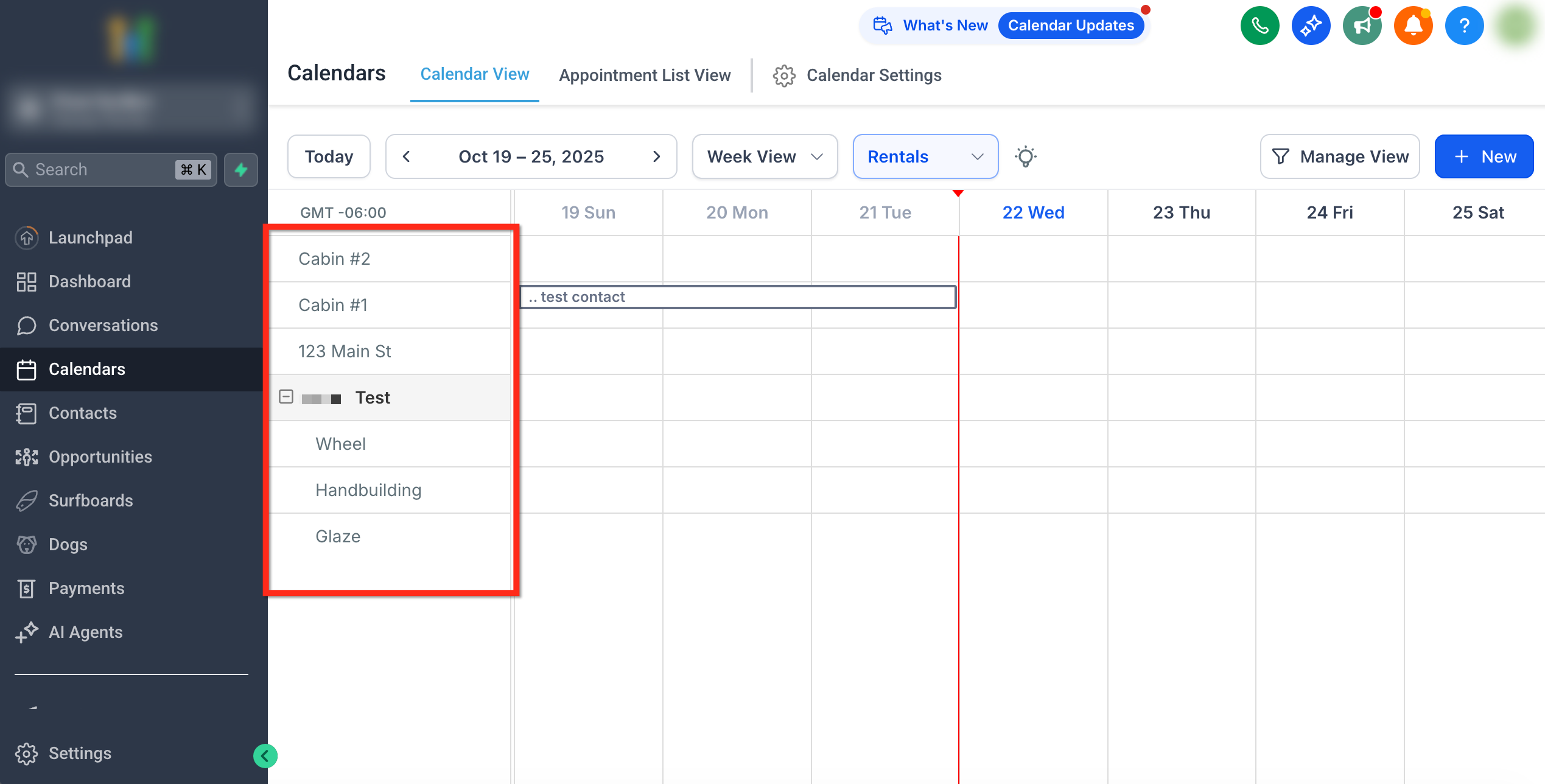
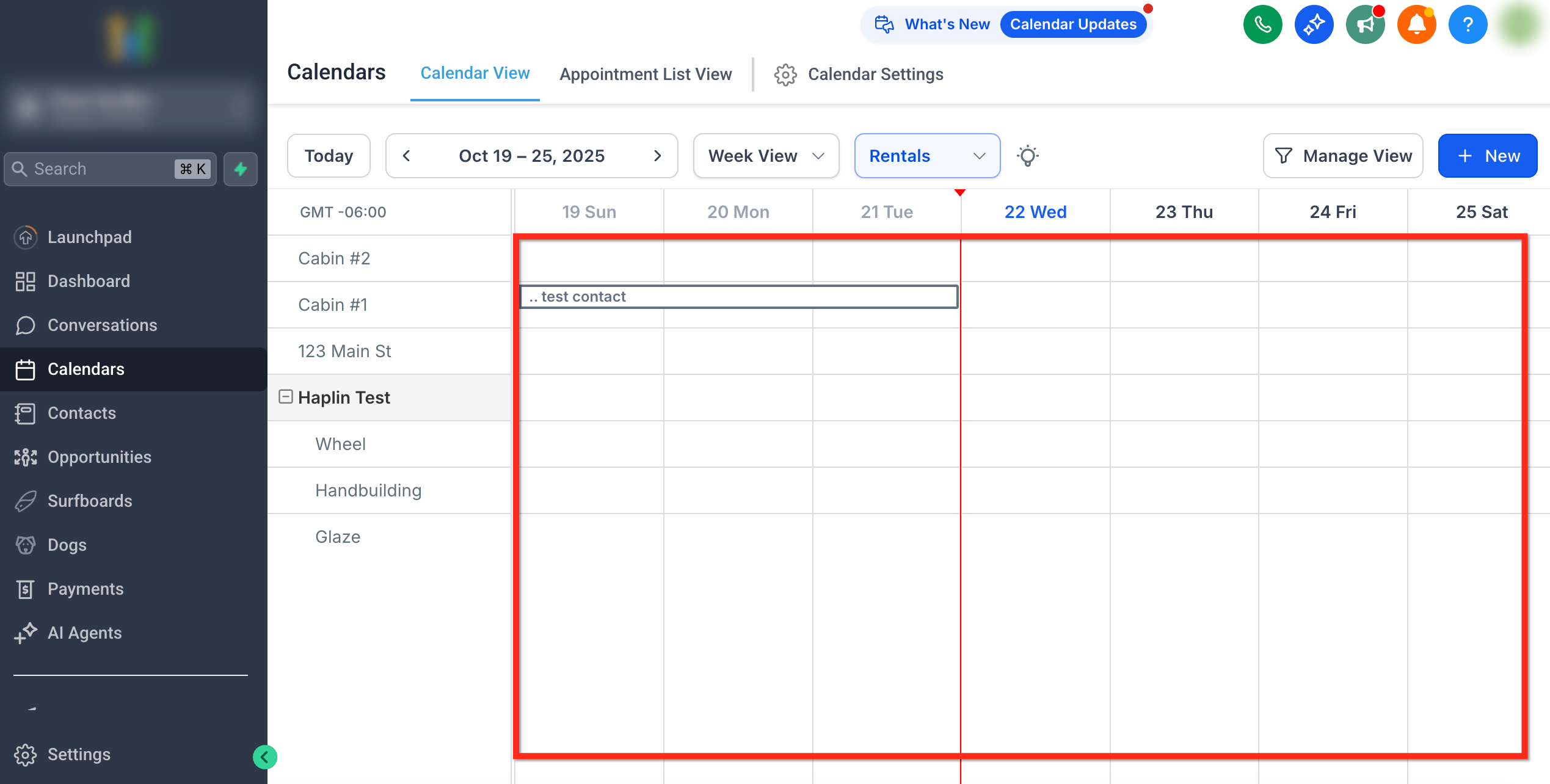
The calendar view sits under the Calendars menu and presents a timeline of all rental bookings and blocked slots. Listings appear on the left, each with its variants, while the central grid shows colored blocks for each reservation. The colors indicate the booking status such as Booked, Active, Completed, Canceled or Unconfirmed.
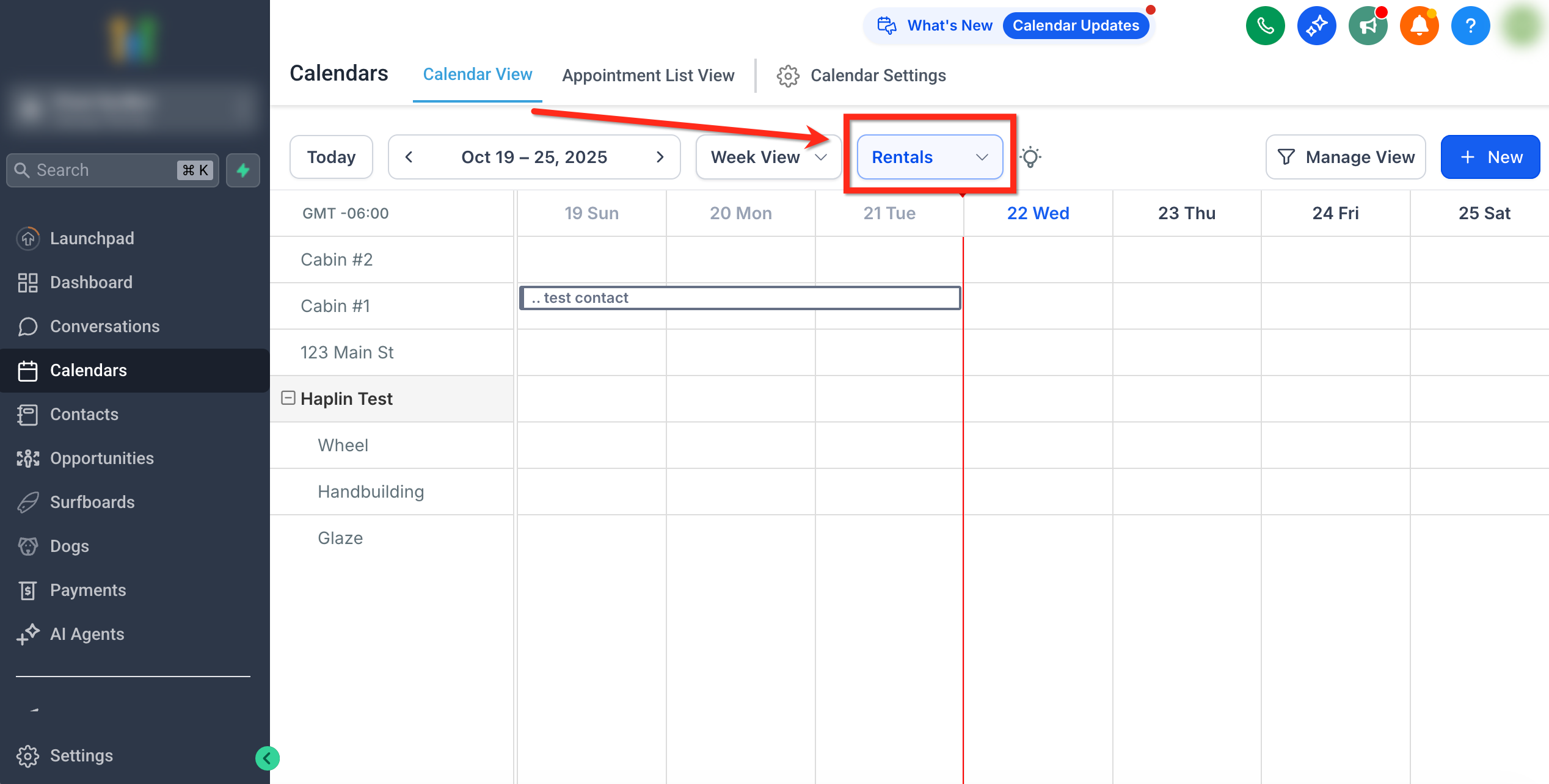
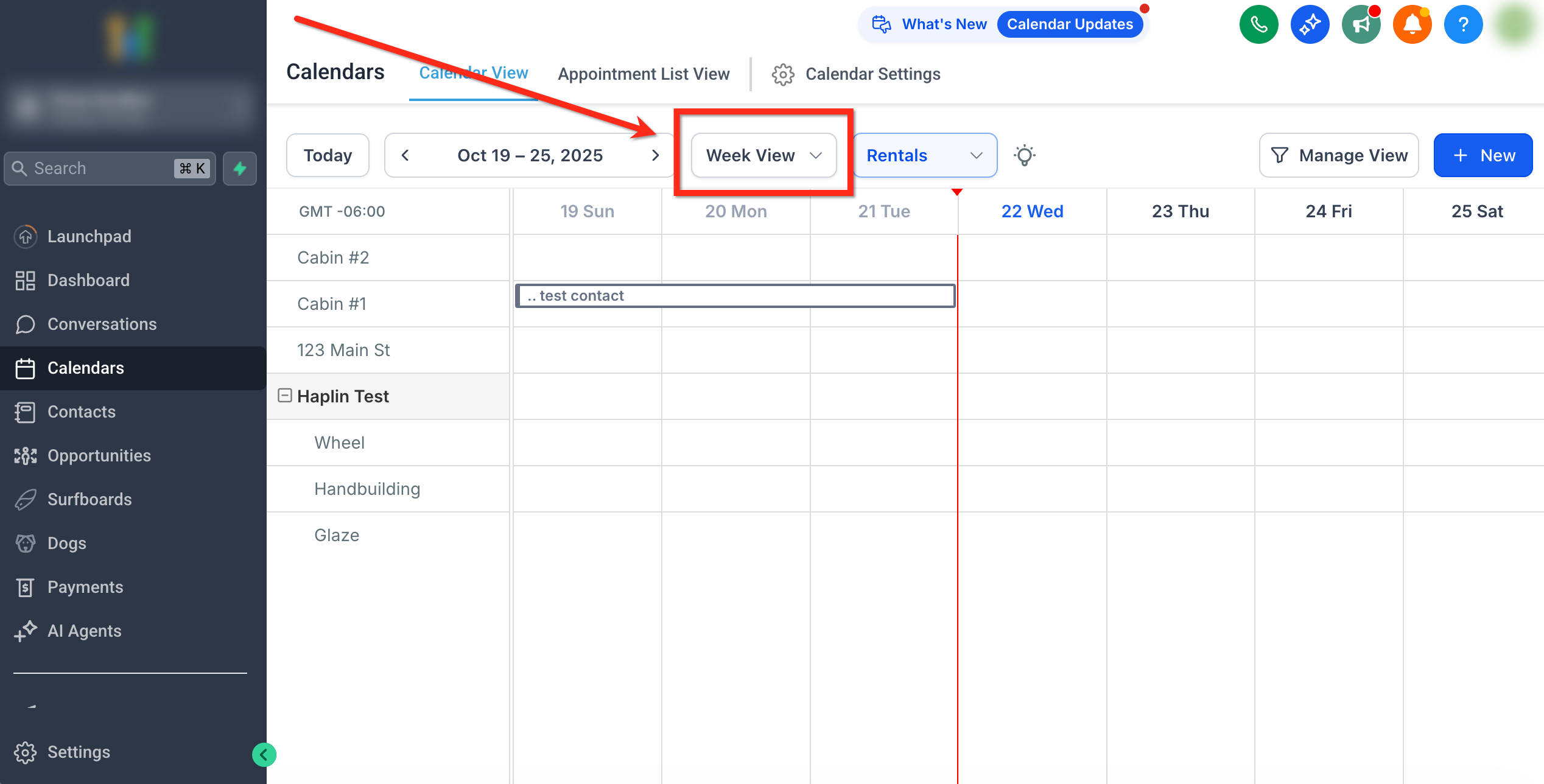
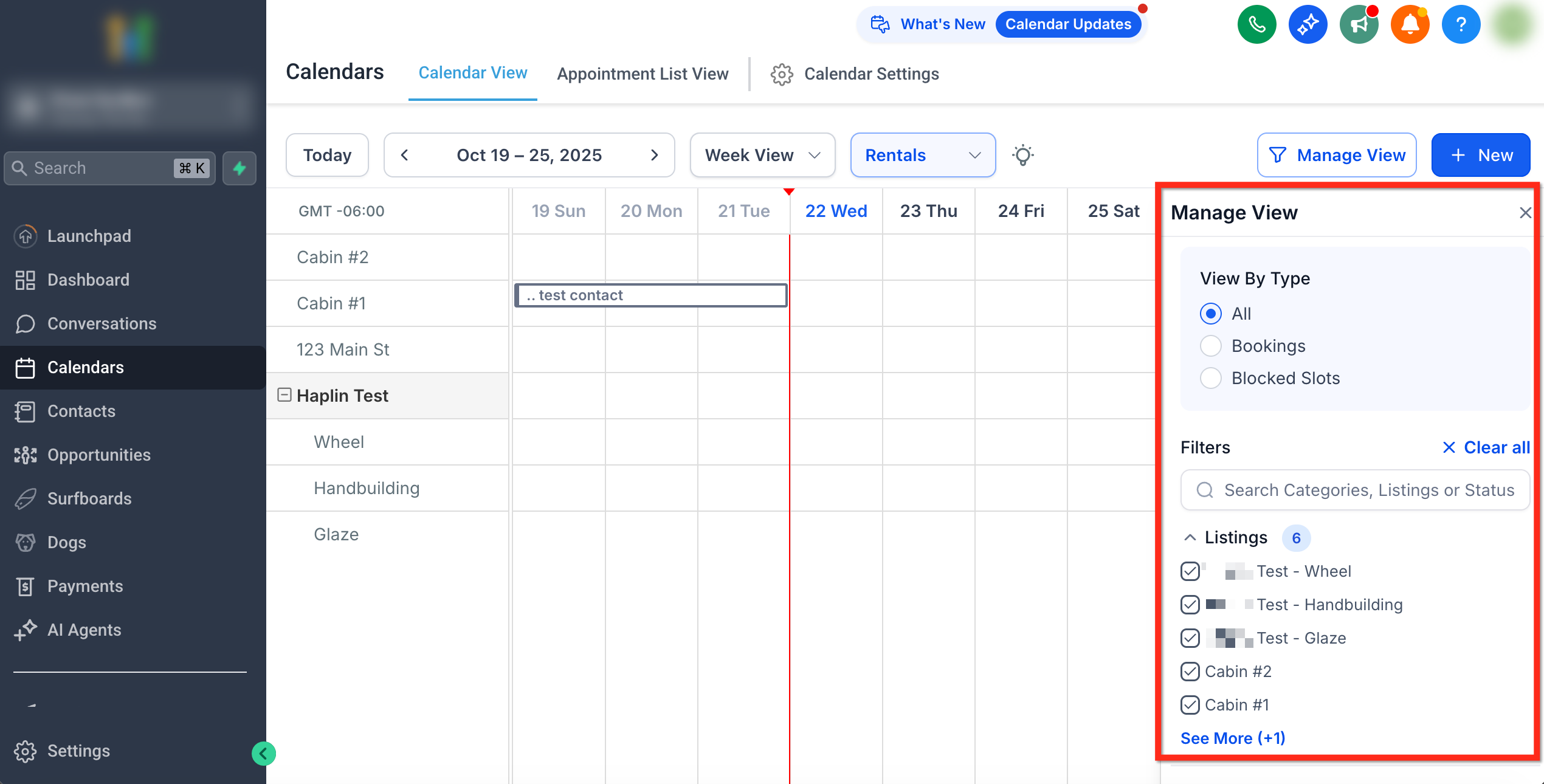
Filters are controlled from a collapsible Manage View panel. You can limit the display by specific listings, categories, booking status or payment progress. The view can be switched between day, week or month layouts, and a dropdown lets you select the Rentals scheduling type when other types are enabled.
03How businesses use the calendar view
- Property management company. The team opens the Rentals calendar, selects the property listings they need, and uses the + New button to record a new lease. The booking appears right away on the calendar and syncs with the appointments list.
- Construction equipment rental shop. Staff drag across future dates on a machine’s row to pre fill the start and end dates, then complete the required fields and create the booking. This speeds entry for multi day equipment hires.
- Car rental agency. Managers filter the calendar to show only blocked slots by using Manage View > View By Type > Blocked Slots, ensuring that vehicles under maintenance are not booked.
04Before you start
- Rentals scheduling type must be enabled in Agency Settings.
- Listings and any required categories should already exist.
05How to set up and use the calendar view in HighLevel
Access calendar view
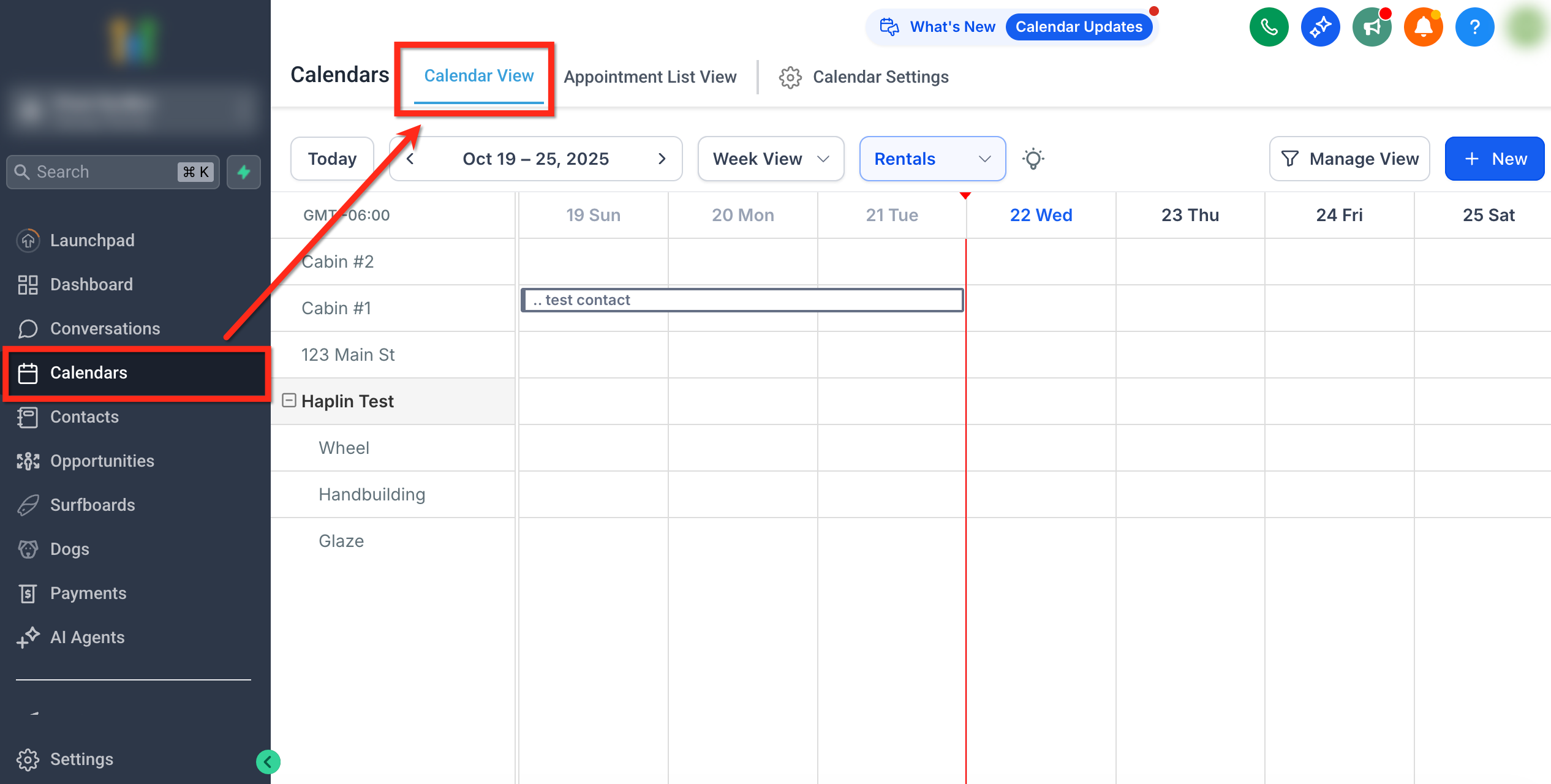
- Navigate to Calendars > Calendar View.
- Select Rentals from the dropdown at the top of the screen.
- Choose Day, Week, or Month to set the desired timeline.
Create a booking with + New
- Click the + New button in the top right corner of the calendar.
- Enter the required booking details such as customer, listing and duration.
- Save the booking to add it to the calendar.
Create a booking by dragging
- Click and drag across future dates or time slots inside a listing row.
- Release the mouse to open the booking creation panel with start and end dates filled in.
- Complete the remaining details and select Create Booking.
Filter calendar display
- Open the Manage View panel.
- Select filter options for Listings, Categories, Status or Payment Status.
- Apply the filters or use Clear All to reset the view.
06What it looks like in HighLevel
07Settings that matter
- Rentals Dropdown. Lets you switch between Rentals and other scheduling types such as Meetings or Services.
- Manage View. Controls which listings, categories, statuses or payment states are shown on the calendar.
- View By Type. Chooses whether to display all items, only bookings, or only blocked slots.
08Things to know before you rely on it
- Drag to create works only for future dates; it cannot be used for today or any past date.
- The Calendar View Enhancements lab flag is automatically turned on when Rentals is active.
09If something goes wrong
- Listings are not visible on the calendar.. Check the Manage View filters for listings, categories, status or payment status that may be limiting the view.
- A third party booking does not appear.. Refresh the specific listing’s Calendar Sync tab by clicking the Refresh icon.
10How it connects to the rest of HighLevel
- Learn how to create and edit rental listings. Create & Edit Listings
- Configure pricing rules and discounts for your rentals. Pricing and Discounts
- Enable or disable Rentals for subaccounts and locations. Enable/Disable Rentals
- Review overall Rentals settings that affect all listings. Global Settings
- See HighLevel pricing plans and trial options. Pricing
Michael's take

People often think they can drag a block to change its dates, but the calendar only lets you drag to create a new booking. Editing still requires opening the booking detail page.
I would start with Week view, filter to the specific listing I manage, and then use the + New button for any same day bookings. That keeps everything visible and avoids the drag to create limitation.