
01Who this is for
- Property managers, can define each unit, set pricing, and control availability for vacation rentals.
- Equipment rental shops, can track stock, create variants for different gear configurations, and apply discounts for longer hires.
- Car sharing services, can manage fleets, set hourly rates, and prevent double bookings with calendar sync.
02Listings, explained
The Listings feature lets you add items you rent out and store every piece of information needed for customers to book them. Each listing contains a title, description, photos, a category, a status, pricing, inventory options, booking behavior, and optional calendar synchronization.
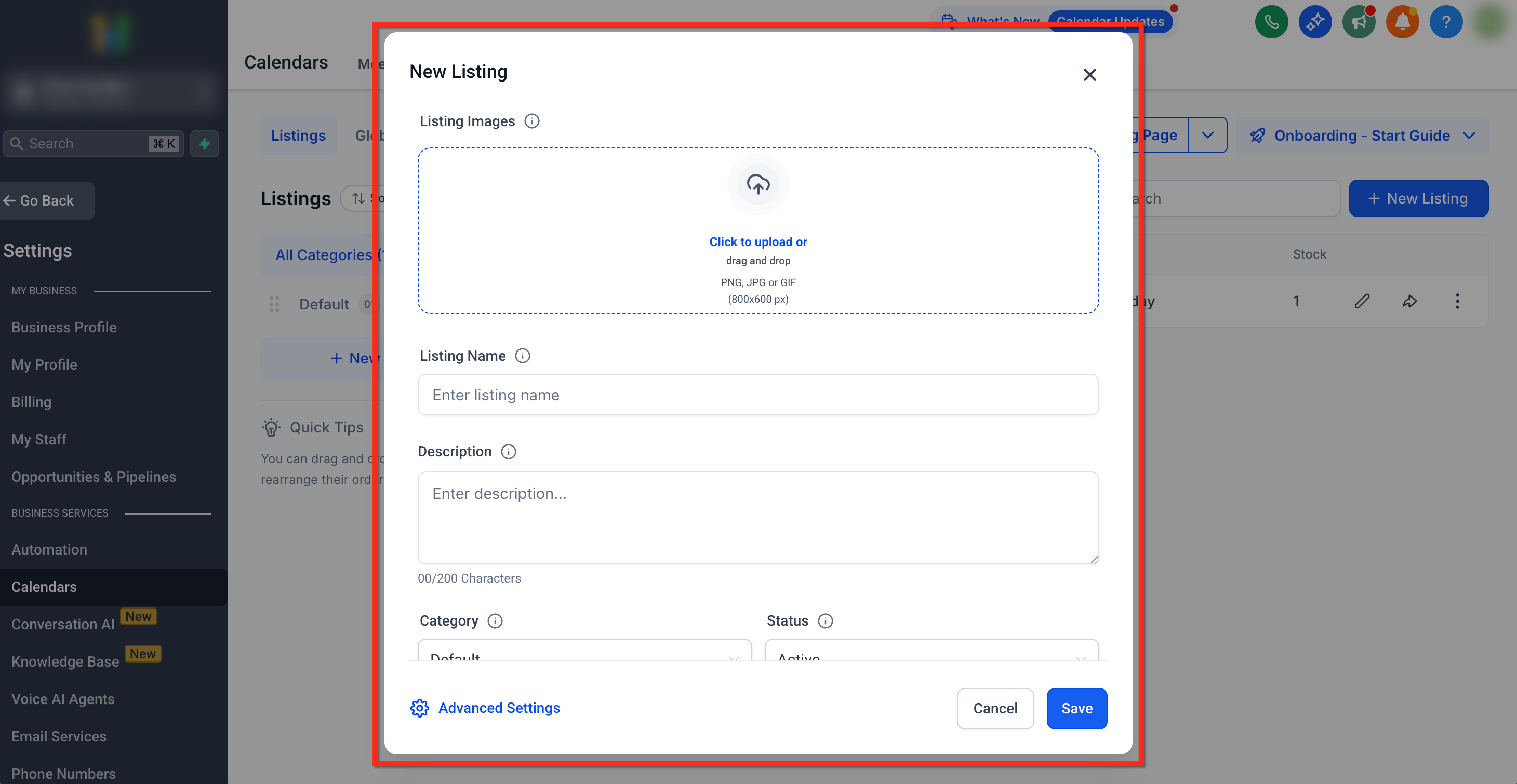
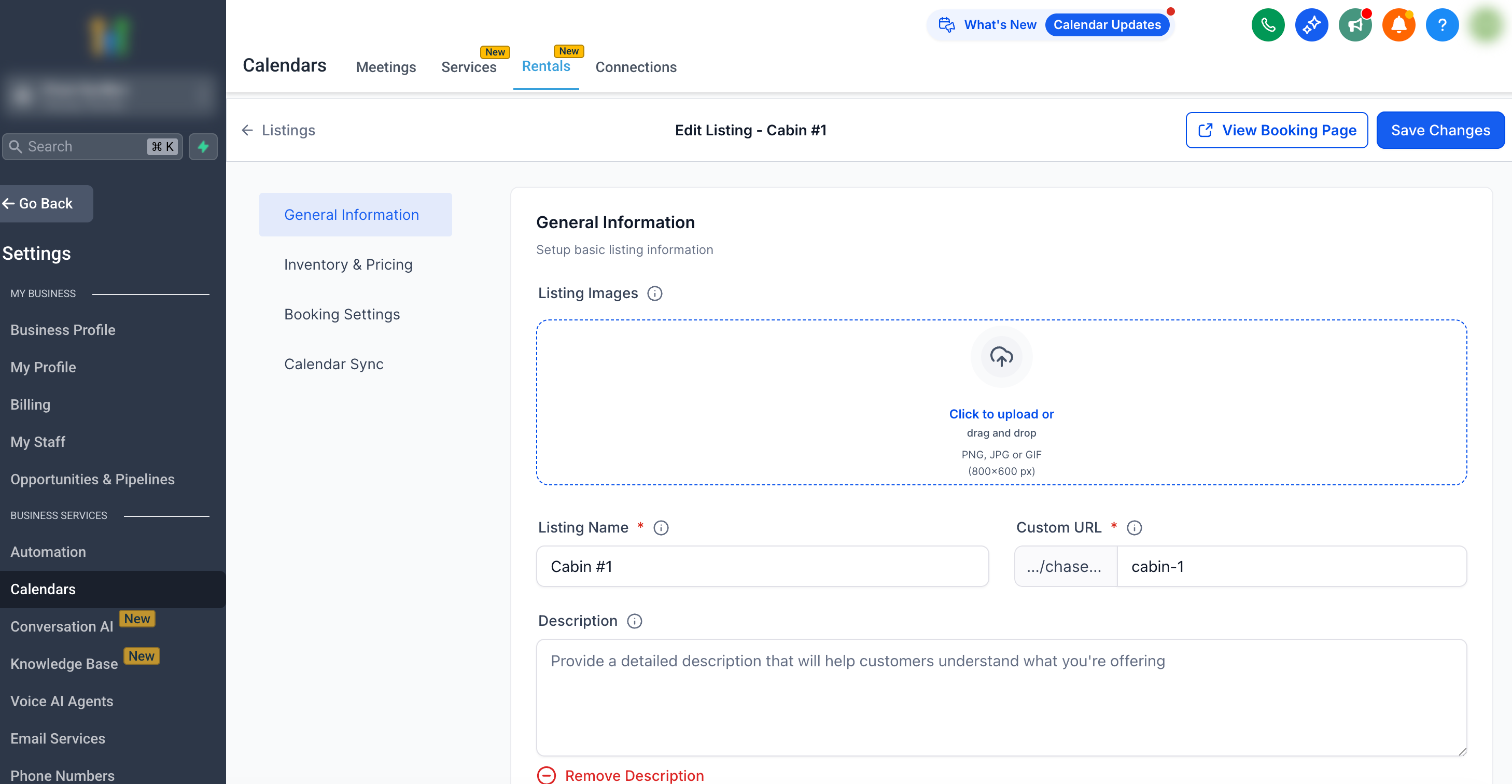
You create a listing with a quick create modal that captures the essential fields. After saving, you can open Advanced Settings to edit four tabs: General Information, Inventory & Pricing, Booking Settings, and Calendar Sync. These tabs let you fine tune stock levels, offer variant options, define pricing rules, choose how customers select dates and times, and connect to external iCal calendars.
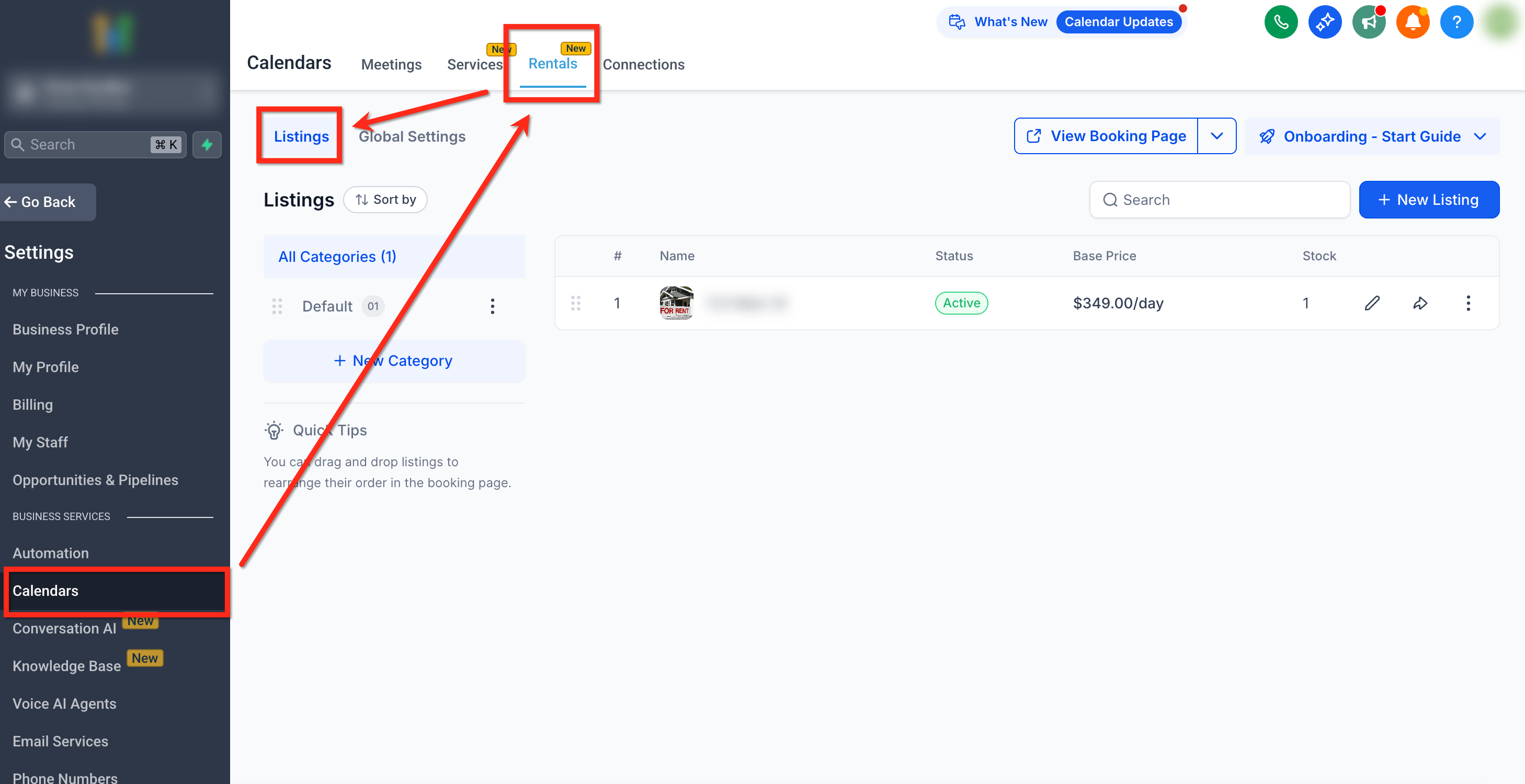
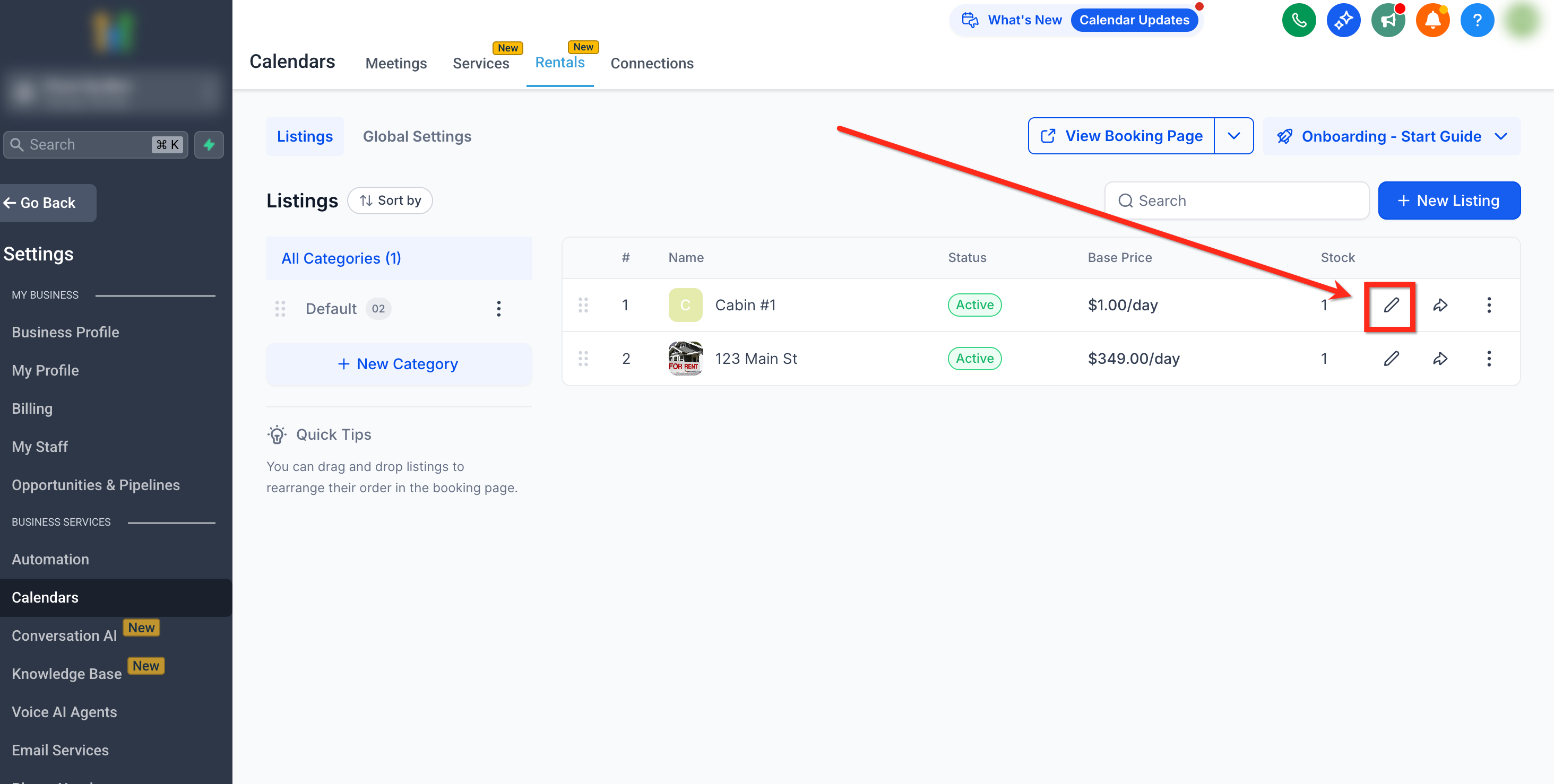
All listings live under Calendars > Calendar Settings > Rentals > Listings. From there you can add new entries, edit existing ones, preview the booking page, and publish the listing when it is ready for customers.
03How businesses use listings
- Vacation rental agency. The agency creates a listing for each property, uploads photos, sets daily rates, and uses the Date Selector mode to let guests choose check in and check out dates. Calendar Sync imports bookings from OTA iCal feeds to avoid double booking.
- Camera equipment rental shop. The shop adds a listing for a camera set, enables inventory, creates variants for body only and body with lens options, sets a security deposit, and applies quantity discounts for bulk rentals. Booking Settings define a minimum one day duration.
- Car sharing service. The service creates a listing for each vehicle model, selects the Date & Time Selector mode for hourly rentals, sets hourly base prices, and enables pre/post buffer time for cleaning between trips. Calendar Sync exports an iCal link so partner platforms see real time availability.
04The numbers and rules that matter
- You can upload up to 30 images per listing.
05How to set up and use listings in HighLevel
Create a new rental listing
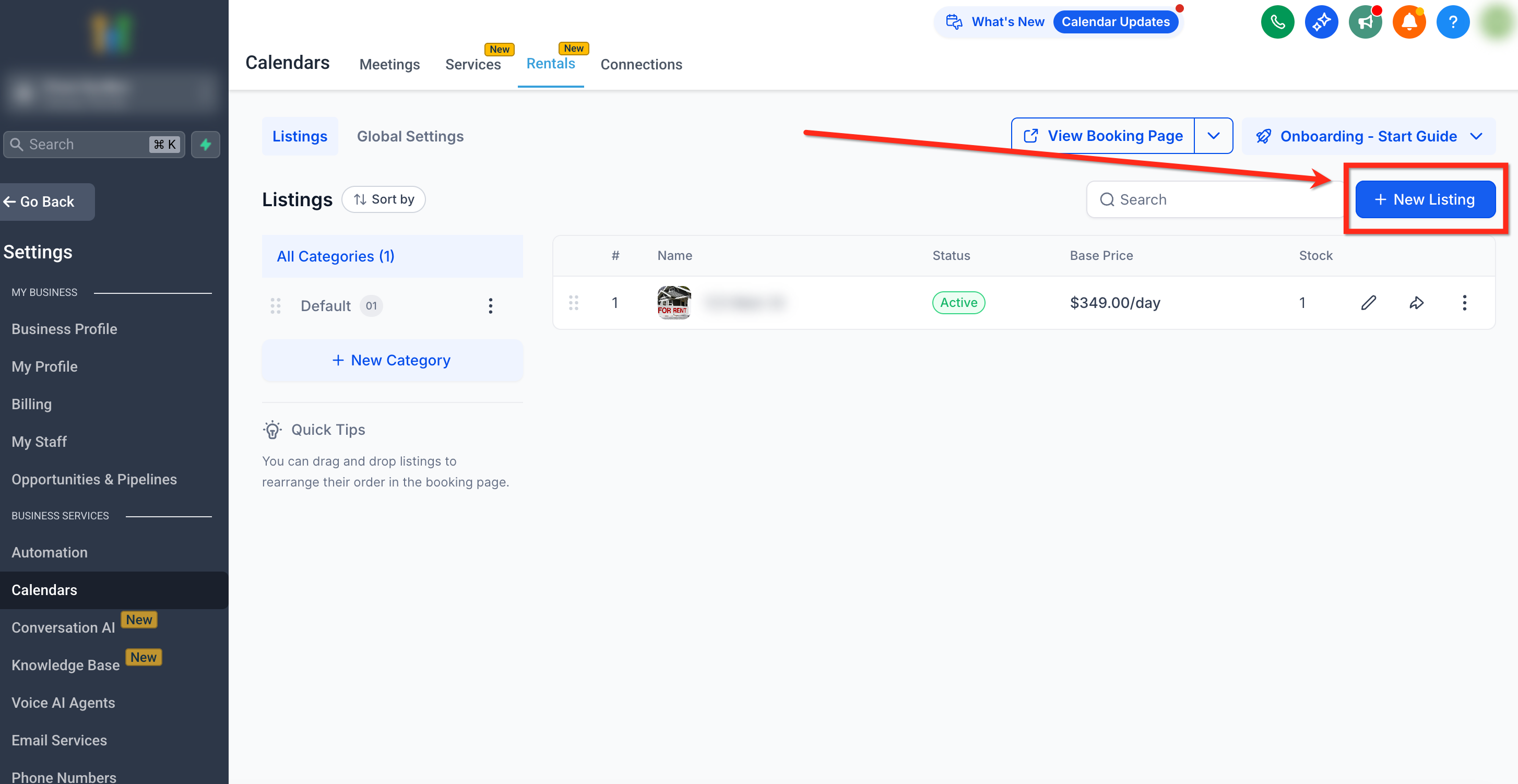
- Open Calendars > Calendar Settings > Rentals > Listings.
- Click the + New Listing button in the top right corner to open the modal.
- Upload images, then enter the listing name, description, base price with booking unit, category, and status.
- Select Advanced Settings to open the detailed configuration tabs.
- Save the changes and later activate the listing when setup is complete. Keep the listing inactive until all settings are finished to avoid early bookings.
Edit an existing rental listing
- Navigate to Calendars > Calendar Settings > Rentals > Listings.
- Click the pencil (edit) icon beside the listing you want to modify.
- Switch among the General Information, Inventory & Pricing, Booking Settings, and Calendar Sync tabs to adjust fields.
- Update any required details such as images, pricing, inventory, or calendar links.
- Click Save Changes and activate the listing when it is ready for customers.
06What it looks like in HighLevel
07Settings that matter
- Listing Image. Controls the photos shown on the booking page for the rental.
- Listing Name. Defines the title displayed to admins and customers.
- Description. Provides detailed information about the rental’s features and inclusions.
- Category. Groups the listing with similar items for easier browsing.
- Status. Determines whether the listing appears as active or hidden on the booking site.
- Enable Listing Specific Form. Turns on a custom form that collects extra information during the booking process.
- Inventory. Enables or disables stock tracking for the listing.
- Stock. Sets the total number of units available for booking.
- Variants. Activates multiple version options within a single listing.
- Variant Name. Labels each individual variant.
- Base Price. Specifies the cost for the selected booking unit for the listing or a variant.
- Security Deposit. Defines an optional refundable amount required for a booking.
08Things to know before you rely on it
- A maximum of 30 images can be uploaded per listing.
- If inventory is disabled, the entire listing is treated as a single bookable unit.
- Variants are optional; they can be omitted when not needed.
- Hourly pricing cannot be used when the Booking Period is set to Date Selector.
- For monthly rentals, the Rental End Time must not be later than the Rental Start Time.
- Imported iCal URLs must end with a .ics file extension.
- External calendar imports occur automatically every hour.
09How it connects to the rest of HighLevel
- Step by step guide for setting up rentals in HighLevel Rentals setup guide
- How to configure pricing, discounts, and advanced rates for rentals Pricing & discounts
- Managing bookings with the rentals calendar view Calendar view
Michael's take

Listings let you showcase a physical asset as an online rental product, handling images, pricing, inventory and calendar sync in one place.
If you only have one off items or you’re not ready to manage inventory, the feature can feel like extra overhead. The variant and advanced pricing settings add complexity that may not be needed for a simple service, so you might hold off until your catalog grows.