
01Who this is for
- Admins who need to record special case reservations that fall outside normal operating hours.
- Support staff that must attach an intake form while booking to collect extra customer information.
- Operations teams that require immediate visibility of ad hoc bookings across calendar and appointment listings.
02Rental bookings, explained
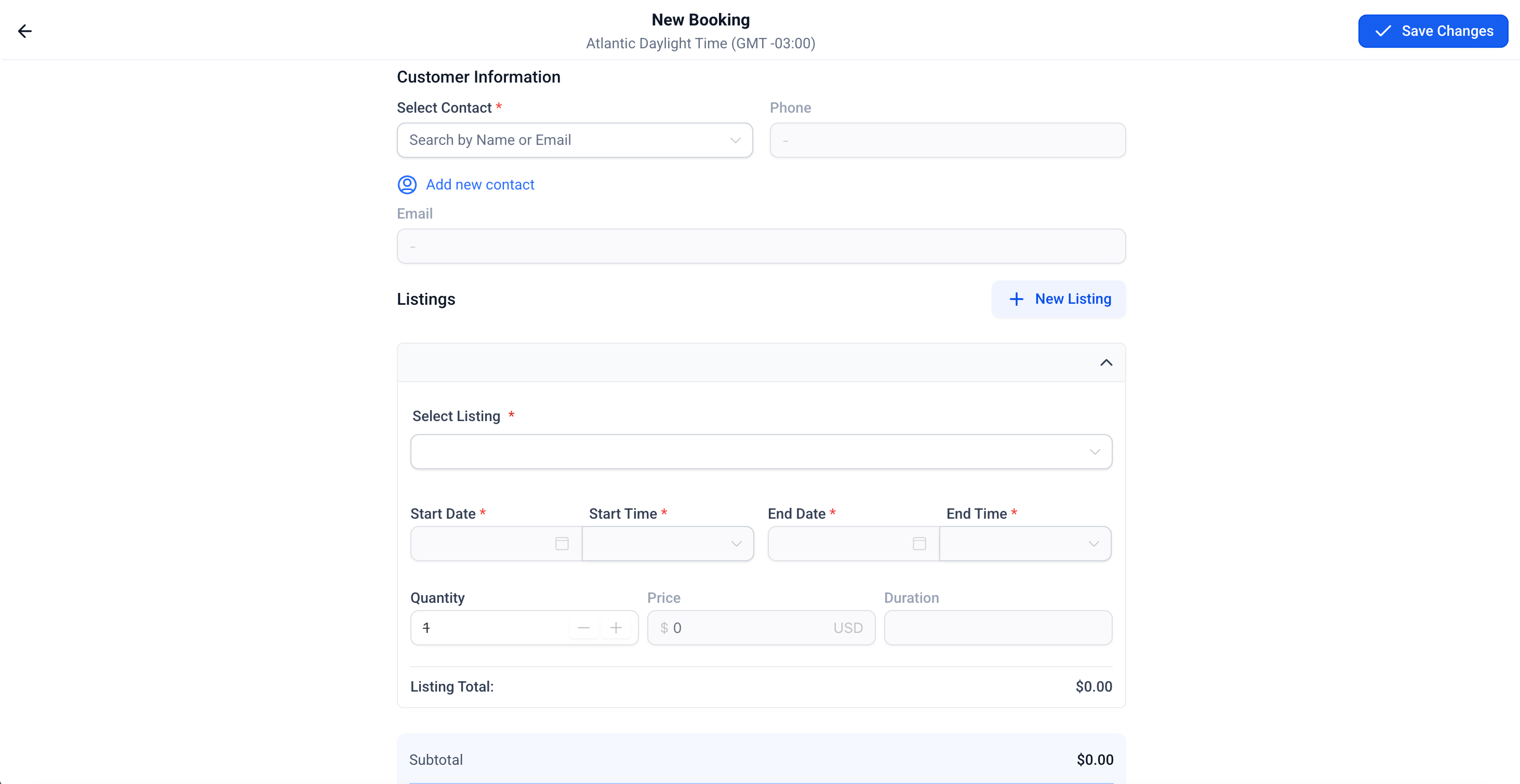
The Create Booking screen appears when an admin clicks the + Create Booking or + New button from the Rentals section of either the Appointments List View or Calendar View. The form is divided into sections for Customer Details, an optional Booking Form, Listings, Internal Note, Payment Summary, and Booking Status. Each section can be filled before saving the reservation.
Admins can select an existing contact or add a new one, attach a pre selected intake form, add one or multiple listings with custom quantities and times, write internal notes, review calculated pricing and deposits, choose a status, and finally save the booking. The booking then shows up immediately in both the Appointments List and Calendar views.
03How businesses use creating a booking
- Car rental agency. The agency opens the New Booking screen from the Calendar view, selects the customer, adds the vehicle listing with a custom pick up time that falls outside regular hours, reviews the payment summary, and saves the reservation.
- Construction equipment rental company. A staff member uses the Appointments List view to create a booking, attaches an intake form to capture project details, adds multiple equipment listings each with its own start and end dates, and sets the status to Booked.
- Event venue manager. From the Calendar view the manager creates a new booking, selects the venue space listing, enters a unique start and end time that differs from the default schedule, adds an internal note with setup instructions, and confirms the booking.
04The numbers and rules that matter
- Admin created bookings can override business operating hours, fixed durations, minimum/maximum durations, scheduling notice, and booking windows.
05How to set up and use creating a booking in HighLevel
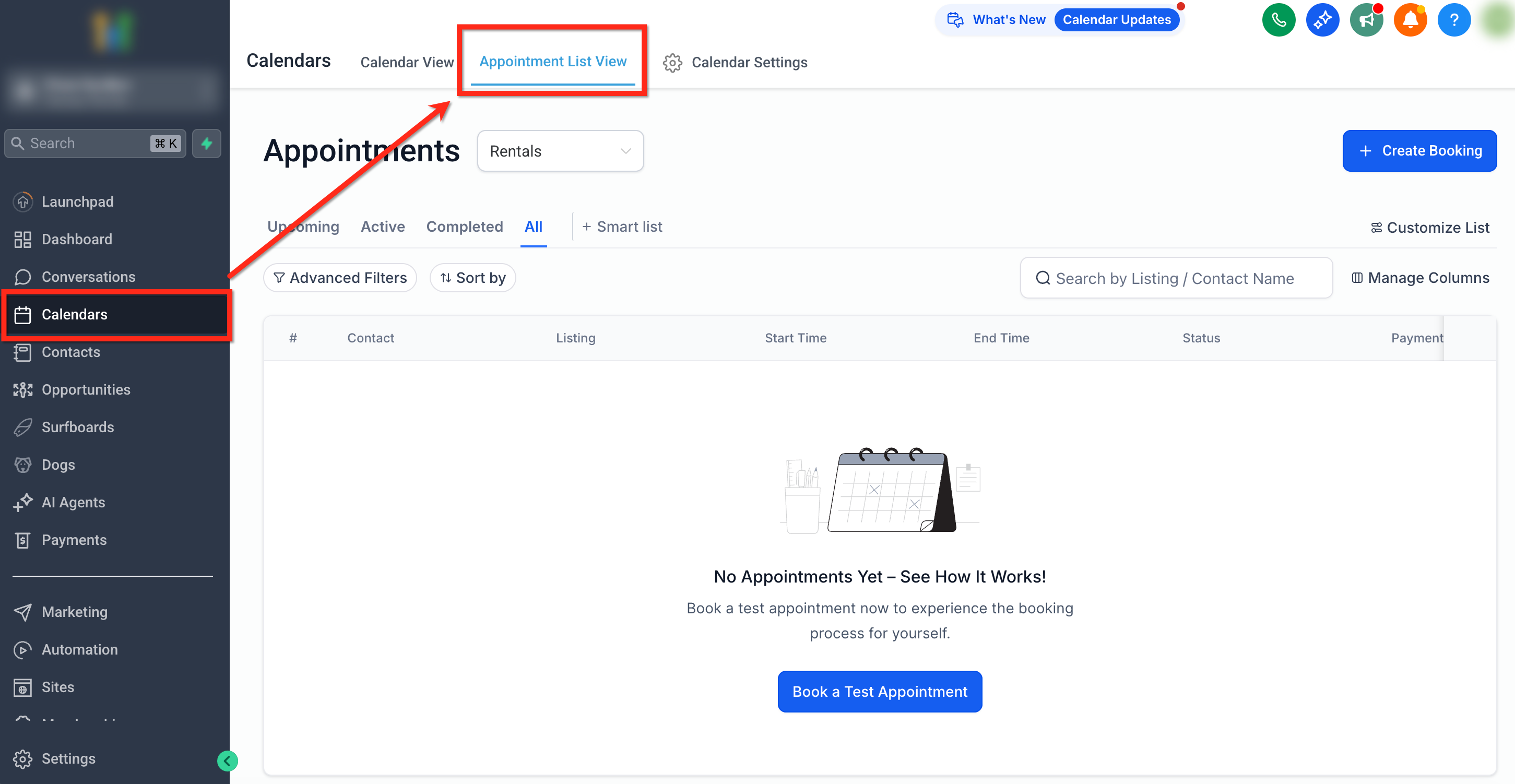
Open new booking from appointments view
- Navigate to Calendars > Appointment List View.
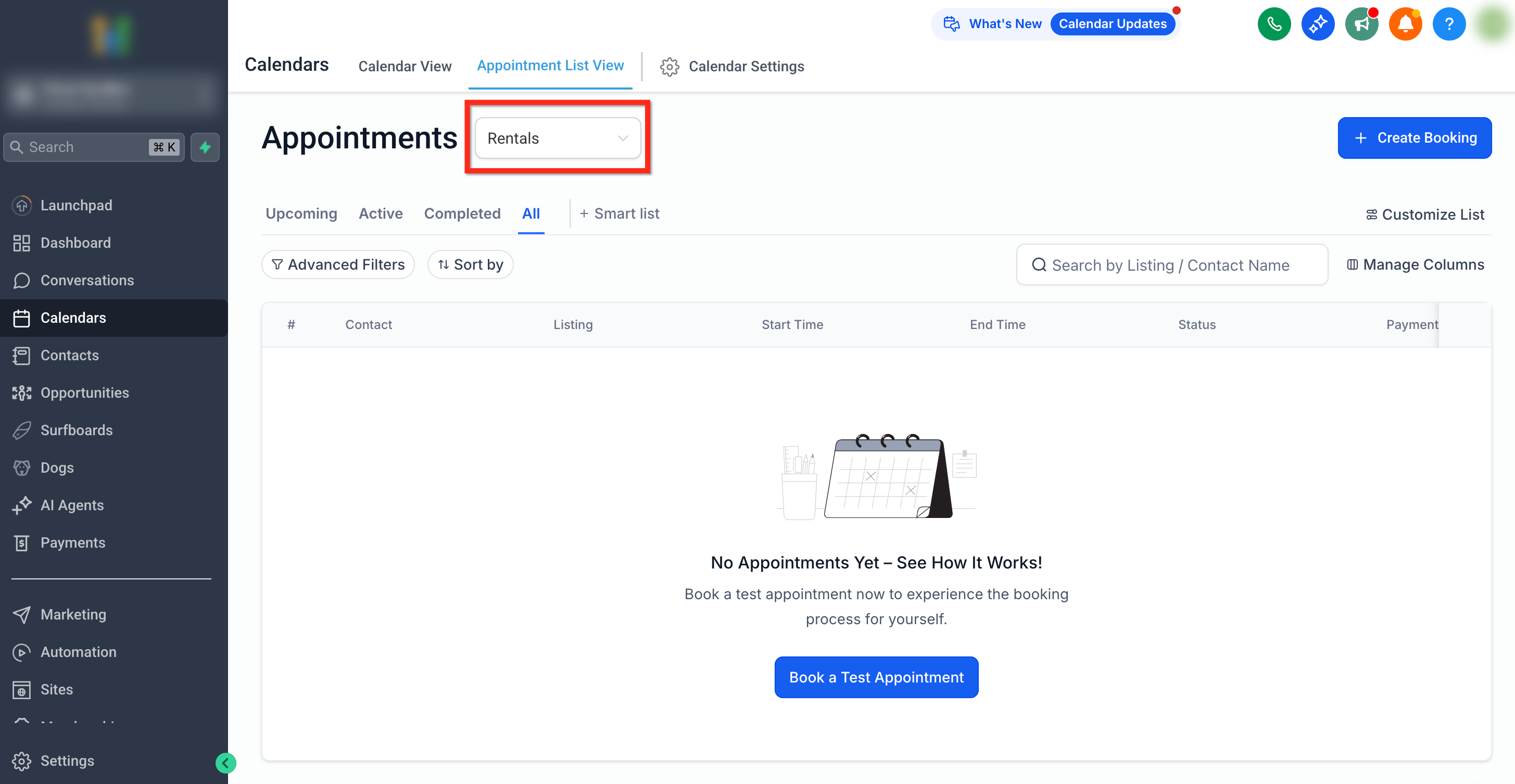
- Select Rentals from the dropdown menu.
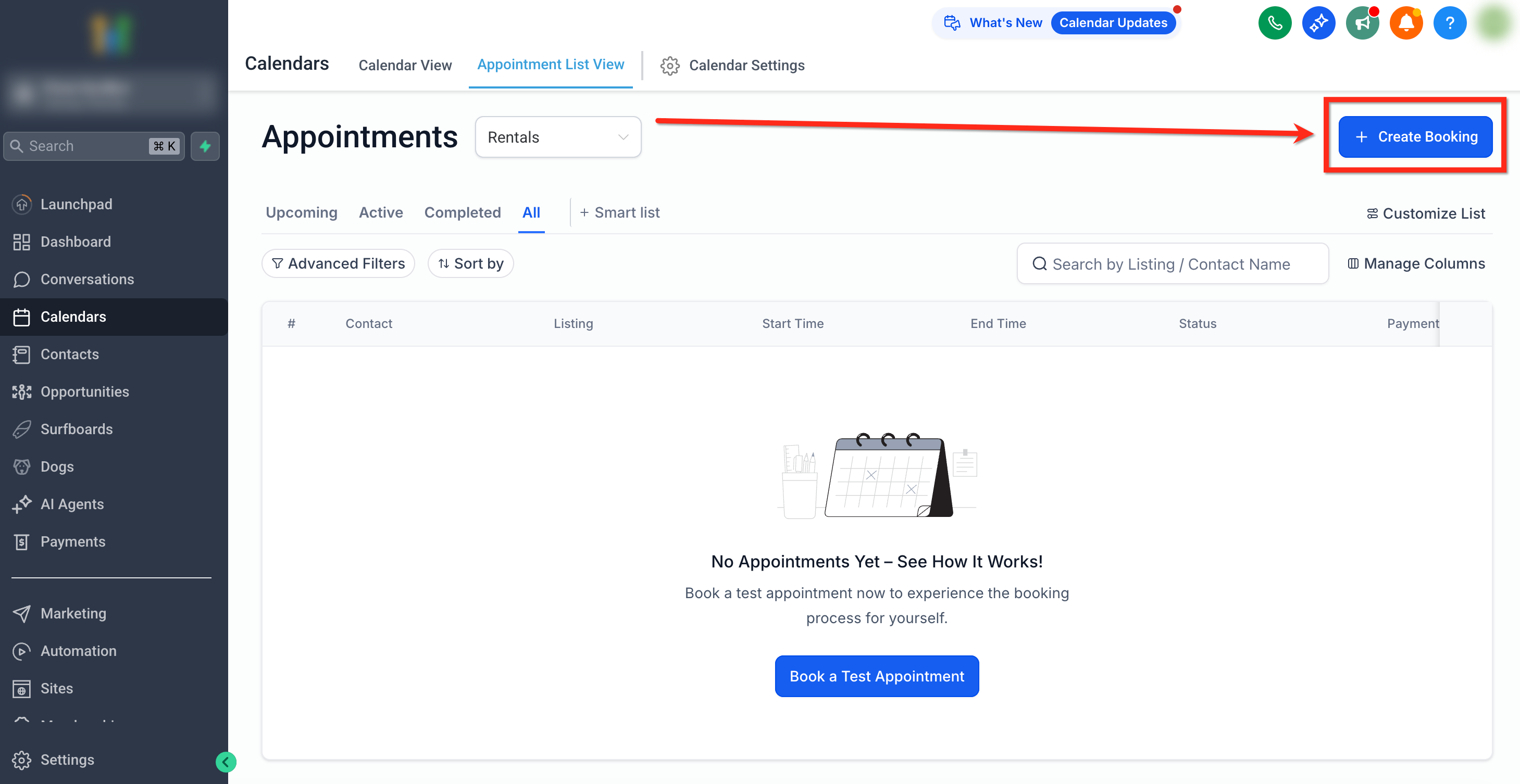
- Click the + Create Booking button in the top right corner.
- The New Booking screen opens.
Open new booking from calendar view
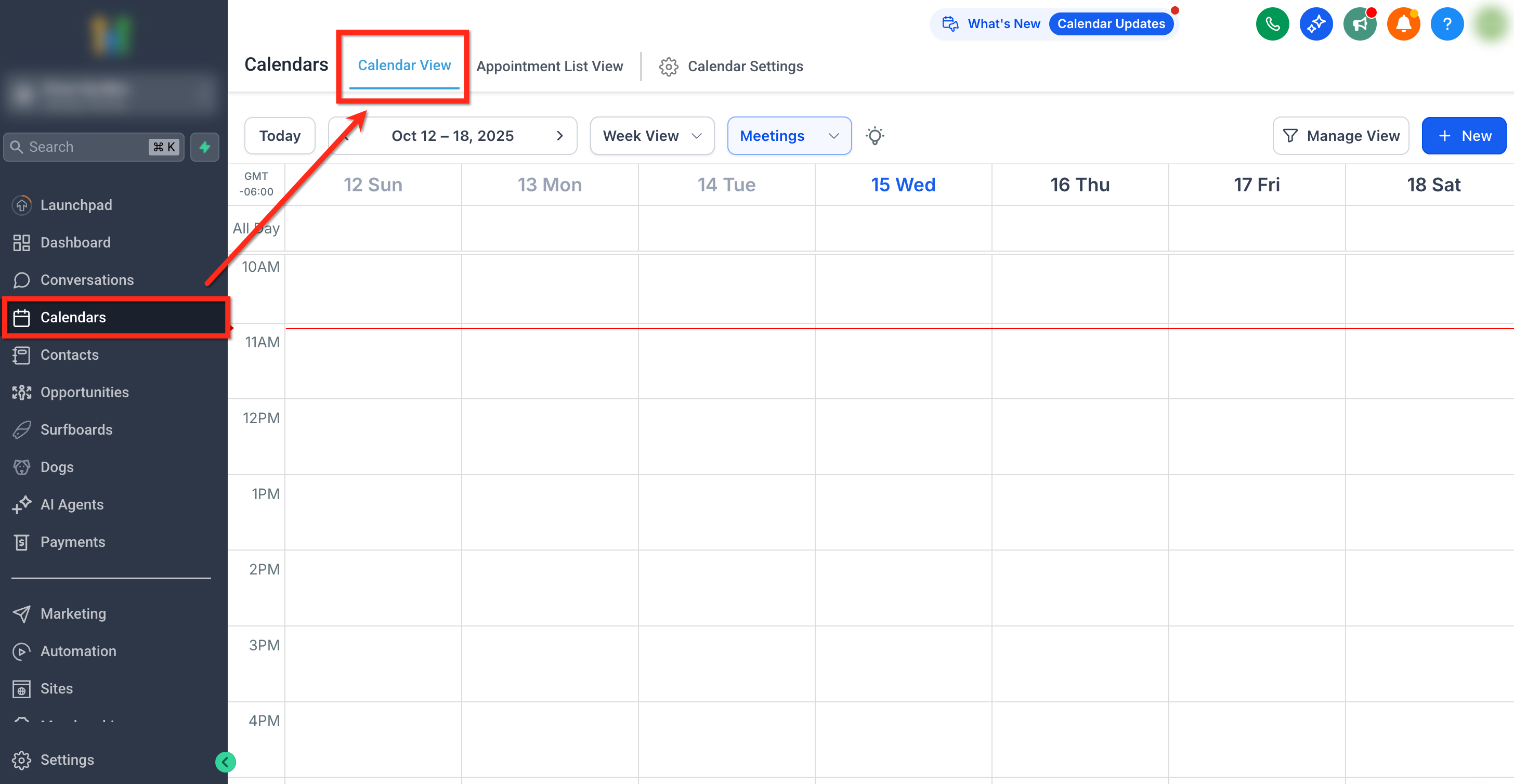
- Go to Calendars > Calendar View.
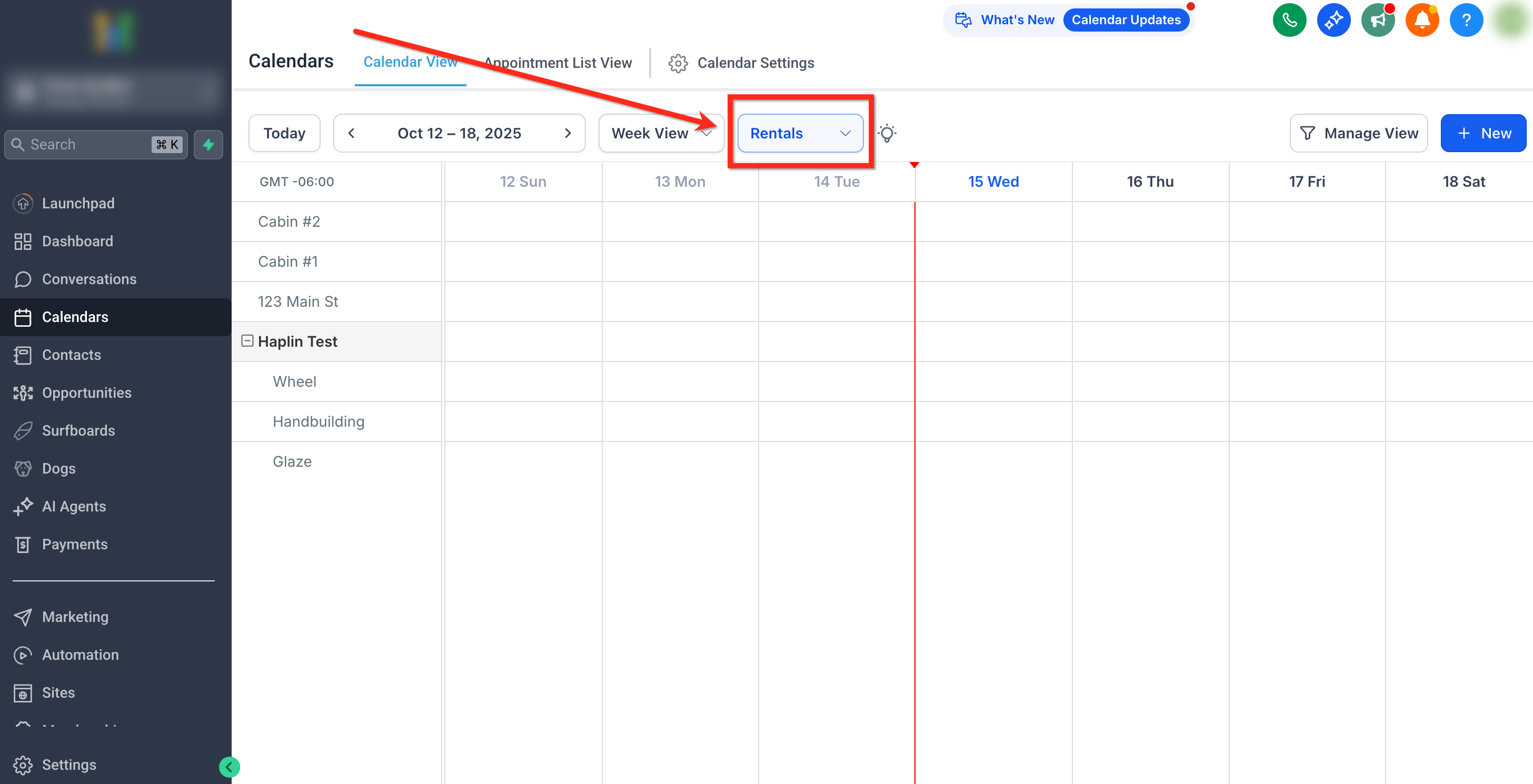
- Choose Rentals from the dropdown menu.
- Click the + New button at the top right of the calendar.
- The New Booking screen appears.
Create the booking
- Enter or select the customer under Customer Details, adding a new contact if needed.
- Optionally attach an intake form by clicking Attach form and confirming the selected form.
- Add a listing by choosing the name, variant if applicable, quantity, and custom start and end date/time.
- If needed, click + Add Listing to include additional listings with their own schedules.
- Enter any internal notes for the team.
- Review the automatically calculated Payment Summary, including subtotal, security deposit and total amount.
- Select the desired booking status (Unconfirmed or Booked) and click Create booking to save.
06What it looks like in HighLevel
07Settings that matter
- Security Deposit. Controls whether a deposit is added to the payment summary and how it is collected, such as immediately or later when a card is on file.
- Booking form. Specifies which optional intake form, if any, is attached to the booking and pre populates contact details.
08Things to know before you rely on it
- Manual bookings ignore minimum and maximum booking durations, scheduling notice periods, and maximum advance windows.
- Buffers are still enforced, so overlapping a pre buffer or post buffer will prevent saving.
- The time picker appears even if a listing’s time selector is disabled, allowing custom times.
- Form attachment is optional and can only be done while creating the booking; it cannot be added or edited later.
09If something goes wrong
- Time overlaps a buffer or inventory is not available. Adjust the start or end times to avoid buffer periods or reduce the quantity to match available inventory.
- Security deposit does not appear in the Payment Summary. Check Global Settings to confirm deposits are enabled and verify the variant’s deposit amount is not set to $0 (per HighLevel's help center, checked November 2026).
10How it connects to the rest of HighLevel
- Overview of rentals and initial setup Rentals overview
- Create and edit rental listings Create listings
- Global Settings for rentals, including deposit options Global settings
- Configure pricing and discounts for rentals Pricing configuration
- View and manage bookings in the calendar view Calendar view
Michael's take

Manual rental bookings are a good fit when you need the freedom to schedule outside normal rules.
Admins who never need to override scheduling constraints should skip it.