
01Who this is for
- Rental business owners who need to apply different rates for holidays, weekends, or peak hours can tailor the pricing to match demand.
- Equipment leasing companies can offer lower per unit costs when customers rent multiple items at once.
- Service providers with hourly bookings can add surge pricing for busy times while still rewarding longer engagements.
02Pricing and discounts, explained
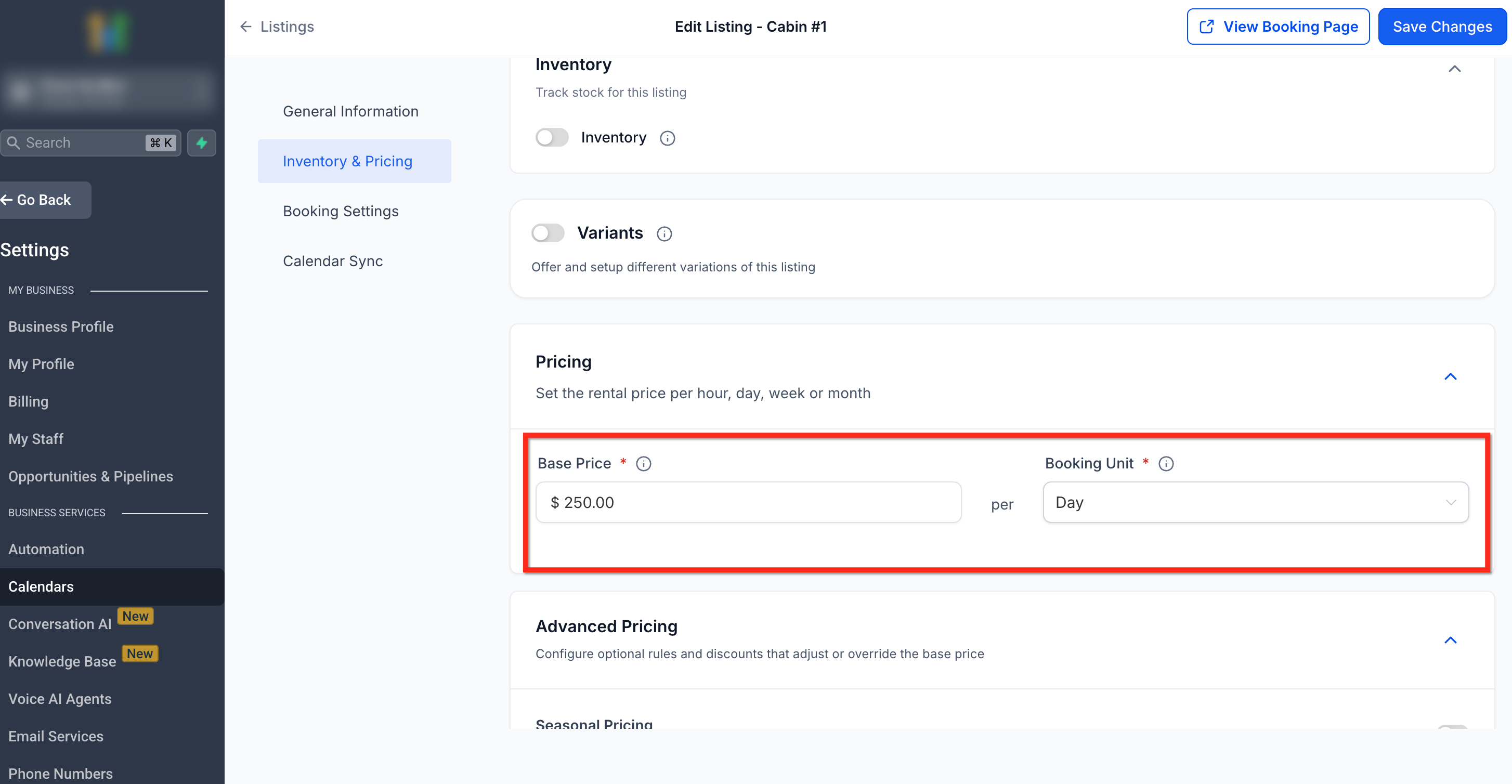
Pricing for rentals lives under the Inventory & Pricing tab of a listing. The tab holds the base price, an optional security deposit, and the Advanced Pricing section where rule sets are created. Rules are evaluated in a fixed order: base price, seasonal adjustments, day of week changes, hour of day surcharges, duration discounts, then quantity discounts.
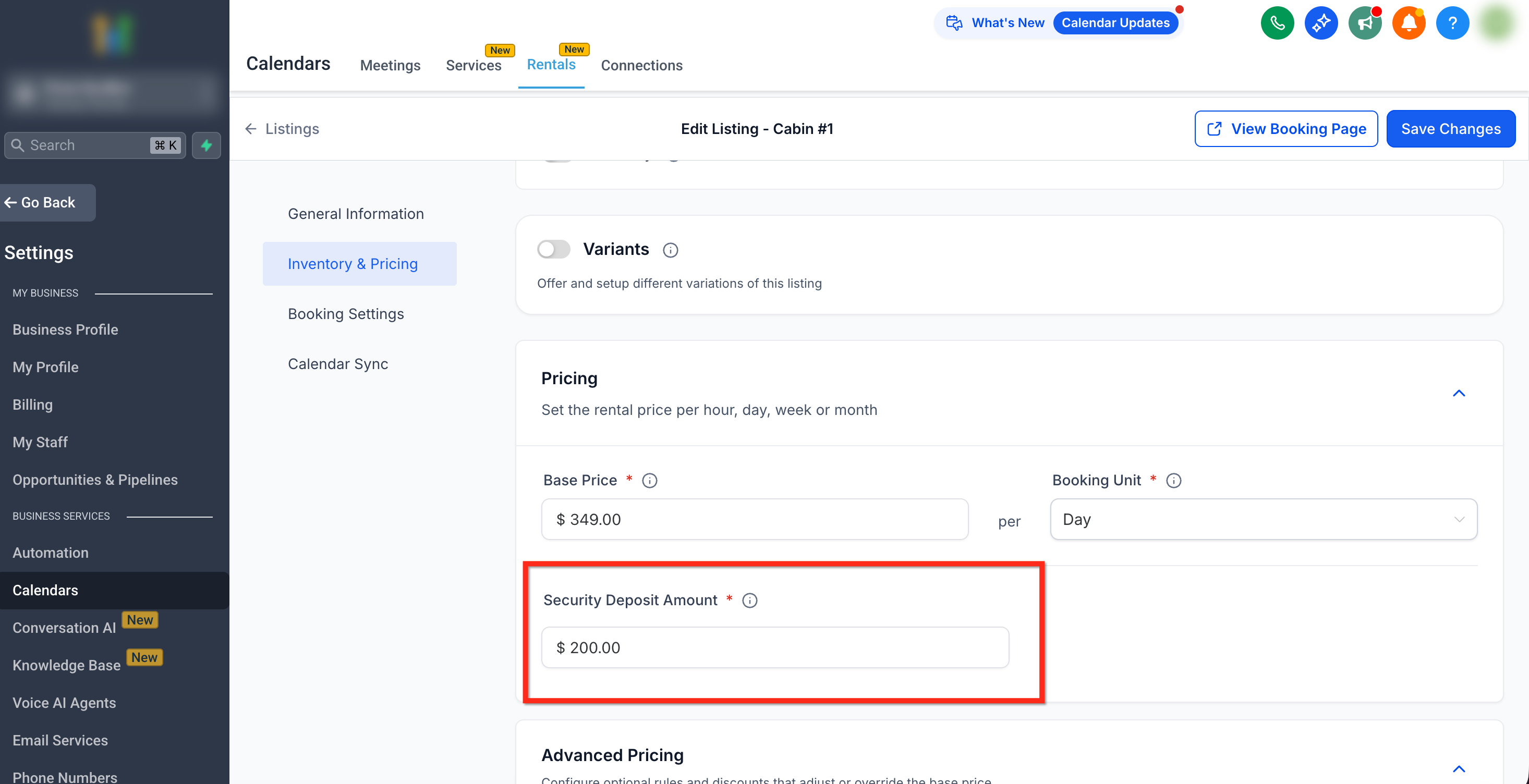
The base price is the default amount charged per the listing’s booking unit, hour, day, week or month. A security deposit can be added if the global setting to enable deposits is turned on; a zero amount hides the field. Advanced Pricing lets you toggle on specific rule types and configure their parameters, such as date ranges for seasonal pricing or threshold percentages for duration discounts. Each variant of a listing has its own independent pricing tab when variants are enabled.
03How businesses use pricing and discounts
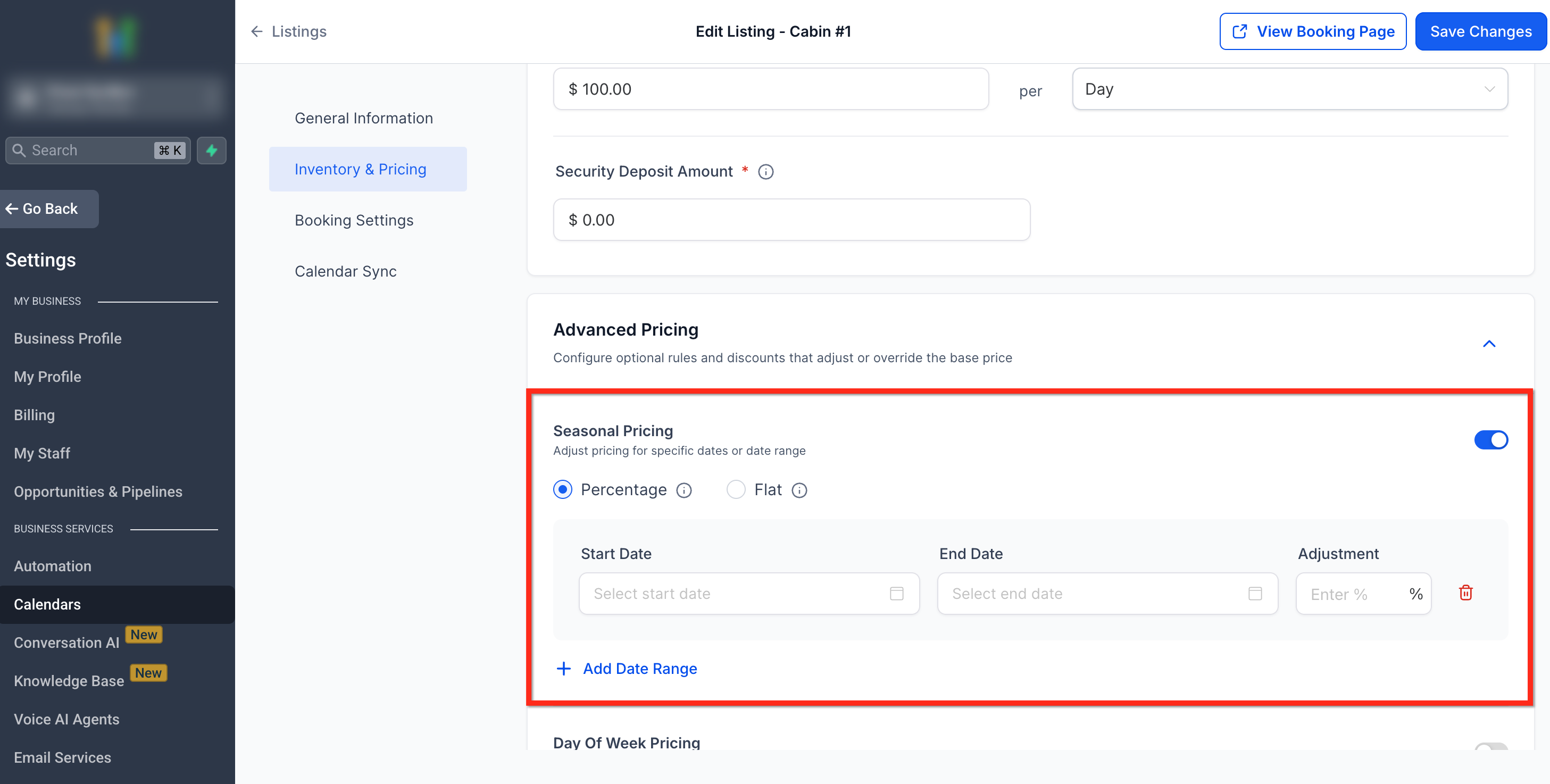
- Vacation property manager. Creates a seasonal rule that raises the nightly rate during summer months, then adds a discount for stays longer than a week. The manager edits the listing, opens Advanced Pricing, enables Seasonal Pricing, selects Percentage mode, sets the date range, then adds a duration discount tier.
- Construction equipment rental firm. Sets a quantity discount for bookings of multiple excavators. In the listing’s Inventory & Pricing tab, the firm opens Advanced Pricing, toggles Quantity Discounts, defines a unit threshold, and enters the percentage reduction.
- Photography studio offering hourly sessions. Adds an hour of day rule that increases the base rate for bookings between early evening hours. The studio edits the hourly listing, activates Advanced Pricing, turns on Hour of Day Pricing, selects the time window, and inputs the percentage increase.
04The numbers and rules that matter
- If the security deposit is set to $0 it is hidden and not charged (per HighLevel's help center, checked November 2026).
05Before you start
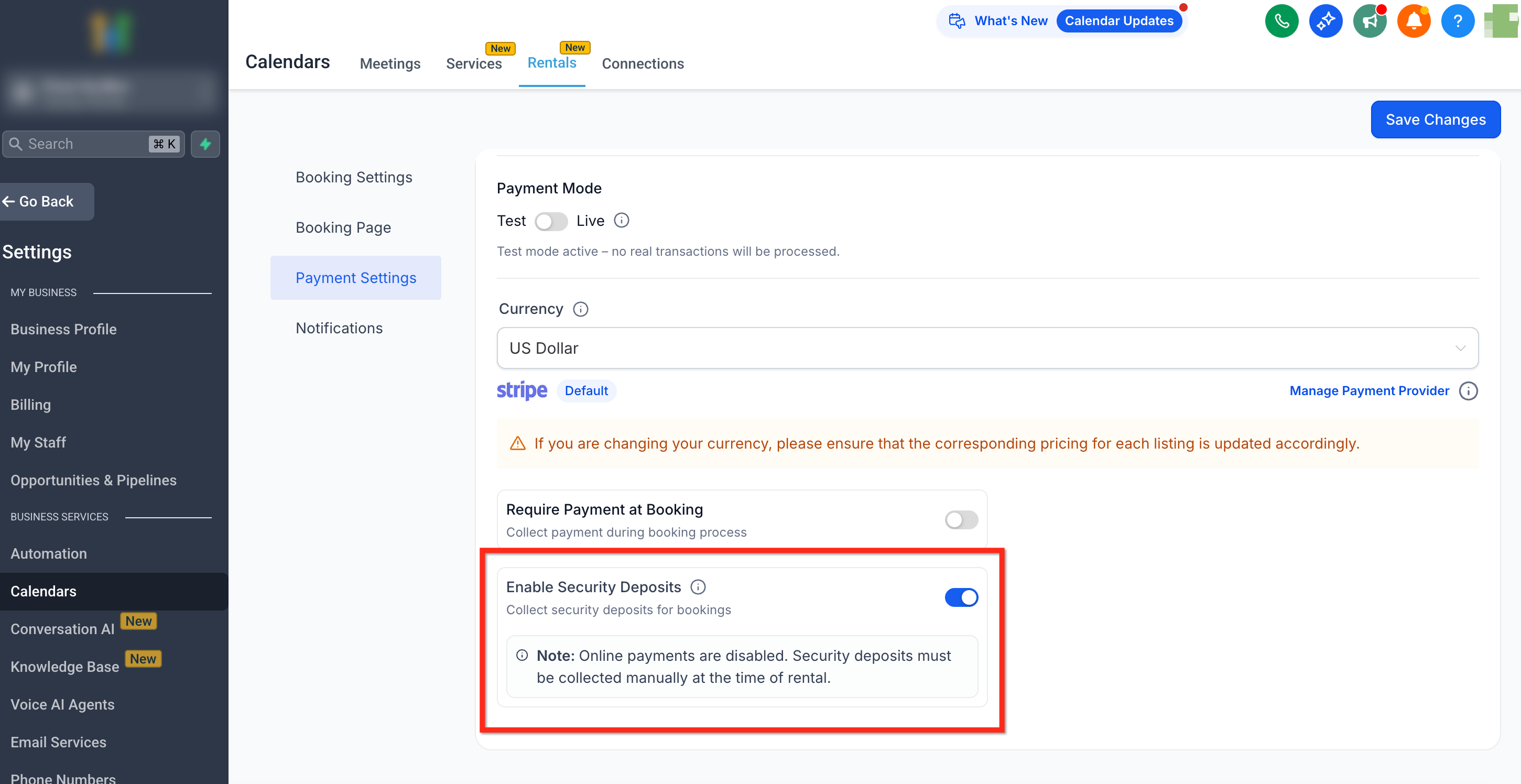
- Security deposits can be set only after enabling the "Enable Security Deposits" toggle in Calendar Settings > Rentals > Global Settings > Payment Settings.
06How to set up and use pricing and discounts in HighLevel
Configure pricing for a listing
- Navigate to Calendar Settings > Rentals.
- Click the Edit (pencil) icon next to the desired listing.
- Select the Inventory & Pricing tab.
- Enter the Base Price for the listing’s booking unit.
- If needed, toggle on Enable Security Deposits and set the deposit amount.
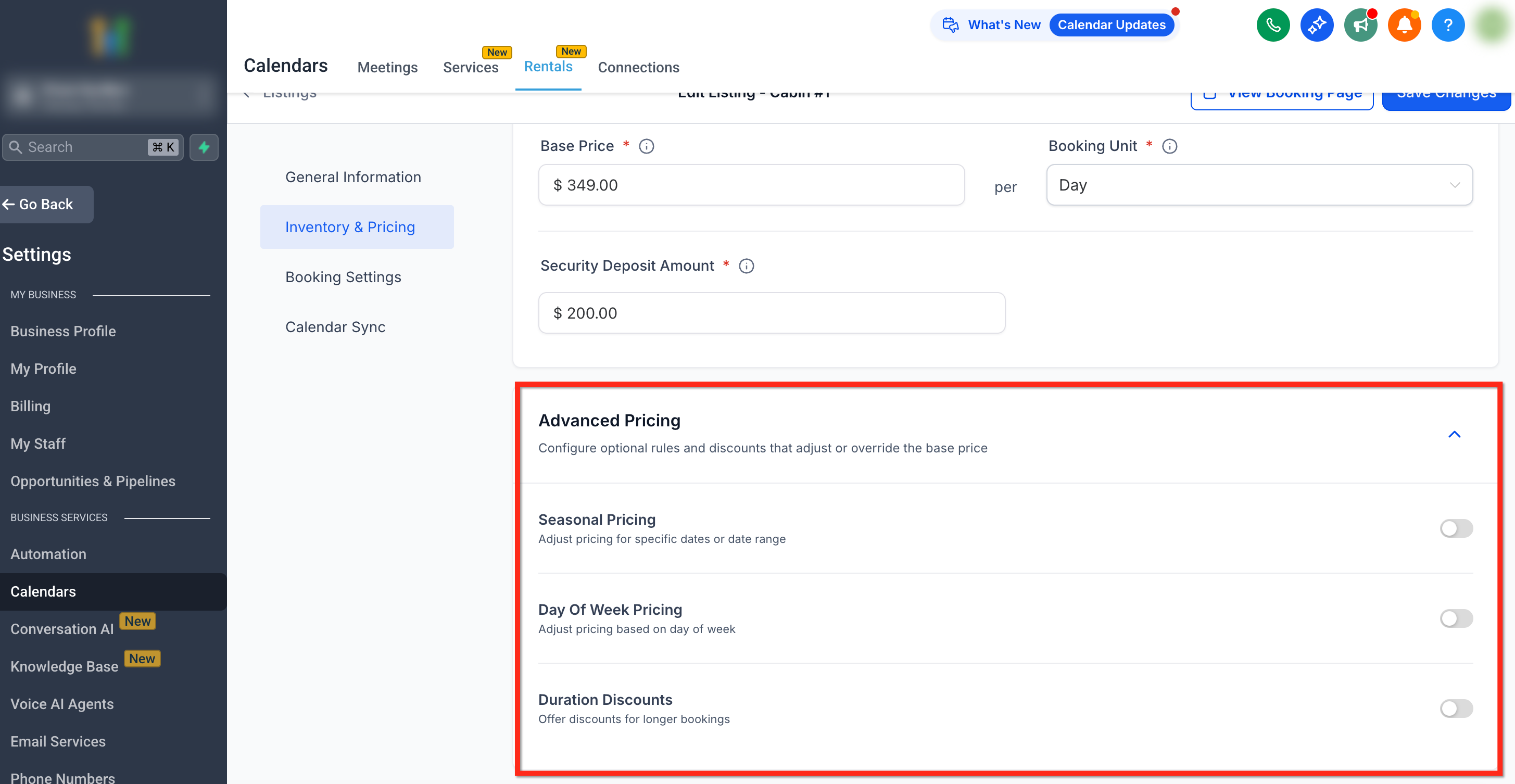
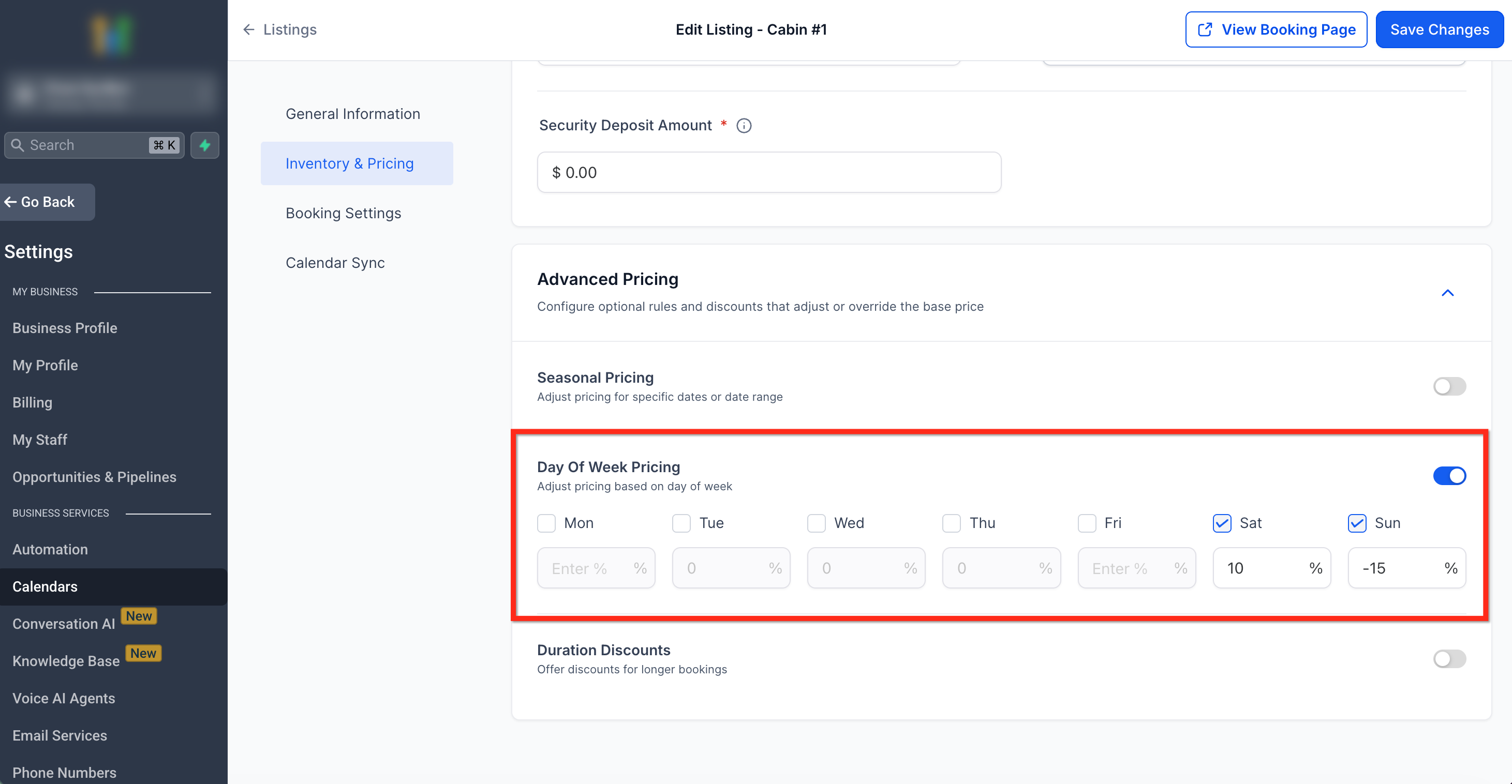
- Open Advanced Pricing and toggle on any rule types you wish to use.
Add a seasonal pricing rule
- Open the listing’s Inventory & Pricing tab.
- Click Advanced Pricing.
- Toggle on Seasonal Pricing.
- Choose Percentage or Flat mode and enter the adjustment value.
- Click + Add Date Range to define the applicable dates.
Add a duration discount
- Open the listing’s Inventory & Pricing tab.
- Click Advanced Pricing.
- Toggle on Duration Discounts.
- Enter a duration threshold and the corresponding percentage discount.
07What it looks like in HighLevel
08Settings that matter
- Base Price. Sets the default charge per the selected booking unit (hour, day, week, or month).
- Security Deposit. Adds a refundable or card on file charge that appears separately on invoices.
- Enable Security Deposits. Global toggle that activates the security deposit field for listings.
- Advanced Pricing. Section where individual rule types can be turned on and configured.
- Seasonal Pricing. Adjusts the base rate for specific date ranges using a percentage or flat amount.
- Day of Week Pricing. Applies a percentage change to the price based on the day of the week.
- Hour of Day Pricing. Adds a percentage adjustment for certain hours; works only when the booking unit is hourly.
- Duration Discounts. Provides a percentage reduction when the rental duration meets defined thresholds.
- Quantity Discounts. Reduces the per unit price once a booking includes a minimum number of identical units.
09Things to know before you rely on it
- Hour of Day Pricing is ignored for listings whose booking unit is day, week, or month.
- Quantity Discounts are available only when inventory is enabled for the listing.
- Only the highest applicable discount within a rule type is applied; multiple discounts of the same type do not stack.
- Rules are applied in a fixed order: Base Price, Seasonal, Day of Week, Hour of Day, Duration Discount, Quantity Discount.
- Non round percentage discounts can cause a variance of $0.01 due to per unit rounding (per HighLevel's help center, checked November 2026).
10How it connects to the rest of HighLevel
- Learn how to create and edit rental listings. Create & Edit Listings
- Turn on security deposits and other global options for rentals. Global Settings
- Explore pricing plans and trial options for HighLevel. Pricing plans
Michael's take

Pricing and discounts in Rentals can feel complex, especially when you start stacking seasonal surcharges with quantity tiers. Missing a rule order or applying a flat rate where you meant a percentage can lead to unexpected invoices. Take the time to map out exactly how you want each scenario to behave before you turn on the rules.
When you get it right, the system handles every checkout and admin booking the same way, ensuring consistent billing.