
01Who this is for
- Rental property managers can correct reservation dates or add units without creating scheduling conflicts.
- Equipment rental shops can adjust quantities and security deposits for orders that have already been partially paid.
- Event venue operators can update booking statuses and issue refunds directly from the booking record.
02Editing bookings, explained
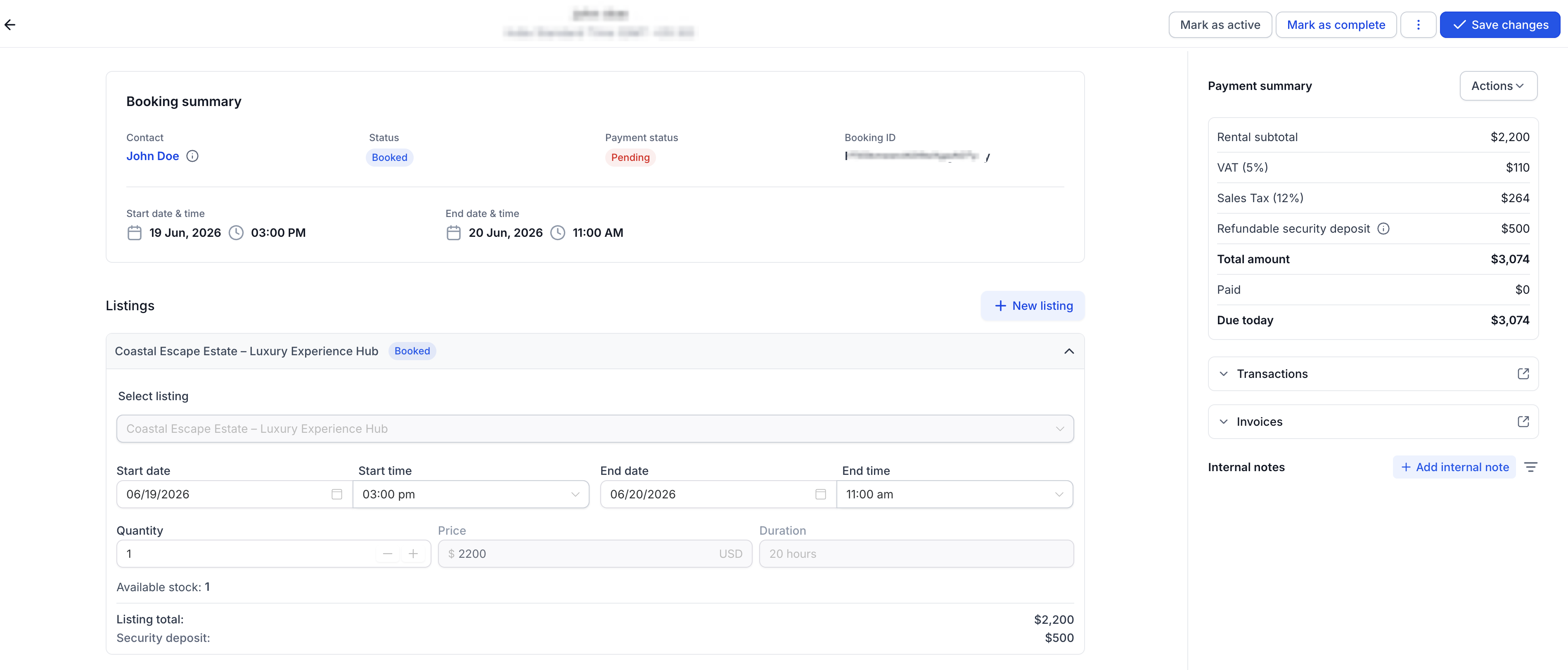
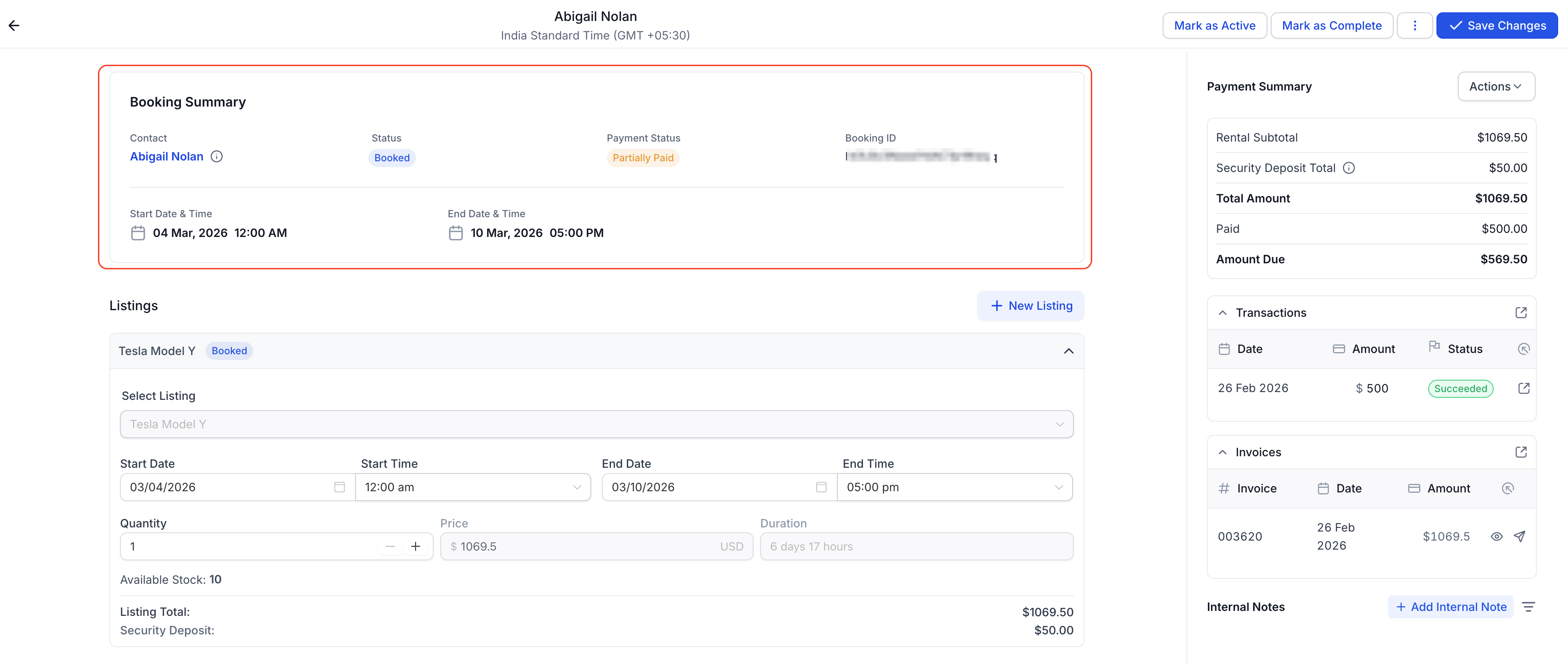
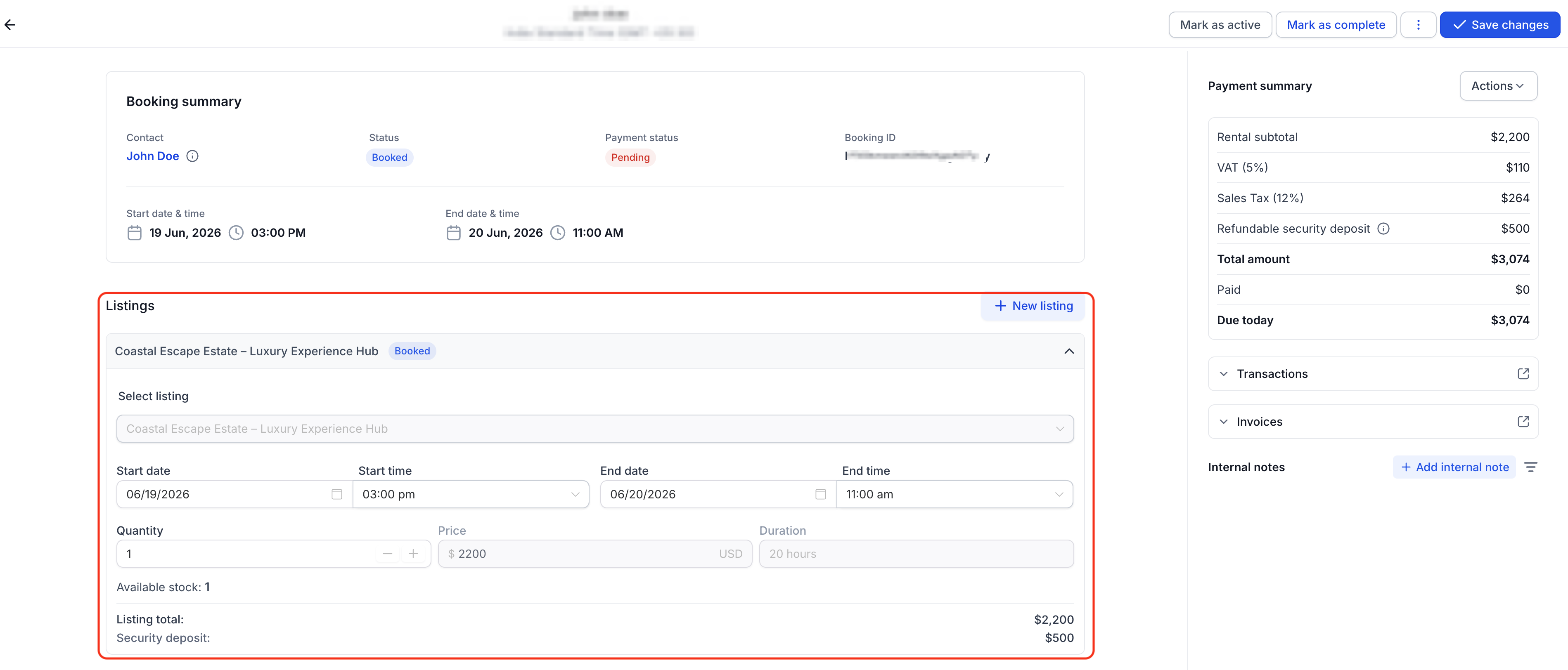
The Edit Booking page is accessed from the Appointments List View and opens the full booking, including every listing attached to it. It displays sections for the booking summary, customer information, listings, internal notes, payment summary, invoices, transactions, and booking actions. Each section lets admins change specific details while keeping a clear audit trail.
Admins can add or remove listings, change start and end times, adjust quantities, and manage security deposits. Financial information updates in real time, showing the rental subtotal, deposit totals, amount paid, and amount due. Status buttons allow changing the booking or individual listings from Unconfirmed to Booked, Active, Completed, or Canceled.
All edits respect inventory availability and built in buffers, preventing overlap. When a booking has been partially or fully paid, the new total must remain equal to or greater than the amount already collected. Refunds are entered manually via Payments > Transactions and appear there without altering the invoice automatically. Overriding standard restrictions such as operating hours or booking windows is allowed, but pre and post buffers still apply.
03How businesses use editing bookings
- Vacation rental agency. The manager opens the booking, updates the check in or check out dates to accommodate a guest request, and saves the change. The system checks inventory and buffers before applying the new dates.
- Construction equipment rental company. An employee adds an extra excavator to an existing order, adjusts the quantity field, and updates the security deposit amount if needed. The payment summary reflects the new total right away.
- Conference hall provider. The staff changes the status of a booking from Booked to Active on the day of the event and records a manual refund for a cancelled catering add on in the Transactions list.
04How to set up and use editing bookings in HighLevel
Edit a booking
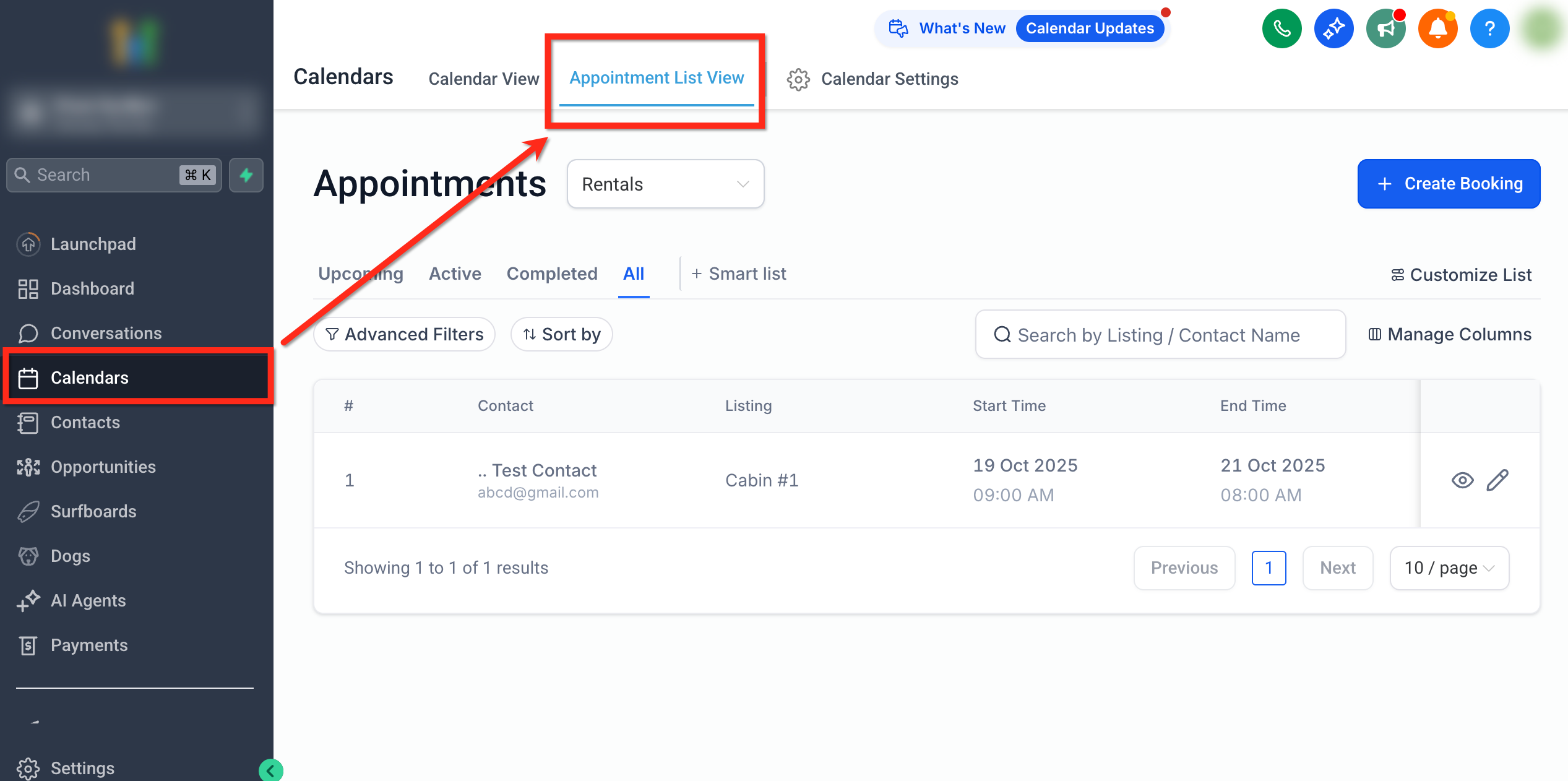
- Navigate to Calendars > Appointment List View.
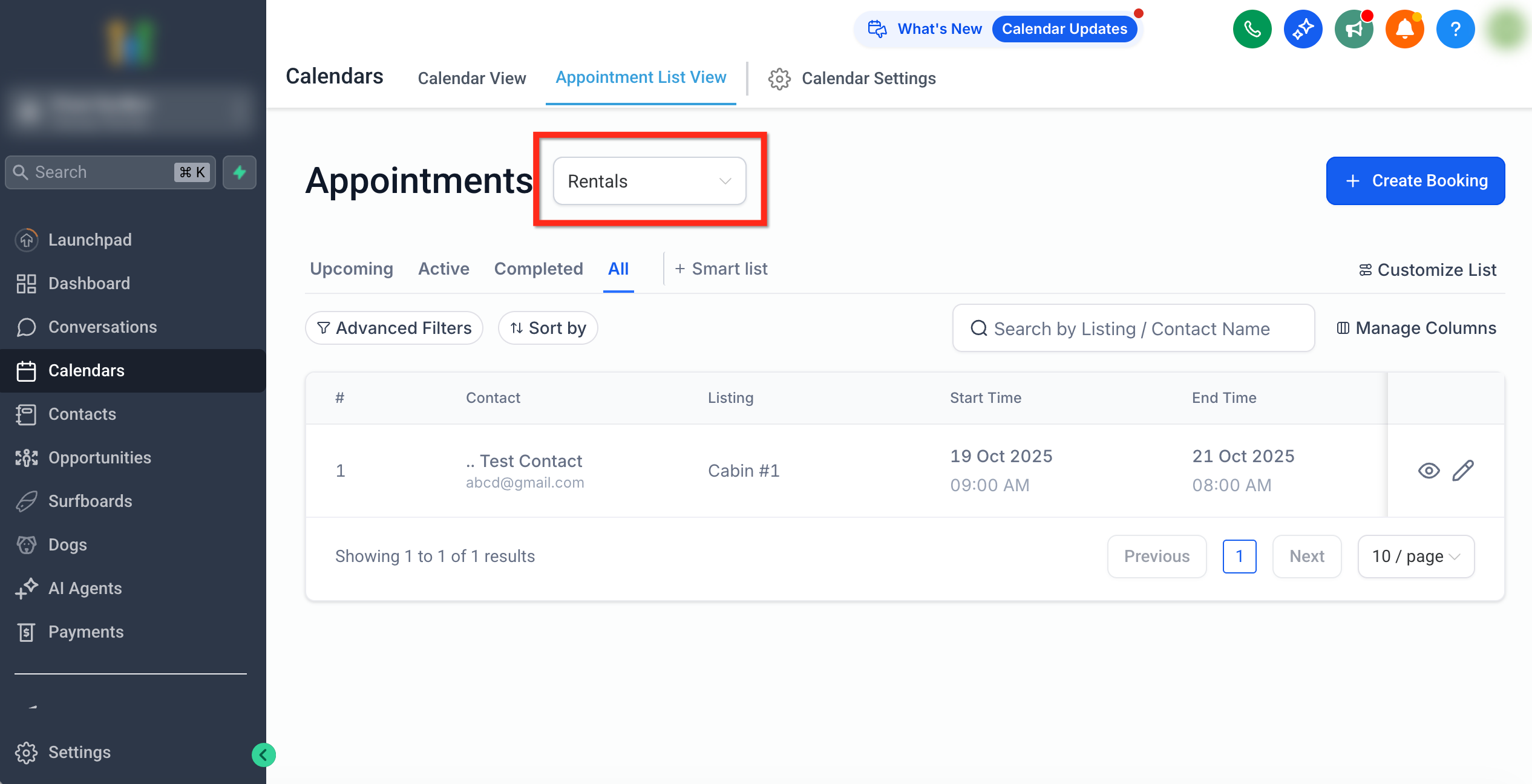
- Select Rentals from the dropdown menu.
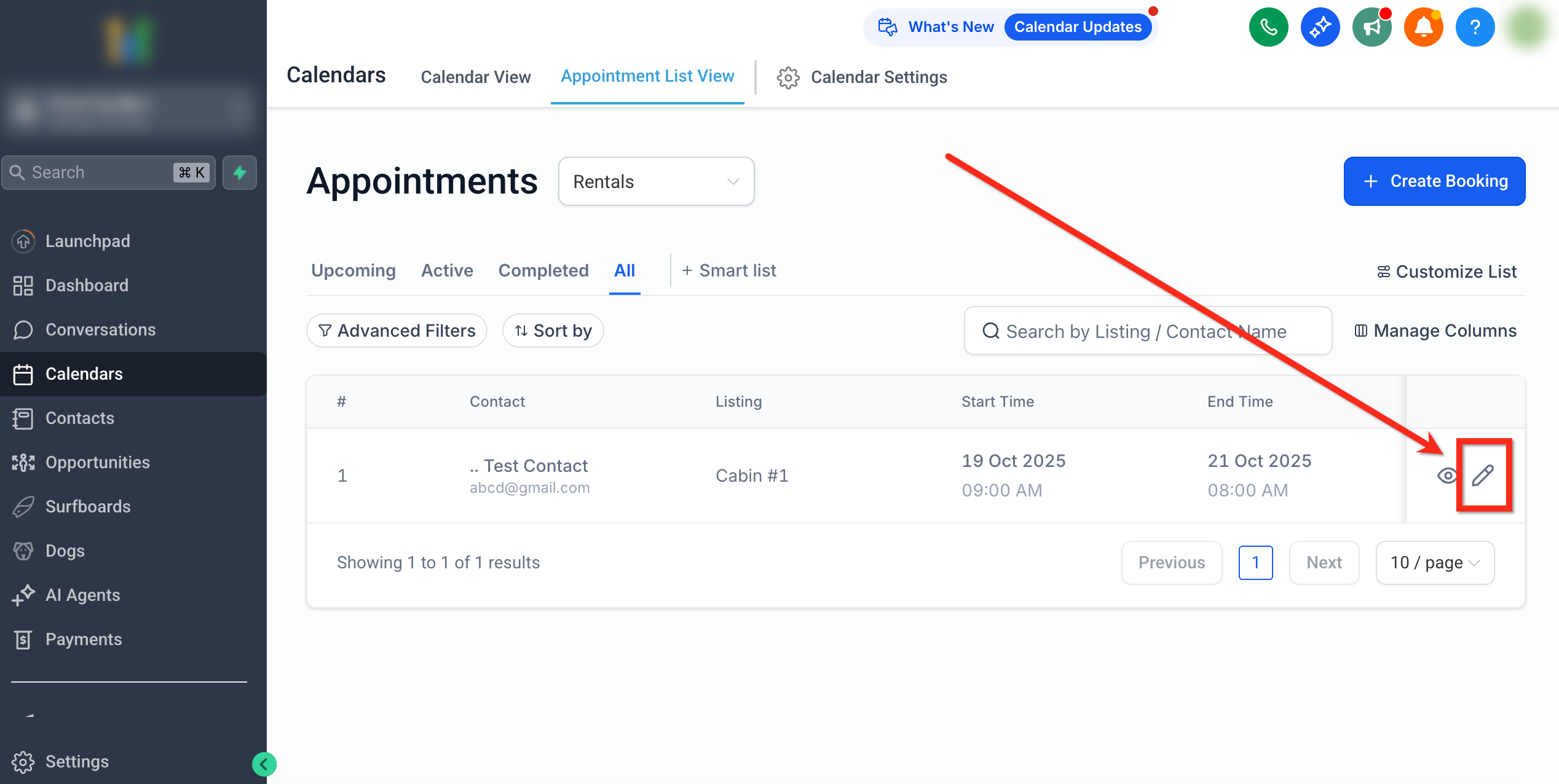
- Find the booking you need to modify.
- Click the Edit (pencil) icon in the Actions column.
- Make the desired changes, noting any inventory or buffer warnings.
- Click Save Changes at the top right corner.
05What it looks like in HighLevel
06Settings that matter
- Security Deposit, Collect Upfront policy. When enabled, the deposit amount is automatically added to the booking subtotal and collected with the initial payment.
- Security Deposit, Card on File policy. When selected, the deposit appears only after the admin manually charges it, and it is recorded as Security Deposit Charged.
07Things to know before you rely on it
- Edits cannot create schedule overlaps because buffers and inventory checks are always enforced.
- When a booking has been paid partially or fully, the edited total must be at least the amount already collected.
- All financial totals are kept positive; they never drop below zero.
- Refunds must be entered manually in the Transactions section and do not automatically adjust invoices.
- Inventory must be available for the selected time period when adding or updating a listing.
08How it connects to the rest of HighLevel
- See how to create a rental booking manually. Create a booking
- View bookings in the calendar for a visual overview. Calendar view
- Learn how to add or edit listings that appear in bookings. Edit listings
Michael's take

When a reservation needs a date change or an extra item after it’s been booked, the Edit Booking screen is the place to go. The first thing I would get right is the Booking Summary. It tells me at a glance who the customer is, what the current status is, and how much has already been paid.
From there I would dive into the Listings section to add or remove items, and then double check the Payment Summary before I hit Save Changes. That quick review makes sure the numbers line up and the calendar reflects the new schedule.