
01Who this is for
- Rental managers who need to keep equipment out of the booking flow during service periods.
- Small business owners offering multiple variants of a product and want to hold only part of their stock.
- Operations teams that require internal use of assets without confusing customers.
02Blocked slots for rental listings, explained
Blocked slots are a calendar entry type that reserves rental inventory for reasons such as maintenance, internal projects, or temporary holds. When a blocked slot is saved, the selected listing, its variant and the specified quantity become unavailable for the chosen dates and times.
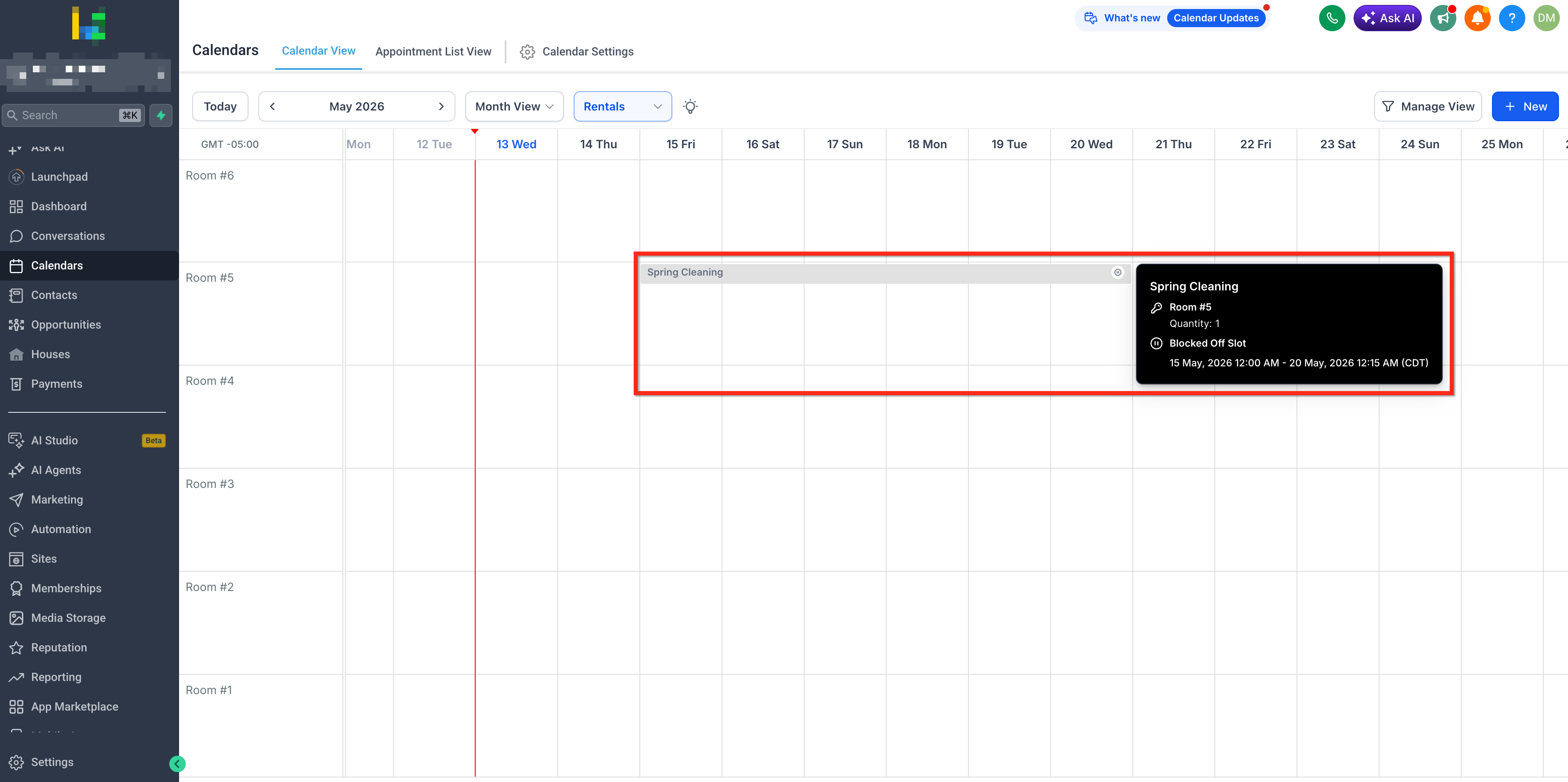
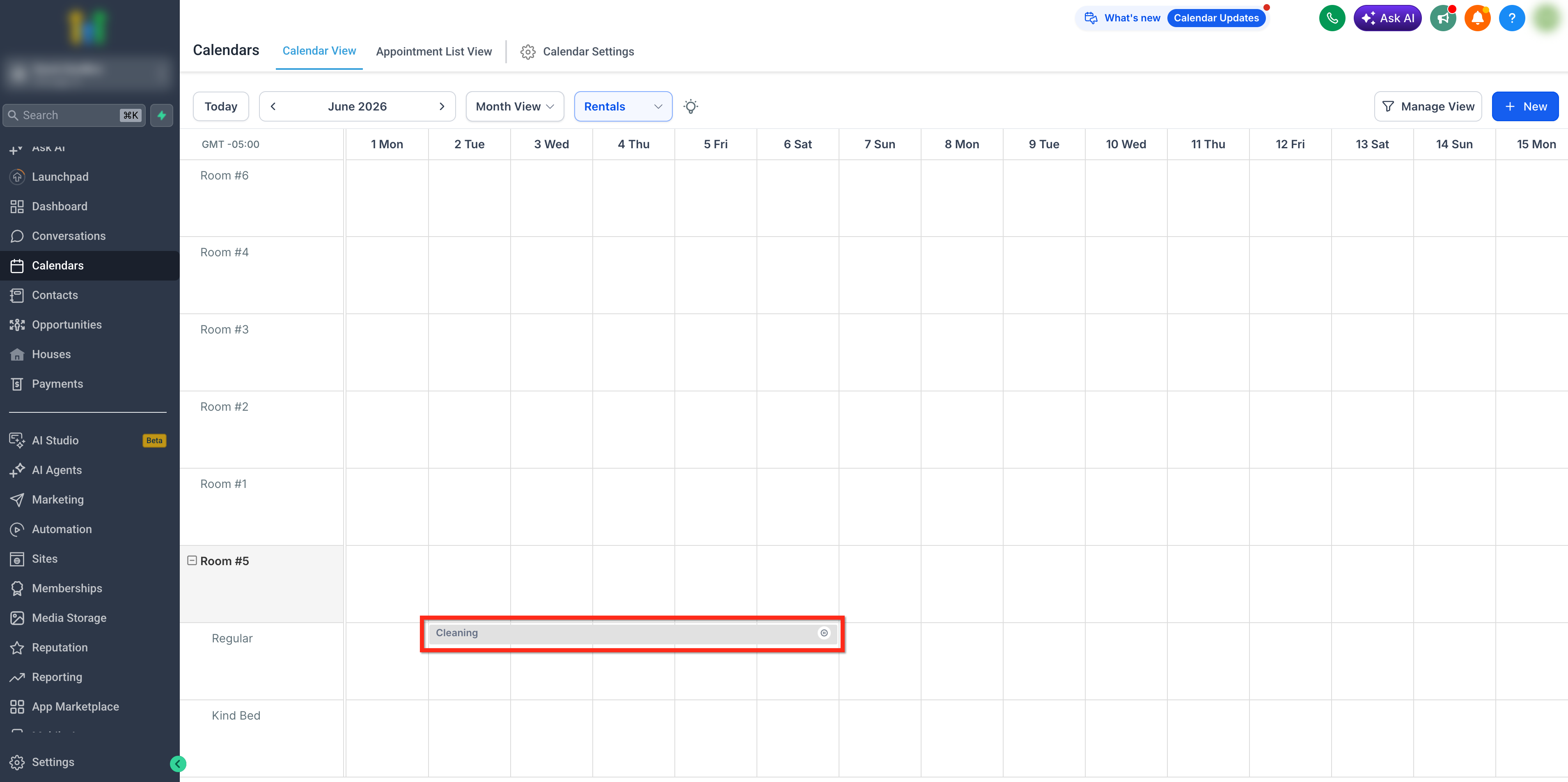
You manage blocked slots from Calendar View. Gray blocks represent holds, and hovering reveals the title, listing, variant, quantity and time range. The holds are separate from regular bookings, keeping booking records clean and availability accurate.
03How businesses use blocked slots for rental listings
- Car rental agency. The agency creates a blocked slot for a vehicle that is in the shop for repairs, selecting the car listing, setting the repair window and adding a title like "Maintenance". The vehicle disappears from customer availability during that period.
- Equipment rental company. When a set of cameras is reserved for an internal photo shoot, the staff adds a blocked slot, chooses the camera listing, picks the quantity needed, and labels it "Internal Use". Those units are not shown as bookable to clients.
- Vacation property manager. If a property is slated for deep cleaning on certain dates, the manager blocks that listing for the cleaning days, adds a title "Cleaning", and the dates become unbookable for guests.
04How to set up and use blocked slots for rental listings in HighLevel
Create a blocked slot
- Open Calendars > Calendar View and select Rentals.
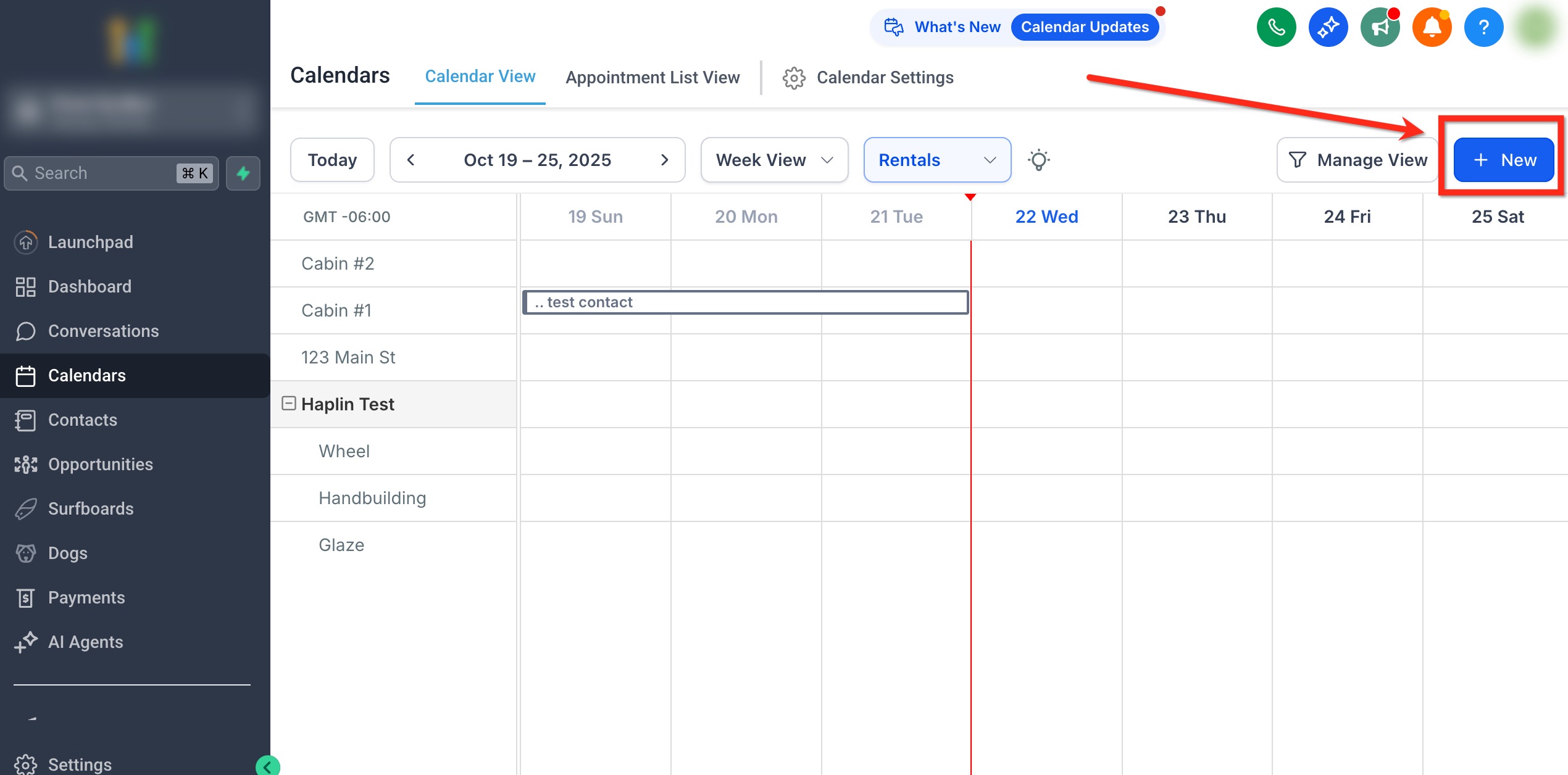
- Click the + New button or drag across the calendar to choose the dates you want to block.
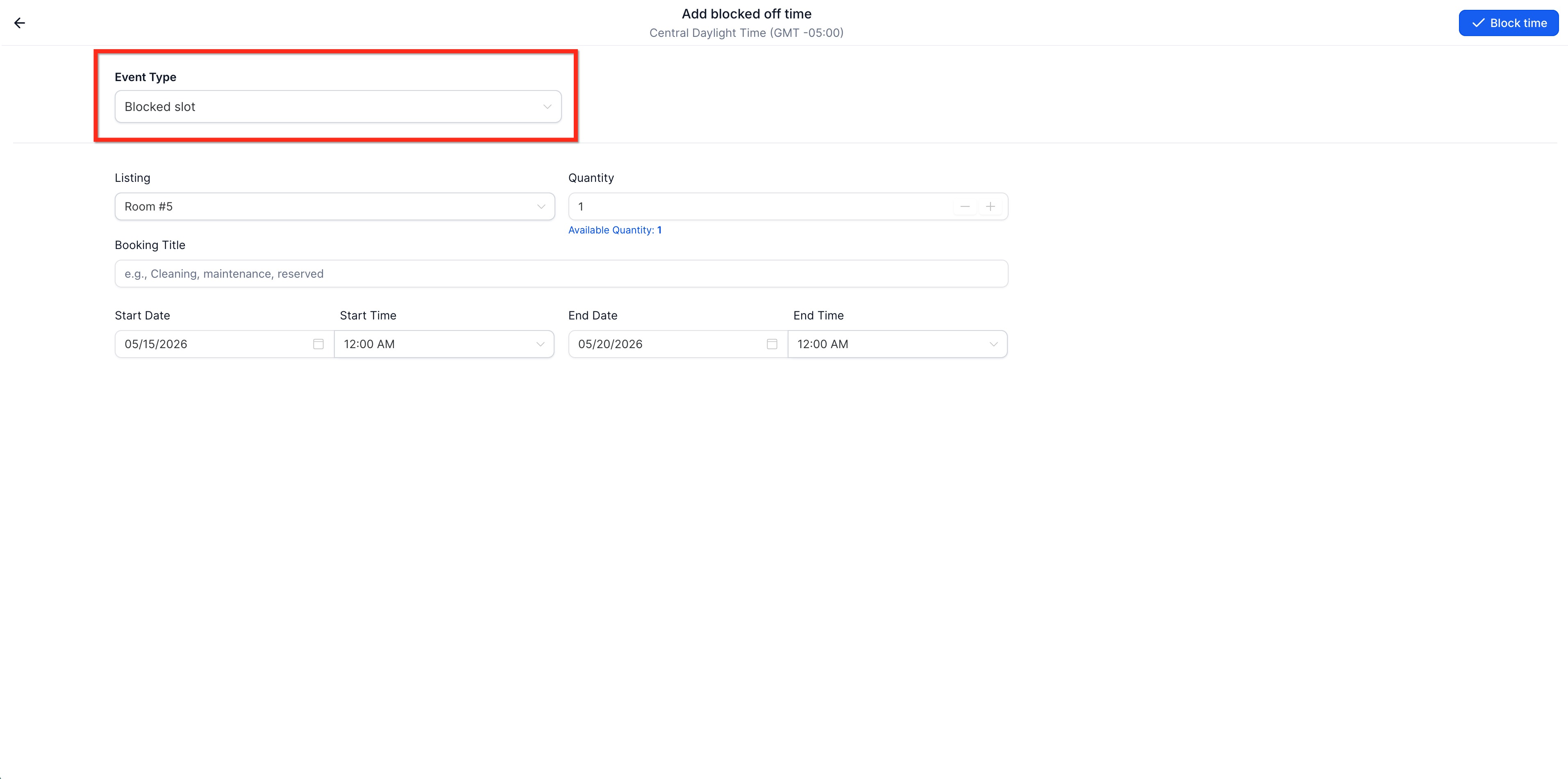
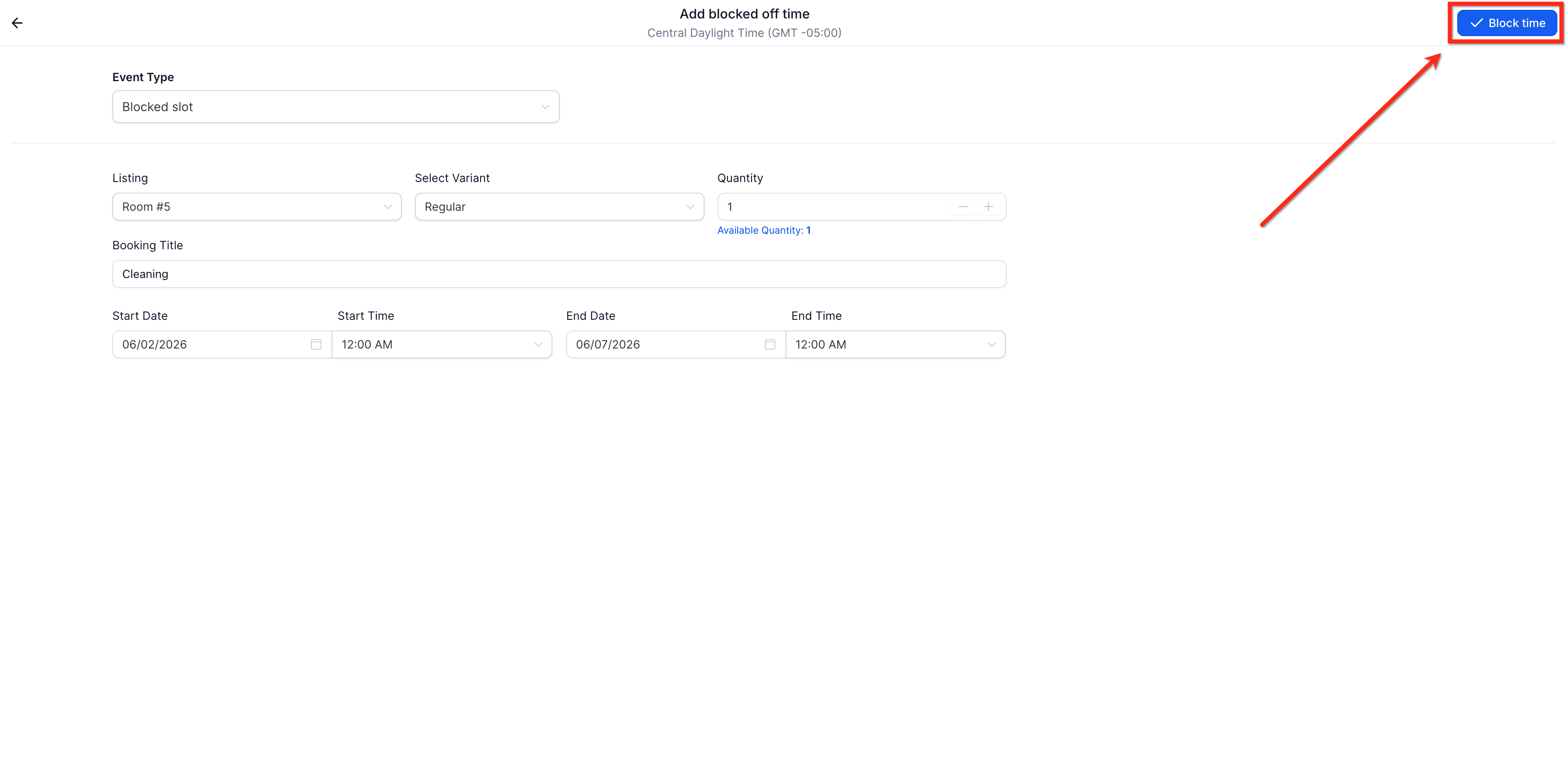
- In the Event Type dropdown, pick Blocked slot.
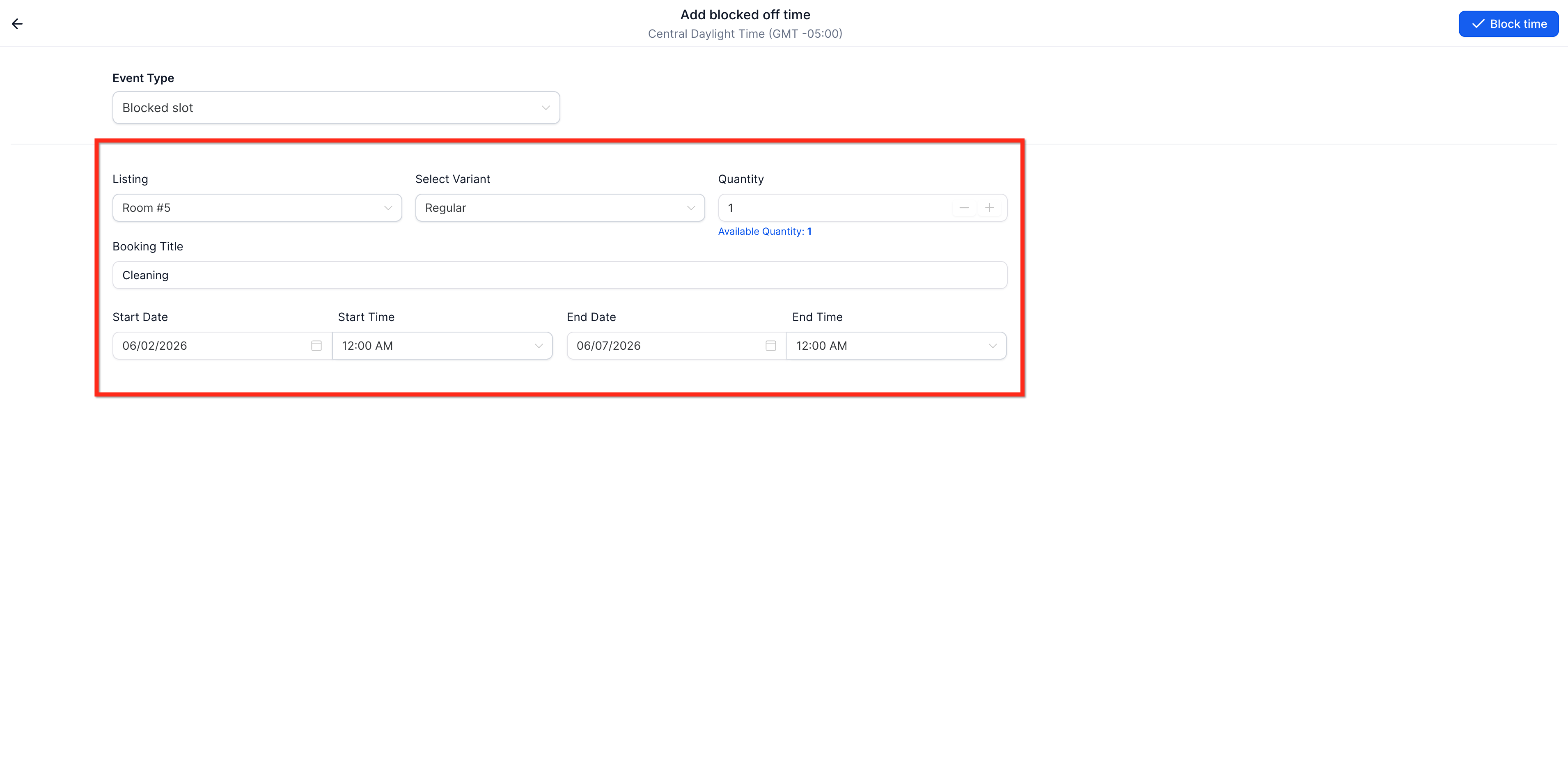
- Select the rental Listing you wish to hold.
- If the listing has variants, choose the appropriate Variant.
- Enter the Quantity that should be blocked.
- Provide a clear Booking Title such as Maintenance or Internal Use.
- Set the Start Date and Start Time, then the End Date and End Time.
- Press the Block time button to save the blocked slot.
Edit or delete a blocked slot
- In Calendar View, select Rentals and click the blocked slot you want to modify.
- Click the pencil icon, adjust the desired fields, and save to edit the slot.
- Click the trash can icon and confirm to delete the blocked slot.
05What it looks like in HighLevel
06Settings that matter
- Event Type. Determines the kind of calendar entry being created; selecting Blocked slot changes the form to record inventory holds instead of customer bookings.
07How it connects to the rest of HighLevel
- View and manage rental bookings in Calendar View Rental bookings overview
- Create and edit rental listings that can be blocked Manage listings
- Configure pricing and discounts for rentals Pricing settings
Michael's take

Blocking inventory that isn’t ready to rent is worth every minute you spend setting it up; it stops double bookings, protects your reputation, and keeps the calendar honest for both you and your customers.
Don’t forget to remove or adjust a block when the item is back in service, or you’ll keep turning away business unintentionally.