
01Who this is for
- Equipment rental businesses can track each item’s schedule, payment and status individually.
- Event venue operators can oversee multi item bookings and see which spaces are active or upcoming.
- Boutiques that rent clothing or accessories can monitor inventory levels and payment states for each piece.
02Appointments list view, explained
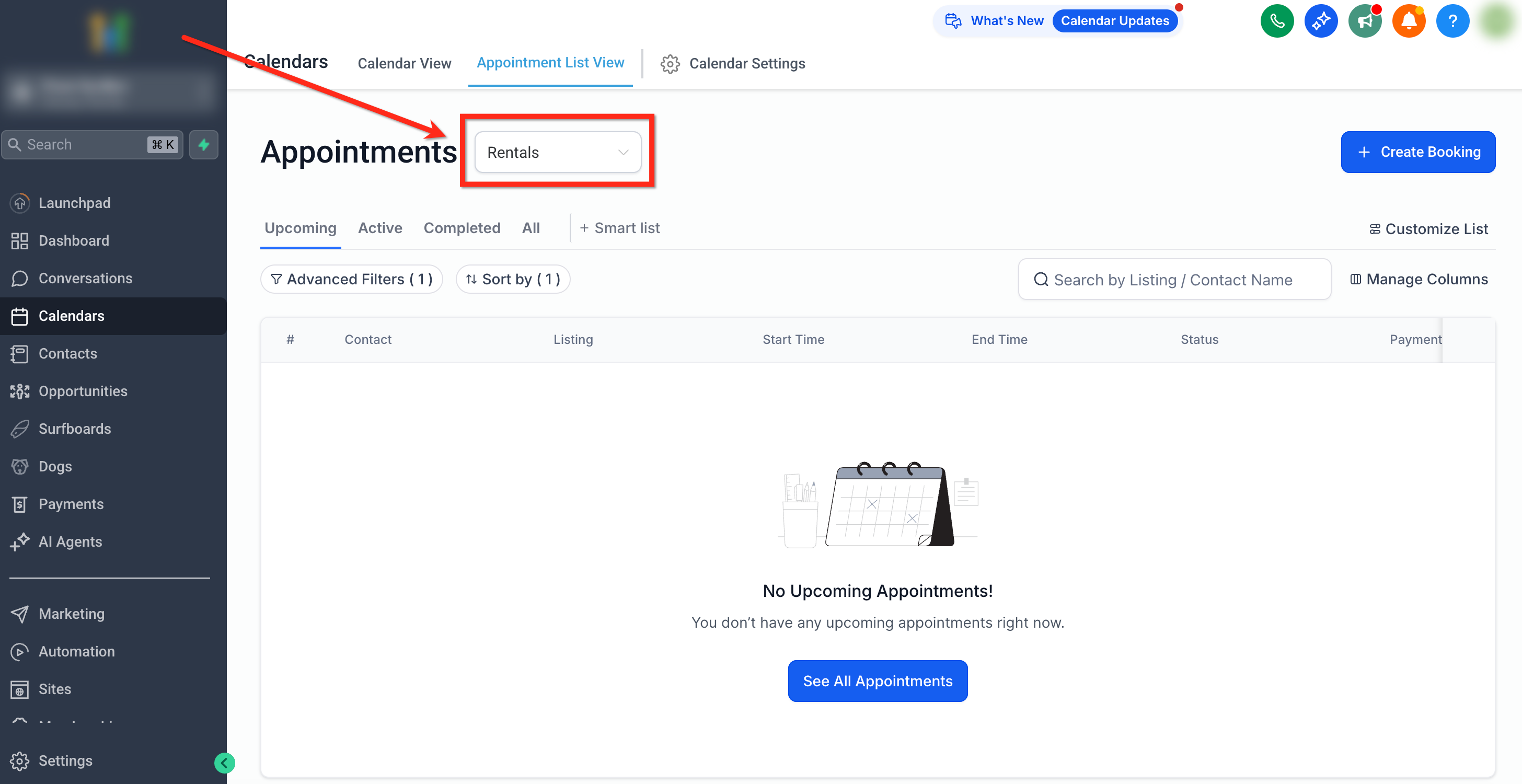
The Appointments List View lives under Calendars > Appointment List View. After selecting Rentals from the dropdown, the table displays every booked listing across all customers. Each entry includes customer details, listing name, start and end times, status and payment state.
Rows are created per listing, not per overall booking. If a single order contains three listings, three rows appear, letting you manage timing, payments and completion for each item. Quick icons let you view or edit the full booking, which opens all associated listings and notes.
Toolbar controls let you filter by status, payment, date range or customer, sort columns, search by listing or name, and customize which columns show. The view helps you monitor upcoming, active, completed or canceled rentals at a glance.
03How businesses use the appointments list view
- Equipment rental company. The manager opens the Appointments List View, filters for Active rentals, and checks each row to confirm equipment is currently in use. If a payment is pending, they click Edit to record the receipt before the rental ends.
- Event venue. The coordinator selects Upcoming bookings, reviews start and end times for each hall and additional services, and uses the Create Booking button to add a last minute reservation for a new client.
- Clothing rental boutique. The owner filters by Canceled listings to see returns, then uses the View action to open the full booking and verify the security deposit was refunded.
04How to set up and use the appointments list view in HighLevel
Access the Appointments List View for Rentals
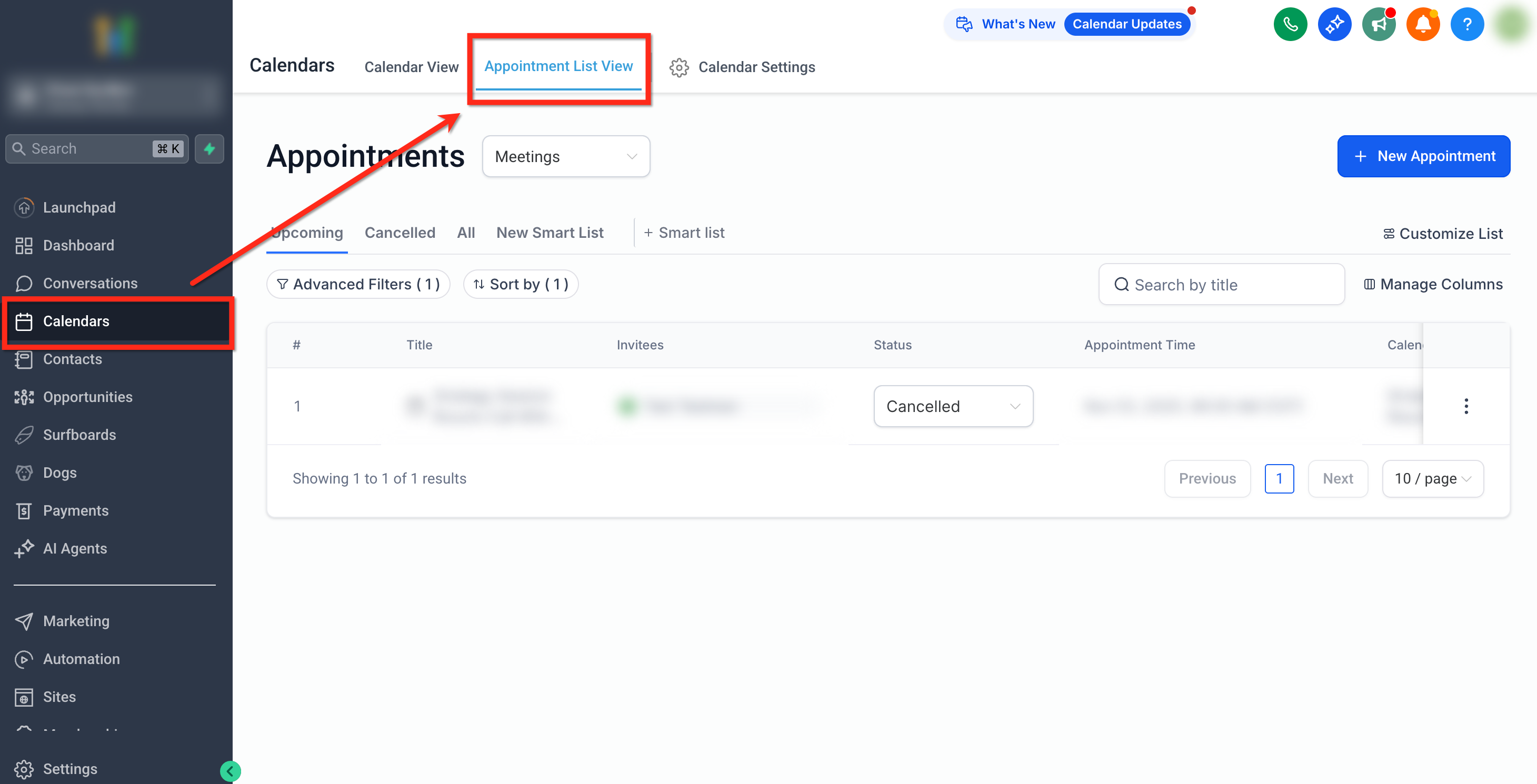
- Navigate to Calendars > Appointment List View.
- Select Rentals from the dropdown menu at the top.
- Observe the table displaying all booked listings with their details.
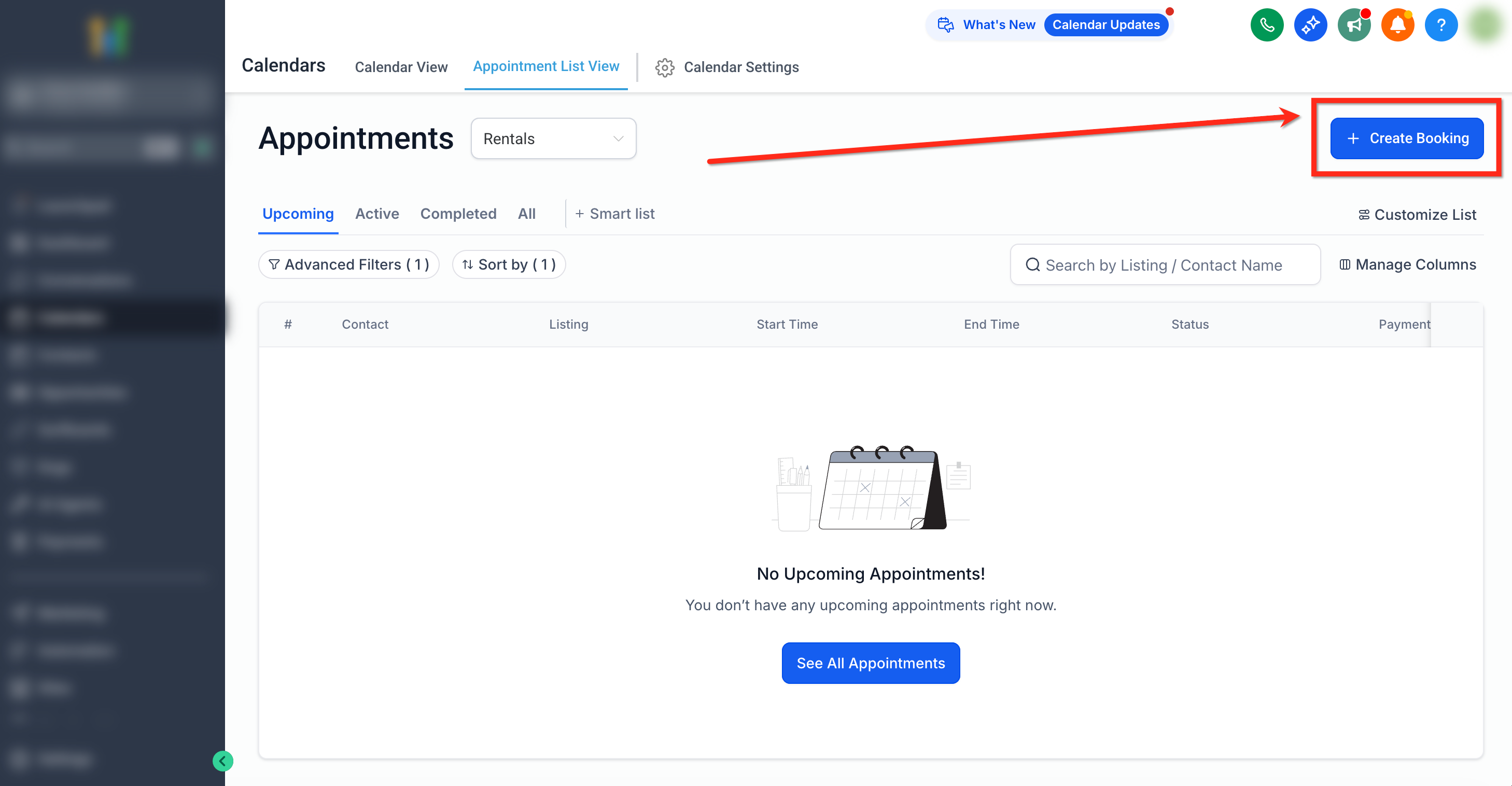
- Click Create Booking in the top right corner to add a new booking manually.
05What it looks like in HighLevel
06Things to know before you rely on it
- Rental invoices are not automatically sent to customers when a booking is created.
- Each listing appears as a separate row; the overall booking status may show Partially Paid when some listings are still pending.
07How it connects to the rest of HighLevel
- How to set up rentals in HighLevel Setup rentals guide
- Create & edit listings for rentals Listings guide
- Calendar view for managing rentals Calendar view guide
Michael's take

The appointments list view pulls each booked item onto its own line so you can see who has what, when it’s due and whether it’s been paid.
You can watch each piece move from Booked to Active to Completed, and spot unpaid items while keeping inventory counts straight.