
01Who this is for
- Property managers, apply consistent cleaning or resort fees to every reservation without manual entry.
- Equipment rental operators, charge per unit maintenance fees that scale with the rental period.
- Event venue owners, add mandatory service fees that appear on the customer's checkout page.
02Additional fees, explained
Additional Fees let you define mandatory charges separate from the base rental price. You create a fee template globally, choose a flat amount or a percentage, decide whether it applies per booking or per booking unit, and optionally set a tax rate. The fee becomes a reusable item that can be linked to any rental listing.
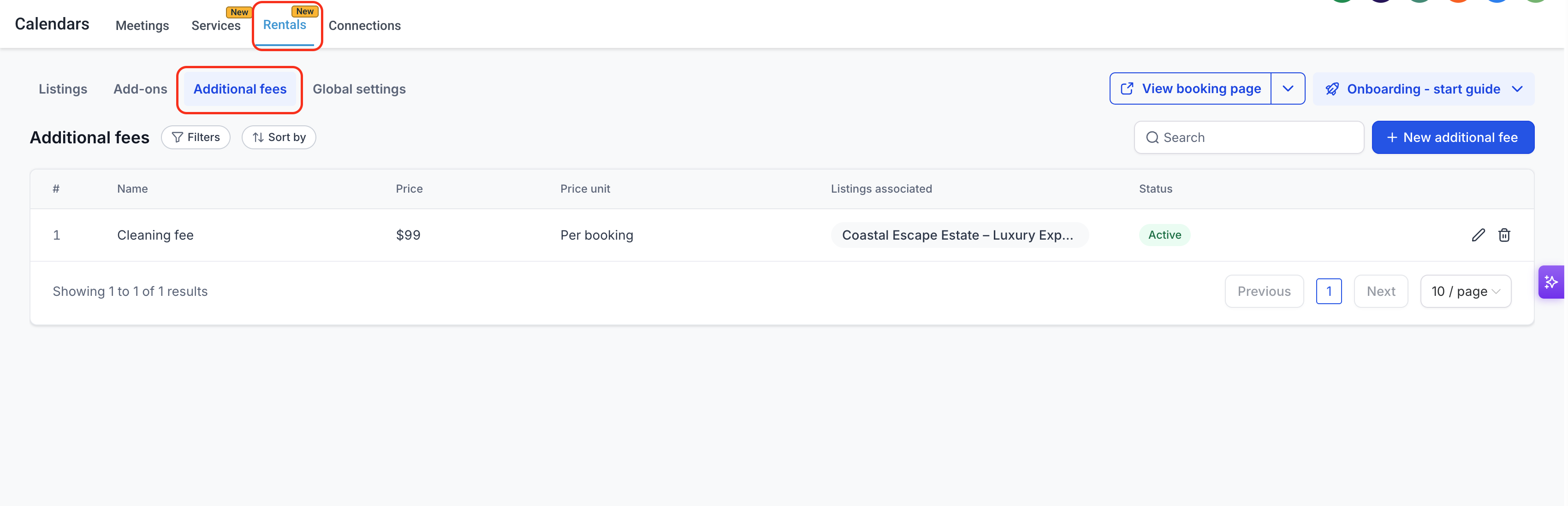
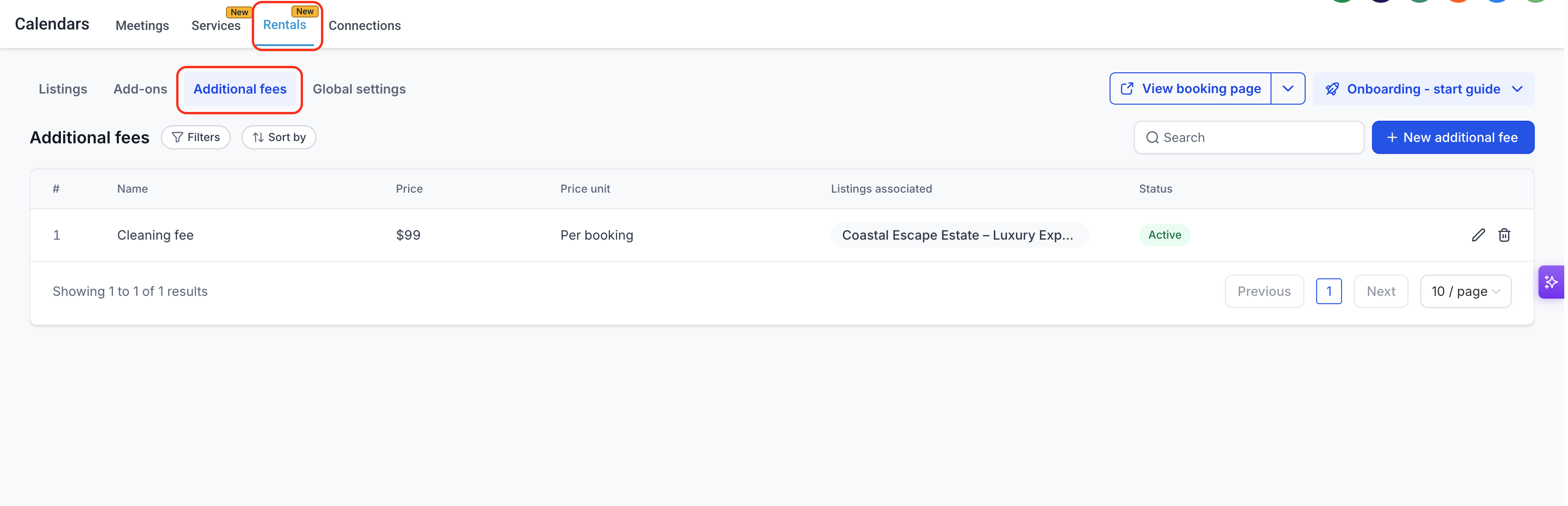
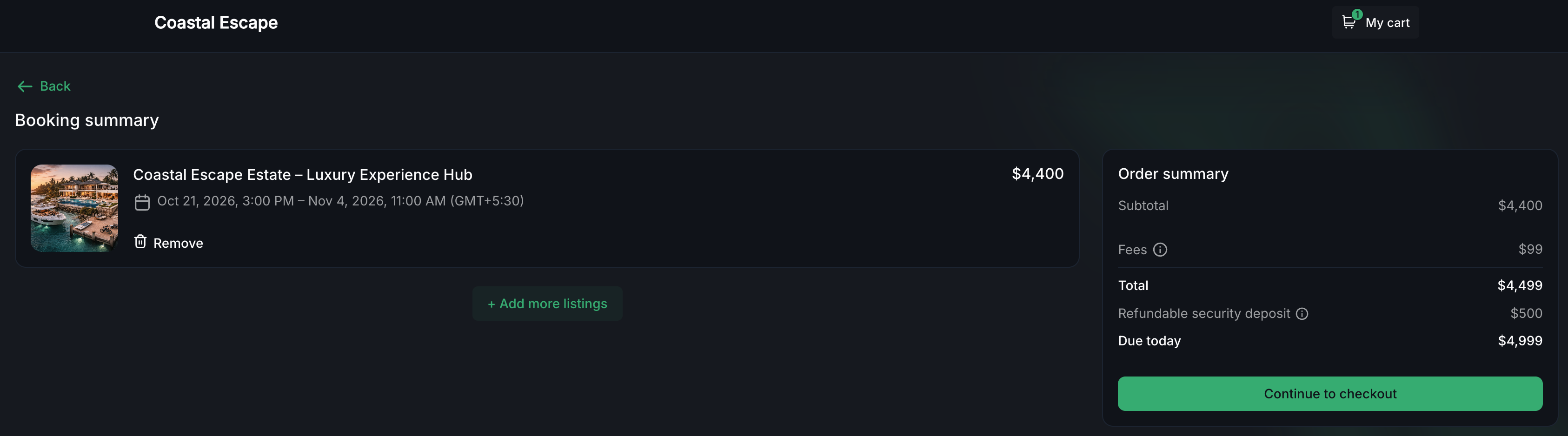
The fee catalog lives under Calendars > Calendar Settings > Rentals > Additional fees. From there you can view, edit, or delete templates, filter by associated listings, and see each fee's status. When a fee is attached to a listing, the platform automatically includes it in the price summary shown to customers during booking and on the final invoice.
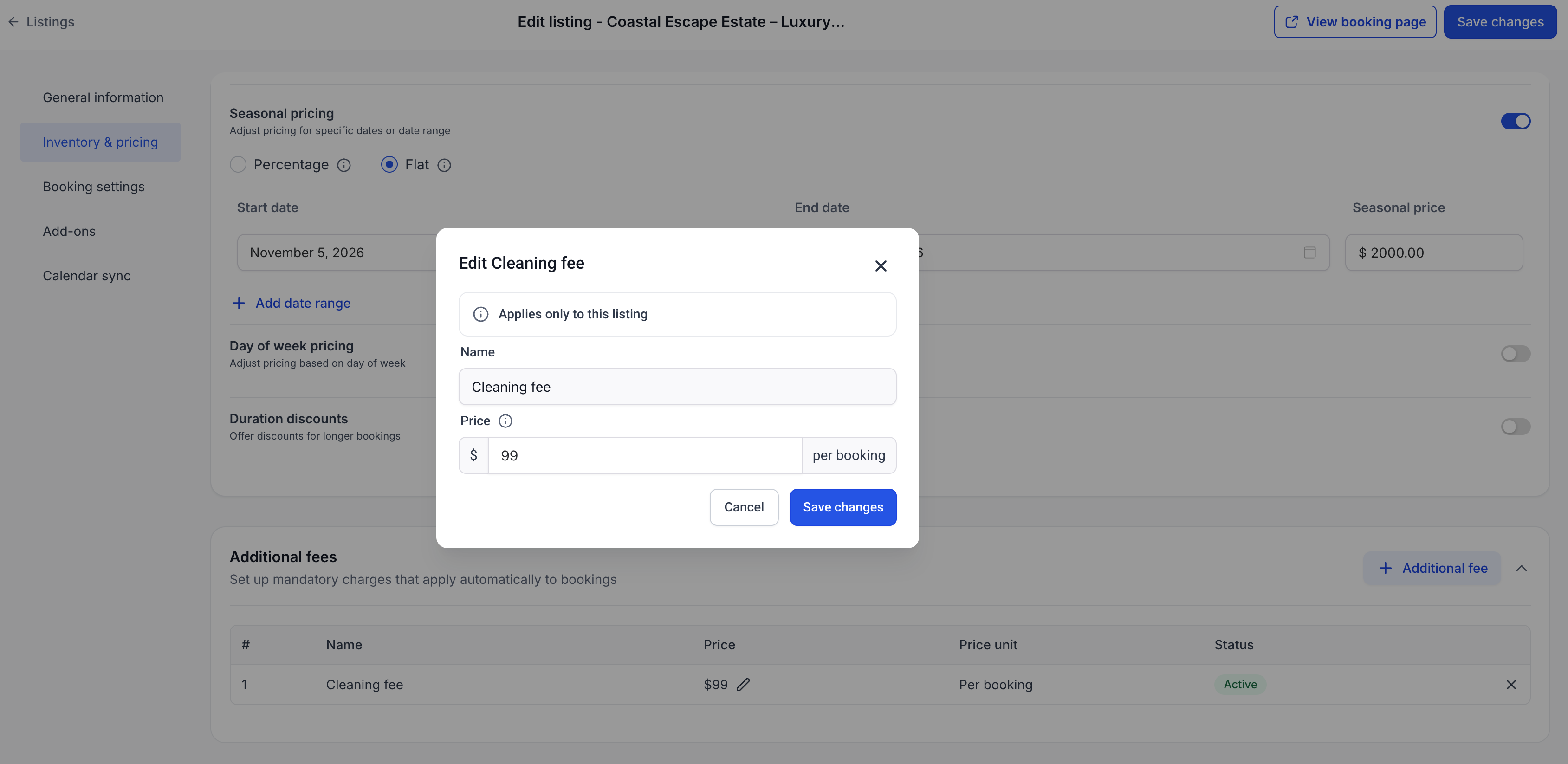
Listing level overrides let you adjust the fee amount for a specific property while keeping the global template unchanged for other listings. Taxes for a fee are configured independently and are calculated on the fee amount, not on the rental subtotal.
03How businesses use additional fees
- Vacation rental property manager. Create a cleaning fee template, attach it to all property listings, and set the status to Active. The fee will automatically appear in each booking's total, ensuring guests see the charge before checkout.
- Equipment rental company. Define a per booking unit maintenance fee, select the pricing unit as Per Booking Unit, and attach the fee to the relevant equipment listings. The system will multiply the fee by the number of rental units booked (e.g., $10 per unit) (per HighLevel's help center, checked November 2026).
- Event venue operator. Add a service fee as a percentage of the base rental subtotal, configure the appropriate tax rate, and link the fee to venue listings. The fee and its tax are shown as separate line items in the booking summary and invoice (e.g., 5% of a $1,000 subtotal) (per HighLevel's help center, checked November 2026).
04The numbers and rules that matter
- Flat, Per Booking: $50 cleaning fee > $50 once per booking (per HighLevel's help center, checked November 2026).
- Flat, Per Booking Unit: $10/day for 3 daily units > $30 (per HighLevel's help center, checked November 2026).
- Percentage: 5% of a $1,000 rental subtotal > $50 (per HighLevel's help center, checked November 2026).
05How to set up and use additional fees in HighLevel
Create a global fee template
- Open Calendars > Calendar Settings > Rentals > Additional fees.
- Press the + New additional fee button in the top right corner.
- Enter the fee name, set the status, choose Flat amount or Percentage, and supply the value.
- If desired, select the listings to which the fee should apply directly in the modal.
- Click Create additional fees to store the template in the global catalog.
View and manage additional fees
- Navigate to Calendars > Calendar Settings > Rentals > Additional fees.
- Use the Filters button to narrow the list by associated listings, if needed.
- Select the Edit icon next to a fee to modify its details or the Delete icon to remove it.
- Apply any changes and confirm to update the global fee catalog.
Attach fees to a listing
- Go to Calendars > Calendar Settings > Rentals > Listings.
- Click the Edit (pencil) icon for the desired listing.
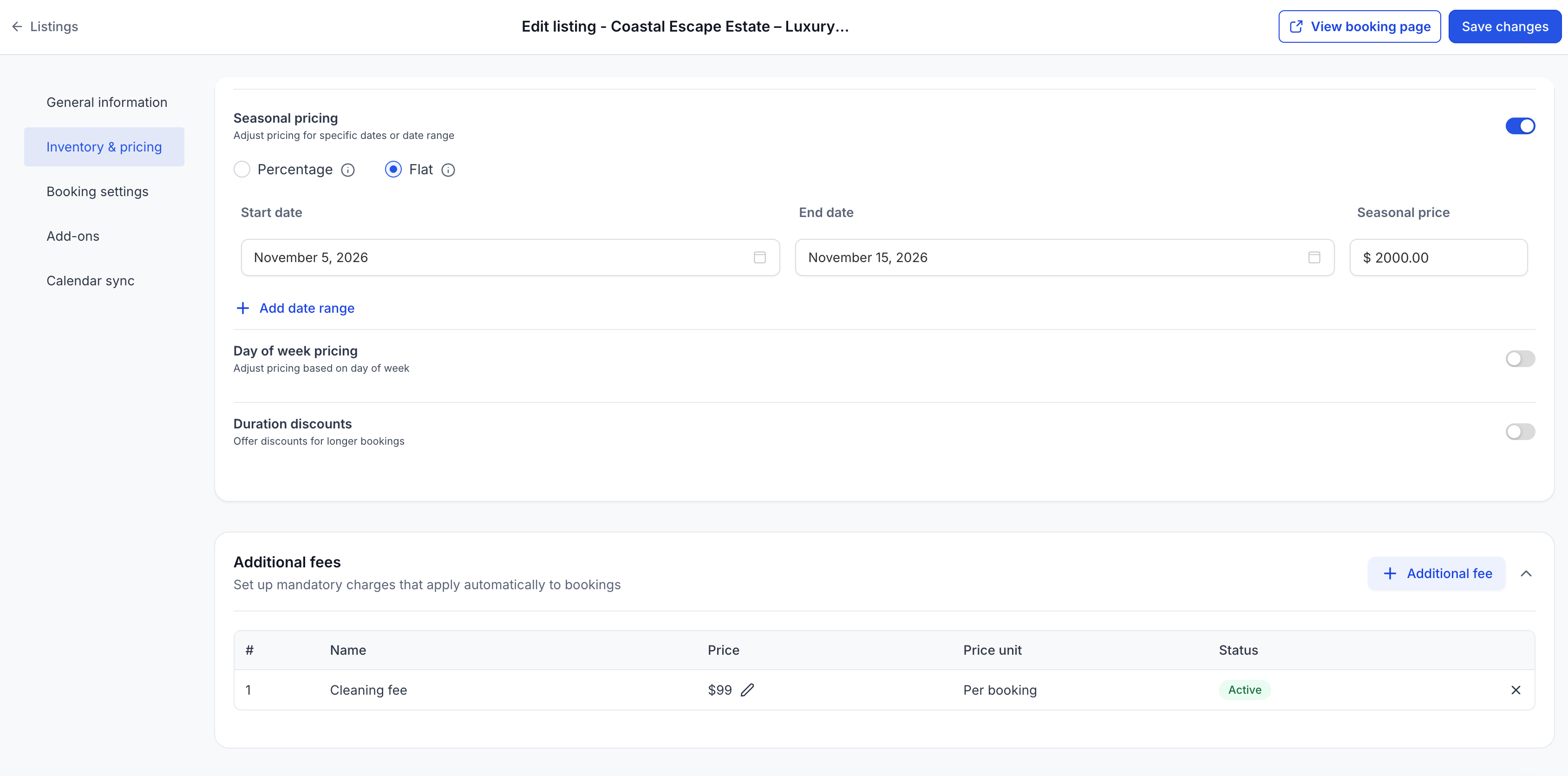
- Open the Inventory & Pricing tab and scroll to the Additional fees section.
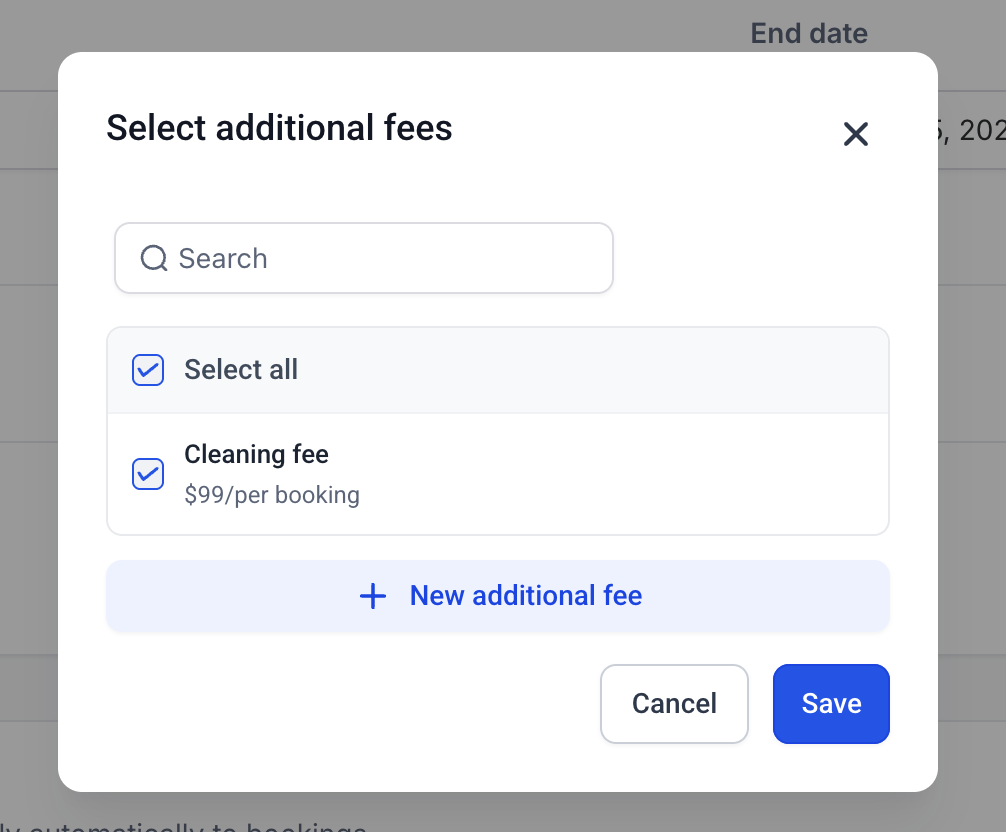
- Press + Additional fee, choose one or more fees from the catalog, or create a new fee with + New additional fee.
- Save the listing to finalize the attachment.
Override a fee at listing level
- Open the listing and go to Inventory & Pricing > Additional fees.
- Click the Edit (pencil) icon next to the fee amount you wish to change.
- Enter the new amount or percentage and click Save changes.
Configure tax on an additional fee
- Navigate to Calendars > Calendar Settings > Rentals > Additional fees.
- Locate the fee you want to tax and click its Edit icon.
- Select Configure tax from the edit options.
- On the tax configuration page, attach the appropriate tax rate to the fee.
- Save the tax settings to apply the tax to future bookings.
06What it looks like in HighLevel
07Settings that matter
- Name. The label that customers see on the booking page and on invoices.
- Status. Controls whether the fee is Active for new bookings or Inactive.
- Price. Determines whether the fee uses a Flat amount or a Percentage of the base rental subtotal.
- Fee Value. The numeric amount or percentage applied when the fee is charged.
- Pricing Unit. For flat fees, selects Per Booking or Per Booking Unit to define how often the charge applies.
- Tax. Assigns a tax rate that is calculated on the fee amount separately from the rental tax.
08Things to know before you rely on it
- Additional Fees are mandatory; they cannot be made optional for customers.
- Percentage fees are calculated on the base rental subtotal only, excluding other fees and taxes.
- Fee overrides are possible only at the listing level, not for individual bookings.
- Setting a fee to Inactive stops it from applying to new bookings but leaves it attached to listings and preserved on existing bookings.
09How it connects to the rest of HighLevel
- Understanding the overall rentals feature and how fees fit into bookings. Rentals overview
- Create and edit rental listings to which additional fees can be attached. Create & edit listings
- Set up pricing rules and discounts that work alongside additional fees. Pricing & discounts
- Apply tax rates to rentals, including separate tax settings for additional fees. Rental taxes
- Review plan options if you need access to the Rentals feature. Pricing and plans
Michael's take

Additional fees let you bundle required charges like cleaning or damage waivers into the price the customer sees from the start.
The setting I would lock in first is the fee’s Status. Make sure it’s Active and attached to the right listings. That way the charge shows up automatically in every new booking and you avoid manual tweaks later.