
01Who this is for
- Service providers who need to book regular client sessions can define a repeat pattern and avoid manual entry each time.
- Coaches offering weekly programs benefit from custom recurrence that overrides calendar availability for consistent delivery.
- Healthcare practices with routine patient follow ups can ensure reminders are sent for each visit while keeping a single appointment record.
02Recurring appointments, explained
Recurring appointments let the platform generate multiple meeting instances from a single definition. When a recurrence rule is saved, the system creates each occurrence according to the selected frequency, daily, weekly, monthly or a custom pattern, up to a maximum of twenty four repeats. The rule can be set either in the calendar’s Availability settings or directly in the in app appointment modal.
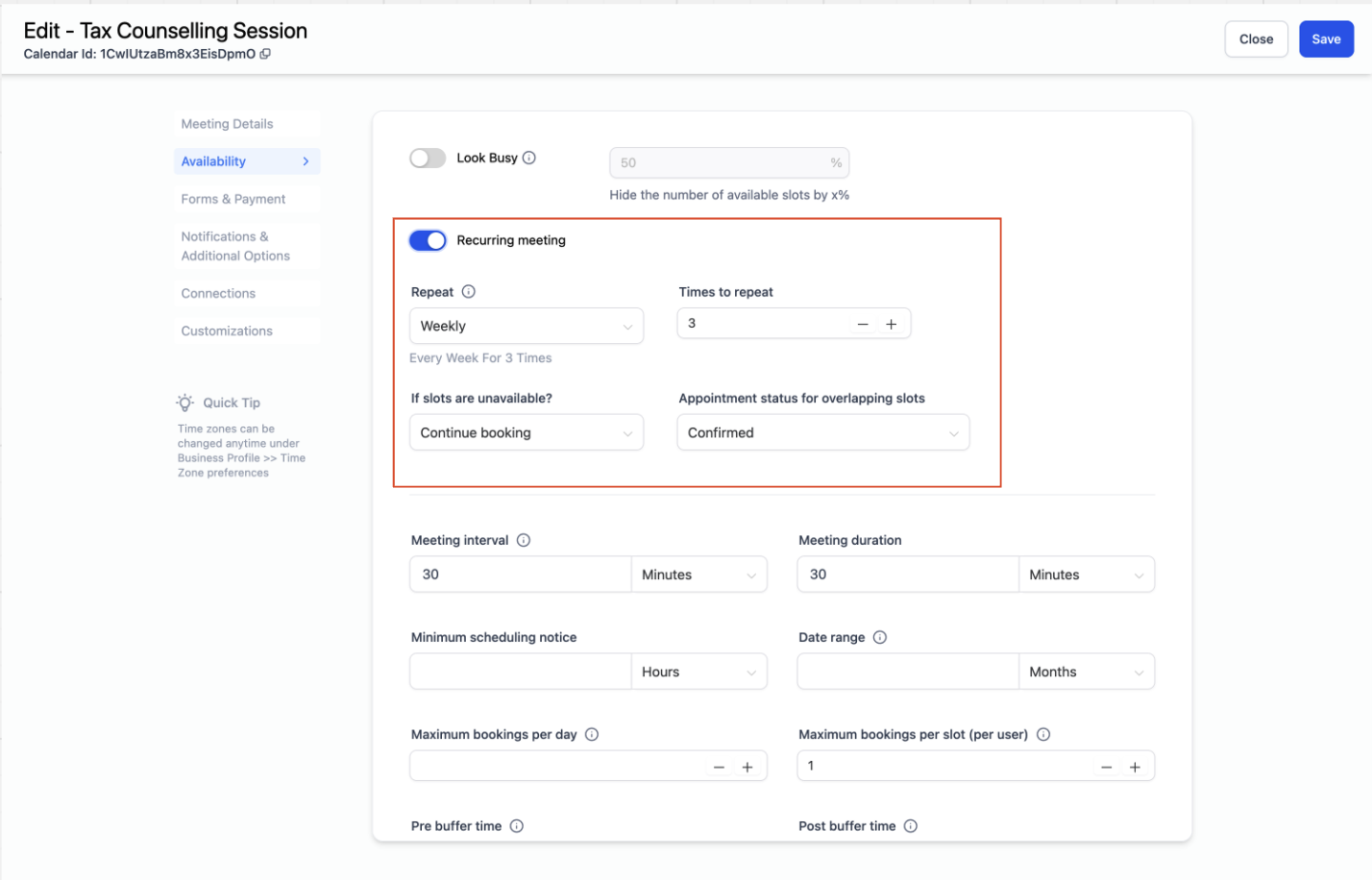
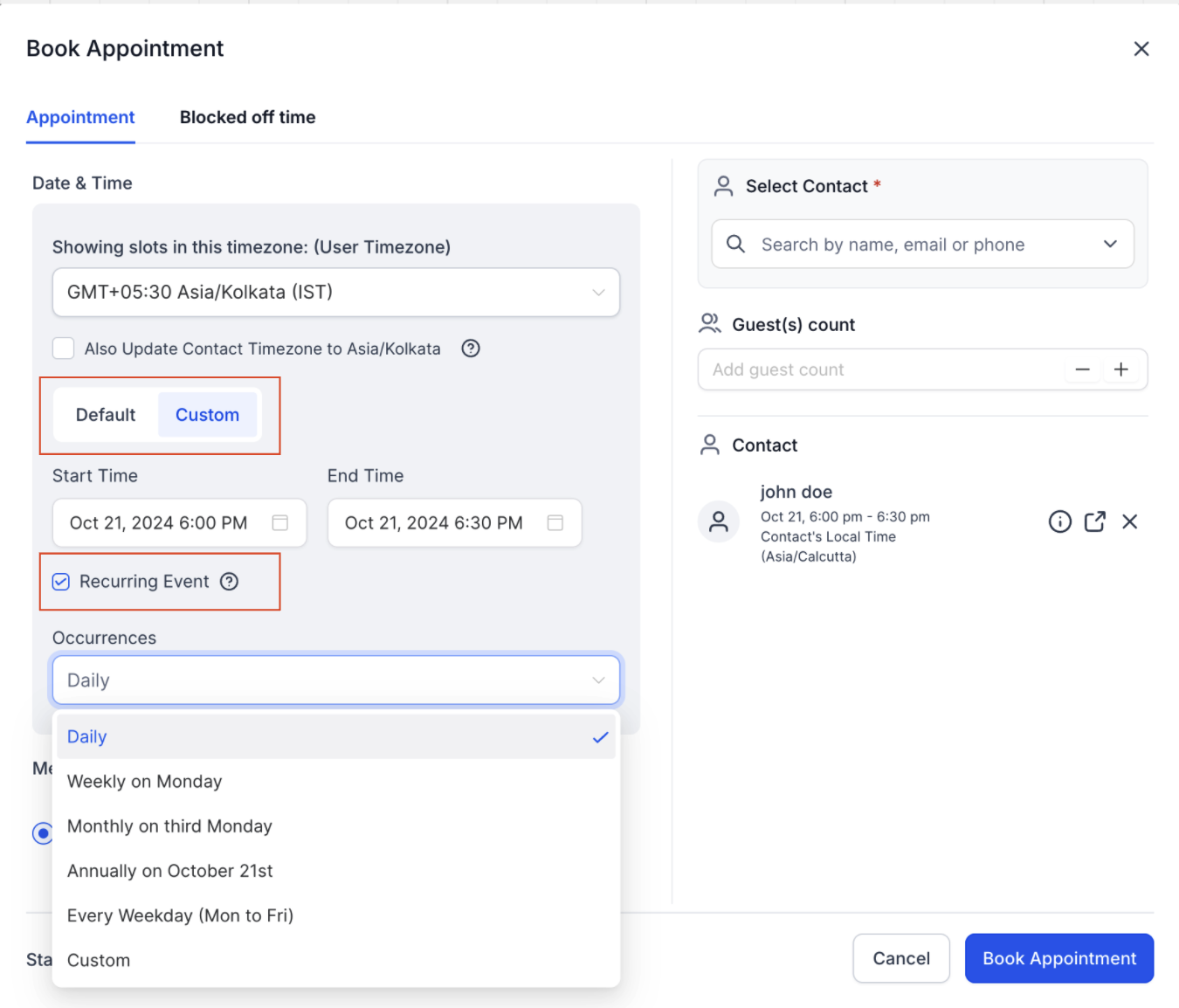
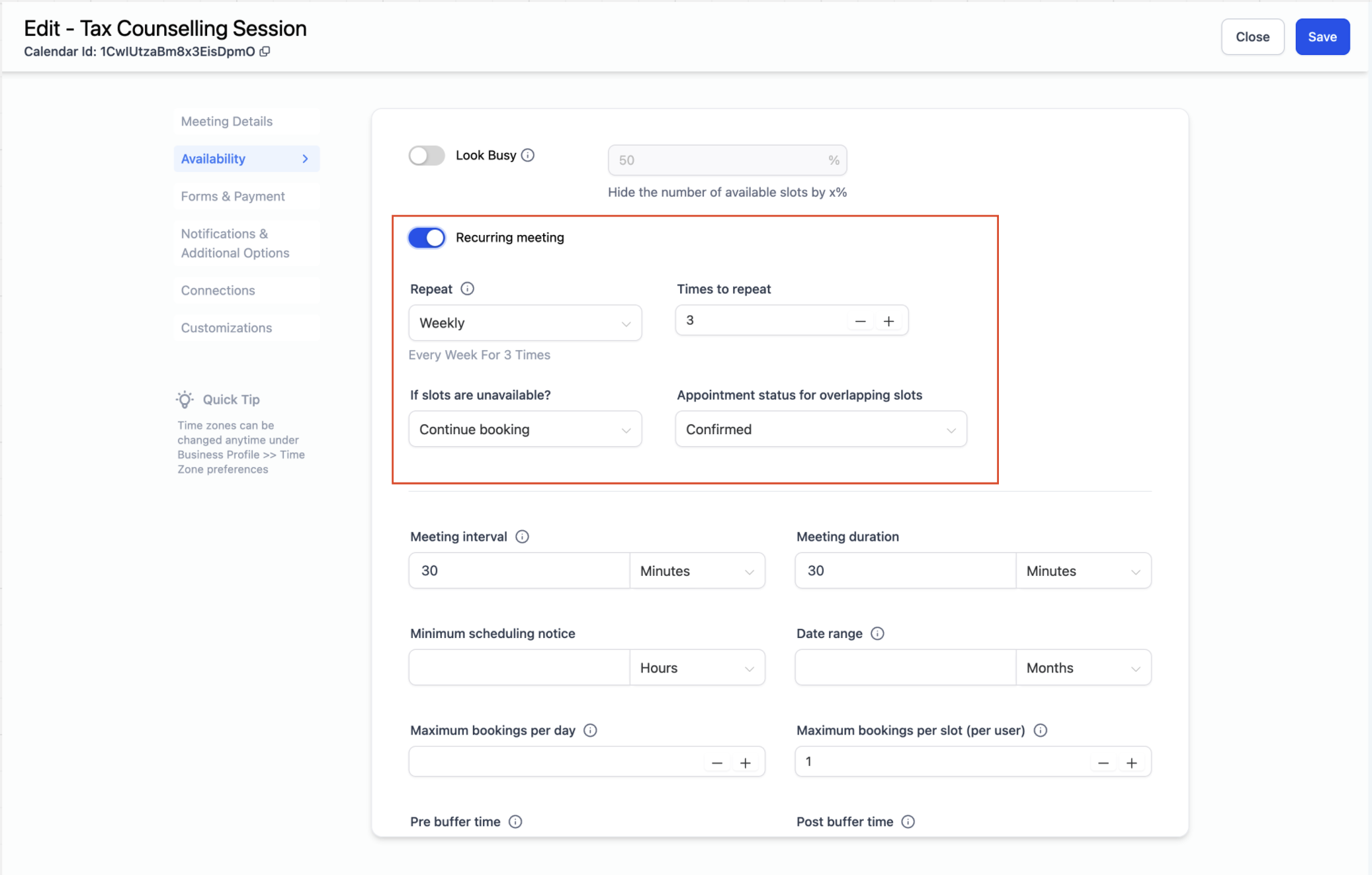
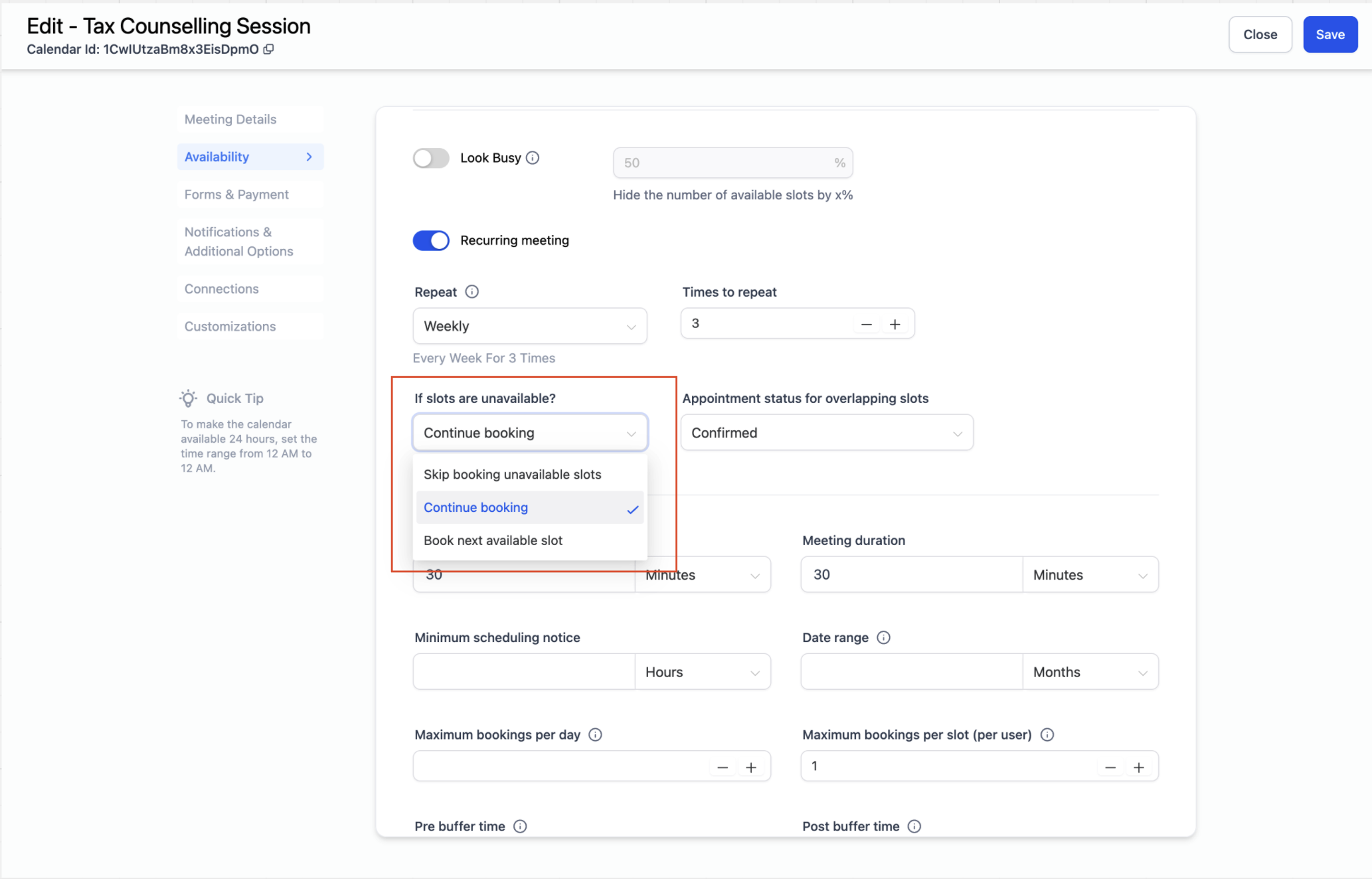
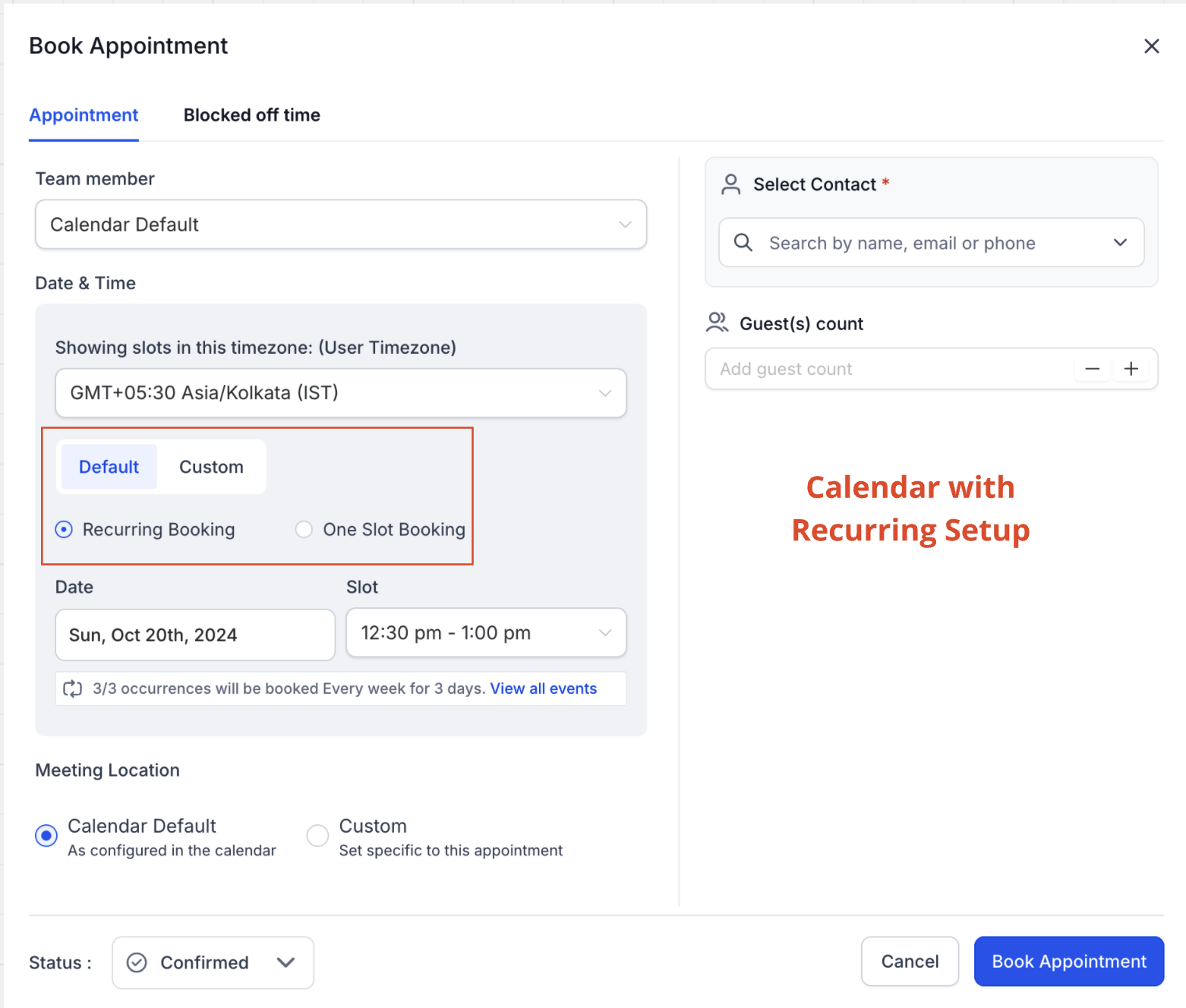
In the calendar view, the Recurring Meeting toggle activates the feature for that calendar. The recurrence settings include the repeat frequency and the number of times to repeat. In the appointment modal, selecting the Custom tab and checking the Recurring Event box lets you apply a unique rule that bypasses the calendar’s availability checks. All occurrences belong to a single appointment record, which can be edited or deleted in whole, partially, or for future instances.
Notification handling is unified across both methods. A single confirmation or unconfirmed message is sent for the entire series, while reminder and follow up messages are scheduled for each occurrence. Reschedule and cancellation alerts follow the option chosen at the time of the change. Workflow triggers remain unchanged and only fire for the first appointment in a custom series.
03How businesses use recurring appointments
- Dental practice. The practice sets a weekly recurrence in the calendar to automatically book routine cleanings for patients. The system skips any unavailable slots and sends a reminder for each cleaning without creating separate records.
- Business coaching firm. A coach creates a custom recurring series in the appointment modal for a client’s 12 week program, overriding normal availability. All sessions share one meeting link and the client receives a single confirmation plus weekly reminders.
- Property management company. Monthly maintenance visits are scheduled using the calendar’s recurrence settings. If a scheduled day is unavailable, the platform finds the next open slot, ensuring the full series of visits is booked.
04The numbers and rules that matter
- Maximum number of recurrences allowed is 24.
05Before you start
- No date specific hours must be added to the calendar.
- Only one team member may be assigned to the calendar.
06How to set up and use recurring appointments in HighLevel
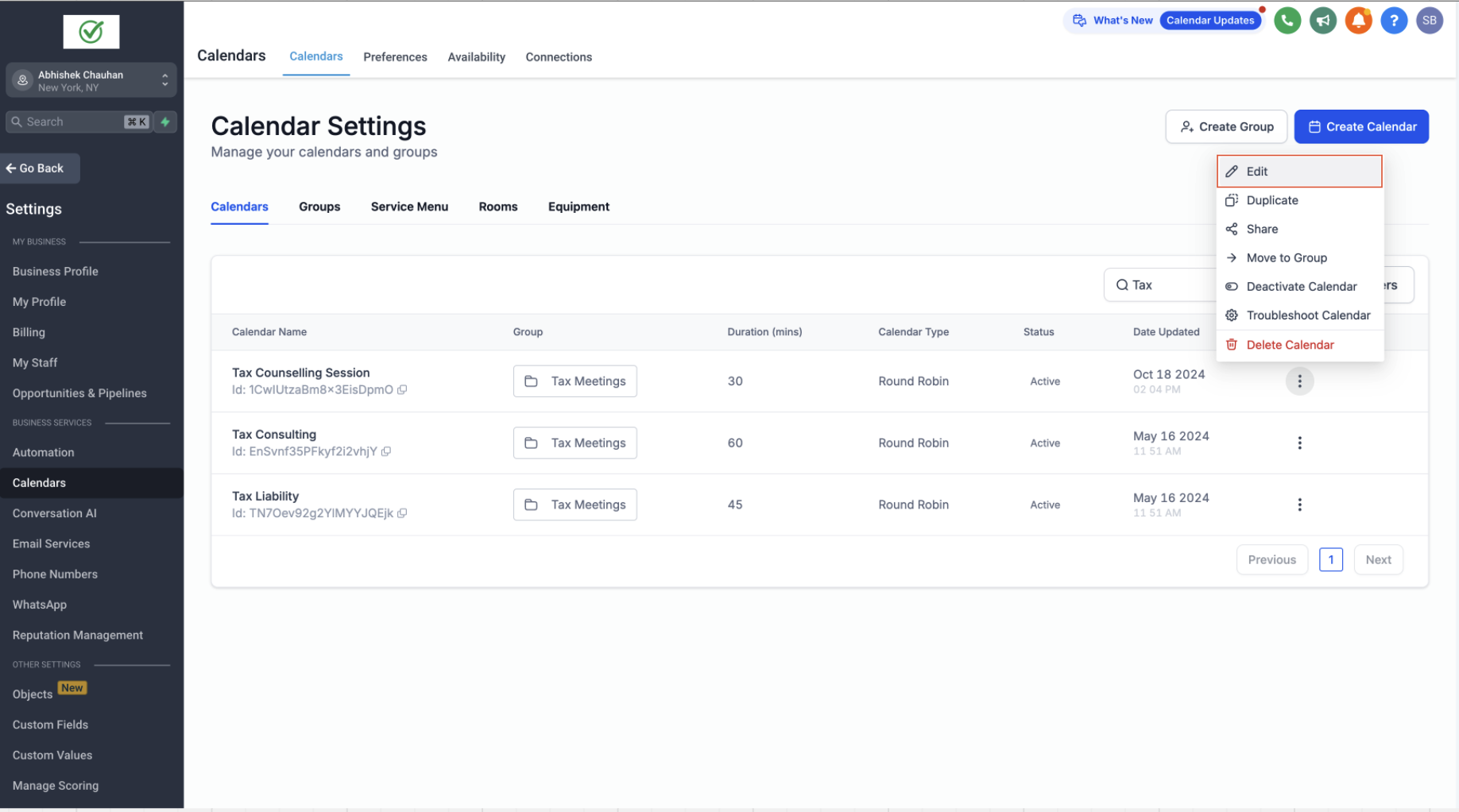
Set up recurring appointments in a calendar
- Open Calendar Settings and pick the calendar you want to modify.
- Verify that the calendar has no date specific hours and that a single team member is assigned.
- In the Availability tab, turn on the Recurring Meeting option.
- Define the repeat pattern and number of occurrences, then save the changes.
Create a recurring appointment via the in app appointment modal
- Select Create New Appointment and choose the calendar, team member, and contact.
- In the Date and Time section, switch to the Custom tab and enable the Recurring Event check box.
- Pick a recurrence pattern from the dropdown or define a custom rule.
- Choose an end condition, never, a specific date, or after a set number of occurrences.
- Finalize the settings and click Create Appointment to add the series.
07What it looks like in HighLevel
08Settings that matter
- Recurring Meeting. Activates the ability for a calendar to generate repeating appointments based on defined rules.
- Repeat. Selects the frequency of the recurrence such as Daily, Weekly, Monthly, or Custom.
- Times to Repeat. Specifies how many times the appointment should occur, up to a maximum of twenty four.
- Never. Sets the recurrence to continue indefinitely without an end date.
- On a Specific Date. Ends the series on the chosen calendar date.
- After X Number of Occurrences. Stops the series after the defined number of repeats.
- Recurring Event. When checked in the custom tab, it applies a custom recurrence rule that overrides calendar availability for that series.
09Things to know before you rely on it
- A recurring series can contain at most twenty four appointments.
- Only the first appointment appears in the Appointment List View, Contacts Tab, and Conversations Tab for custom recurring series.
- Cancelling a custom recurring appointment does not send a cancellation notification due to a technical limitation.
- Workflows trigger only for the first appointment in a custom series; later occurrences are ignored.
- Service and class booking calendars do not support custom recurring appointments.
- Cancelling or rescheduling a custom series through a link or contact view affects the entire series.
- Only one meeting link (Zoom, Google Meet, or Microsoft Teams) is generated for the whole series.
- If three consecutive slots are unavailable, the system stops searching for further slots.
- Changes made in Outlook after syncing do not sync back to HighLevel, and frequent deletions may affect Outlook sync stability.
10How it connects to the rest of HighLevel
- Set weekly and date specific hours for calendar availability Calendar availability
- Configure cancellation and reschedule policies for booking widgets Cancellation policies
- Learn how to sync HighLevel calendars with Outlook Outlook sync guide
Michael's take

Recurring appointments solve the hassle of manually entering the same meeting over and over. The first thing I would get right is the Recurring Meeting toggle in the calendar’s Availability tab so the system knows to generate the series automatically.
Once that’s set, I would test a short series to confirm the single confirmation and per occurrence reminders work as expected. If the series behaves, you can rely on it for any repeat bookings without extra overhead.