
01Who this is for
- Businesses that schedule multiple team members benefit from seeing all calendars in one screen, reducing the need to switch views.
- Service based companies that manage several locations can overlay group schedules to spot conflicts quickly.
02In app calendar view, explained
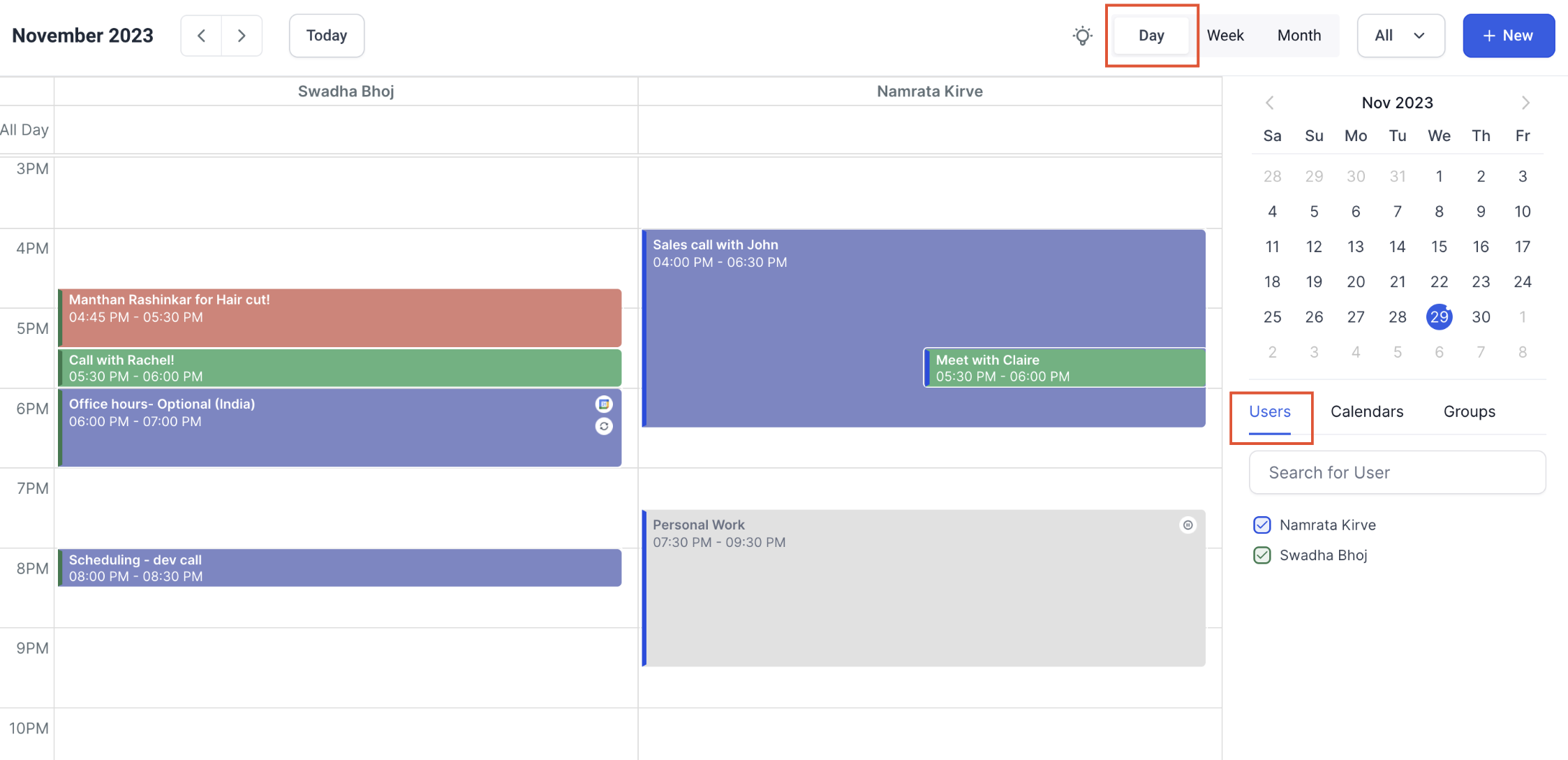
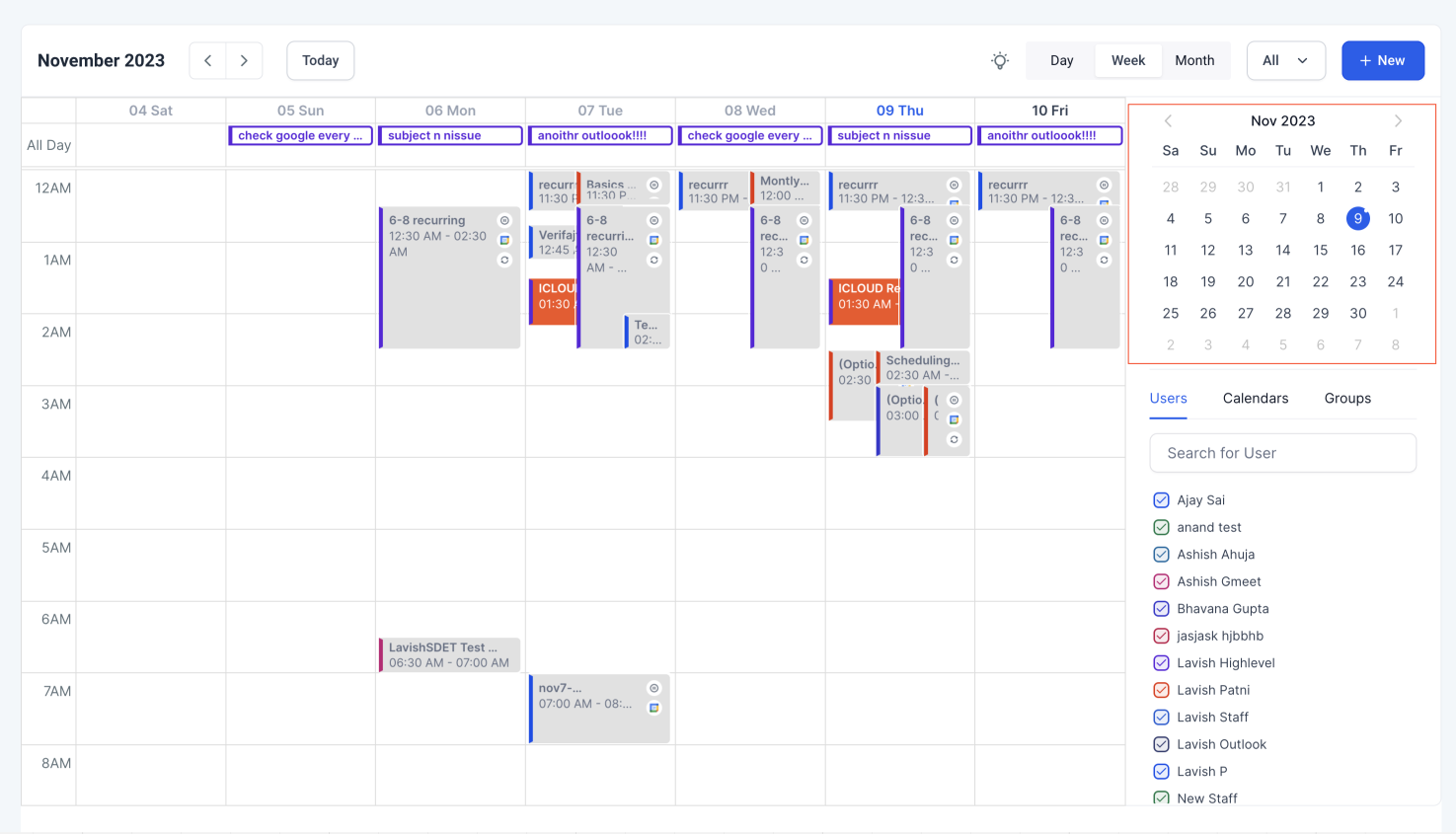
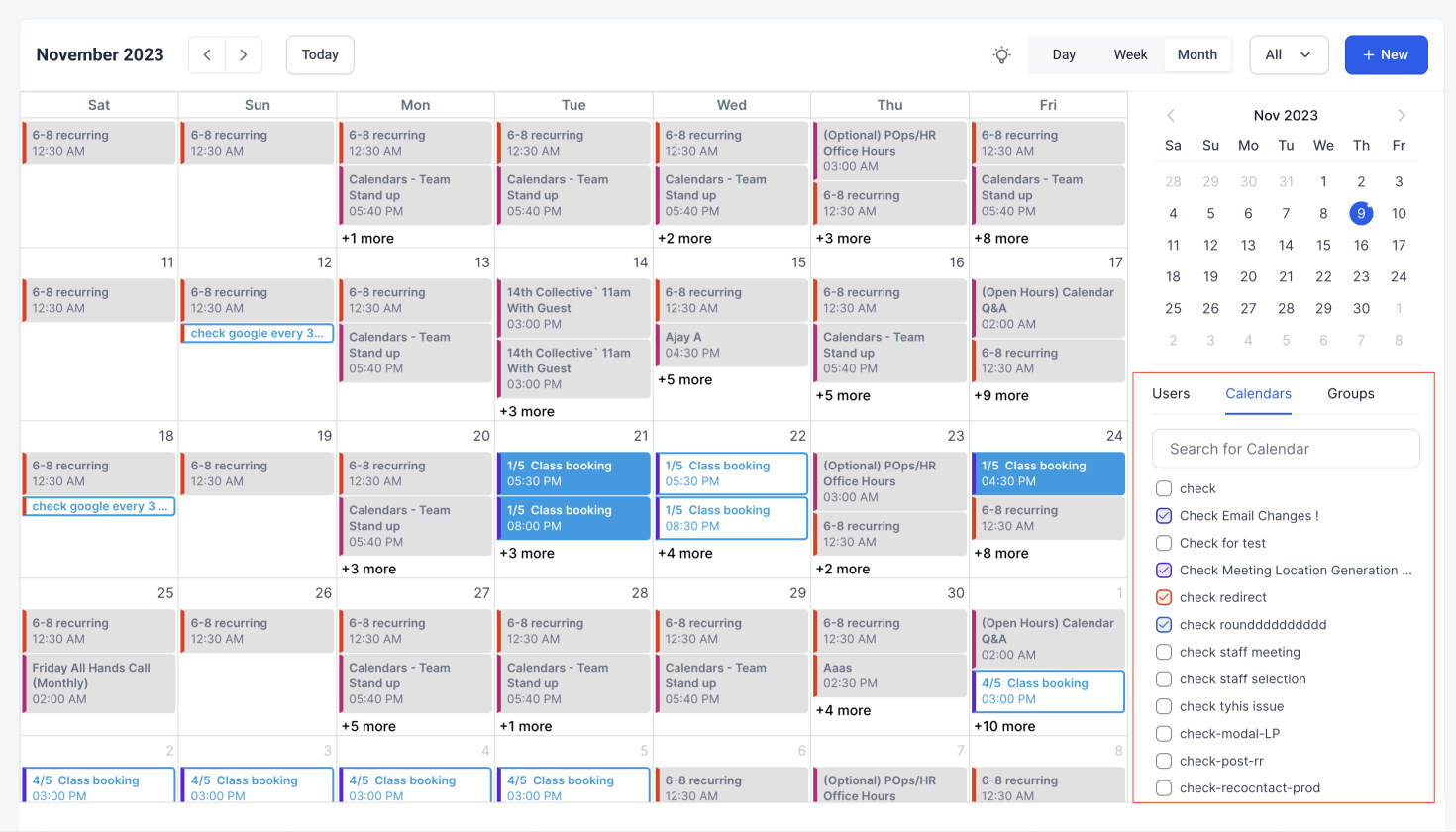
The feature resides in the calendar module and presents a unified schedule that includes native appointments and events pulled from external calendars. Selecting Day view shows a horizontal strip of the chosen users, calendars or groups with each individual day layout beneath their names. Month view lets you scroll through upcoming dates without leaving the page.
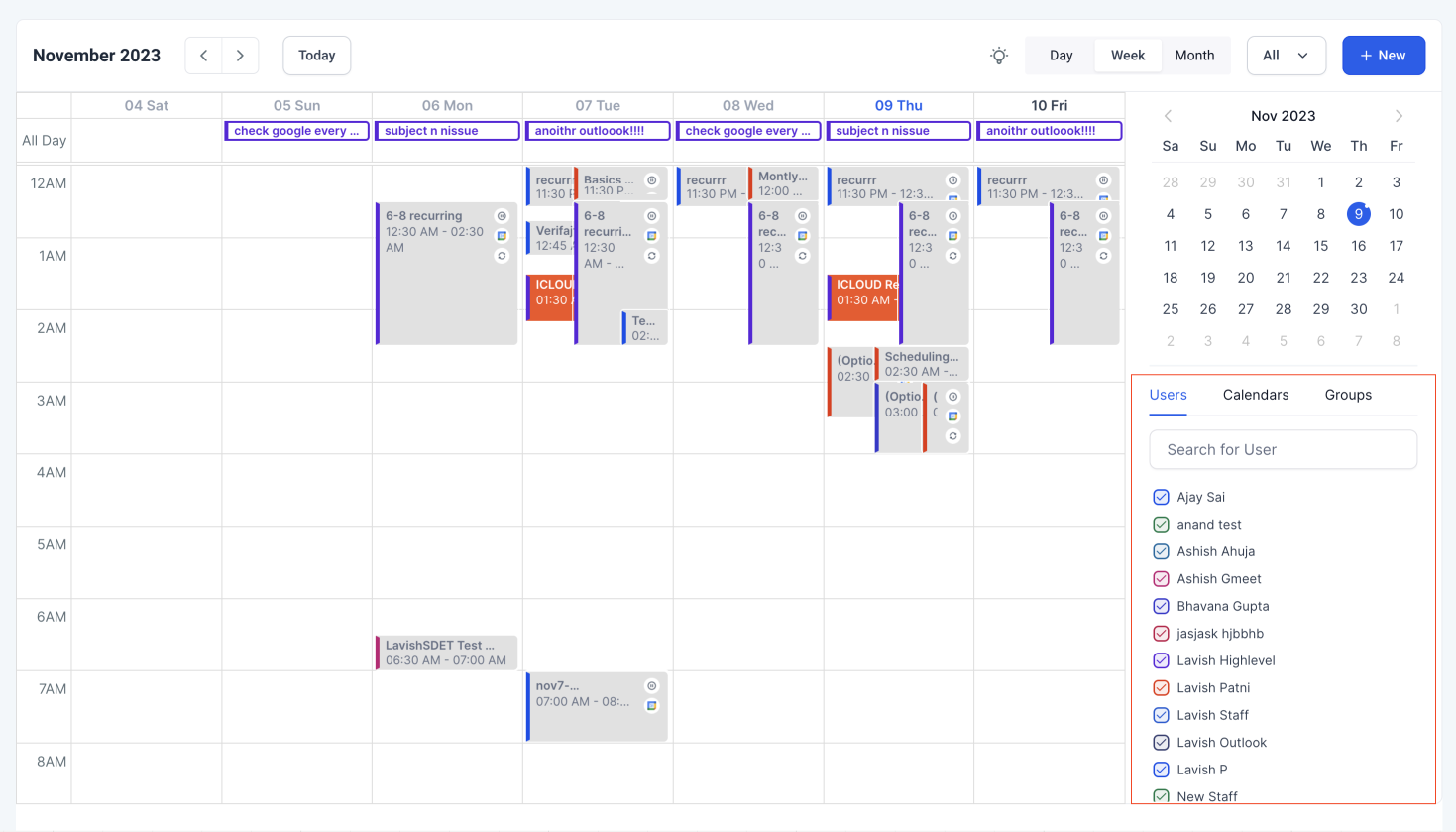
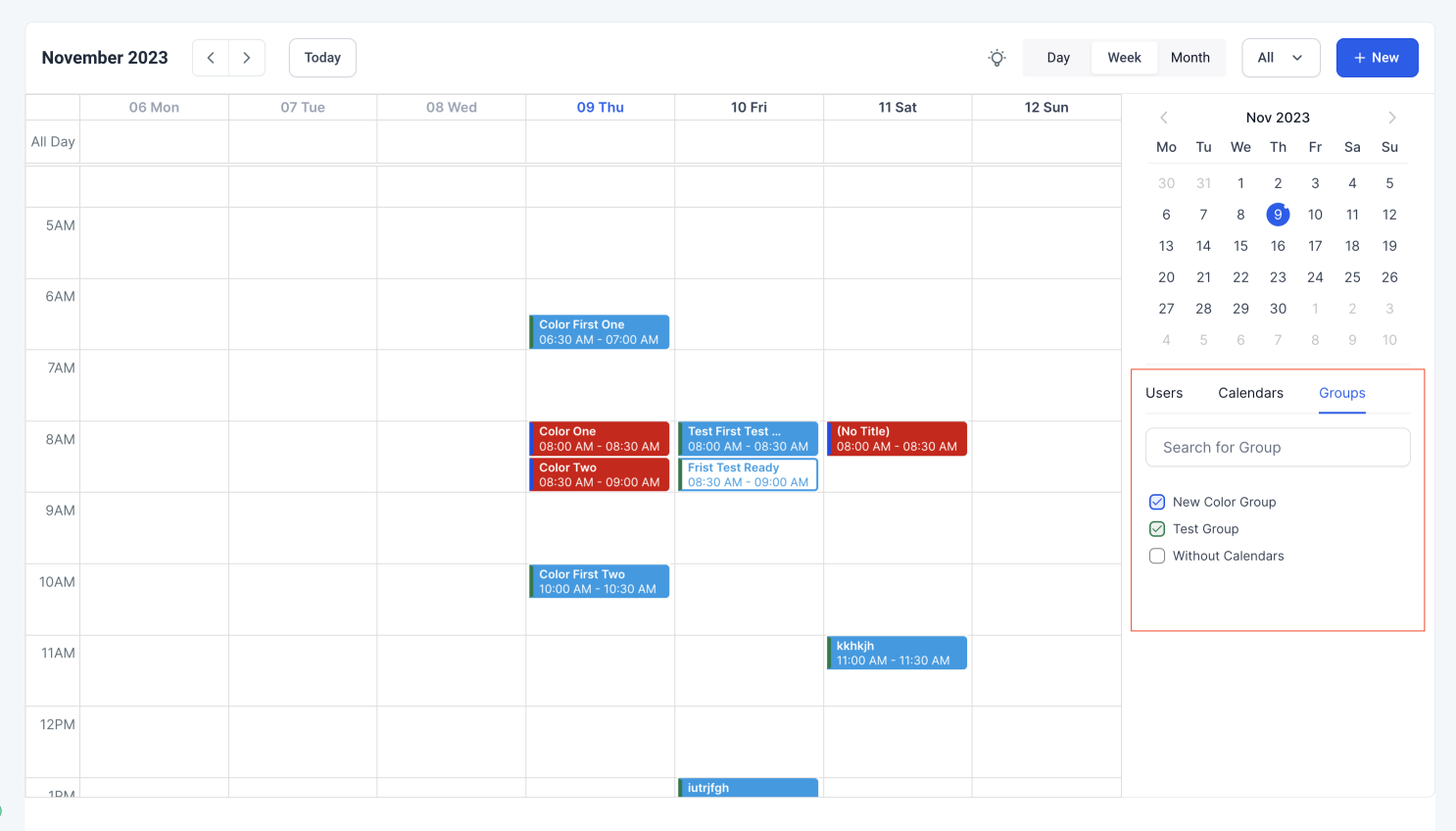
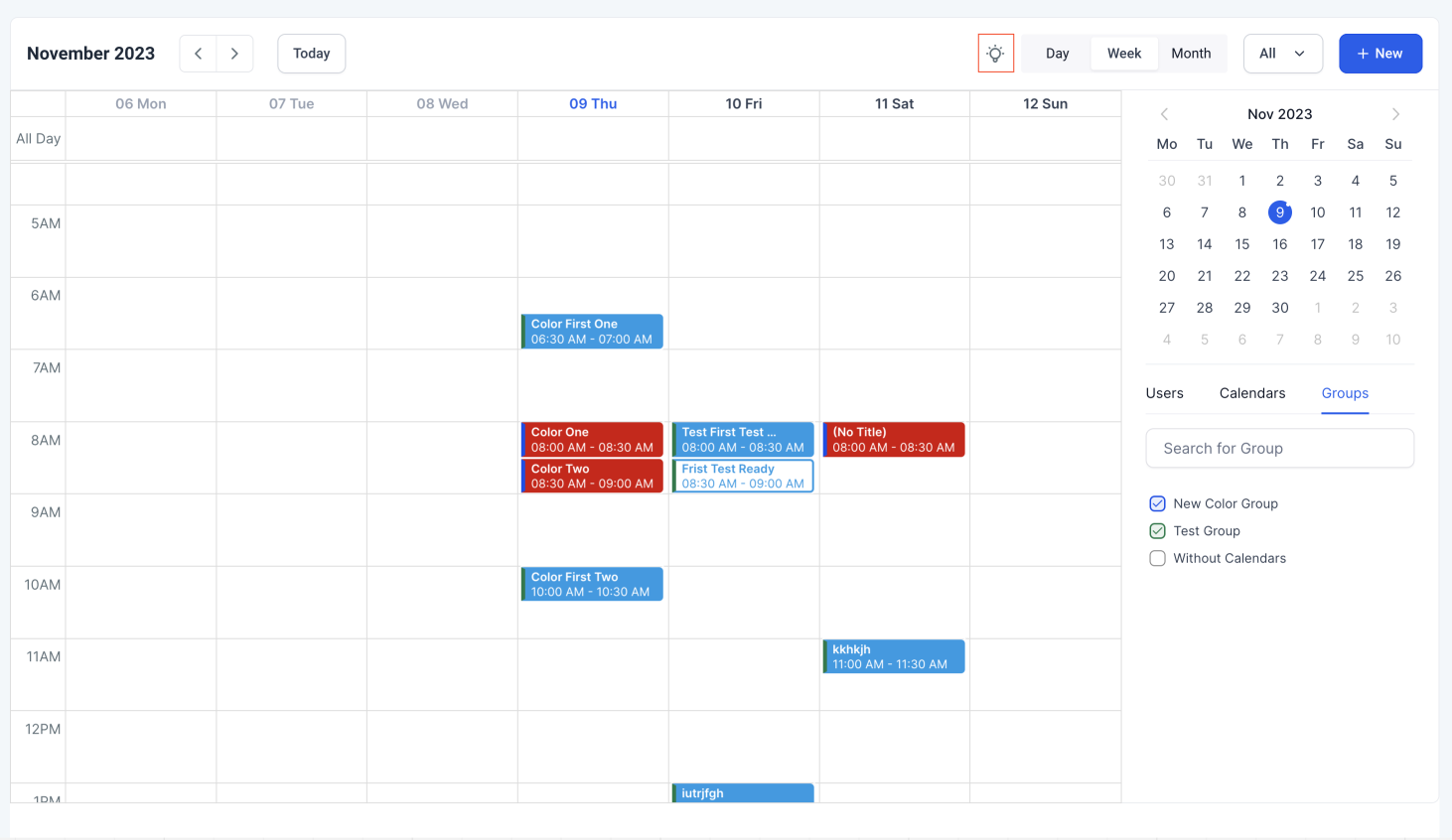
You can pick several users, several calendars or several groups at the same time. The system combines their entries into a single display, applying colors that follow your personal color settings for users, groups and calendars. An annotation key explains the icons used for different event types. When you move the pointer over any entry, a popup displays the event type, title, start and end times without opening the record.
The platform remembers the entities you selected, so returning to the calendar restores the same view with a single click. Icons and color coding help you differentiate schedules at a glance.
03How businesses use the in app calendar view
- Digital marketing agency. The agency selects all account managers in the Multi User view to compare their daily bookings and uses the Multi Group view to overlay client project groups, allowing quick identification of overlapping meetings.
- Medical practice. The practice picks multiple clinicians in the Multi User selection and watches a single day layout to find open slots for patient appointments. Hovering over a slot shows appointment details without opening the patient record.
- Co working space. The space manager chooses several room calendars in the Multi Calendar view, merging all reservations into one screen. The month view helps plan future events across all rooms.
04How to set up and use the in app calendar view in HighLevel
Open the in app calendar view
- Navigate to the calendar module to access the upgraded view.
Use Quick Day View
- Select the Day view to display a horizontal list of the chosen users, calendars or groups with each individual day calendar shown below.
Use Quick Month View
- Choose the Month view to scroll forward through future dates.
Select multiple users
- Pick more than one user to have all of their appointments appear together in the same display.
Select multiple calendars
- Choose several calendars so that all events from those calendars consolidate into one view.
Select multiple groups
- Select several groups; their appointments overlay on the calendar for a combined overview.
Hover for additional info
- Place the cursor over any appointment to see a snapshot that includes event type, title, start time and end time.
05What it looks like in HighLevel
06How it connects to the rest of HighLevel
- Customize the calendar widget appearance Calendar widget customization
- Set weekly and date specific availability for calendars Calendar availability
- Integrate Google Calendar to bring external events into the view Google Calendar integration
Michael's take

Scheduling chaos can steal precious time from any small business. The in app calendar view puts every appointment and external event onto one screen, so you stop flipping between calendars and start seeing the whole picture at a glance.
The first thing I would get right is the color coding scheme. Clear colors let you fast tell whose meeting it is, which group it belongs to, and whether it’s a personal or synced event. Once that’s set, the rest of the view just works smoother.