
01Who this is for
- Service based business owners who need to limit last minute appointment changes to protect their schedule.
- Coaches or consultants who want to give clients a clear deadline for modifying bookings.
- Health practice managers who must prevent disruptions caused by sudden cancellations.
02Cancellation & reschedule policies, explained
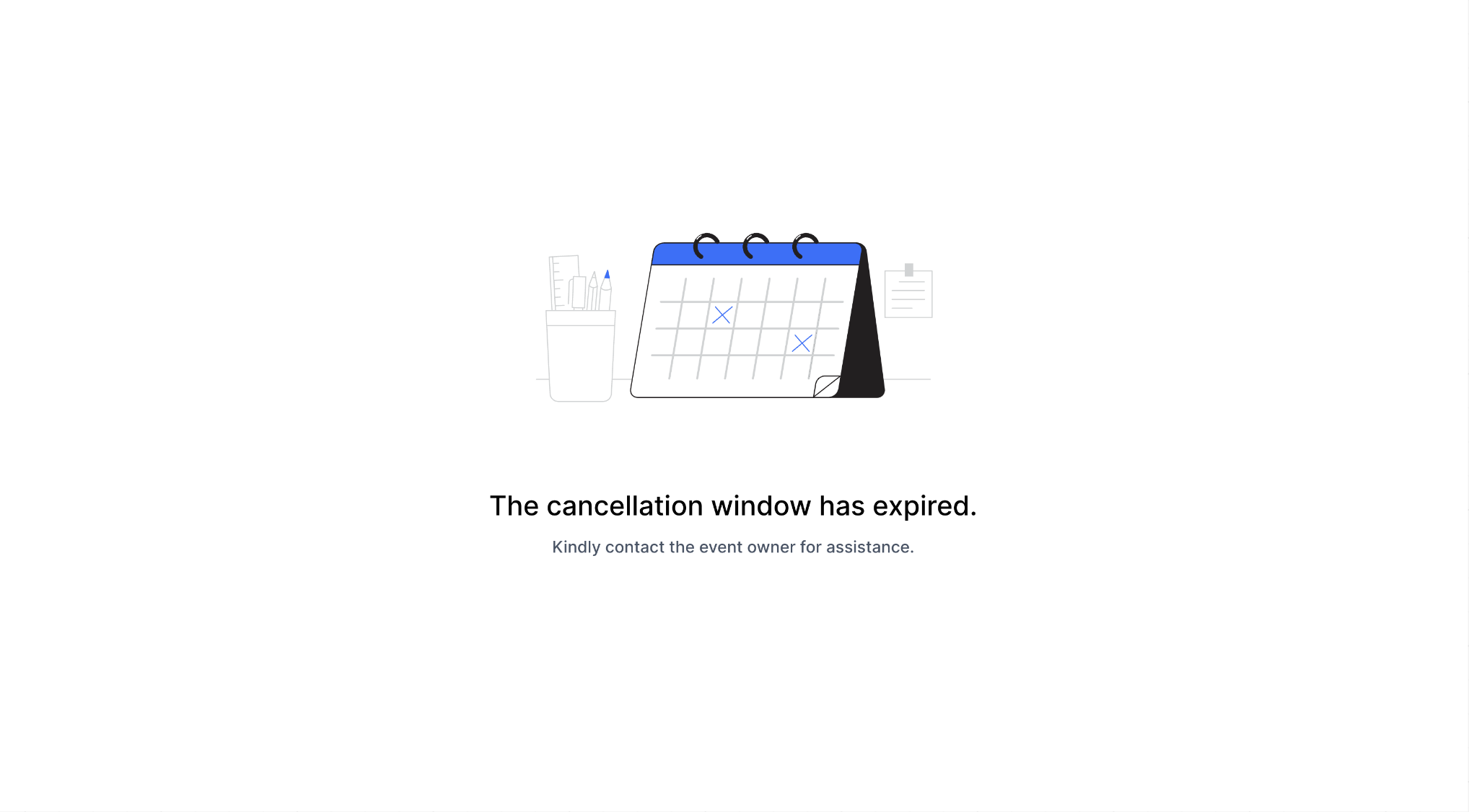
This setting lives inside each calendar’s configuration. It adds cancel and reschedule links to the additional notes field of the calendar invite. The links become inactive after a time period you specify, forcing any later changes to go through you.
When enabled, the links are also visible in the booking confirmation email if you include the additional notes placeholder. The feature only works for appointments generated from the booking widget; it does not affect manual or imported events.
The policy is controlled per calendar, so you can have different windows for different services or locations.
03How businesses use cancellation & reschedule policies
- Fitness studio. Turn on the two toggles for a class calendar, set a 24 hour window, and let members cancel or reschedule within that period. After 24 hours the links disappear, so members must call the studio to change the booking.
- Digital marketing agency. Enable cancellation and rescheduling for consulting session calendars, then leave the time range blank so clients can adjust appointments at any time via the link in the calendar invite.
- Dental practice. Activate the policy for the dental procedures calendar, specify a 48 hour window, and embed the {{appointment.reschedule_link}} token in a workflow email to remind patients how to change their visits.
04How to set up and use cancellation & reschedule policies in HighLevel
Set cancellation & reschedule policy
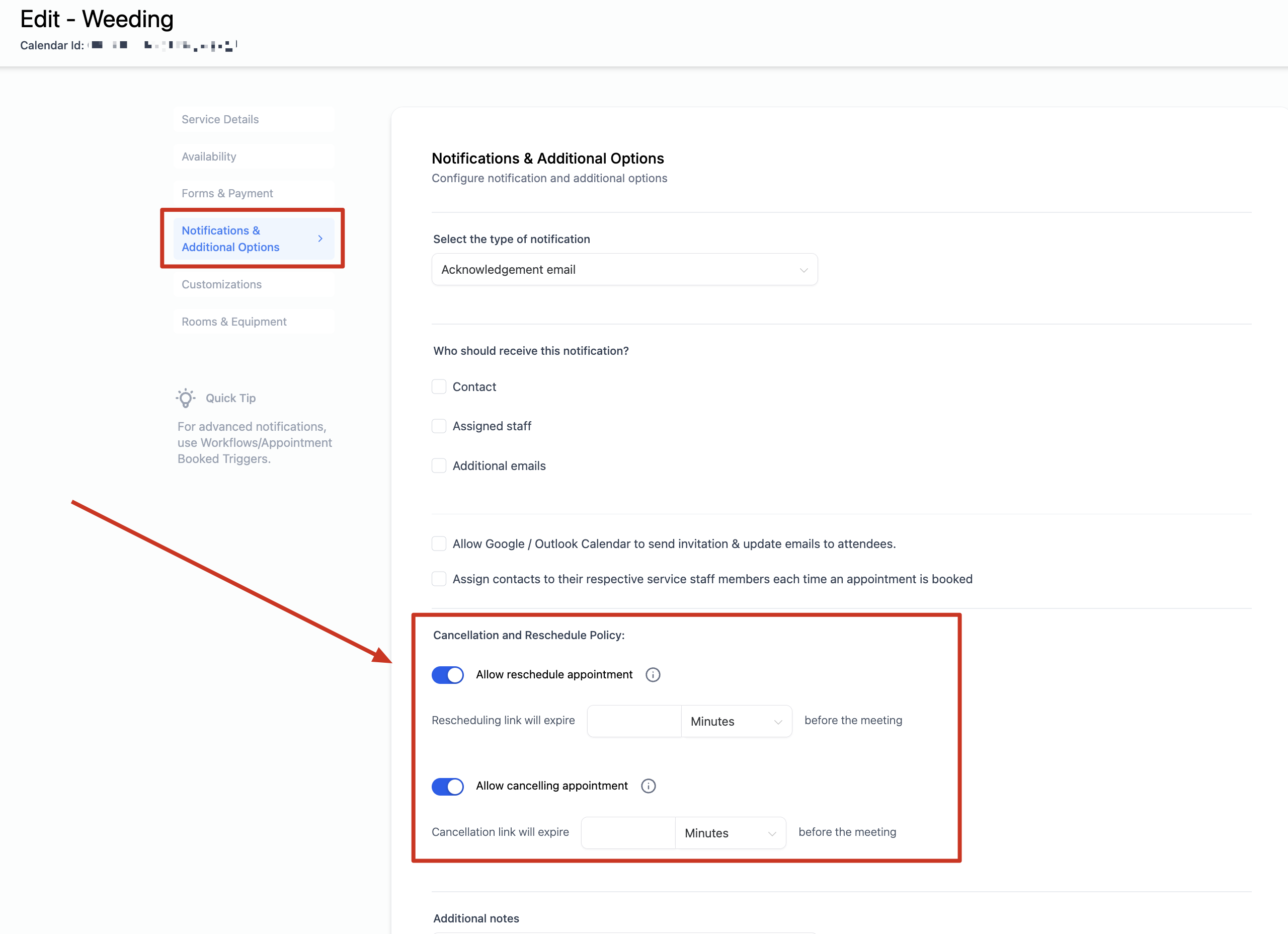
- Open Calendar Settings and select the calendar you want to modify.
- Scroll to the Notifications and Additional Options section.
- Switch on Allow Cancellation of Meeting and Allow Rescheduling of Meeting.
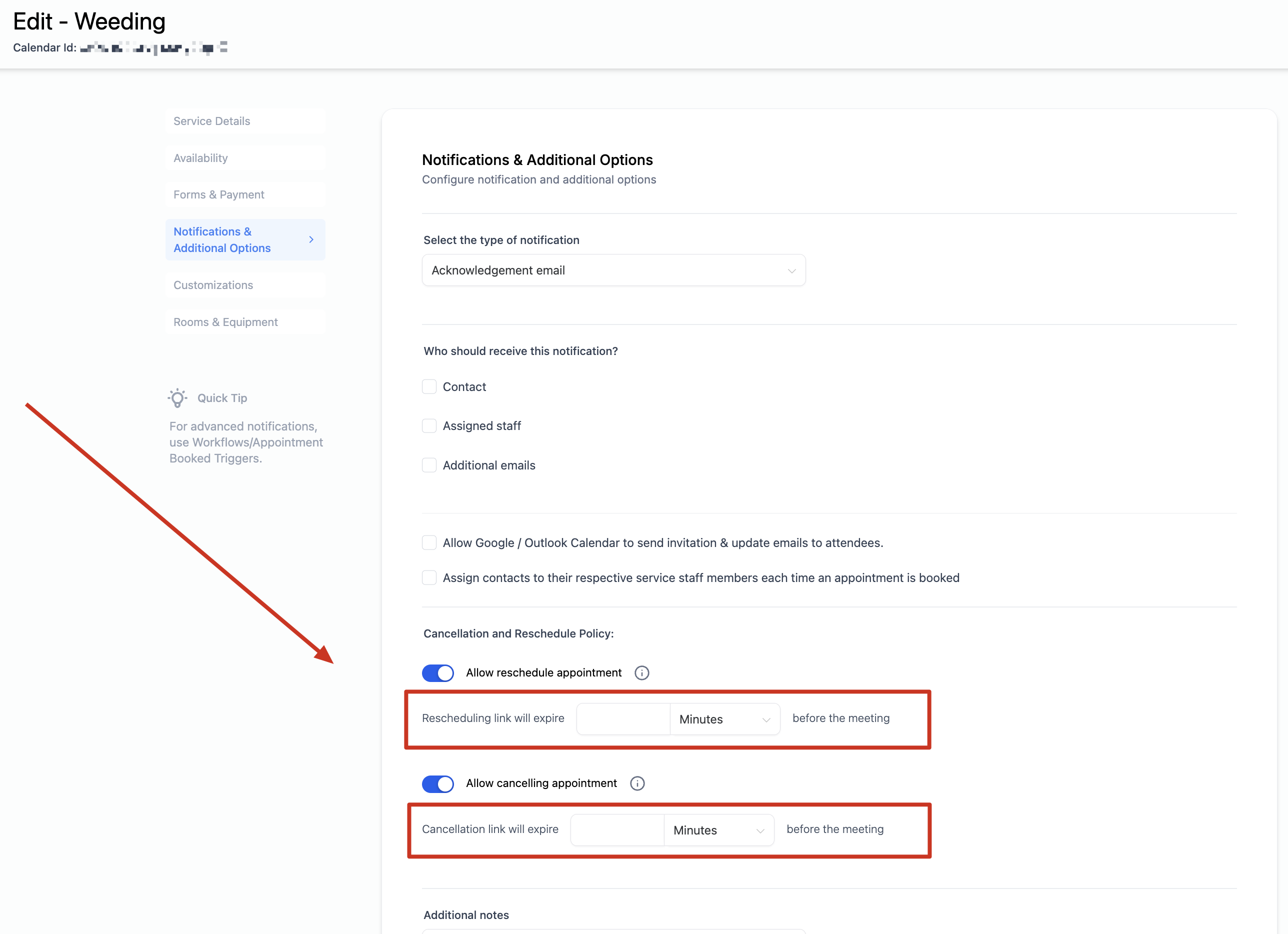
- Enter the time range after which the links should expire, or leave the field blank to keep the links always active.
- When saved, a cancellation and a rescheduling link are added to the additional notes section of the calendar invite and will expire as configured.
05What it looks like in HighLevel
06Settings that matter
- Allow Cancellation of Meeting. Enables the cancellation link for appointments in the selected calendar.
- Allow Rescheduling of Meeting. Enables the reschedule link for appointments in the selected calendar.
- Cancellation and Reschedule Policy time range. Defines how long after booking the cancel or reschedule links stay usable. Leaving it blank means the links never expire.
07Things to know before you rely on it
- If the time range field is left empty, the cancellation and reschedule links remain active indefinitely.
- The links appear only in the additional notes section of the calendar invite and in workflow messages that use the {{appointment.cancellation_link}} or {{appointment.reschedule_link}} tokens.
08How it connects to the rest of HighLevel
- Customize how the cancel and reschedule links appear in the widget. Widget customization guide
- Set weekly or date specific availability that works with the policy window. Calendar availability guide
- Embed a HighLevel calendar on your site to collect bookings that use this policy. Embed calendar
Michael's take

I find the cancellation & reschedule policy a handy tool for keeping the schedule more predictable.
Setting a cut off point gives me peace of mind that last minute changes won’t suddenly disrupt the day.