
01Who this is for
- Coaches who need a consistent weekly slot schedule but also want to block or extend time for retreats or workshops.
- Dental offices that operate on regular weekdays yet must close for holidays or adjust hours for staff training days.
- Real estate agencies that keep standard office hours but need to make special availability for open houses or client showings.
02Calendar availability, explained
The feature lives in the calendar configuration area of HighLevel. Weekly Working Hours create a baseline pattern that repeats every week. Date Specific Hours let you pick individual dates and assign a different start end window, which supersedes the weekly pattern for those dates. Both settings appear on the calendar’s booking page, controlling which time slots visitors can select.
You access these options through the Availability section of a calendar. Weekly Working Hours are edited once and apply automatically to every matching weekday. When you add Date Specific Hours, HighLevel groups consecutive dates into a single entry for easier management. The system always gives priority to Date Specific Hours over the weekly schedule.
03How businesses use calendar availability
- Coaching practice. Set weekly sessions from 9 AM to 5 PM using Weekly Working Hours. For a weekend retreat, add a Date Specific entry that expands hours to 8 AM, 8 PM on those dates, ensuring clients can book the extended window.
- Dental clinic. Define regular clinic days with Weekly Working Hours. Mark national holidays as unavailable by adding Date Specific Hours with no start/end time, preventing appointments on those days.
- Real estate agency. Configure standard office hours via Weekly Working Hours. For an open house, create a Date Specific entry that adds evening availability on the event date, allowing clients to schedule after hours tours.
04How to set up and use calendar availability in HighLevel
Set weekly working hours
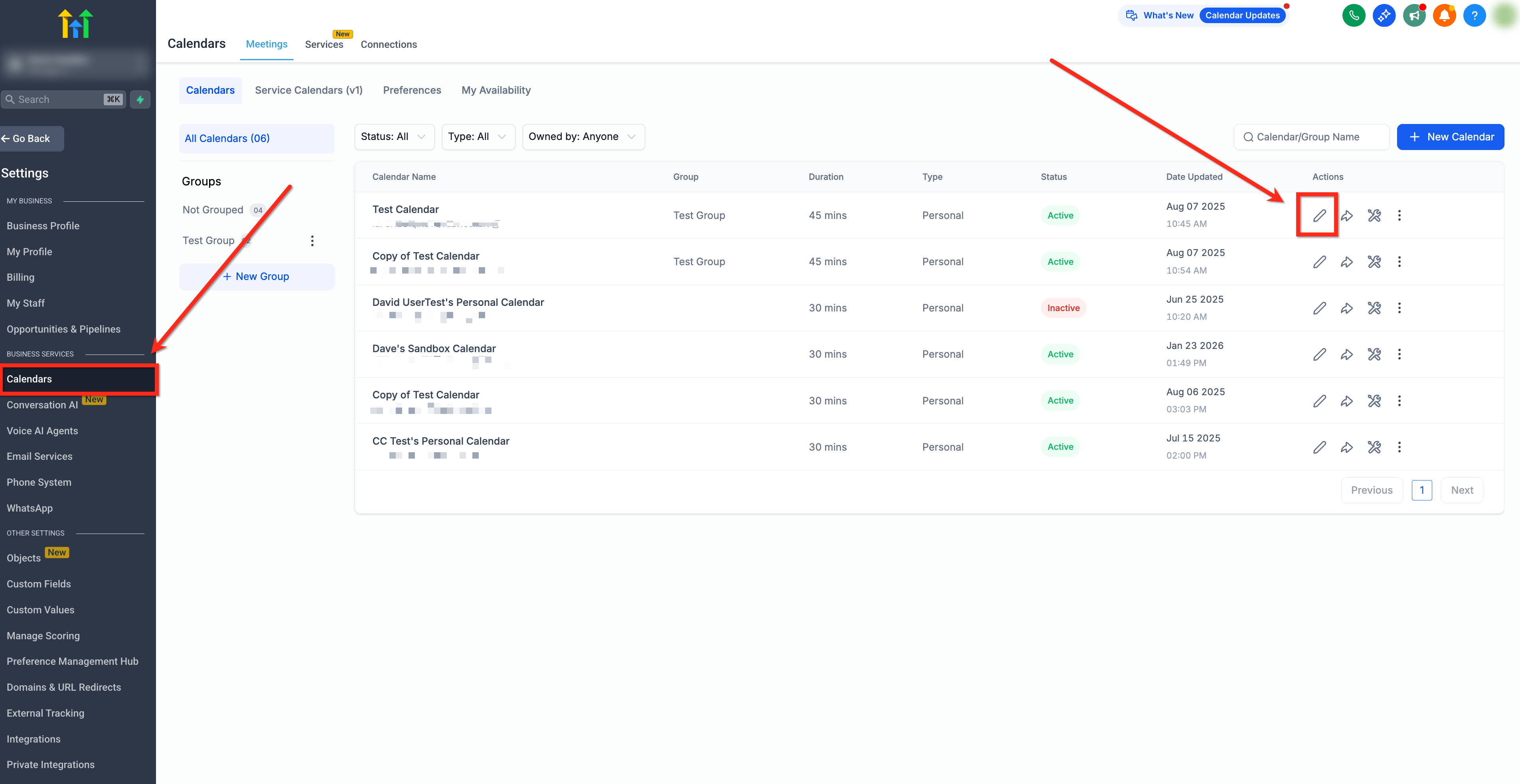
- Open Calendars > Calendar Settings and click Edit Calendar.
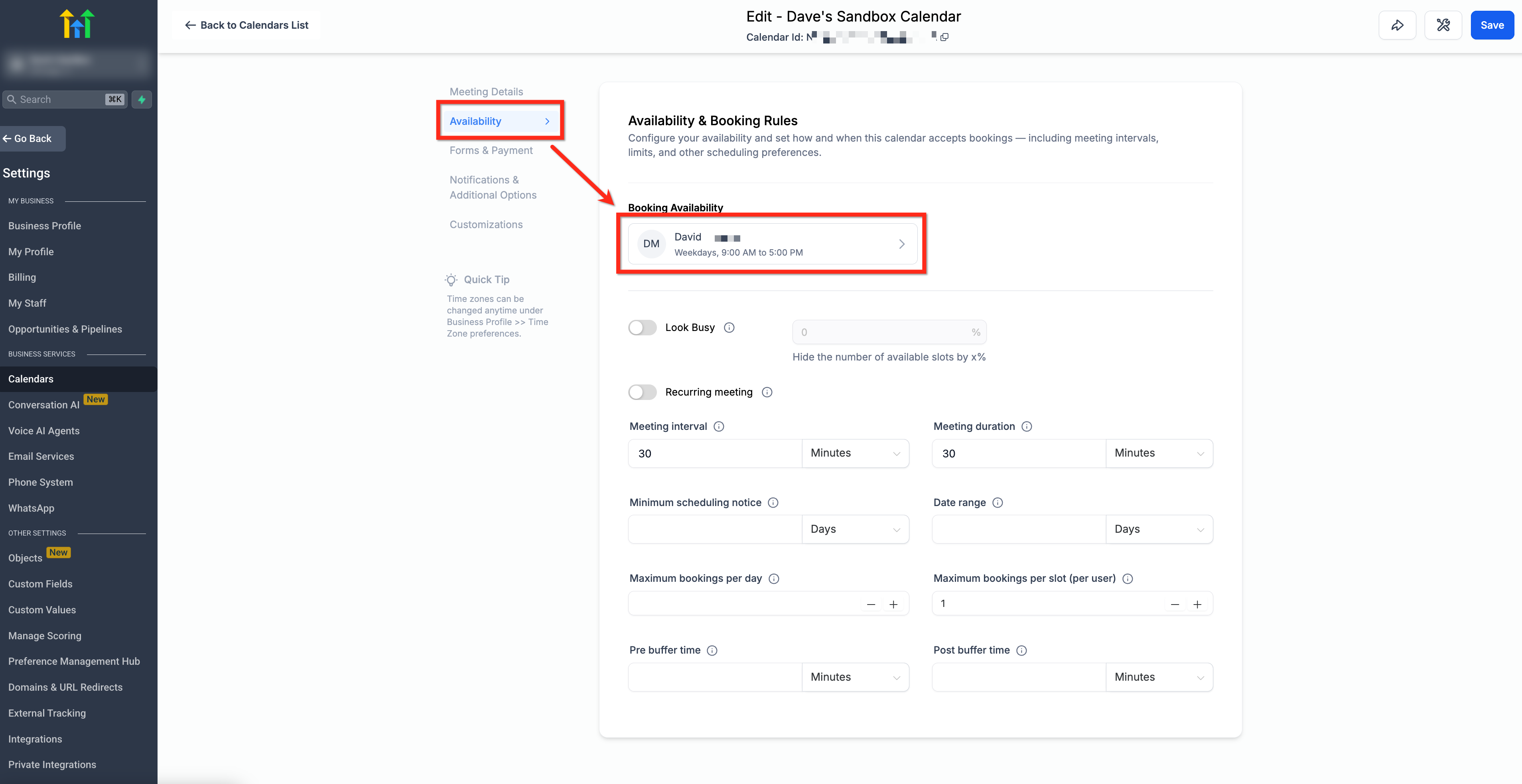
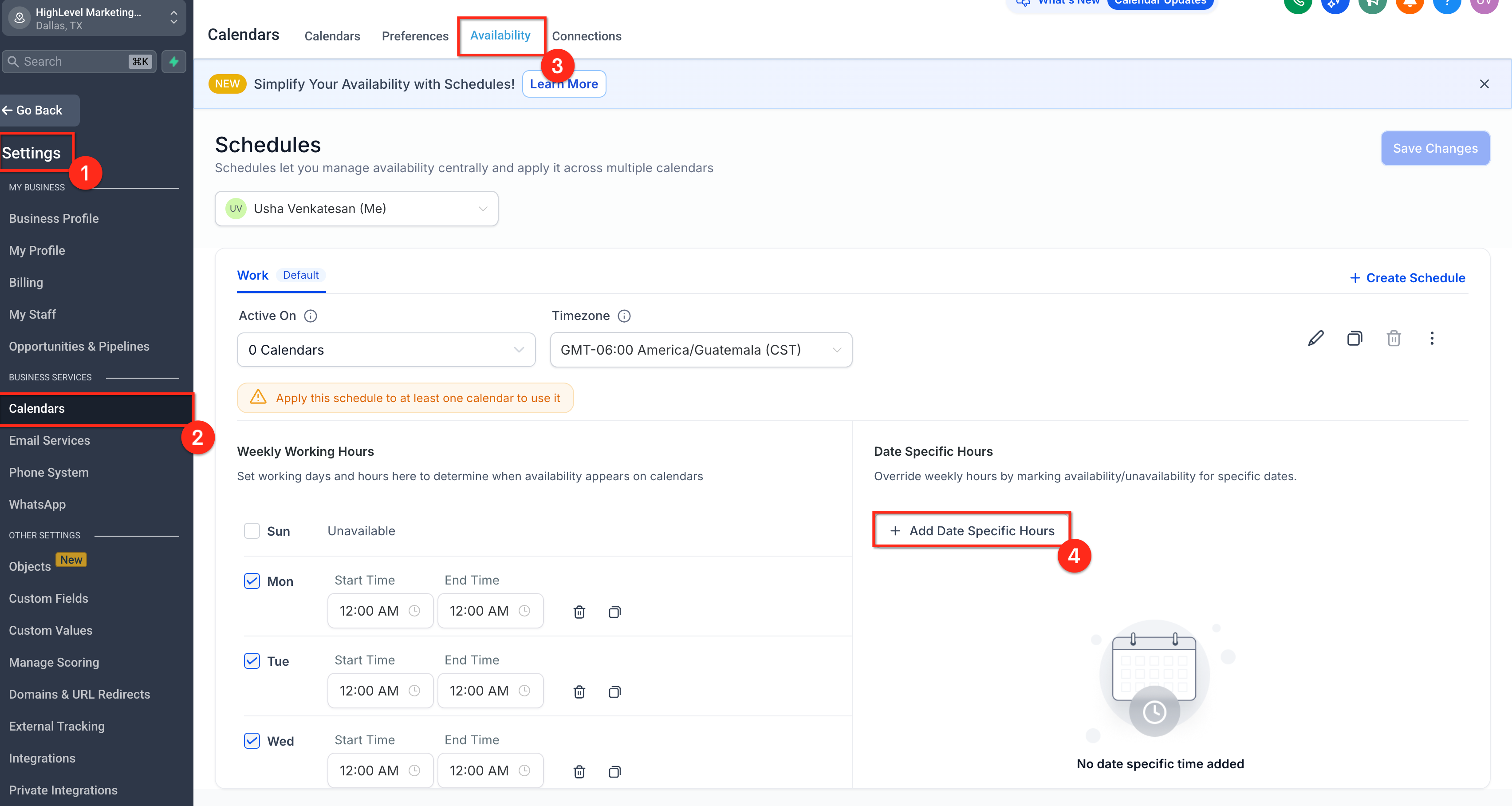
- Select Availability from the left hand menu.
- In Booking Availability, click the user’s name to open the side panel.
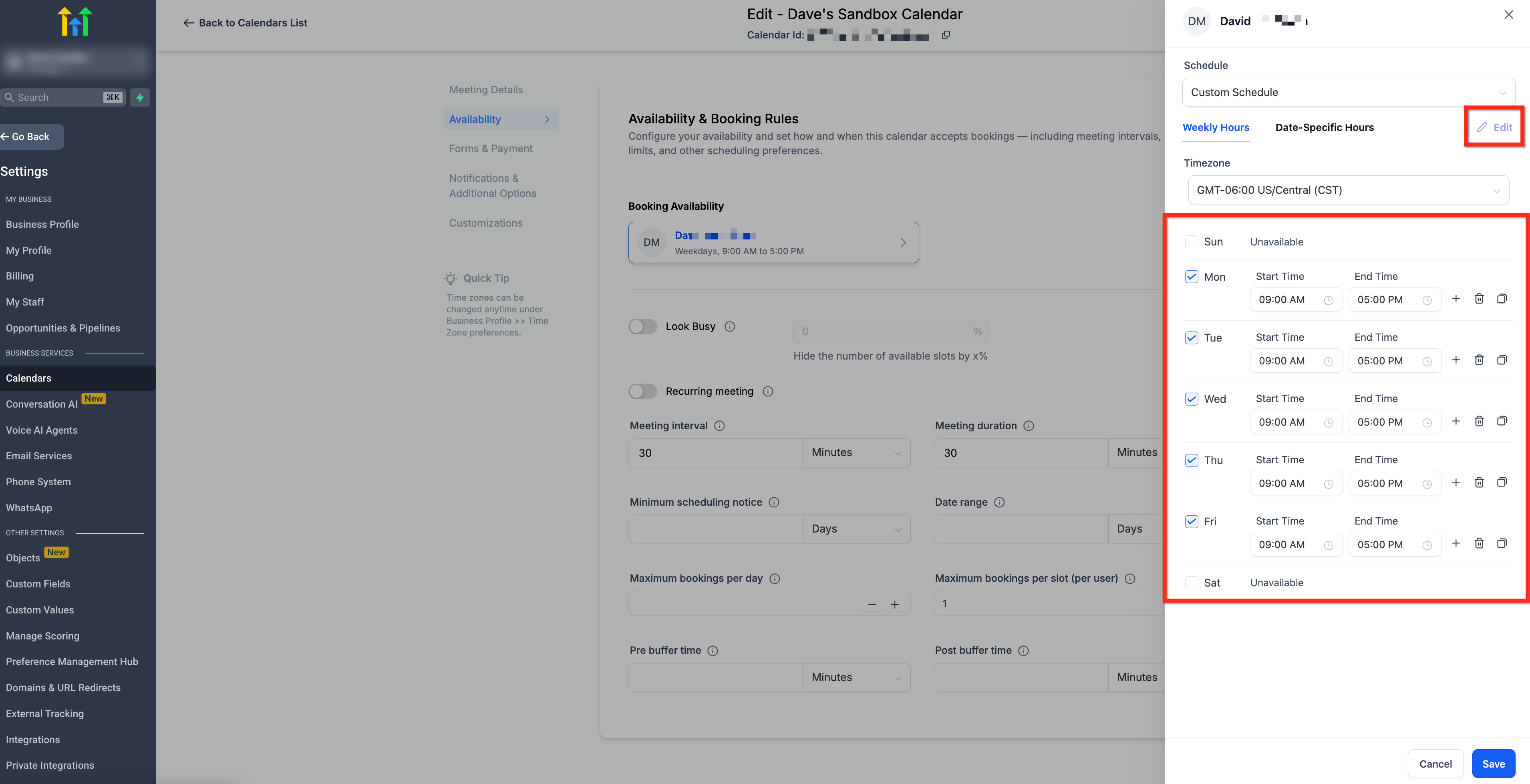
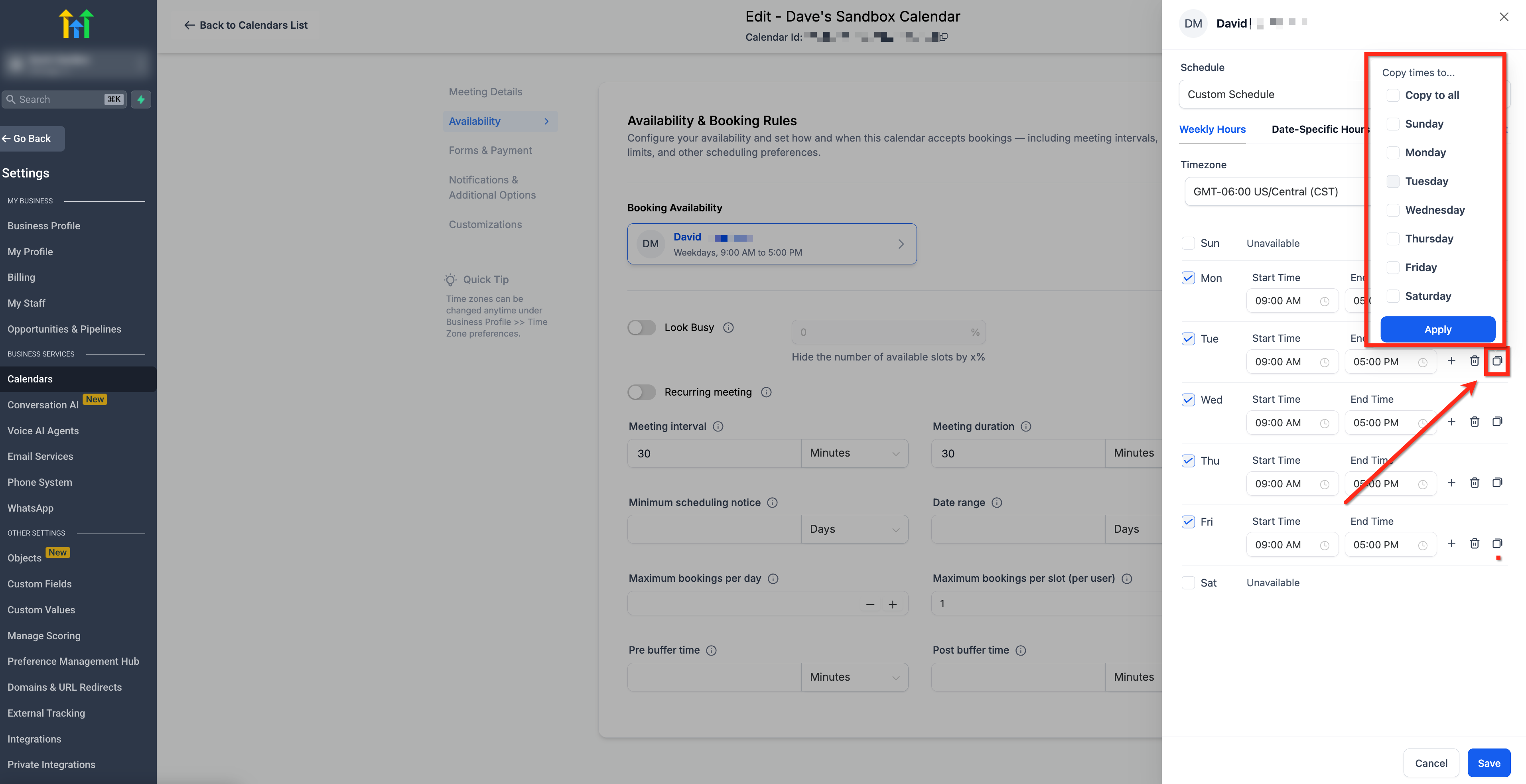
- Click Edit in Weekly Working Hours and set the desired start and end times for each day.
- Press the blue Save button to store the changes.
Set date specific hours
- Open Settings > Calendars, choose the calendar, and select Availability.
- Click the + Add Date Specific Hours button in the Date Specific Hours area.
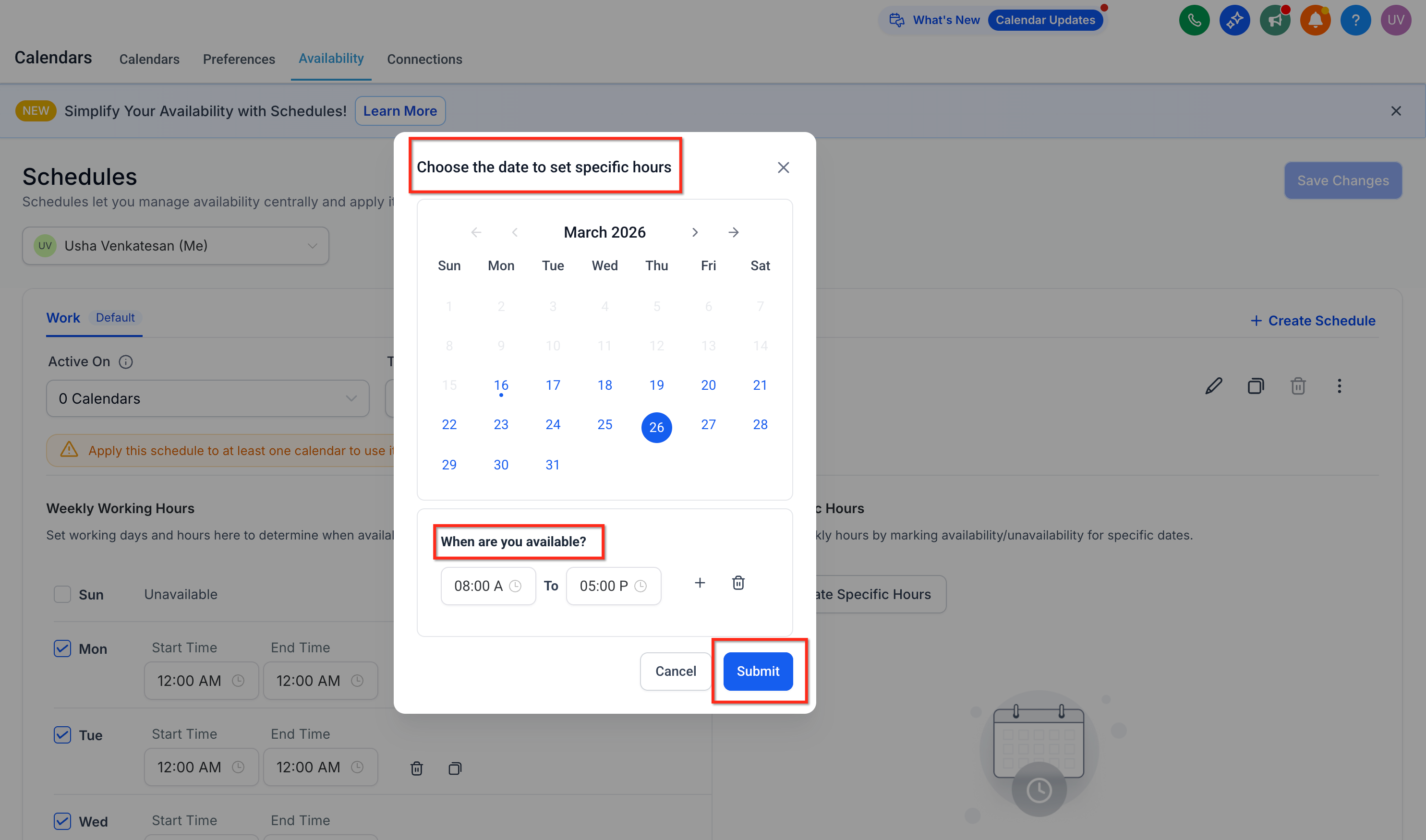
- Pick one or more dates in the date picker.
- Enter the start time and end time for the selected dates.
- Click Save to apply the hours to all chosen dates.
- Note: This feature may be limited to certain accounts while it rolls out, and Date Specific Hours always take precedence over Weekly Working Hours. To extend a day, enter the full time range you want available.
05What it looks like in HighLevel
06Settings that matter
- Weekly Working Hours. Controls the standard recurring weekly schedule that applies to every matching weekday.
- Date, Specific Hours. Overrides the weekly schedule for the dates you select, defining a custom availability window for each.
- Availability. The overall menu where both Weekly Working Hours and Date Specific Hours are configured.
07Things to know before you rely on it
- Only weekly recurring patterns are supported; fortnightly schedules must be created with Date Specific Hours.
- Date Specific Hours take precedence over Weekly Working Hours for any date where they exist.
- The Date Specific Hours feature may be limited to certain accounts while it rolls out.
- Consecutive dates are grouped into a single range; non consecutive dates appear as separate groups.
08How it connects to the rest of HighLevel
- Customize the look of your booking widget Calendar widget customization
- Display appointments in the visitor’s timezone User timezone view
- Use the unified in app calendar view for scheduling In app calendar view
Michael's take

Calendar availability is useful but not essential for every small operation. Teams that don’t need to block holidays or adjust hours for special events can skip it.