
01Consent checkbox calendars, explained
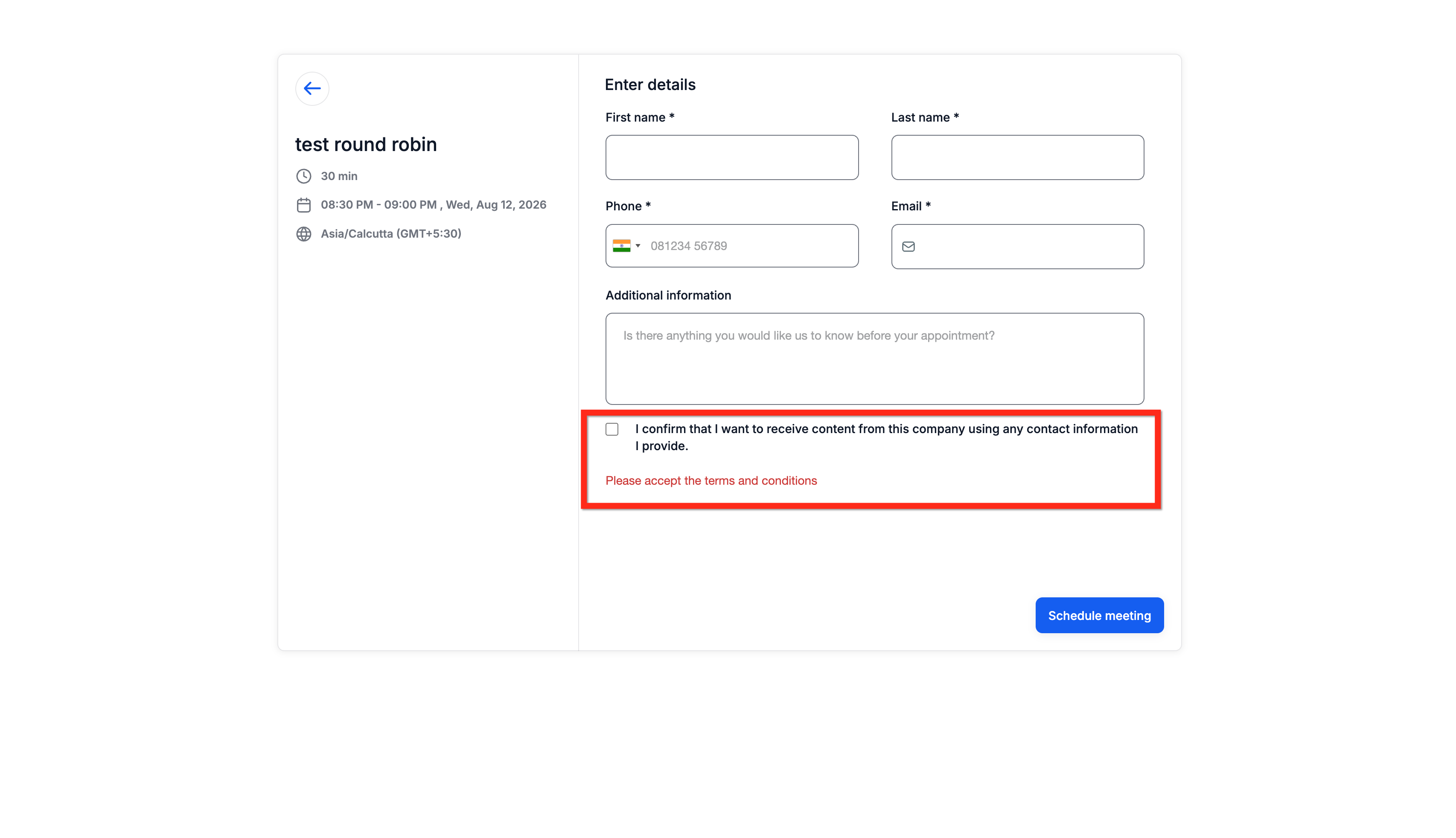
The calendar consent checkbox adds a consent checkbox to the booking form. When a contact selects it, HighLevel stores that they agreed to the text you provide. The consent record may include the exact text and the contact’s IP address at the time of agreement.
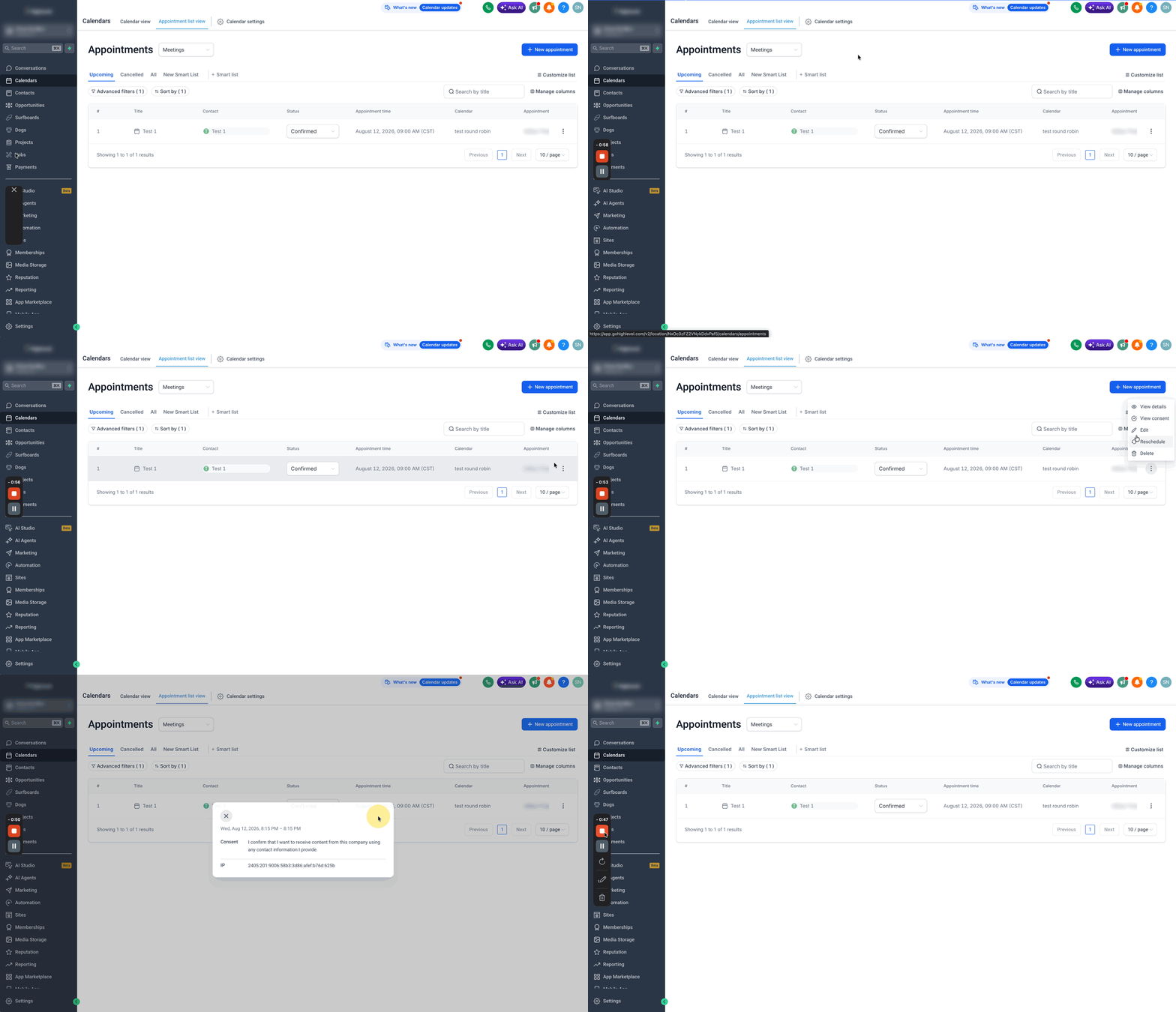
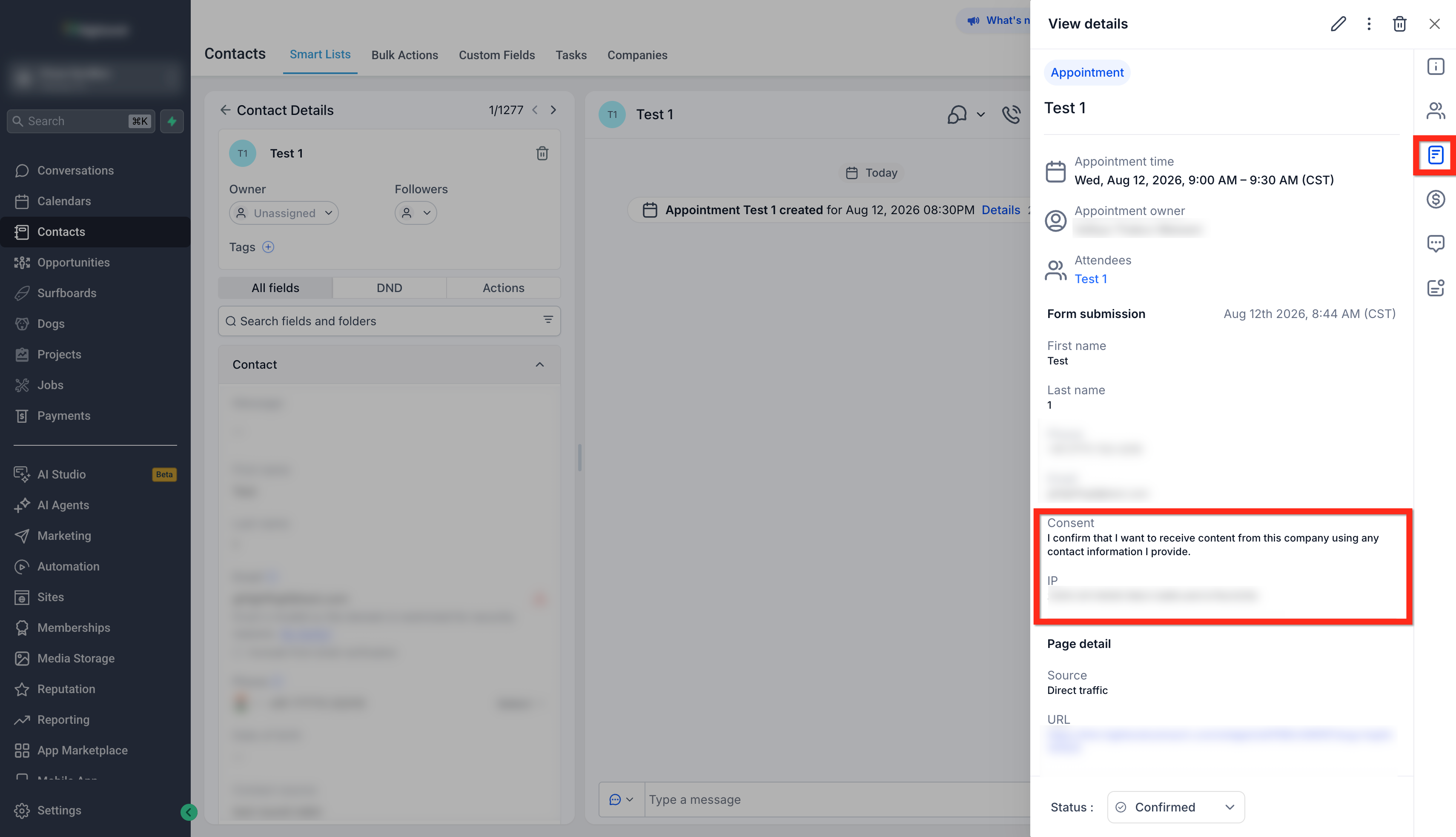
You can edit the consent message to match your legal disclosures. After enabling, the checkbox appears in the booking experience for that specific calendar. Consent can be viewed from the appointment list or from the contact’s activity log.
02How businesses use consent checkbox calendars
- Collect consent at booking. When a contact books a meeting, they can read your custom consent message and check the box. This creates an affirmative record that may help support privacy, messaging, calling, or telecom compliance when phone numbers or other data are collected.
- Review consent records. After an appointment is created, open the appointment menu and select View Consent or look at the contact’s activity. The view shows the consent text and the IP address that was captured at the time of agreement.
03The numbers and rules that matter
- Calendar settings are configured per calendar.
04How to set up and use consent checkbox calendars in HighLevel
Enable consent checkbox
- Log in to your HighLevel account.
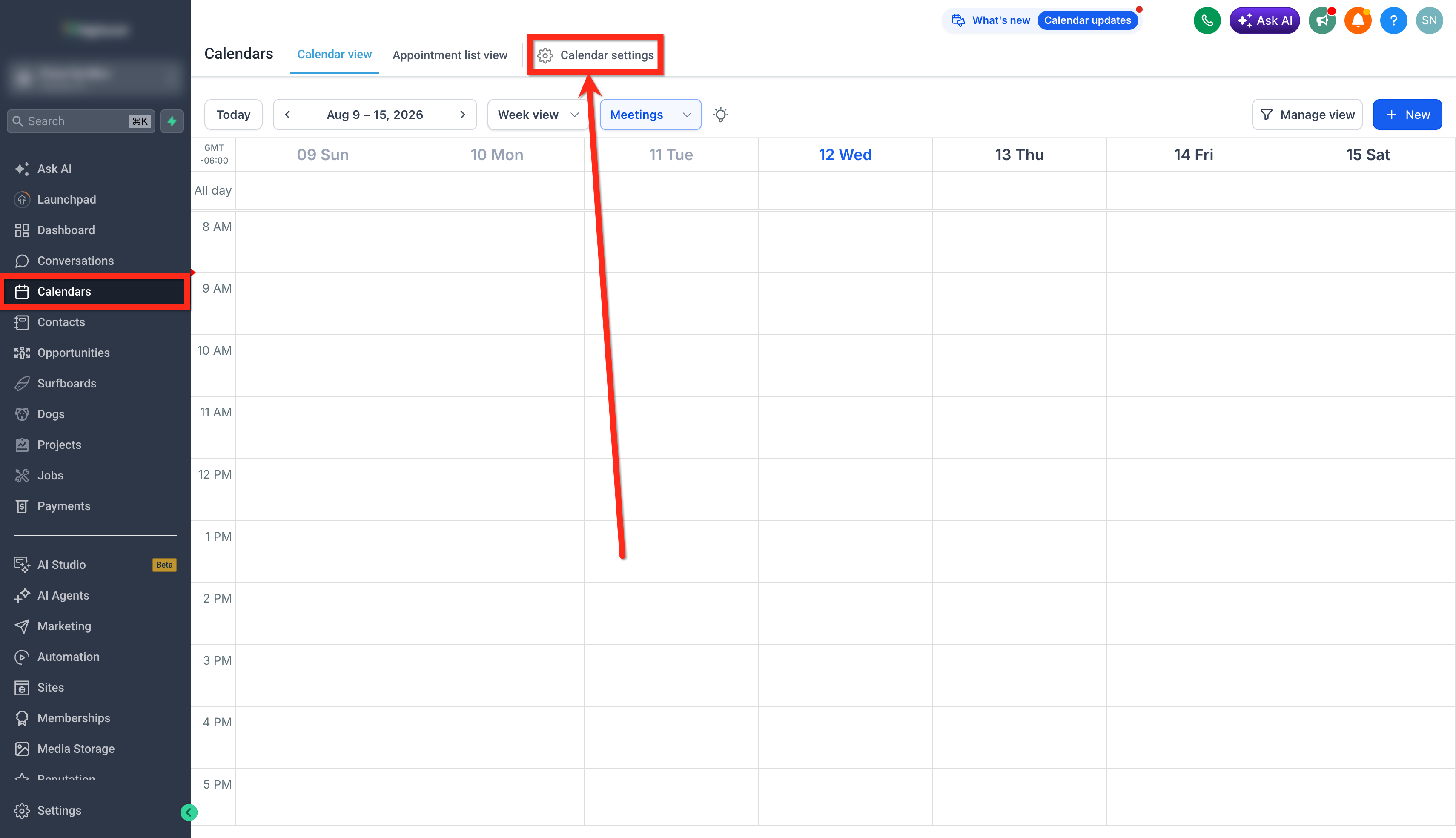
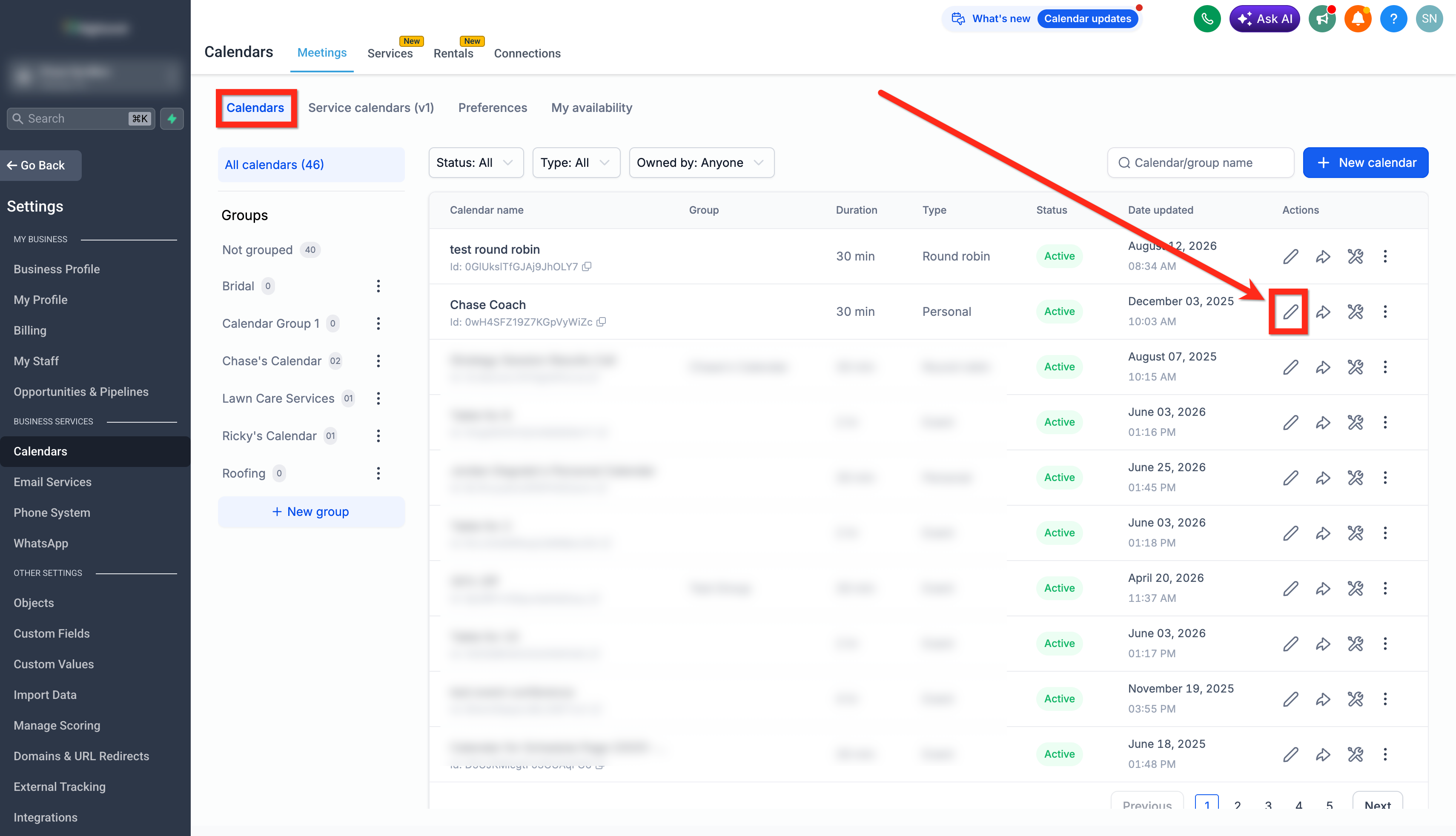
- Go to Calendars from the left navigation menu.
- Click Calendar Settings.
- Find the calendar where you want to enable the consent checkbox.
- Click Edit Calendar for that calendar.
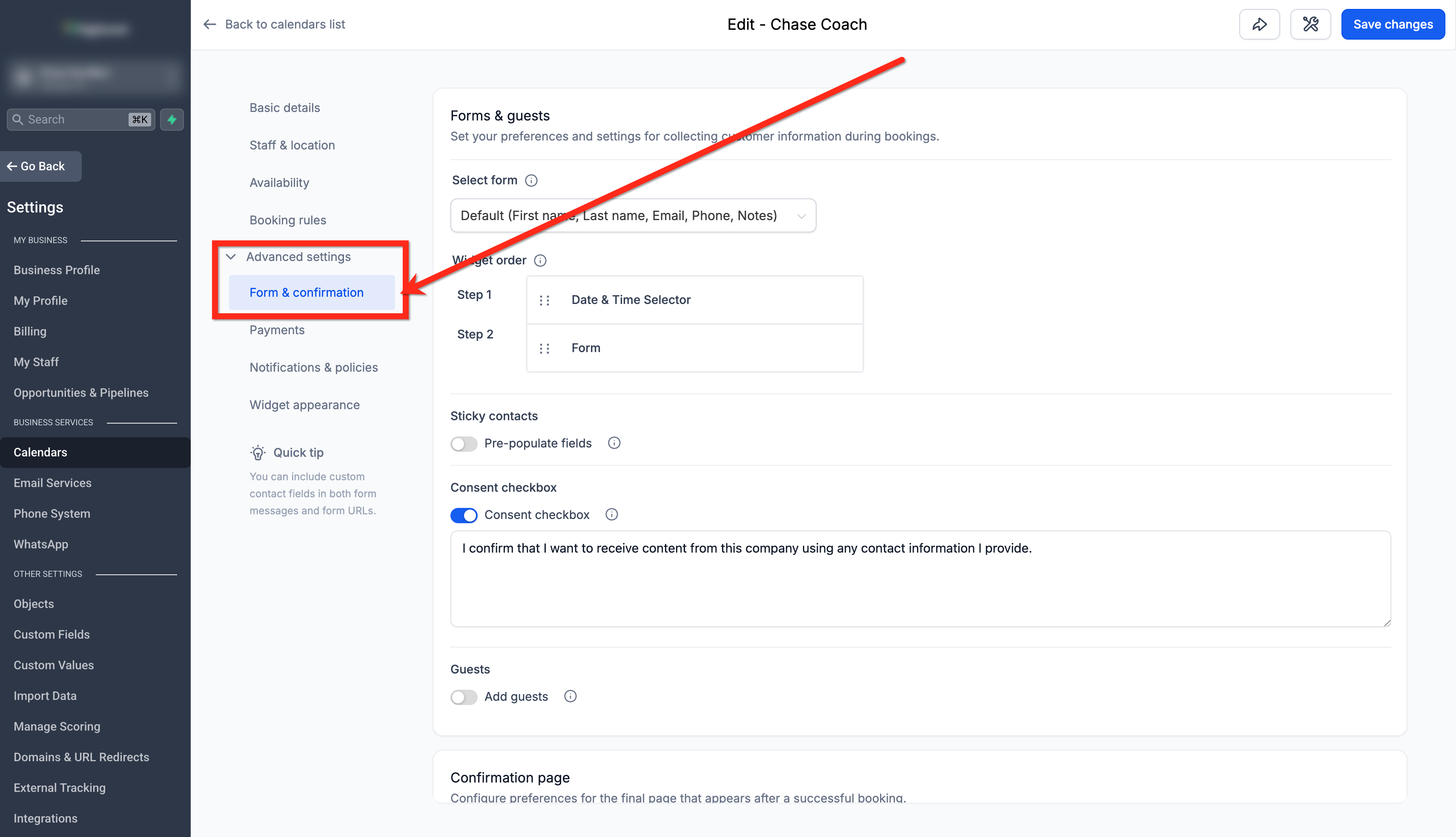
- Open Advanced Settings.
- Go to Form & Confirmation.
- Locate Consent Checkbox.
- Toggle on the option to ask contacts to provide consent when booking a meeting.
- Review and edit the consent message displayed with the checkbox as needed for your business requirements.
- Click Save Changes in the upper right corner.
05What it looks like in HighLevel
06Settings that matter
- Consent Checkbox. When turned on, contacts see a checkbox with your custom message during booking and can give affirmative consent.
07Things to know before you rely on it
- The calendar consent checkbox does not support HTML or clickable links.
- Enabling the checkbox does not automatically make your booking process compliant; legal requirements depend on your business, use case, and jurisdiction.
- If you want the same consent experience on multiple calendars, you must configure the setting for each calendar individually.
Michael's take

Michael ReimerFounder of CRM Pros, HighLevel Commander and Certified Admin
The consent checkbox calendars are useful but not essential for every business.
If you aren’t required to capture explicit consent at booking, you can skip this feature.
Get More InformationOpens on HighLevelPublished November 2, 2026 · Updated November 3, 2026