
01Who this is for
- Founders who want a booking page that matches their brand identity, because widget colors and text can be aligned with their site.
- Marketing managers who need consistent visual elements across campaigns, using custom forms and theme colors in the widget.
- Service providers who prefer a simple booking view for clients, by hiding calendar details and logos.
02Calendar widget customizations, explained
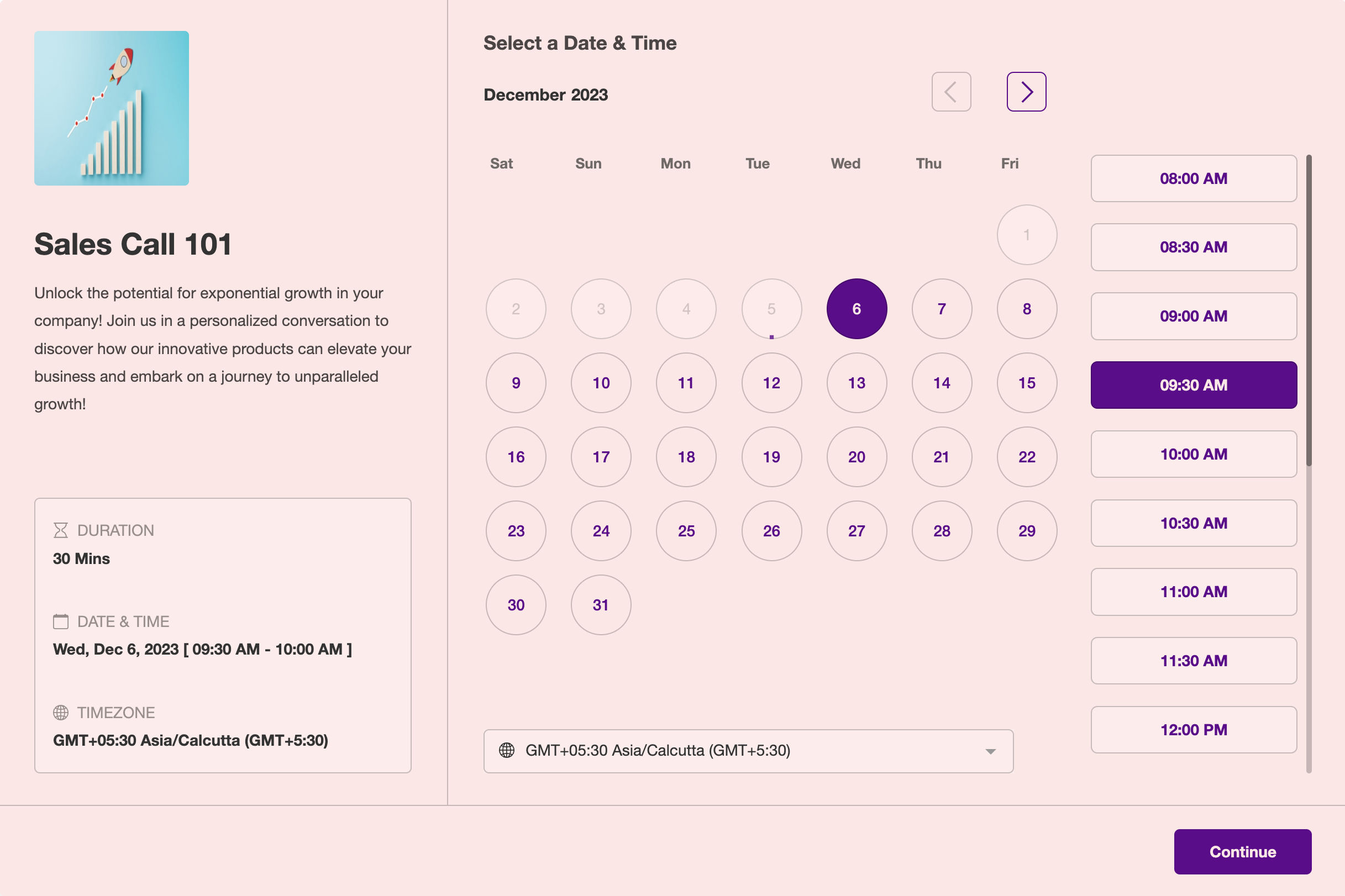
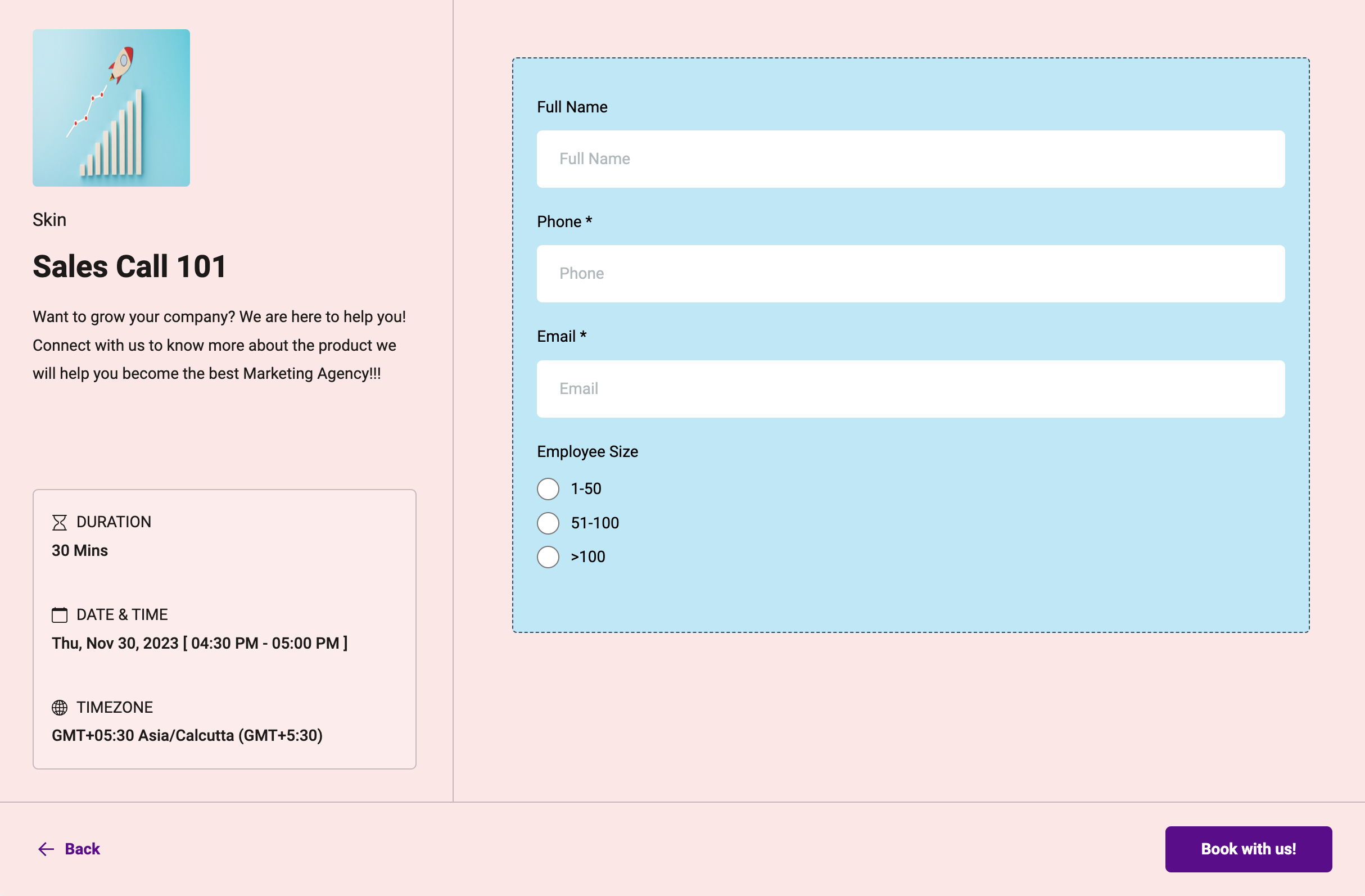
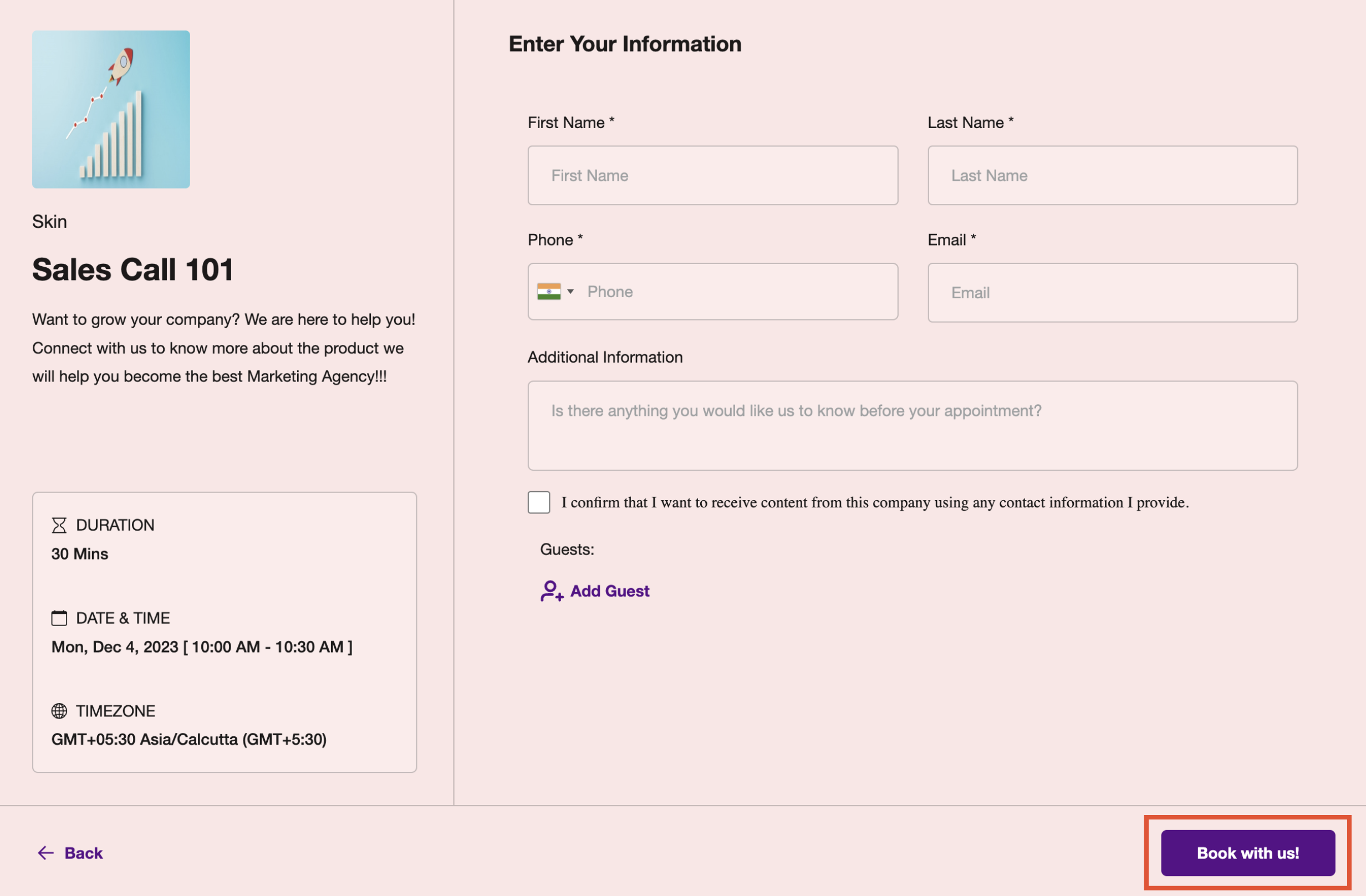
The feature gives you control over the visual style and some text of the HighLevel calendar booking widget. It works only with the NEO widget and affects buttons, dates, time slots and the form area.
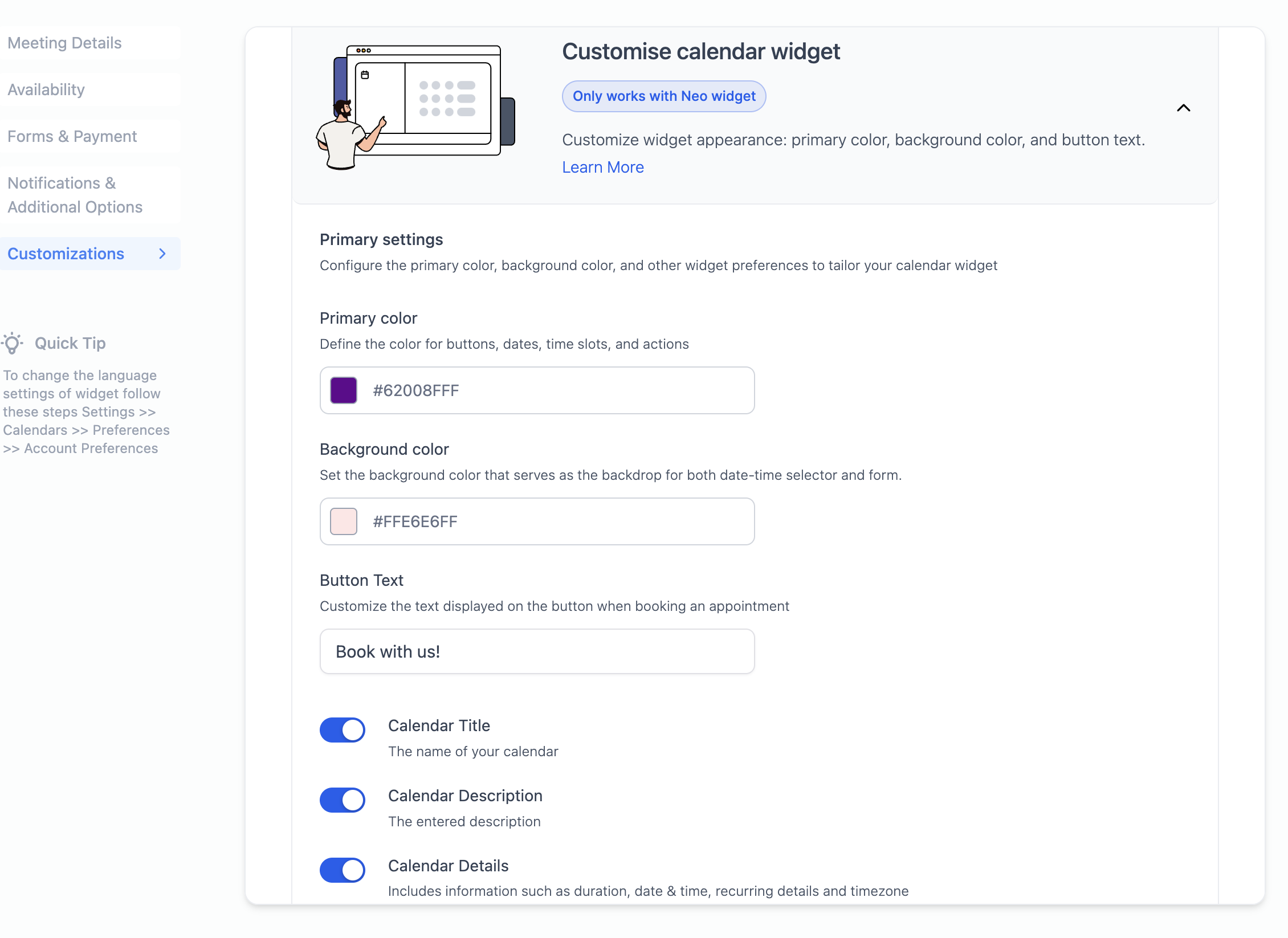
You find the options under Calendars > Calendar Settings. After selecting a calendar and clicking Edit, open Advanced settings and choose Widget appearance. There you can set Primary Colour, Background Colour, Button Text and choose to hide calendar details.
A Preview Widget button lets you see changes before publishing. If needed, Reset to Default restores the original blue and white design. CSS customizations will override these settings.
03How businesses use calendar widget customization
- Dental practice. The practice selects a calming blue primary colour and a light background colour to match its website. It changes the button text to "Book Appointment" and hides calendar details so patients see only available slots.
- Coaching business. The coach adds a custom form for client intake, then chooses a dark primary colour and white background for contrast. The button label is set to "Schedule Session" and the preview is used to confirm the look.
- Fitness studio. The studio uses the Hide Calendar Details option to remove class descriptions and duration from the left panel, creating a clean view for members. It sets a bright primary colour that matches its brand.
04The numbers and rules that matter
- Customization feature is available for Event, Round Robin, Class Booking, Collective, and Service Calendars.
- Recent services booking improvements include a Back button, higher resolution service images, an autohidden header when no company name or logo is configured, and a clearer timezone label on the slot selection screen.
05Before you start
- Widget customizations work ONLY with NEO WIDGET.
06How to set up and use calendar widget customization in HighLevel
Customize the calendar widget appearance
- Open the Calendars menu and select Calendar Settings.
- Click the Edit icon for the calendar you wish to modify.
- Expand Advanced settings and choose Widget appearance.
- Pick a Primary Colour to style buttons, dates and time slots.
- Choose a Background Colour for the date time selector and form area.
- Enter the desired Button Text for the final booking button.
- Enable Hide Calendar Details if you want to remove name, description, duration, date time, recurring details and timezone from the left panel.
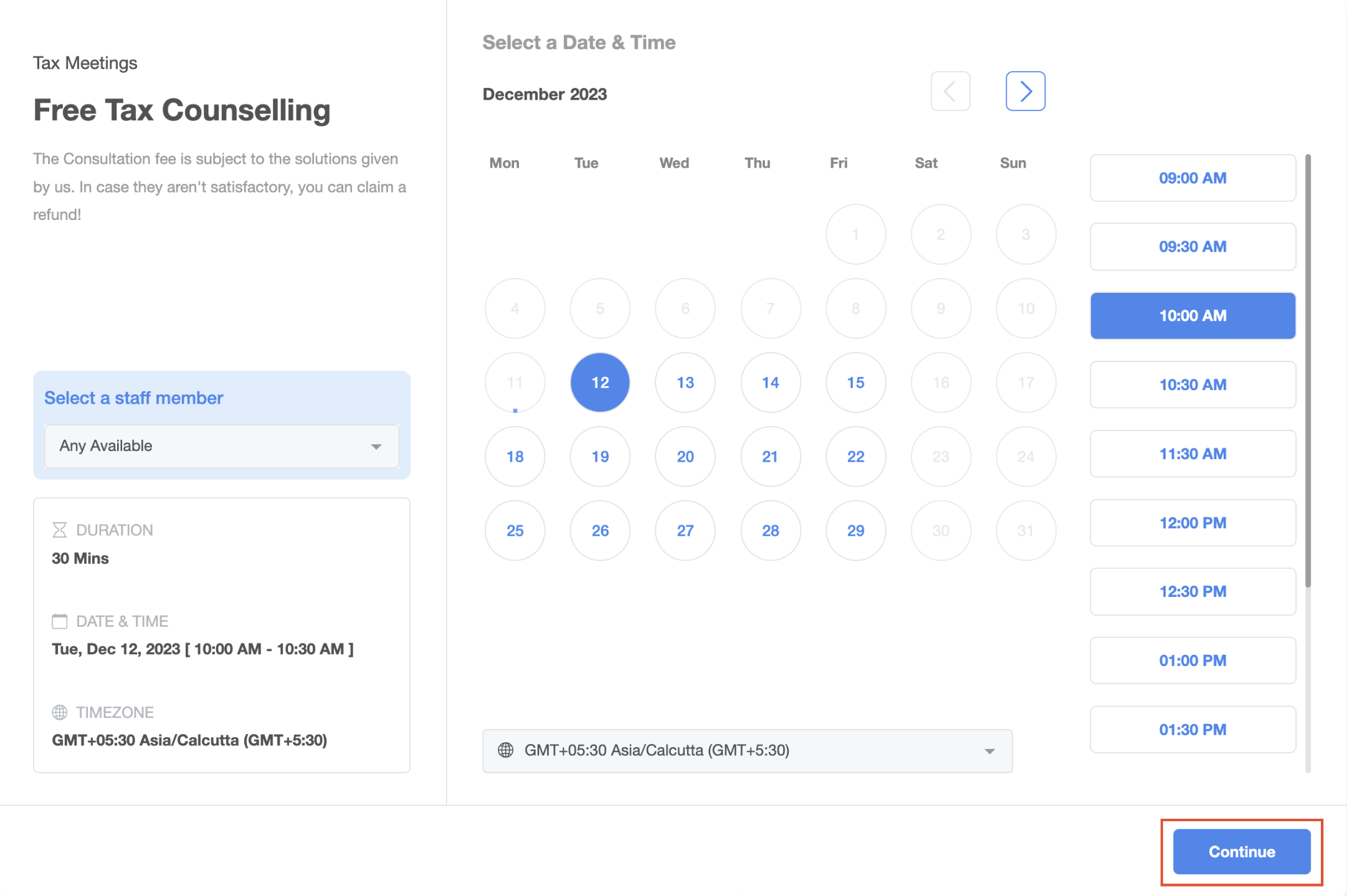
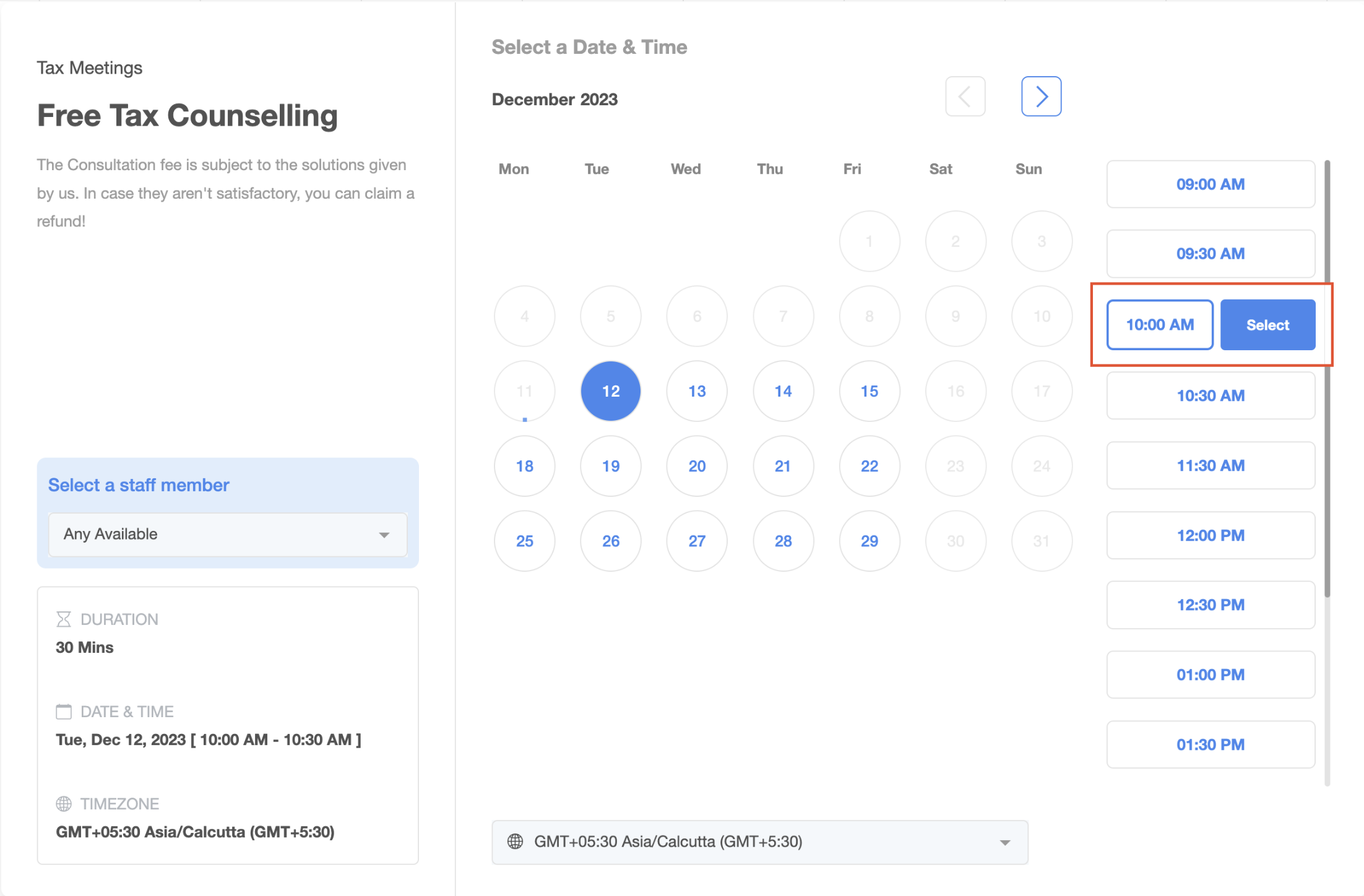
- If you have added CSS customizations, verify and adjust them to match the new Continue button location.
- Click Preview Widget each time you make a change to see the updated widget.
- When satisfied, save the settings; use Reset to Default to revert to the original design if needed.
07What it looks like in HighLevel
08Settings that matter
- Primary Colour. Controls the color of buttons, dates, time slots and related widget actions.
- Background Colour. Sets the background hue for the date time selector and the form section.
- Button Text. Defines the label shown on the final booking button.
- Hide Calendar Details. Removes the calendar name, description, duration, date time, recurring details and timezone from the left panel.
09Things to know before you rely on it
- Customizations are only available with NEO WIDGET.
- The feature does not work in the Service Menu.
- CSS customizations take precedence over widget settings.
- To fully hide the left panel, you must disable calendar name, description, details and remove any logo.
10If something goes wrong
- CSS customizations interfere with the new button placement.. Adjust the custom CSS to align with the updated Continue button location.
- Left panel still appears after disabling settings.. Disable Calendar Name, Calendar Description and Calendar Details, remove the logo, and turn off Allow Select Staff in the Customizations tab.
11How it connects to the rest of HighLevel
- Set weekly working hours and date specific hours for your calendar. Calendar Availability
- See how appointments appear in the user timezone. User Timezone View
- Review pricing options and start a trial if needed. HighLevel pricing
Michael's take

I recommend picking contrasting primary and background colors for the best visual results. Light dark balance usually looks the most pleasing.
After setting the colors, update the button text, preview the widget, and verify that any custom CSS still applies. Then hide any left panel items you don’t need.