
01Who this is for
- Founders who manage teams across different regions, so each member can see times in their local zone.
- Customer support managers who need clear appointment times when coordinating with clients in multiple timezones.
- Service based business owners who want personal clarity without altering business availability.
02View appointments in timezone, explained
The feature adds a user specific dropdown named View Appointments In. After selecting a timezone, all appointment timestamps you see are rendered in that zone. The change affects only your screen; other users keep their own settings.
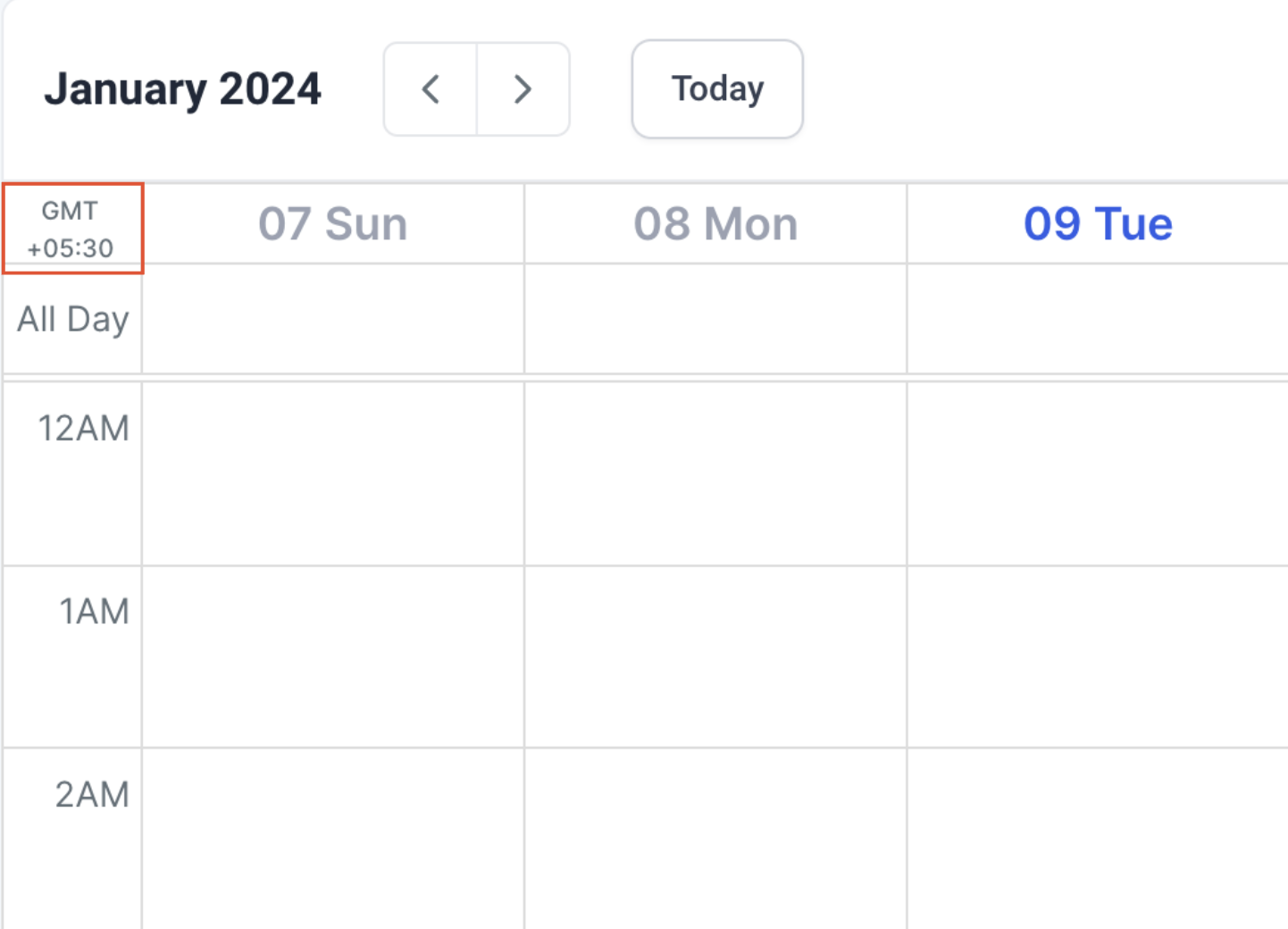
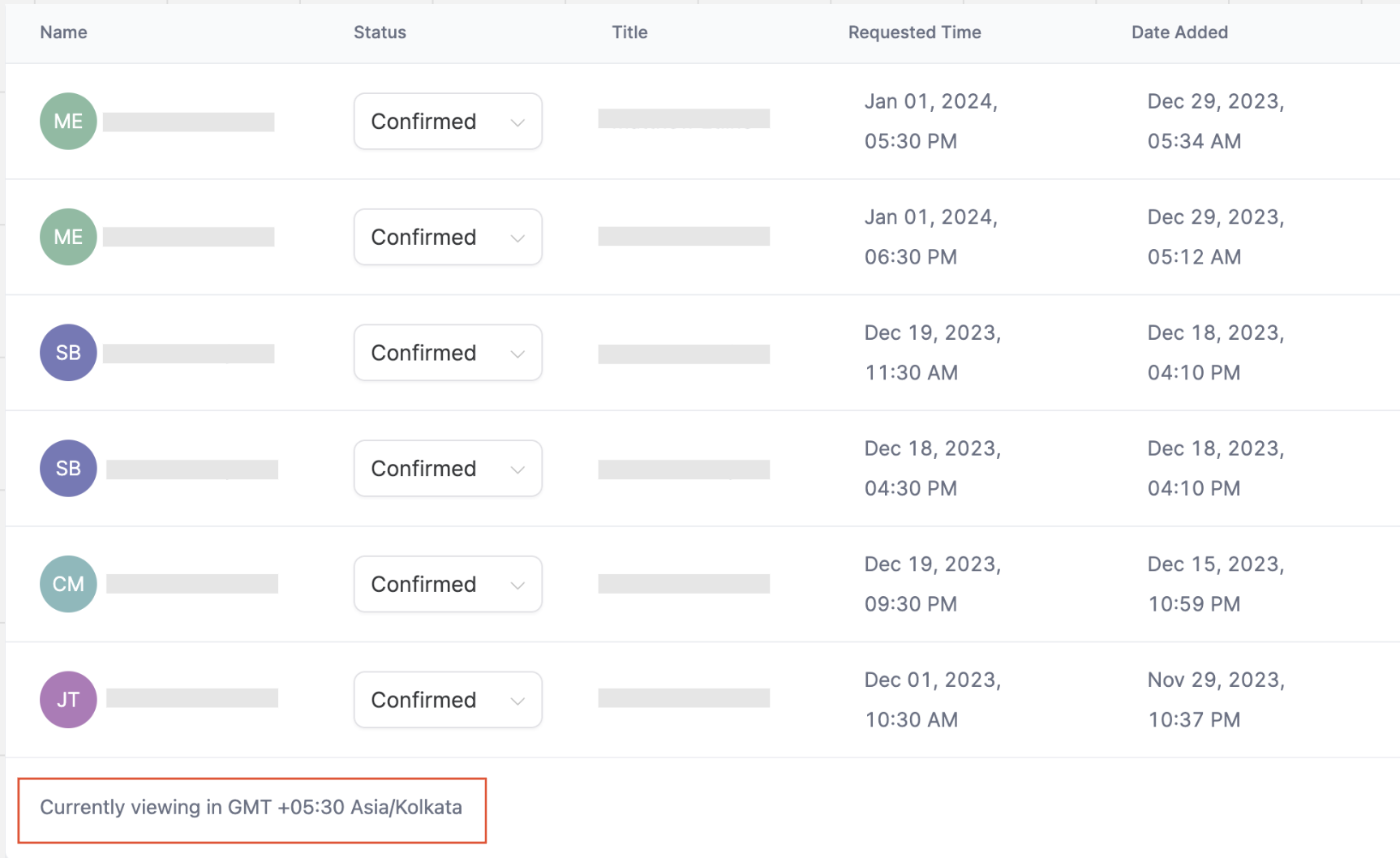
You find the option inside Calendar Settings under Preferences. The platform then marks the active timezone in the calendar view and at the bottom of the Appointment List, so you can verify which zone is currently applied.
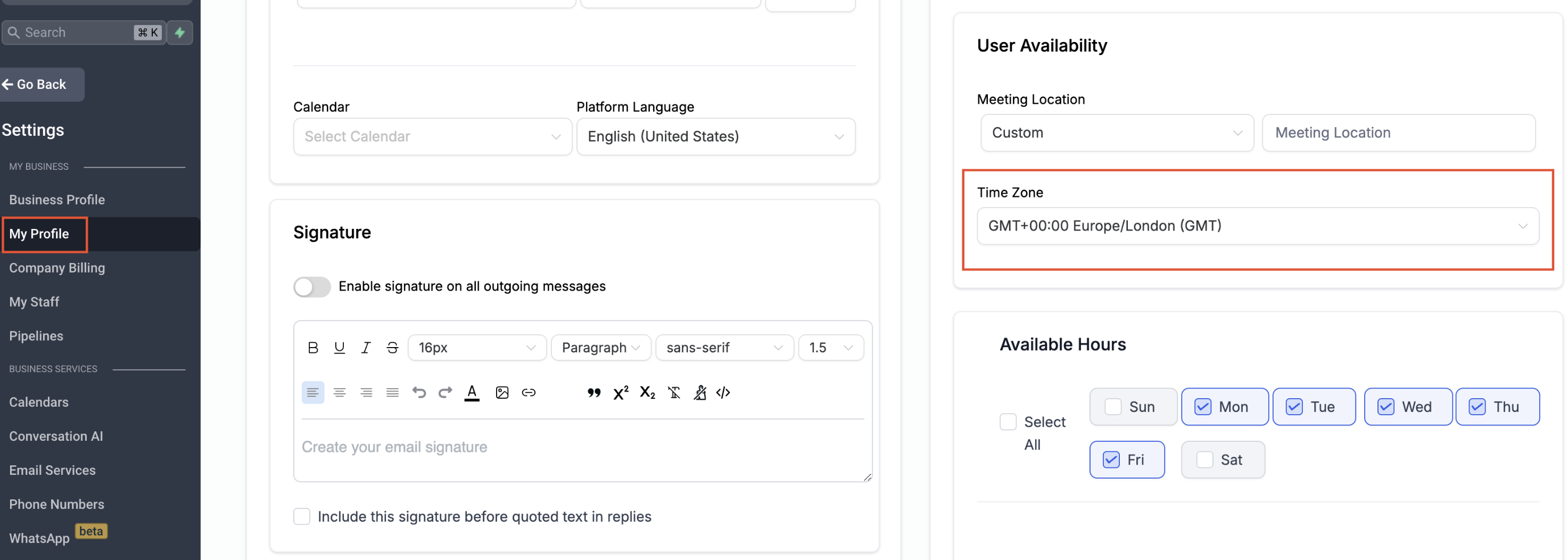
The setting does not touch any availability hours, meeting durations, booking URLs, or reminder logic. Those remain governed by the Business Timezone and the User Availability settings found under Settings > My Profile > User Availability.
03How businesses use view appointments in timezone
- Consulting firm. A consultant based in London opens Calendar Settings, selects GMT in View Appointments In, and saves. All meetings scheduled for New York clients now appear in GMT on the consultant’s screen, removing the need for manual conversion.
- Fitness studio chain. An instructor in Tokyo changes the setting to JST. When checking the studio’s daily class schedule, every class time displays in JST, while the studio’s business timezone stays in EST for booking links.
- Legal practice. A paralegal working remotely selects their local timezone in the preferences. The appointment list at the bottom of the page shows times in that zone, ensuring the paralegal reads the correct meeting times without affecting the firm’s client booking process.
04How to set up and use view appointments in timezone in HighLevel
Change viewing timezone
- Navigate to Calendar Settings.
- Open Preferences.
- Locate the View Appointments In option.
- Select your preferred timezone from the list.
- Click Save Preferences.
05What it looks like in HighLevel
06Settings that matter
- View Appointments In. Controls which timezone is used to display appointment times for the logged in user.
07Things to know before you rely on it
- The setting applies only to the individual user who changes it.
- It does not alter availability hours, booking links, or scheduling logic.
- Any timezone available in the platform can be selected.
- A previous Labs flag has been removed; the new setting replaces it.
08How it connects to the rest of HighLevel
- Customize how the calendar appears on your site. Calendar widget guide
- Set weekly and date specific availability for your team. Availability settings
- See how the in app calendar view consolidates scheduling. In app calendar view
Michael's take

Wondering if you really need a separate timezone just for looking at your calendar? You don’t have to change any availability or booking logic. Just pick the zone that makes sense for your screen. It’s a quick way to stop doing mental math when you’re juggling New York and London meetings.
If I were setting this up, I’d flip the preference to my local time while keeping the business timezone for the team’s schedule. That way each of us reads the same appointments without stepping on anyone’s booking rules.