
01Who this is for
- Service companies that dispatch technicians benefit because the page lets clients schedule visits without phone calls.
- Home repair businesses can display coverage areas and collect payments directly, reducing back office work.
- Mobile health providers gain a branded portal where patients book appointments and see confirmation right away.
02Online booking pages, explained
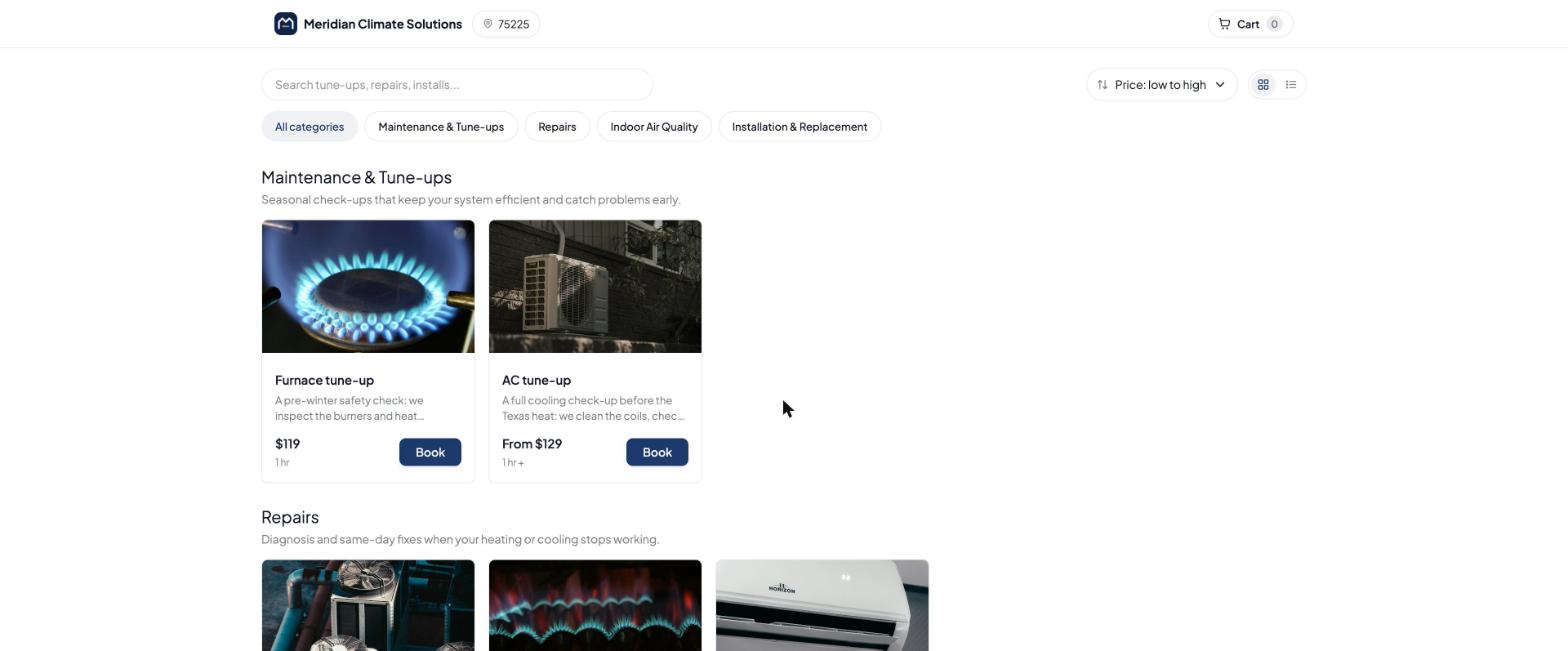
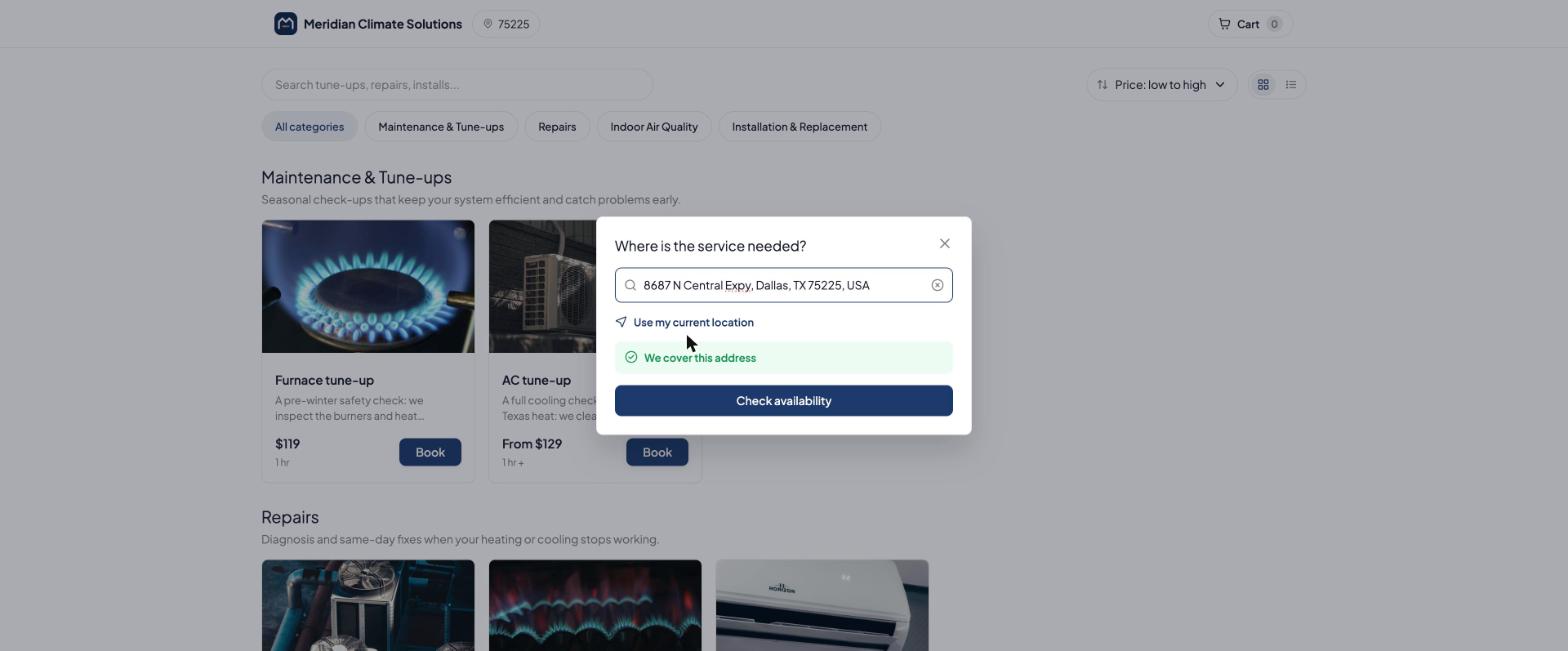
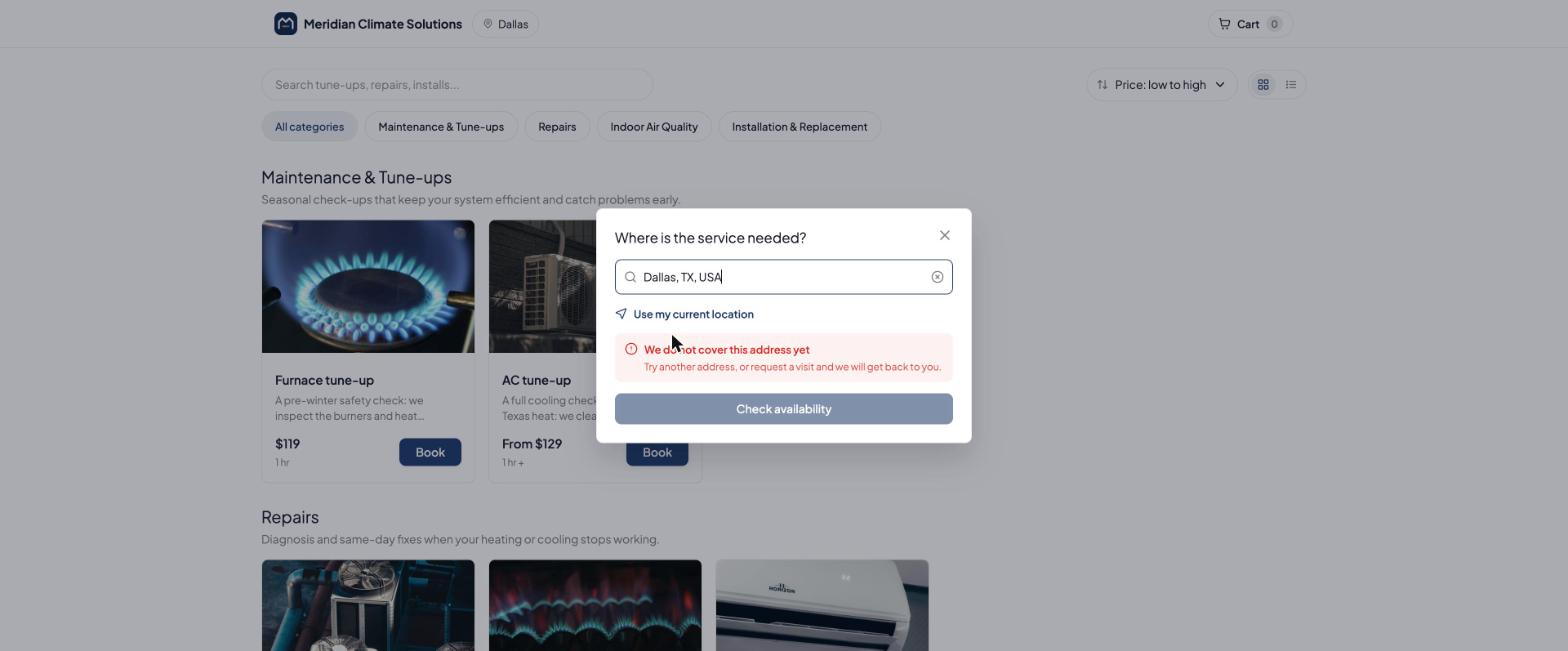
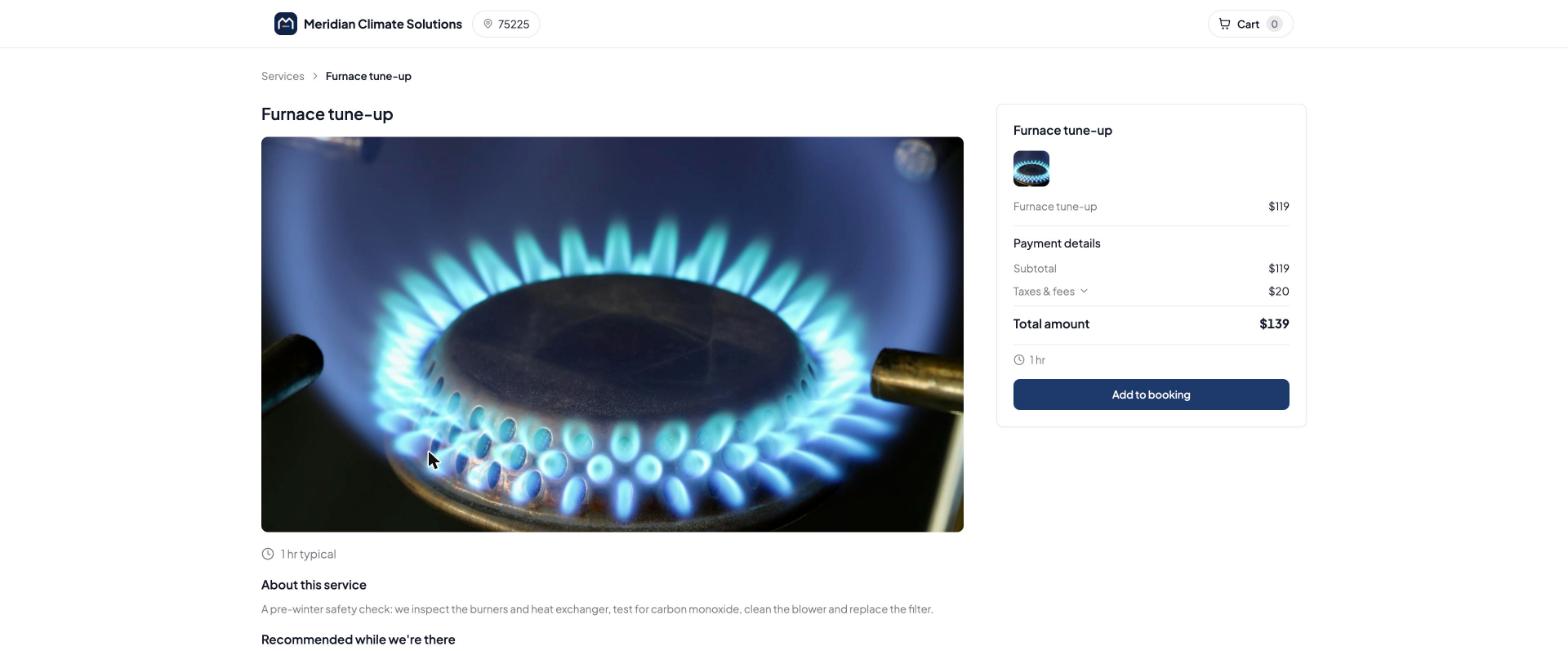
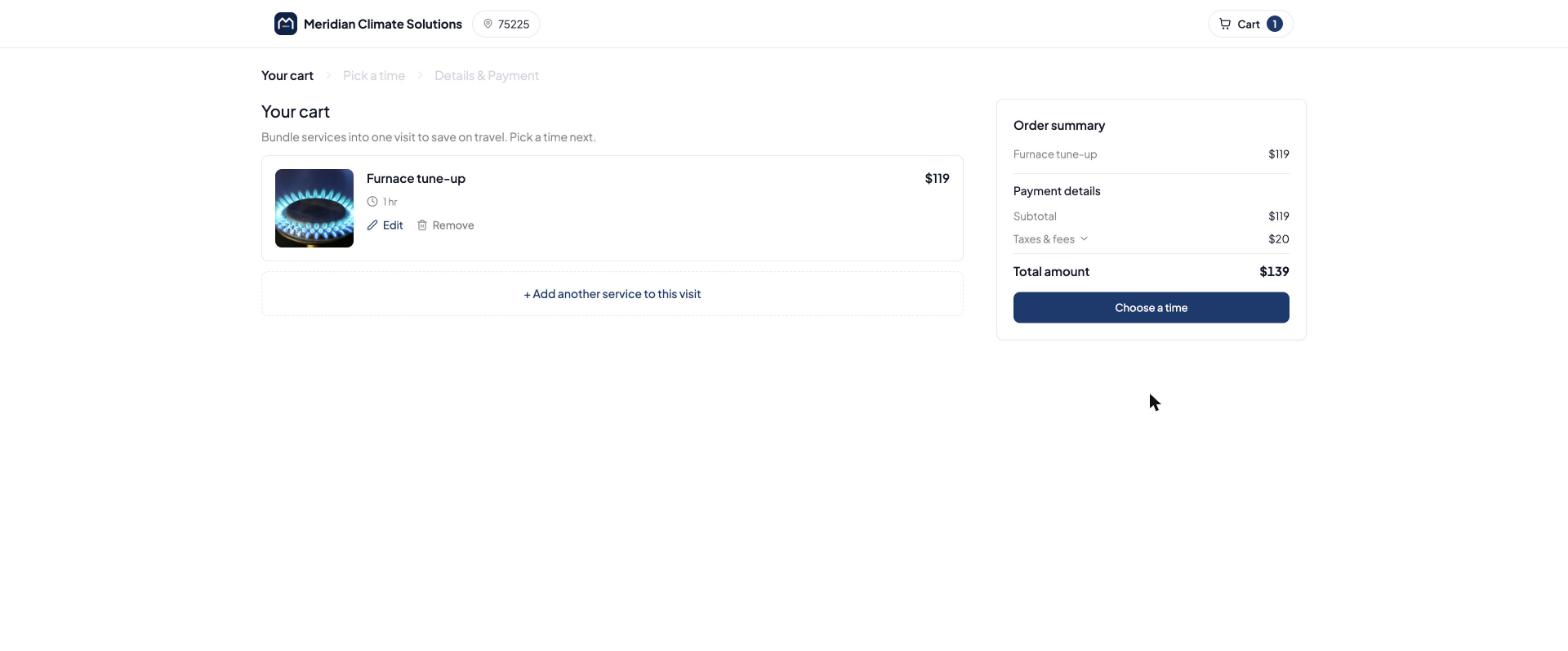
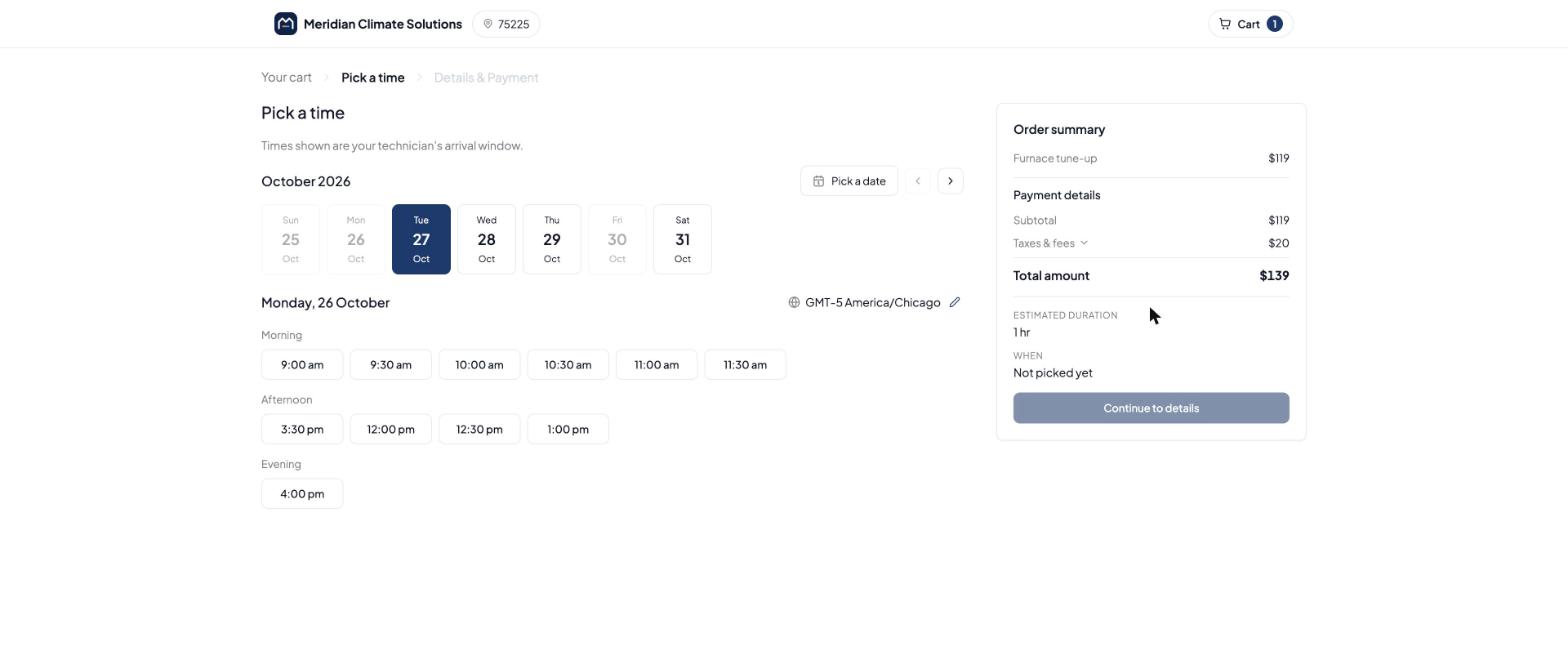
The online booking page presents a catalog of services, lets customers enter an address, and checks that address against defined service areas. If the address is covered, open slots based on staff schedules appear for selection.
The page is created from your Field Services configuration. Its appearance is edited in the Booking Page Editor, while booking behavior, instant booking versus request, payment options, and booking rules, is set in Field Services Settings under Online booking.
03How businesses use online booking page
- Plumbing company. The plumber adds all services and assigns staff in Field Services, then shares the whole page link on their website. Customers click the link, select a service, and book a time that matches the plumber’s schedule.
- HVAC maintenance business. The business creates a direct booking link for its emergency service in the Services list, copies the Share booking link, and places it in email signatures. Clients receiving the email can book that specific service with one click.
- Mobile pet grooming service. The groomer sets up service areas and payment options, then embeds the booking page URL on their Google Business Profile. Owners enter their address, see coverage, choose a slot, and pay online.
04Before you start
- Set up services; only services with at least one staff member appear on the page.
- Configure staff members, their working hours and assigned service areas.
- Define service areas so address checks can be performed.
- Establish booking rules and payment preferences in Online booking settings.
- Customize branding, logo, colors and wording in the Booking Page Editor.
05How to set up and use online booking page in HighLevel
Share your booking page
- Open the Booking Page Editor and copy the Booking page link.
- Click the arrow next to the copied link to open sharing options.
- Navigate to Services & staff > Services and use Share booking link on a service to obtain a direct service link.
06What it looks like in HighLevel
07Settings that matter
- Booking Page Editor in Field Services. Controls the visual branding, logo, colors and text shown to customers at each step of the booking flow.
- Field Services Settings > Online booking > Booking rules. Determines whether a customer’s submission results in an instant booking or a booking request, and defines minimum notice and booking windows.
- Field Services Settings > Online booking > Payments. Sets the payment method available on the page: online payment, pay in person, or card on file only.
08Things to know before you rely on it
- Field Services is in a private beta; features and screens may change as the product evolves.
- Only services that have at least one staff member assigned can be booked online.
- Changing the booking page link invalidates any previously shared links.
09If something goes wrong
- Customers see no available times.. Verify that at least one staff member is assigned to the service, that the staff member covers the customer’s address, and that working hours are set for the displayed days. Also check minimum notice and booking window in Booking rules.
- Customer address is rejected.. Confirm the address falls within a defined service area and that the Bookings outside service areas policy is not set to Block booking.
10How it connects to the rest of HighLevel
- Overview of Field Services and how to enable the beta Field Services beta
- Set up services and add ons for booking pages Services and add ons
- Configure service areas and policies for address checks Service areas
- Adjust booking rules, window and instant booking settings Booking rules
- Start a 30 day HighLevel trial to explore Field Services 30 day trial
Michael's take

Michael ReimerFounder of CRM Pros, HighLevel Commander and Certified Admin
In my experience, setting up the booking page works best when each service has at least one staff member assigned and the service areas are clearly defined.
Get More InformationOpens on HighLevelPublished November 3, 2026 · Updated November 17, 2026