
01Who this is for
- Service contractors who need clients to receive confirmations without manual follow up.
- Dispatch teams that must stay aware of schedule changes and staff movements.
- Customer support managers who want automated reminders to reduce repetitive outreach.
02Field Services notifications, explained
Notifications in Field Services send automated messages by email, SMS, or WhatsApp at predefined events. Each alert can be directed to a contact, the assigned staff member, or an admin/dispatcher, keeping all parties informed without manual effort.
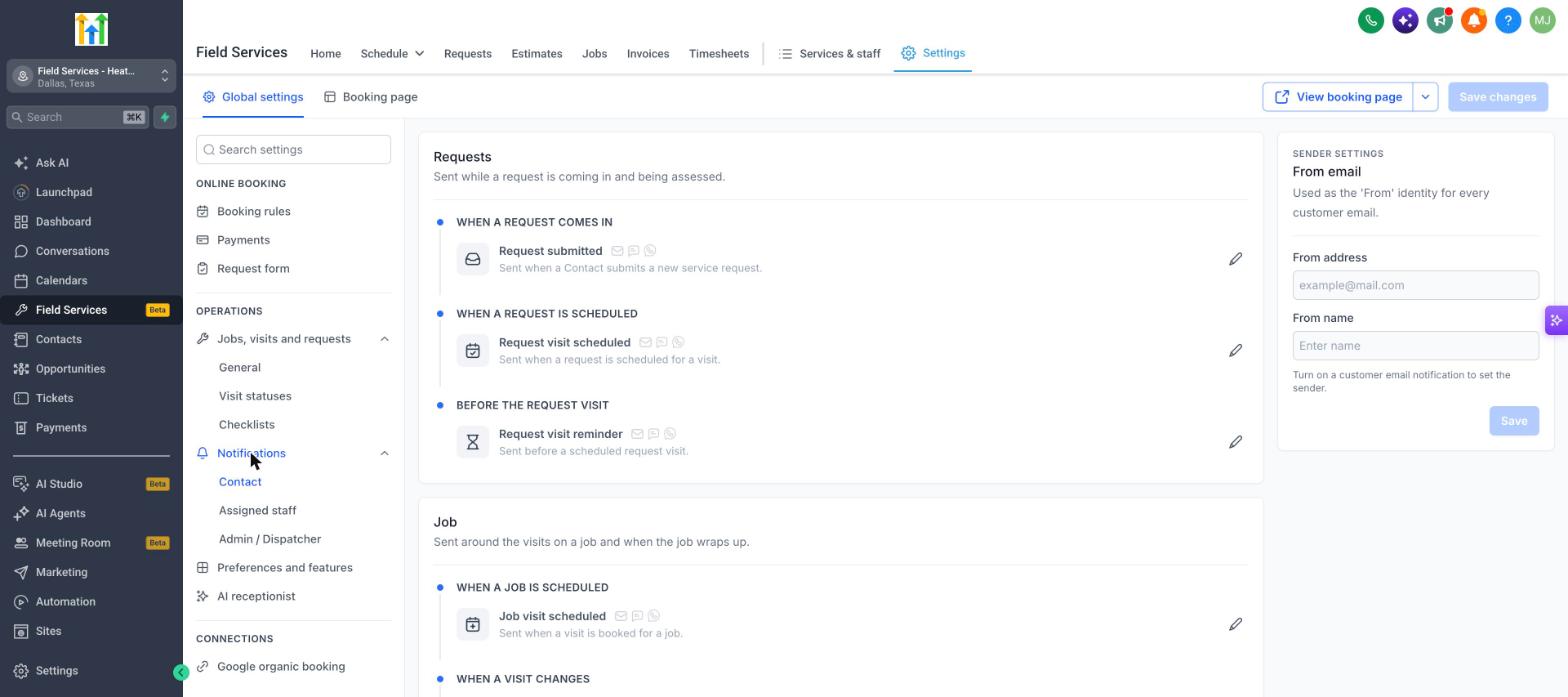
The notification settings reside under Field Services > Field Services Settings > Global settings, then under Operations > Notifications. Choose the audience tab and select the specific event to configure.
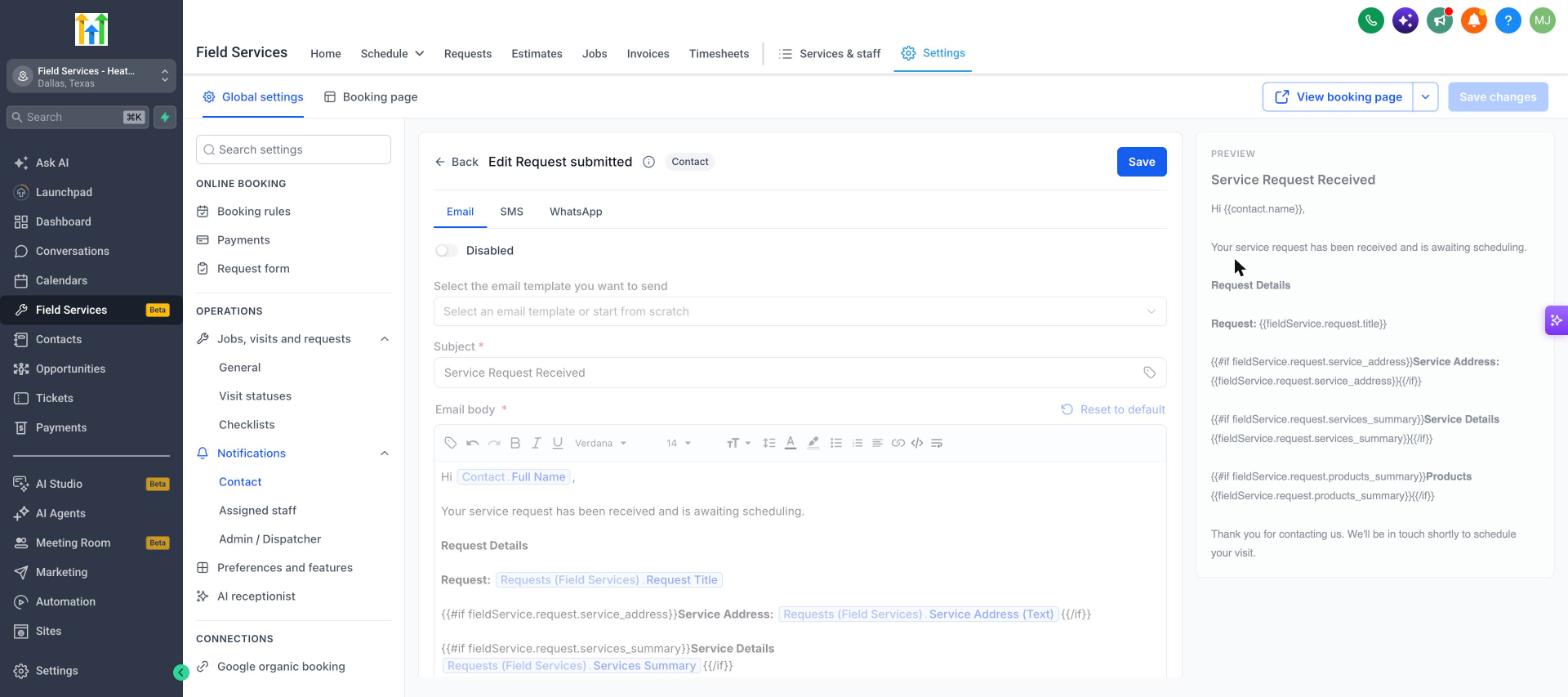
When editing a notification you can enable a channel, pick or build an email template, adjust the subject and body, preview the result, and save. For customer emails you can also set the From address and name in the Sender settings panel.
03How businesses use Field Services notifications
- Home cleaning company. Enable SMS alerts for the "Request visit scheduled" event and edit the message to include the service address and appointment time. The customer receives a confirmation automatically, and a reminder SMS is sent before the visit.
- HVAC repair business. Turn on email notifications for assigned staff, select a custom email template, and customize the subject line with the job title. Use the Sender settings to set the company name as the From name so technicians receive clear job details.
- Landscaping service. Activate WhatsApp messages for the "Staff en route" event for dispatchers. Edit the body to show the arrival window and staff name, ensuring the dispatcher knows when the crew is heading to the job.
04Before you start
- Account must be enrolled in the Field Services private beta.
05How to set up and use Field Services notifications in HighLevel
Turn on and edit a notification
- Click the pencil icon next to the notification you want to modify.
- Select the channel tab, Email, SMS, or WhatsApp.
- Switch the channel toggle from Disabled to Enabled.
- For Email, choose an existing template or start from scratch, then edit the Subject and Email body; use Reset to default if needed.
- Review the preview on the right side of the editor.
- Click Save to apply the changes.
06What it looks like in HighLevel
07Settings that matter
- Sender settings. Controls the From address and From name used in customer email notifications; appears once a customer email channel is enabled and must be saved.
08Things to know before you rely on it
- Feature is in private beta; only selected accounts have access and screens may change.
- A customer will not receive two messages for a scheduled request even if both Request visit scheduled and Job visit scheduled notifications are enabled; each triggers at a different point.
- Workflow automation support for Field Services events is still being expanded during the beta.
09How it connects to the rest of HighLevel
- Enable the Field Services beta and set up mobile access Enable beta
- Add staff members and assign them to services in Field Services Staff setup
- Configure service areas and policies for field operations Service areas
Michael's take

Don’t forget to turn on the correct channel for each audience, or you’ll leave people in the dark.