
01Who this is for
- Consultants who need to offer office, phone, or virtual meeting options to their clients.
- Real estate agents wanting buyers to select between property tours, virtual calls, or other locations.
- Healthcare providers scheduling hybrid appointments and letting patients pick a clinic, telehealth, or alternate site.
02Multiple meeting location selector, explained
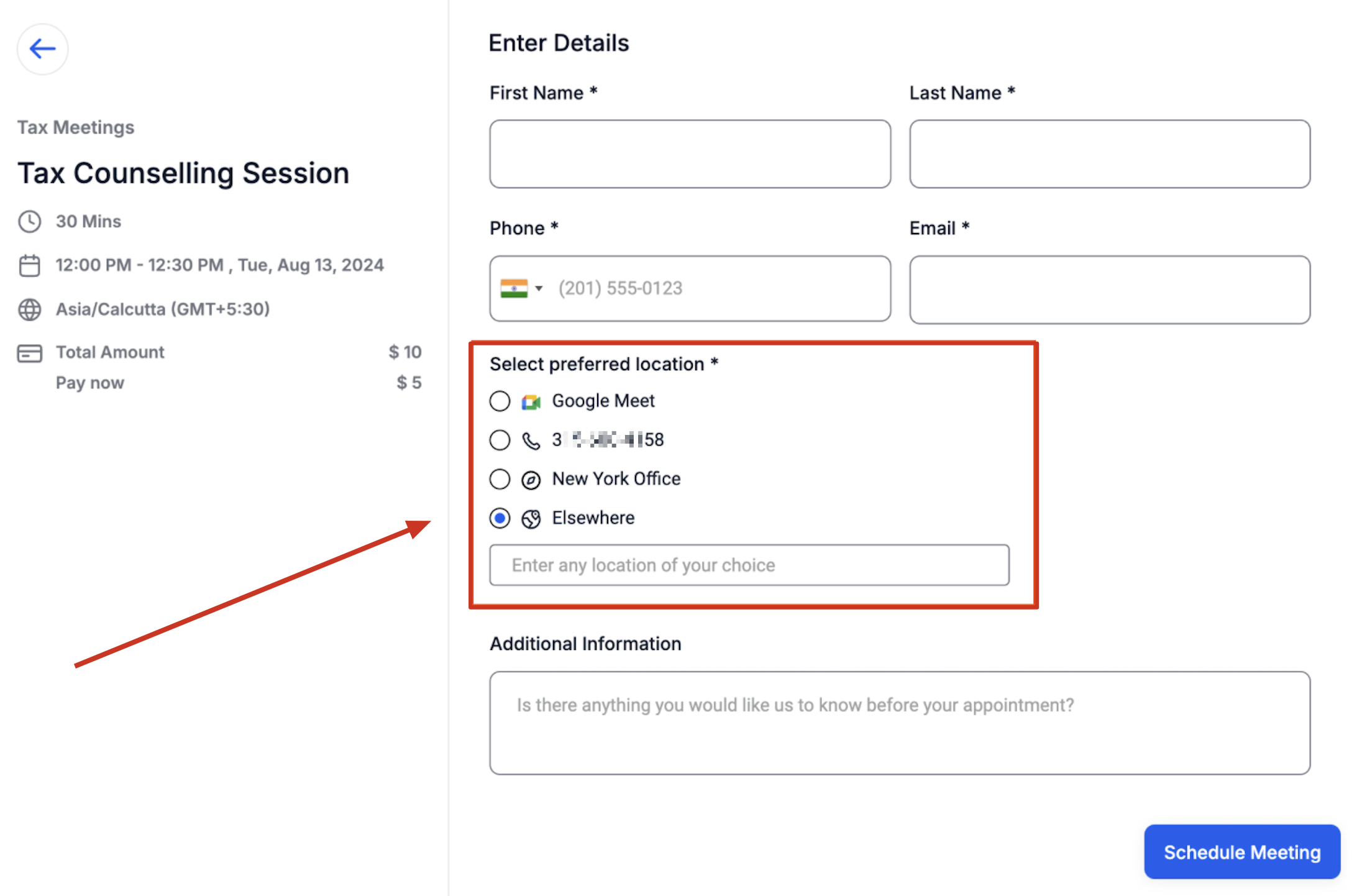
This feature adds a list of meeting locations to a calendar’s configuration. When the calendar is linked to a Neo booking widget, every location appears as a selectable choice for the person booking the appointment. The selected option becomes the official meeting place and is shown on confirmations, emails, workflows and the in app appointment view.
You can use predefined types such as Phone or Address, or define Custom entries with optional display labels. For Round Robin and Service calendars, Zoom and Google Meet links are generated when the respective integrations are active. The location selector works only on Event Calendar and on Round Robin or Service calendars that have a single team member assigned.
03How businesses use multiple meeting location selector
- Consulting firm. The firm opens its calendar settings, adds a Phone entry, an Office Address and a Custom label like "Client Site". When a client books, they pick the location that fits their schedule, and the choice appears in the confirmation email.
- Real estate agency. Agents create a Round Robin calendar, add Zoom and a Custom "Property Address" entry, then enable the Zoom integration. Prospective buyers select either a virtual tour link or the address of a property they wish to visit.
- Healthcare clinic. The clinic adds a Phone, its main office address and a Custom "Telehealth Link" label. Patients choose between an in person visit or a telehealth session, and the chosen location is recorded in the appointment details.
04Before you start
- Zoom must be integrated in My Profile > Calendar Settings > Video Conferencing to use the Zoom location option.
- Google must be integrated and Google Calendar selected as the linked calendar in My Profile > Calendar Settings to use the Google Meet location option.
05How to set up and use multiple meeting location selector in HighLevel
Set multiple meeting locations
- Open the calendar settings and pick the calendar you want to edit.
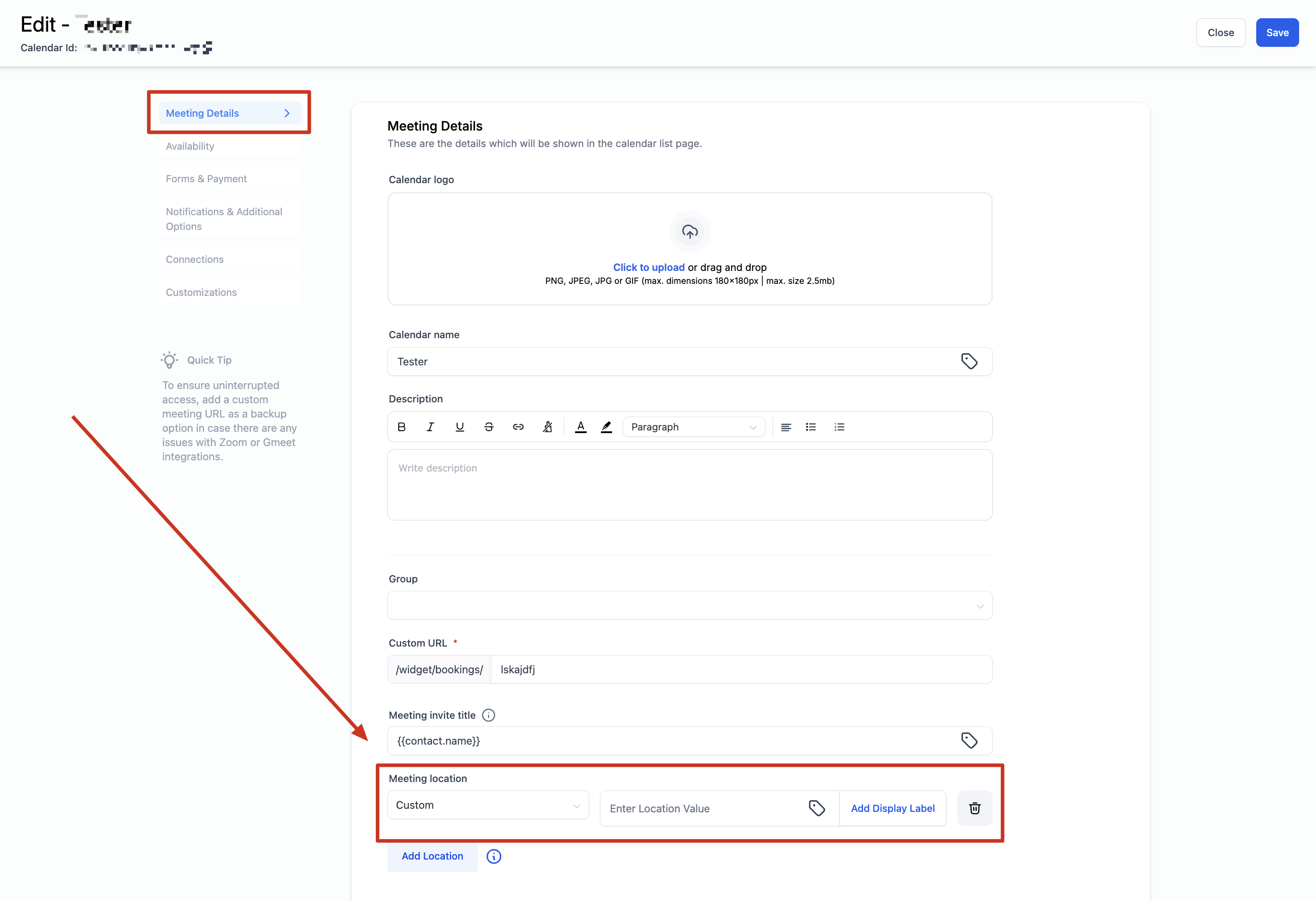
- If the calendar is an Event type, scroll down to the meeting location section.
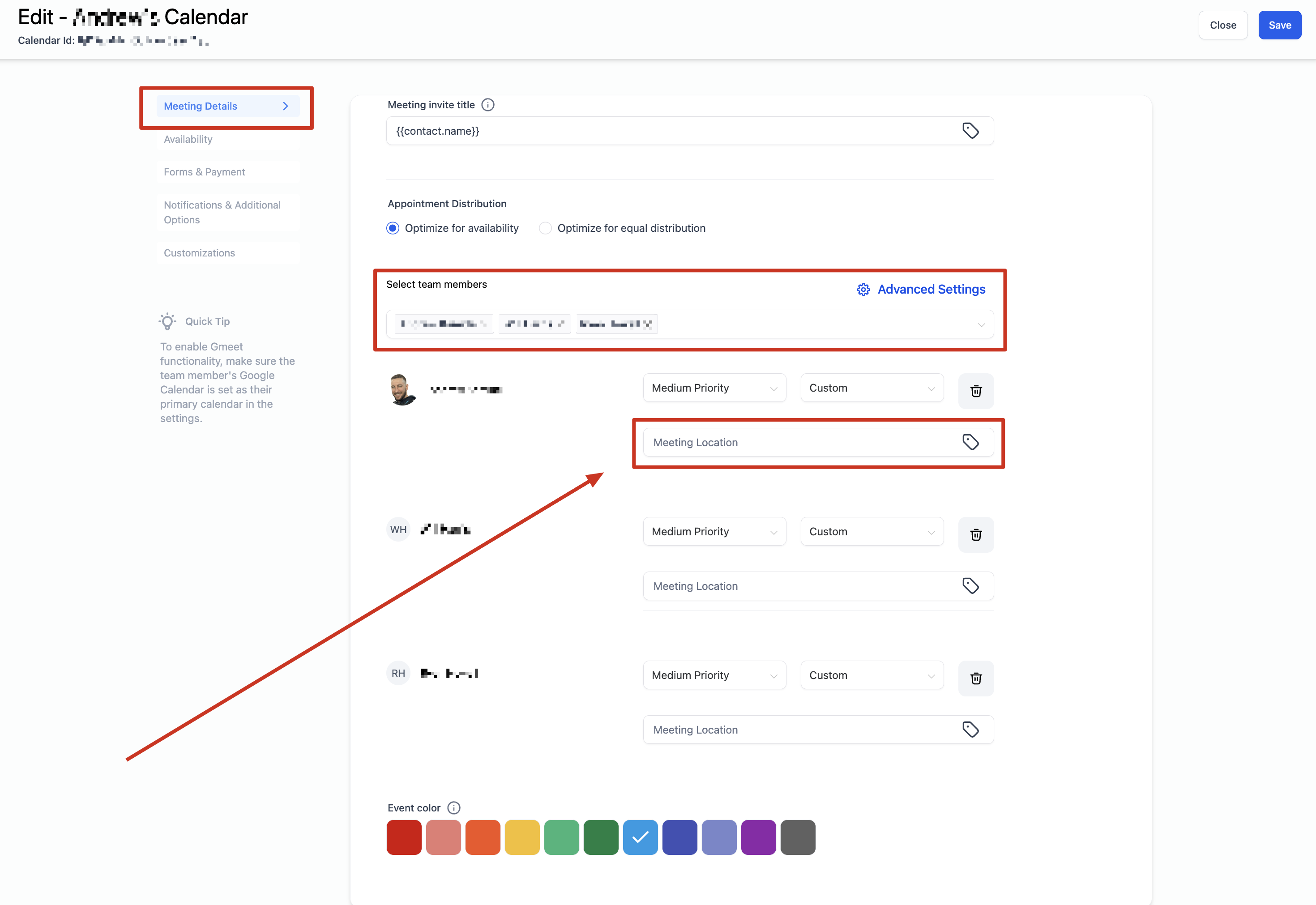
- If it is a Round Robin or Service calendar, scroll down to the team members section.
- Select the +Add Location button.
- Choose the type of location and fill in the required details.
- When you pick Custom, optionally enter a display label that will be shown to the booker before the appointment is confirmed.
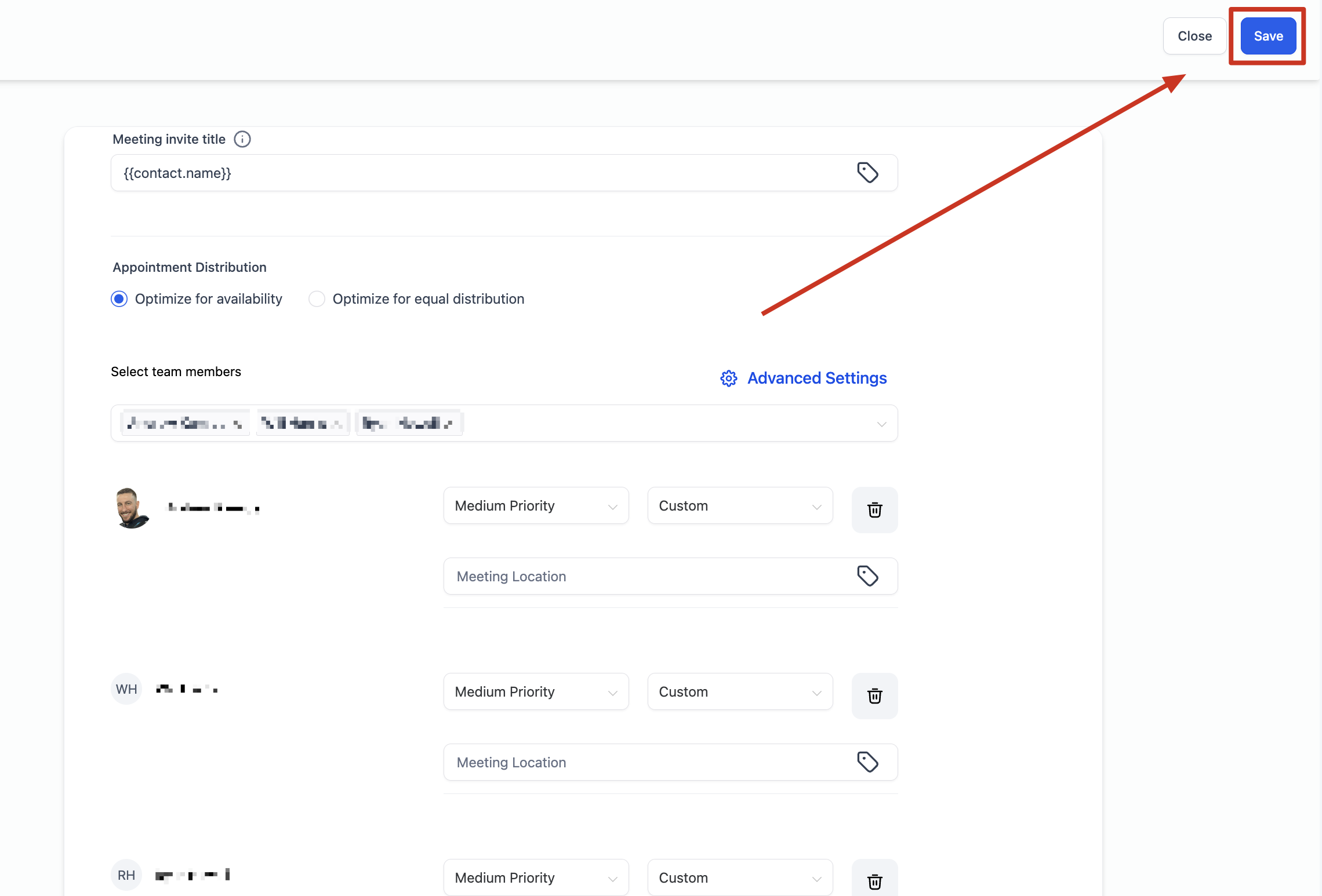
- After adding all desired locations, press Save.
06What it looks like in HighLevel
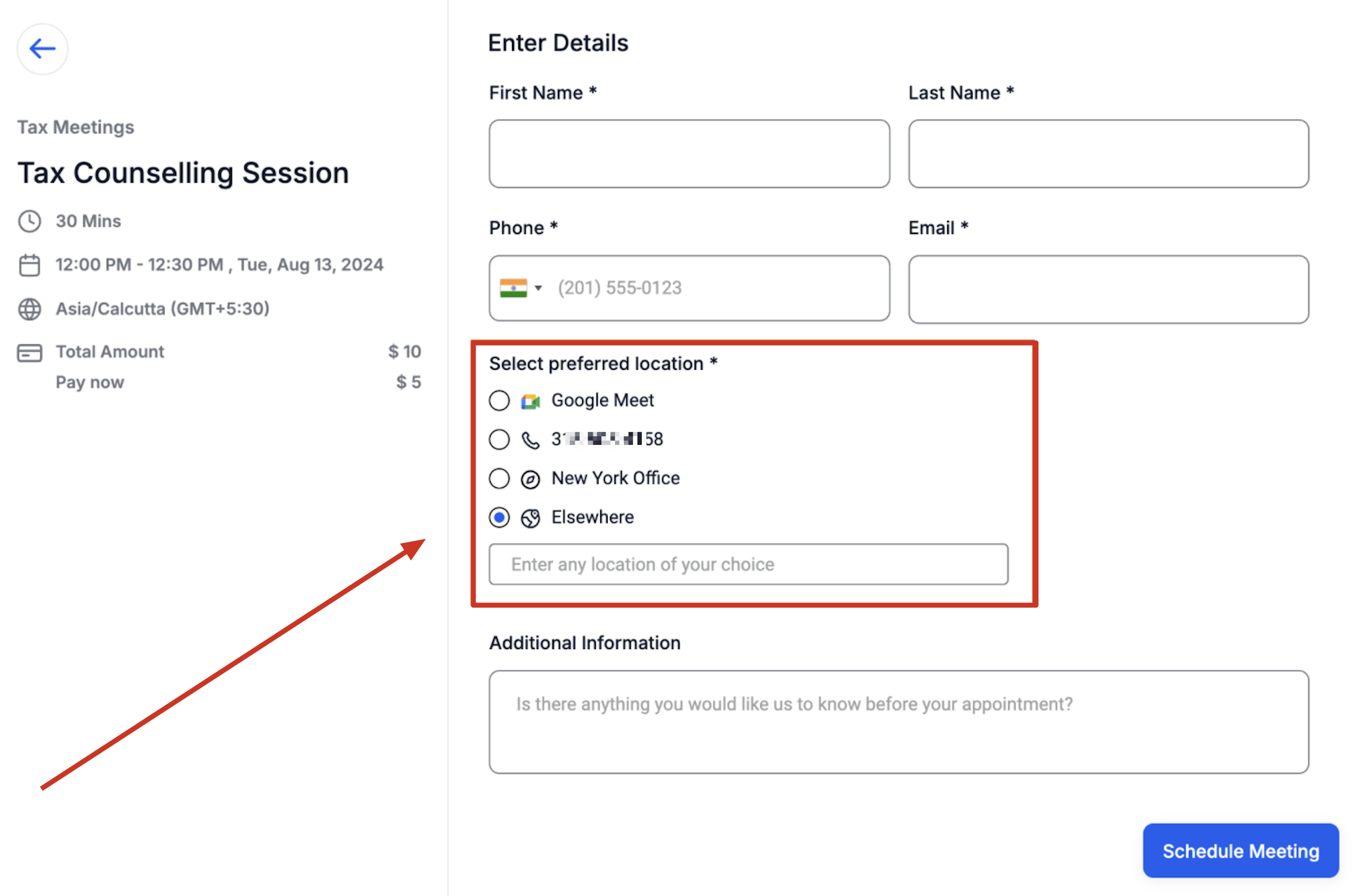
07Settings that matter
- Phone. Lets you set a phone number that appears as a meeting location; the default is the subaccount’s number but you can change it.
- Address. Lets you set an address for the meeting; the default is the subaccount’s business address but it can be edited.
- Custom. Allows any text value, such as a static Zoom link or a specific message, with an optional display label that hides the actual value until after booking.
- Zoom. Generates a unique Zoom meeting link for each appointment when Zoom is integrated.
- Google Meet. Generates a unique Google Meet link for each appointment when Google is integrated and Google Calendar is linked.
- Ask the booker. Prompts the client to type their preferred meeting location; if multiple options exist, the widget shows an Elsewhere label.
08Things to know before you rely on it
- Only Event Calendar and Round Robin & Service calendars with a single team member can have multiple locations.
- The feature works solely with the Neo booking widget.
- Event Calendar does not support dynamic Zoom or Google Meet link generation.
09How it connects to the rest of HighLevel
- Customize how the meeting locations appear in the booking widget. Widget customization
- Define the hours during which each location is available for booking. Set availability
- Embed the calendar with its location selector into your website using HTML code. Embed calendar
Michael's take

Adding a few location choices feels like a small convenience that can become a real shift for businesses that meet clients in multiple offices or online rooms.
I’d start by adding the office addresses as custom locations with friendly labels, then test a few bookings to see the labels appear correctly on confirmations.