
01Who this is for
- Startup Founders with a growing list of field services benefit by avoiding manual entry of each service.
- Operations managers in companies that already have a services catalog can replicate it right away in Field Services.
02Services import, explained
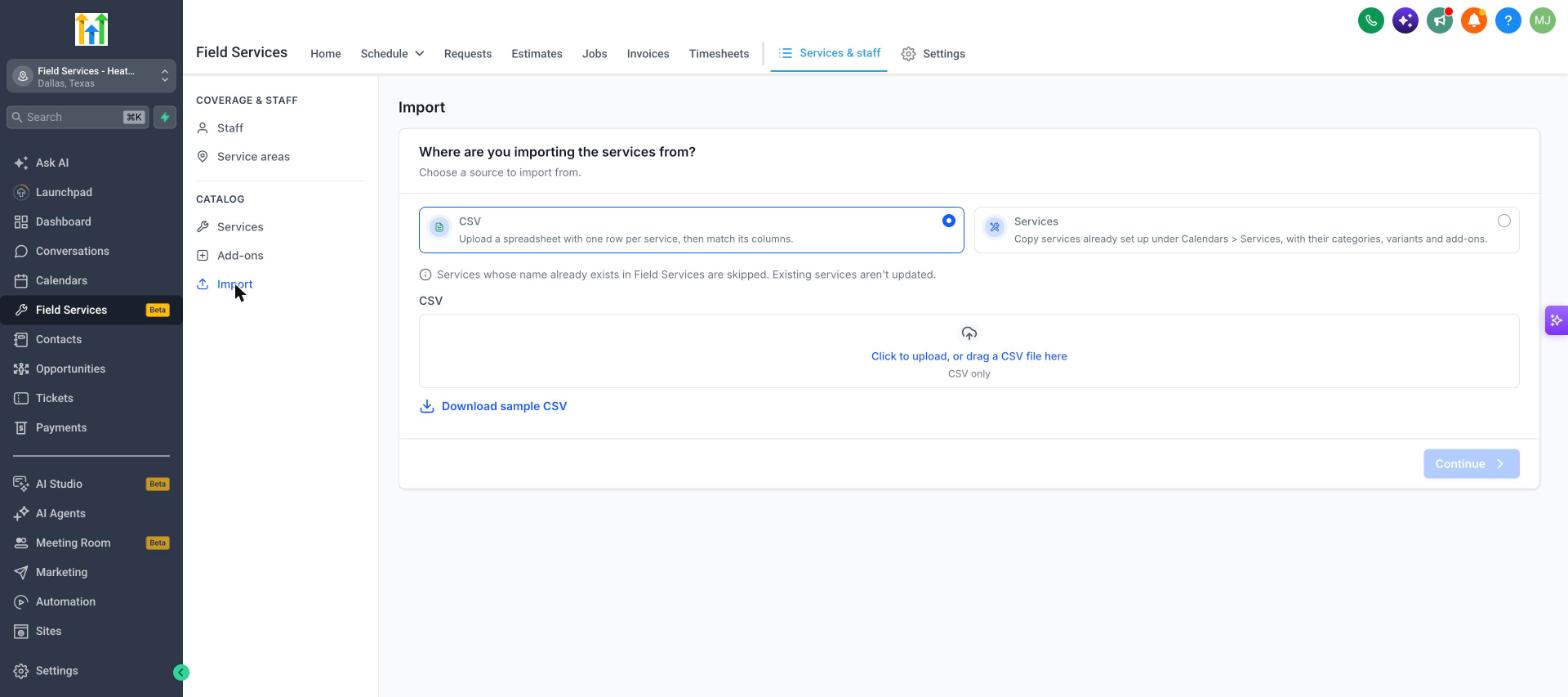
Importing services adds new entries to the Field Services catalog. You can choose a CSV file where each row represents a service, then match the columns to the platform’s fields. Alternatively, you can copy services that already exist under Calendars > Services, including their categories, variants and add ons.
The import process runs in the Field Services > Services & staff area under the Import button. After you confirm, the system creates the services; any service whose name already exists is ignored, and no existing records are changed. Import history records each run, showing status and statistics.
Once the import finishes, you should open Services and Add ons in Field Services to verify details, assign staff to the new services, and run a test booking to confirm everything works.
03How businesses use services import
- Home cleaning company. The owner prepares a CSV file with each cleaning package, uploads it through the Import page, and maps the columns. After the import, they check pricing and assign cleaning crews to the new services before testing a client booking.
- HVAC repair business. The manager copies the existing service list that was built under Calendars > Services. The copy includes service categories and add ons such as emergency call out fees, after which staff are linked to the imported services.
- Mobile pet grooming franchise. Each franchise uses the CSV template to upload location specific grooming options. They then verify each service’s duration, set the groomers' availability, and run a booking on the online page to ensure the workflow works.
04Before you start
- Access to the Field Services private beta (available to selected accounts).
- An existing service catalog in Calendars > Services if you plan to copy services.
- A CSV file formatted according to the downloadable sample if you plan to import from CSV.
05How to set up and use services import in HighLevel
Import services from a CSV file
- Navigate to Field Services > Services & staff.
- Click the Import button under the Catalog section.
- Select New import.
- Choose CSV as the source.
- Download the sample CSV, fill it with one row per service, and save it.
- Upload the completed CSV file by clicking Click to upload or dragging the file.
- Press Continue and map the file columns to the Field Services fields.
- Review the mapping details and confirm to start the import.
Copy existing services into Field Services
- Navigate to Field Services > Services & staff.
- Click the Import button under the Catalog section.
- Select New import.
- Choose Services as the source.
- Follow the prompts, select the services to copy, and finalize the import.
06What it looks like in HighLevel
07Things to know before you rely on it
- Field Services is in a private beta; features and screens may change.
- Services with a name that already exists in Field Services are skipped; existing services are not updated.
08If something goes wrong
- Some services are missing after an import.. Rename the duplicate service or remove the existing one in Field Services, then run the import again.
09How it connects to the rest of HighLevel
- Add and assign staff to services Field services staff
- Set up services and add ons for Field Services Services and add ons
- Start using Field Services private beta Private beta guide
Michael's take

You’ve built a service catalog elsewhere and now need it in Field Services so bookings can start flowing. The biggest hassle is making sure every service shows up with the right price, duration and category before you hand it off to staff.
The first setting I would get right is the CSV column mapping when I import. Matching the right fields at the start saves a lot of clean up later.