
01Who this is for
- Service based businesses such as salons can manage client bookings while on the go.
- Field technicians benefit from quick access to appointment locations without switching apps.
02Service calendars, explained
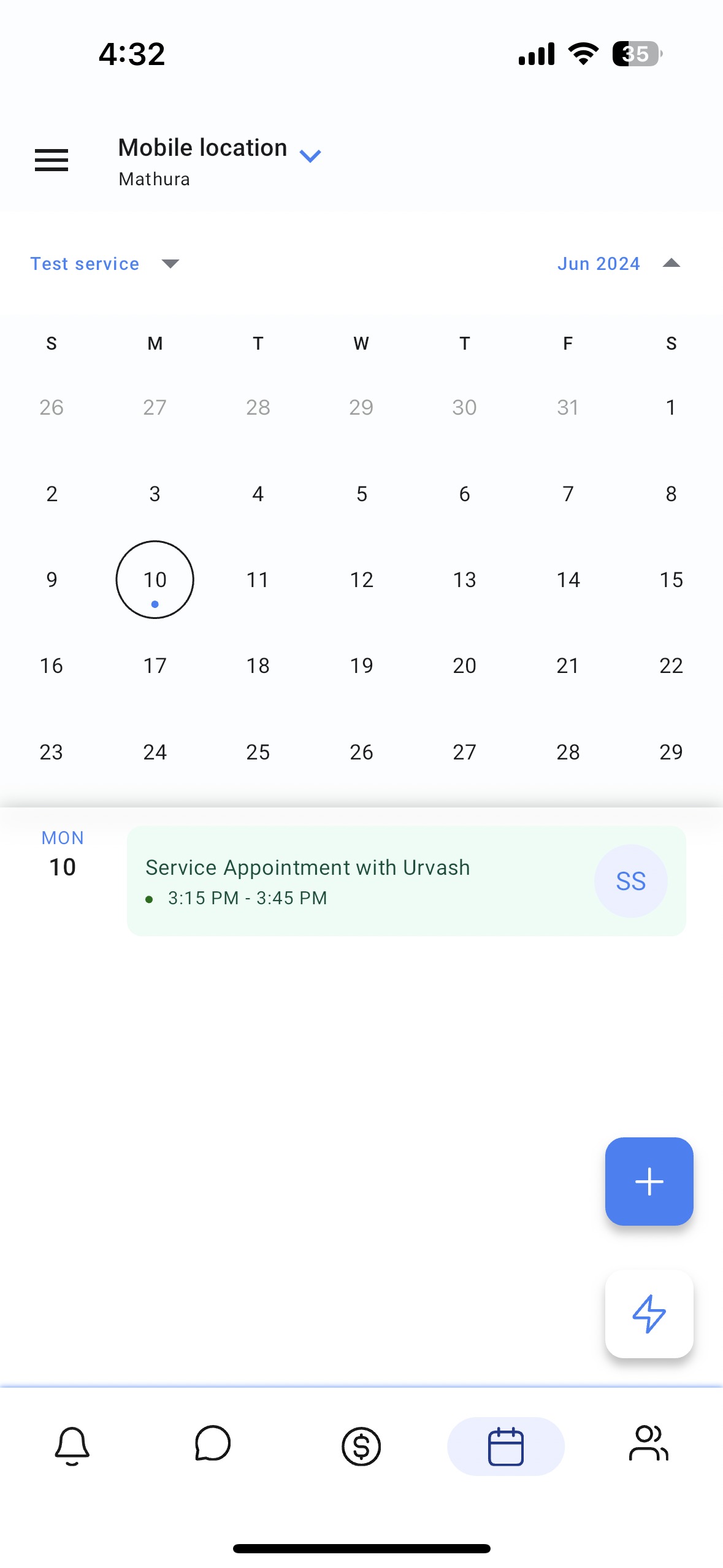
The feature adds a Service Calendars tab to the mobile app’s calendars section. It shows every service appointment on its scheduled date, letting users scroll through their daily agenda. Users can also add new appointments without opening a desktop browser.
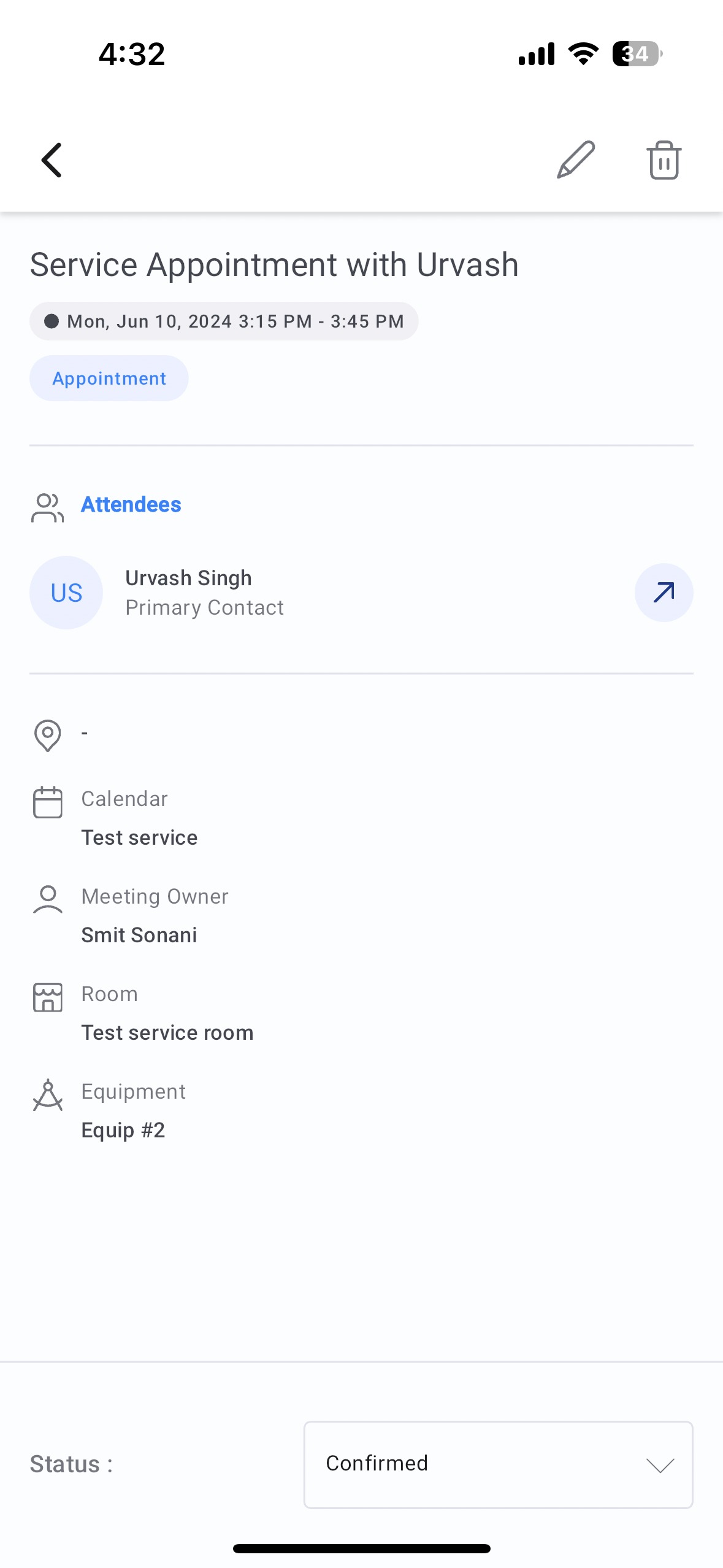
When creating an appointment, the app pulls a service calendar that was set up on the web platform. After selecting a room, the system automatically links any needed equipment that is available. All details are saved in the platform, and location actions let users copy addresses or join virtual meetings directly from the mobile view.
These capabilities are available on iOS and Android versions 3.74 or later for HighLevel, LeadConnector, and white label apps (the white label update must be requested).
03How businesses use service calendars
- Dental practice. A dentist can open the mobile app, view upcoming patient appointments in the Service Calendars view, and verify the assigned treatment room. When a new patient calls, the staff taps the "+" button, selects the practice’s service calendar, chooses an operatory, and the app automatically assigns the required dental equipment before saving the slot.
- Home cleaning service. A cleaning crew member checks the calendar on the phone while traveling to a job site, copies the address via the location action, and navigates directly to the location. If a new cleaning request arrives, the dispatcher creates a service appointment by selecting the appropriate service calendar and room, letting the app auto assign any needed cleaning supplies.
- Virtual coaching business. A coach opens the mobile app, sees all virtual session times in the Service Calendars view, and uses the "Join Meeting" quick action to enter the video call. To add a new coaching slot, the coach taps "+", chooses the service calendar for coaching, selects a virtual meeting room, fills in client details, and saves the appointment.
04The numbers and rules that matter
- HighLevel (iOS, Android). V3.74 or later.
- LeadConnector (iOS, Android). V3.74 or later.
- WhiteLabel (iOS, Android). V3.74 or later (update needs to be requested).
05Before you start
- The mobile app must be version 3.74 or later on iOS or Android.
- A service calendar must already exist on the web platform.
- Rooms need to be defined in the account for selection during scheduling.
- White label users must request the update to access the feature.
06How to set up and use service calendars in HighLevel
View service appointments in the mobile app
- Open the mobile app and select the subaccount you want to work with.
- Tap the calendars section in the navigation bar.
- Observe all service appointments listed under their respective dates.
Create a new service appointment from the mobile app
- Tap the "+" button in the calendars view.
- Tap the "Schedule appointment" option.
- From the calendar dropdown, pick the service calendar you created on the web.
- Select the room that will host the service.
- Allow the app to automatically assign equipment based on current availability.
- Enter all other required appointment details.
- Tap save to finalize the new service appointment.
07What it looks like in HighLevel
08Things to know before you rely on it
- The feature works only on iOS and Android app versions 3.74 or later.
- White label mobile apps require a request to receive the update.
- Location quick actions such as copying the address or joining a meeting are available only for Service v2 appointments.
- Equipment is assigned automatically only when it is available at the chosen time.
09How it connects to the rest of HighLevel
- How to set up service calendars on the web Service calendar setup guide
- Manage weekly and date specific availability for calendars Calendar availability options
- Customize the calendar widget for booking pages Calendar widget customization
Michael's take

Service calendars are a handy addition for teams that need on the go access to appointments.
If you never schedule service work from a phone, you can skip this feature.