
01Who this is for
- Customer support managers can see which agent answered each inbound call, ensuring accurate follow up assignment.
- Sales team leaders can verify which salesperson actually spoke with a prospect, improving call accountability.
- Operations supervisors can track device usage for incoming calls to manage resource allocation.
02Answered by fields, explained
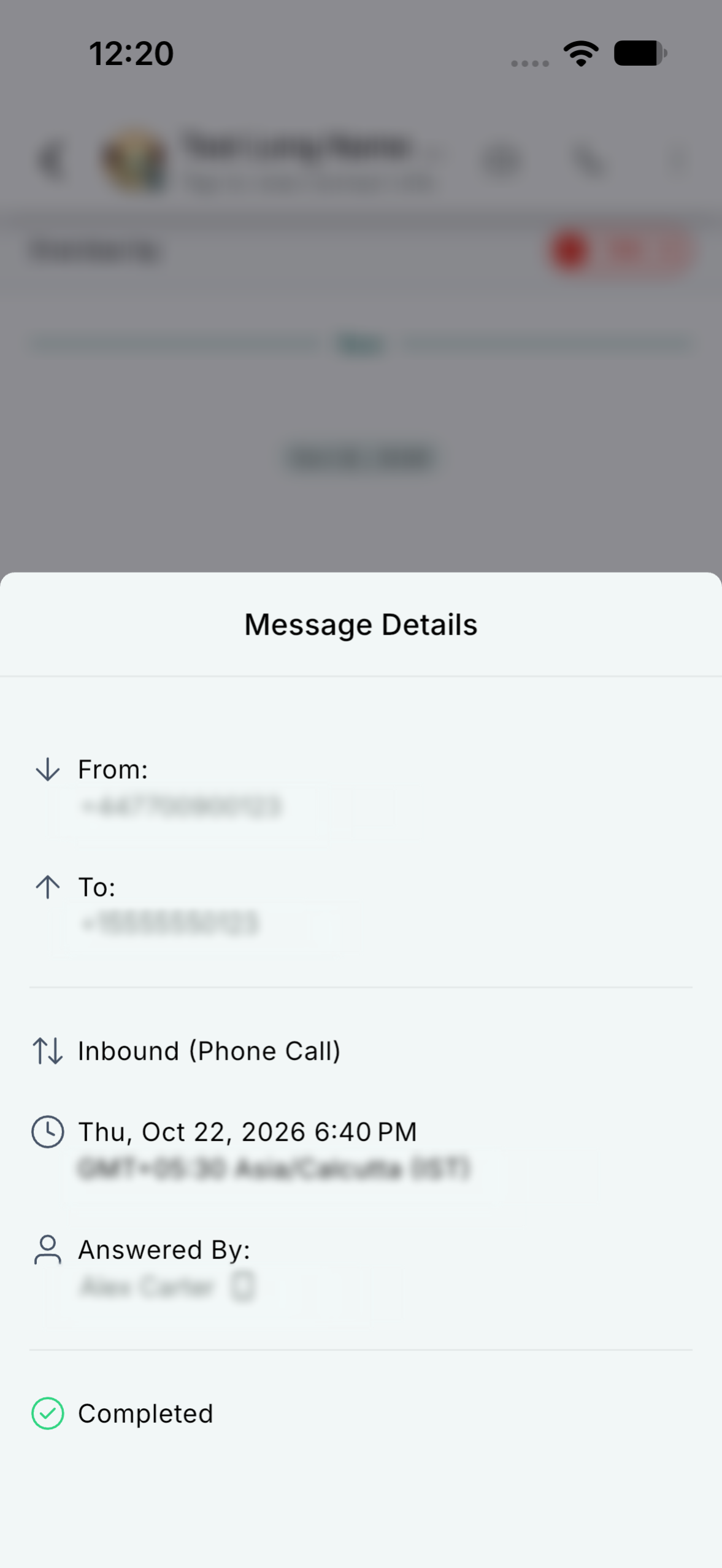
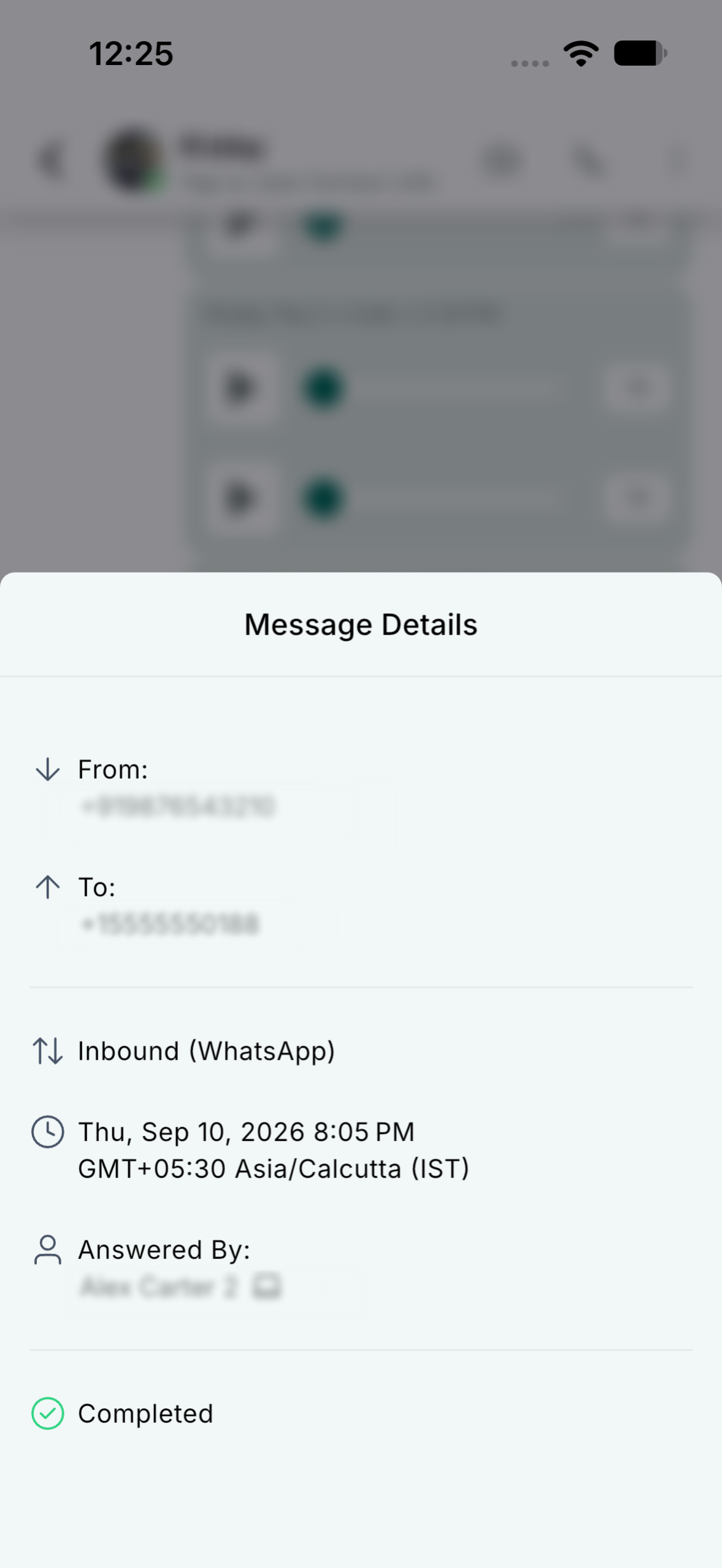
Answered By is a field shown in the Message Details of a call record when you view a conversation in the HighLevel mobile app. It reports the actual person or masked number that answered the call, which may differ from the conversation’s assigned user. The field also displays a device icon when the platform knows whether the call was answered through the web app, mobile app, a phone number, or a SIP endpoint.
The information is available for regular phone calls, IVR calls, and WhatsApp calls, provided the mobile app version supports the enhancement and the call details are present. If the answering device cannot be identified, the icon is omitted. This feature lives only in the call messages shown under Conversations, not in the separate call log.
To view the data, you must open the HighLevel mobile app, navigate to a conversation with a call, long press the call message, and select Details. The Answered By entry then appears in the Message Details screen.
03How businesses use Answered By
- Dental practice. A dentist’s office can open a patient conversation in the HighLevel mobile app, locate the call record, and check the Answered By field to see which staff member greeted the caller. This lets the office route follow up tasks to the appropriate team member.
- Real estate agency. A realtor can view incoming inquiry calls in the mobile app, view the Answered By information, and identify whether a listing agent or a generic office number answered. The agent can then assign the lead to the correct salesperson.
- Online coaching business. A coach can inspect a client’s call entry on the mobile app, see the Answered By teammate name or masked number, and use the device icon to know if the call came through the mobile app or a phone line, guiding internal reporting.
04The numbers and rules that matter
- HighLevel mobile app version 4.27.x or later is required.
05Before you start
- Install HighLevel mobile app version 4.27.x or later.
- Use an iOS or Android device.
- Open a conversation that contains a call record.
06How to set up and use Answered By in HighLevel
View who answered a call in the HighLevel mobile app
- Open the HighLevel mobile app.
- Navigate to Conversations.
- Open a conversation that includes a call.
- Long press the call message and select Details.
- In Message Details locate the Answered By entry and review the displayed name, masked number and any device icon.
07What it looks like in HighLevel
08Settings that matter
- Answered By. Shows the teammate name or masked phone number that actually answered the call and may include an icon indicating the answering device.
09Things to know before you rely on it
- The field appears only for call messages in Conversations; support for the separate call log is planned.
- Phone numbers are masked when a call is answered through a phone number.
- No device icon is shown if the answering device is unknown.
- Availability depends on using a supported mobile app version and on the call details being present.
10If something goes wrong
- Answered By information is unavailable. Confirm you are using HighLevel mobile app version 4.27.x or later, that the enhancement is enabled for your account, and that you are opening Details for a call message in Conversations.
11How it connects to the rest of HighLevel
- Explore all Calendars & Appointments features Calendars & Appointments
- Review HighLevel pricing and plans Pricing
- Start a 30 day HighLevel trial Free trial
Michael's take

Most people expect the conversation’s assigned user to tell them who answered the call, but that field only shows who the conversation is linked to. The real answerer can be someone else, and the app gives you a clear way to see who actually picked up.
I would open a call message, long press for Details, and check the Answered By line. If a device icon appears, I’d note whether the call came through the web, mobile, a phone number, or SIP. That quick glance lets me route follow ups to the right teammate without guessing.