
01Who this is for
- Front desk teams benefit because they can create complex service bookings without a desktop.
- Field technicians use the mobile flow to schedule on site services while traveling.
- Business owners with multiple locations gain confidence that bookings are tied to the correct branch.
02Service (v2) appointments, explained
The feature adds the full Services (v2) engine to the iOS and Android apps. From the Calendars module, users open a new service appointment, choose a contact, select a location, add one or more services, pick variants, add ons, staff and coupons, then book an available time slot. The appointment title pulls automatically from Services Global Settings, keeping naming consistent with web bookings.
All real time availability rules apply, including staff hours, date specific overrides and resource conflicts. After scheduling, a summary shows customer details, service breakdown, durations, pricing and any discounts. Existing appointments can be filtered by service directly on the mobile calendar view.
03How businesses use service (v2) appointments
- Hair salon. The stylist opens the mobile calendar, creates a new service appointment, selects the client, chooses the haircut service with a 45 minute variant, adds a conditioning add on, assigns herself, applies a summer coupon and books the next available slot.
- Home repair company. A technician selects a customer, picks the plumbing service, adds a quantity based part add on, assigns the appropriate crew member, and confirms a time that respects the crew’s special holiday hours.
- Fitness studio. The front desk filters the calendar by the yoga class service, views only those bookings, and ensures that each class’s capacity respects room resource limits.
04The numbers and rules that matter
- Supported on HighLevel, LeadConnector and white label apps version v4.2.0.789 or later.
05Before you start
- Update the HighLevel mobile app to version v4.2.0.789 or later.
06How to set up and use service (v2) appointments in HighLevel
Book a new service appointment
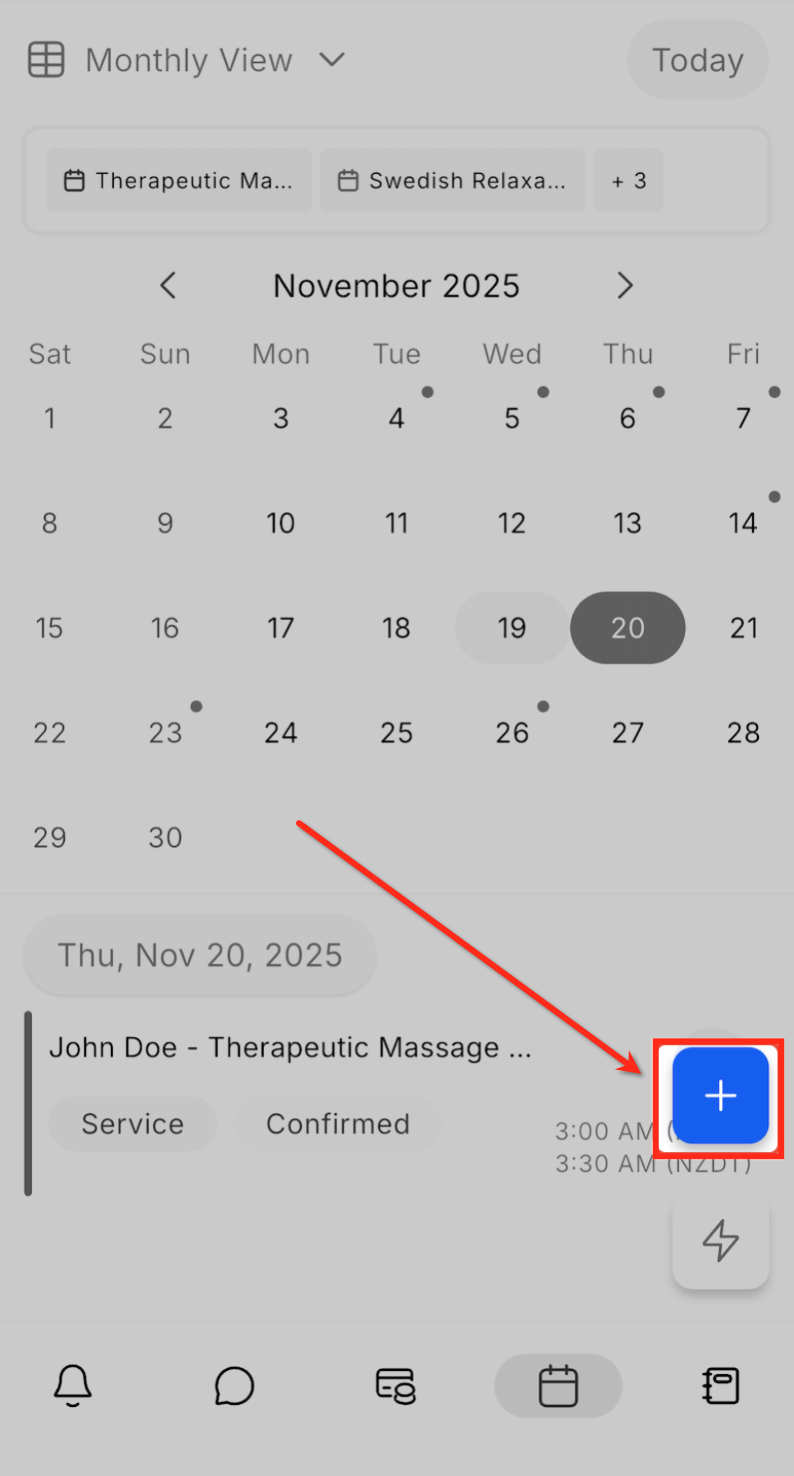
- Open the Calendar tab in the mobile app and tap the + button, then choose New Service Appointment.
- Search for and select the customer to book for.
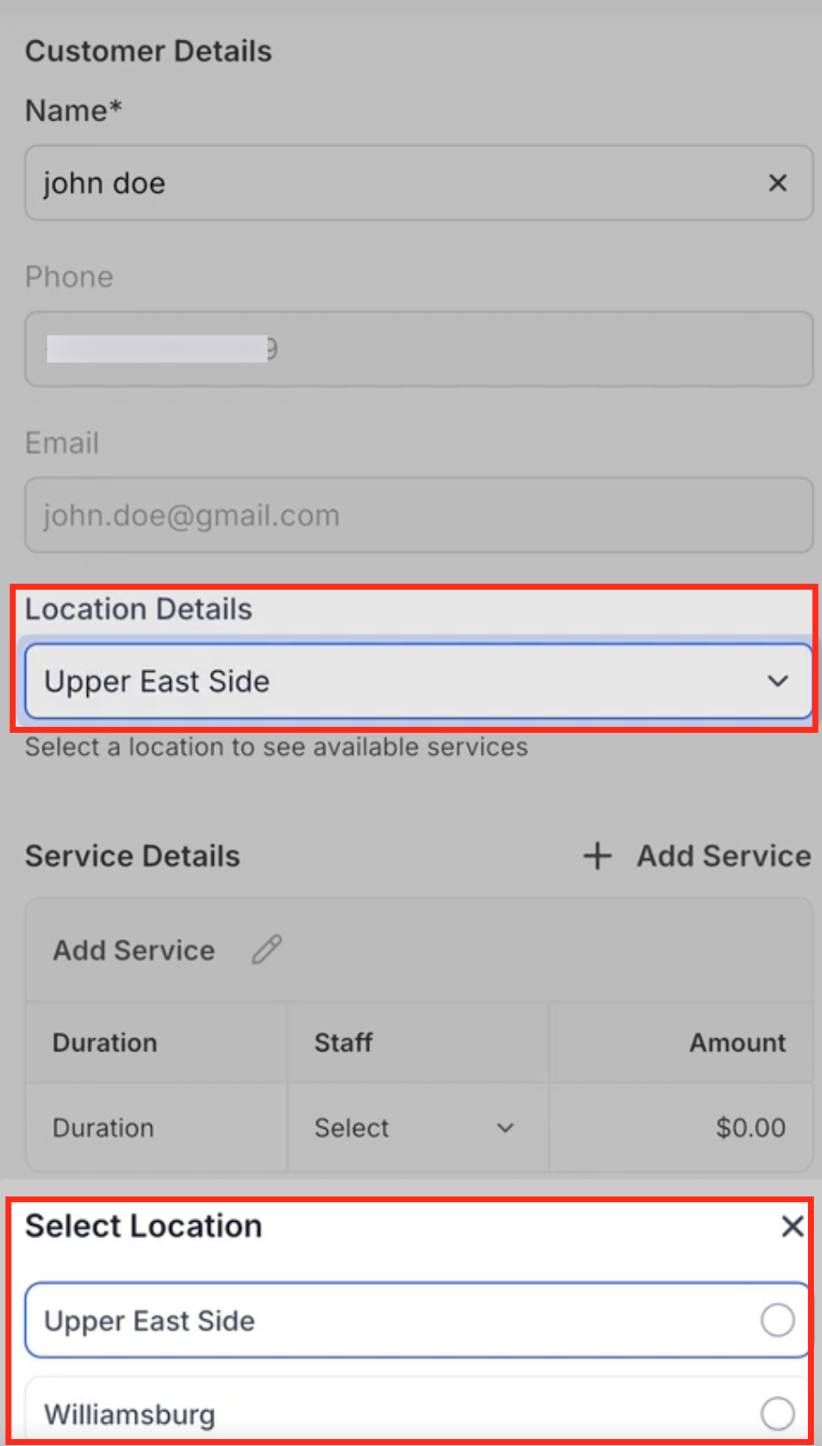
- If multiple locations exist, choose the location where the service will be performed.
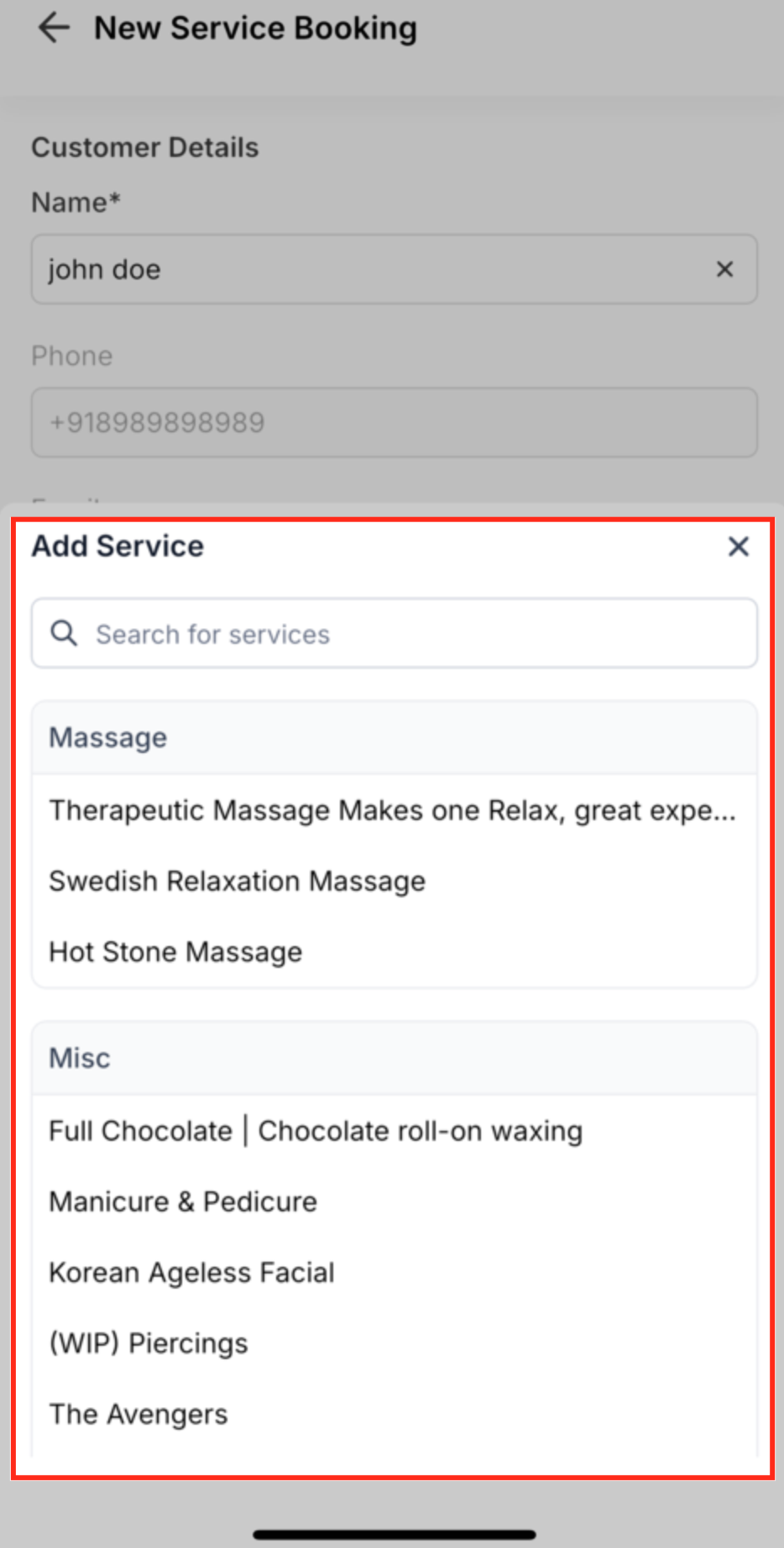
- Browse or search the list of services and select the desired ones.
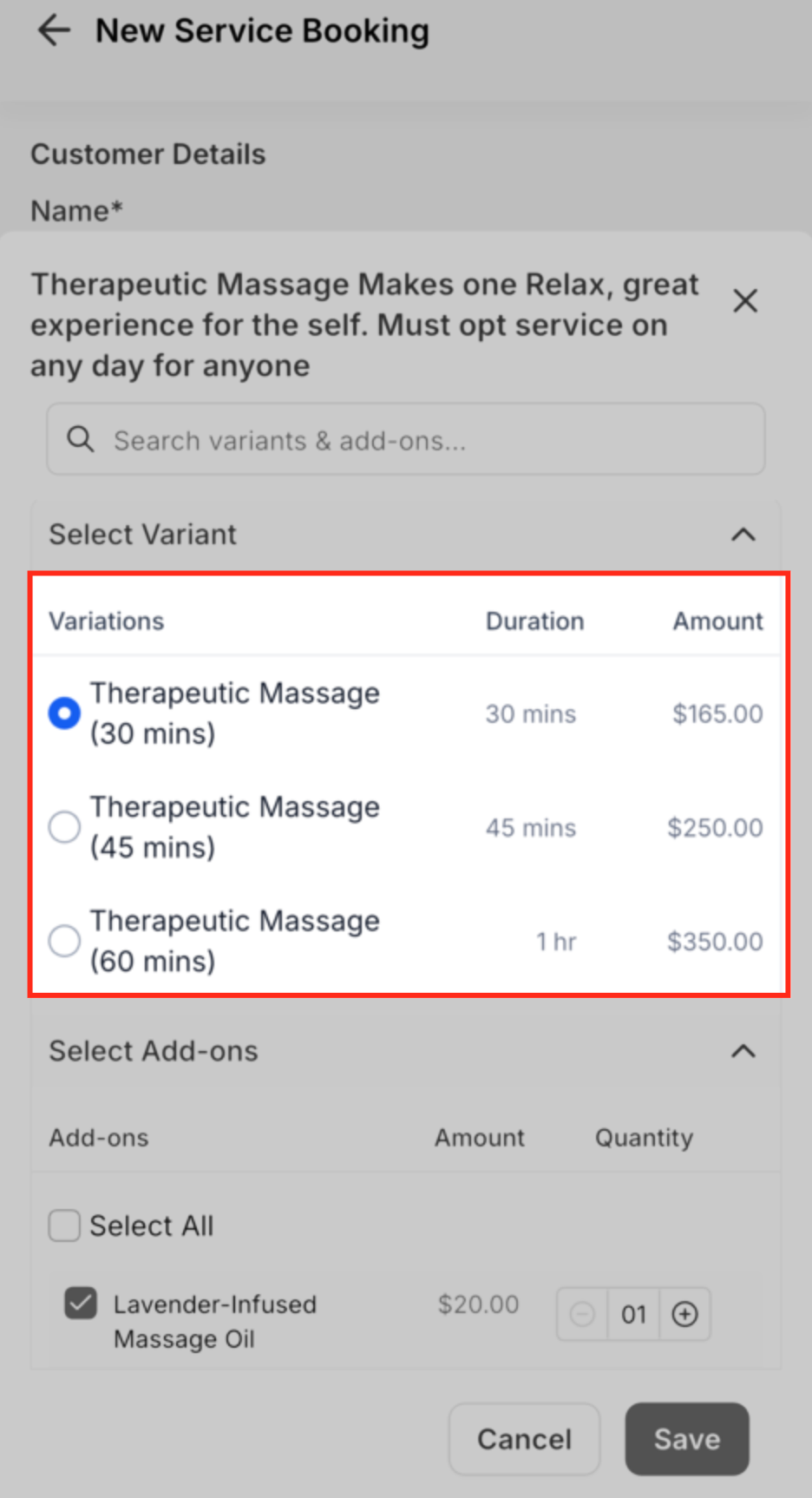
- Select a service variant and add any optional add ons, specifying quantities if needed.
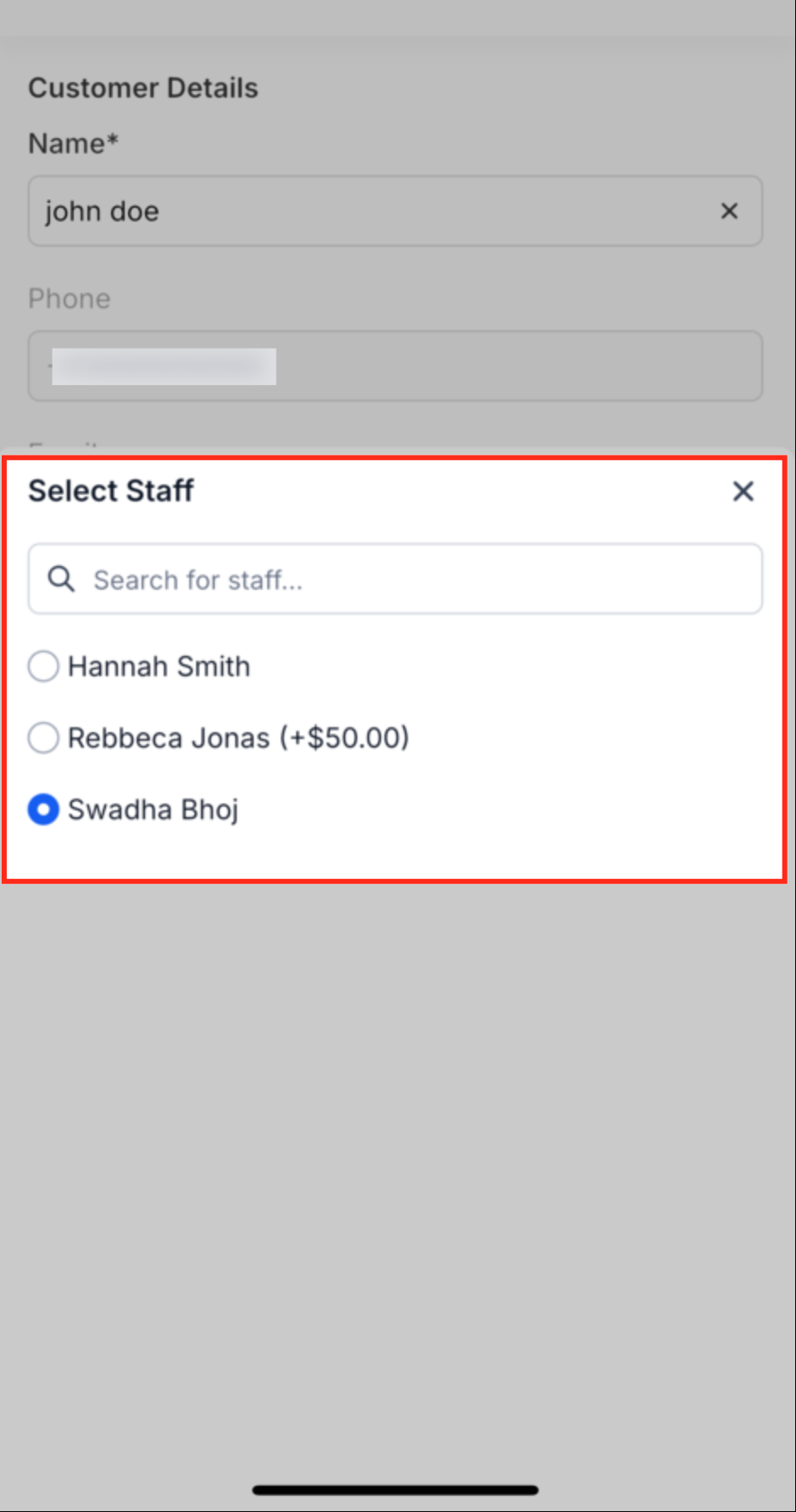
- Assign a staff member to each chosen service.
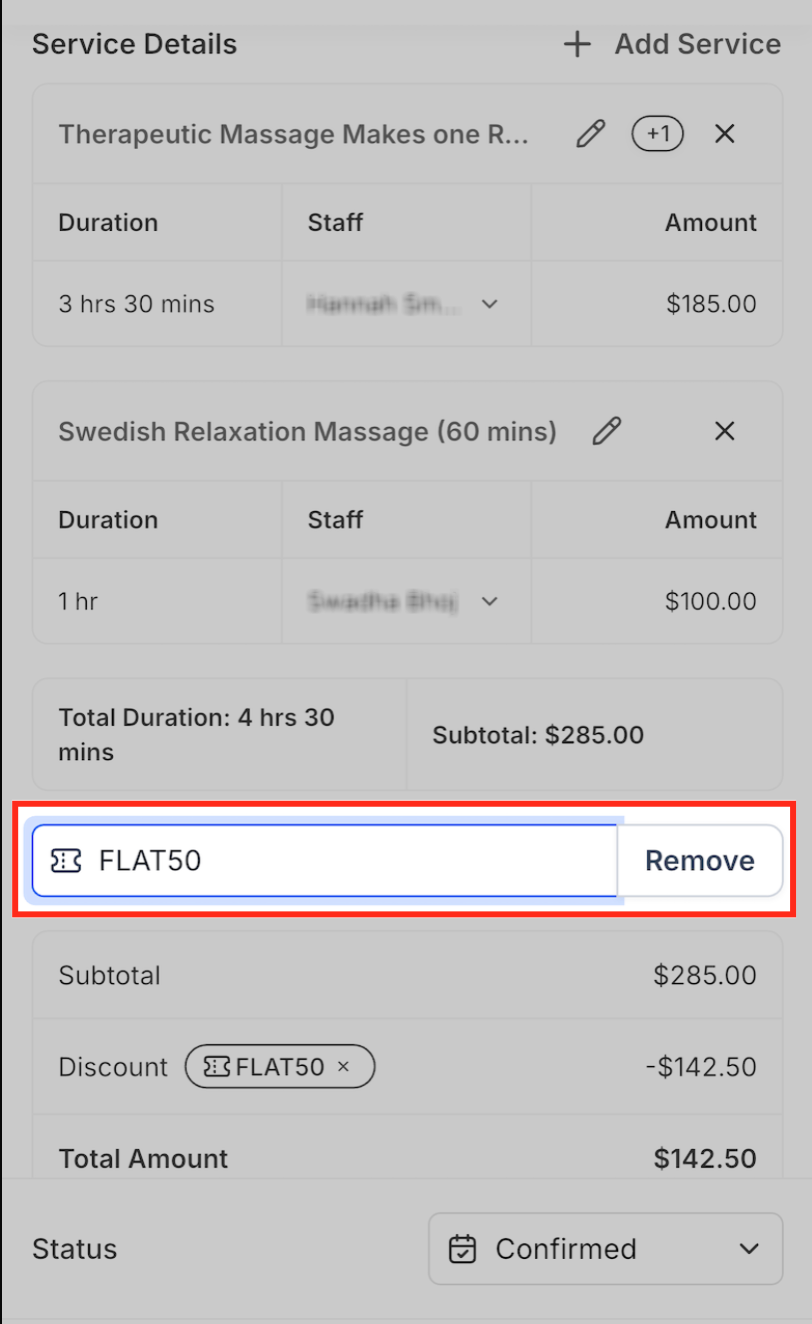
- Enter a valid promo or coupon code to apply a discount, if desired.
- View the real time time slot selector and pick an available slot or a custom time if enabled.
- Review the summary of services, staff assignments, pricing and any discounts.
- Tap Schedule Booking to confirm the appointment.
- View the full booking summary that displays customer details, service breakdown, duration, pricing and discount information.
View existing service appointments filtered by service
- Open the Calendar tab on the mobile app.
- Tap a colored service label at the top of the calendar to open the filter modal.
- In the filter modal, go to the Calendars tab, tap Services, and select one or more services to filter by.
- The calendar view refreshes to show only appointments that match the selected services.
07What it looks like in HighLevel
08Settings that matter
- Appointment Title field. Controls the default title that appears on a new service appointment, pulling from Services Global Settings.
- Services Global Settings. Provides the template used by the Appointment Title field for all new mobile service bookings.
- custom price field. When left empty, staff specific pricing is ignored and the service defaults to its base price.
09Things to know before you rely on it
- Payments cannot be collected within the mobile app for service bookings.
- Only physical locations are shown in the booking flow; online links must be entered manually.
- The feature is available in app versions v4.2.0.789 or later.
- A multi service appointment triggers the Service Booking workflow only once.
10How it connects to the rest of HighLevel
- Learn how to set up service calendars that work with mobile bookings. Service calendar setup
- Review HighLevel pricing and plan options for mobile app access. Pricing
- Start a free trial to explore mobile service appointments. 30 day trial
Michael's take

Service (v2) appointments in the mobile app are a no brainer for teams that need to book on the fly.
If you only ever schedule from a desktop and never need field or front desk booking, you can skip this feature.