
01Who this is for
- Developers who build integrations that reference specific calendar groups need the ID to map the correct resource.
- Agency owners managing multiple staff calendars benefit from the ID to avoid configuration mistakes in custom setups.
- Marketing teams that automate booking workflows use the ID when a third party tool requests a group calendar reference.
02Group calendar ids, explained
The Group Calendar ID is a unique string that represents a calendar group, not the individual calendars within it. Renaming the group does not change the ID. The ID is only required for technical configurations that explicitly ask for a Group Calendar ID.
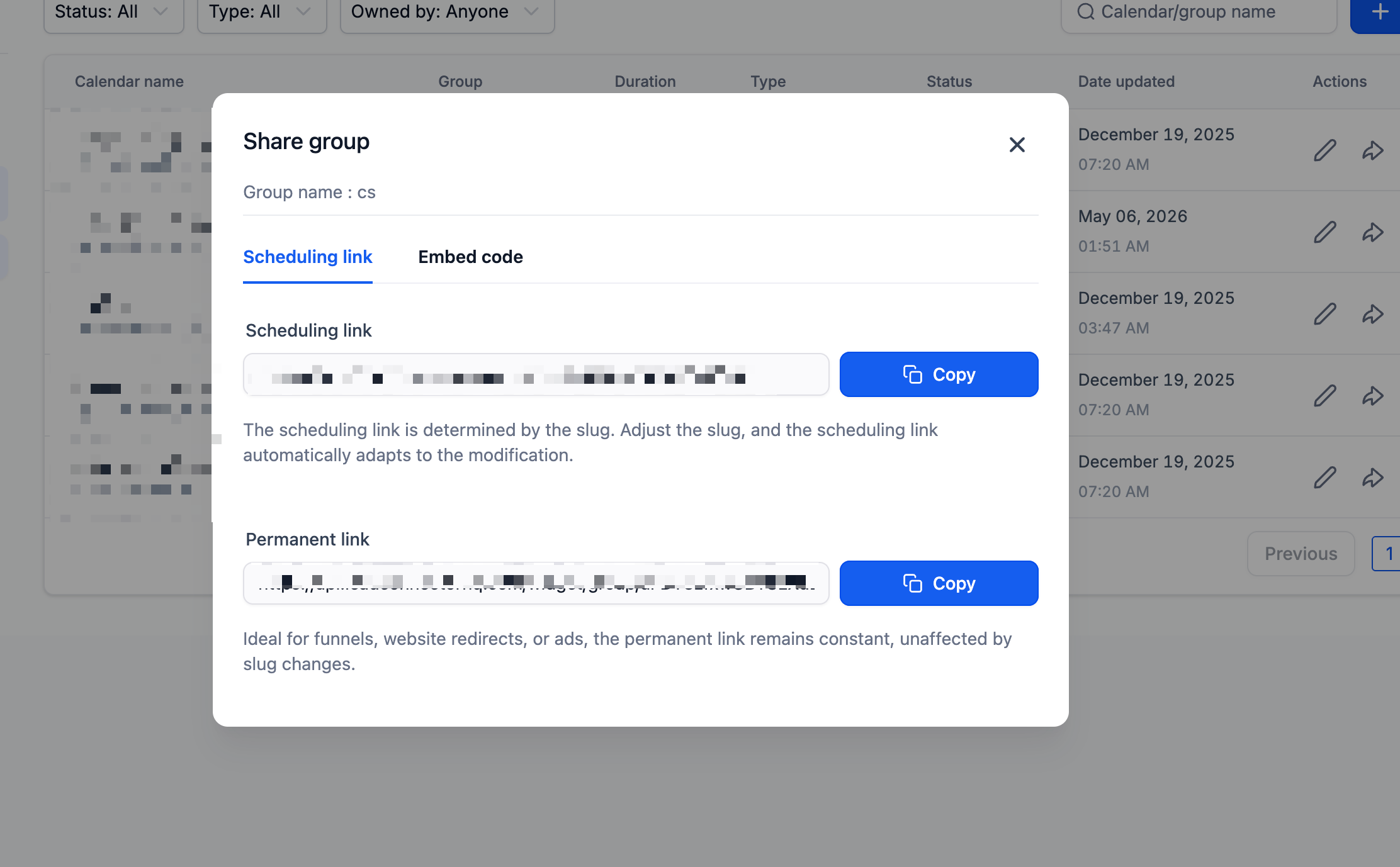
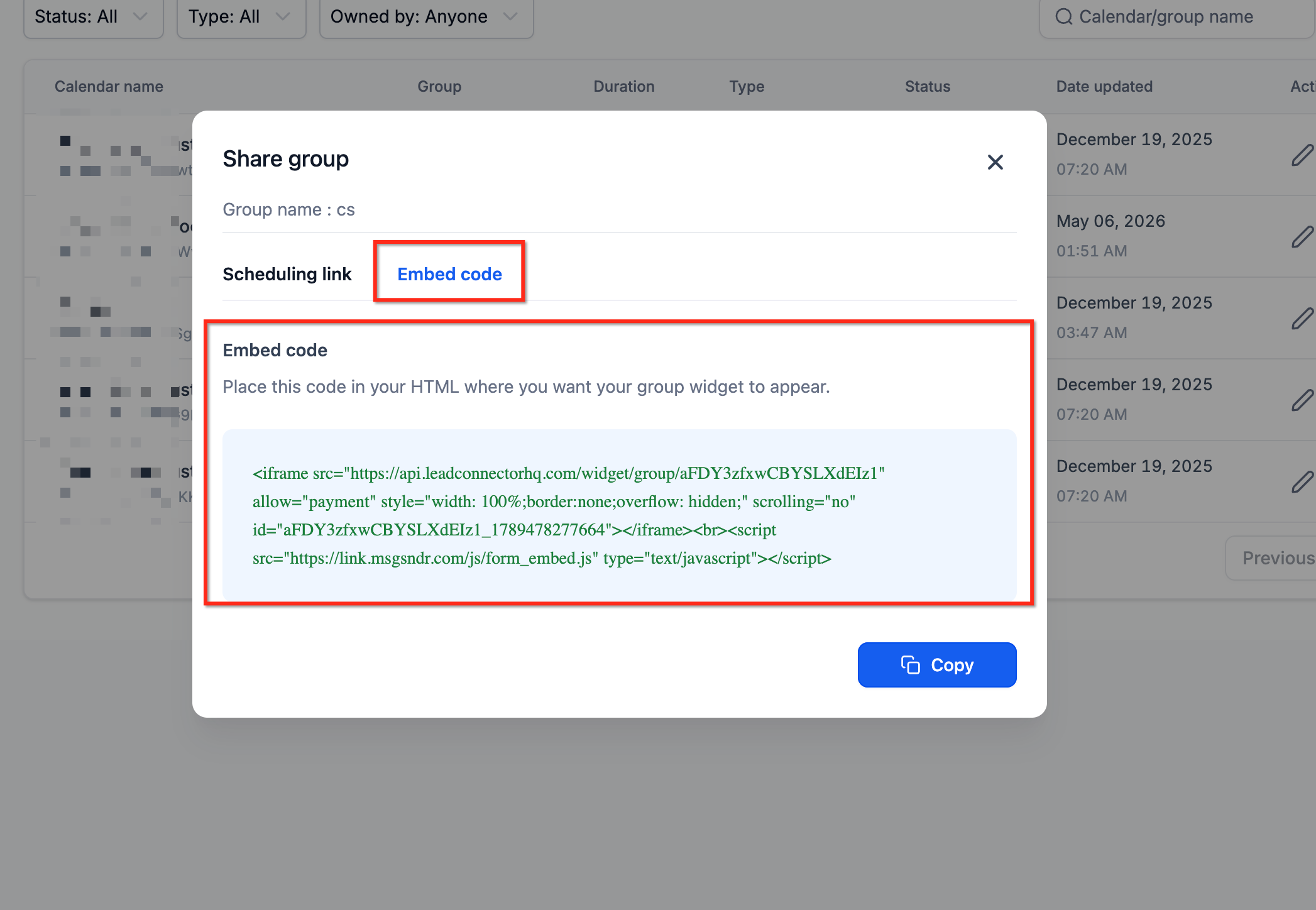
You can locate the ID in two places. The simplest location is the Permanent Link shown in the sharing options of the group; the final segment after the last slash is the ID. An alternative location is inside the Embed Code generated for the group calendar, where the ID appears as part of a longer string.
Both methods are accessed from Settings > Calendars > Groups. The ID can be copied and pasted into integration fields, API calls, or any custom script that requires it.
03How businesses use group calendar ids
- Digital marketing agency. The agency creates a group calendar for each client team. When linking the calendar to a third party reporting tool, the staff opens Settings > Calendars > Groups, selects the group, chooses Scheduling Link, and copies the final value of the Permanent Link as the Group Calendar ID.
- SaaS product developer. The developer builds an API endpoint that schedules appointments for a specific group. They retrieve the Group Calendar ID by opening the group’s sharing options, selecting Embed Code, and extracting the identifier portion to use in API requests.
- Online fitness studio. The studio wants to embed a group booking page on its website. It opens the group’s sharing options, selects Embed Code, copies the code, and isolates the ID portion to confirm it matches the identifier used in its custom integration.
04Before you start
- A Group Calendar must already exist in the subaccount.
- You must be logged into the appropriate HighLevel subaccount.
05How to set up and use group calendar ids in HighLevel
Find the Group Calendar ID using the Permanent Link
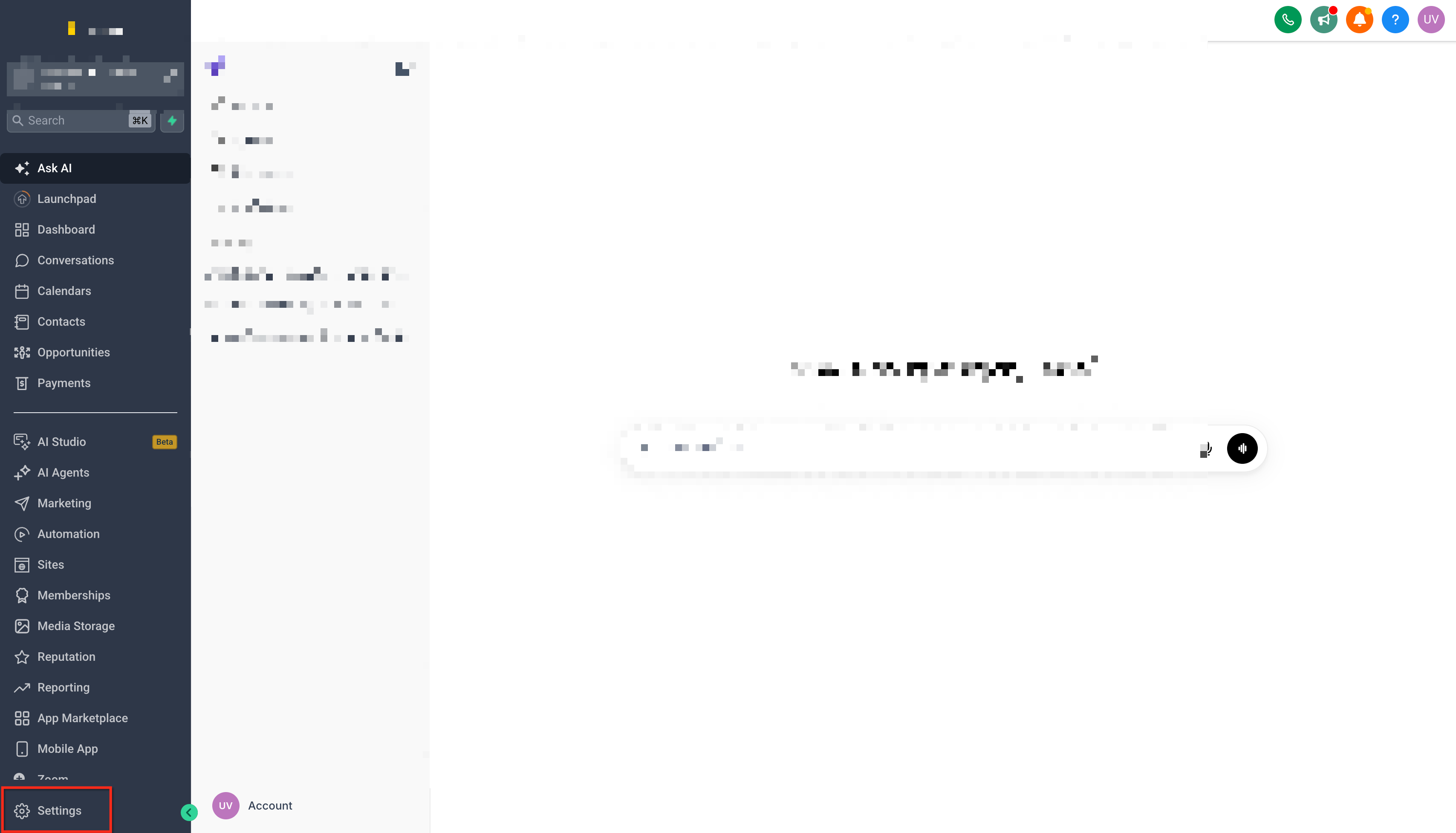
- In your HighLevel subaccount, go to Settings.
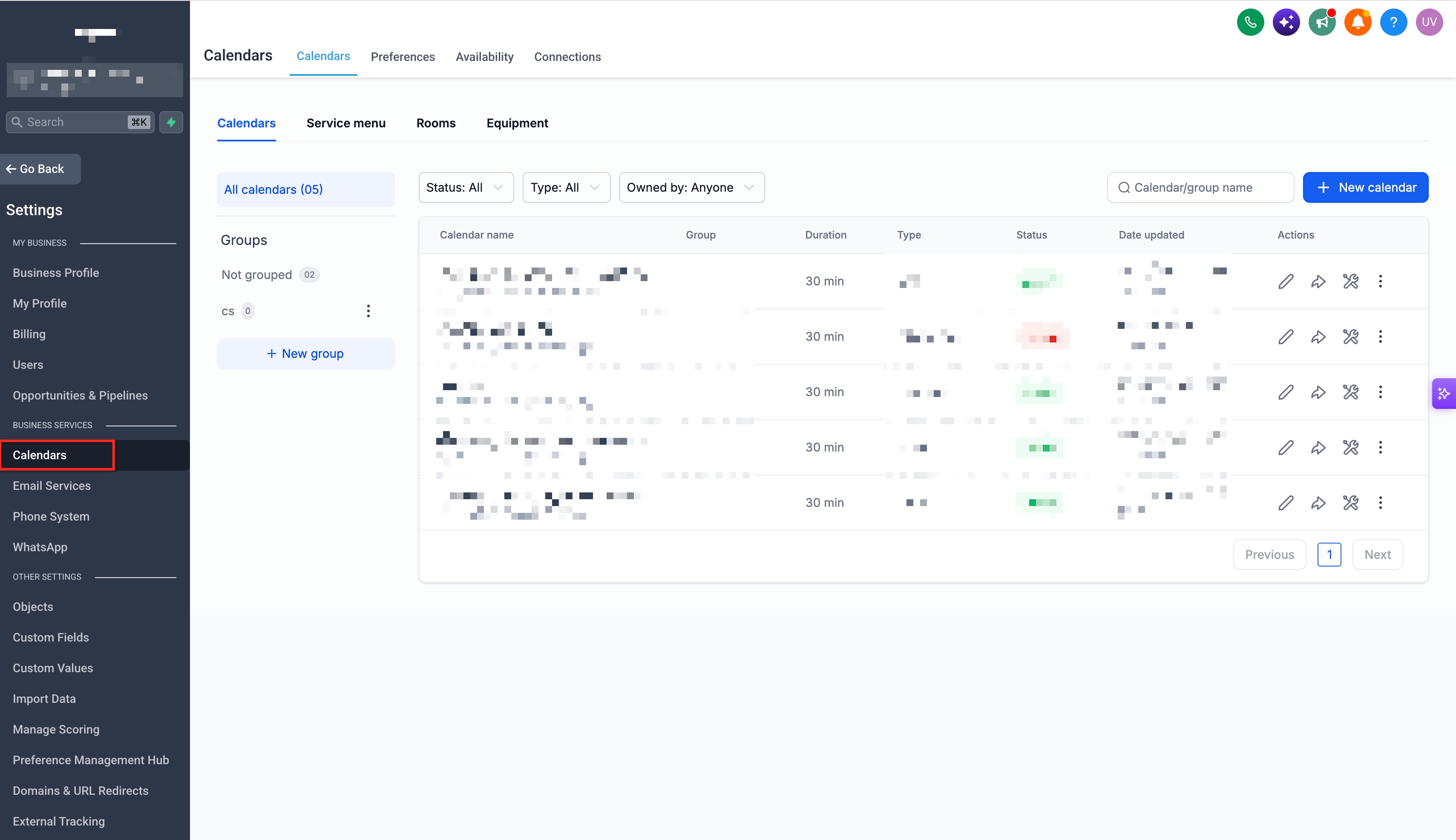
- Navigate to Calendars and open the Groups area.
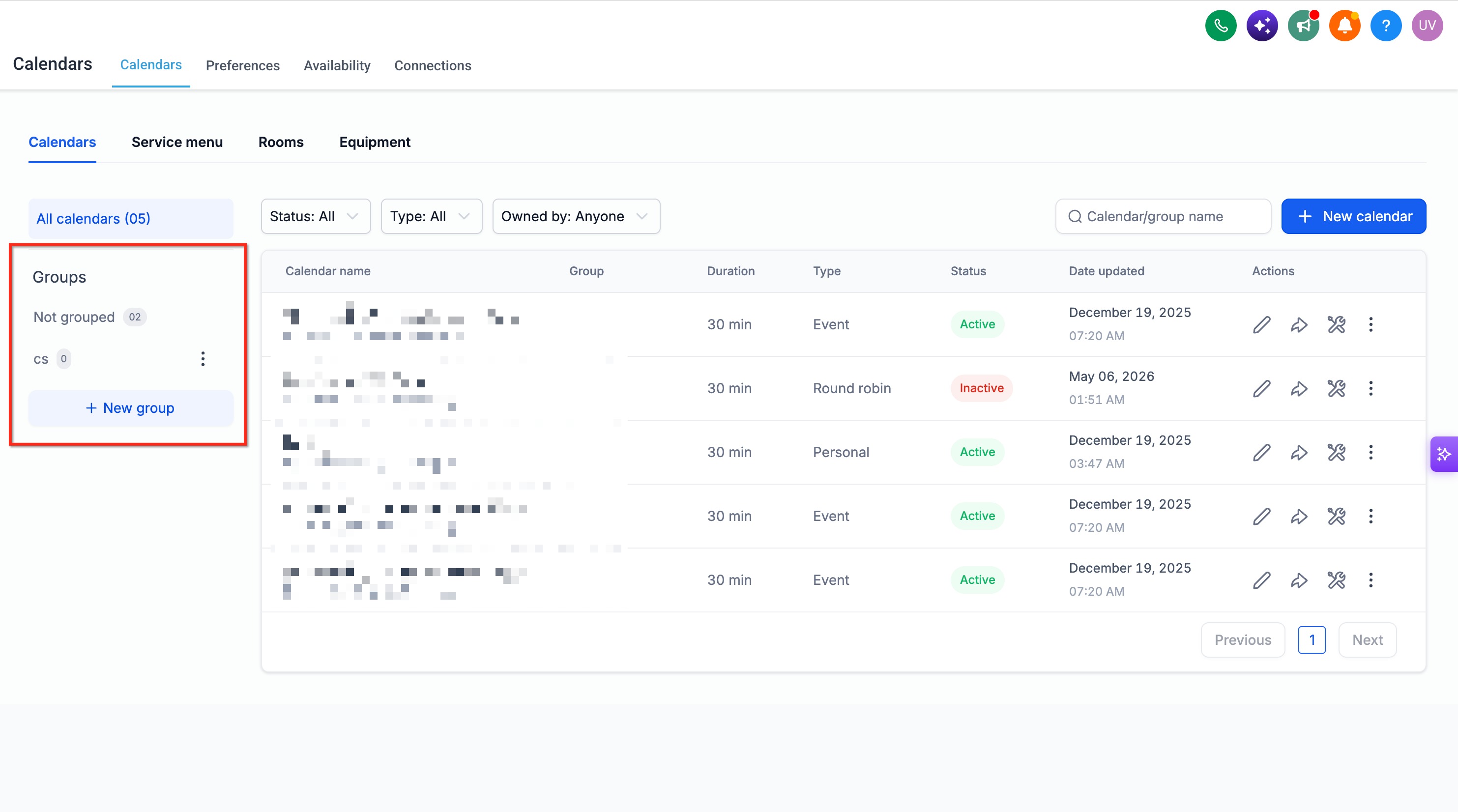
- Locate the Group Calendar whose ID you need.
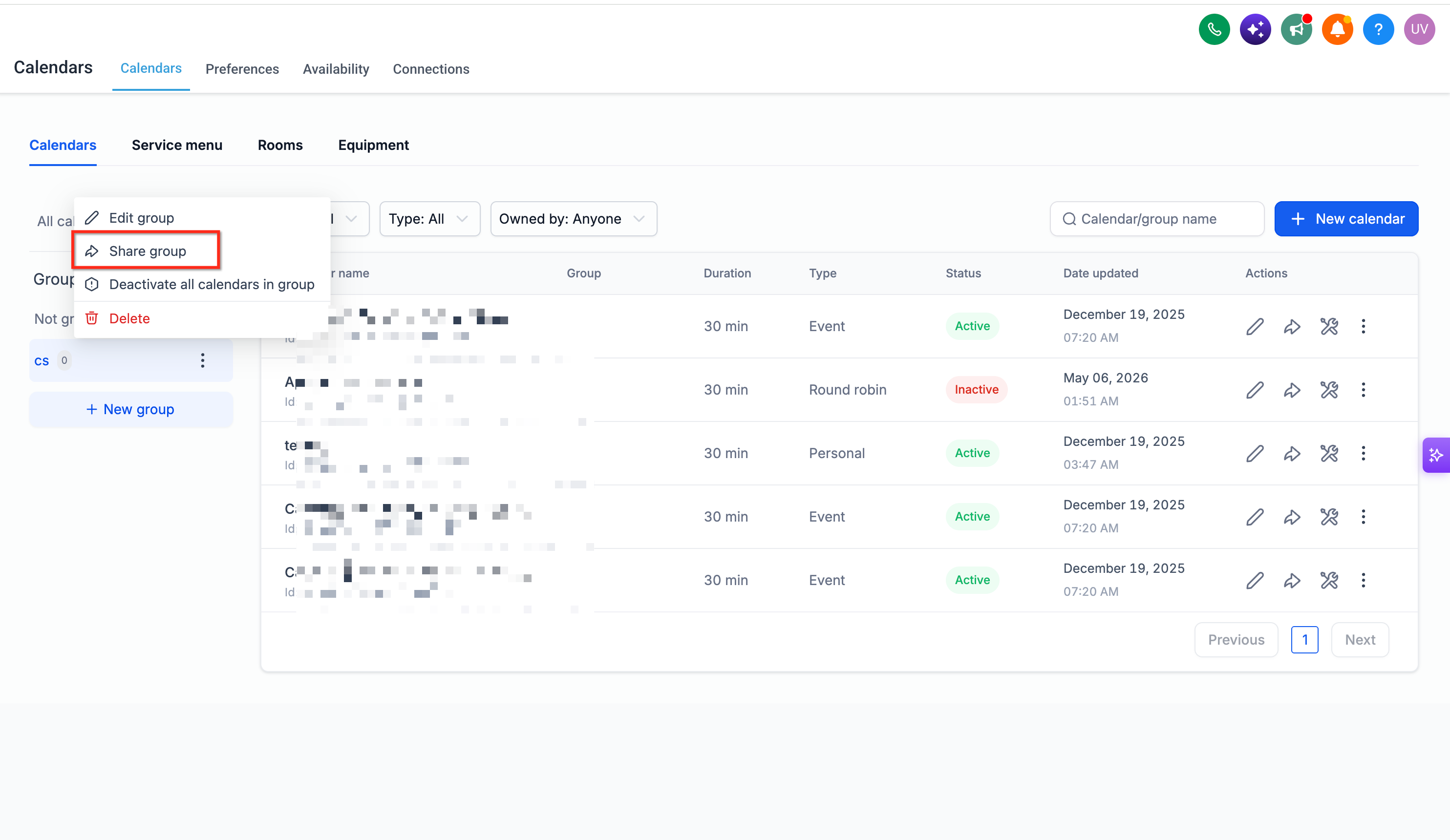
- Open the sharing options for that Group Calendar.
- Select Scheduling Link from the sharing options.
- Locate the Permanent Link for the Group Calendar.
- Look at the final value that appears after the last / in the Permanent Link.
- Copy that final value and paste it into the integration or technical configuration that specifically requires your Group Calendar ID.
Find the Group Calendar ID from the Embed Code
- Go to Settings > Calendars > Groups.
- Locate the applicable Group Calendar and open its sharing options.
- Select Embed Code.
- Copy only the portion of the code that represents the Group Calendar ID.
06What it looks like in HighLevel
07Settings that matter
- Permanent Link. Shows a direct URL for the group calendar; the last part after the final slash is the Group Calendar ID.
- Embed Code. Provides HTML code to place the calendar on a site; includes the Group Calendar ID within the code string.
- Scheduling Link. A sharing option that reveals the Permanent Link for the selected group.
08Things to know before you rely on it
- Copy only the identifier, not the full Permanent Link, when a field asks for the Group Calendar ID.
- Use the Permanent Link method when possible because it gives a cleaner ID.
- Standard workflow filters can select a calendar group directly, so manual ID entry is not needed for typical filtering.
09How it connects to the rest of HighLevel
- Group calendar overview and setup guide Group calendar overview
- Adding unassigned calendars to groups Add calendars to groups
- Embedding HighLevel calendars using HTML code Embed calendar guide
Michael's take

In my experience, having the Group Calendar ID handy can simplify custom integrations or API calls that target a specific booking pool. If you only use built in workflow filters, you may find the extra step of copying an ID adds little value.