
01Unassigned calendars, explained
You can assign groups to Unassigned calendars, the same as you can assign groups to other round robin calendars.
02How to set up and use unassigned calendars in HighLevel
Assign a group to an unassigned calendar
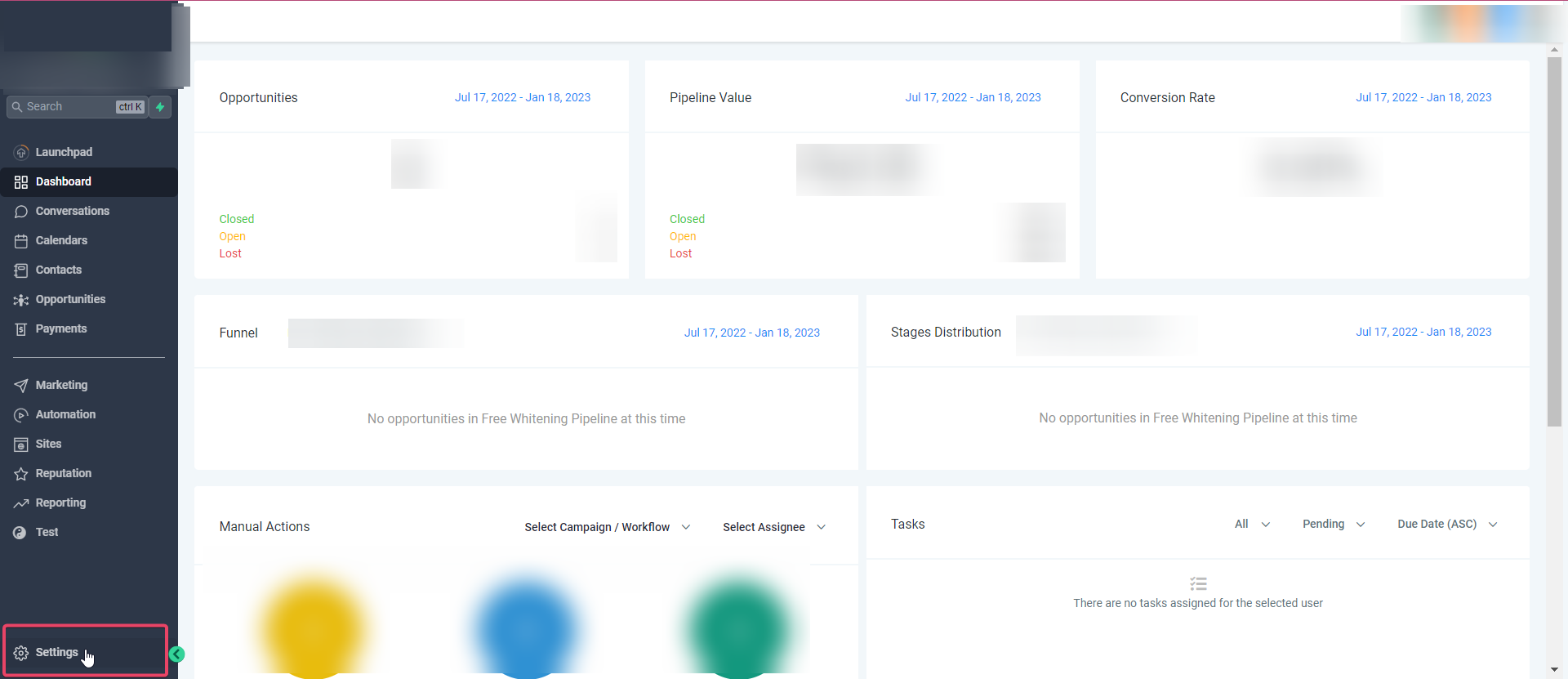
- Go to Settings > Calendars.
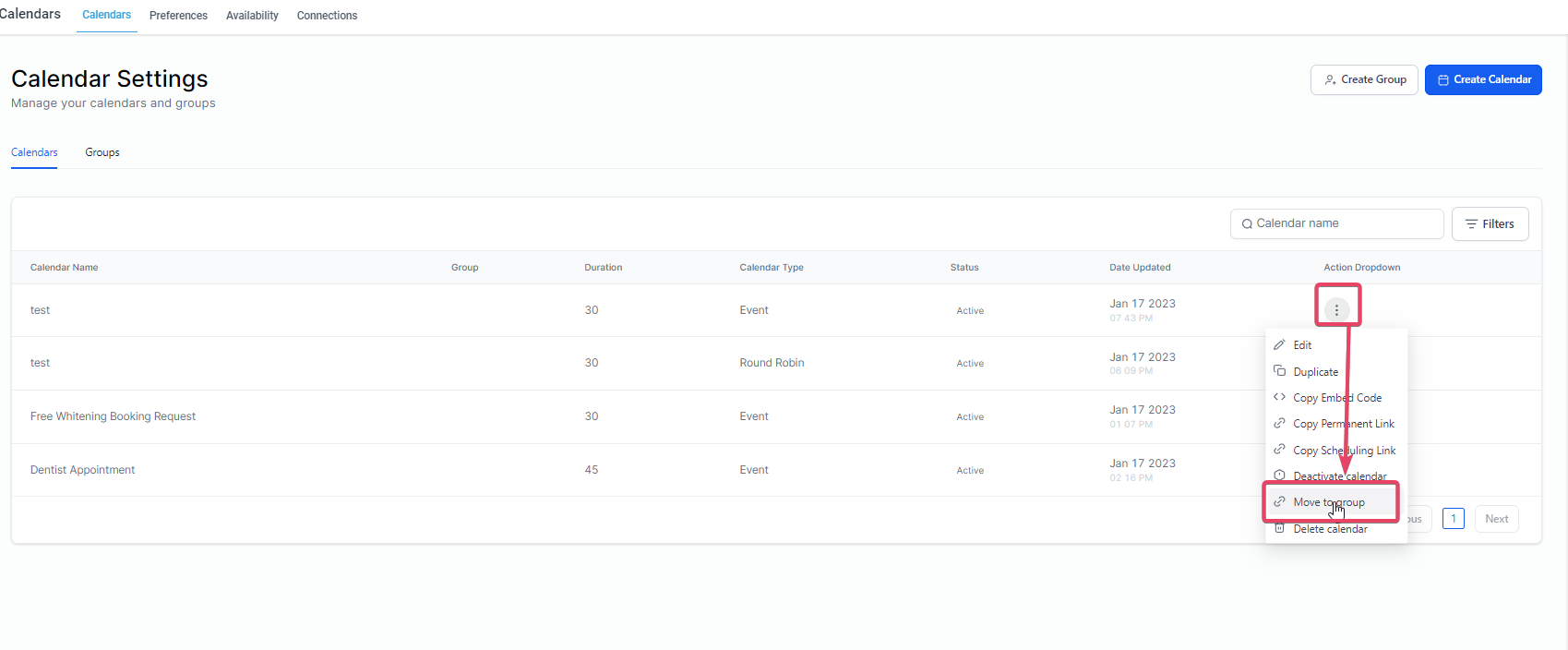
- Click the 3 dots on the right side of the desired calendar.
- Select Move to Group.
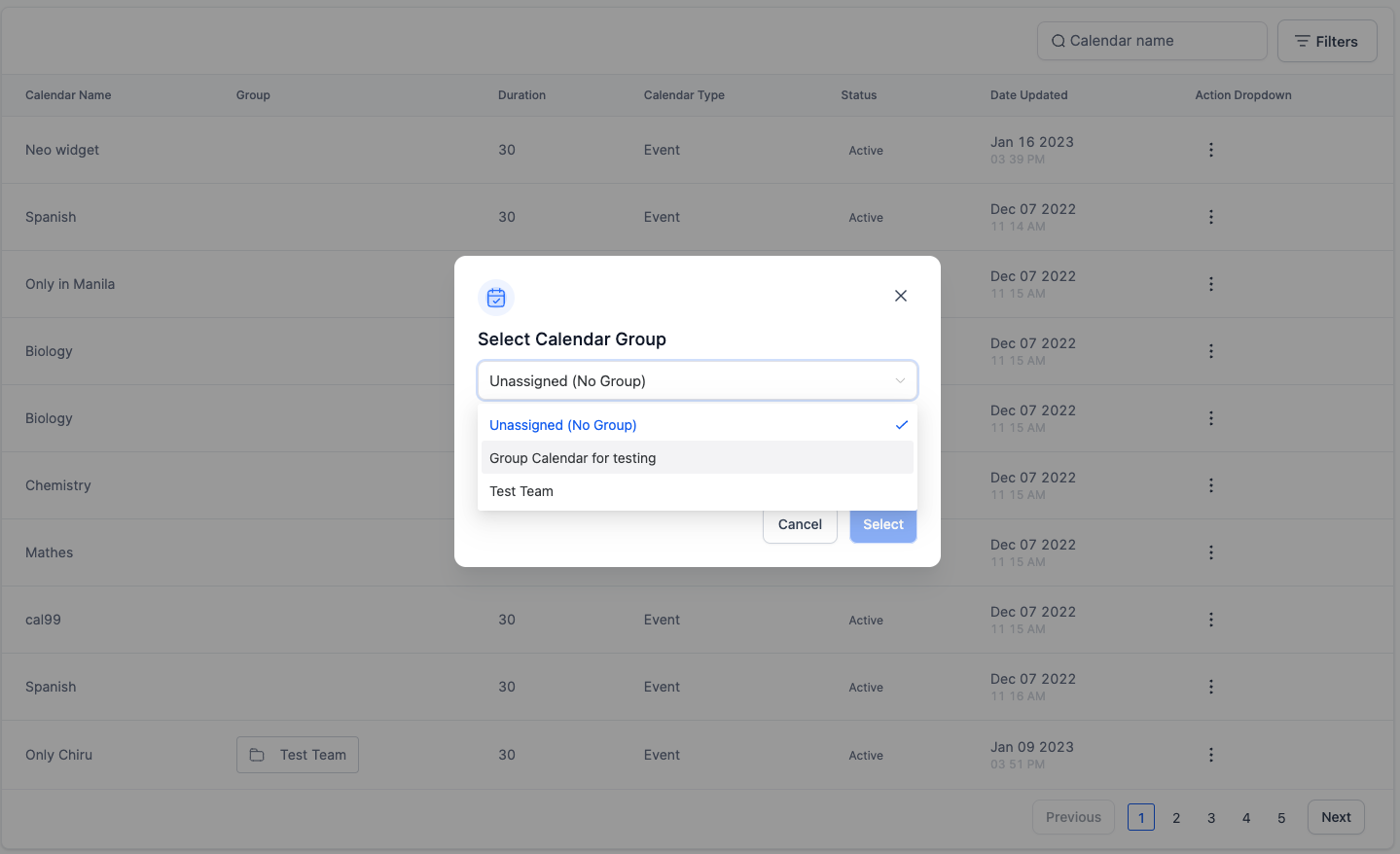
- In the pop up, choose the group you want to assign.
- Click Select.
03What it looks like in HighLevel
04Settings that matter
- Move to Group. Opens a pop up that lets you pick a group to assign the selected calendar.
- Select. Confirms the group assignment for the calendar.
Michael's take

Michael ReimerFounder of CRM Pros, HighLevel Commander and Certified Admin
When your team’s scheduling gets tangled, it’s hard to know which calendar to use for a particular service or staff member. Linking an unassigned calendar to a group clears that clutter and puts every resource where it belongs.
The first setting I’d tighten up is the group assignment itself. Make sure the right group is selected in the Move to Group pop up, so the calendar shows up in the right place right away.
Get More InformationOpens on HighLevelPublished November 2, 2026 · Updated November 3, 2026