
01Who this is for
- Coaches who need to schedule client sessions and display their specialty on the booking page.
- Legal consultants who must assign lawyers to specific practice areas and manage their calendar availability.
- Salon owners who want to show stylists, their services, and role badges such as Senior Stylist for customers.
02Staff in services, explained
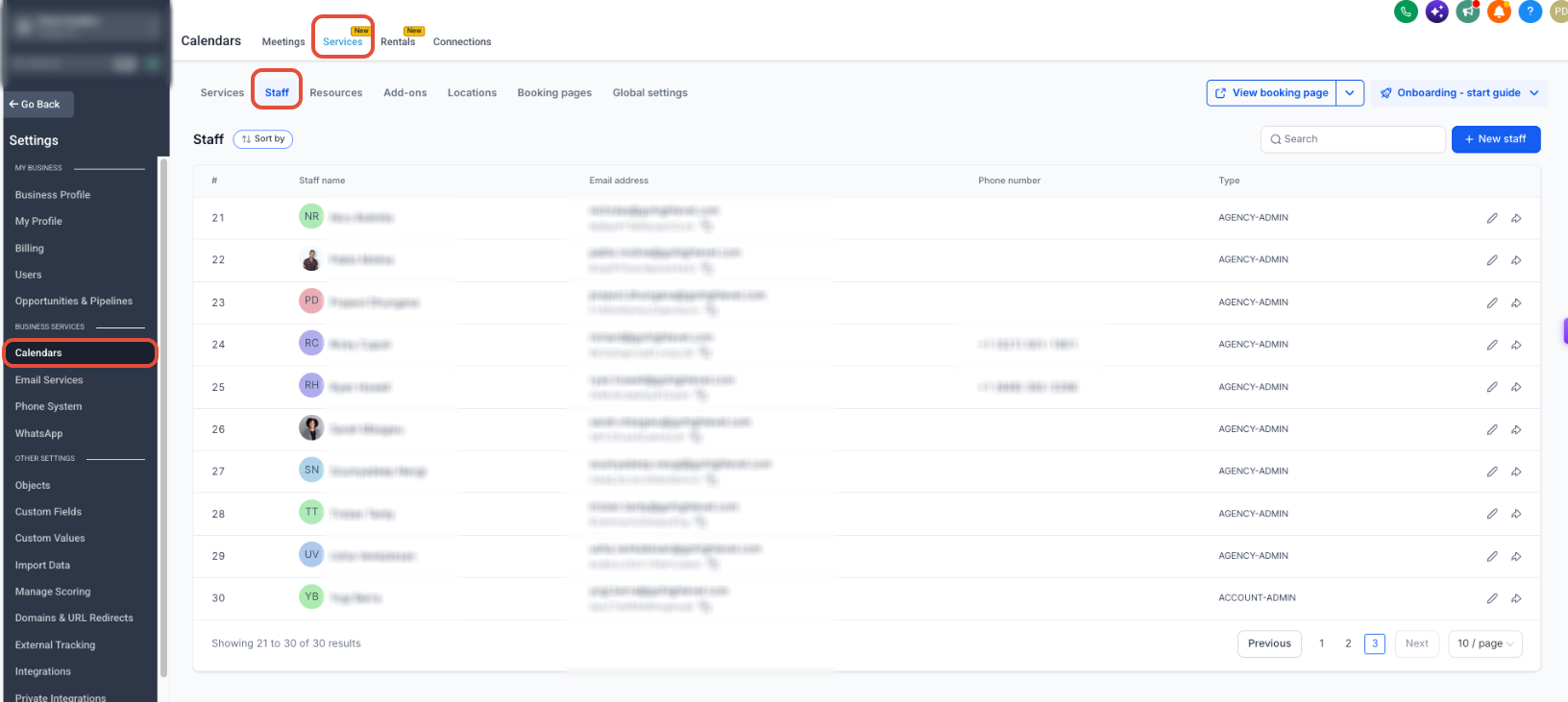
The staff feature lives under Calendar > Calendar Settings > Services > Staff. It stores each team member’s contact info, assigned services, locations, recurring weekly hours, one time date specific changes, pricing, appointment limits, and an optional role badge that appears on the booking widget.
When a staff profile is linked to an active service and location and has at least one availability slot, the provider appears on the customer facing staff selection screen. Role badges are reusable labels limited to 30 characters and a single badge per staff member.
03How businesses use staff in services
- Fitness studio. Add trainers as staff, assign them to class services, set weekly block schedules and holiday overrides, then create a "Head Coach" badge to display on the booking page.
- Legal consultancy. Create attorney staff profiles, link them to specific legal services, define their regular office hours and occasional court day changes, and add a "Partner" badge for client recognition.
- Beauty salon. Enter stylists as staff, allocate haircut and color services, configure split shift time blocks, and assign a "Senior Stylist" badge that shows when clients pick a stylist.
04The numbers and rules that matter
- Badge text can contain up to 30 characters.
- Default availability when added to a service is 9:00 AM, 5:00 PM.
05Before you start
- Staff email addresses must be unique.
- At least one active service and location must exist.
- The staff member must be assigned to a service and have availability for that service.
06How to set up and use staff in services in HighLevel
Add and configure staff
- Navigate to Calendar > Calendar Settings > Services > Staff .
- Click Add or the pencil icon beside an existing staff member.
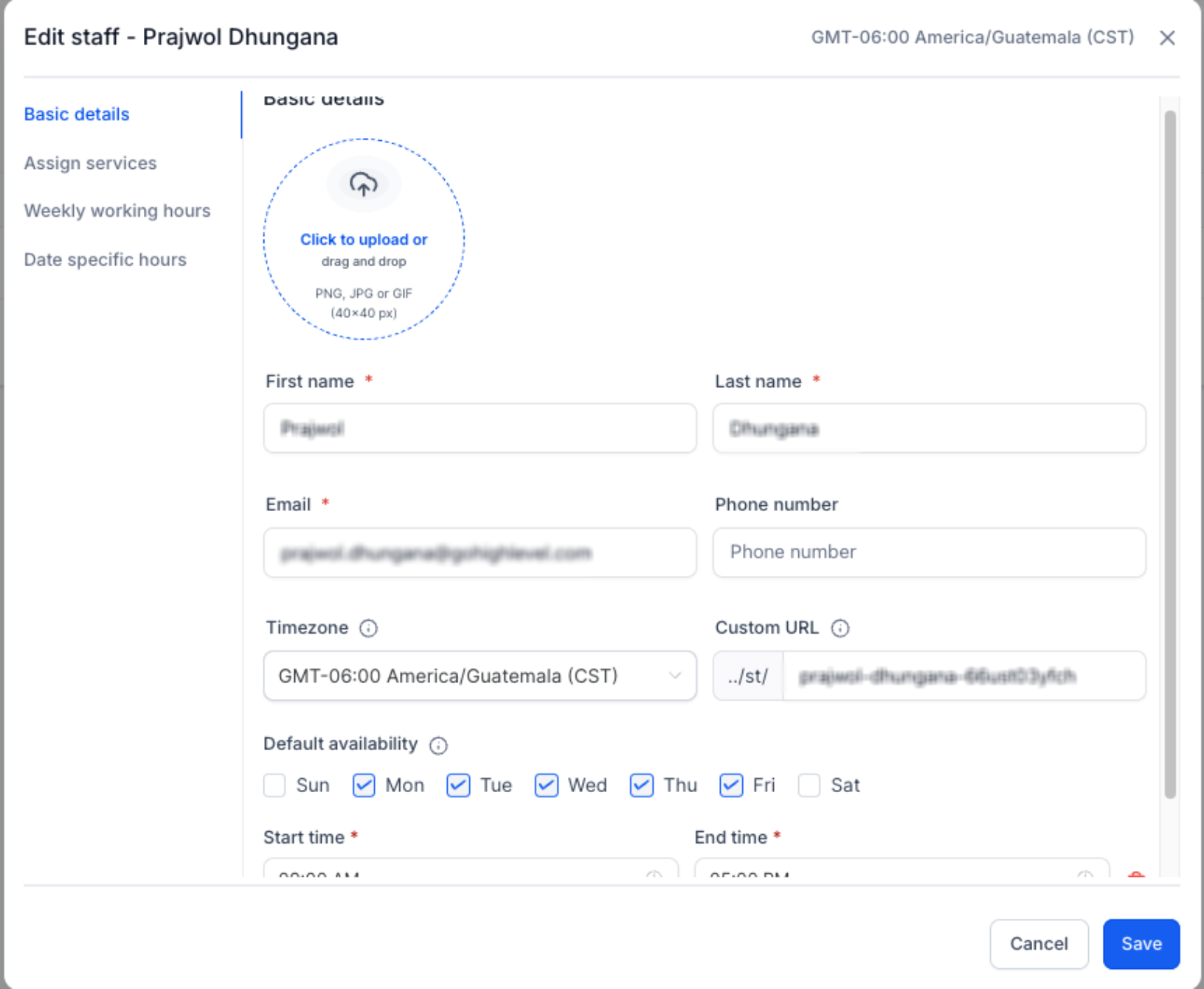
- Fill in name, email, phone, timezone, profile picture, and custom booking URL.
- Save the staff profile.
- Review the default 9:00 AM, 5:00 PM schedule and modify if needed.
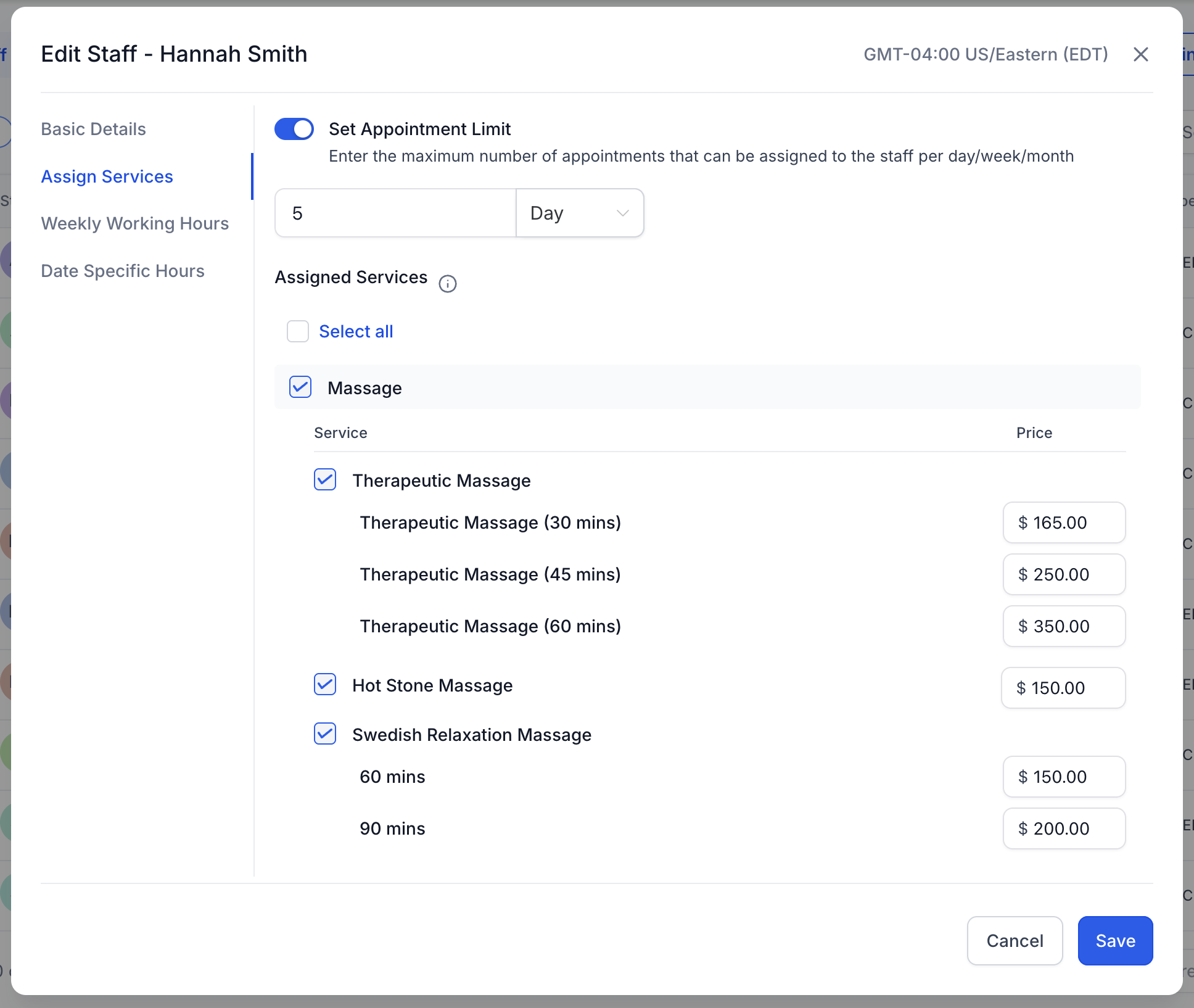
- Open the Assign Services tab.
- Choose one or more services.
- Set service specific pricing as required.
- Define daily, weekly, or monthly appointment limits if needed.
- Save the service assignments.
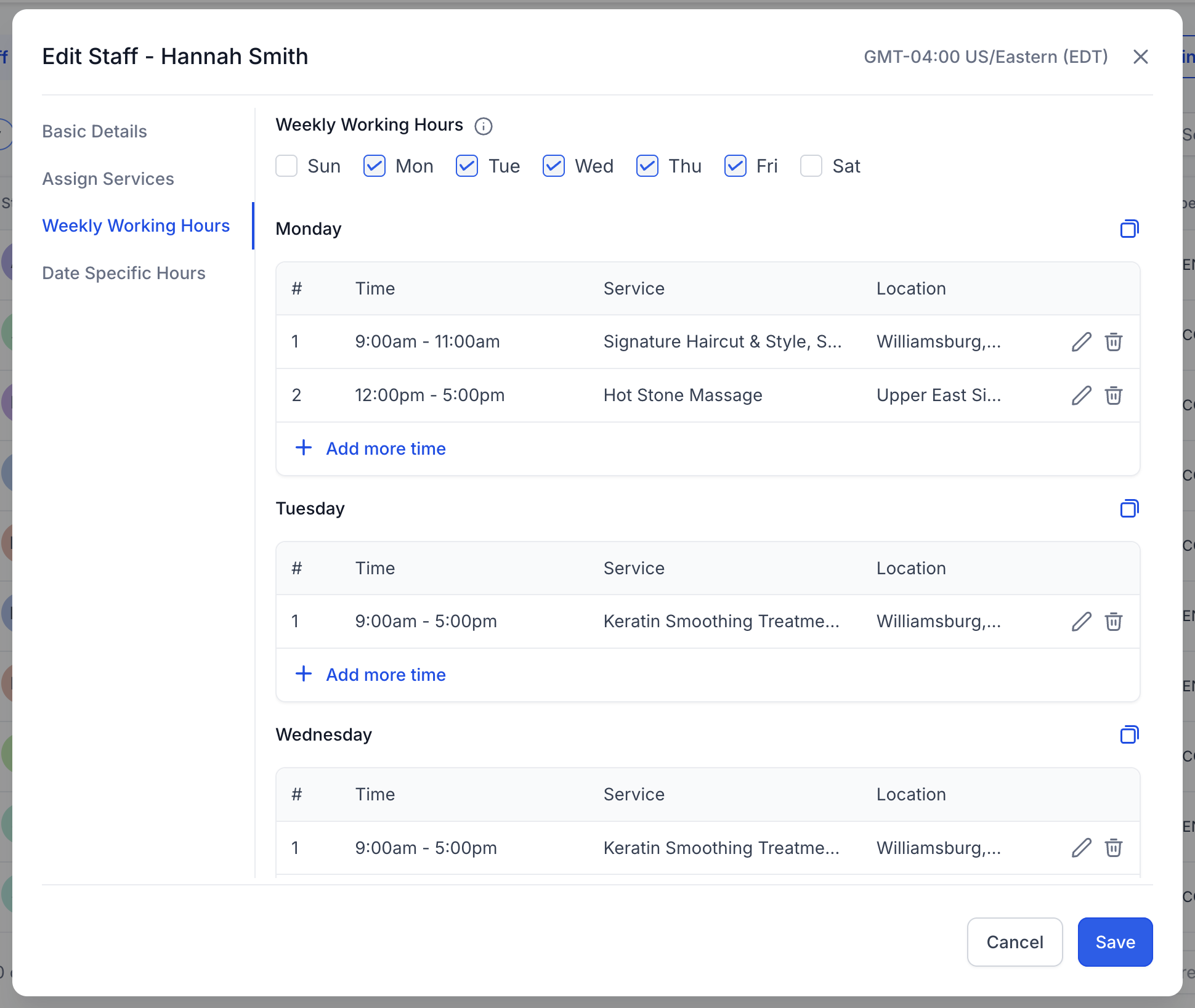
- Open Weekly Working Hours.
- Select the working days.
- Add one or more time blocks for each day.
- Associate the appropriate services and locations with each block.
- Save the weekly working hours.
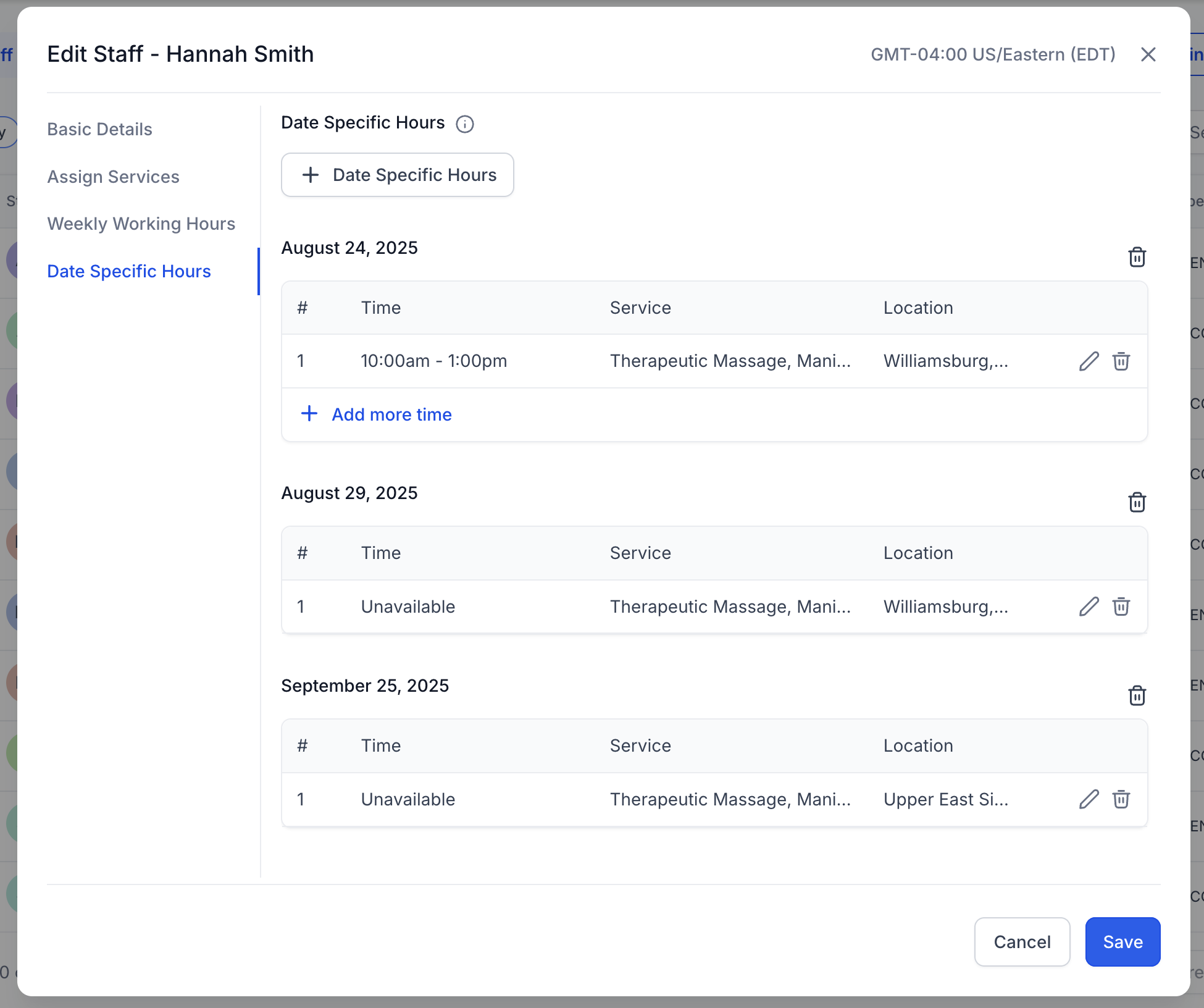
- Open Date Specific Hours.
- Pick one or multiple dates.
- Mark the staff member as available or unavailable and set time blocks, services, and locations.
- Save the date specific hours.
Add or assign a staff role badge
- Go to Calendar > Calendar Settings > Services > Staff .
- Click the pencil icon beside the staff member you want to edit.
- Open the Basic details section.
- Open the Staff badge dropdown.
- To use an existing badge, select it from the list.
- Save the staff profile.
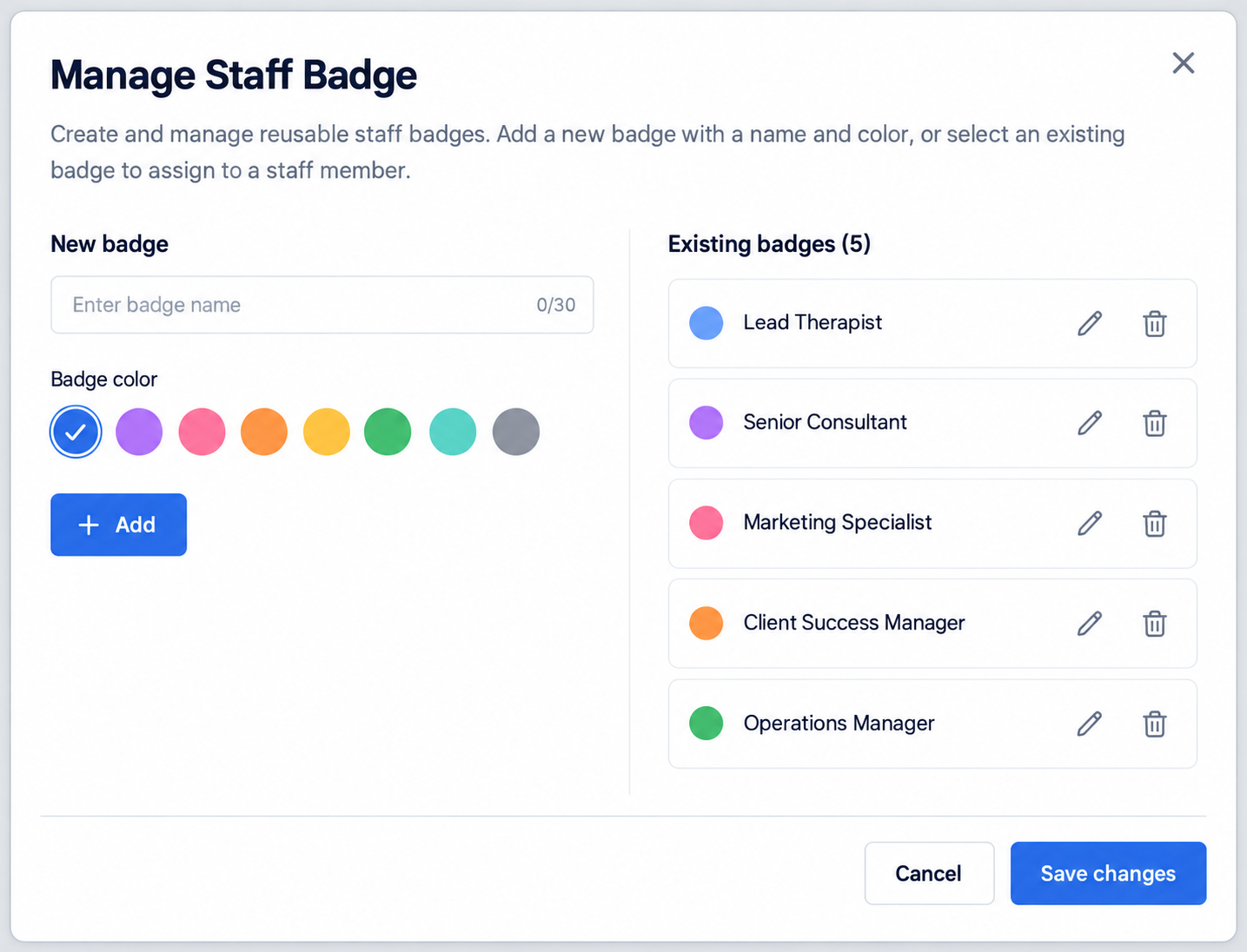
- To create a new badge, click Manage in the dropdown.
- Enter the badge name (max 30 characters) in the New badge field.
- Choose a color for the badge.
- Click + Add to create the badge.
- Click Save changes to store the new badge.
- Return to the Staff badge dropdown and pick the newly created badge.
- Save the staff profile.
07What it looks like in HighLevel
08Settings that matter
- Assign Services tab. Controls which services a staff member can provide and lets you set service level pricing and appointment limits.
- Weekly Working Hours. Defines the recurring schedule for a staff member, including multiple time blocks per day.
- Date, Specific Hours. Overrides the weekly schedule for individual dates such as holidays or extended hours.
- Staff badge dropdown. Allows selection of an existing reusable badge or creation of a new badge for the staff member.
09Things to know before you rely on it
- Each staff email address must be unique.
- A staff member must be linked to at least one service and location.
- Availability must be defined for every assigned service.
- Only one role badge can be assigned per staff member.
- Badge text is limited to 30 characters.
- Reusable badges can have individual colors.
- Staff without a badge show normally without an empty placeholder.
10If something goes wrong
- Staff member missing from the booking page. Confirm the staff member is assigned to a service and location and has availability for that service.
- Unable to create lunch breaks or mid day gaps. Add separate time blocks within Weekly Working Hours for the desired break periods.
- Conflicting schedules for a date. Remember that Date Specific Hours override Weekly Working Hours for the selected date.
- Badge does not appear on the staff card. Ensure a badge is selected in the Staff badge dropdown and save the staff profile; the change appears the next time the booking widget loads.
11How it connects to the rest of HighLevel
- Create and manage services to assign staff members Create services
- Configure global booking options that affect staff visibility Global booking settings
- View and manage staff bookings in the calendar view Calendar view
Michael's take

When you have several providers offering different services or varying schedules, setting up staff in Services feels worthwhile. It keeps your booking page organized and lets clients see exactly who they’re booking with through role badges.
If you run a solo practice or have a simple, single service offering, the extra steps of configuring staff, weekly blocks and badges may add more work than benefit. In that case you might keep the default settings and skip detailed role badges.