
01Who this is for
- Spa owners benefit because they can separate massages, skin care, and hair treatments for easy client navigation.
- Fitness studios use categories to list classes, personal training, and nutrition services in distinct sections.
- Consulting firms group strategy, implementation, and support services so prospects find the right offering quickly.
02Categories in services, explained
Categories are containers that hold services with a common theme. They show up on the public booking page as labeled groups, making the list of services easier to scan. A default group always exists; it catches any service that has no explicit category or moves services there when a category is removed.
The category management tools live under Calendar > Calendar Settings > Services. From there you can add new groups, rename them, set a custom URL slug, delete (except the default), and drag to reorder. Each category also generates a unique link that displays only the services inside that group.
The feature requires Services to be enabled for the account. Once enabled, you can create categories, assign existing services, and share or reorder them without affecting other platform settings.
03How businesses use categories in services
- Spa business. Create categories such as Massage, Hair, and Skin. Assign each treatment to the appropriate group so clients can click directly to a specific area. Share the Massage category link in a promotion to drive targeted bookings.
- Fitness studio. Set up categories like Group Classes, Personal Training, and Nutrition Plans. Move each class or program into its matching section. Use the Group Classes URL to share a class only booking page with members.
- Consulting agency. Add categories for Strategy, Implementation, and Support services. Place each consulting package under the correct heading. Provide a custom link for the Strategy category when marketing a new offering.
04Before you start
- Services must be enabled for the subaccount before any categories can be created.
05How to set up and use categories in services in HighLevel
Create a new category
- Open Calendar > Calendar Settings > Services.
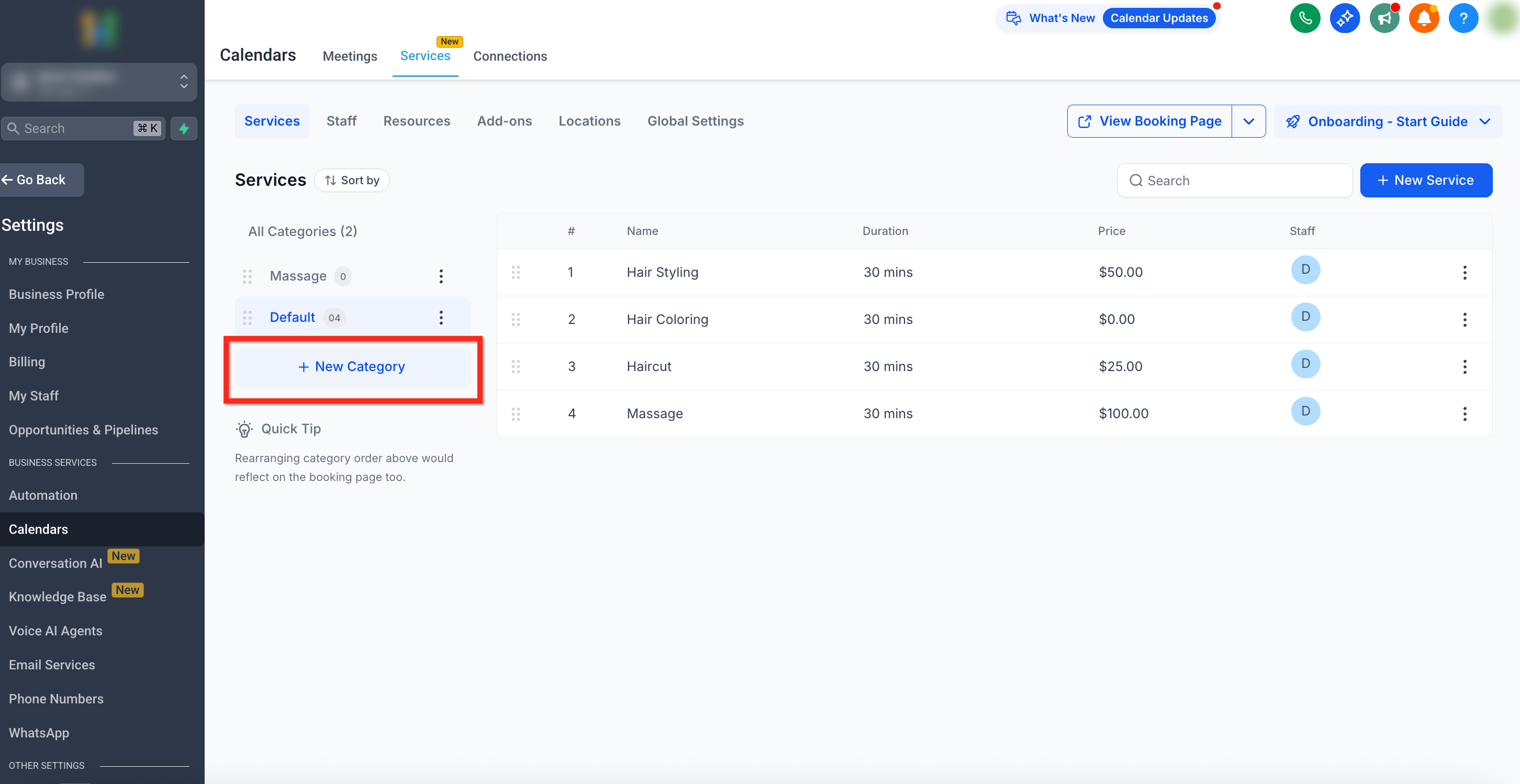
- Click the + New Category button in the left sidebar.
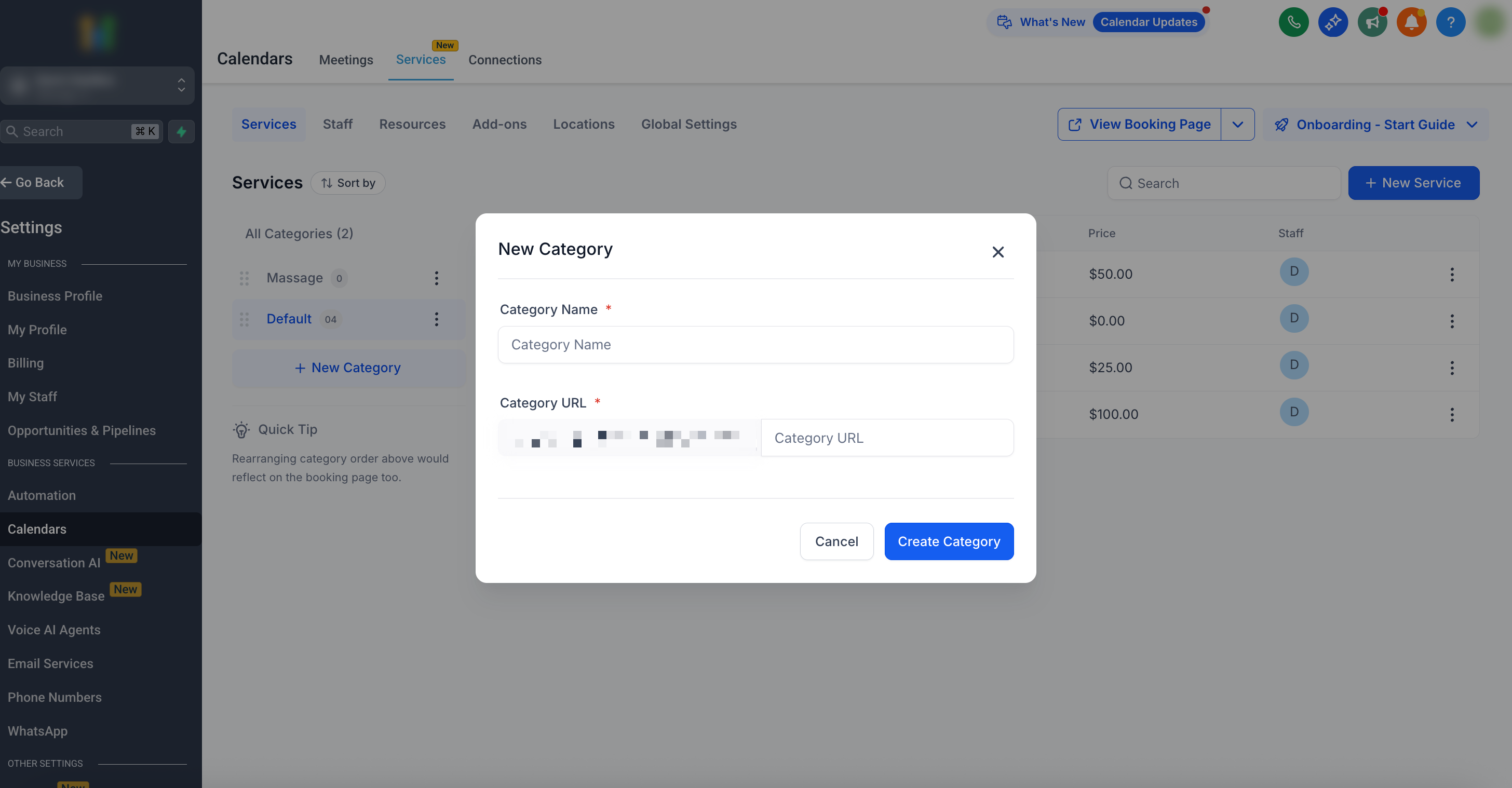
- Enter the desired name for the category.
- Specify a URL slug to generate a shareable link.
- Press the blue Create Category button to save.
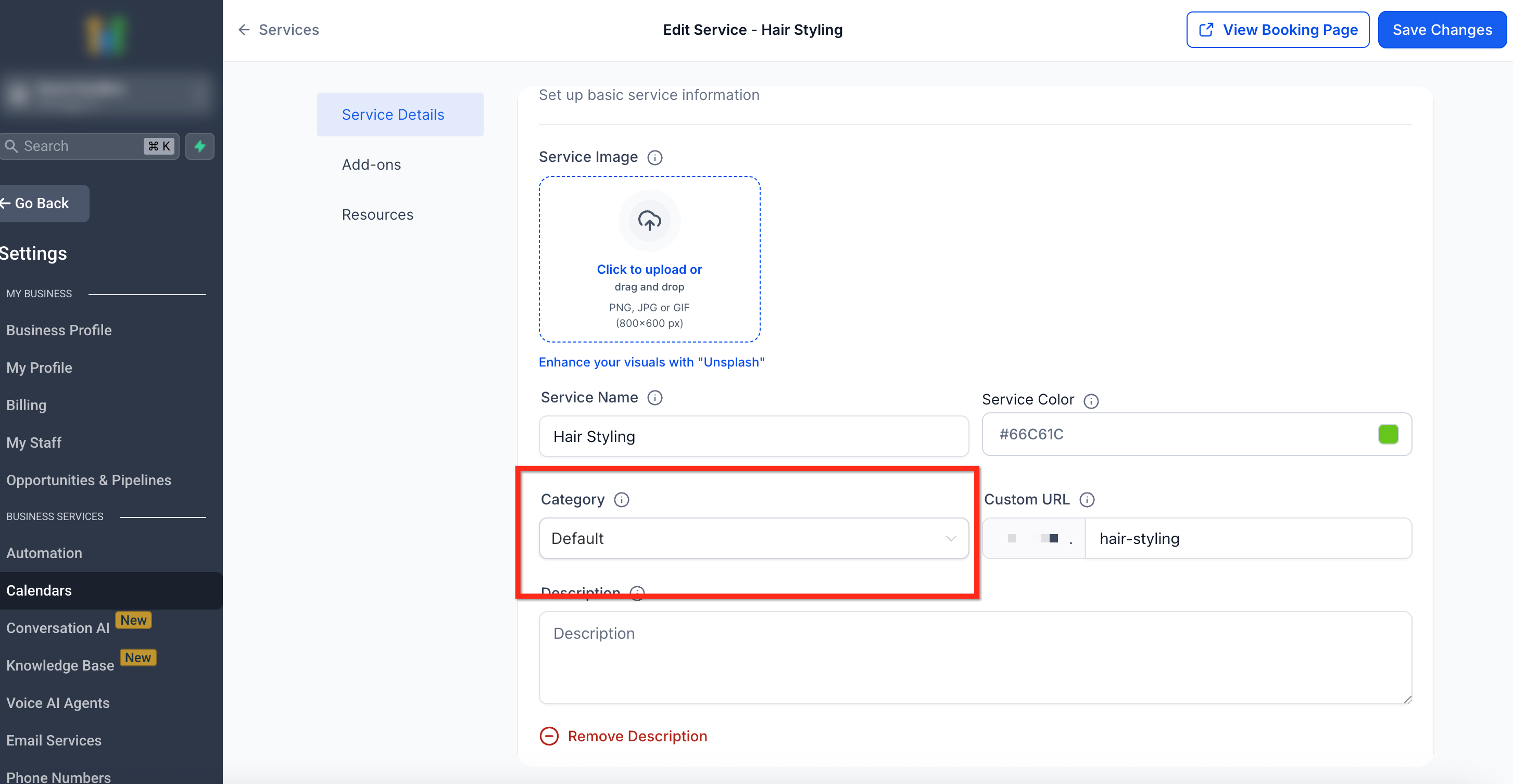
Assign a service to a category
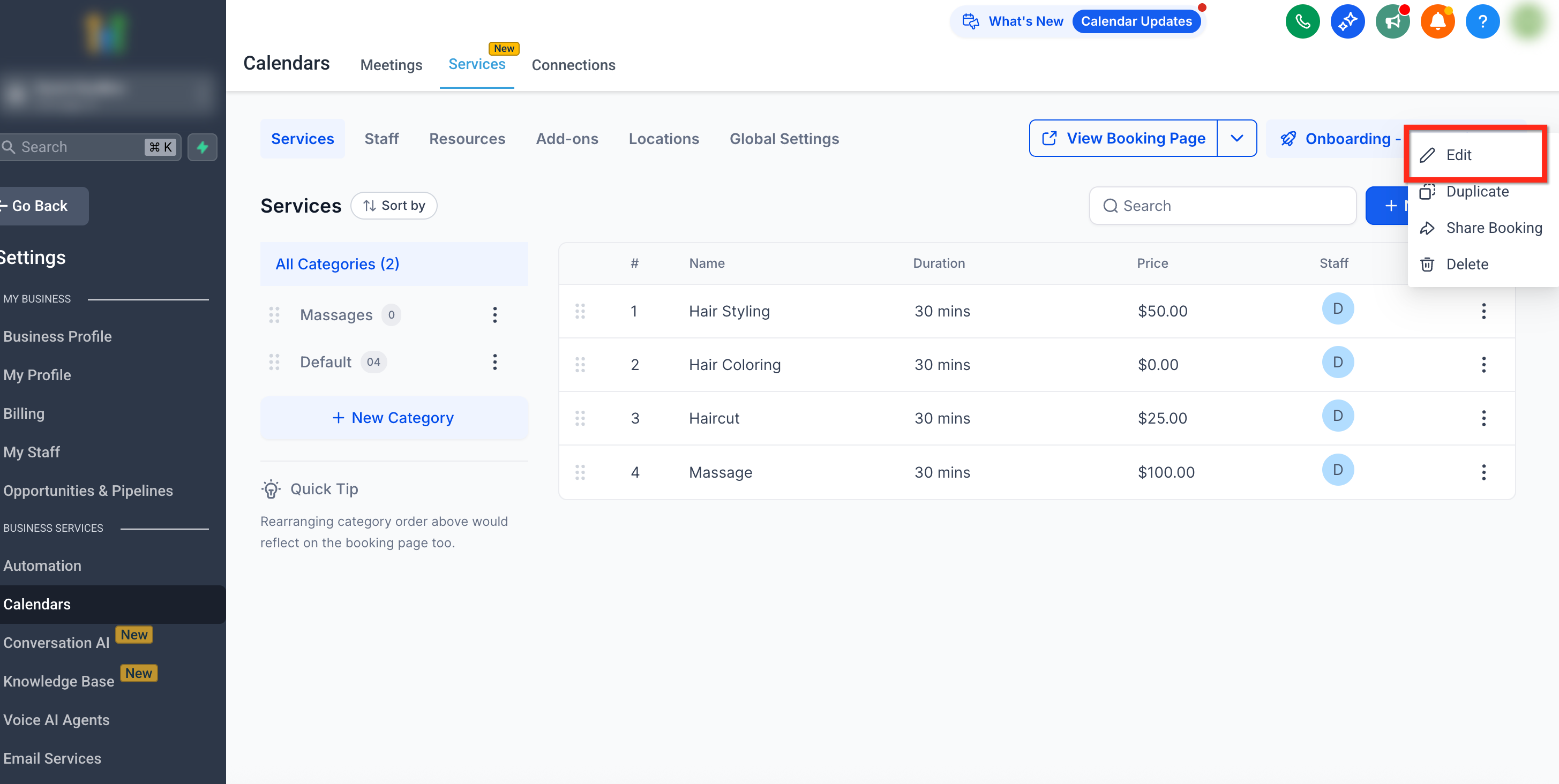
- Open the three dot menu next to the service you want to move.
- Select Edit from the menu options.
- Choose the appropriate category from the Category dropdown.
- Click the blue Save Changes button at the top right.
Edit a category
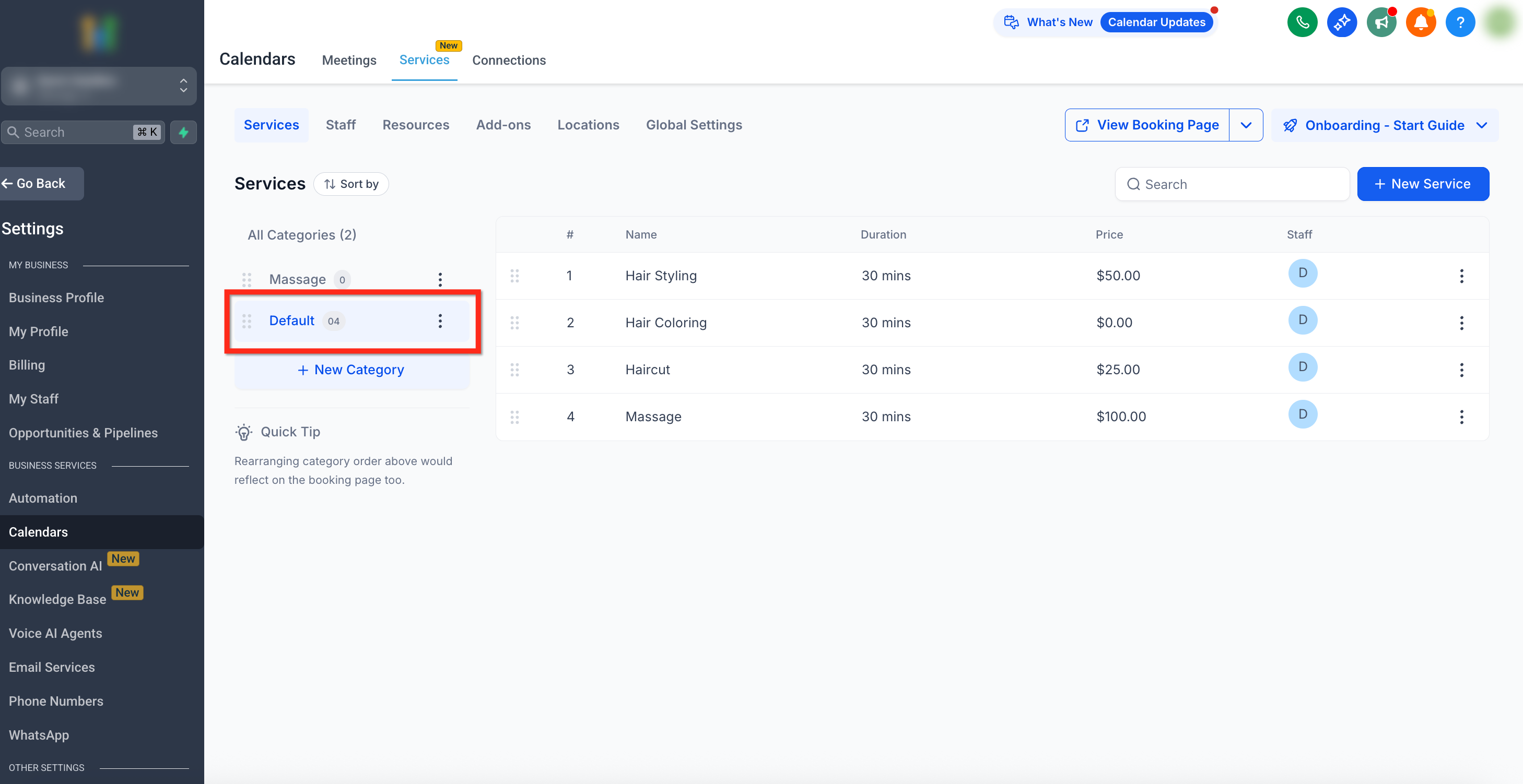
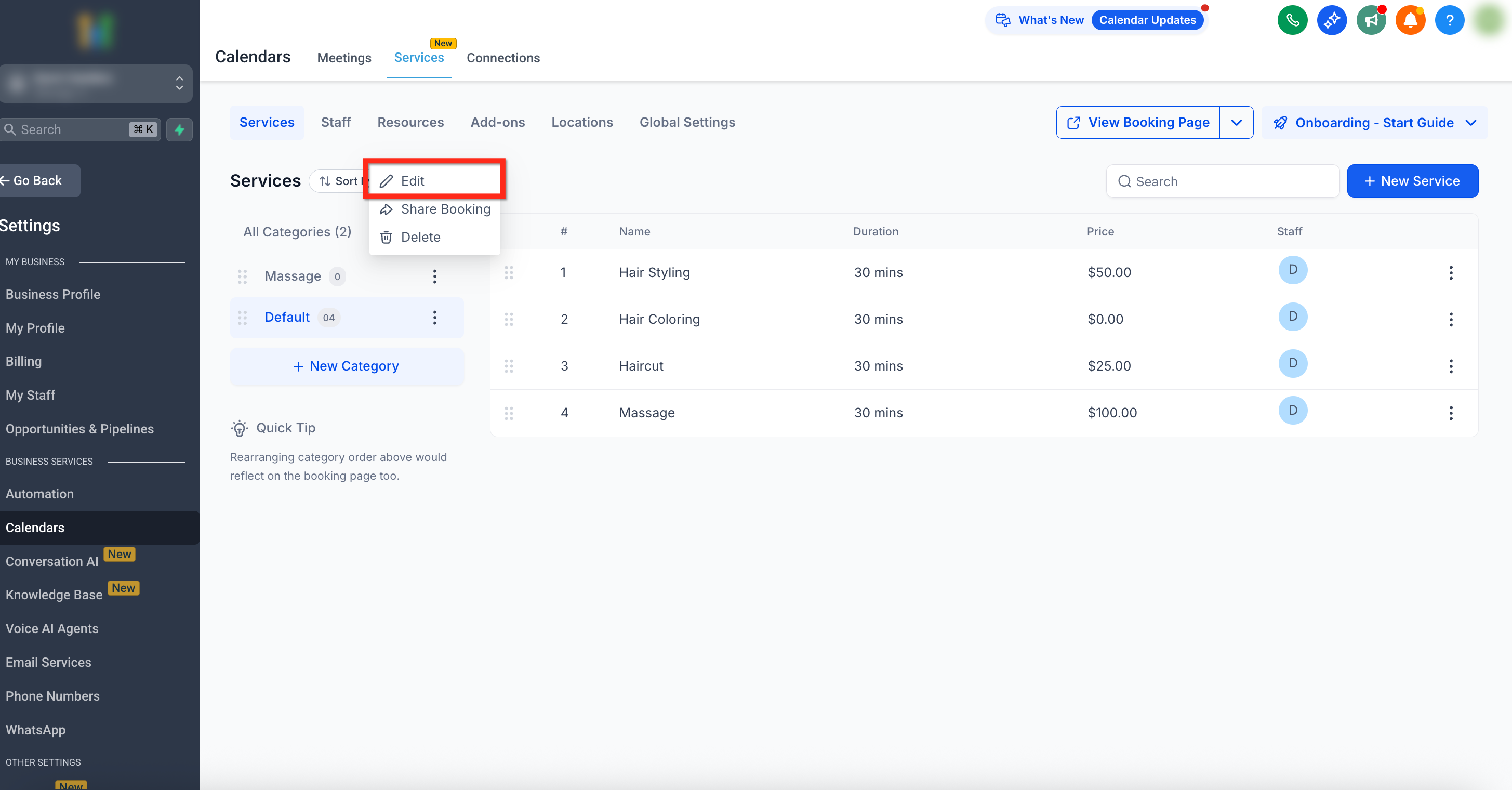
- Open the three dot menu next to the category you wish to modify.
- Select Edit.
- Update the category name or its URL slug as needed.
- Click Save changes to apply the updates.
Delete a category
- Open the three dot menu next to the category you want to remove.
- Select Delete.
- Confirm the deletion by clicking the red Delete button.
- All services from the deleted category automatically move to the Default Category.
Reorder categories
- In the left sidebar, drag and drop categories into the desired order.
- The new arrangement automatically reflects on the customer facing booking page.
06What it looks like in HighLevel
07Settings that matter
- Category Name. Defines the label shown on the booking page for the group of services.
- Category URL (slug). Creates a direct link that displays only the services belonging to that category.
08Things to know before you rely on it
- The Default Category cannot be deleted, but its name can be changed.
- All services without an assigned category are placed in the Default Category automatically.
- When a category is deleted, its services move to the Default Category.
- Only categories other than the Default Category can be removed.
09How it connects to the rest of HighLevel
- Services must be enabled before categories become available. Enable Services
- Create and manage individual services that will be placed into categories. Create services
- Adjust global booking settings that affect all categories and services. Global settings
Michael's take

When you have a growing list of services, categories help keep the booking page clean and reduce client confusion, and they provide URLs for focused marketing pushes. A spa or salon that wants to highlight only hair services can send a single link.
If your business offers only a handful of services or you rarely share category specific links, the extra steps may not add much value. In those cases you might stay with the default setup and avoid the small overhead of managing names, slugs, and ordering.