
01Who this is for
- Marketing managers can send a single confirmation that lists every service a client booked, keeping communications clear.
- Studio owners can filter workflows by service type or location to target specific client segments.
- Support teams can use the trigger to add notes that cover all appointments in a multi service booking.
02Service booking triggers, explained
The Service Booking trigger activates whenever a Services v2 booking is created either by a client on a booking page or by staff manually. It works at the booking level rather than the individual appointment level, so one workflow runs for the whole set of services.
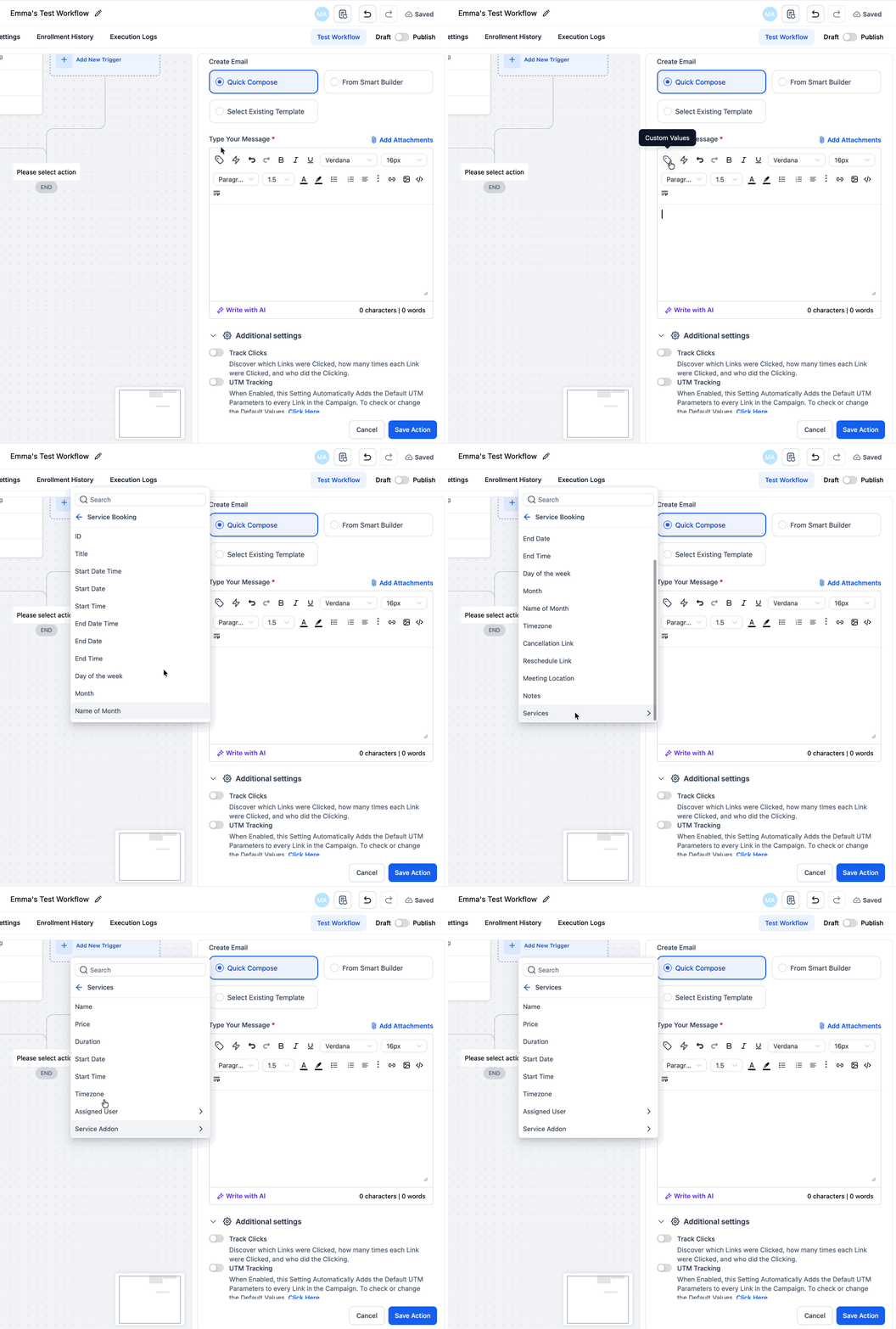
When the trigger fires, all details of each booked service, including name, price, duration, date, time, timezone, assigned staff, and any add ons, are available as custom values. These values can be inserted into emails, texts, or reminders sent by the workflow.
The trigger is found in the Automation area. It appears only if Services (v2) is turned on for the subaccount, and filters can be applied to narrow which bookings start the workflow.
03How businesses use service booking trigger
- Hair salon. After a client books a haircut and a color treatment in one checkout, the salon adds the Service Booking trigger, filters for the haircut service, and sends a confirmation email that lists both services with times and staff.
- Wellness center. The center creates a workflow that fires when a booking includes a massage service, then uses custom values to include the therapist’s name and room number in a reminder text.
- Event venue. When a client reserves multiple venue packages in a single booking, the venue adds the Service Booking trigger, filters by location, and adds a note to the client record that summarizes all booked packages.
04The numbers and rules that matter
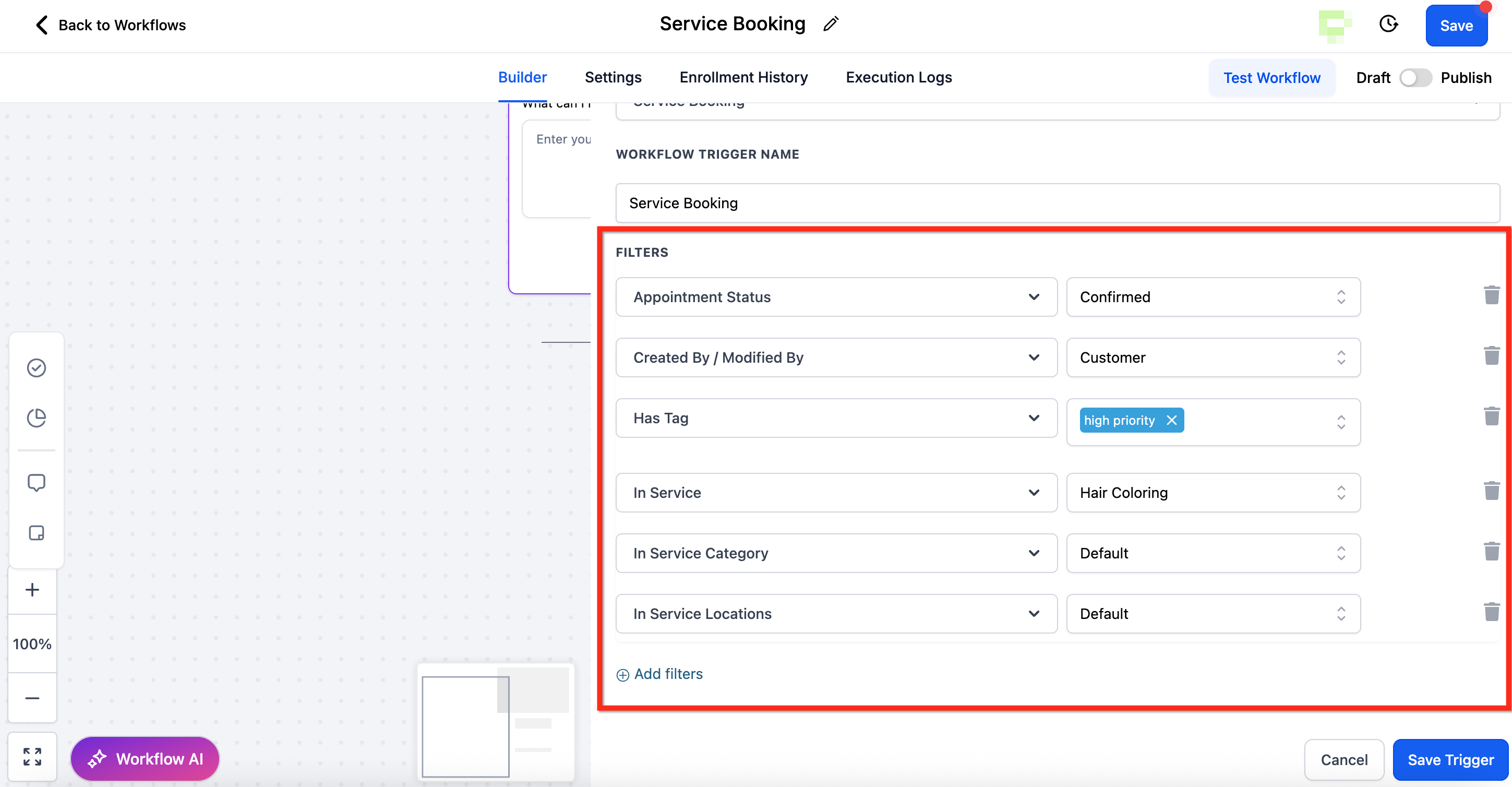
- Available filters: Appointment Status, Created By / Modified By, Has Tag, In Service, In Service Category, In Service Location.
- Supported Appointment Actions: Update Appointment Status (), Create Appointment Note (), Book Appointment (Not supported), Conversation AI Booking Bot (Not supported), Eliza Booking (Not supported).
05Before you start
- Enable Services (v2) for the subaccount before adding the trigger.
06How to set up and use service booking trigger in HighLevel
Set up the service booking workflow trigger
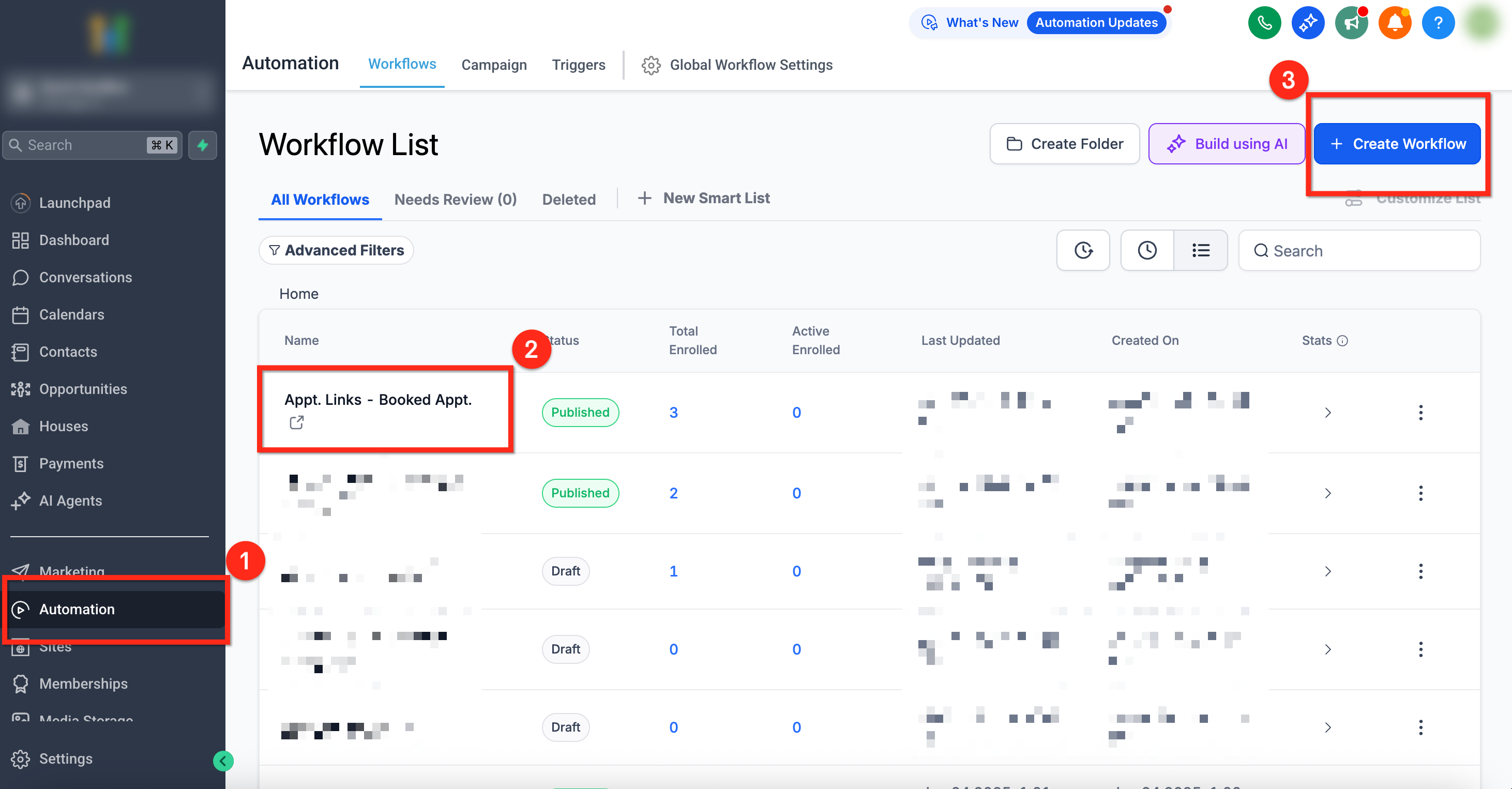
- Select Automation from the left navigation menu.
- Open an existing workflow or click + Create New Workflow to start a new one.
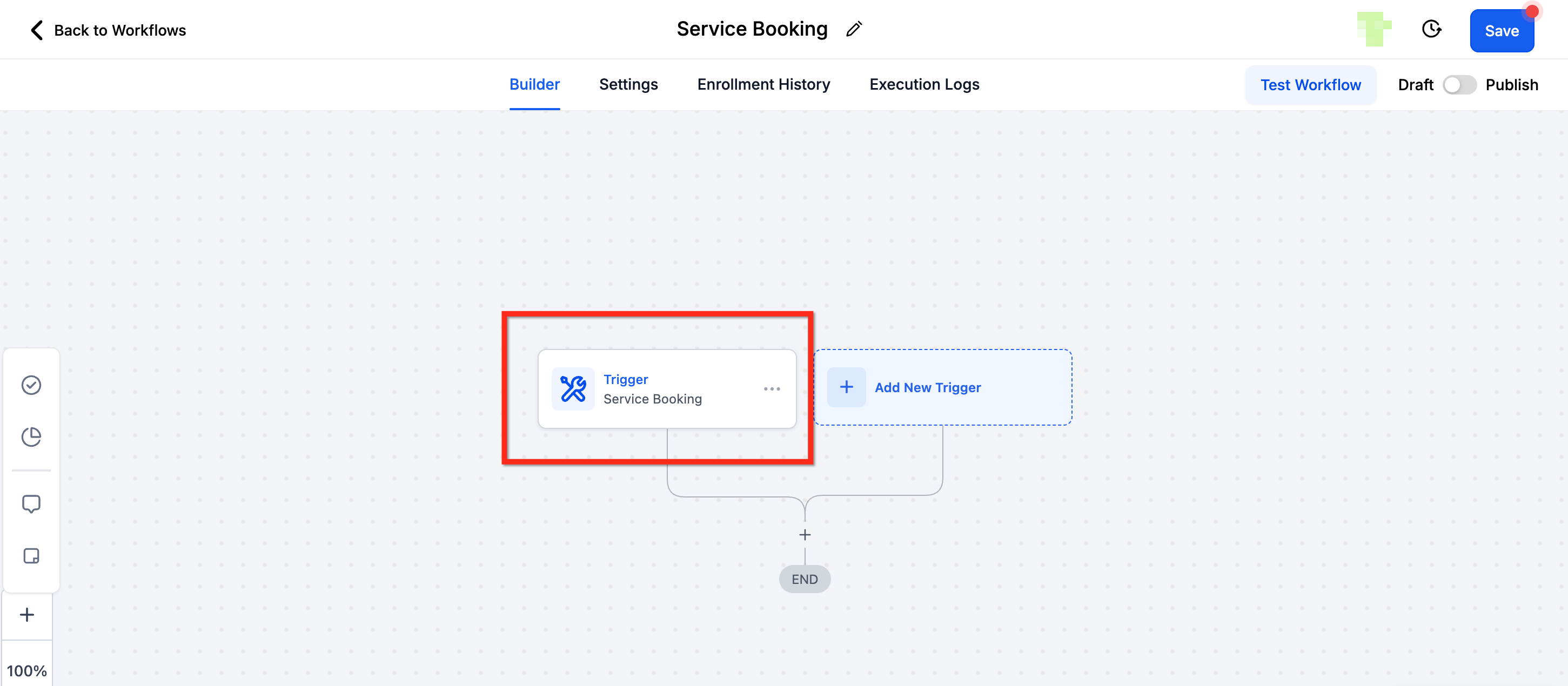
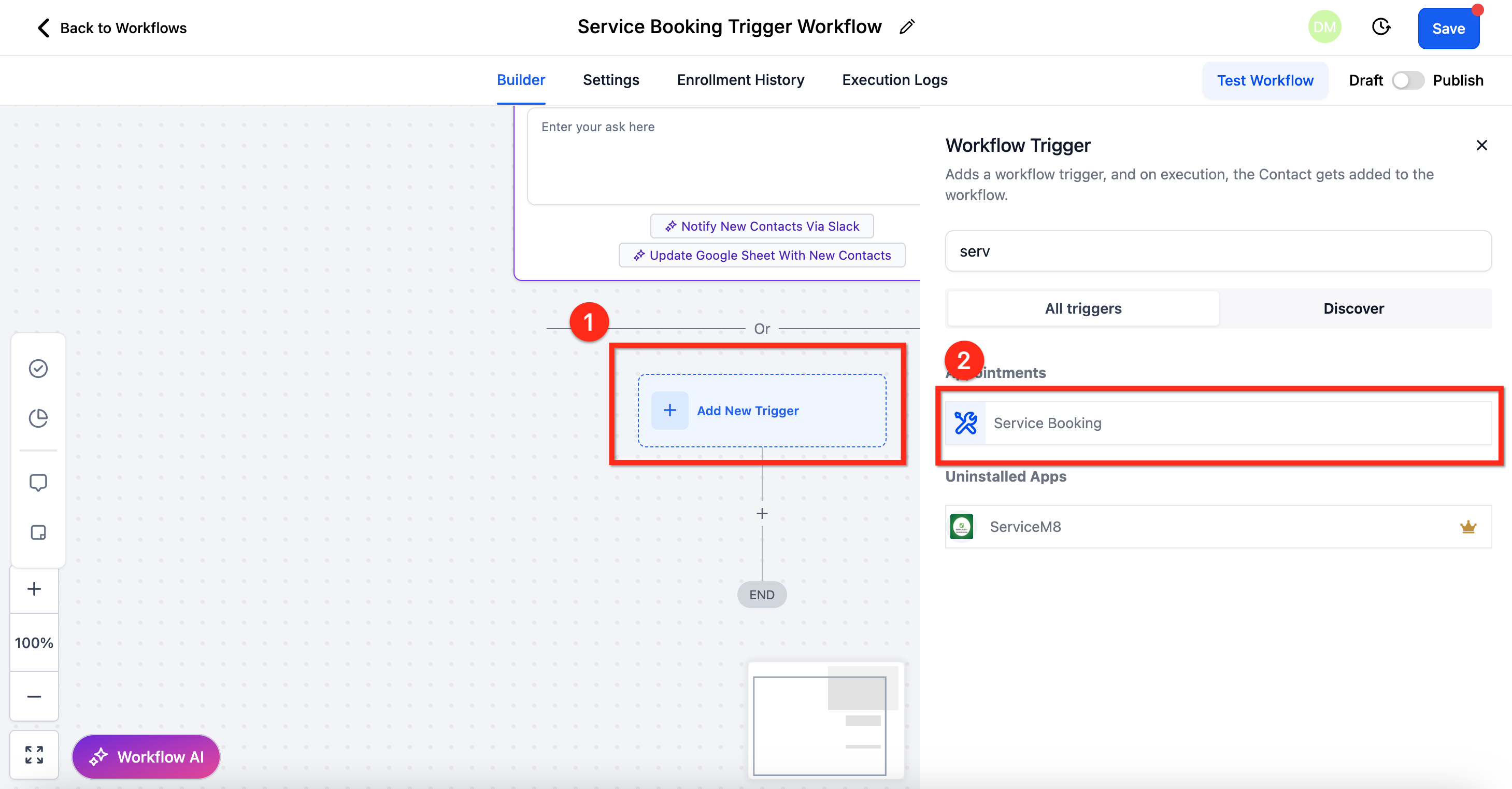
- Click + Add New Trigger.
- Search for and select the Service Booking trigger.
- Configure the desired filters for the trigger.
- Press the blue Save Trigger button.
07What it looks like in HighLevel
08Settings that matter
- Appointment Status. Filters bookings by their current status such as Confirmed or Cancelled.
- Created By / Modified By. Limits the trigger to bookings created or changed by a specific user.
- Has Tag. Runs the workflow only for bookings that carry a particular tag.
- In Service. Selects bookings that include a specific service.
- In Service Category. Filters bookings based on the service grouping they belong to.
- In Service Location. Limits the trigger to bookings made at a chosen location.
09Things to know before you rely on it
- The trigger appears only if Services (v2) is enabled for the subaccount; otherwise it is unavailable for new workflows.
- If Services (v2) is disabled, existing workflows keep running for status updates on existing bookings, but new bookings will not fire the trigger.
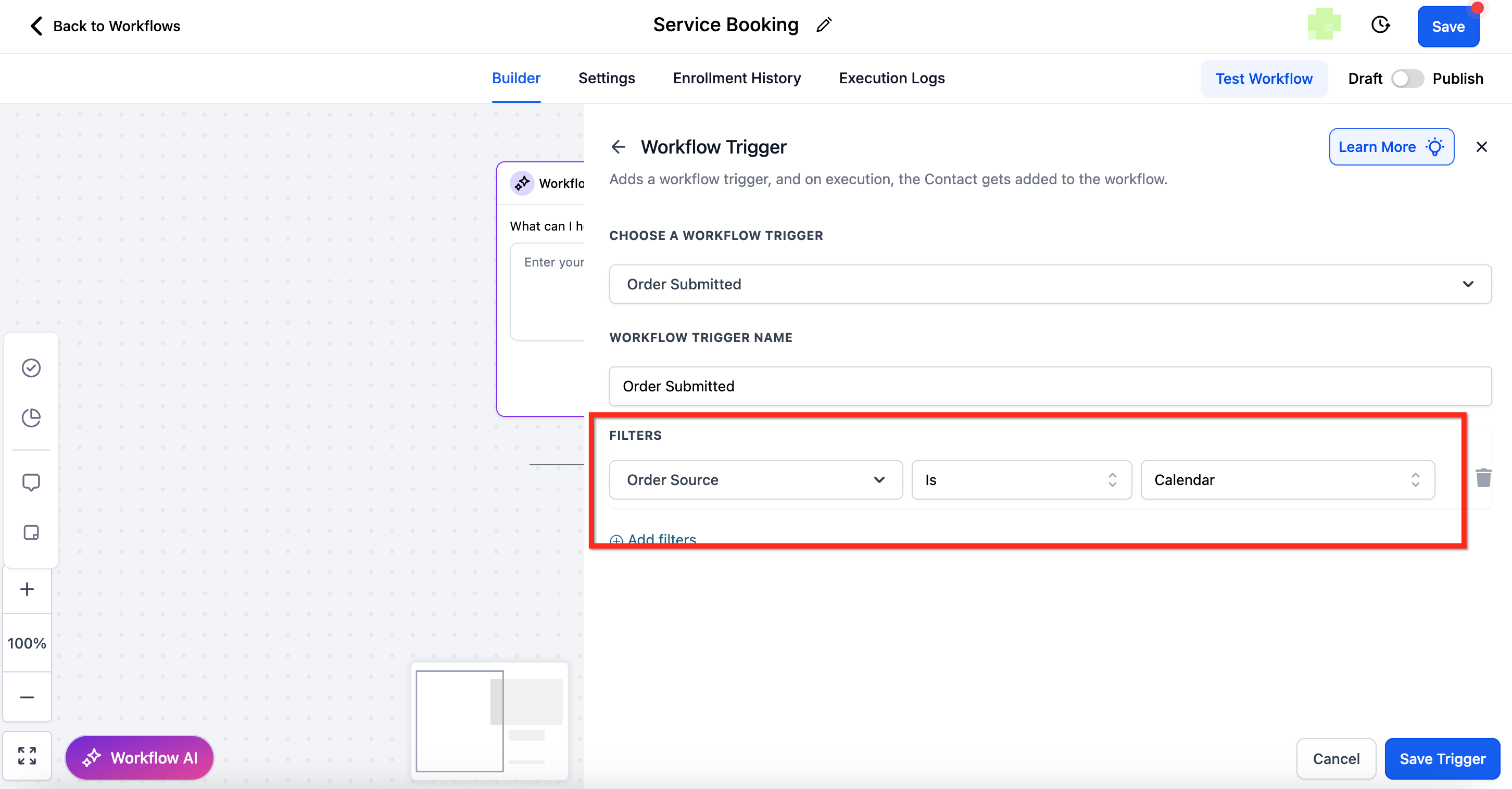
- The Order Submitted trigger does not fire for orders created by service bookings unless the filter Order Source = Calendar is added to that trigger.
- Supported appointment actions: updating appointment status and creating appointment notes are based on the Service Booking ID; booking an appointment or using the AI Booking Bot are not supported.
10How it connects to the rest of HighLevel
- Learn how to create services before using the trigger Creating services
- Configure global settings that affect all service bookings Global service settings
- Add staff members to assign appointments in bookings Staff configuration
Michael's take

The Service Booking trigger is a clean way to handle multiservice checkouts without spamming customers.
If you only ever sell single services or don’t need a unified confirmation, you can skip this feature.