
01Who this is for
- Spa owners can offer upgrades like aromatherapy to enhance client experience.
- Personal trainers can add nutrition consultations to workout packages for added value.
- Photographers can provide extra edited photos as an optional extra to a photoshoot.
02Add ons, explained
Add ons are optional items linked to a service. They appear on the booking page only for services they are assigned to, allowing customers to select extras during checkout. An add on can have its own price, duration, quantity limits and can be hidden from the booking page.
Add ons are created in the Services area of HighLevel. They can be defined once and then attached to any number of services. When an add on has a duration, that time is added to the base service length, changing the overall appointment slot. Pricing can be fixed or multiplied by the quantity chosen.
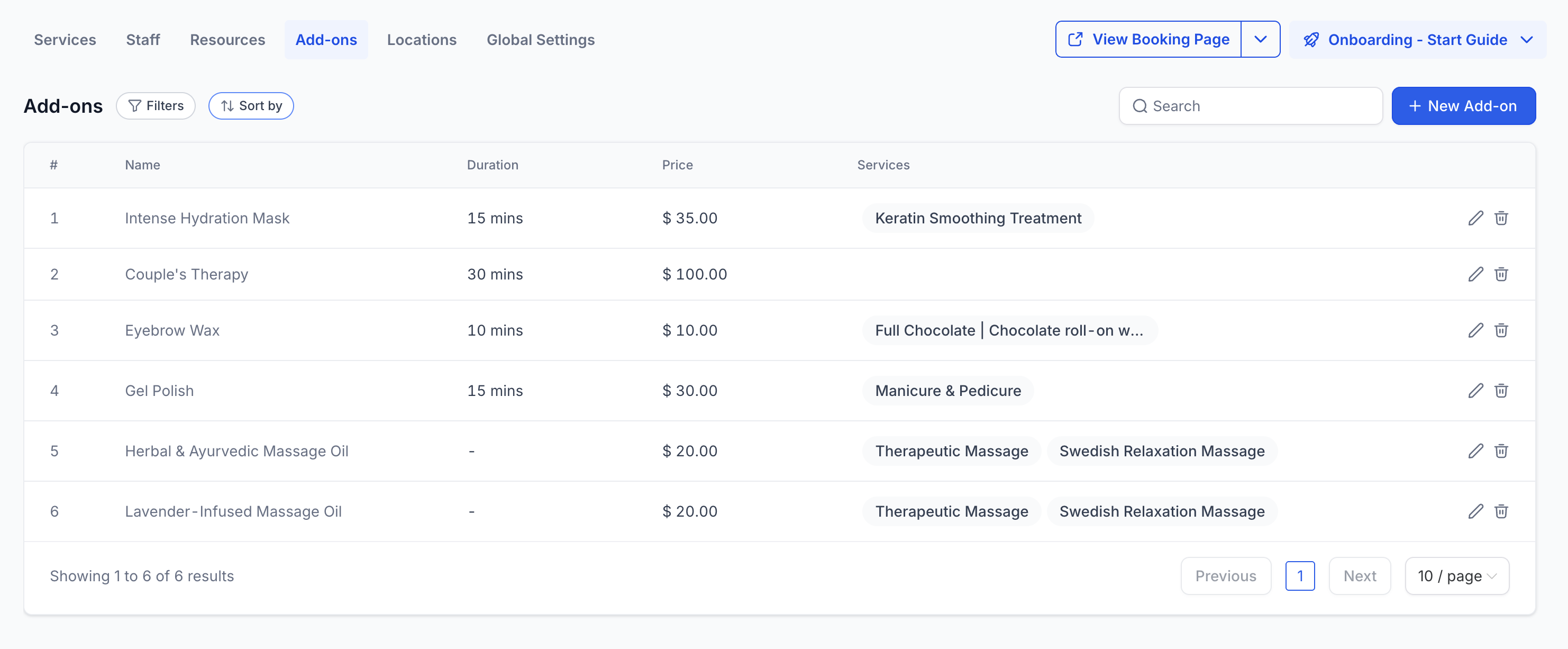
The add on manager lives inside the Services panel. Access it via Calendar > Calendar Settings > Services, then use the Add ons tab to view, create, edit or delete add ons and to assign them to individual services.
03How businesses use add ons
- Spa. Create an add on called “Aromatherapy Upgrade,” set a price and optional duration, then assign it to massage services. Clients can select it when booking a massage.
- Personal trainer. Add a “Nutritional Consultation” add on, define its cost, enable duration, and link it to workout plan services. Clients can add the consultation when scheduling their training session.
- Photographer. Create an add on for “Additional Edited Photos,” set maximum quantity and price per unit, hide it from the booking page if only staff should apply it, and assign it to photoshoot packages.
04The numbers and rules that matter
- Maximum Quantity limits how many units can be selected per appointment.
05How to set up and use add ons in HighLevel
Assign add ons to a service
- Navigate to Calendar > Calendar Settings > Services.
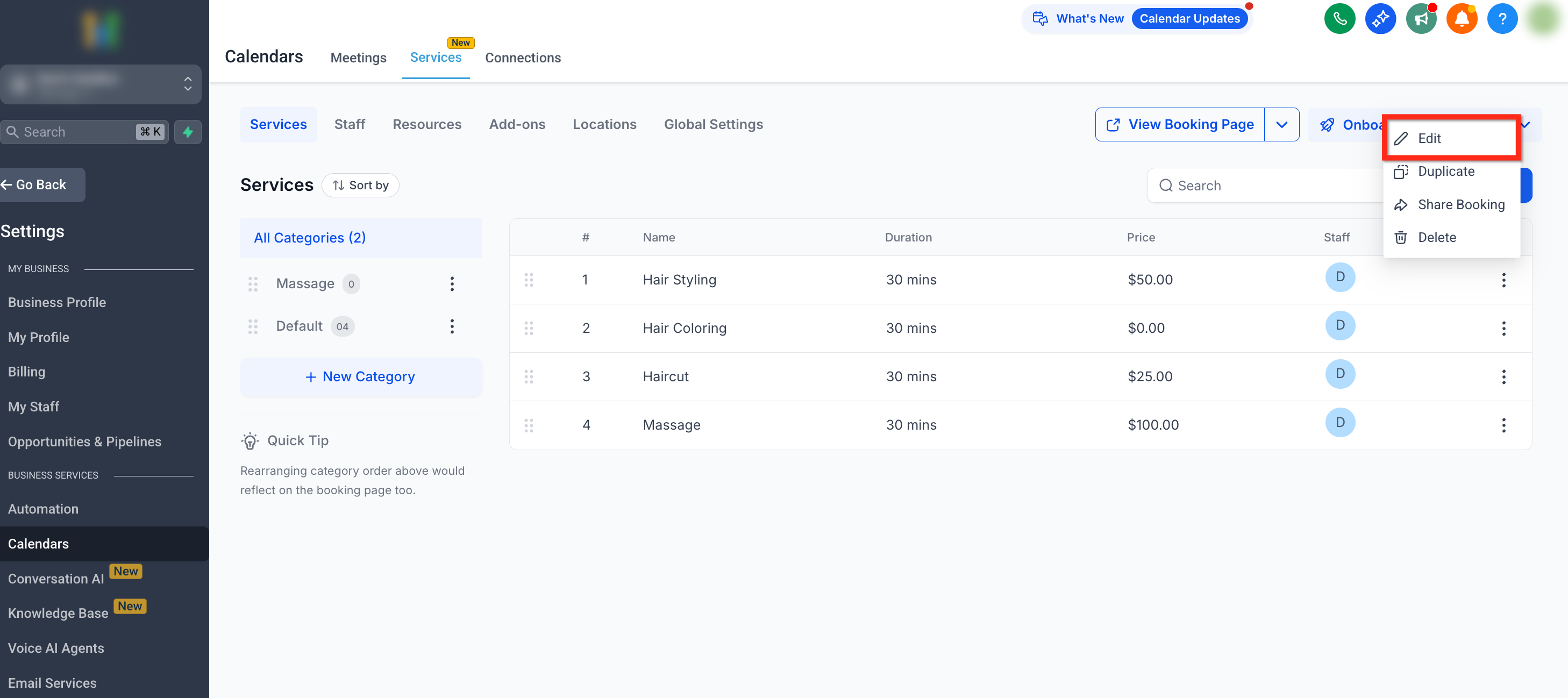
- Open the Service Editor for the desired service by selecting the three dot menu and choosing Edit.
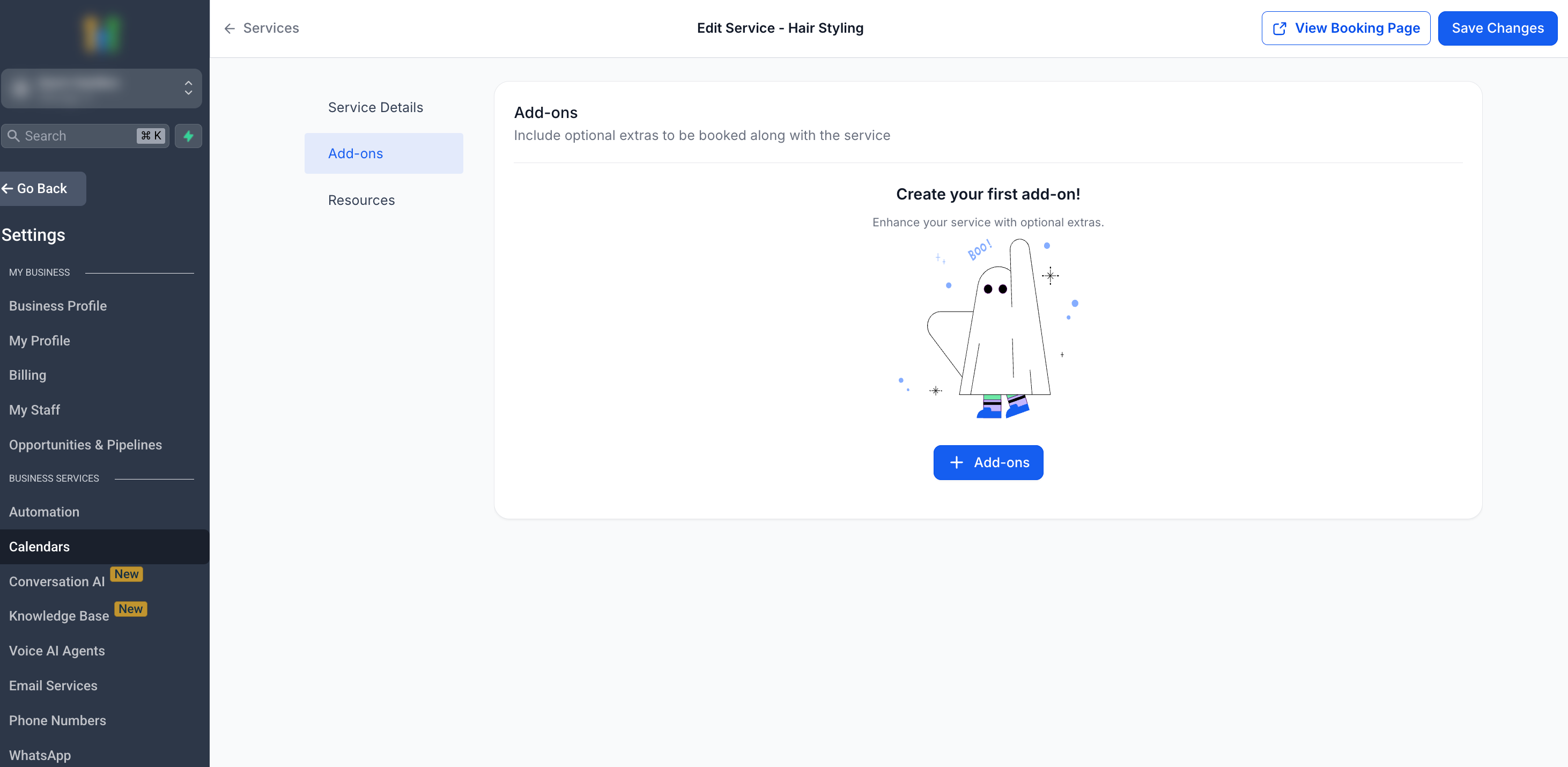
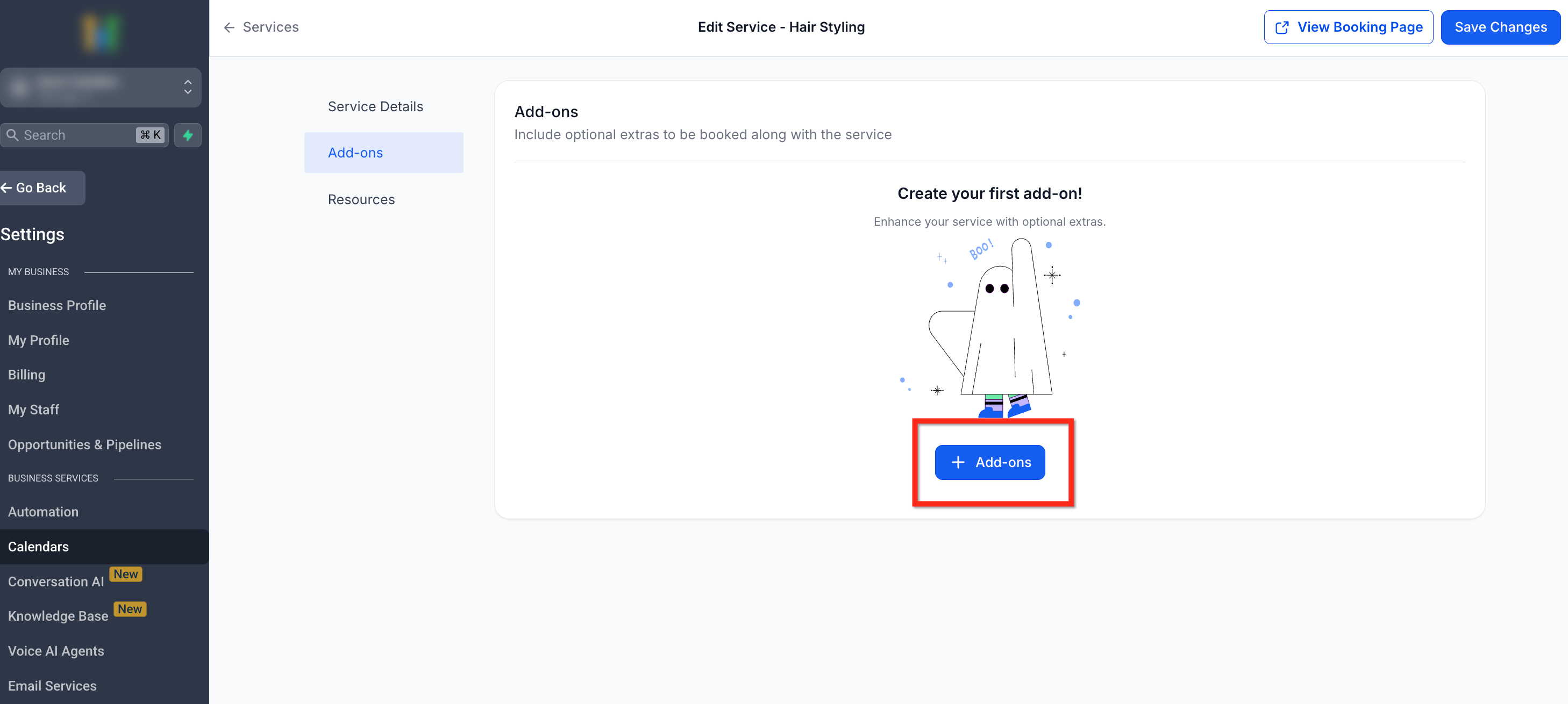
- Select the Add ons tab on the left navigation bar.
- Click the + Add ons button.
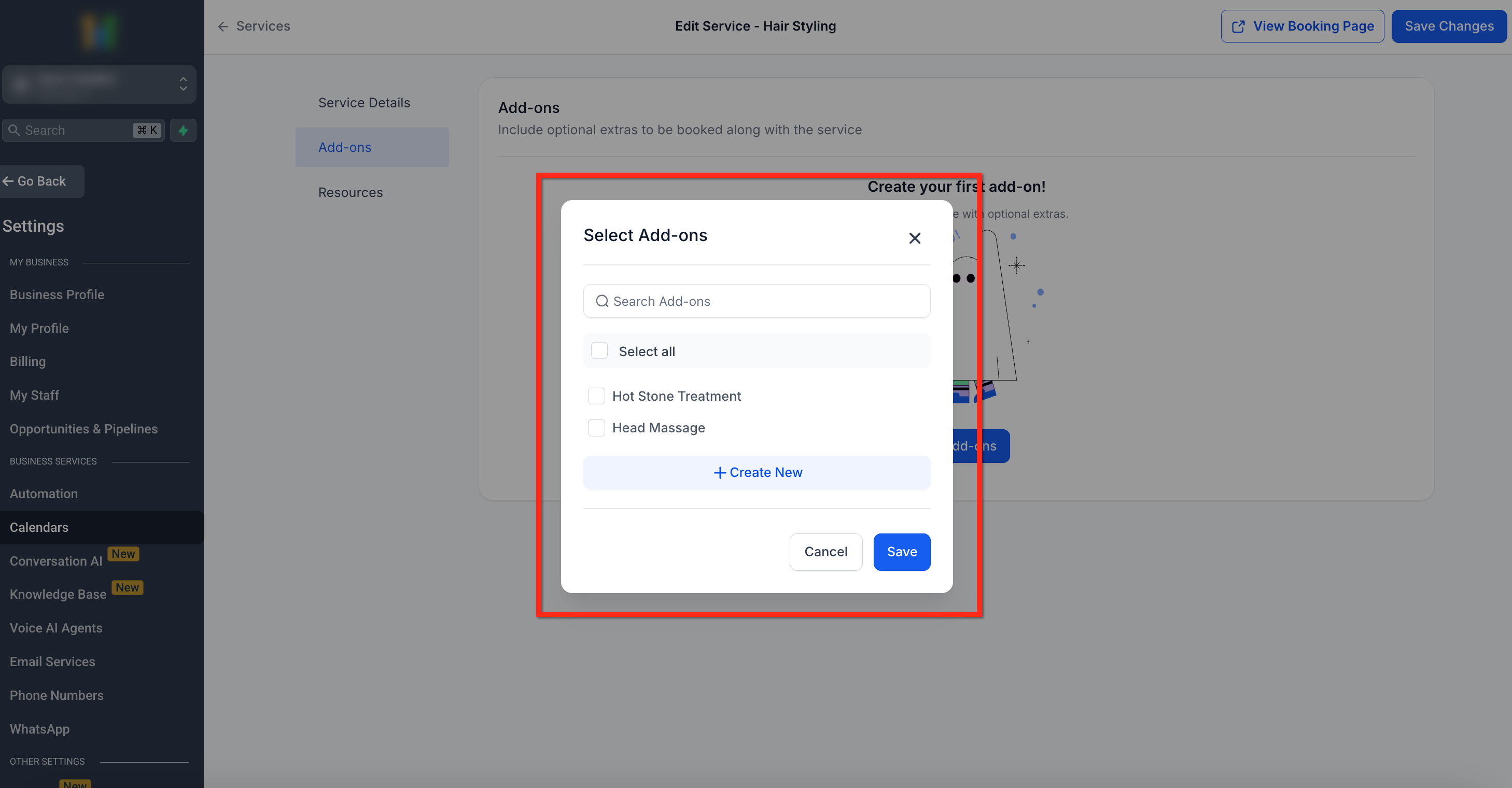
- Choose the add ons you want to attach to this service or create a new one if needed.
- Click Save to store the changes.
Edit or delete an add on
- Navigate to Calendar > Calendar Settings > Services.
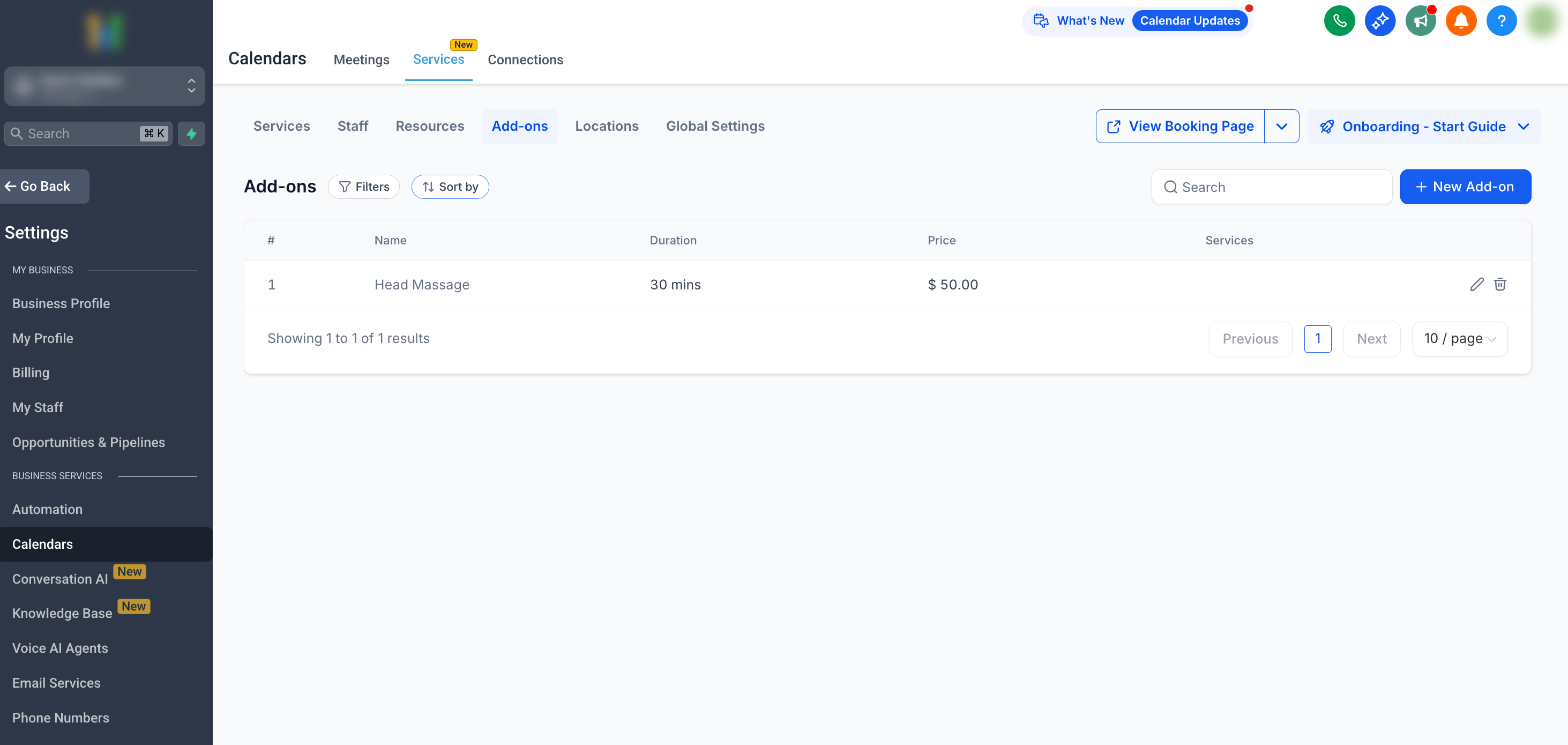
- Open the Add ons tab in the secondary navigation ribbon.
- Click the Edit (pencil) icon beside the add on you wish to modify, or click the Delete (trash) icon to remove an add on you no longer need.
- If editing, make any required changes and click the blue Save Changes button.
Create a new add on
- Navigate to Calendar > Calendar Settings > Services.
- Open the Add ons tab from the top secondary navigation.
- Press the + New Add on button in the upper right corner.
- Upload an image that represents the add on.
- Enter a clear name for the add on.
- Set the price, enable duration if applicable, define maximum quantity and configure multiple price with quantity as needed.
- Add a description, choose whether to hide it from the booking page, and click Create Add on.
06What it looks like in HighLevel
07Settings that matter
- Add, on Image. Defines the visual picture shown for the add on on the booking page.
- Name. The label that customers see when selecting the add on.
- Price. Specifies the cost charged for the add on.
- Duration. When enabled, adds the specified time to the total service length.
- Maximum Quantity. Limits how many units of the add on can be chosen per appointment.
- Multiple Price with Quantity. If turned on, multiplies the price by the quantity selected.
- Description. Provides further details about what the add on includes.
- Hide from Booking Page. When enabled, the add on is not displayed to customers and can only be applied by staff.
08Things to know before you rely on it
- Add ons do not appear on services automatically; they must be manually assigned to each service.
- If Duration is enabled, the add on time is added to the base service duration.
- Maximum Quantity should be set when physical stock limits exist.
09How it connects to the rest of HighLevel
- Enable services across your account to start using add ons. Enable Services
- Learn how to create and manage services before adding add ons. Create Services
- Adjust global booking controls that affect all services and add ons. Global Settings
Michael's take

Add ons are a small convenience that can become a real shift for service based businesses. They let you capture extra revenue at the moment a client books, without any back and forth follow up.
Think of a personal trainer offering a "Nutritional Consultation" as an optional extra. The client sees the price, selects it, and the appointment time is adjusted.