
01Who this is for
- Businesses that schedule appointments benefit from applying the same staff and location rules to every service, reducing the need for individual configuration.
- Enterprises with multiple service locations use the unified payment and notification settings to maintain a consistent checkout experience across all branches.
02Global settings in services, explained
Global Settings is a central control panel inside the Services module. It stores default values that every service inherits unless you override them on a specific service record. The settings cover the in app calendar view, how many locations or resources appear, and whether add ons are offered.
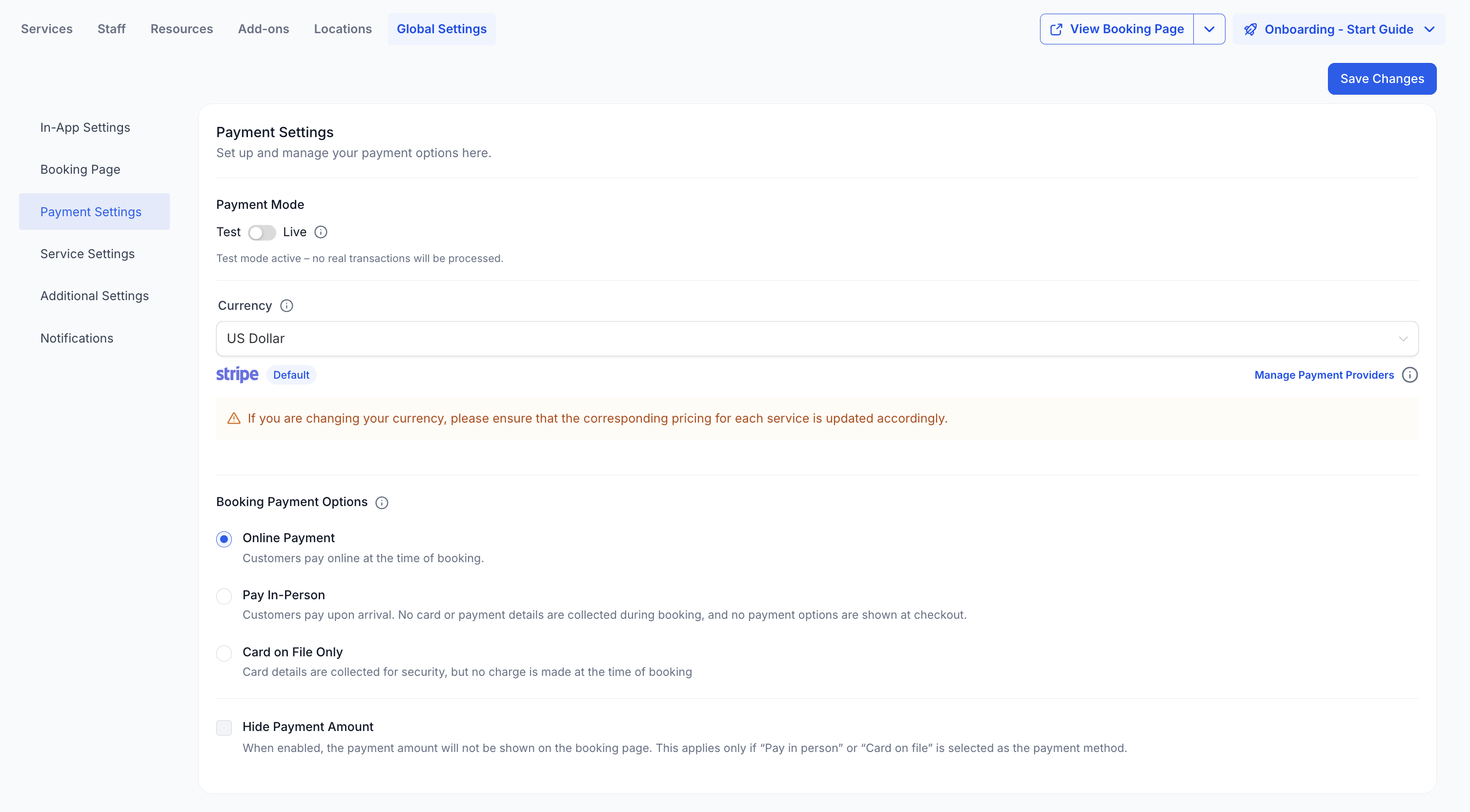
The booking page section lets you set the company name, logo, colors, layout style, language and how customers browse services. You also decide the order of steps, whether staff selection is required and what button labels read. Payment settings define test versus live mode, accepted currencies, payment methods and options such as deposit only checkout or coupon codes.
Service specific defaults include the time interval between slots, minimum notice, the booking window (range based or date based), cancellation and reschedule link expiry, and automatic confirmation. Notification rules specify which emails, SMS or WhatsApp messages are sent for booking, cancellation, reminders and follow ups. Third party calendar settings control sync and invitation notes for Google, Outlook or iCloud calendars.
03How businesses use global settings in services
- Fitness studio. The studio enables multiple locations, sets a card view for class listings and activates staff selection so members can choose a trainer. Payment settings are set to allow deposits, and notifications are configured to email reminders the day before each class.
- Home repair service. The business turns on resources to track tools, chooses a list view for service cards, and sets a booking window of 30 days. They enable add ons to let customers add extra parts and configure WhatsApp notifications for booking confirmations.
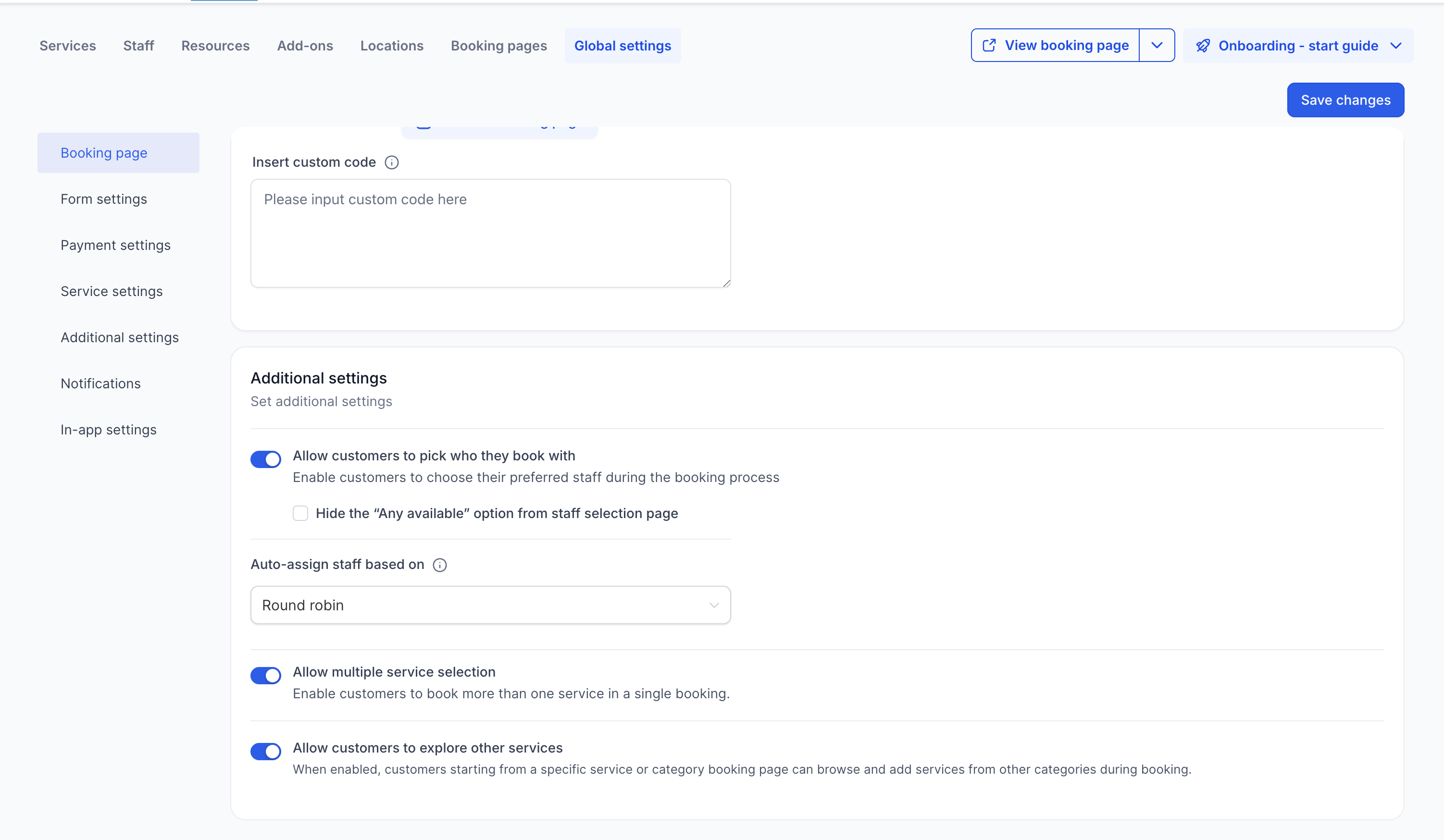
- Online coaching practice. Coaches enable the "Allow customers to pick who they book with" option, hide the "Any Available" choice, and set the Service Booking Title to include the client’s name. They also lock the timezone on the booking page to avoid confusion across regions.
04How to set up and use global settings in services in HighLevel
Configure global settings for all services
- Open the Services module and select Global Settings.
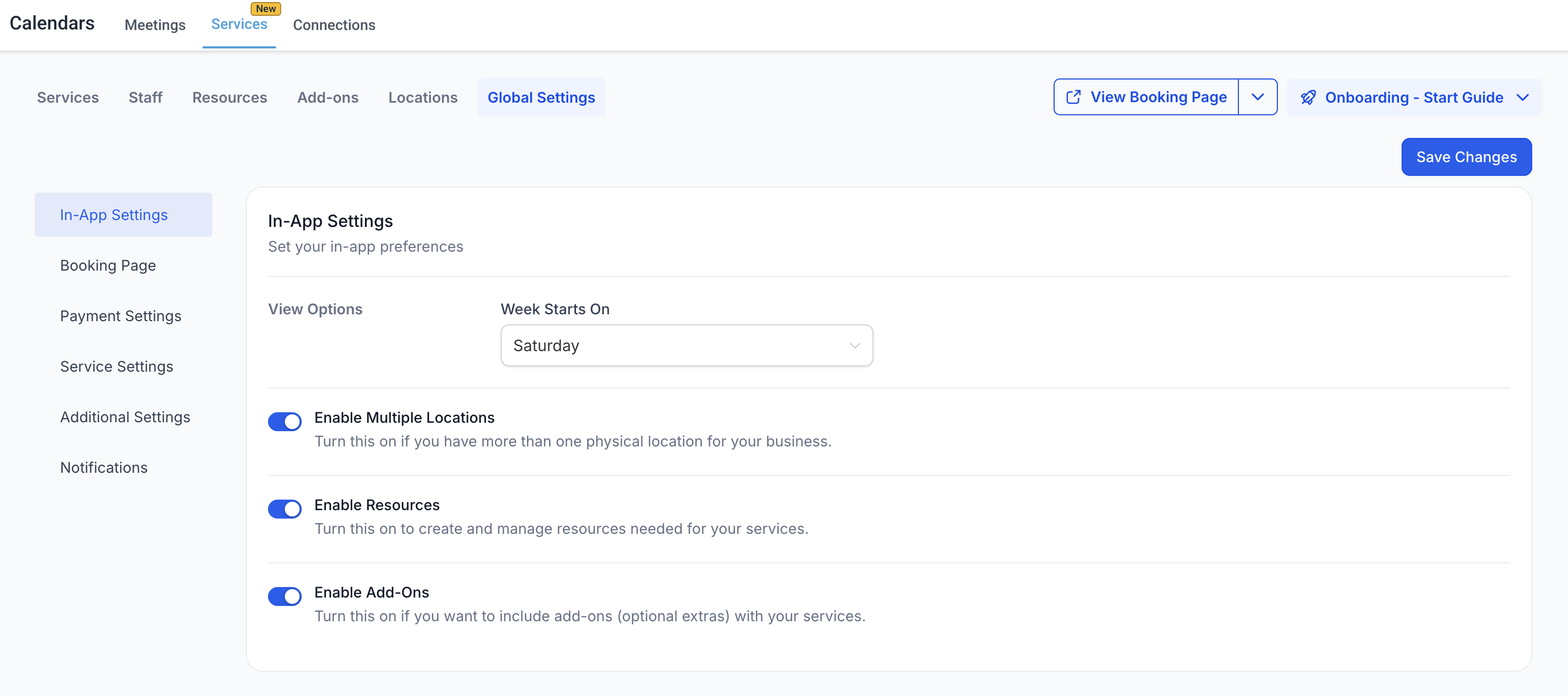
- Adjust In App Settings such as view start day, multiple locations, resources and add ons.
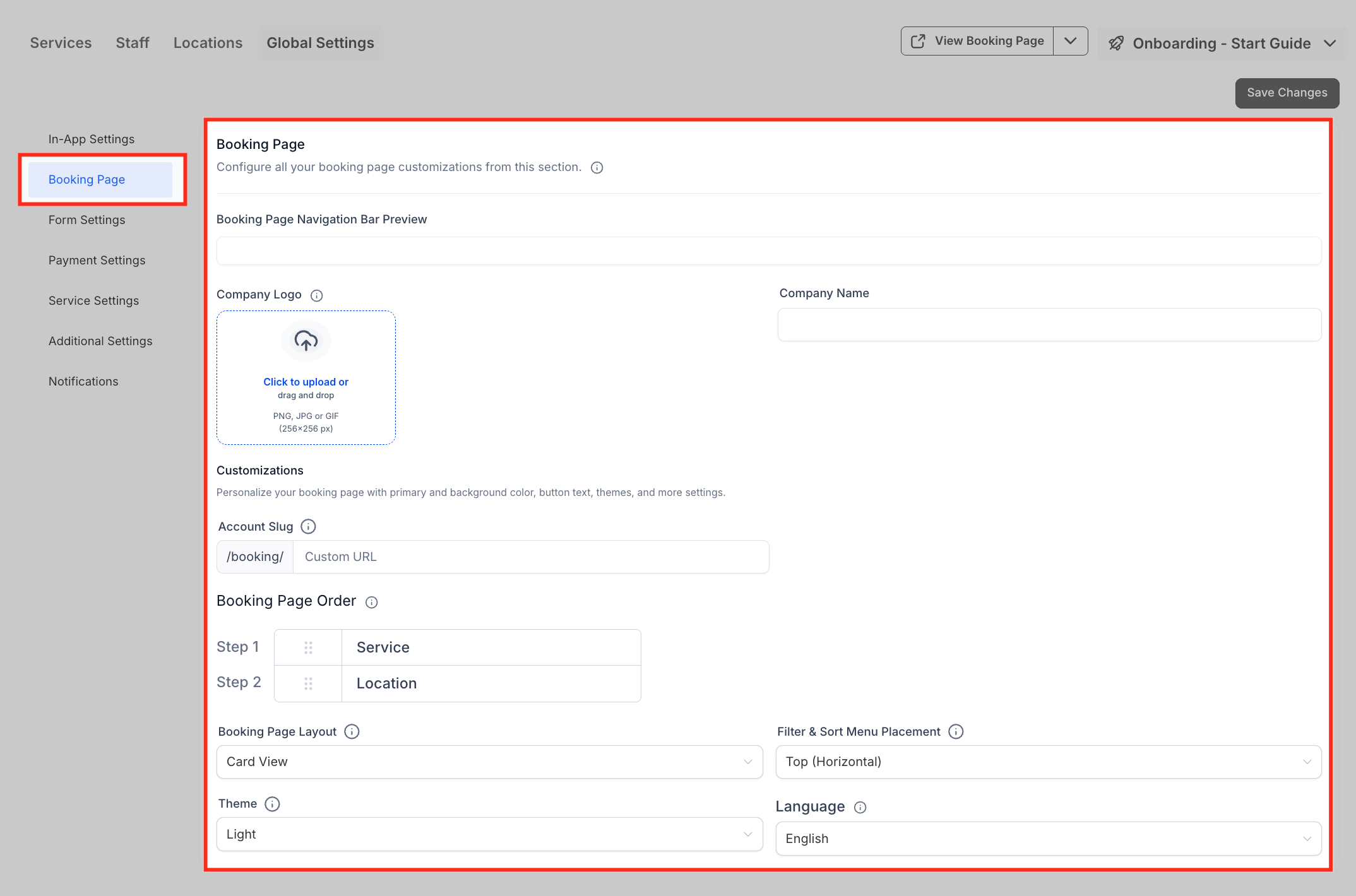
- Customize the booking page by adding the company name, logo, choosing images, setting the account slug, browse mode, layout, filter placement, theme, language and colors.
- Define how customers select staff, whether the "Any Available" option shows, and if multiple services can be booked together.
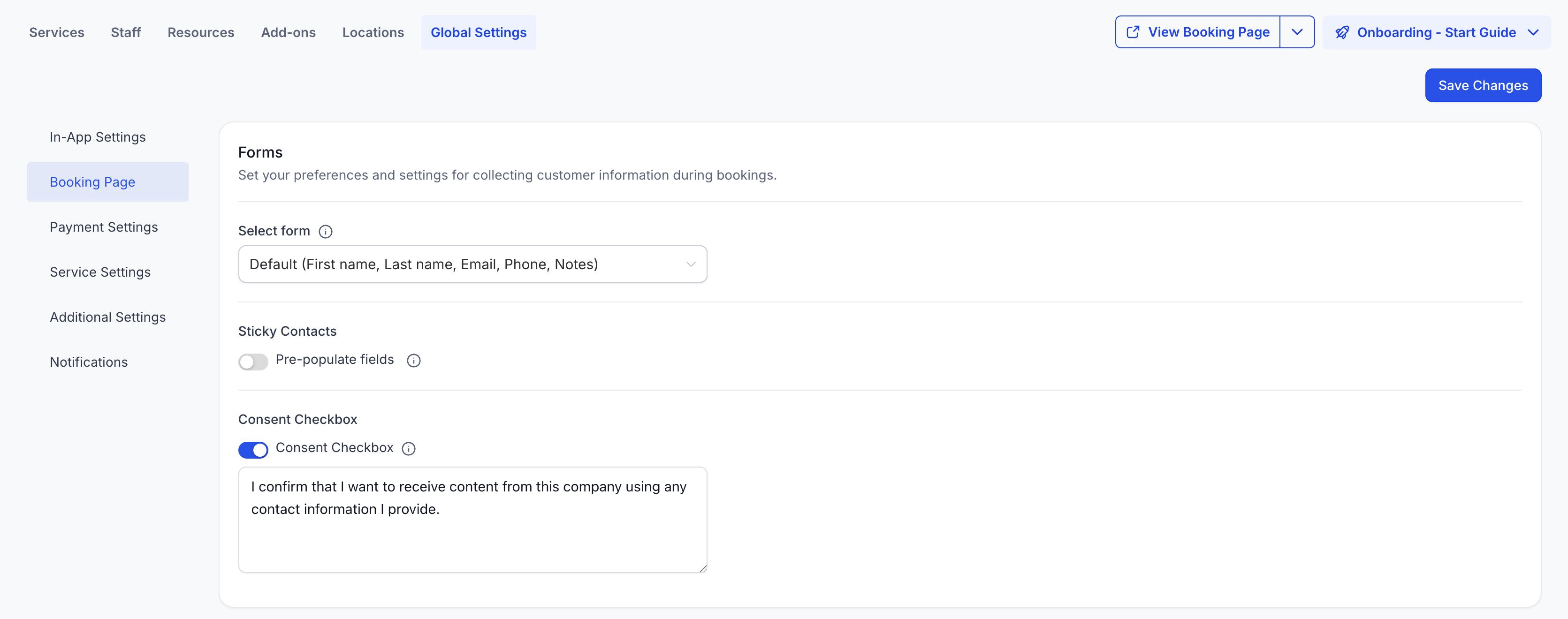
- Choose the form displayed on booking, enable sticky contacts if appropriate and add a consent checkbox when using the Default Form.
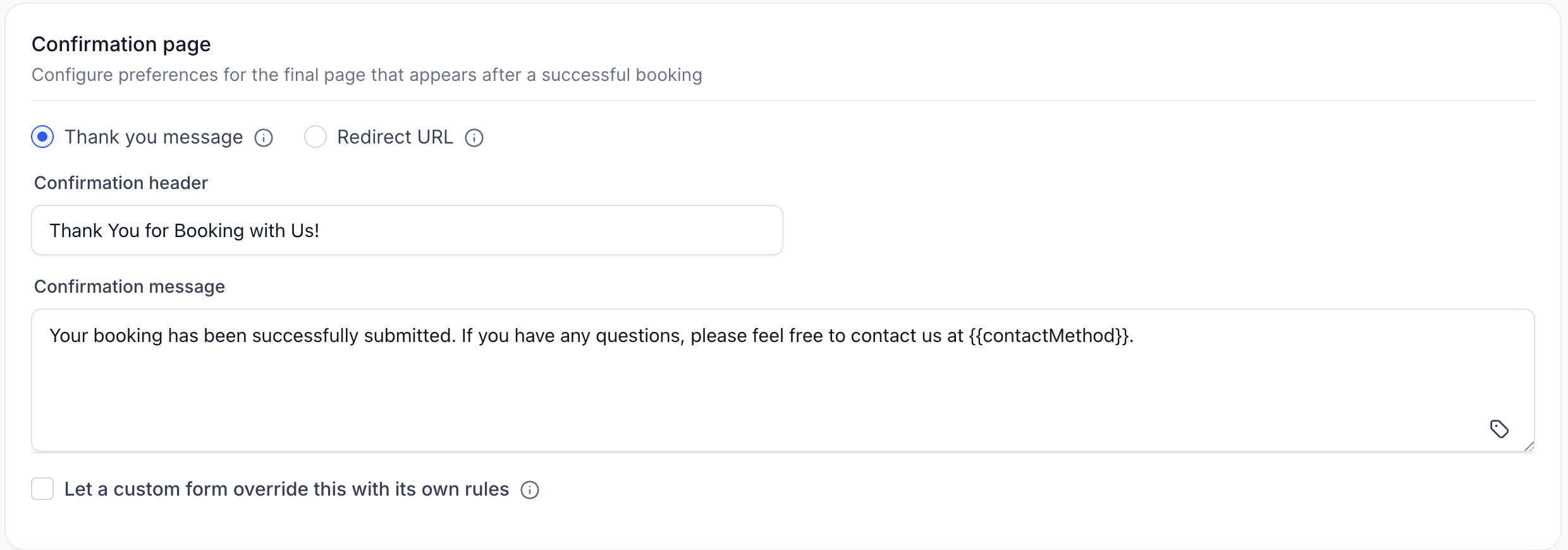
- Set the confirmation page behavior or allow a custom form to dictate the post booking experience.
- Switch payment mode to Test or Live, select the currency, decide which payment options appear and whether to hide the amount or allow coupons.
- Specify service interval, minimum scheduling notice, booking window type and whether to count only available days.
- Enter a Service Booking Title template for mobile appointments.
- Configure contact assignment rules, optional Facebook Pixel ID and whether to lock the booking page timezone.
- Create notification rules for each event type, choose delivery channels and customize their content.
- Set third party calendar sync, enable invitations and add custom appointment notes for external calendars.
05What it looks like in HighLevel
06Settings that matter
- View Options. Selects the day that the calendar view starts on, such as Monday, Saturday or Sunday.
- Enable Multiple Locations. Allows more than one location to appear on the booking page so clients can choose where to book.
- Enable Resources. Activates a Resources tab to manage rooms, equipment or other assets and prevents double booking of those resources.
- Enable Add, ons. Shows an Add ons tab where extra services or products can be offered during booking.
- Company Name & Logo. Defines the text and image displayed at the top of the public booking page.
- Service Images. Controls whether images appear on service cards or the page uses a text only layout.
- Account Slug. Sets the unique identifier used in the URLs for all services.
- Browse By. Determines if customers first select a category or see all services immediately.
- Booking Page Order. Chooses whether the service or location selection step comes first when multiple locations exist.
- Booking Page Layout. Selects card view, list view or lets the visitor switch between them in real time.
- Filter & Sort Menu Placement. Places filter and sorting controls horizontally at the top, vertically on the left, or as top tabs.
- Theme. Applies a light or dark color scheme to the booking page header, footer and widgets.
07Things to know before you rely on it
- The Consent Checkbox option appears only when the Default Form is selected.
- WhatsApp notifications support custom values at the booking level but not for individual services within a multi service booking.
- The "Count available days only" toggle applies solely to range based booking windows; it has no effect on date based windows.
08How it connects to the rest of HighLevel
- Get an overview of enabling Services for one or many subaccounts Enable Services overview
- Learn how to create and manage individual services Create services guide
- Review HighLevel pricing and plan options Pricing page
Michael's take

A small convenience that can make a difference for businesses that rely on appointments. By locking in your branding, payment flow and notification rules once, you can focus on serving clients instead of tweaking settings for each new service.
A boutique spa that offers massages, facial treatments and private yoga sessions fits this perfectly. Set the same colour palette, staff selection rules and payment options across all offerings, then let each therapist add their own specific services without worrying about inconsistent booking experiences.