
01Who this is for
- Coaches can define session lengths and assign staff, making it easy for clients to self schedule.
- Spa owners can group treatments into categories, add upsell items and reserve rooms to avoid double bookings.
02Services, explained
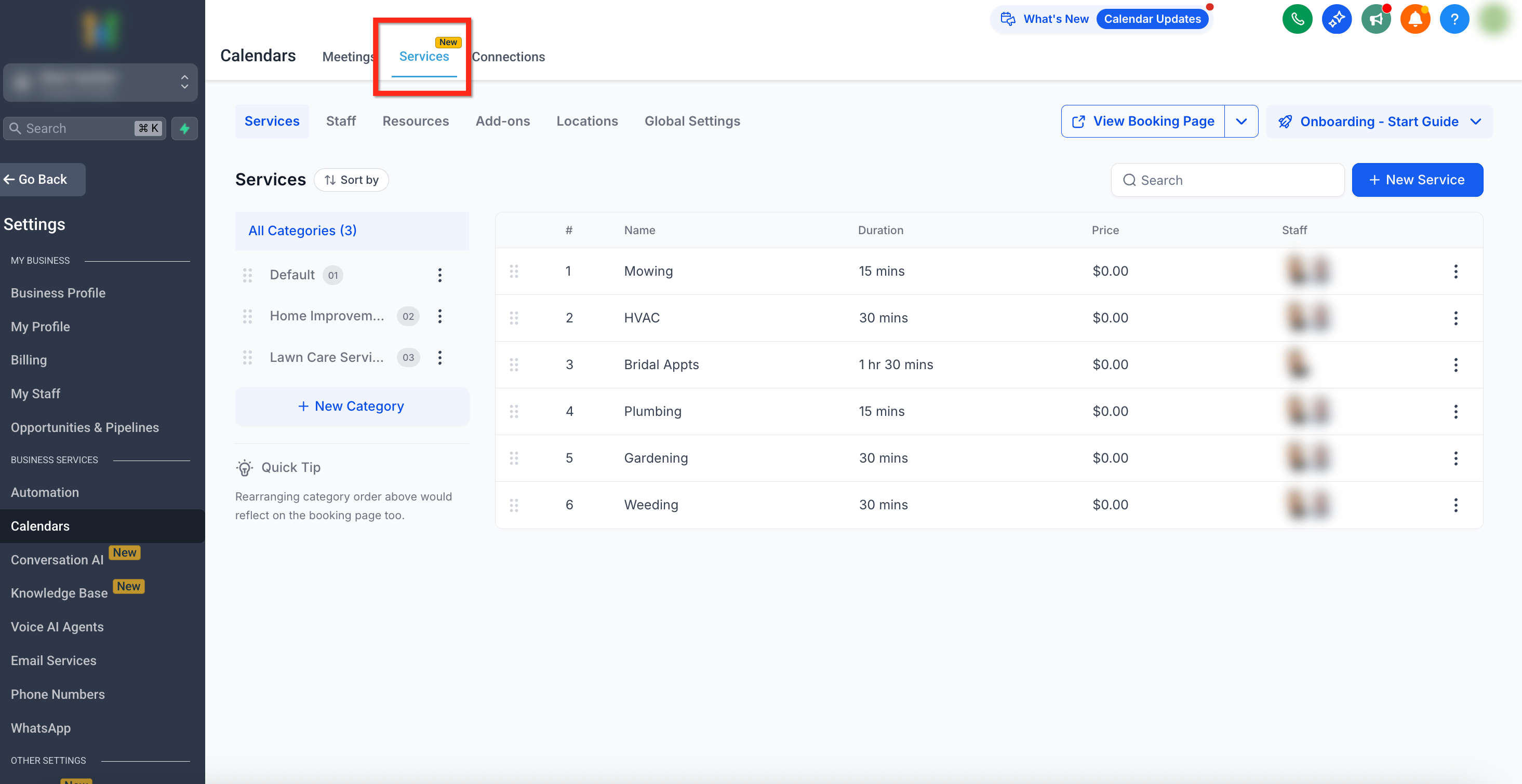
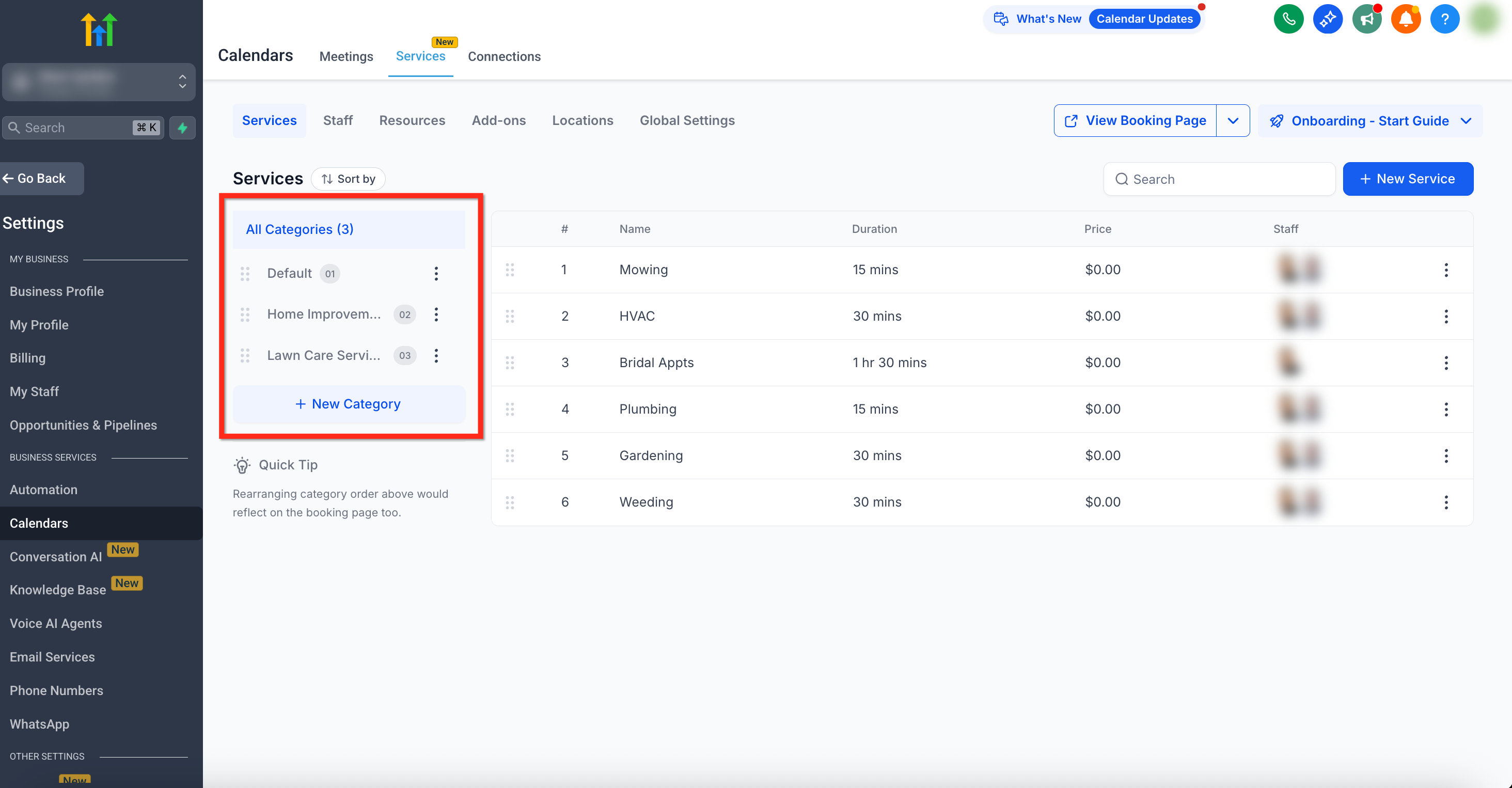
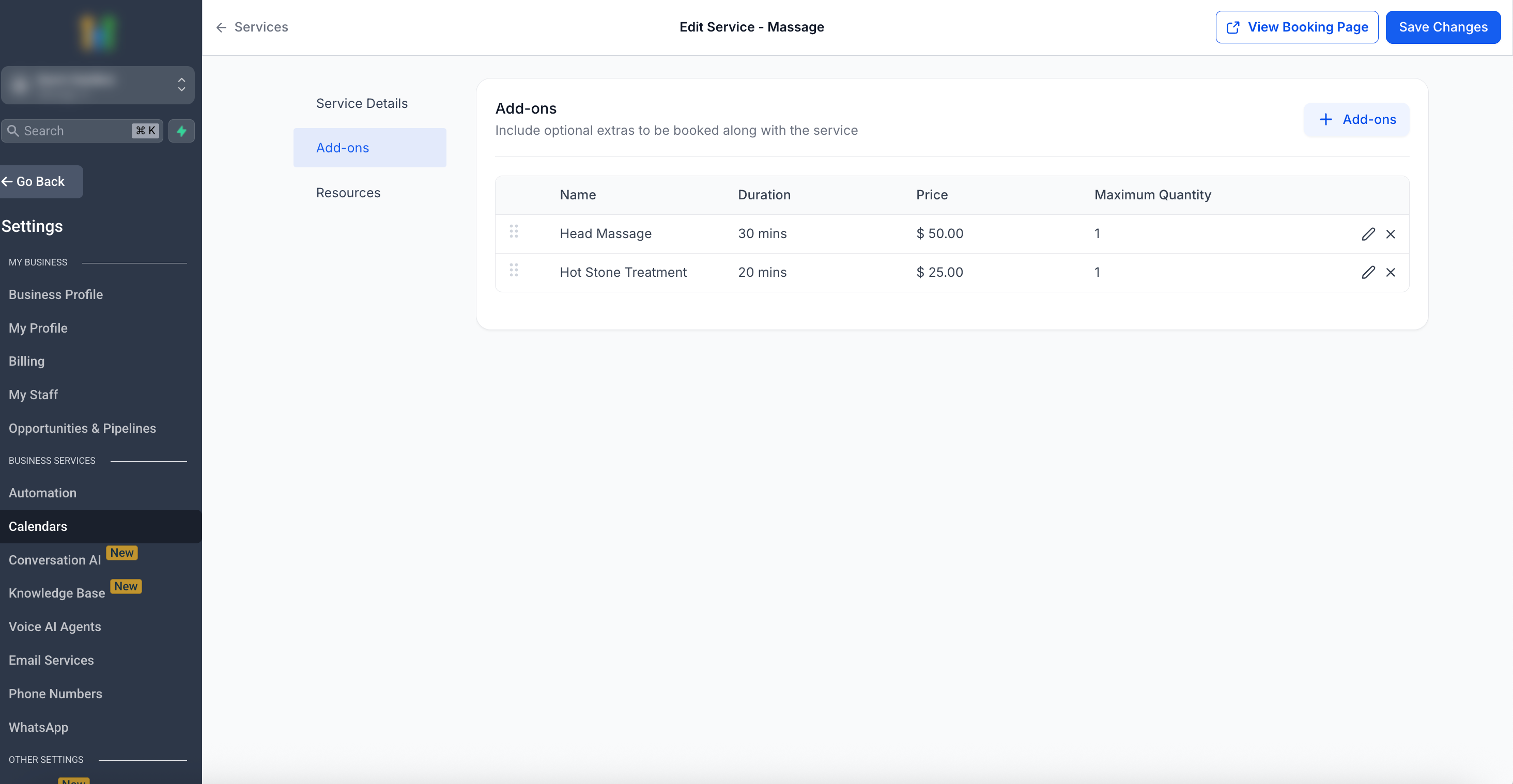
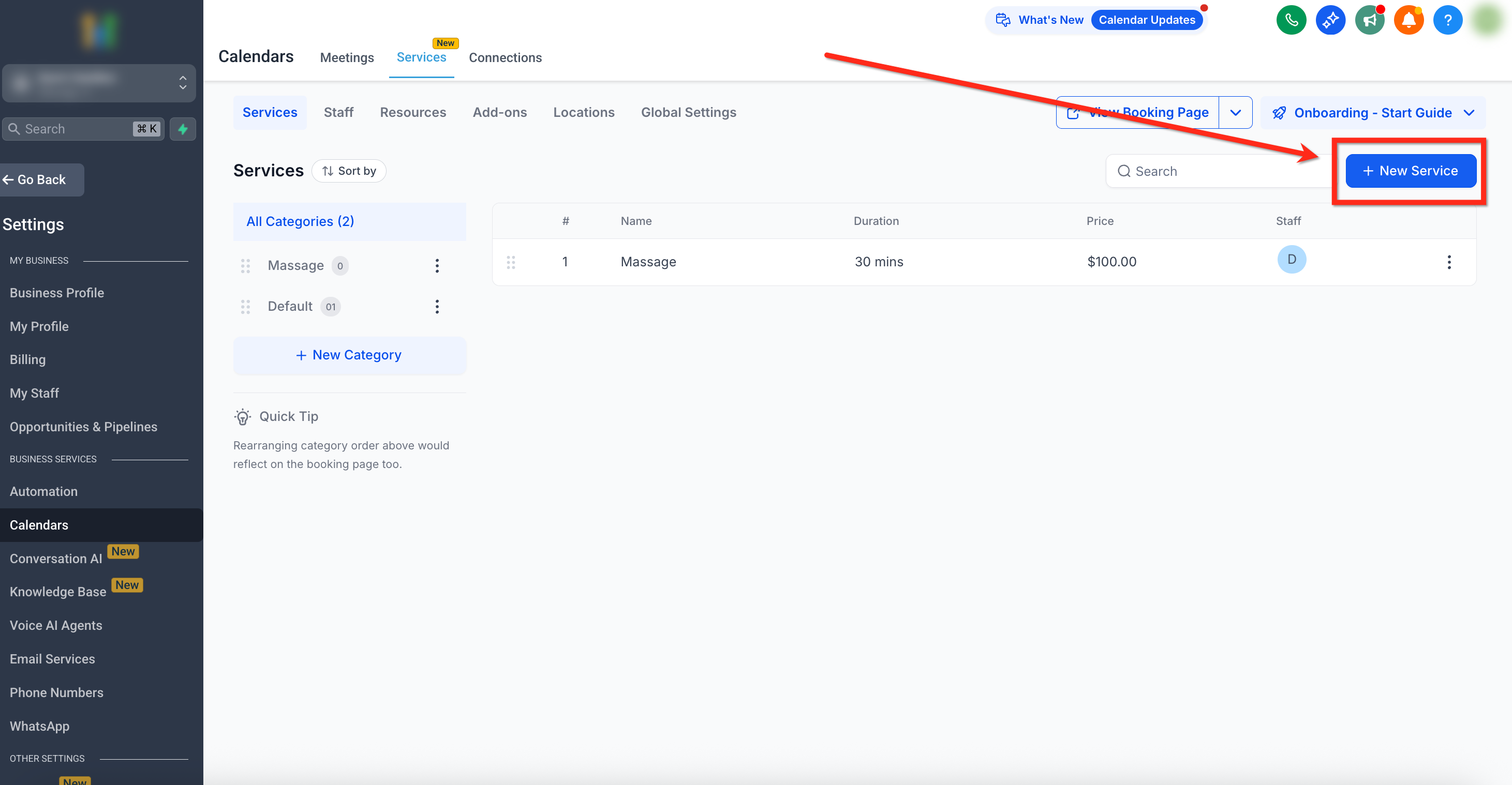
Services act as the catalog of anything you sell by appointment. Within the Services panel you can create, edit and preview each offering, assign staff, set durations, add buffers, and attach optional add ons or resources. The panel also displays categories on the left, letting you group services for a cleaner booking page.
You reach the panel through Calendar > Calendar Settings > Services. From there you can sort, search, create new services, edit existing ones, and view the public booking page. All settings, including pricing, deposits, variations and privacy, are managed inside the Service Editor that opens when you select Edit for a service.
03How businesses use services
- Coaching business. Create a service for each coaching package, use variations to offer 30 minute and 60 minute options, and assign the appropriate coach as staff. Clients book directly from the public page.
- Fitness studio. Set up classes as services, group them into categories like Yoga or HIIT, add room resources to prevent overlapping sessions, and enable add ons for equipment rentals.
- Dental practice. Define procedures such as cleaning or whitening, add optional add ons for fluoride treatment, assign dental hygienists as staff, and use private services for internal referrals.
04The numbers and rules that matter
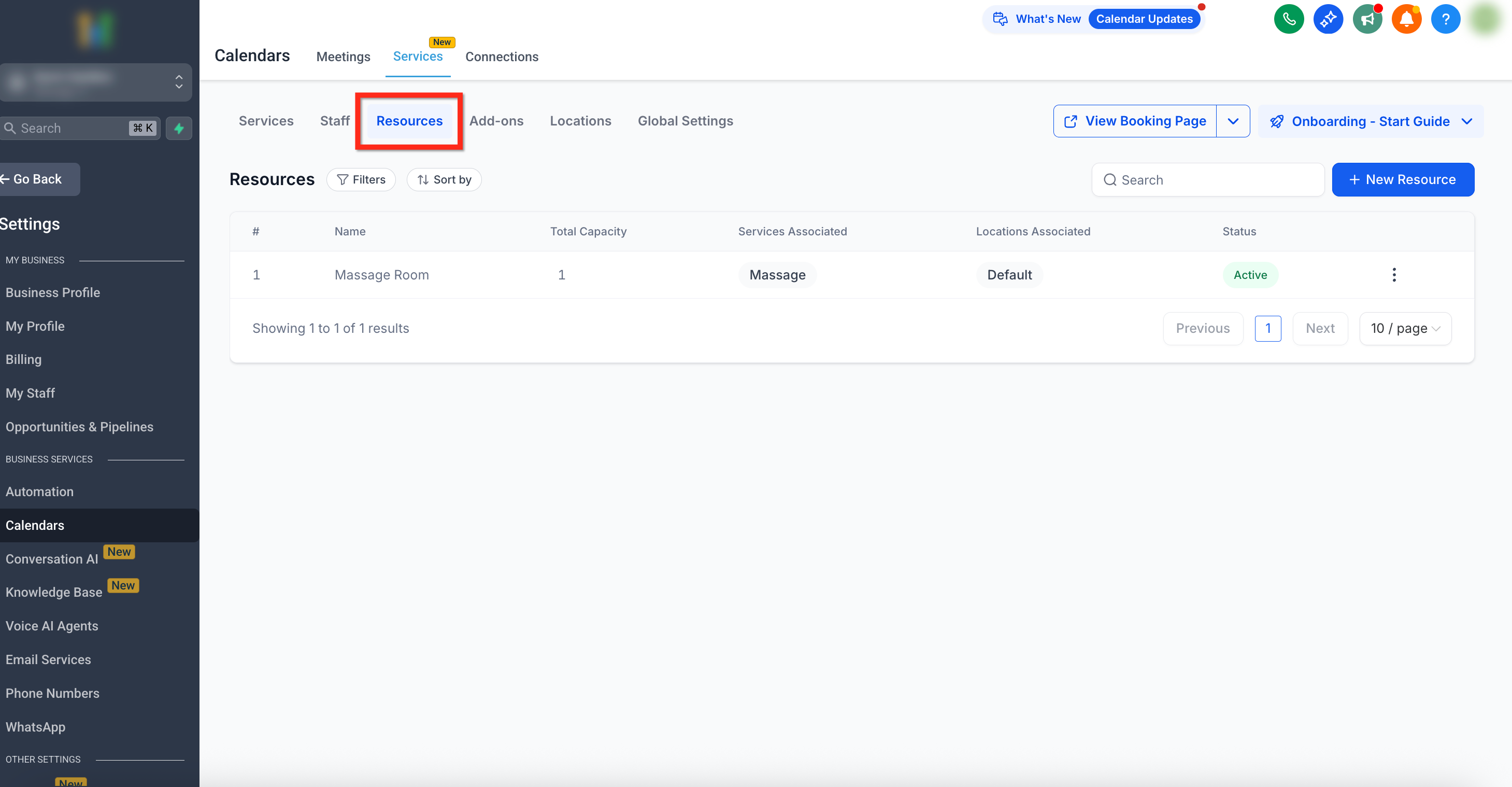
- Resources can be rooms, chairs, stations, or tools and have a capacity setting per location.
05How to set up and use services in HighLevel
Access the Services panel
- Click the Calendars tab in the left navigation bar.
- Select Calendar Settings from the top navigation ribbon.
- Choose the Services tab from the top navigation ribbon on the Calendar Settings page.
Create a new category
- Click the + New Category button.
- Click the three dot (⋮) icon next to a category to edit its name.
- Drag categories to change their order; the new order appears on the booking page.
Create a new service
- Navigate to the Services panel (Calendar > Calendar Settings > Services).
- Click the + New Service button in the upper right corner.
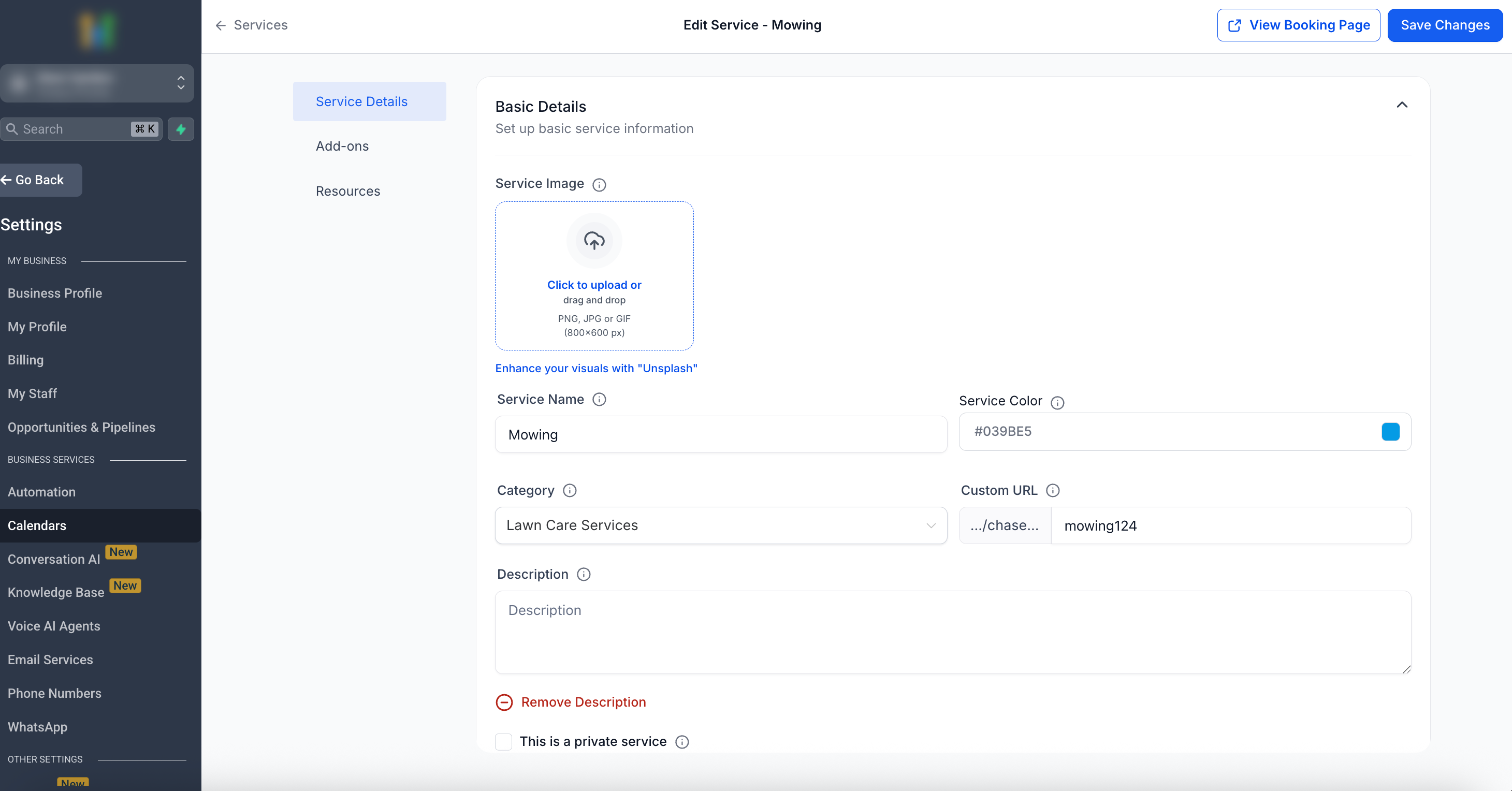
- Fill in the basic details such as image, name, color, category, custom URL, description, privacy toggle, staff members and duration.
- Click Advanced Settings to open the extended options.
- Set the service duration, processing time phases and any buffer time before or after the appointment.
- Enter the price and configure partial payments or deposit options as needed.
- Click Save Changes and then use View Booking Page to preview the service.
06What it looks like in HighLevel
07Settings that matter
- Service Image. Shows a visual thumbnail for the service on the booking page.
- Service Name. The title displayed to customers when they browse services.
- Service Color. Colors the service block in the calendar view for quick identification.
- Category. Assigns the service to a group that organizes listings on the booking page.
- Custom URL. Creates a unique direct link to the service’s booking page.
- Description. Provides a formatted summary of what the service includes.
- Private Service. Hides the service from public booking pages; it can be booked via a direct link only.
- Staff Members. Specifies which team members can perform the service; at least one is required for booking.
- Duration. Defines how long the service lasts in the calendar.
- Processing Time. Divides the appointment into initial, processing and final phases, affecting staff availability.
- Buffer Time. Adds extra minutes before or after the appointment for setup or cleanup.
- Price. Sets the amount customers pay for the service.
08How it connects to the rest of HighLevel
- Enable Services for one or many subaccounts Enable Services
- Use global settings to control booking defaults Global Settings
- Organize services with categories Categories
- Add staff members and assign role badges Staff configuration
- Create and manage add ons for upsells Add Ons
Michael's take

Services are a small convenience that can become a real shift for any business that relies on appointments. A boutique yoga studio, for example, can list class types, add mat rentals as add ons and block studio rooms as resources. All without manual coordination.
If I were setting it up, I’d start by defining clear categories, then add a few add ons that boost revenue. I’d test the booking flow with a dummy link before going live to ensure the resources and buffers keep the schedule clean.