
01Who this is for
- Service based businesses benefit because the view supports staff, service categories, add ons and multiple locations.
- Consultants or sales teams use the Meetings view to manage personal, round robin or class calendars in one place.
02Calendar view services, explained
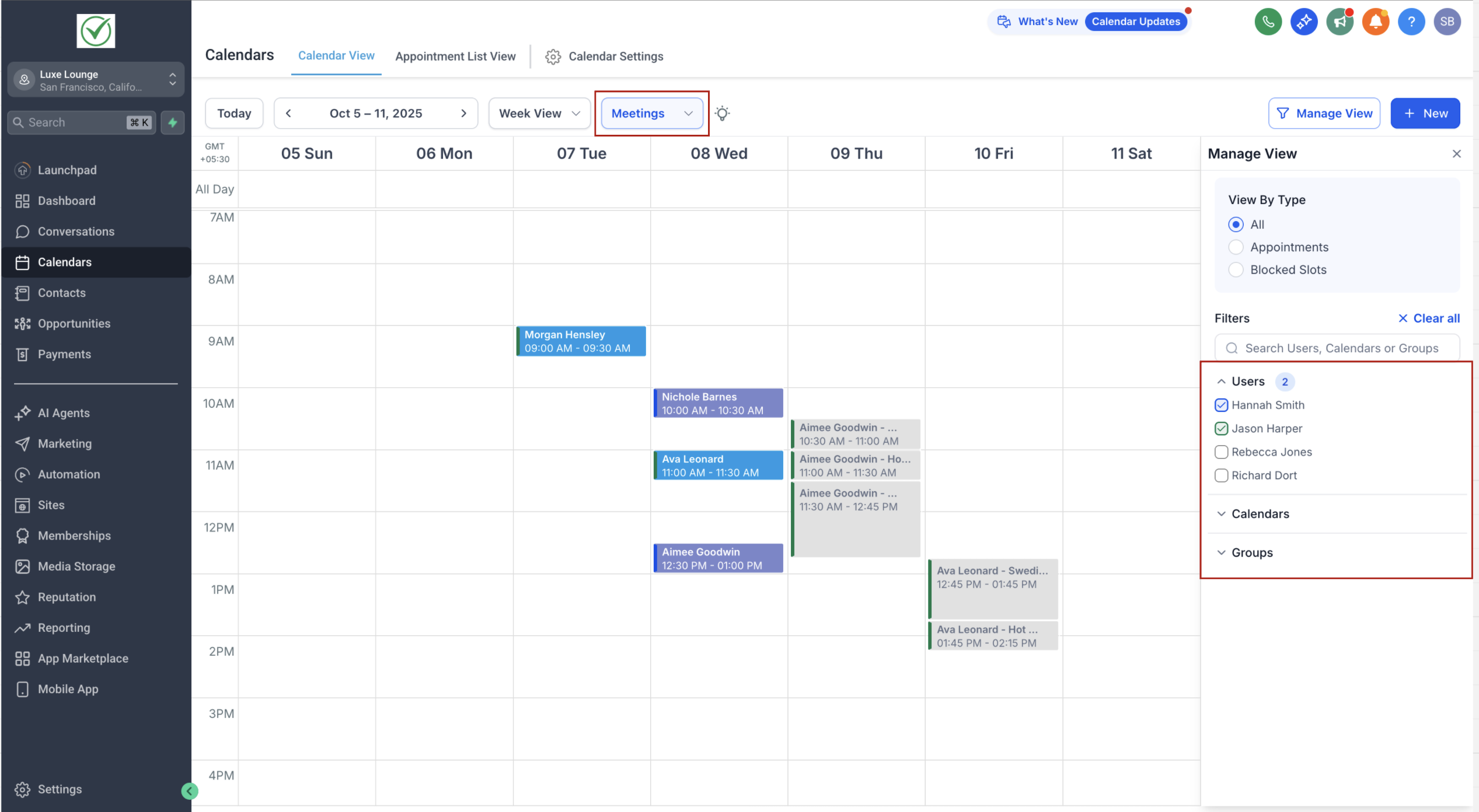
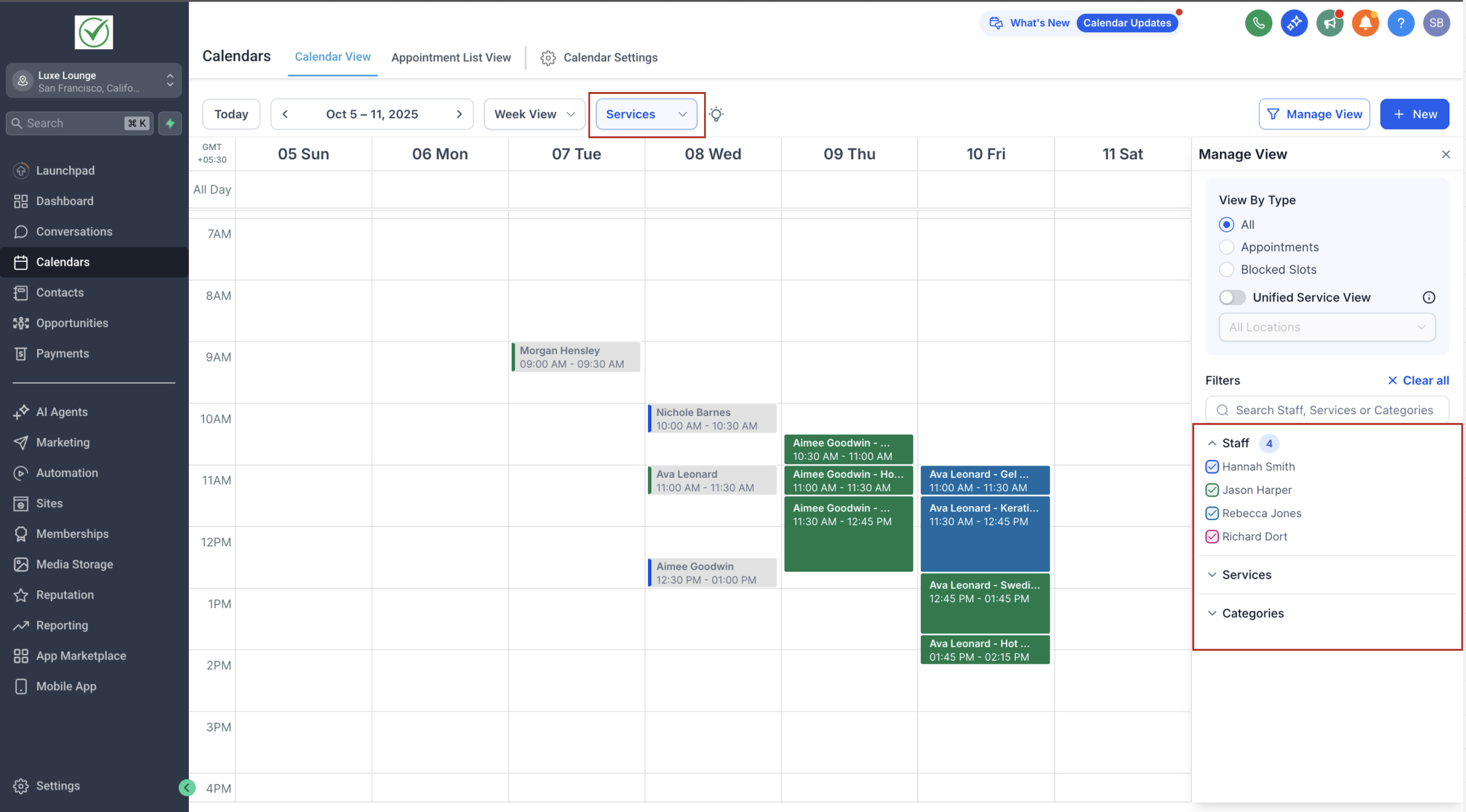
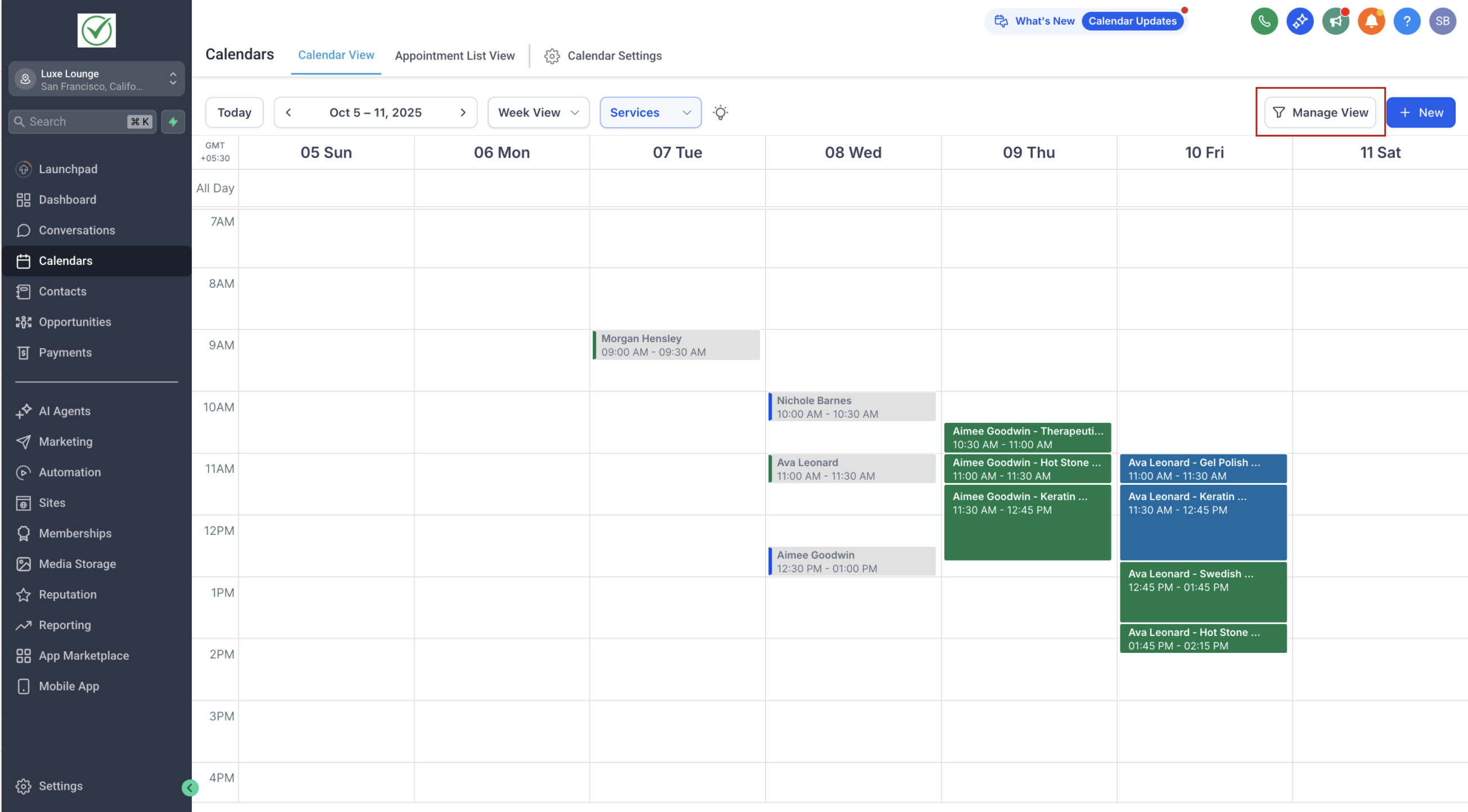
The Calendar View presents a single interface for all booking activity. Depending on the enabled scheduling type, the view shows either Meetings or Services. Selecting a type from the top dropdown changes the layout, right hand filters and the events displayed, ensuring no cross type clutter. If only one type is enabled, the dropdown disappears and the view loads that type automatically.
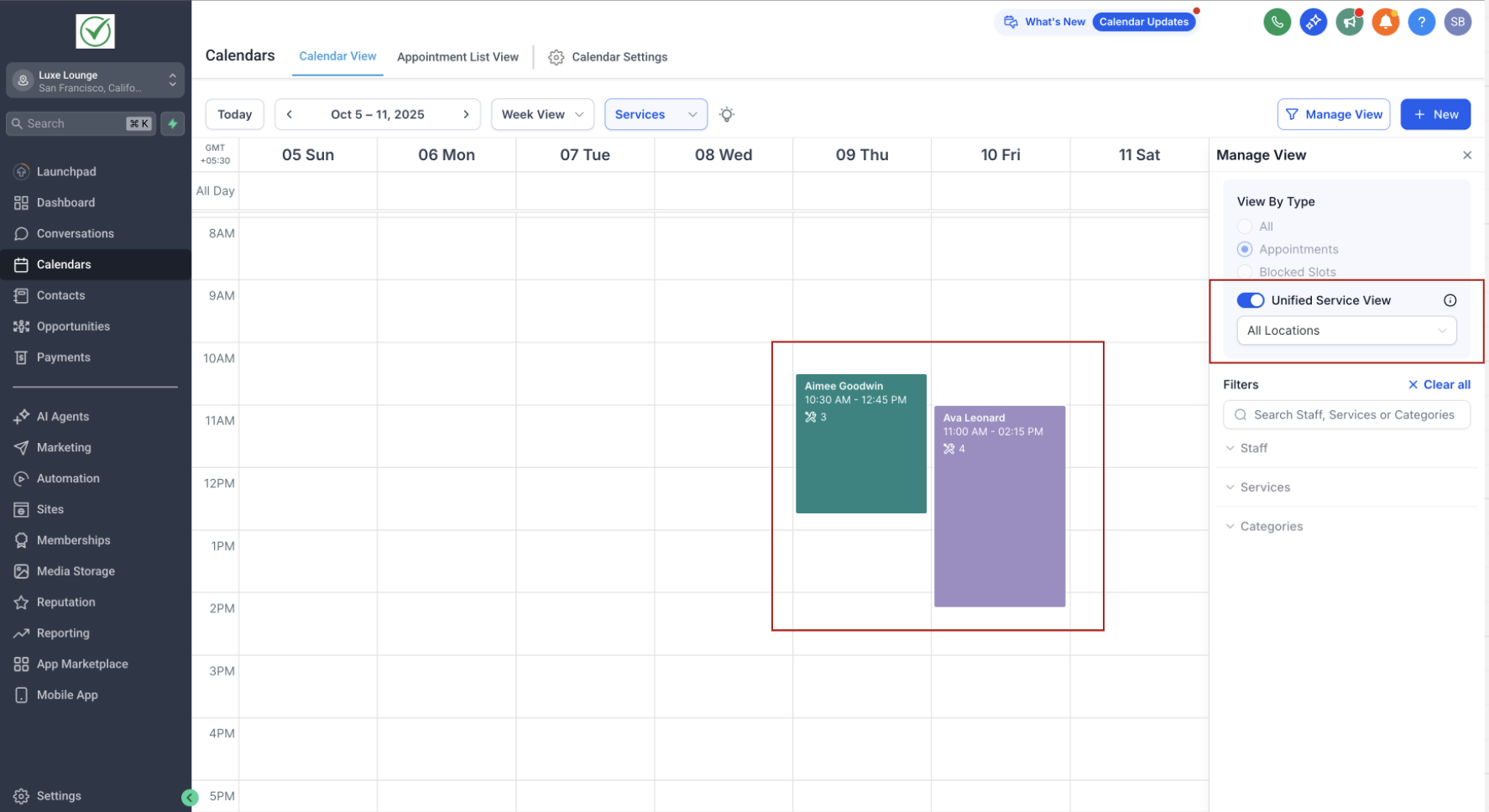
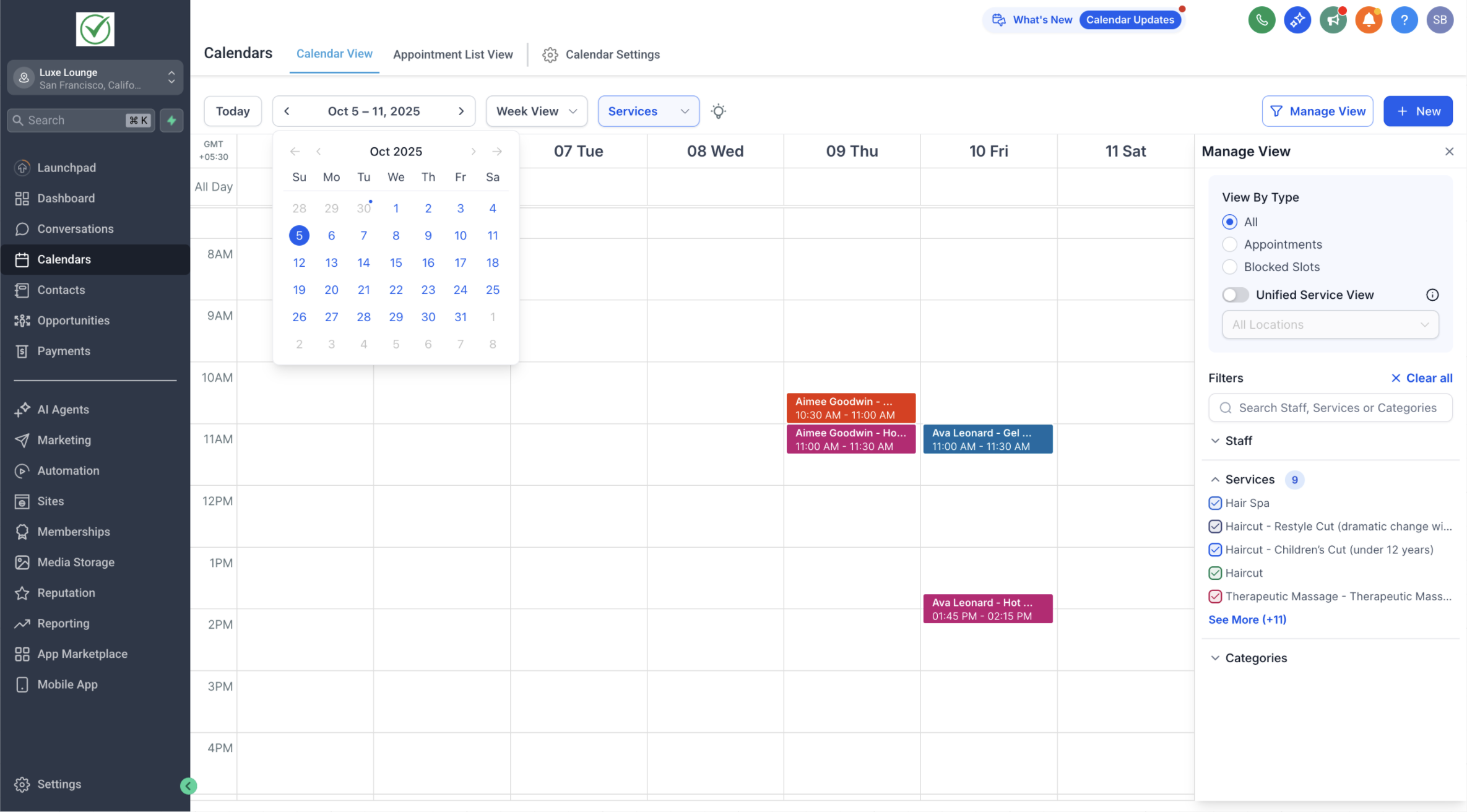
Filters are tailored to each type. Meetings view lets users filter by user, calendar and group, while Services view provides staff, service, category and location filters. An optional Unified Service Booking View groups all appointments of a service into one block, removing staff, service and category filters. Additional controls include a mini month calendar under the main date and a Manage View button to hide or reveal the filter panel.
03How businesses use calendar view services
- Hair salon. The salon activates Services in the calendar, selects staff members to see each stylist’s bookings, and filters by service category to view only haircuts. The Unified Service Booking View can be turned on to see each client’s entire appointment block.
- Marketing agency. The agency enables Meetings, then uses the user filter to display calendars for each consultant. Group filters help isolate collective project meetings, and the mini month view speeds date navigation.
- Fitness studio chain. The studio chain enables Services, adds locations, and filters the calendar by a specific branch to monitor class bookings and trainer schedules at that site.
04How to set up and use calendar view services in HighLevel
Enable or disable scheduling types
- Open Agency Settings, locate the scheduling type options, and toggle Meetings and Services on or off as needed.
Switch calendar view between meetings and services
- In Calendar View, use the dropdown at the top to select Meetings or Services; the layout, filters and displayed events adjust to the chosen type.
- Warning: If only one scheduling type is enabled, the top dropdown will be hidden and the view will automatically load that type.
Apply meetings view filters
- In Meetings view, choose specific users under Users, toggle desired calendars under Calendars, and select groups under Groups to limit visible events.
Apply services view filters
- In Services view, pick staff members under Staff, select services under Services, choose categories under Categories, or filter by location.
- If Unified Service Booking View is active, staff, service and category filters are hidden.
Use additional calendar controls
- Click the date below the main calendar to expand the mini month view.
- Press the Manage View button at the top right to hide or show the filter panel.
Enable Unified Service Booking View
- Turn on Unified Service Booking View in Services view to display each service booking as a single block that groups its appointments.
Follow tips for efficient navigation
- Hide the filter panel when presenting, use the location filter to focus on a specific branch, and navigate quickly with the mini month view.
05What it looks like in HighLevel
06Settings that matter
- Unified Service Booking View. When activated, each service booking appears as one block on the calendar, consolidating all its appointments and removing staff, service and category filters.
07Things to know before you rely on it
- Changes made directly in Google Calendar, Outlook, or iCal are not reflected in Services view; all updates must be performed inside HighLevel.
- If only one scheduling type is enabled, the top dropdown is hidden and the Calendar View loads that type automatically.
- Staff, Service, and Category filters are unavailable while Unified Service Booking View is active.
08How it connects to the rest of HighLevel
- How to create services Creating and managing services in HighLevel
- Enable services for subaccounts Enable Services in HighLevel for single or multiple subaccounts
- Service Booking trigger How to configure the Service Booking trigger in HighLevel
Michael's take

I find the Services view helpful for businesses that need to manage staff, locations, or multiple service options. For a simple meeting only calendar, you might not need it.