
01Who this is for
- Founders of service based businesses can let clients pick from several staff calendars on one booking page.
- Marketing agencies managing multiple client calendars can merge IDs to display them together without extra groups.
02Multiple calendars, explained
The feature merges the identifiers of two or more calendars so that a single link or widget shows all of them. When the combined IDs are loaded, the appointment widget cycles through each calendar's availability. The setting lives inside the Appointment Widget section of Settings, where you copy embed code and calendar IDs.
In practice you either edit a calendar link in a browser, adding a comma separated list of IDs, or you edit the HTML embed code on a funnel page, inserting additional IDs after a comma. After saving, the widget loads each calendar in turn, providing a unified booking experience.
03How businesses use multiple calendars
- Dental practice. Copy the link for the first dentist’s calendar, then add a comma and the second dentist’s ID to the URL. Open the merged link so patients can schedule with either provider from one page.
- Real estate agency. In the funnel builder, add a Custom JS/HTML element, paste the embed code for the primary agent’s calendar, then edit the code to include a comma and the second agent’s calendar ID. Save and preview the page to let buyers book tours with any agent.
- Online coaching business. Use the Appointment Widget settings to copy the embed code for the group coaching session, then add the ID of a one on one coaching calendar, separated by a comma. The funnel page now offers both group and private sessions in one widget.
04How to set up and use multiple calendars in HighLevel
Display multiple calendars using calendar links
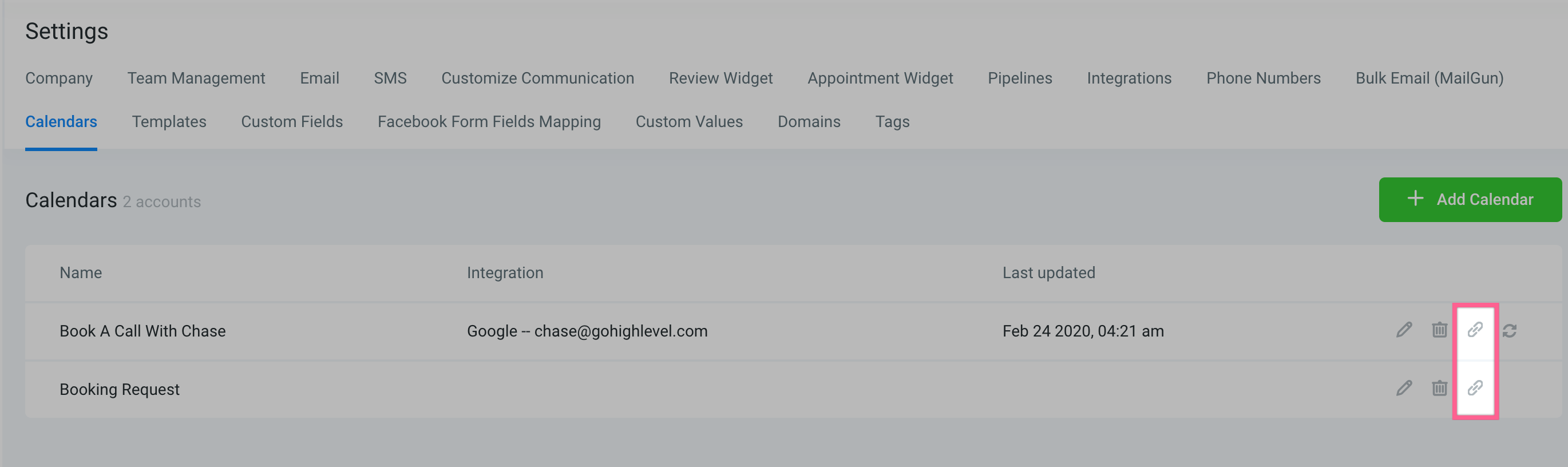
- Open each calendar link in a new browser tab by clicking its link icon.
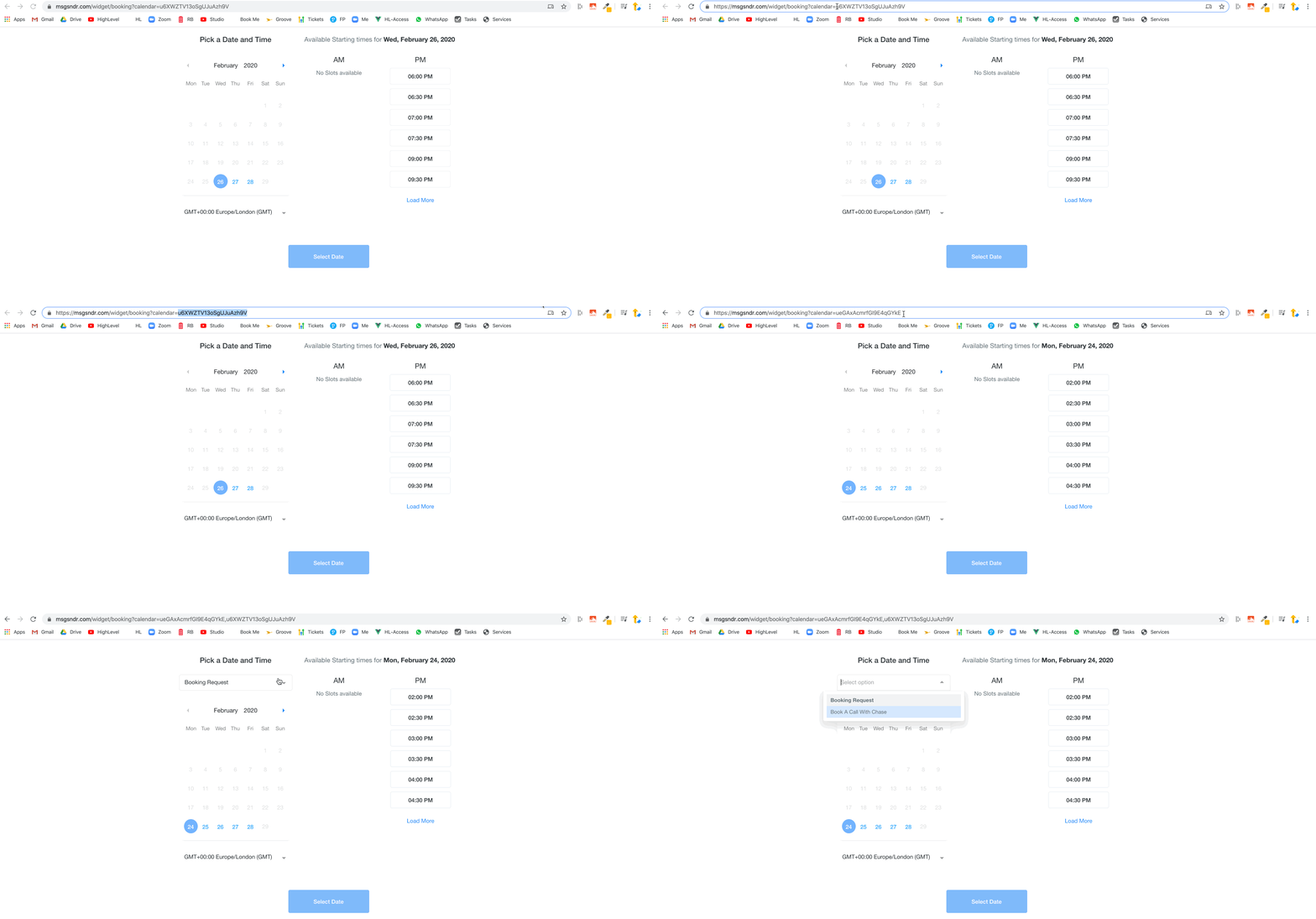
- Copy the ID from one calendar, go to the other calendar’s page, add a comma after its ID, paste the first ID, and press Enter.
- The page reloads showing appointments from both calendars.
Embed several calendars on a funnel page
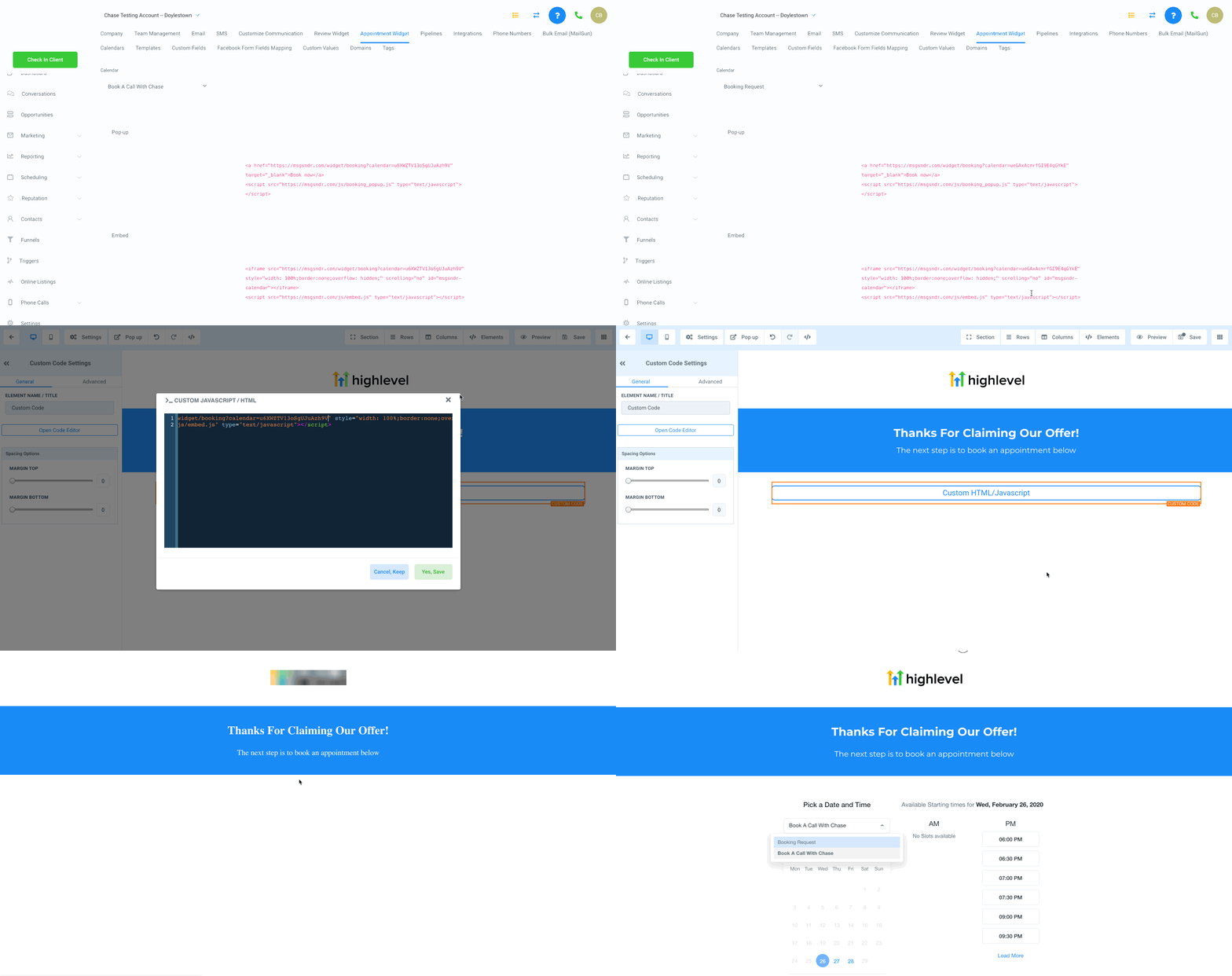
- Navigate to Settings > Appointment Widget and copy the embed code of the first calendar.
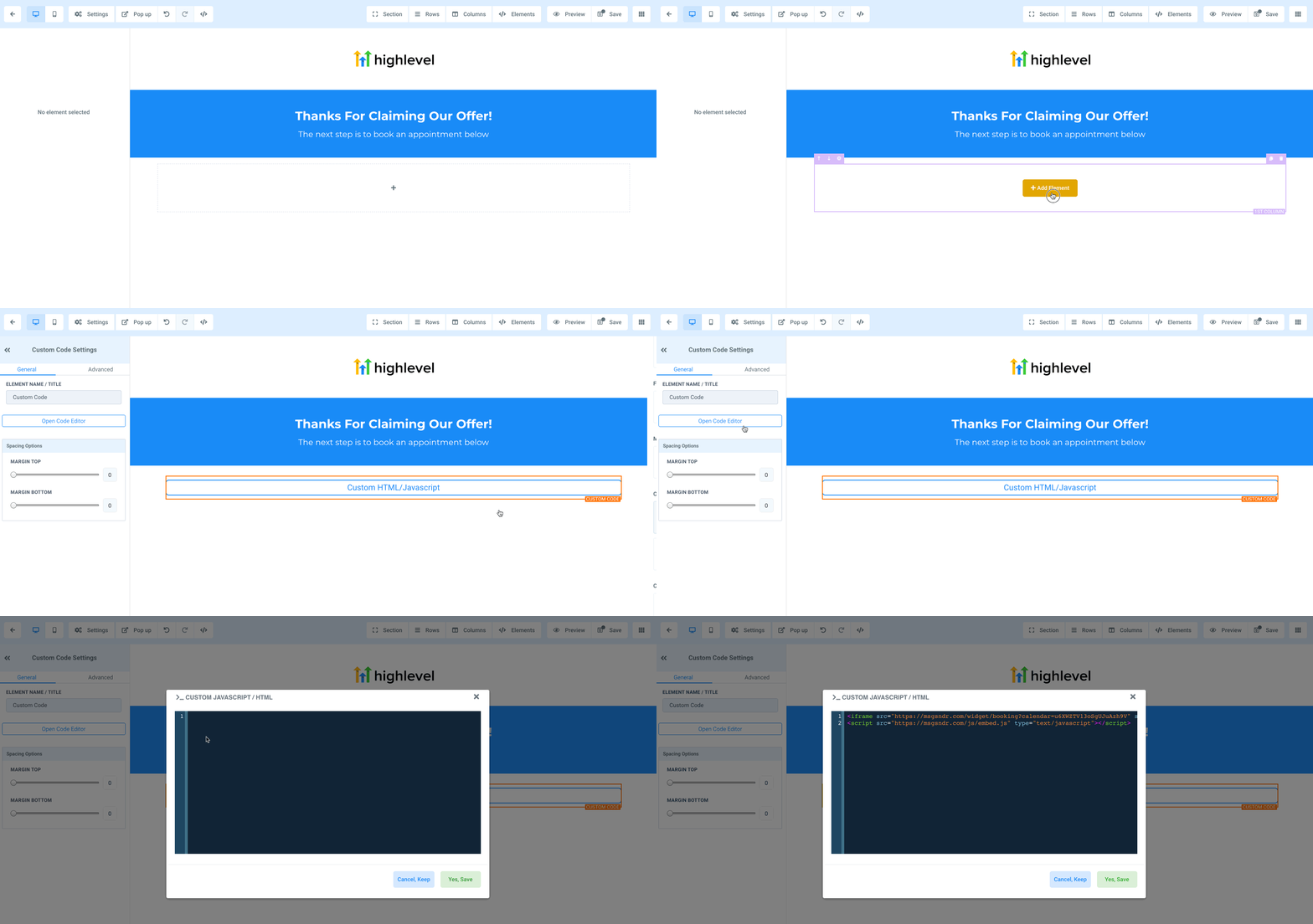
- On the funnel page, insert a Custom JS/HTML element, open the code editor, and paste the copied embed code.
- Open Settings > Appointment Widget in a new tab, select the second calendar from the calendar name dropdown, and copy its calendar ID.
- Return to the funnel page’s code editor, add a comma after the existing calendar ID, paste the second calendar ID, then click Yes, save.
- Save the funnel page and preview to verify both calendars appear in the widget.
05What it looks like in HighLevel
06Settings that matter
- calendar name dropdown. Selects which calendar’s ID is displayed in the Appointment Widget for copying or embedding.
07How it connects to the rest of HighLevel
- Learn how to embed a HighLevel calendar using HTML code. Embedding calendars
- Set up service calendars before combining them. Service calendars guide
- Explore all calendars and appointments features in HighLevel. Calendars & appointments overview
Michael's take

Showing multiple calendars on a single page gives a small business a quick way to let clients pick from several services or locations without building separate pages.
Don’t forget to add the comma between IDs; missing it will break the display.