
01Who this is for
- Small service businesses can match their branding on the booking page, giving customers a consistent experience.
- Field service teams can adjust the wording of each step to guide clients through the appointment flow.
- Marketing managers can add tracking codes and map booking actions to Meta events for campaign measurement.
02Booking page editor, explained
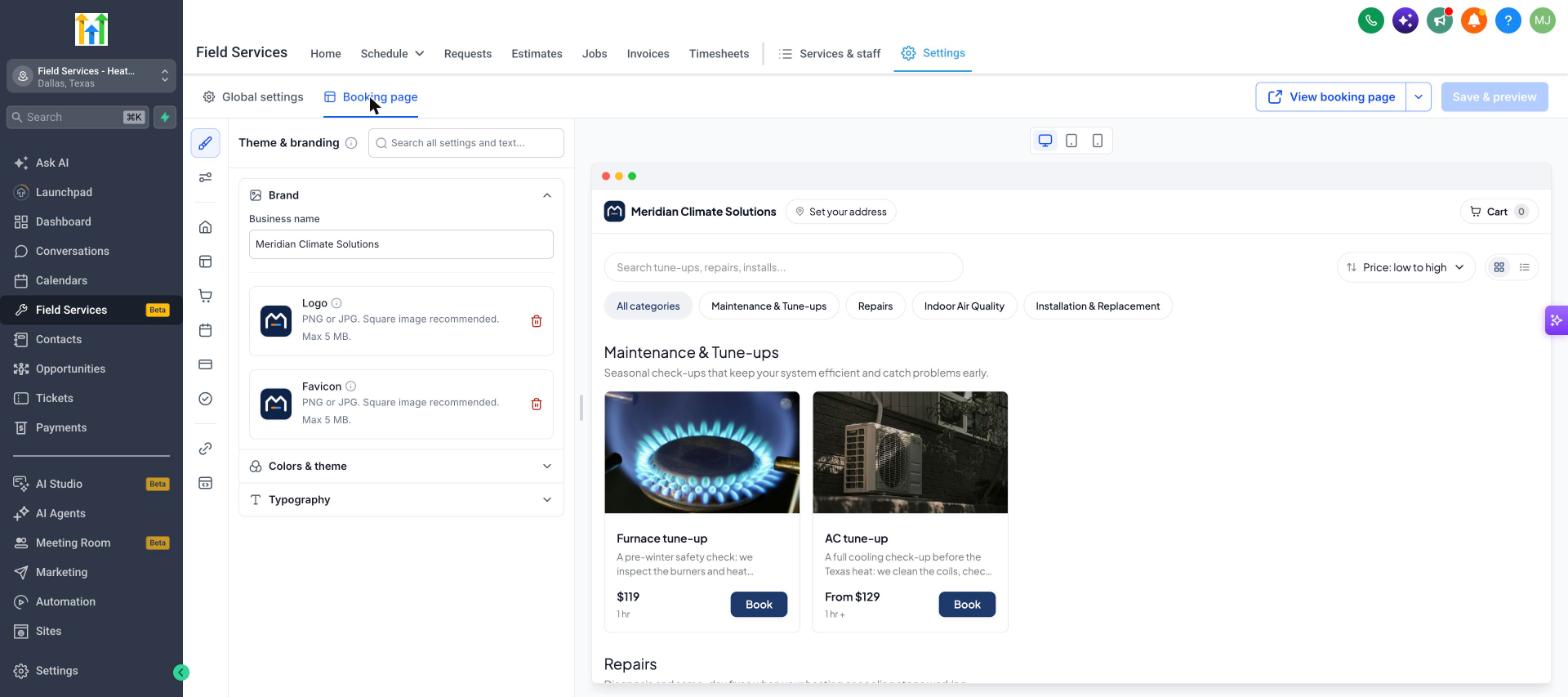
The editor is accessed from the Field Services Settings area. An icon rail on the left lets you pick a page section such as Theme, Landing, or Time selection. The right hand panel shows all editable options for the chosen section, and a live preview on the right displays the page in real time.
You can change branding details, colors, fonts, page language, and the text shown on every step of the booking flow. Custom CSS or script can be added globally or to a single page. Meta Pixel IDs and event mappings are also configurable.
After editing, you save the changes, preview the live version, and share the booking link or a link to a single service. The link updates immediately for all future visitors.
03How businesses use booking page editor
- HVAC contractor. The contractor uploads its logo and selects brand colors in the Theme & branding section. It then edits the Service details heading and payment wording to reflect its on site service model. Finally, it saves and shares the new booking link with customers.
- Dental practice. The practice changes the language setting to match its patient communications, customizes the Landing page address picker label, and adds a consent checkbox in the Contact details form. After saving, the practice shares the updated link with patients.
- Home cleaning service. The service adds its Meta Pixel ID and maps the booking steps to Meta events for ad tracking. It also inserts custom CSS to style the cart section. The owner saves the edits and copies the link to embed on the business website.
04The numbers and rules that matter
- Brand: Upload a Logo and a Favicon (PNG or JPG, square image recommended, up to 5 MB).
05Before you start
- Field Services must be enabled in private beta for the account.
- If the booking page includes a payment step, an online payment provider must be connected in Field Services Settings.
06How to set up and use booking page editor in HighLevel
Edit a section of the booking page
- In the booking page editor, click the icon that represents the section you want to modify.
- Adjust the desired options in the settings panel that appears on the right.
- Watch the live preview update to confirm the changes before saving.
Save and share the booking page
- Click Save & preview to store your edits and refresh the preview area.
- Click View booking page to open the live page in a new browser tab.
- Click the arrow next to View booking page to copy or share the booking link.
07What it looks like in HighLevel
08Settings that matter
- Brand. Sets the business name, logo and favicon shown on the booking page.
- Colors & theme. Defines the primary colors used throughout the page.
- Typography. Selects the fonts applied to headings and body text.
- Booking page link. Specifies the URL customers use; changing it invalidates previously shared links.
- Language. Chooses the language displayed on the booking page.
- Reset to default. Restores the original text and layout for selected pages or the entire booking page while keeping the link, brand name, logo, favicon and tracking.
- Meta Pixel ID. Adds the Facebook Meta pixel identifier for event tracking.
- Custom code. Allows insertion of CSS or scripts globally or on a specific page.
09Things to know before you rely on it
- Field Services is in a private beta and only selected accounts can use it; features and screens may change.
- Changing the booking page link breaks any links that were previously shared.
- Logo and favicon files must be PNG or JPG, square, and no larger than 5 MB.
10If something goes wrong
- Do my changes go live right away?. Click Save & preview; the saved version is what customers see.
- Why does a payment message appear for customers?. If an online payment provider is not connected, the checkout will display a message. Connect a provider or switch to Pay in person in payment settings.
- Can I change the booking link after sharing it?. Yes, update the link in the General section, but remember that earlier shared links will stop working.
11How it connects to the rest of HighLevel
- Enable Field Services private beta and set up mobile access Field Services beta
- Read the guide to start using the Field Services private beta Beta start guide
- View all Calendars & Appointments features Calendars overview
Michael's take

When you need a professional looking booking experience, the editor can be useful.
If your appointments are simple or you already use a third party scheduler, the editor may add little value. The beta status also means you could run into changing screens or limited support, so weigh the benefit against the potential need for adjustments later.