
01Who this is for
- Users who install Marketplace apps get a clear view of requested permissions before authorizing.
- Developers creating private apps see the same consent screen and warnings for sensitive scopes.
02OAuth consent for marketplace apps, explained
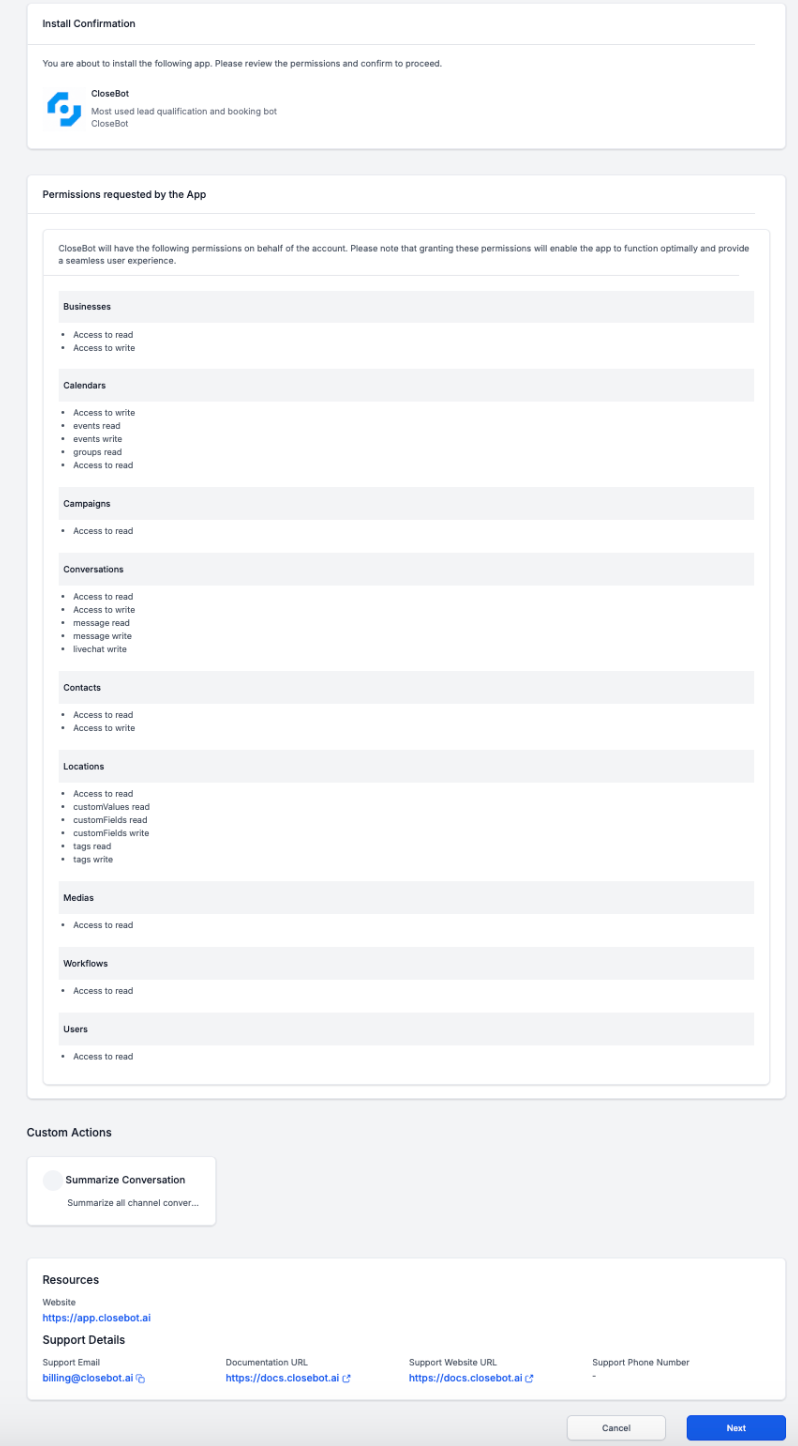
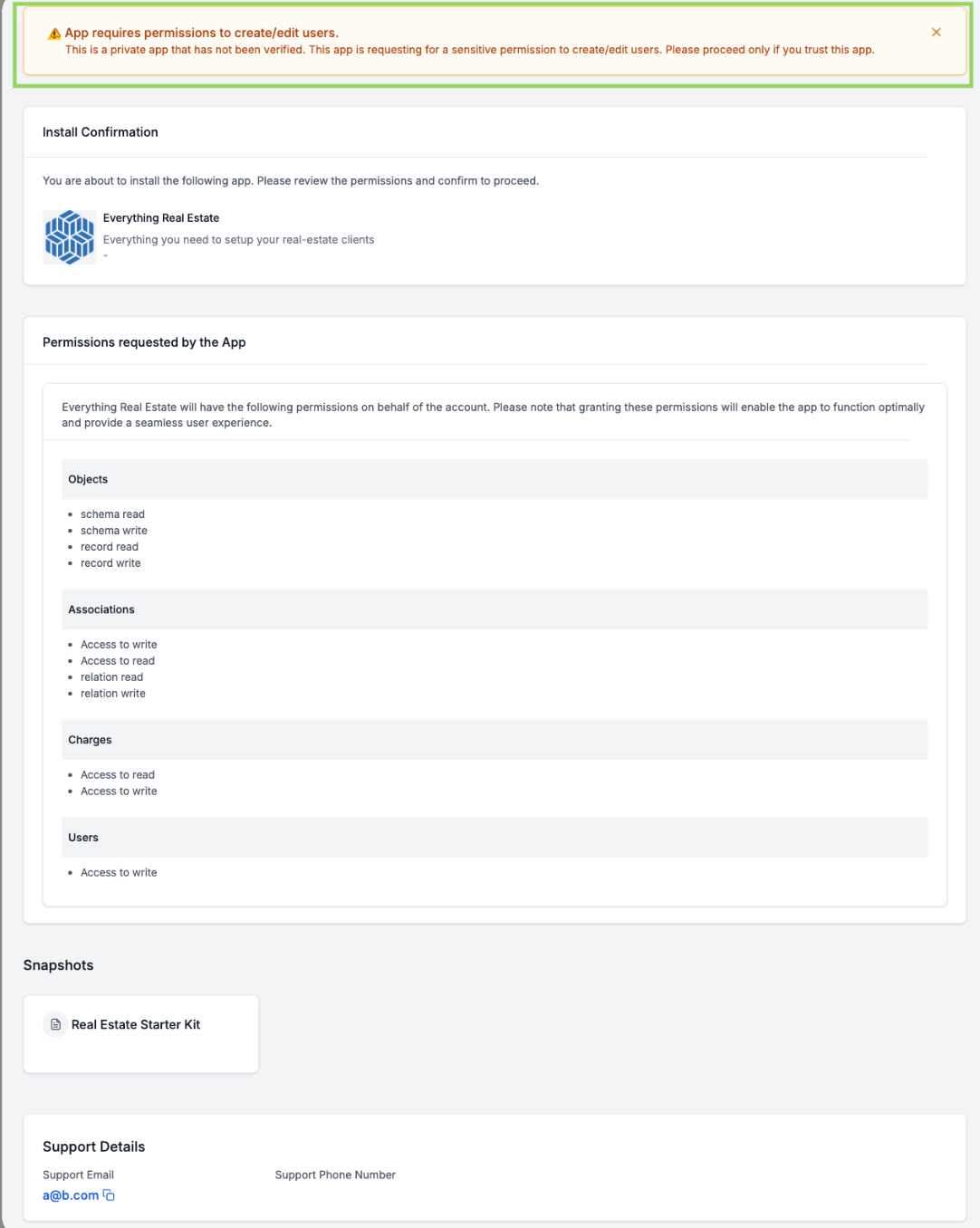
The OAuth flow lets a Marketplace app request specific access to a HighLevel account. When a user follows an OAuth installation link, the platform redirects to a new consent screen that displays the app’s branding and a full list of the scopes it wants. Each scope is explained, and any high risk scope such as users: write appears with a bold warning.
The consent page works for apps installed from the main HighLevel marketplace as well as from white labeled or grey labeled URLs. The screen only appears for new installations or when an existing app is reauthorized via OAuth; previously installed apps are not affected. Private apps that use OAuth follow the same process and show the same permission details.
To manage connected apps, users go to Settings > Connected Apps inside the HighLevel dashboard where they can view, reauthorize, or revoke access for any installed Marketplace app.
03How businesses use OAuth consent for marketplace apps
- Digital marketing agency. When adding a new client reporting tool from the Marketplace, the agency clicks the OAuth link, reviews the displayed permission list on the consent screen, and confirms if the scopes match the tool’s needs before authorizing.
- SaaS startup. The startup integrates a third party analytics service by following its OAuth installation link, checks the consent screen for any sensitive scopes, and only proceeds after confirming the permissions align with its data policies.
- Real estate brokerage. Agents install a property listing app via the Marketplace, examine the OAuth consent page to ensure the app only reads contact information, then authorize it; later they can revoke the app from Settings > Connected Apps if it is no longer used.
04How to set up and use OAuth consent for marketplace apps in HighLevel
Authorize a Marketplace app
- Click the OAuth installation link on the app’s integration page.
- Review the consent screen that shows the app name, logo and the list of requested scopes.
- If a sensitive scope such as users: write is listed, note the bold warning before deciding to proceed.
- If the permissions are acceptable, click the confirm or authorize button.
- The app is installed and granted the selected access rights.
Revoke app access
- Navigate to Settings > Connected Apps in the HighLevel dashboard.
- Locate the app you want to remove from the list of connected apps.
- Select the option to revoke or delete the app’s access.
05What it looks like in HighLevel
06Settings that matter
- OAuth scopes. Define the specific data or features that a Marketplace app is allowed to read or modify when access is granted.
07Things to know before you rely on it
- The new consent screen appears only for new installations or when an existing app is reauthorized; it does not change behavior for apps already installed.
- Sensitive scopes such as users: write trigger a bold warning on the screen.
- The flow works with both standard marketplace URLs and grey labeled (white labeled) URLs.
08How it connects to the rest of HighLevel
- Learn about MultiOAuth support for Marketplace apps MultiOAuth support
- View the earnings dashboard for Marketplace apps Earnings dashboard
- Read the guide on setting up marketplace workflow actions Workflow actions
Michael's take

When a team member clicks an unknown link and suddenly the whole account looks compromised, it usually comes down to not knowing what was granted. The OAuth consent screen gives everyone a clear view of exactly which data an app can touch before any keys are handed over.
The first setting I’d get right is the explicit warning for sensitive scopes like users: Write. That bold flag stops a rogue integration from slipping past the radar and makes sure the decision to grant deep access is deliberate.