
01Who this is for
- Agencies that run many client accounts can keep each client’s external credentials within one app installation, avoiding duplicate setups.
- SaaS product teams that embed third party services can let each customer link several of their own accounts without separate installations.
- Subaccount users who need to switch between multiple brand or platform accounts can manage all connections in one place.
02MultiOAuth support, explained
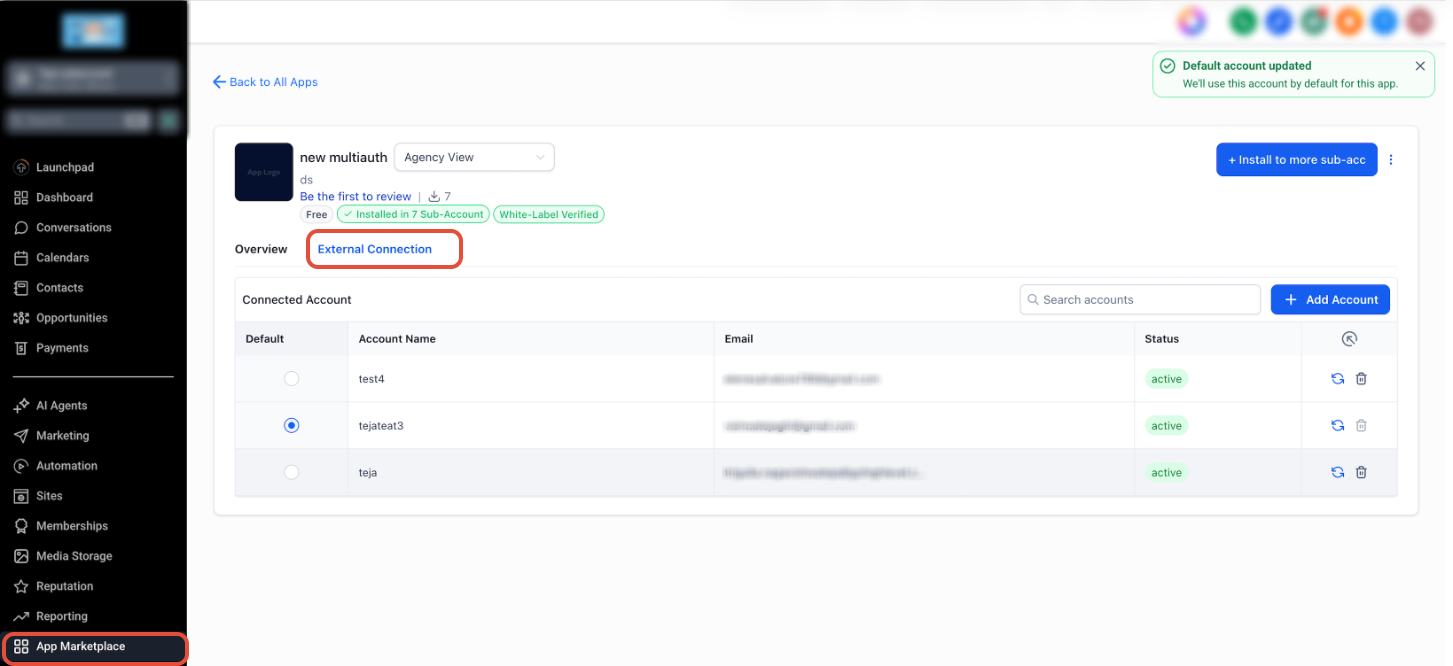
Multi OAuth expands a Marketplace app from a single connection model to a multi connection model. After installing an app that supports this feature, the External Connection tab appears inside the app’s settings. Each OAuth account you link is listed with its name, email or ID, and HighLevel securely stores and refreshes its token.
When several accounts are linked, you can search the list, refresh a token, set one account as the default, or remove an account entirely. The default selection determines which account the platform uses when a workflow or action does not specify a particular connection.
All of these actions are performed inside the HighLevel interface; no custom code or duplicate app installs are required. The feature works for any supported external service such as Google, Facebook, SurveyMonkey, or other OAuth based platforms.
03How businesses use multiOAuth support
- Digital marketing agency. The agency installs a social media reporting app that supports Multi OAuth. It adds each client’s Facebook ad account via the External Connection tab, sets the primary client as the default, and disconnects accounts that are no longer active.
- SaaS platform offering email integrations. The SaaS product enables each subscriber to link multiple email service provider accounts. Users click Add Account in the External Connection tab, complete the provider’s OAuth flow, and optionally mark one provider as the default for sending campaigns.
- Corporate internal marketing team. The team uses a survey tool integrated through Multi OAuth. They add separate SurveyMonkey accounts for different product lines, set the most used account as default, and later disconnect an outdated account when a product retires.
04Before you start
- A Marketplace app that supports Multi OAuth must be installed in the subaccount.
05How to set up and use multiOAuth support in HighLevel
Set a default connected account
- Navigate to App Marketplace.
- Open the installed Marketplace app.
- Select the External Connection tab.
- Find the account you want to set as default.
- Click the radio button in the Default column for that account.
- Verify the success message confirming the default was updated.
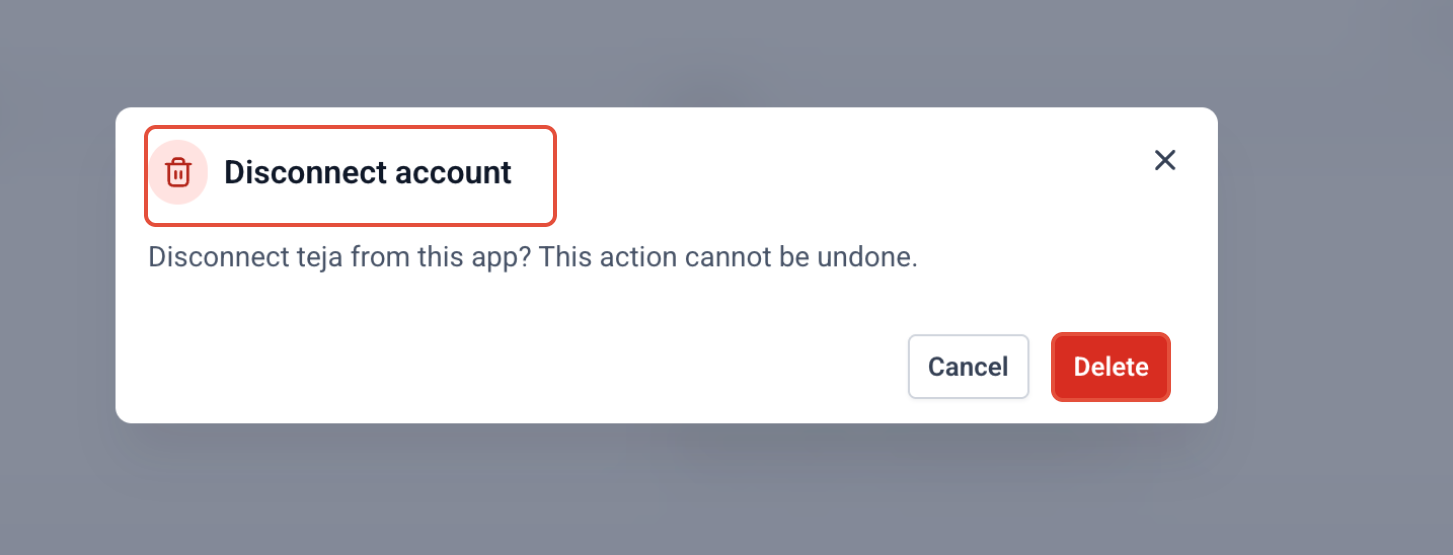
Disconnect an external account
- Navigate to App Marketplace.
- Open the installed Marketplace app.
- Select the External Connection tab.
- Locate the connected account you wish to remove.
- Click the delete icon next to that account.
- Read the confirmation prompt presented.
- Press Delete to complete the disconnection.
Add another external account
- Open the subaccount where the Marketplace app is installed.
- Go to App Marketplace.
- Choose the installed app.
- Open the External Connection tab.
- Click Add Account to start a new OAuth connection.
- Complete the external service’s OAuth authorization flow.
- Confirm the new account appears in the list of connected accounts.
06What it looks like in HighLevel
07Settings that matter
- Default column. Controls which connected OAuth account the platform uses when no specific account is selected in a workflow or action.
08Things to know before you rely on it
- Only Marketplace apps that are built with Multi OAuth support can connect multiple external accounts; existing apps require a new version that adds this capability.
- Apps without Multi OAuth support remain limited to a single external OAuth connection.
09How it connects to the rest of HighLevel
- Understand how OAuth consent works for Marketplace apps OAuth consent guide
- Learn about webhook retry behavior for Marketplace apps Webhook retries
- Set up and test workflow actions that use Marketplace apps Workflow actions setup
Michael's take

MultiOAuth support lets a small agency run one app and hook up each client’s Google or Facebook account without reinstalling anything.
Don’t forget to set a default account so the app knows which connection to use when you have several linked.