
01Who this is for
- Small ecommerce retailer, ensures customers receive timely replies during store hours while routing after hours messages to the support team.
- Service based agency, can set different schedules for booking bots versus lead capture bots, matching staff availability.
- Health clinic, uses the contact timezone option to respect patient local times and tags after hours inquiries for follow up.
02Working Hours for Conversation AI, explained
Working Hours gives each Conversation AI agent a schedule that defines when it may actively reply on selected channels. Outside the defined times the agent stays silent on those channels but can continue any conversation that started during working hours if the option is enabled.
The feature lives in the Deploy tab of an individual AI agent. After activation, you pick the channels, choose whether the schedule follows the contact’s local timezone or the business timezone, set daily start and end times, add extra slots for breaks, and configure after hours actions such as auto replies, tags, notifications, and follow up messages.
All settings are optional per agent. Channels not chosen keep responding according to their existing configuration, and Suggestive Mode still generates AI suggestions for the team after hours.
03How businesses use Working Hours for Conversation AI
- Dental practice. The practice creates a schedule that matches clinic hours and selects SMS and email channels. After hours auto reply informs patients of the next open slot, and contacts are tagged for later follow up.
- Real estate agency. Agents set separate working hours for lead capture bots and for booking bots, choosing the business timezone. Team notifications alert agents when prospects message after hours.
- Online tutoring platform. The platform applies Working Hours to the chat widget, uses contact timezones to respect student locations, and enables the follow up option so students who message late receive a reminder when tutoring resumes.
04The numbers and rules that matter
- Supported channels: SMS, Email, WhatsApp, Instagram, Facebook, Chat Widget, Live Chat, TikTok.
- Off Hours AutoReply triggers once per closed period.
- Team Notifications trigger once per closed period.
- Contact Tags are applied once per closed period.
05Before you start
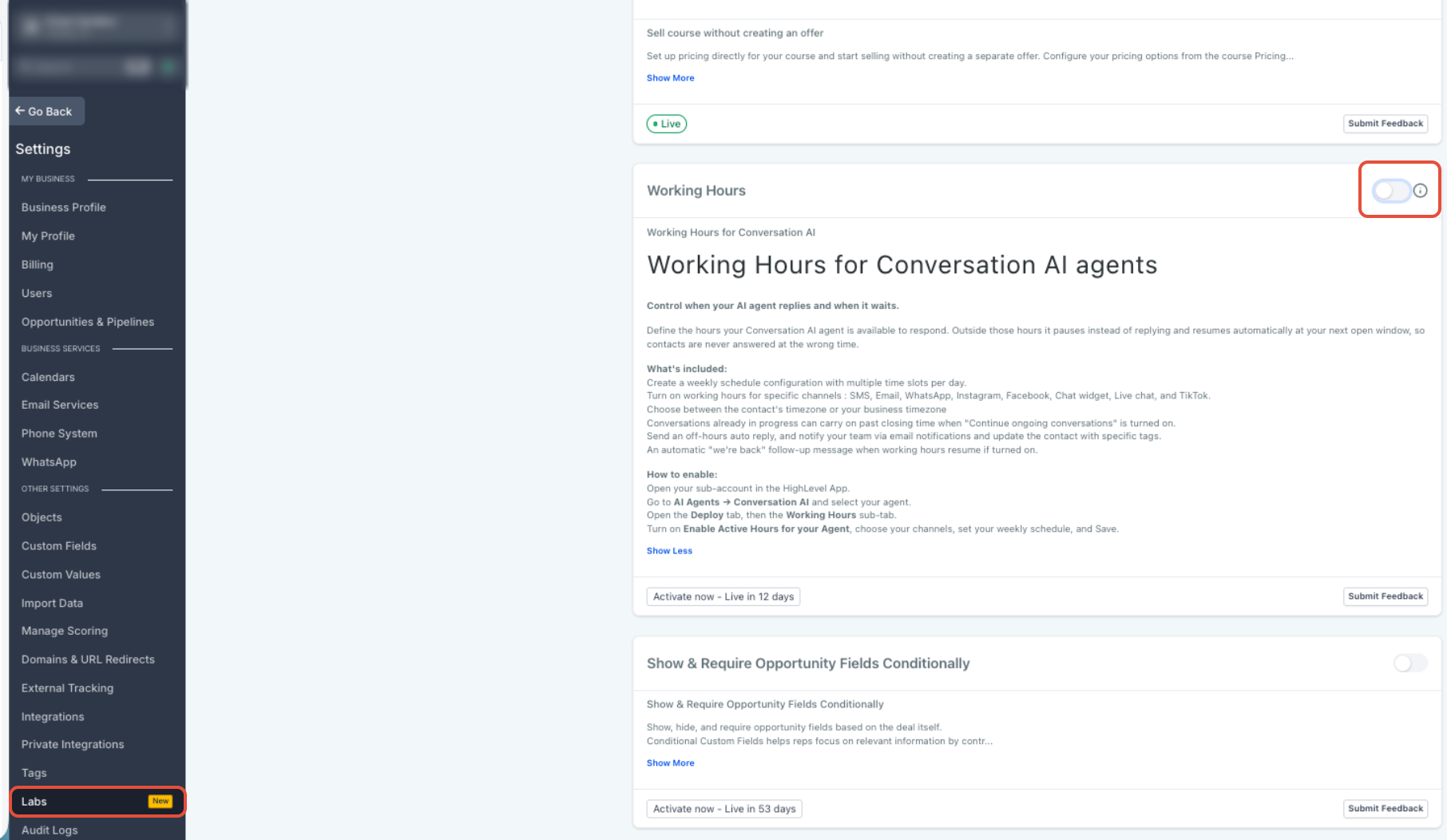
- Working Hours must be enabled in Settings > Labs before any agent can be configured.
06How to set up and use Working Hours for Conversation AI in HighLevel
Set up working hours for a Conversation AI agent
- Open Settings in the Subaccount view, select Labs, locate Working Hours and enable the feature flag.
- Navigate to AI Agents in the left menu, choose Conversation AI, open the Agents List and select the desired agent.
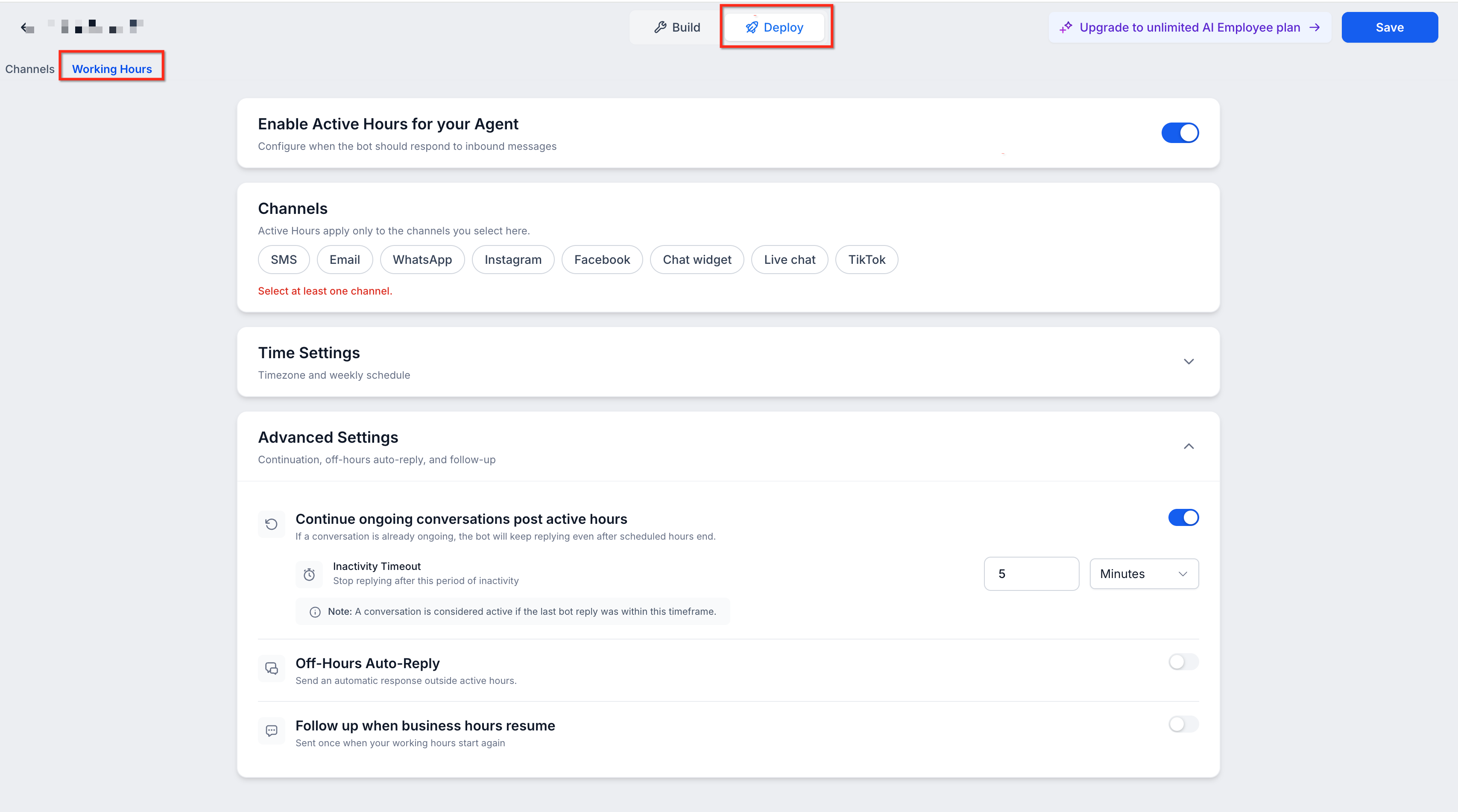
- Within the agent, click the Deploy tab and then choose Working Hours.
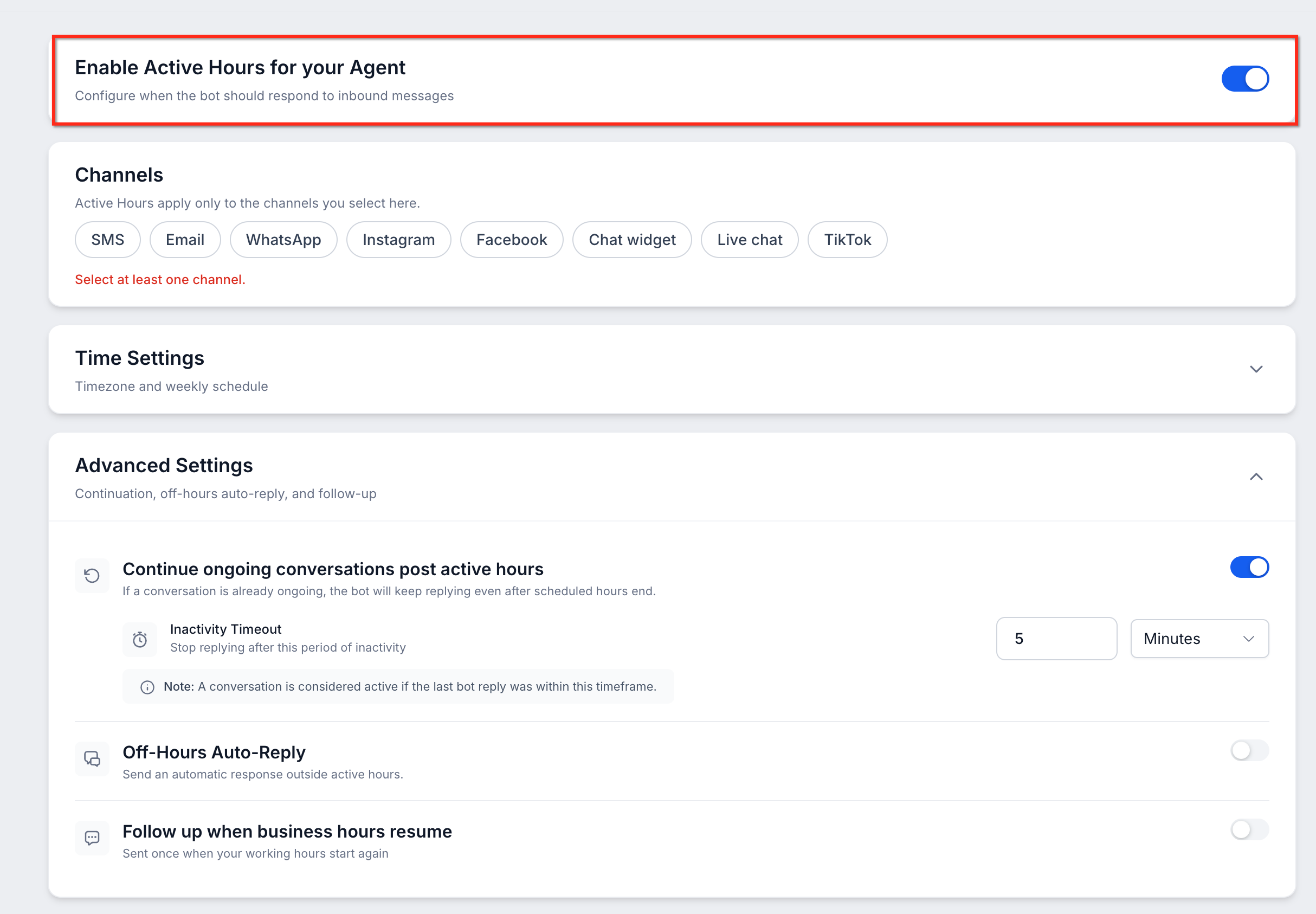
- Turn on the Active Hours toggle to activate the schedule.
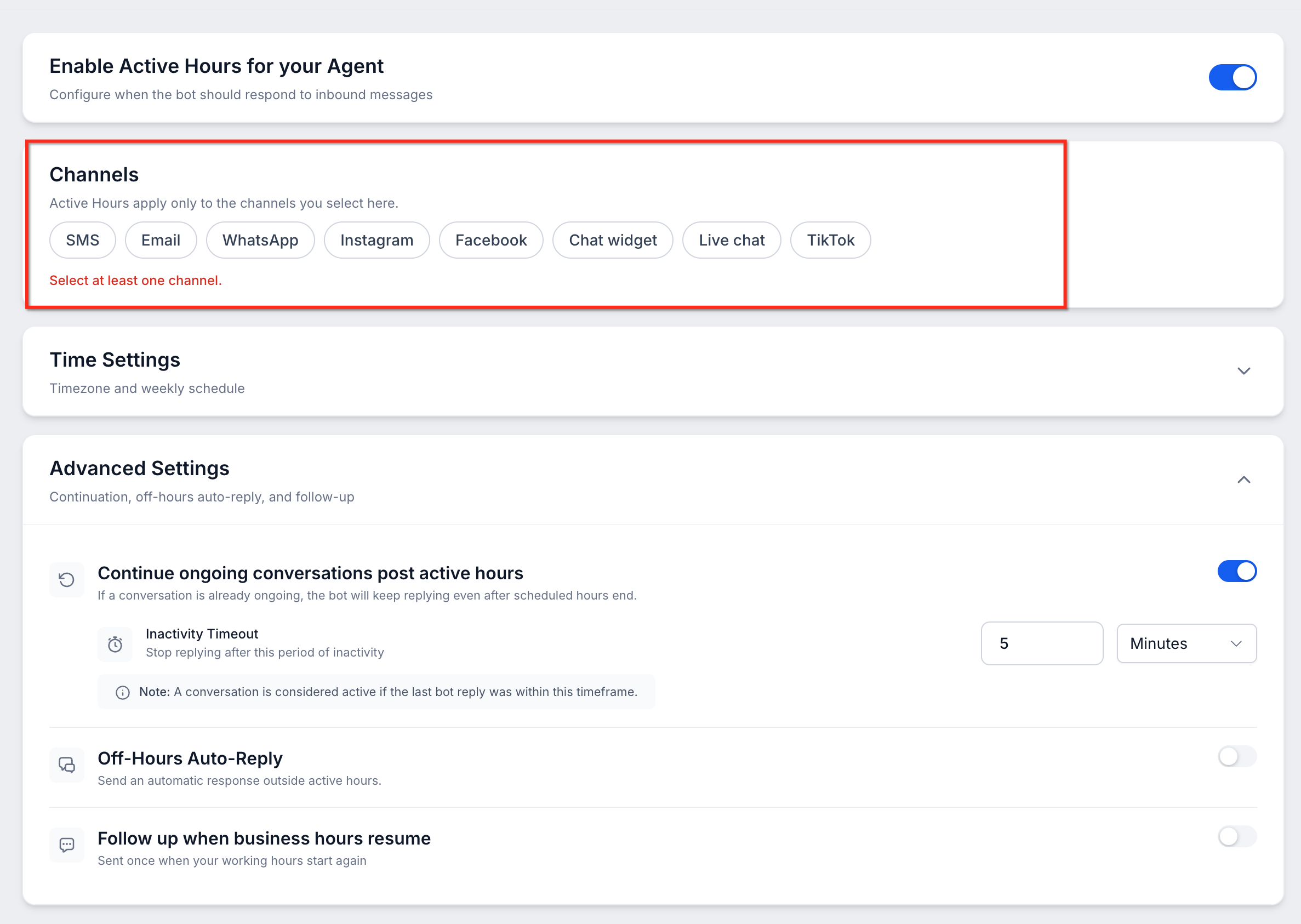
- Pick the communication channels that will follow the schedule, such as SMS, Email, or Chat Widget.
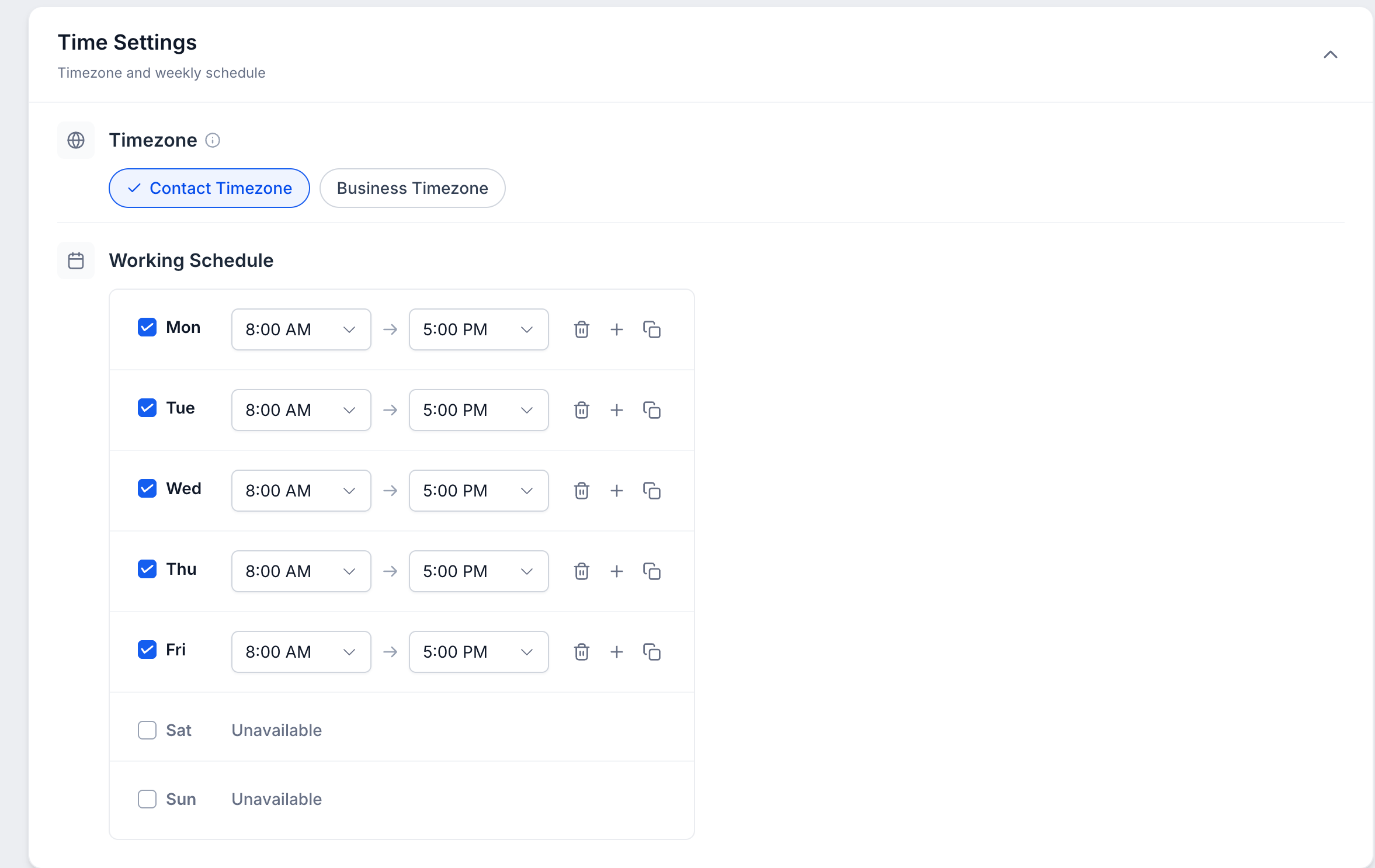
- Select whether the schedule should use Contact Timezone or Business Timezone.
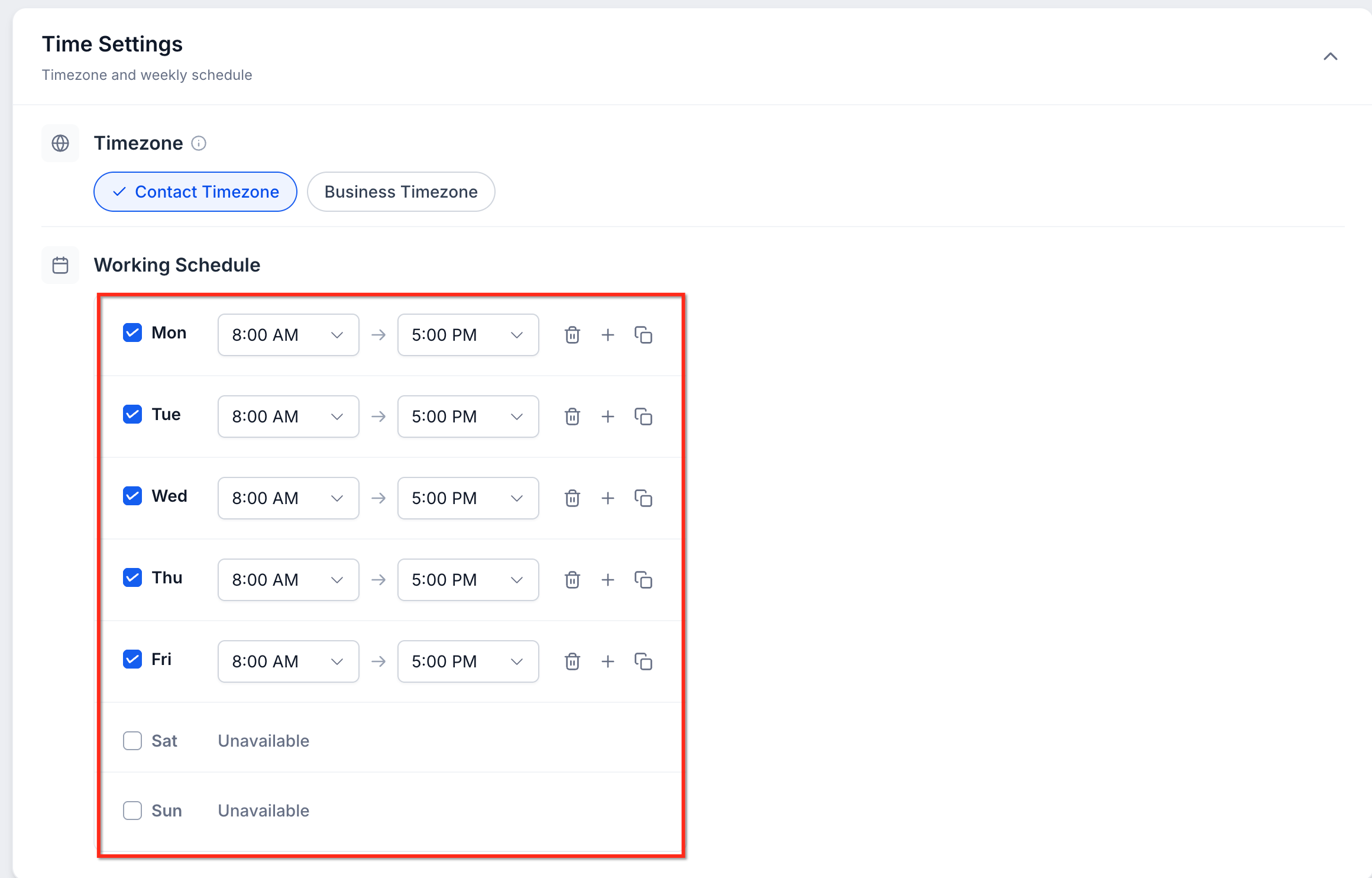
- Choose the working days, set start and end times for each day, and add extra time slots if needed.
- Enable the Continue Ongoing Conversations option to allow chats that started during work hours to keep going after closing.
- Turn on Off Hours Auto Reply and write the message that contacts will receive outside business hours.
- Activate Team Notifications and choose which admins, users, or email addresses should be alerted after hours.
- Select Contact Tags that will automatically be applied to contacts reaching out after hours.
- Enable Follow Up When Business Hours Resume to send a follow up message at the next open period.
- Review all selected channels, timezone, schedule, and after hours settings for accuracy.
- Click Save to apply the Working Hours configuration to the agent.
07What it looks like in HighLevel
08Settings that matter
- Active Hours. Turns the Working Hours schedule on for the selected agent.
- Channels. Determines which communication channels follow the Working Hours schedule.
- Timezone. Chooses between using each contact's local timezone or the business timezone for schedule evaluation.
- Working Days and Hours. Specifies the days, start times, end times, and any additional time slots for the agent's availability.
- Continue Ongoing Conversations. Allows a conversation that started during working hours to keep receiving replies after closing until it becomes inactive.
- Off Hours Auto Reply. Sends a predefined message to contacts who message outside the configured schedule.
- Team Notifications. Notifies selected admins, users, or custom email addresses when a contact reaches out after hours.
- Contact Tags. Automatically adds chosen tags to contacts who message after hours.
- Follow Up When Business Hours Resume. Dispatches a follow up message at the next working period unless the contact already received a response.
09Things to know before you rely on it
- Working Hours is optional; if left disabled, agents follow their original configuration.
- The schedule only affects channels selected during setup; other channels keep responding as before.
- In Suggestive Mode, AI suggestions continue to be generated for the team even after hours.
- When Advanced Follow Up also has Followup Hours, the agent's Working Hours take priority for overlapping channels.
- Agents can still be manually activated outside Working Hours through the conversation panel.
- Off Hours Auto Reply, Contact Tags, and Team Notifications each trigger only once per closed period.
- The feature is available through HighLevel Labs and must be enabled before use.
10How it connects to the rest of HighLevel
- Learn how to build a Conversation AI flow for your bot Conversation AI flow builder
- Manage bot status for individual contacts Bot status per contact
- Set up granular permissions for Conversation AI agents Granular permissions
Michael's take

Wondering if you really need a schedule for your AI bot? If you run a business that only serves customers during set hours, you’ll want the bot to respect that same rhythm. Working Hours lets you tell each Conversation AI agent when to answer, which channels to follow, and what to do when a message lands after the clock closes.
I’d start by turning the feature on in Labs, then map out the exact slots each bot should be live. After that, I’d set an off hours autoreply so customers know you’re closed, add a tag to keep those contacts organized, and enable a follow up for the next business day. That way you keep the conversation flowing without surprising anyone outside of your normal schedule.