
01Who this is for
- Customer support teams that need a fallback when agents are unavailable, ensuring callers still receive a response.
- Sales groups that want human interaction first but need an AI to catch missed calls after a short wait.
- Small businesses without full time phone staff, using AI only to field all WhatsApp calls.
02Voice AI for WhatsApp calls, explained
The feature adds an answering option for each WhatsApp number linked to a HighLevel subaccount. When a call arrives, the platform follows the selected mode to either ring staff, hand off to an AI agent, or go directly to the AI.
Settings for each number let you pick up to six team members, choose an existing Voice AI agent, and define a wait period (10, 15, 20, or 30 seconds) before the AI answers. Changes can be saved at any time.
03How businesses use Voice AI for WhatsApp calls
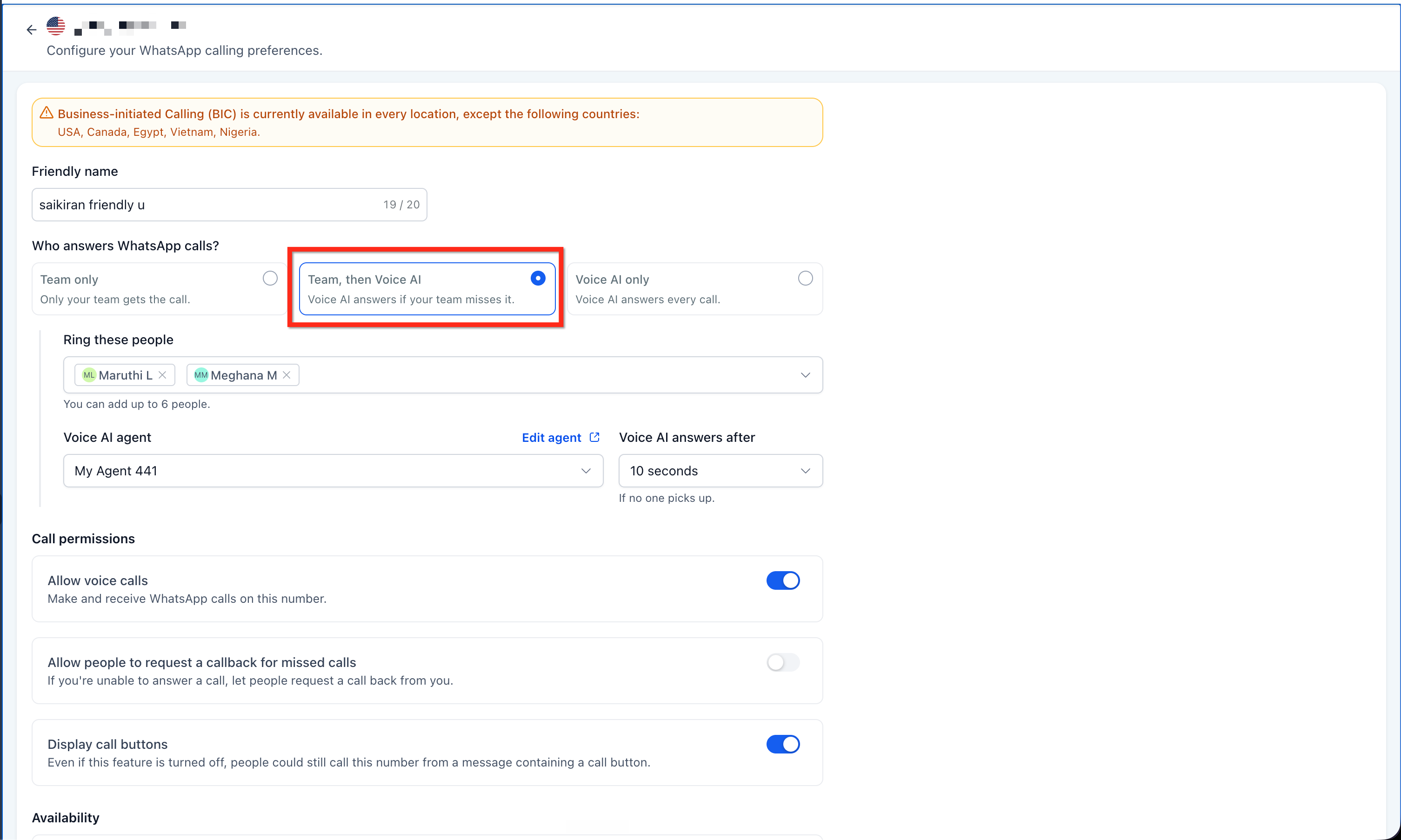
- Customer support center. Select Team, then Voice AI mode, assign the support agents, and set a 20 second wait. Calls ring the agents first; if none answer, the Voice AI agent greets the caller.
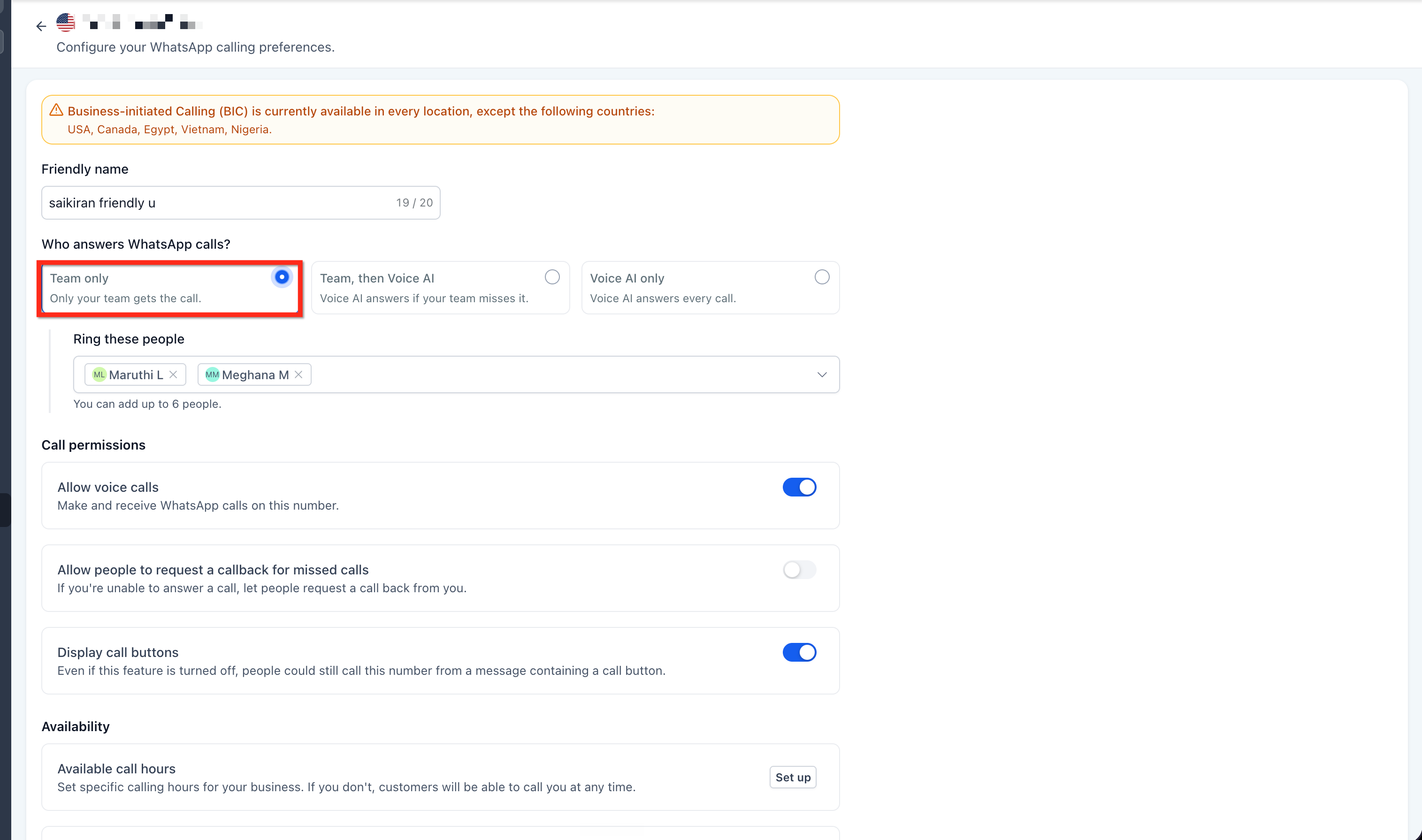
- Sales outreach team. Choose Team only mode so that inbound WhatsApp calls always ring the sales reps. No Voice AI is involved, keeping the interaction fully human.
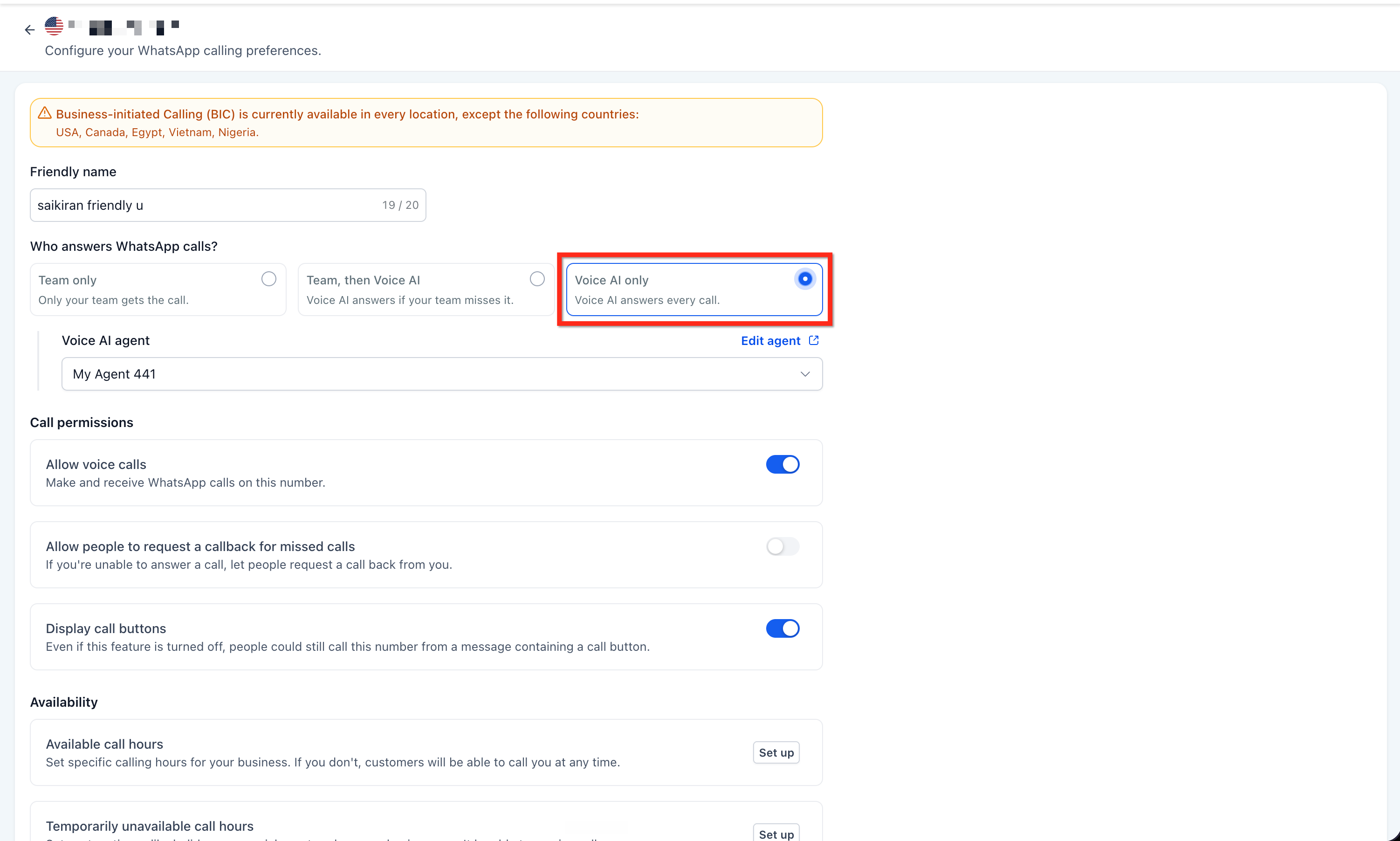
- Boutique online shop. Pick Voice AI only mode, link the shop's existing Voice AI agent, and let the AI answer every WhatsApp call without ringing any staff.
04The numbers and rules that matter
- You can select up to six team members per number.
- Voice AI answers after options are 10, 15, 20, or 30 seconds; default is 20 seconds.
05Before you start
- WhatsApp Calling must be enabled for the number you want to configure.
- You must have at least one Voice AI agent created in HighLevel.
06How to set up and use Voice AI for WhatsApp calls in HighLevel
Set up Voice AI for WhatsApp calls
- In the subaccount, open Settings > WhatsApp > Calling and select the desired WhatsApp number.
- Confirm that the Allow voice calls toggle is turned on.
- Under Who answers WhatsApp calls?, choose either Team, then Voice AI or Voice AI only.
- From the Voice AI agent dropdown, pick the agent you want to handle calls.
- If you chose Team, then Voice AI, add up to six team members and set the Voice AI answers after time.
- Press Save to store the configuration.
07What it looks like in HighLevel
08Settings that matter
- Allow voice calls. Enables or disables inbound voice calling for the selected WhatsApp number.
- Who answers WhatsApp calls?. Determines the answering mode, Team only, Team then Voice AI, or Voice AI only.
- Voice AI agent. Selects which existing Voice AI agent will answer calls when that mode is active.
- Team members. Specifies up to six staff members who will receive the incoming call ring.
- Voice AI answers after. Sets the wait time before the AI picks up, with options of 10, 15, 20, or 30 seconds.
09Things to know before you rely on it
- You can assign a maximum of six team members per WhatsApp number.
- The wait time options for Team, then Voice AI are limited to 10, 15, 20, or 30 seconds, with 20 seconds as the default.
- Voice AI only mode does not require any team member selection or wait time setting.
10How it connects to the rest of HighLevel
- Create or edit the Voice AI agent that will answer WhatsApp calls Voice AI agent setup
- Review all AI Employee capabilities and related features AI Employee overview
- Start a 30 day trial to test Voice AI for WhatsApp 30 day trial
Michael's take

Michael ReimerFounder of CRM Pros, HighLevel Commander and Certified Admin
Voice AI for WhatsApp calls can help manage incoming calls when the team is unavailable.
Don’t set the wait time too short and cut off a genuine human interaction.
Get More InformationOpens on HighLevelPublished November 3, 2026 · Updated November 17, 2026